Turnover list

Learn how to read the Logzi Turnover list page: a monthly chart and table with the net, gross and settled value of customer orders, invoices, proforma invoices, advance invoices, incoming invoices and receipts, with settlement bars and XLSX download.

Feature overview

On the Turnover list page you see your company turnover month by month: for every month it shows the value of customer orders, incoming invoices, proforma invoices, advance invoices, final invoices and receipts, and how much of it has already been settled. The page does not list individual documents, it summarises them: one row is one calendar month, and the numbers are the totals of the documents dated in that month. It helps you quickly answer questions such as:

  • How much did we invoice each month, and how does this develop over the year?
  • How much of the issued invoices is still unsettled, that is, how much money is still outstanding at customers?
  • How many incoming invoices did we receive compared to sales, and how much of that have we already paid?
  • How large was the order backlog in a month, and how does it compare to the invoiced value?
  • Monthly bar chart: four bars per month (customer order, sales, incoming invoice, in-store sale) show the gross turnover, so months that stand out are visible at a glance.
  • Monthly table: a separate column for each document type, with net, gross and settled values in every cell.
  • Settlement bar: the bar under a cell shows what percentage of the gross amount is already settled.
  • Period filter: on the Search tab you choose the months to display with the Document date date pair.
  • XLSX download: on the Actions tab you can export the monthly data to a spreadsheet.
  • Related views: at the top of the page, next to Turnover list, you also see the Detailed list and Operational statistics tabs. These are separate pages that report on the same topic from a different angle; this article covers only the Turnover list.

The Turnover list is a statistics page, so it has no states, views or sub-modules of its own beyond the two tabs (Actions, Search). However, only documents in certain states are included in the numbers: documents in Draft, Cancellation and Cancelled state are left out, every other state is counted. The details are in the Frequently asked questions section.

Step by step

1. Opening the page

Click Main menu / Sales / Statistics / Turnover list to open the page. You can also reach it via Main menu / Analytics / Turnover list if the Analytics block is visible in the sidebar. When the page opens, the Search tab is active and the period runs from 1 January of the current year to the end of the current month, so you immediately see the turnover of the year so far. The screenshots were taken in the Hungarian demo interface.
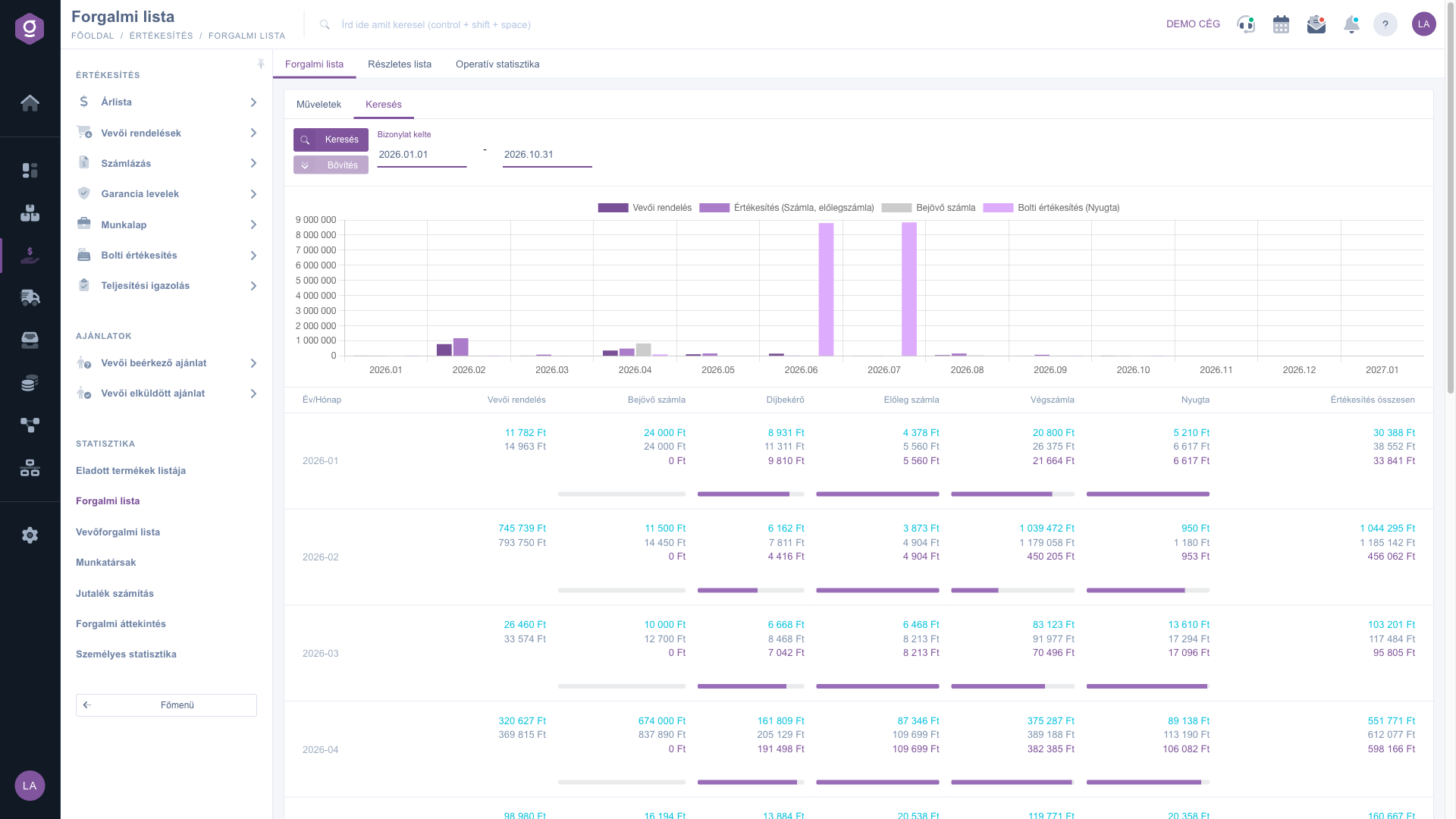
Turnover list – Search tab: period filter, monthly bar chart and monthly table

Three tabs are shown at the top of the page: Turnover list (this page), Detailed list and Operational statistics. The last two are separate pages; click the tab to switch to them.

2. Reading the monthly bar chart

Under the filter, the horizontal axis of the chart shows the months (year.month) and the vertical axis shows the gross amount in the default currency. Each month has four bars. The legend labels are shown in Hungarian on the screen in every language; the English meaning is given first, the on-screen label in brackets:

  • Customer order (dark purple, on screen: Vevői rendelés): gross value of the customer orders dated in the month.
  • Sales (invoice, advance invoice) (medium purple, on screen: Értékesítés (Számla, előlegszámla)): sum of the gross values of final invoices and advance invoices.
  • Incoming invoice (grey, on screen: Bejövő számla): gross value of the incoming invoices dated in the month.
  • In-store sale (receipt) (light purple, on screen: Bolti értékesítés (Nyugta)): gross value of the in-store sale receipts.

The chart always shows gross values; net and settled values are in the table. The Proforma invoice is not on the chart because it is not yet actual sales. The same deal may appear first as a customer order and later as an invoice, so do not add up the chart bars: read the order bar and the invoice bar side by side to see how much of the month order backlog has been invoiced.

3. The monthly table and the three numbers in a cell

In the table under the chart, one row is one month (Year/Month) and the columns are document types: Customer order, Incoming invoice, Proforma invoice, Advance invoice, Final invoice, Nyugta (receipt) and Total sales. In the document type cells three numbers are stacked, with a bar below them:

  • Top, bluish (cyan) number: the net total value (hover over it to see the label Net total value).
  • Middle, grey number: the gross total value (Gross total value).
  • Bottom, purple number: the settled total value (Settled total value) — the settlements recorded on the documents, that is, the amount already paid (for incoming invoices: the amount already paid out).
  • Bar: the settlement ratio, that is, what percentage of the gross amount is settled. Hovering over the bar shows a text like Gross total value 38% settled.

The Customer order cell has only two numbers (net and gross) because orders have no settlement, so there is no bar either. The Total sales cell also shows three numbers but has no bar.

Example from the demo data (row 2026-02): in the Final invoice column the net value is 1 039 472 Ft, the gross value is 1 179 058 Ft and the settled value is 450 205 Ft, and the bar ends at about 38%. This means that roughly 728 853 Ft of the gross value of the invoices dated in February is still unsettled. The net Total sales in the same row is 1 044 295 Ft, which is the sum of the net values of Advance invoice (3 873 Ft), Final invoice (1 039 472 Ft) and Nyugta (950 Ft).

Tip


If the Final invoice bar of a month is strikingly short, the month has many unsettled invoices. Open the Invoice list, filter on the Document date of that month and review which invoices are still waiting for settlement, so you can start payment reminders in a targeted way.

4. Setting the period on the Search tab

On the Search tab, use the Document date field pair (start and end date) to set the months you want to see. Pick the date from the calendar or type it in, and click Search to refresh the chart and the table. The Expand button is grey and not usable on this page because there are no further filter fields.

It is important to know that the filter selects months, not days: if you enter 2026.03.15 – 2026.05.10, the system shows the whole of March, April and May, with all documents of those months. The month list may also continue beyond the end date: on the demo data, with the end date 2026.10.31 the list runs to 2027.01, and the rows after the end month show 0 Ft.
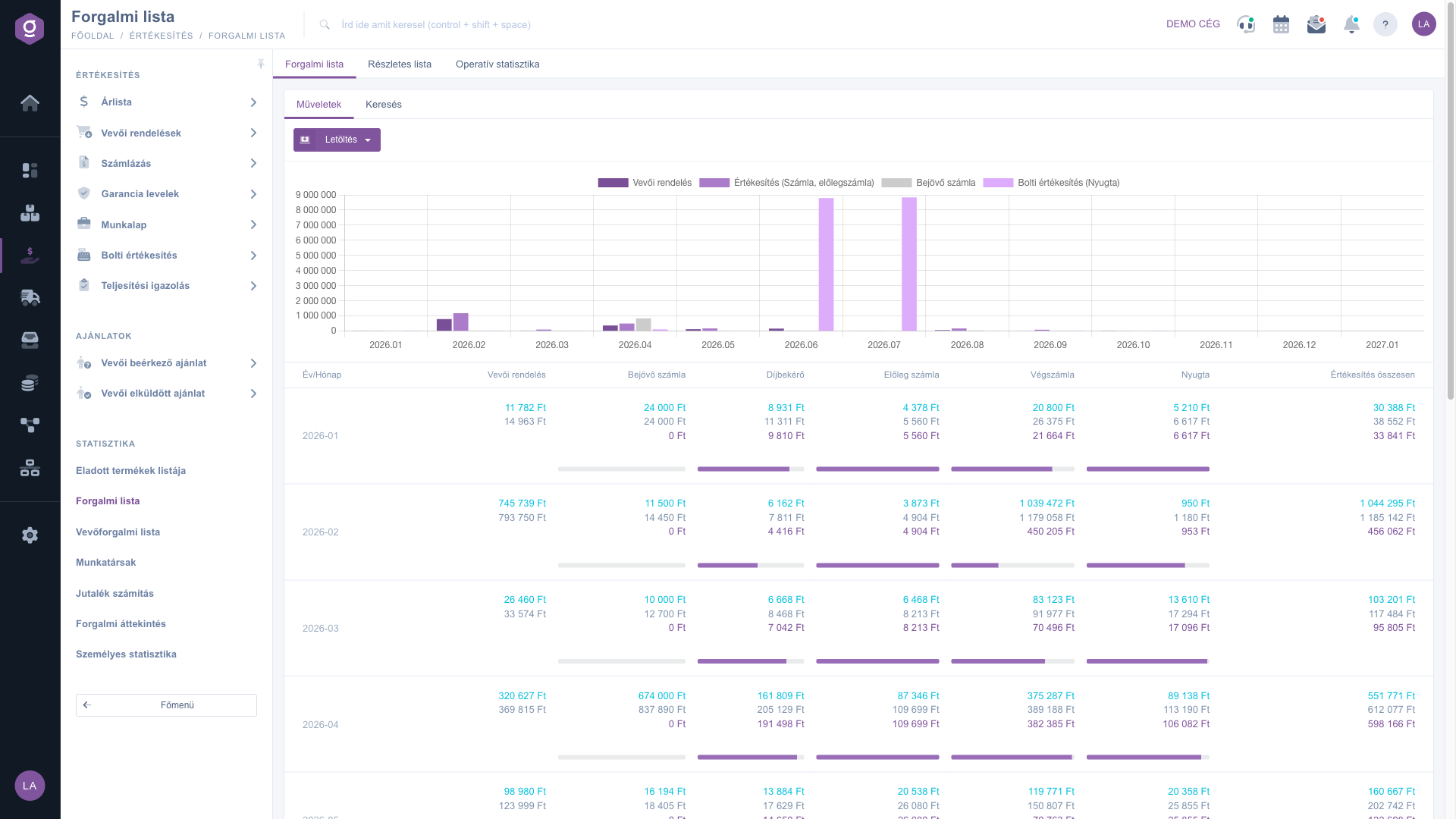
Turnover list – Actions tab: Download button above the monthly chart and table

5. Downloading to a spreadsheet

On the Actions tab, click Download and choose XLSX lista from the dropdown to save the monthly data as an Excel file (receipt-list.xlsx). The download uses the current values of the date fields of the Search tab, so set the period you need first and download afterwards. The file contains one row per month; the meaning of the columns is explained in the Frequently asked questions section.

Tip


If you have to send a monthly summary to your accountant or management, set the requested months in the Document date fields, check the chart for unexpectedly high or low months, and then download the XLSX lista file. To compare two years, enter 1 January of the previous year as the start date: you then get the months of both years in a single file.


You can review the documents behind the monthly numbers on the matching lists: read about invoices in the Invoice list guide, about customer orders in the Customer orders list guide, and about receipts in the In-store sale list guide.

Field descriptions

The columns of the monthly table, their meaning and how they are calculated. All values are shown in the default currency; documents issued in another currency are converted at the exchange rate recorded on the document.

ColumnWhat it showsHow it is calculated
Year/MonthThe calendar month of the row in YYYY-MM format (e.g. 2026-02).Documents fall into the month of their Document date; the performance date does not matter.
Customer orderValue of the customer orders dated in the month: net and gross (two numbers).Sum of documents of the customer order type; documents in Draft, Cancellation and Cancelled state are left out. There is no settlement and no bar.
Incoming invoiceValue of the incoming (supplier) invoices dated in the month: net, gross, settled and bar.Sum of documents of the incoming invoice type, with the same state exclusion. The settled value is the amount already paid.
Proforma invoiceValue of the proforma invoices issued in the month: net, gross, settled and bar.Sum of documents of the proforma invoice type. A proforma invoice is not an actual invoice, so it is not part of the Total sales column.
Advance invoiceValue of the advance invoices issued in the month: net, gross, settled and bar.Sum of documents of the advance invoice type.
Final invoiceValue of the invoices issued in the month: net, gross, settled and bar.Sum of documents of the invoice type.
Nyugta (receipt)Value of the in-store sale receipts dated in the month: net, gross, settled and bar.Sum of the in-store sale documents. The header of this column is Nyugta in every language.
Total salesTotal sales of the month: net, gross and settled value (without a bar).Advance invoice + Final invoice + Nyugta; the three values are summed separately. Customer order, Proforma invoice and Incoming invoice are not included.

The elements of a document type cell:

ElementAppearanceMeaning
Net total valueTop number, bluish (cyan)Net value (without VAT) of the documents of the month.
Gross total valueMiddle number, greyGross value (including VAT) of the documents of the month.
Settled total valueBottom number, purpleSum of the settlements recorded on the documents (the amount received on the sales side, the amount paid for incoming invoices).
Settlement barBar under the cellSettled amount / gross amount, rounded down to a whole percent (e.g. 38%). For a fully settled month the bar is full.

The series of the chart (all show gross values):

SeriesColourWhat it contains
Customer order (Vevői rendelés)Dark purpleGross value of the customer orders of the month.
Sales (invoice, advance invoice) (Értékesítés (Számla, előlegszámla))Medium purpleGross value of Final invoice + Advance invoice.
Incoming invoice (Bejövő számla)GreyGross value of the incoming invoices of the month.
In-store sale (receipt) (Bolti értékesítés (Nyugta))Light purpleGross value of the receipts of the month.

Fields of the Search tab:

Field / ElementRequiredDescription
Document date (start date)First month of the period. By default 1 January of the current year. If you leave it empty, the list starts from January 2020.
Document date (end date)Last month of the period. By default the last day of the current month.
Search buttonReloads the chart and the table with the set period.
Expand buttonInactive on this page because there are no further filter fields.

Elements of the Actions tab:

Field / ElementRequiredDescription
Download > XLSX listaExports the monthly rows of the period of the Search tab to an XLSX file.

Frequently asked questions

A cell is 0 Ft when there is no document in that month (by Document date) that the page counts. There are three typical reasons: no document of that type was actually created in the month (for example a month that has not started yet); the document is still in Draft state; or the document is in Cancellation or Cancelled state, which the page leaves out. Check on the relevant list page that the document is finalised and that its date really falls in that month.

The most common reasons: (1) the page assigns documents to the month of their Document date, the performance date does not count, so an invoice dated at the end of a month but performed in the next month appears in the month of its date; (2) documents in Draft, Cancellation and Cancelled state are left out, although they may appear in the list; (3) only the Final invoice, Advance invoice, Proforma invoice and Incoming invoice types count, other document types do not; (4) the Turnover list shows net, gross and settled values, so always compare gross with gross and net with net; (5) documents in a foreign currency appear here converted to the default currency. For more details, see also the Invoice list guide.

The three numbers of a cell, from top to bottom: the bluish (cyan) one is the net total value, the grey one is the gross total value, the purple one is the settled total value. Hover over the numbers to see the label. The bar under the cell is the ratio of the settled and the gross amount: the longer it is, the larger part of the documents of the month is settled. The bar is not shown in the Customer order and Total sales columns.

The Total sales column is the sum of the Advance invoice, Final invoice and Nyugta values (net, gross and settled value separately). It does not include the Proforma invoice (not yet an actual invoice), the Incoming invoice (purchasing side) or the Customer order (an order not yet fulfilled). On the chart, the series Értékesítés (Számla, előlegszámla) contains only final invoices and advance invoices, while receipts are a separate bar (Bolti értékesítés (Nyugta)), so the sum of these two bars gives the gross total sales of the table.

The Document date pair determines which months appear as rows; the numbers of a month always sum up the whole month, day precision does not apply. After the end date the list may continue with a few empty (0 Ft) months. If you clear both dates, the list starts from January 2020. The filter only changes the displayed months; the total of an individual month does not depend on it.

Documents issued in a currency different from the company default (for example EUR) are converted to the default currency (Ft in the demo) at the exchange rate recorded on the document, and every value on the page is shown in this currency. So a foreign currency invoice appears here with the value calculated at the rate of its issue, not with the foreign currency amount shown on the invoice.

The downloaded receipt-list.xlsx file has one row per month, and the column headers are technical names: date_ym (Year/Month), currency_sign (currency sign), and, per document type, a prefix: order_in_ (Customer order), invoice19_ (Incoming invoice), invoice33_ (Proforma invoice), invoice13_ (Advance invoice), invoice8_ (Final invoice), cash_register_ (Nyugta). The suffix shows the value: price_netto (net), price_brutto (gross), compensate_amount (settled). Customer orders have no settled column, and the file does not contain the Total sales column; you can add it up in your spreadsheet.

The Turnover list appears under Main menu / Sales / Statistics (and in the Analytics block) only if the module is assigned to your user. If you do not see it, ask your system administrator to check the module assignment in your user settings.

Need personalized help?

Don't want to spend hours searching for a solution? Choose the most efficient way: book a personalized, 45-minute online training session dedicated entirely to you. Whether it's a walkthrough of the basics or a detailed setup of a specific module, our expert colleague will guide you through the whole process, step by step.

Don't waste your time - ask for help!
Our goal is to get you using our system as quickly and efficiently as possible. Whether you're completely new to us or stuck on a specific setting, don't hesitate to ask for help!

Logzi warehouse management software

Get in touch with us

Interested in our software? Feel free to write to us!

Need help?

If you can't find the answer and need assistance

Create your account now,
pay later!

Try it free for 3 days, no risk, no obligation!
