On this page you can see how much each colleague (user) of your company sold per day: how many customer orders, invoices and in-store sales (receipts) they recorded, what gross amount and what profit these represent, and how many new partners they added to the system. The page answers the question who sold how much, and when — for example for a monthly performance review, for checking the daily turnover of store colleagues or for comparing sales people. It is not a document list: you do not open or edit documents here, you only view a summary calculated from documents that have already been recorded.
The page has two tabs: the Actions tab (with the Download button) and the Search tab (the colleague and period filters) — when the page opens, the Search tab is active. Whether a document is counted in the summary is decided by its status: of the Invoice documents the Closed and Corrective ones, of the customer orders and in-store sales the Closed and Fulfilled ones are counted. Draft, Cancellation and Cancelled documents are left out.
Click Main menu / Sales / Statistics / Colleagues to open the page (in the Sales menu Statistics is a group heading under which the statistics pages are listed). You can also reach it via Main menu / Analytics / Colleagues. When it opens, the period is set to today and all colleagues are included, so at first you only see today's turnover.
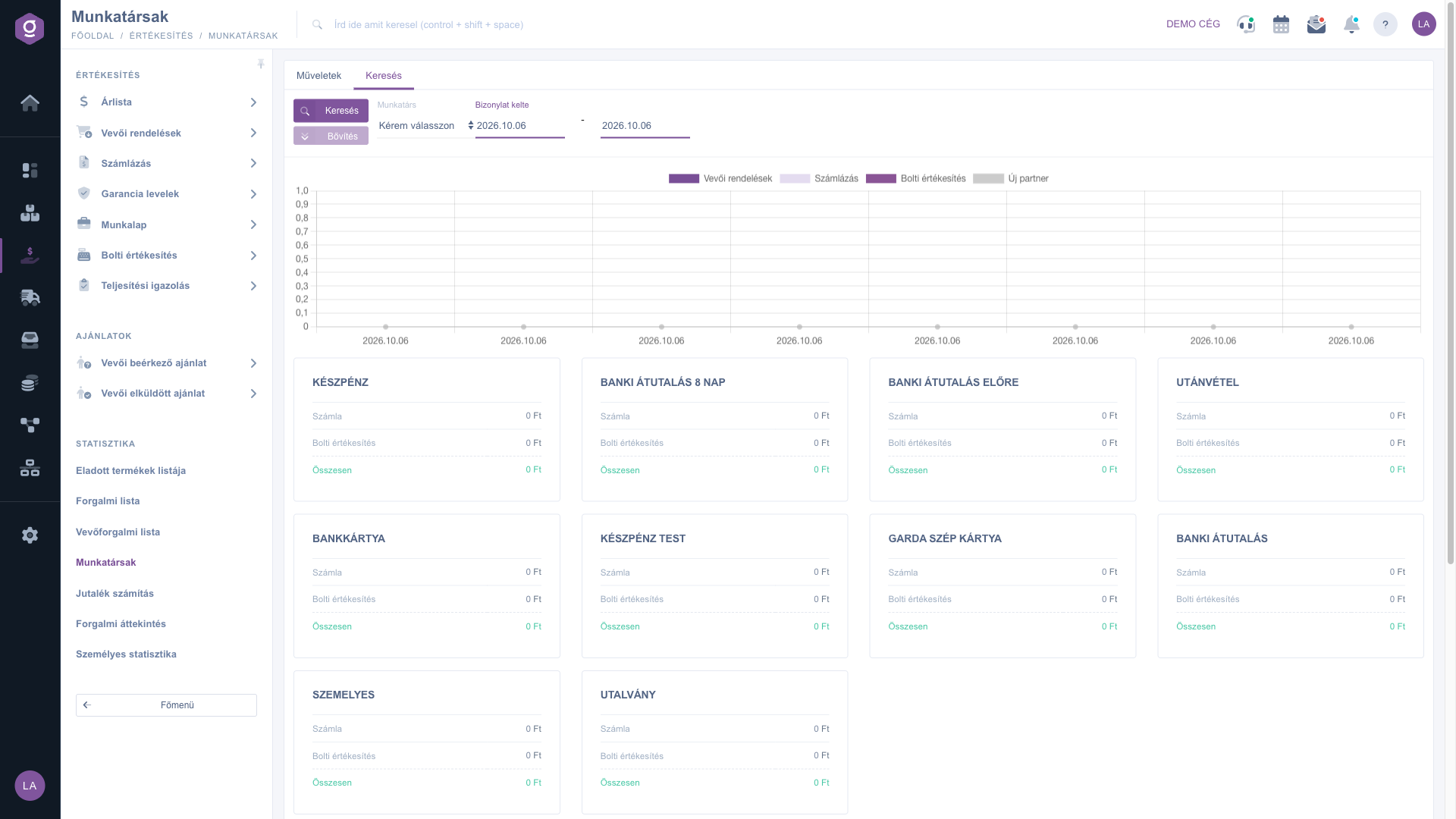
On the Search tab you can set two filters, then refresh the result with the Search button:
The Expand button below the Search button is inactive on this page, there is no further filter.
The page calculates every number from documents that have already been recorded, per day:
Example: if a colleague closes an invoice with a gross amount of 120 000 Ft today and records an in-store sale of 30 000 Ft, in today's row the Invoice count is 1, the Invoice sales is 120 000 Ft, the Receipt count is 1 and the Retail sales is 30 000 Ft. If the invoice is still a Draft, it does not appear yet.
Above the table the chart draws a group of columns for every row (i.e. every day and colleague): the gross amount of the Customer orders, the invoicing and the retail sales, and with a line the number of New partner. If more colleagues are in the result, the same date appears several times on the horizontal axis — once per colleague. For a clear chart it is worth selecting one colleague.
The cards below the chart sum up the turnover of the selected colleague for the whole period by payment method: the Invoice row gives the gross amount of invoices, the Retail sales row the gross amount of receipts, the Total row the sum of the two. Customer orders are not included in the cards.
Each row of the table is one day for one colleague: the counts and amounts are shown in separate columns for customer orders, invoices and in-store sales, next to them the invoice and store profit and the number of new partners added that day. Rows are ordered by date, and within a date by colleague ID. The bottom Summarized row gives the total of the whole table (all displayed days and colleagues). The exact meaning and calculation of the columns can be found in the Field descriptions section.
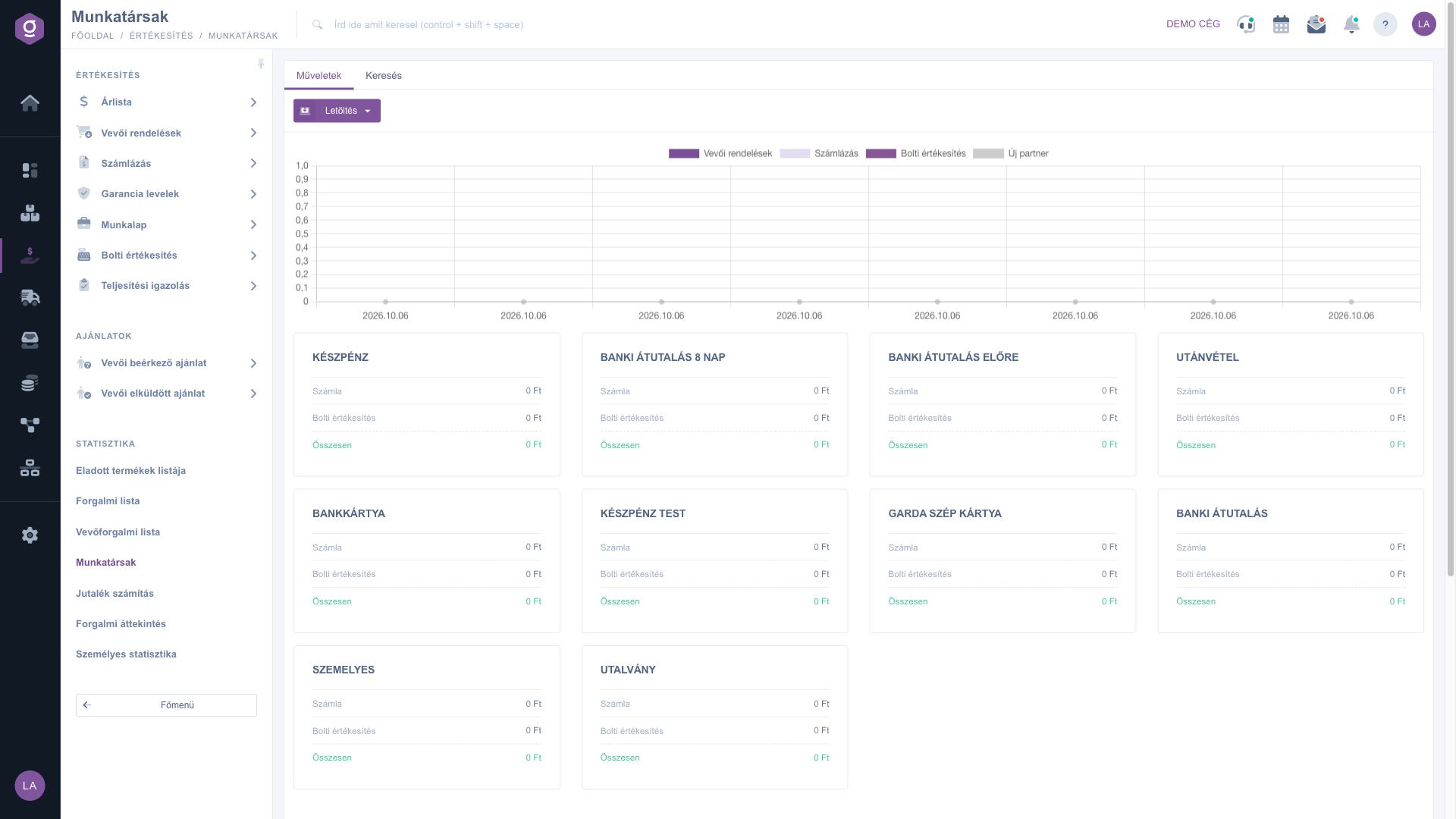
On the Actions tab, in the dropdown of the Download button, the XLSX lista option exports the list to an Excel spreadsheet. The download is made for the Document date period set on the Search tab. The columns of the exported file are the technical column names of the system (for example invoice_brutto, cash_register_count), and it contains no summary row — their exact meaning is explained in the FAQ.
For a monthly performance review enter the first and last day of the month, choose the sales person, and look at the payment method cards right away: with one search you see how much they received in cash, by bank card and by bank transfer. Do not add up the Customer order and the Invoice sales columns: an order later becomes an invoice, so the same deal can appear in both.

The filter fields of the Search tab and their meaning:
| Field / Element | Required | Description |
|---|---|---|
| Employee | A colleague (user) of the company. If it stays on Please choose, all colleagues are shown in the result; the payment method cards show a value only for a selected colleague. | |
| Document date (from) | The first day of the period (e.g. 2026.09.01). It always has a value: if left empty the system uses today. | |
| Document date (to) | The last day of the period (e.g. 2026.09.30), this day is included. If left empty the system uses today. | |
| Search button | Recalculates the chart, the cards and the table with the given filters. | |
| Expand button | Inactive on this page, it does not open any further filter field. |
The data series of the chart:
| Series | Appearance | What it shows |
|---|---|---|
| Customer orders | column | The gross amount of the counted customer orders the colleague recorded that day. |
| Invoicing (the legend currently shows the Hungarian text Számlázás) | column | The gross amount of the counted invoices the colleague issued that day. |
| Retail sales (the legend currently shows the Hungarian text Bolti értékesítés) | column | The gross amount of the counted in-store sales the colleague recorded that day. |
| New partner | line | The number of new partners the colleague added that day (a count, not an amount). |
The rows of the payment method cards (the card title is the name of the payment method as recorded in the system):
| Row | How it is calculated |
|---|---|
| Invoice | The gross amount of the counted invoices of the selected colleague dated in the period that carry this payment method. |
| Retail sales | The gross amount of the counted in-store sales of the selected colleague recorded in the period with this payment method. |
| Total | The sum of the two rows above. Customer orders are not included. |
The columns of the table and their meaning (the counting rules for invoices, orders and in-store sales are in point 3 of the Step by step section):
| Column | How it is calculated |
|---|---|
| Date | The day the row refers to (by the Document date of the documents), e.g. 2026.10.06. |
| Colleague | The name of the colleague — the user who recorded the document and appears on it as the colleague. |
| Customer order count | The number of counted (Closed or Fulfilled) customer orders recorded by that colleague on that day. |
| Customer order | The gross amount of these orders in Ft (header tooltip: Gross amount). |
| Invoice count | The number of counted (Closed or Corrective) invoices issued by that colleague on that day. |
| Invoice sales | The gross amount of these invoices in Ft. |
| Invoice profit | The sum of the profit recorded on the items of these invoices (the difference between selling and purchase price) in Ft. It is accurate only for items whose purchase price is known. |
| Receipt count | The number of counted (Closed or Fulfilled) in-store sales recorded by that colleague on that day. |
| Retail sales | The gross amount of these in-store sales in Ft. |
| Store profit | The sum of the profit recorded on the items of these in-store sales in Ft. |
| New partner | The number of new partners that colleague added to the system on that day. |
| Summarized (last row) | The sum of all rows of the table per column: both the counts and the Ft amounts are added up. |
The most common reason is that the period is by default only today, and there is no counted document yet today. Set the Document date fields to a wider period. If the result is still zero, check the status of the documents: Draft invoices and Cancellation and Cancelled documents are not counted, and invoices must be Closed or Corrective. Also check that the document was really recorded by the selected colleague and that the document date falls in the period (the performance date does not count).
Because the page creates a separate row for every day and every colleague. If no colleague is selected, the same date appears as many times as you have colleagues — with zero rows for colleagues without turnover. Select one colleague and every day has only one row and one group of columns. Querying a long period (for example several years) can be slow, so it is better to view it in months or quarters.
The cards always sum up the turnover of one specific colleague. If the Employee field is on Please choose, the cards show zero, while the table and the chart contain all colleagues. Select the colleague and refresh the page with the Search button. The cards sum up the whole period in one, without a daily breakdown, and contain only invoices and in-store sales, not customer orders.
Some rules differ from those of the lists: here only Invoice type documents count (Advance invoice and Proforma invoice do not), and only Closed or Corrective ones; the period is determined by the Document date, not by the Performance date; the turnover is assigned to the colleague who recorded the document, not to the Sales representative; amounts of foreign currency documents are converted to Ft with the exchange rate of the document; and amounts are rounded to whole forints. If you set the filters of the list in the same way, the result should match. You can read about using the lists in the Invoice list and In-store sale list guides.
The profit is the sum of the profit recorded on the items of the documents: the difference between the selling and the purchase price per item. If no purchase price is given for a product, its profit cannot be calculated correctly, so the profit column can be zero or unrealistically high. Check the master data of the product and the purchase prices of the stock receipts. The profit appears only for invoices and in-store sales, not for customer orders.
The XLSX lista option of the Download button on the Actions tab creates an Excel spreadsheet for the period of the Document date. The file contains the daily rows visible on the page, without a summary row, with the data of the logged-in user (your own). The first row holds the technical column names: date (date), company_user_name (colleague name), currency_sign (currency sign), invoice_count and invoice_brutto (count and gross amount of invoices), order_count and order_brutto (count and gross amount of customer orders), cash_register_count and cash_register_brutto (count and gross amount of in-store sales), invoice_margin and cash_register_margin (invoice and store profit), partner_count (number of new partners). If you want to see the data of another colleague or of the whole team, use the table shown on screen.
The Colleagues page makes the turnover of all colleagues of the company comparable, and you can look at the data of any colleague. Personal statistics shows the own turnover of the logged-in user. Commission calculation does not start from the colleague who recorded the document, but from the Sales representative given on the documents and from the commission settings of the partners, and calculates how much commission is due. In short: if you ask who recorded how much and when, use the Colleagues page; if you are interested in your own numbers, use Personal statistics; if in the commission payable, use Commission calculation.
The Colleagues menu item under Main menu / Sales / Statistics and Main menu / Analytics appears only if the Customer turnover list module is assigned to your user — the same permission opens the Commission calculation and Traffic overview menu items too. If you do not see it, ask your system administrator to check the module assignment in your user settings. The Personal statistics menu item needs no separate module assignment.
Don't want to spend hours searching for a solution? Choose the most efficient way: book a personalized, 45-minute online training session dedicated entirely to you. Whether it's a walkthrough of the basics or a detailed setup of a specific module, our expert colleague will guide you through the whole process, step by step.
Don't waste your time - ask for help!
Our goal is to get you using our system as quickly and efficiently as possible. Whether you're completely new to us or stuck on a specific setting, don't hesitate to ask for help!
Create your account now,
pay later!

