Product schema sheet

Step by step, we show how to create and edit a product schema: field name, display, type, unit, order, link to categories and the operation settings.

Function overview

On the product schema sheet you define a single product parameter field: you give its name, the type of its value, its unit and its order, and then choose on which products it should appear. The schema only creates the field; the actual value (for example that the colour of a given shoe is blue) is entered on the Parameters tab of the product sheet.

A schema can reach a product in three ways, which is decided by the Field display field:

  • Category based: the field appears on the products whose categories (or the parent categories of those) include the category assigned to the schema. You make the assignment on the Product categories tab that appears after saving.
  • Direct: the schema is not tied to a category; you add it to a given product with the New parameter schema button on the Parameters tab of the product.
  • Global: the field appears on all products.

If no schema is valid for a product, an information message on the Parameters tab tells you that product schemas must first be created and assigned to a category.

You can read about the list of schemas in Product schema list and about how categories are built in Product category sheet. Searching by parameters is described in Product search.

Step by step

1. Opening a new schema

Main menu / Master data / Product schema / New. You also reach the sheet with the New button of the list or the Open button of an existing row. At the top of the sheet, the Actions tab has two buttons: Save and Delete. Note: the screenshots show the Hungarian demo interface; the names in your own language are the ones written in bold in this guide.
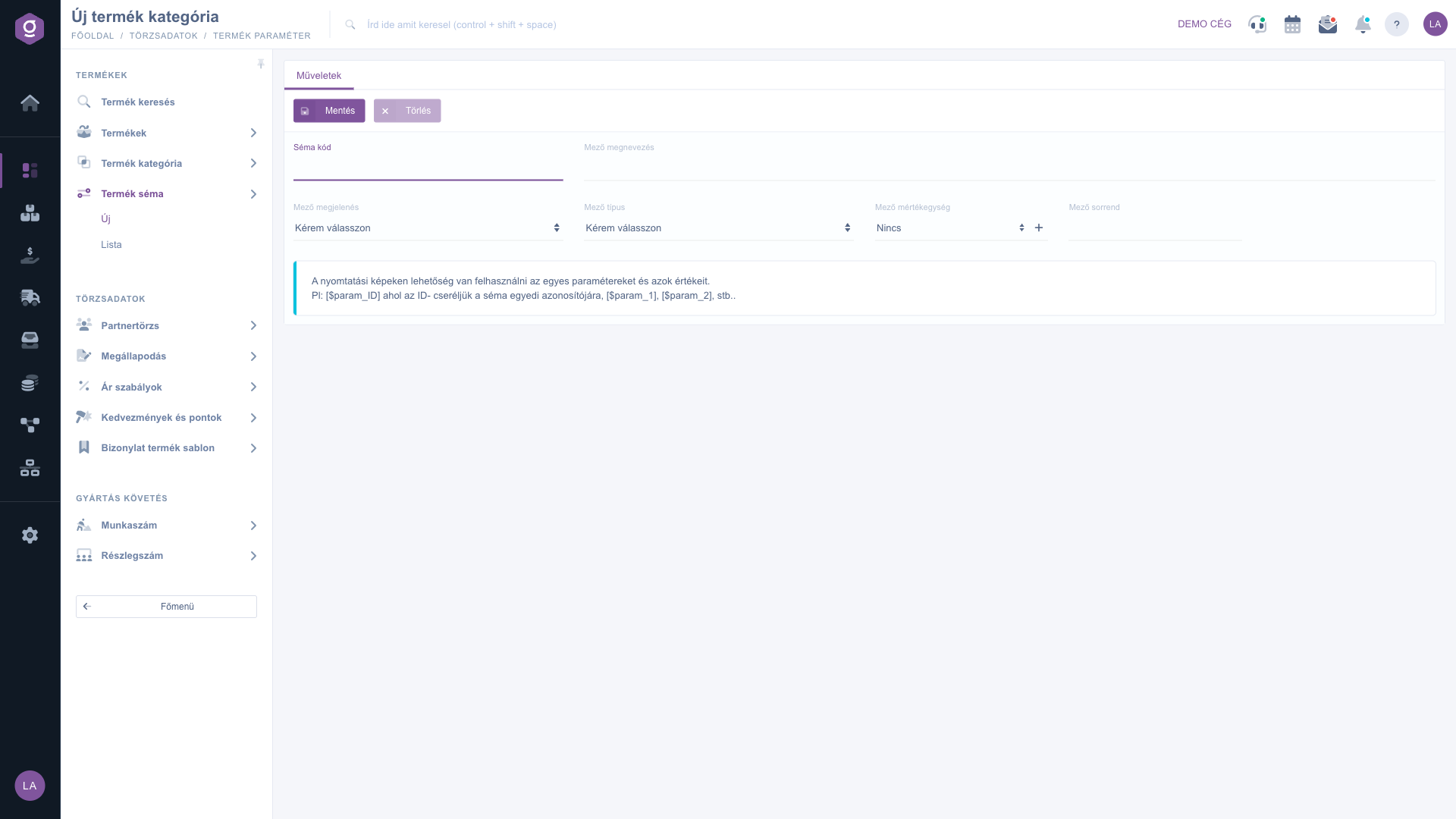
Product schema sheet – Actions tab

2. Entering the name and code

In the Schema code field you can enter any internal code (optional), and in the Field name field the name of the parameter, at least two characters long, for example Colour or Width. After saving, a language button appears next to the name, with which you can also enter the name in other languages.

3. Choosing the display and the type

In the Field display field, choose whether the schema is category based, direct or global. The Field type field decides what kind of value can be entered in the field: Number, Text (at most 1500 characters), Logical (yes or no), Text link or Value set, multi-valued (chosen from predefined values, even several of them). The exact names of the display and type options are set in the system and may differ slightly from the wording here.

4. Unit, order, decimals and value set

In the Field unit field you can choose the unit of the field (for example mm or kg); if it is missing, the plus button next to the field takes you to the unit page of the system settings. The default value is Nincs (Hungarian text, meaning: none). The Field order decides at which position the field appears on the Parameters tab of the product: a smaller number comes first, and negative and decimal numbers are also allowed. For the Number type you can set a value between 0 and 5 in the Number of decimals field, and for the value set type, type the accepted values into the Field value set field and press Enter after each one.
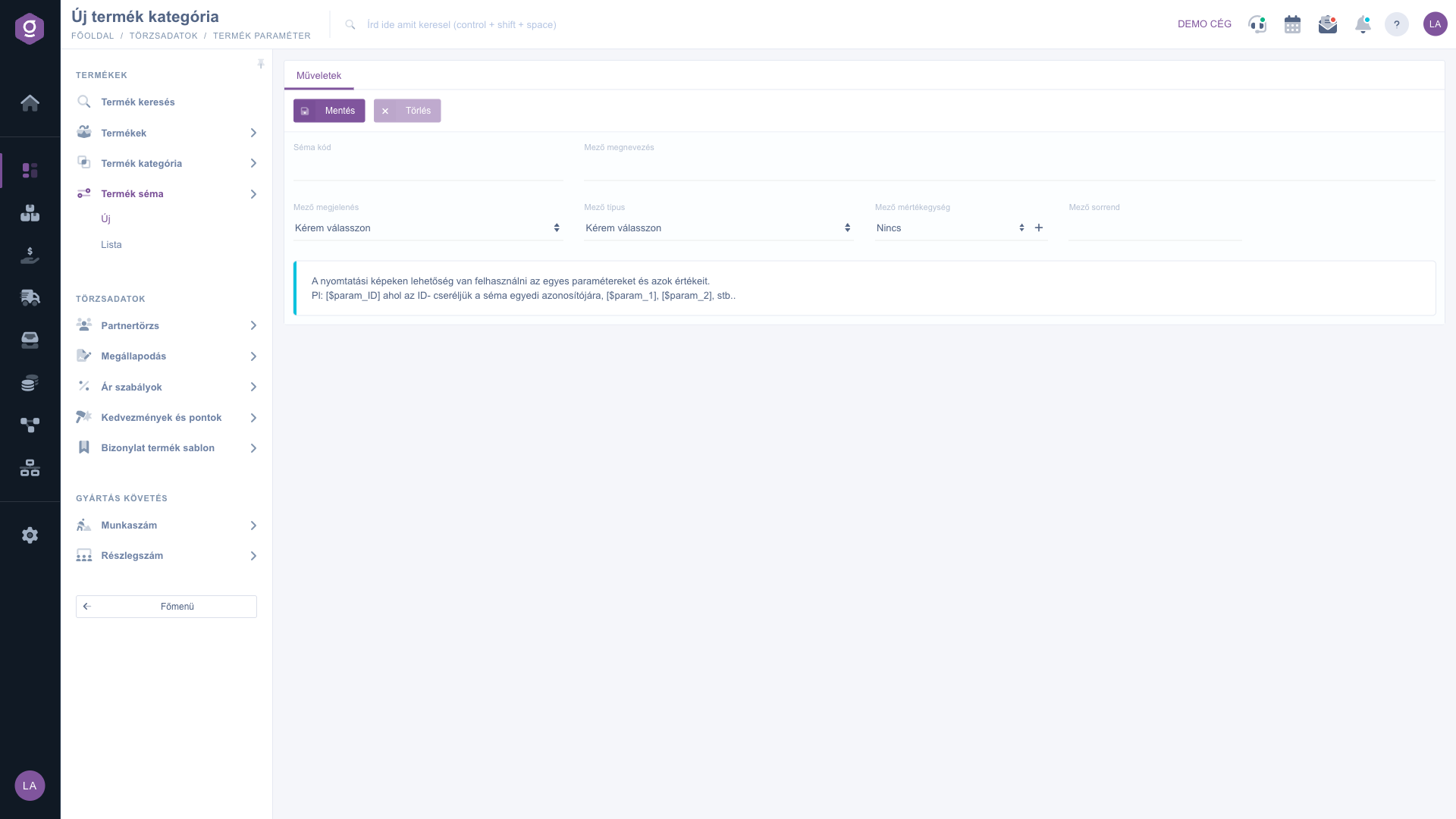
Product schema sheet – new schema form

5. Saving

Click the Save button. After a successful save, two tabs appear at the bottom of the sheet: Product categories and Operation.

6. Assigning categories

On the Product categories tab you can select several categories at once from the drop-down tree. The selection is stored automatically, without a separate save: the system deletes the earlier category links of the schema and saves the ones you have just selected. If you remove every selection, the schema is no longer tied to a category.

7. Setting the operation

The Operation tab has four settings: Usable for type handling, Usable for product merging, Visible in ERP filter (if Yes, the field is also available among the parameter filters of the product search) and Automatic filling of product field on download. With the last one you choose which product field should be filled in automatically from a downloaded product data.

Tip


Do you want to record the size of shoes as a parameter? Create a schema named Size of the Number type with 0 decimals, choose category based for the Field display, and then on the Product categories tab select the Shoe category. After that the Size field appears on the Parameters tab of every shoe product. If you set Visible in ERP filter to Yes on the Operation tab, you can also filter by it in the product search.


Field descriptions

The fields of the sheet and their meaning:

Field / ElementRequiredDescription
Schema codeAny internal code to identify the schema.
Field nameThe name of the parameter on the product sheet, at least two characters. After saving it can also be entered per language.
Field displayDetermines whether the schema is category based, direct or global.
Field typeThe type of the field value: Number, Text, Logical, Text link or Value set, multi-valued.
Field unitThe unit of the field, for example mm or kg. The default is Nincs (Hungarian, meaning none).
Field orderThe position of the field on the Parameters tab of the product. A number; it can also be negative or decimal.
Number of decimalsOnly for the Number type: a value between 0 and 5.
Field value setOnly for the value set type: the accepted values, separated with Enter.
Product categories tabSelecting the categories the schema belongs to. It is saved automatically.
Usable for type handlingYes or No: whether the schema can be used in type handling.
Usable for product mergingYes or No: whether it can be taken into account when products are merged.
Visible in ERP filterIf Yes, the schema is also available among the parameter filters of the product search.
Automatic filling of product field on downloadYou can choose which product field a downloaded product data fills in automatically.

According to the blue information box at the bottom of the sheet, the values of the parameters can be used on print templates: in the [$param_ID] notation, ID must be replaced with the unique identifier of the schema (the ID column of the list), but the [$param_1], [$param_2] etc. notation can also be used.

Frequently asked questions

The Delete button deletes the schema from the list. Before deleting, it is worth checking which categories and products it belongs to, because the field will then no longer be available on the Parameters tab of the products. If you do not need it just temporarily, rather change its settings.

The Product categories and Operation tabs appear only after the first save. If the Save button does not let you save, check that the Field name is at least two characters long and that the Field display and Field type are selected.

For a category-based schema, the product must belong to a category to which the schema is assigned. Check the Categories tab of the product and the Product categories tab of the schema. A direct schema must be added with the New parameter schema button on the Parameters tab of the product. You can read about categories in Product category sheet.

On the Product search page, on the Search tab in the product parameters filter, if the Visible in ERP filter setting is Yes on the Operation tab of the schema. Details: Product search.

The menu item appears under Main menu / Master data if the module is assigned to your user. If you cannot see it, ask the system administrator to check your user settings.

Need personalized help?

Don't want to spend hours searching for a solution? Choose the most efficient way: book a personalized, 45-minute online training session dedicated entirely to you. Whether it's a walkthrough of the basics or a detailed setup of a specific module, our expert colleague will guide you through the whole process, step by step.

Don't waste your time - ask for help!
Our goal is to get you using our system as quickly and efficiently as possible. Whether you're completely new to us or stuck on a specific setting, don't hesitate to ask for help!

Logzi warehouse management software

Get in touch with us

Interested in our software? Feel free to write to us!

Need help?

If you can't find the answer and need assistance

Create your account now,
pay later!

Try it free for 3 days, no risk, no obligation!
