Product category sheet

Get to know the product category sheet: how to create a new category, set the parent category, the display settings and the SEO data, and how to manage translations.

Function overview

On the Product category sheet you can create or edit the data of a single product category. Here you set the name and code of the category, which category it belongs under, where it appears in the ERP filters and in the webshop, and the SEO data used for the web presentation.

  • Header: the Category code and Name fields; next to the latter, the language icon manages the translations.
  • Settings tab: the customs tariff/service code and the display switches.
  • Parent category tab: the position of the category in the category tree.
  • SEO tab: the search engine optimization data and the web address.

Categories have no document status (no Draft or Closed state): the category is created by saving and is taken out of use by deleting it. Translations can be edited only after the first save.

You can read about the full list of categories in Product category list, and about the parameters linked to categories in Product schema sheet.

Step by step

1. Opening the sheet

Main menu / Master data / Product category / New creates a new category. To edit an existing category, select it in Main menu / Master data / Product category / List and click Open. The Save and Delete buttons are on the Actions tab. Note: the screenshots show the Hungarian demo interface; the names in your own language are the ones written in bold in this guide.

2. Filling in the basic data

In the header, enter your own internal identifier in the Category code field and the name of the category in the Name field (required, at least 2 characters). By clicking the language icon next to the name you can also enter the name in other languages. The icon works only after the first save; until then a warning is shown (in Hungarian: Kérlek mentsd el a kategóriát, mielőtt a fordításokat szerkesztenéd!, meaning: please save the category before editing the translations).

3. The Settings tab

The Settings tab contains the fields below. The four switches can be No or Yes; by default all of them are No.

  • Customs tariff/service code: the customs tariff or service number of the category.
  • Visible in ERP filter: sets whether the category appears in the filters used in the ERP.
  • Appears in product list filter: sets whether the category appears among the filters of the product list.
  • Appears on category page: sets whether the category gets its own page in the webshop.
  • Appears in category menu: sets whether the category appears in the category menu of the webshop.
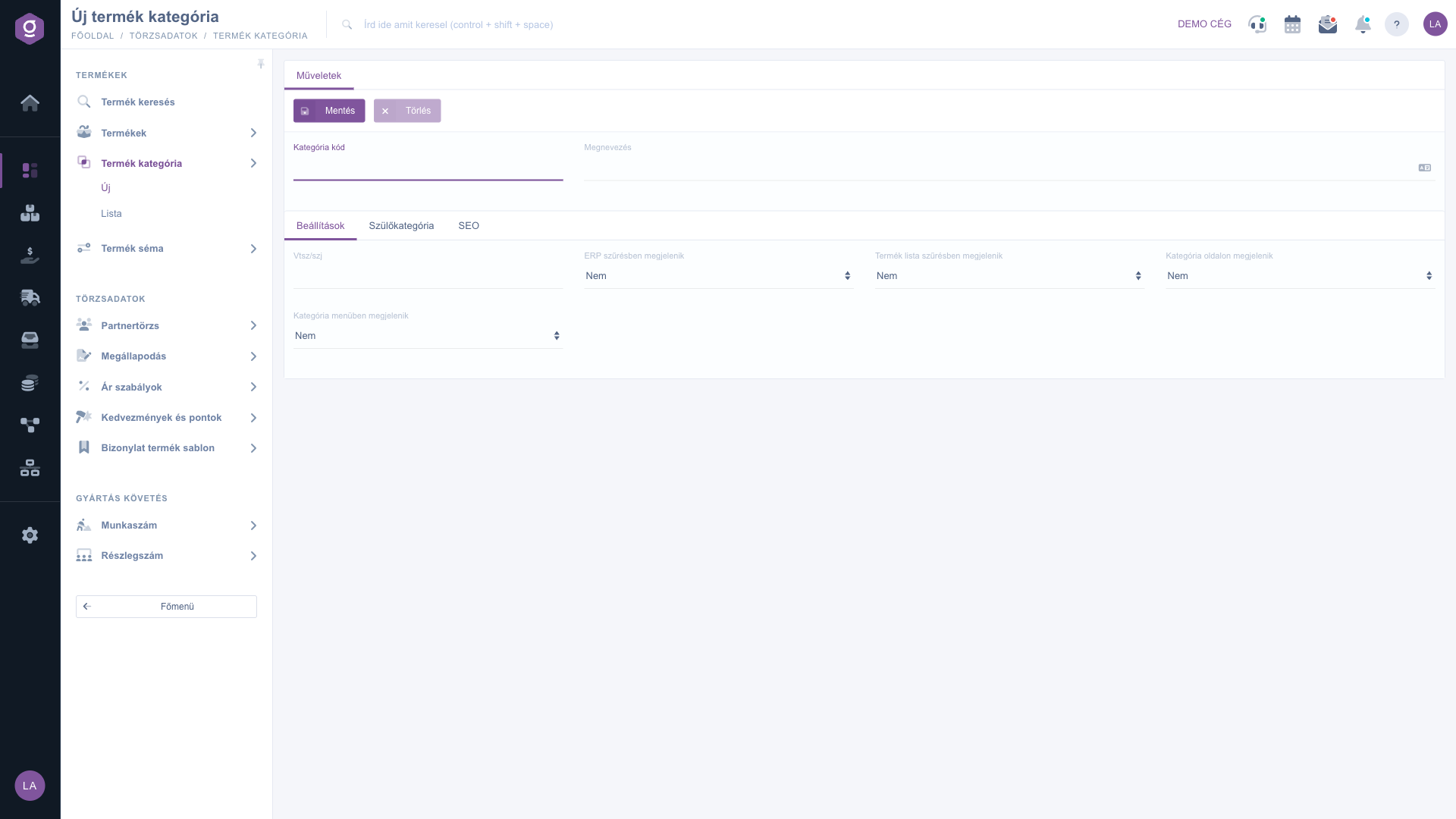
Product category sheet – Settings tab

4. Choosing the parent category

On the Parent category tab you choose from a tree which category the new category goes under. If the category should be on the top level, choose the --- Főkategória (Nincs megadva) --- item (Hungarian text, meaning: main category, not specified). When you change the parent, the category moves together with its whole branch of subcategories, and the Category path column of the list changes accordingly.

5. The SEO tab

On the SEO tab you enter data for the web presentation: the SEO Title is the title shown in the browser title bar and in search engines, the SEO Description is the description shown on search engine result pages, and the Web URL (without domain name) is the web address of the category page, the part after the domain name.

6. Saving and deleting

Use the Save button to record your changes. After the first save, the translations can also be edited with the language icon next to the name. The Delete button deletes the category after confirmation. Deleting does not check whether products or subcategories belong to it, so check these before deleting.
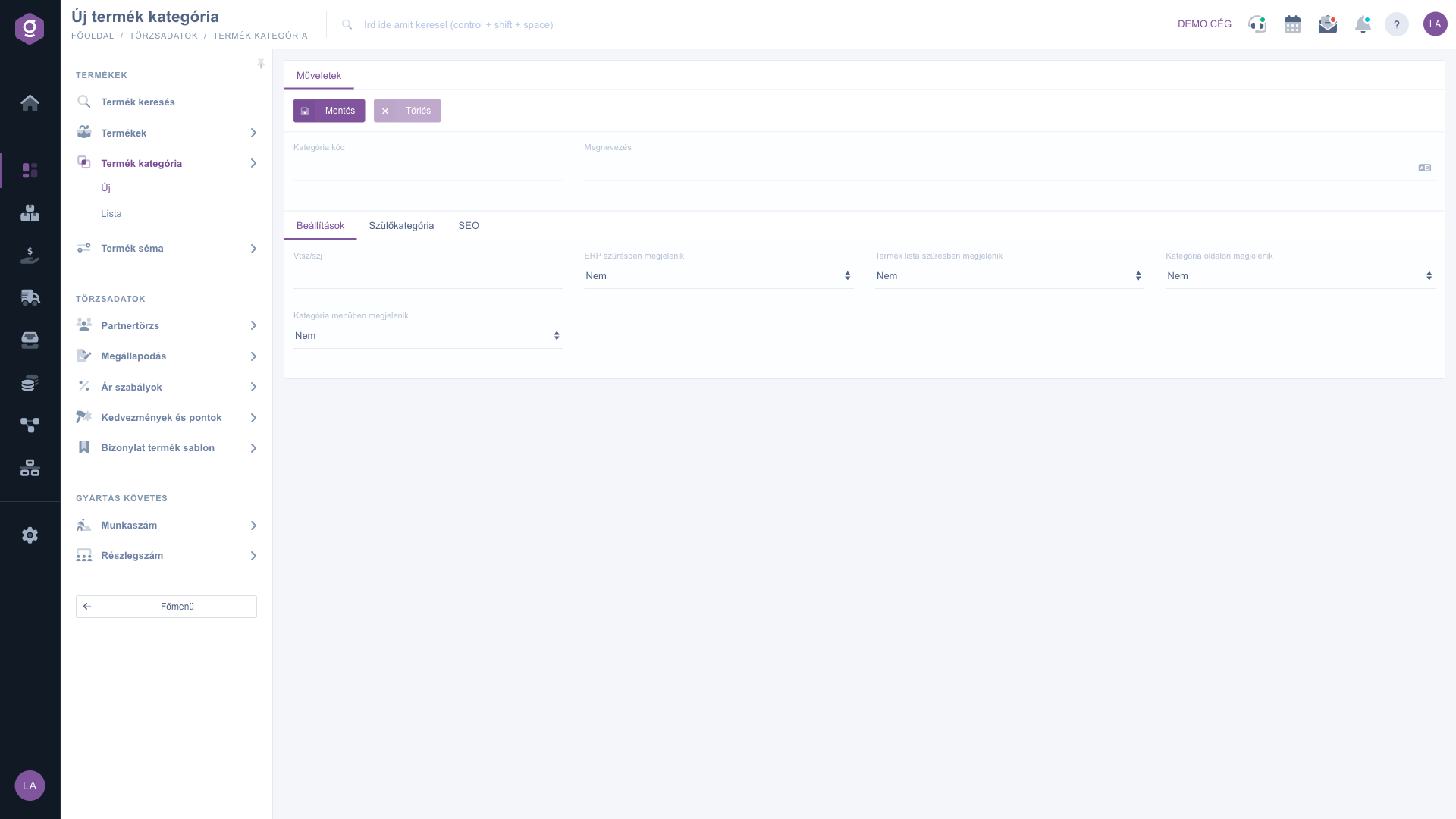
Product category sheet – Actions tab

Tip


If you want, for example, the Transitional shoe category to appear in the webshop too, set the Appears on category page and Appears in category menu fields to Yes, and on the SEO tab enter a web address, for example transitional-shoe, and a short SEO Description text.


Field descriptions

The fields of the sheet and their meaning:

Field / ElementRequiredDescription
Category codeThe own, internal code of the category. Optional.
NameThe name of the category, at least 2 characters. Can also be entered in other languages with the language icon, after the first save.
Customs tariff/service codeThe customs tariff or service number of the category.
Visible in ERP filterNo or Yes. Controls whether the category appears in the ERP filters.
Appears in product list filterNo or Yes. Controls whether the category appears among the filters of the product list.
Appears on category pageNo or Yes. Controls whether the category gets its own page in the webshop.
Appears in category menuNo or Yes. Controls whether the category appears in the category menu of the webshop.
Parent categoryThe position of the category in the tree. The value Főkategória (Nincs megadva), in Hungarian, means a top-level category.
SEO TitleThe title of the category web page for search engines and the browser.
SEO DescriptionA short description of the category web page for search engines.
Web URL (without domain name)The web address of the category page, the part after the domain name.

Frequently asked questions

The Delete button deletes the category after confirmation; it disappears from the list and can no longer be selected. The system does not check whether products or subcategories belong to it, so if you are not sure, rename it or move it under another parent instead.

The language icon works only for a saved category. For a new category, first click Save, and then you can enter the translations with the icon next to the name. Until then the system shows the message Kérlek mentsd el a kategóriát, mielőtt a fordításokat szerkesztenéd! (in Hungarian: please save the category before editing the translations).

You link parameters to a category through the product schema: on the Product categories tab of the schema sheet you choose which categories it belongs to. You can read about this in Product schema sheet.

Check the selected item on the Parent category tab and save the sheet. The actual position of the category is shown in the Category path column of the list, described in Product category list.

The menu item appears under Main menu / Master data if the module is assigned to your user. If you cannot see it, ask the system administrator to check the module assignment in your user settings.

Need personalized help?

Don't want to spend hours searching for a solution? Choose the most efficient way: book a personalized, 45-minute online training session dedicated entirely to you. Whether it's a walkthrough of the basics or a detailed setup of a specific module, our expert colleague will guide you through the whole process, step by step.

Don't waste your time - ask for help!
Our goal is to get you using our system as quickly and efficiently as possible. Whether you're completely new to us or stuck on a specific setting, don't hesitate to ask for help!

Logzi warehouse management software

Get in touch with us

Interested in our software? Feel free to write to us!

Need help?

If you can't find the answer and need assistance

Create your account now,
pay later!

Try it free for 3 days, no risk, no obligation!
