Product list

Learn about the itemized product list: how to search, filter, open, copy, delete, import and export, and what every button on the Actions tab is for.

Function overview

In this list you see and manage the products kept in Logzi at item-number level: one row is one item number. From here you can create a new product, open, copy or delete existing ones, import and export in bulk, print labels, and jump with one click to the prices, stock movements and serial numbers of the selected product.

  • Actions tab: the buttons for working with products: New, Open, Delete, Cloning, Product card, Import, Export, Download, Print, Prices, Stock history, Serial numbers, Document management and Send to webshop.
  • Search tab: filter by name, item number, type, categories and active state; the Expand button opens further, detailed filter conditions.
  • View and layout tab: here you set how many rows appear on a page (Rows) and by which column the list is sorted (Sorting). The columns of this list are fixed; if you want to see more columns, use the Detailed list.
  • System products: the list also contains a few products that the system uses automatically; these are protected and cannot be edited or deleted.

A product has two states: active and inactive. You set the Active checkbox on the product sheet, and in the list you can filter between them with the Active filter. An inactive product is not deleted: it stays in your records and does not affect documents issued earlier.

The screenshots in this article were taken in the Hungarian interface. In other languages the labels shown in the images appear in your language; the Hungarian names are given in parentheses where it helps. You can find the detailed data of a product in the Product sheet guide, and the view with more columns in the Detailed product list guide.

Step by step

1. Opening the list

Click Main menu / Master data / Products / List. Under Products you find three submenus: New (an empty sheet), List (this view) and Detailed list. The module is only visible if it is assigned to your user. If you cannot see it, ask the system administrator to check the module assignment.

2. Selecting a row and the Actions tab

The list opens on the Actions tab (Műveletek). Click a row to select it: the row is highlighted and the buttons that refer to one specific product become active. While no row is selected they are grey, and if you click them anyway the system shows a warning asking you to select an item from the list.
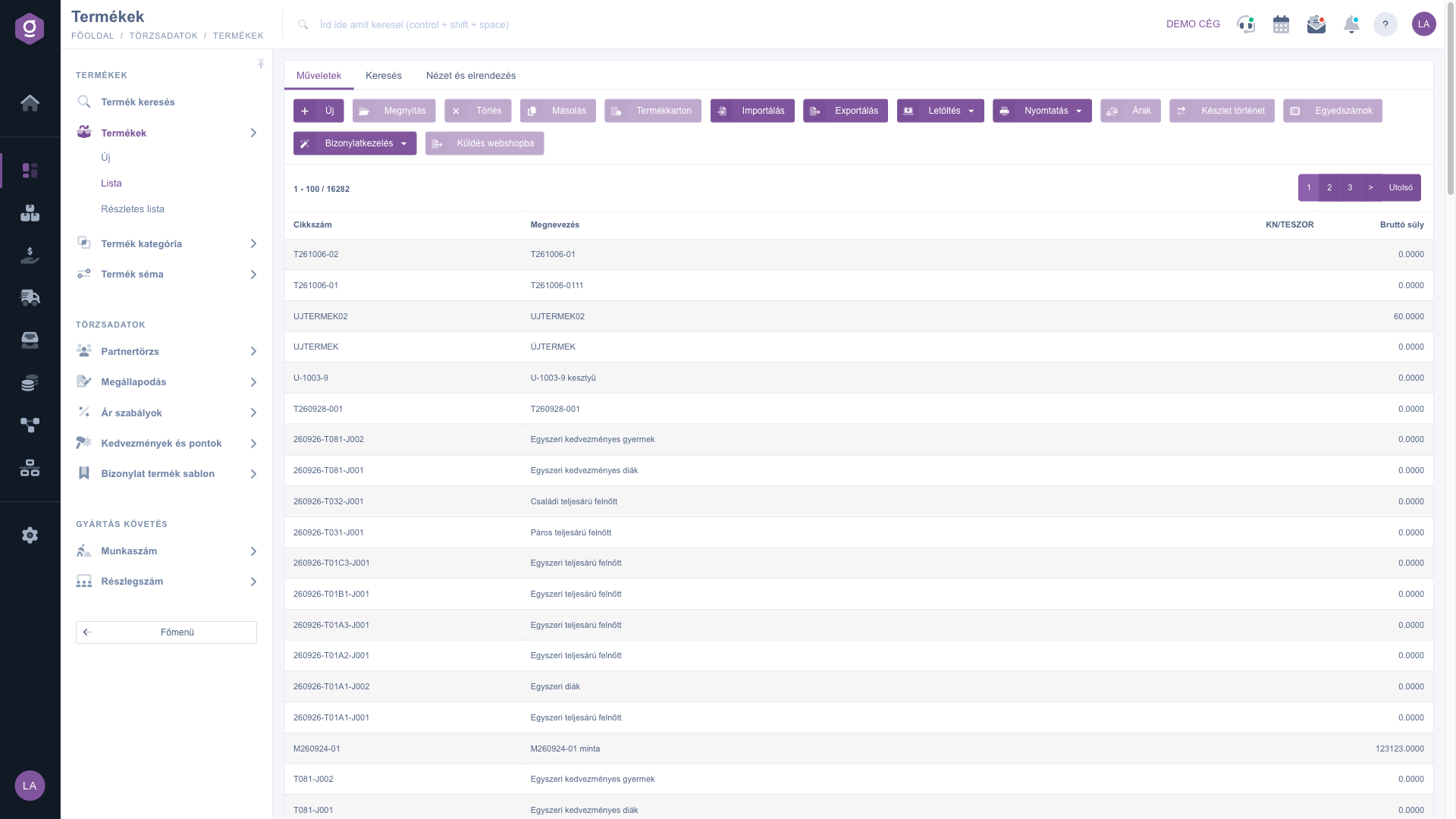
Product list – the buttons of the Actions tab

The buttons and when to choose which:

  • New: opens an empty sheet to create a new product. Use it when the product is not similar to any existing one.
  • Open: opens the sheet of the selected product for editing. Choose it when you want to change the data of an existing product (name, price, category, supplier, etc.).
  • Delete: deletes the selected product(s) after confirmation. You can select several products at once. If the deletion is not possible, the system tells you the reason in a message; in that case, or if you only want to retire the product, rather untick Active on its sheet.
  • Cloning: opens a new sheet filled with the data of the selected product; nothing is created until you save. Use it when you want to create several similar products, because you only have to rewrite the differing data. The same action is also in the Document management menu.
  • Product card: opens a window with the summarised data of the selected product. Choose it when you want a quick picture of the product without opening the sheet.
  • Import: opens the import wizard in a new tab. Use it when you want to upload or modify many products from a file.
  • Export: opens the export wizard in a new tab. Choose it when you want to get the product data into a file, for example for an external system or a bulk modification.
  • Download: a dropdown menu in which the XLSX list item saves the current content of the list (with the filter set on the Search tab) into an XLSX file. Use it when you need a simple table copy of the list you see.
  • Print: a dropdown menu from which the Product label item prints a label for the selected product, for example for a shelf or a package.
  • Prices: jumps to the Prices list, filtered to the item number of the selected product. Choose it when you want to see or correct all price rules of that product (its prices by partner type and site). More: Itemized price list.
  • Stock history: shows the stock movements of the selected product. Use it when you want to look up when and by which document the stock was changed.
  • Serial numbers: lists the serial numbers (serial or LOT numbers) of the product. Choose it when you are looking for one specific piece of a product tracked by serial number.
  • Document management: a dropdown menu for new documents started from the selected product: Invoice and Customer order, as well as Cloning. Use it when you want to carry the product straight onto a new document; the document sheet opens with the data of the product.
  • Send to webshop: creates a sync event, so the selected product is sent to the webshop shortly. A message saying that the event was created successfully and the product will be synchronised soon (shown in Hungarian) confirms that the request was recorded. Use it when a change has to reach the webshop immediately.

3. Searching

On the Search tab (Keresés) you can filter by these fields: Name, Item number, Type, Main category, Web category (several values can be chosen) and Active. The Expand button opens further filters: manufacturer, default supplier, product parameters, stock management, webshop sync, whether a price is set and other conditions (the full list is in the table of the next section). Apply the conditions with the Search button. The save icon next to it saves the search, and the x icon deletes the saved search and loads the whole list.
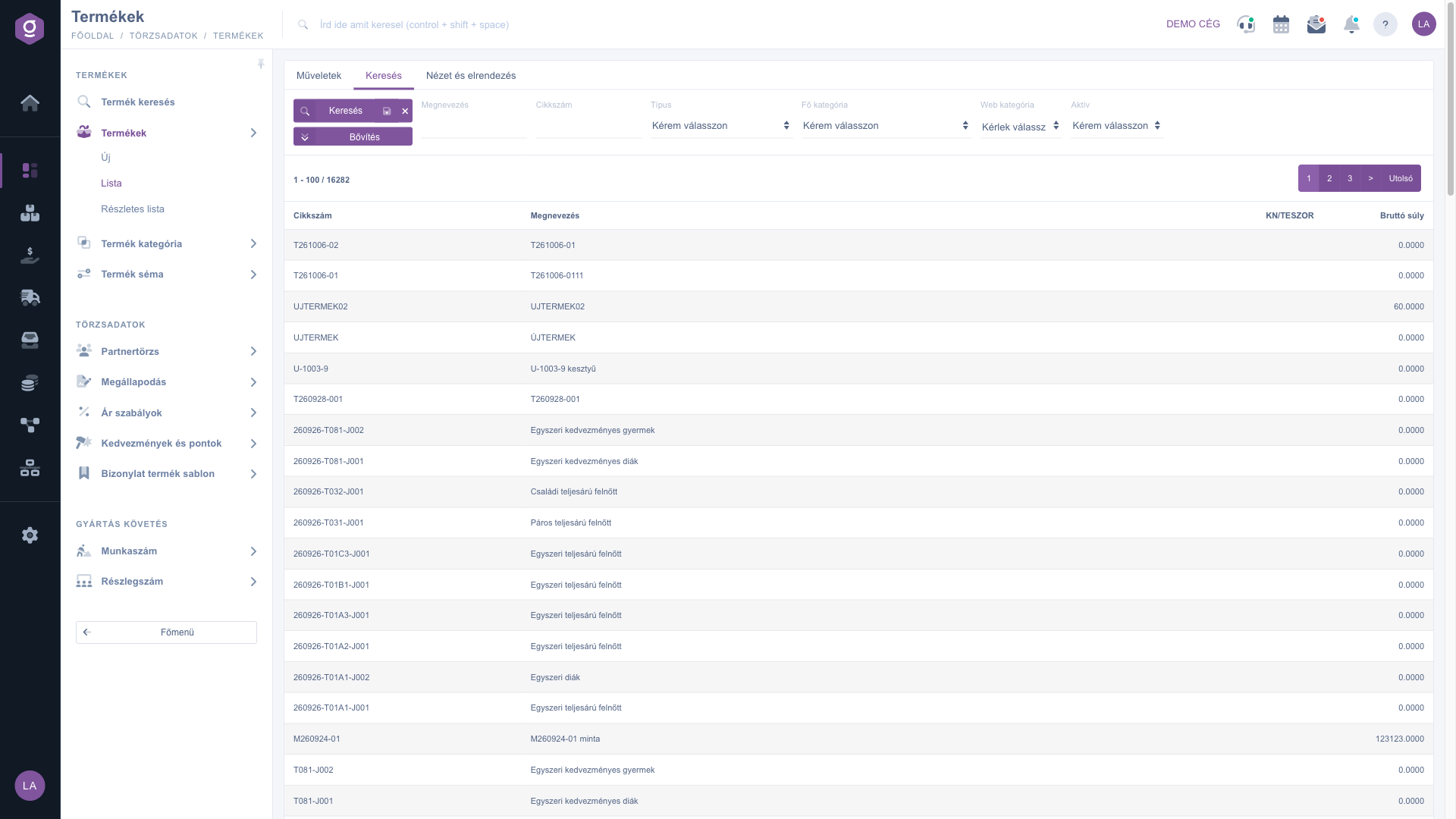
Product list – the Search tab

4. Customising the view

The View and layout tab (Nézet és elrendezés) has two buttons. Rows: set how many rows appear on a page. Sorting: choose by which column and in which direction the list is sorted. These settings are saved for your user, so they are kept the next time you log in. You can also sort the list directly by clicking the arrows next to the column names in the header. The columns cannot be rearranged in this list; if you need your own set of columns, you can do that in the Detailed product list view.
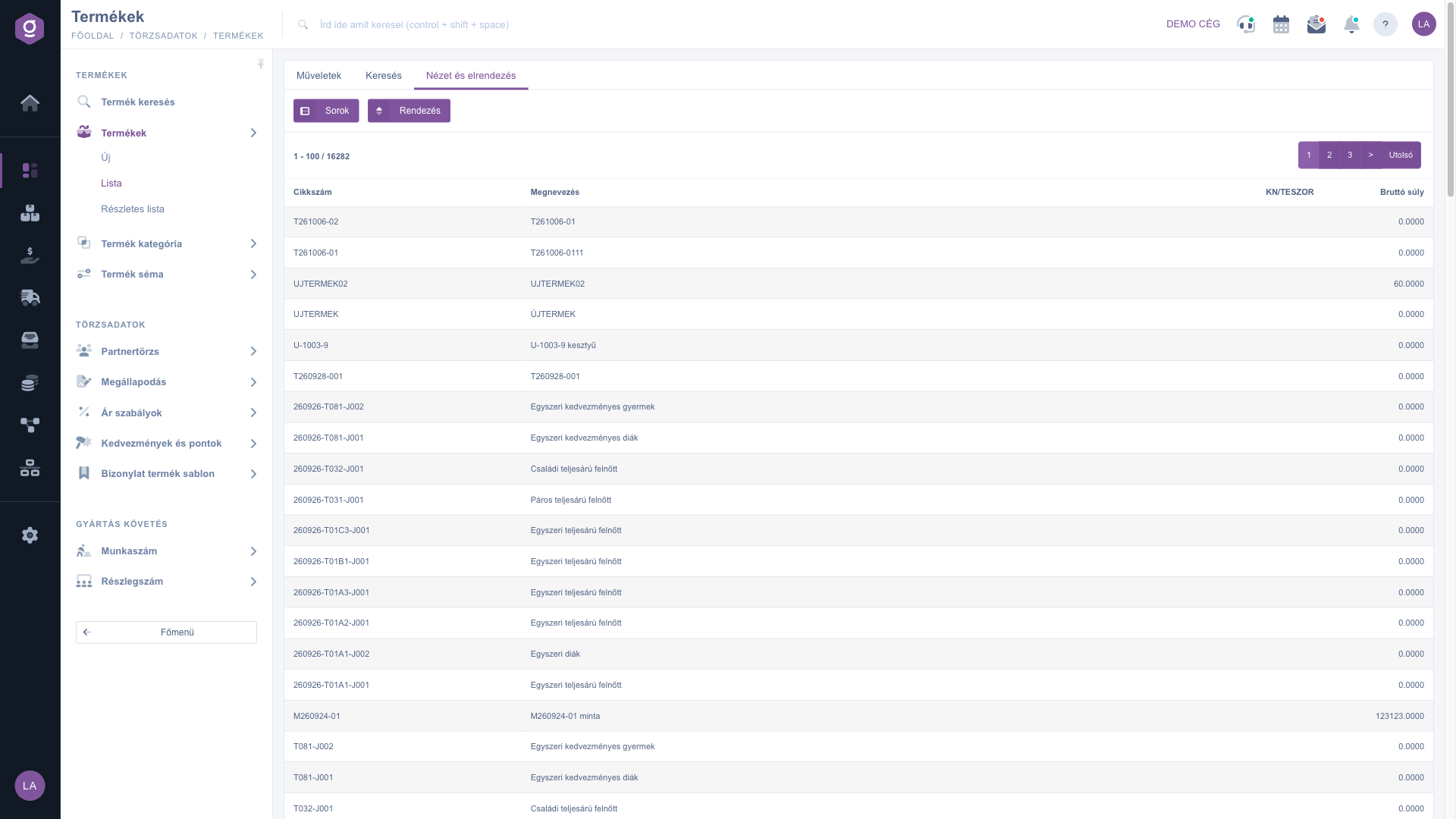
Product list – the View and layout tab

Tip


If you often use the same filter (for example only active products or one main category), set it on the Search tab and then click the save icon next to the Search button. From then on the list always loads with the saved filter, so you do not have to set it again every time. If you want to see the whole list again, delete the saved search with the x icon.


Field descriptions

The fields of the Search tab and their meaning (all of them are optional; left empty they do not filter):

Field / ElementRequiredDescription
NameAny part of the name of the product.
Item numberAny part of the item number.
TypeFilter by product type: Simple product, Variant product, Service, Package product, Recipe-based product or Virtual product - Entry ticket.
Main categoryFilter by the main category of the product in the system.
Web categoryFilter by the category tree of the webshop; several categories can be chosen at once.
ActiveFilters for active or for inactive products.
Manufacturer (Expand)Filter by the manufacturer of the product.
Default supplier (Expand)Filter by the default supplier entered on the sheet.
Product parameters (Expand)Opens a window where you visually set which parameter values (e.g. size, colour) the products you are looking for must have.
Automatic purchase (Expand)Filter by the automatic purchase setting.
Default supplier specified (Expand)Lists the products that have (or do not have) a default supplier filled in; useful for finding missing data.
Manages stock (Expand)Filter by whether the system tracks the stock of the product.
Webshop szinkronban szerepel (included in the webshop sync) (Expand)Shows the products that take part in the webshop sync.
Excise product, DRS (Expand)Filters for products marked as excise or as DRS (deposit return scheme).
Serial number setting (Expand)Filter by the serial number tracking mode (none, serial number required, LOT number required, etc.).
In physical stock (Expand)Filters for products that have physical stock.
Selling price set, Promotional price set (Expand)Filters whether the product has a selling price or a promotional price. Use it to find missing prices.
Serial number (Expand)Finds the product that belongs to one specific serial number (serial or LOT number).

The columns of the list and their meaning:

Field / ColumnRequiredDescription
Item numberThe unique identifier of the product. The selected row passes it on to the Prices, Stock history and Serial numbers buttons.
NameThe name of the product as it appears on documents and in the webshop.
KN/TESZORThe customs tariff (KN) or TESZOR number of the product, as you entered it on the sheet.
Gross weightThe gross weight of the product in the unit entered on the sheet (grams).

Frequently asked questions

The List shows products at item-number level: one row is one item number, so variants appear in separate rows and the columns are fixed. The Detailed list shows the same at product-group level: one row is one product with all its variants, and you choose the columns yourself (price, stock, webshop sync, etc.). If you are looking for one specific item number, or you quickly need the Prices, Stock history and Serial numbers buttons, the List is the right choice; if you want an overview by product with more data, open the Detailed list. More: Detailed product list.

The Open, Delete, Cloning, Product card, Prices, Stock history, Serial numbers and Send to webshop buttons refer to one specific product, so they stay inactive until you select a row in the list. Click the row of the product you want and the buttons become active. New, Import, Export, Download, Print and the Document management menu are available without a selection too.

Some products are needed for the automatic processes of the system (system products). For these the program shows a message saying that the product cannot be edited or deleted because the automatic processes of the system use it, and the change is not allowed. When you delete another product and the deletion cannot be carried out for some reason, the system tells you the reason in a message. If you only want to retire the product, untick Active on its sheet: it stays in your records but does not affect earlier documents.

An inactive product is one for which the Active checkbox is not ticked on the sheet. The product is not deleted, its data and the earlier documents belonging to it are kept. In the list you can look at active and inactive products separately with the Active filter, and you can reactivate them on the sheet at any time.

The usual reason is that a filter is set on the Search tab: check whether Active, Type or a condition under Expand filters the product out, and whether you have a saved search (you can delete it with the x icon next to the save icon). If the match for your search is not on the current page, jump to the first page. If the list really is empty, create data with the New button or with the Import wizard.

For a small number, select a similar product and use the Cloning button: the new sheet opens with the data of the selected product, you only rewrite the differences and save. For many products you can upload or modify them from a file with the Import wizard. You can read about the fields of the sheet in the Product sheet guide.

Select the product and click Prices: the Prices list opens filtered to the item number of the product (see Itemized price list). The Stock history button shows the stock movements of the product, and the Serial numbers button shows its serial and LOT numbers.

For the selected product the button creates a sync event, and the product is sent to the webshop shortly. A message confirms that the event was recorded successfully. It is useful when you do not want to wait for the scheduled synchronisation after a change.

The Products module only appears in the menu if it is assigned to your user. If you cannot see it, ask the system administrator to check the module assignment.

Need personalized help?

Don't want to spend hours searching for a solution? Choose the most efficient way: book a personalized, 45-minute online training session dedicated entirely to you. Whether it's a walkthrough of the basics or a detailed setup of a specific module, our expert colleague will guide you through the whole process, step by step.

Don't waste your time - ask for help!
Our goal is to get you using our system as quickly and efficiently as possible. Whether you're completely new to us or stuck on a specific setting, don't hesitate to ask for help!

Logzi warehouse management software

Get in touch with us

Interested in our software? Feel free to write to us!

Need help?

If you can't find the answer and need assistance

Create your account now,
pay later!

Try it free for 3 days, no risk, no obligation!
