Product data sheet

Create and edit all data of a product here: its identifiers, prices, descriptions, categories and parameters, as well as its procurement and accounting settings.

Function overview

On the Product data sheet you create and edit all data of a product: its identifiers (item number, name, type, manufacturer), prices, descriptions, categories, parameters, procurement and accounting settings, as well as its related and replacement products. The same data sheet is used both for creating a new product and for editing an existing one.

  • Header: the most important basic data (Item number, Name, Product type, Manufacturer, Unit of measure, VTSZ/SZJ - KN/TESZOR, Serial number setting, Default site and Default storage location) and the switches on the right (Active, Webshop product, Manages stock, etc.), plus the buttons of the Actions and Additional functions tabs.
  • Prices tab: the net and gross selling, purchase and list prices, with currency and VAT rate.
  • Further tabs: Descriptions, Categories, Parameters, Procurement, Accounting, Pictures, Files, Product fee, Related products, Replacement products and, depending on the product type, the Product variations, Ingredients, NTAK and Packaging tabs.
  • For a saved product: besides the main tabs, the Events, Changelog and Warnings tabs also appear.

A product has two states: active and inactive. You can set the state in the Active field at the top right (No / Yes). An inactive product is not deleted, its data and the earlier documents are kept. The Product type can no longer be changed after saving, so think carefully about which type fits the product when you create it.

The screenshots in this article were taken on the Hungarian interface (for example Actions = Műveletek, Prices = Árak) and show the data sheet of a new, not yet saved product. You can read about the list of products in the Product list guide and about the view with more columns in the Detailed product list guide. The price rules are described in the Itemized price list, the definitions of parameters in the Product schema list and the categories in the Product category list guide.

Step by step

1. Opening the data sheet

Click Main menu / Master data / Products / New: an empty data sheet opens for creating a new product. To open an existing product, select it in the List or Detailed list view and click the Open button. If you create a similar product, the Cloning button gives you a new data sheet filled in with the data of the selected product. The module is only visible in the menu if it is assigned to your user.
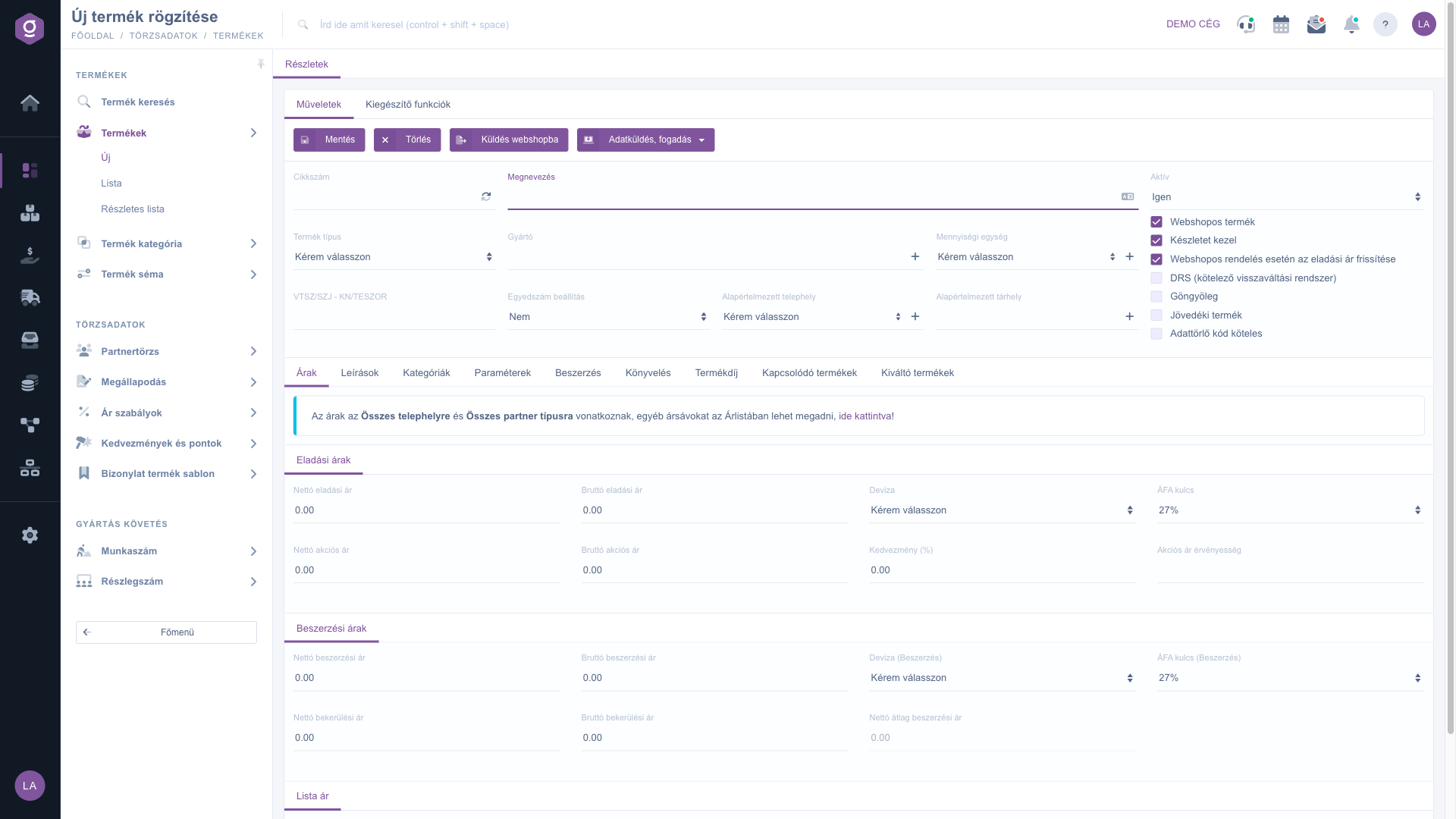
Product data sheet – the Actions tab and the Prices tab

2. Filling in the basic data

At the top of the data sheet you find the Item number, Name, Product type, Manufacturer, Unit of measure, VTSZ/SZJ - KN/TESZOR, Serial number setting, Default site and Default storage location fields.

  • Next to the Item number the refresh button generates a random, 12-character, uppercase item number. The help text of the field also appears when you hover over it.
  • The Name must be at least 3 characters long. With the language button next to it you can also enter the name in other languages.
  • The Manufacturer is a partner search field: start typing and select the partner. With the + button next to it you can create a new partner in a new tab.
  • With the + button next to the Unit of measure you can open the settings of the units of measure (it is not visible for the variant product type).
  • The values of the Serial number setting are: No, Serial number required, LOT number required and LOT number and shelf life required. Set it if the product has to be tracked piece by piece or batch by batch.
  • With the + button next to the Default site and the Default storage location you can create a new site or storage location.

3. Choosing the product type

In the Product type field choose what kind of product it is. The type is mandatory and cannot be changed after saving. The type determines which tabs appear:

  • Simple product: the usual product that can be kept in stock; the Prices tab is visible.
  • Variant product: a base product with several variations (for example size, colour). The Product variations tab appears, the Prices tab is not visible, the item number is entered at the variations (the item number field of the base product is inactive), and on the Parameters tab only an information message is shown, because the parameters have to be entered per variation.
  • Recipe-based product and Package product: on the Ingredients tab you enter which products and in what quantity it consists of; for a new product stock management is switched off by default.
  • Service: not kept in stock; for a new product the Manages stock switch is off and cannot be changed.
  • Virtual product - Entry ticket: the NTAK tab appears with the data of the ticket; for a new product stock management is switched off.

4. Setting the switches

In the right-hand column you set the characteristics of the product: Active, Webshop product, Manages stock, Update selling price for webshop orders, DRS (mandatory deposit return system), Packaging deposit, Excise product and Data erase code required. For a new product the default values come from the system settings; updating the selling price for webshop orders is ticked by default, while DRS, Packaging deposit, Excise product and Data erase code required are not ticked by default. When you switch on Packaging deposit, the Packaging tab appears.

5. Entering the prices

On the Prices tab you find three blocks: Selling prices, Purchase prices and List price. The net and the gross field work as a pair: when you change one of them, the other one is recalculated with the selected VAT rate. Use a dot as the decimal separator. The prices entered here apply to all sites and all partner types; if you want other price bands (for example per partner type or site), create them in the Price list. In the information message at the top of the Prices tab, the click here link takes you to the Price list. Read more: Itemized price list.

6. Filling in the descriptions

On the Descriptions tab you find the Short description (appears on invoices and documents), the Packaging note (appears as a warning notice during packaging), the Meta title, Meta keyword and Meta description fields, and below them the editor of the Long description. The webshop uses the meta fields for search engine optimisation.
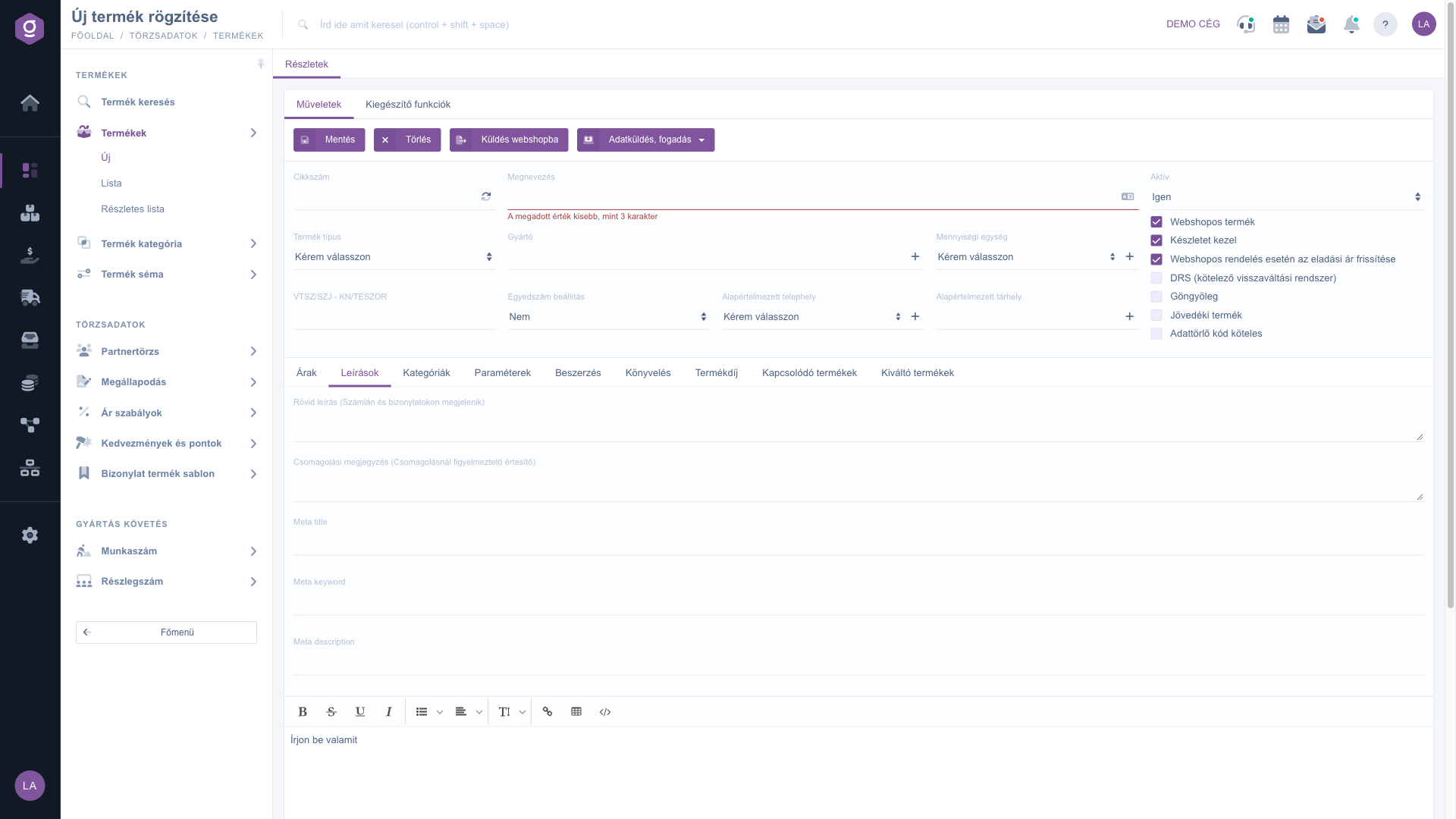
Product data sheet – the Descriptions tab

7. Setting the categories

On the Categories tab you can choose the main category of the product from the Main category in system list (with the + button you can create a new category), and below it, in the Webshop category tree, you can tick several webshop categories with the checkboxes. In the tree, the Search field helps you find the branch you need quickly.
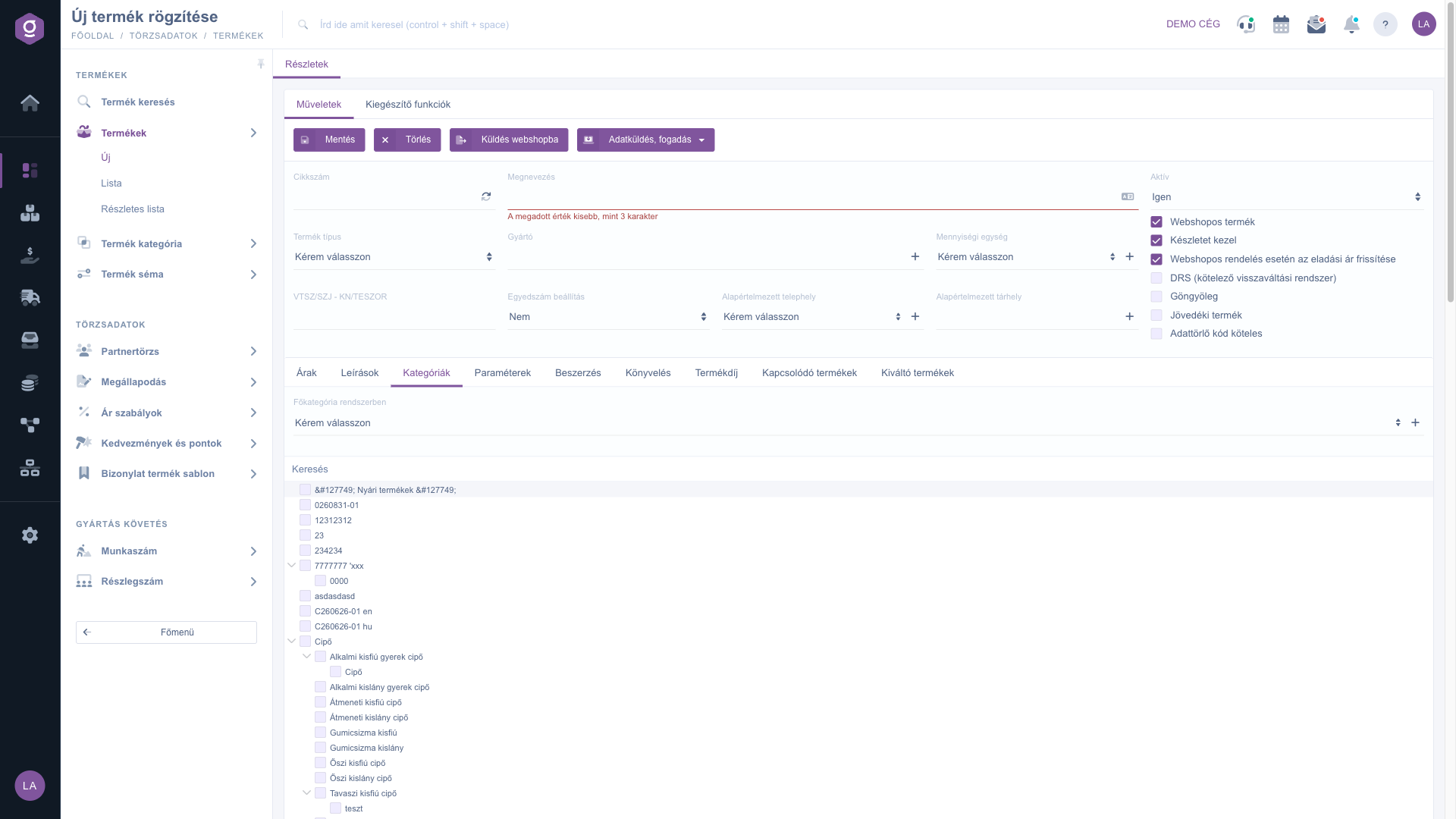
Product data sheet – the Categories tab

8. Entering the parameters

On the Parameters tab you can enter the dimensions of the product (Width, Height, Depth, in mm, including the packaging), the Warranty (month), the Net weight and the Gross weight (in grams); below them the custom parameters created in the Product schemas are displayed. If there is no schema yet, the link in the message takes you to the Product schemas page; the New parameter schema button is only active for a saved product. For a variant product only an information message is shown on this tab, because the parameters are defined per variation. Read more: Product schema list.
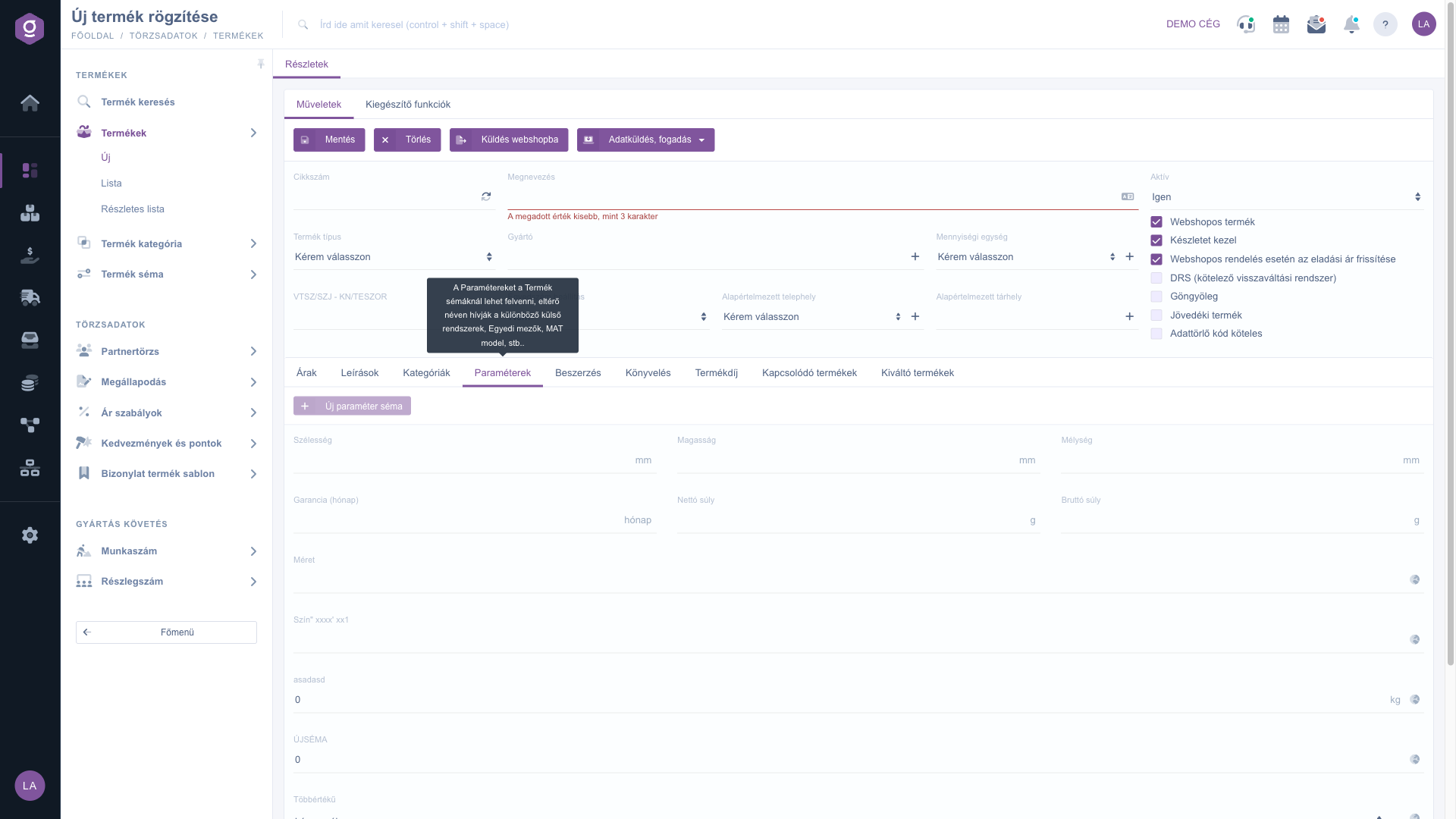
Product data sheet – the Parameters tab

9. Setting the procurement

On the Procurement tab you can enter in the Preferred supplier field from which partner you usually buy the product (with the + button you can create a new partner), and with the Automatic purchase field you can set whether the system should handle the procurement of the product automatically.
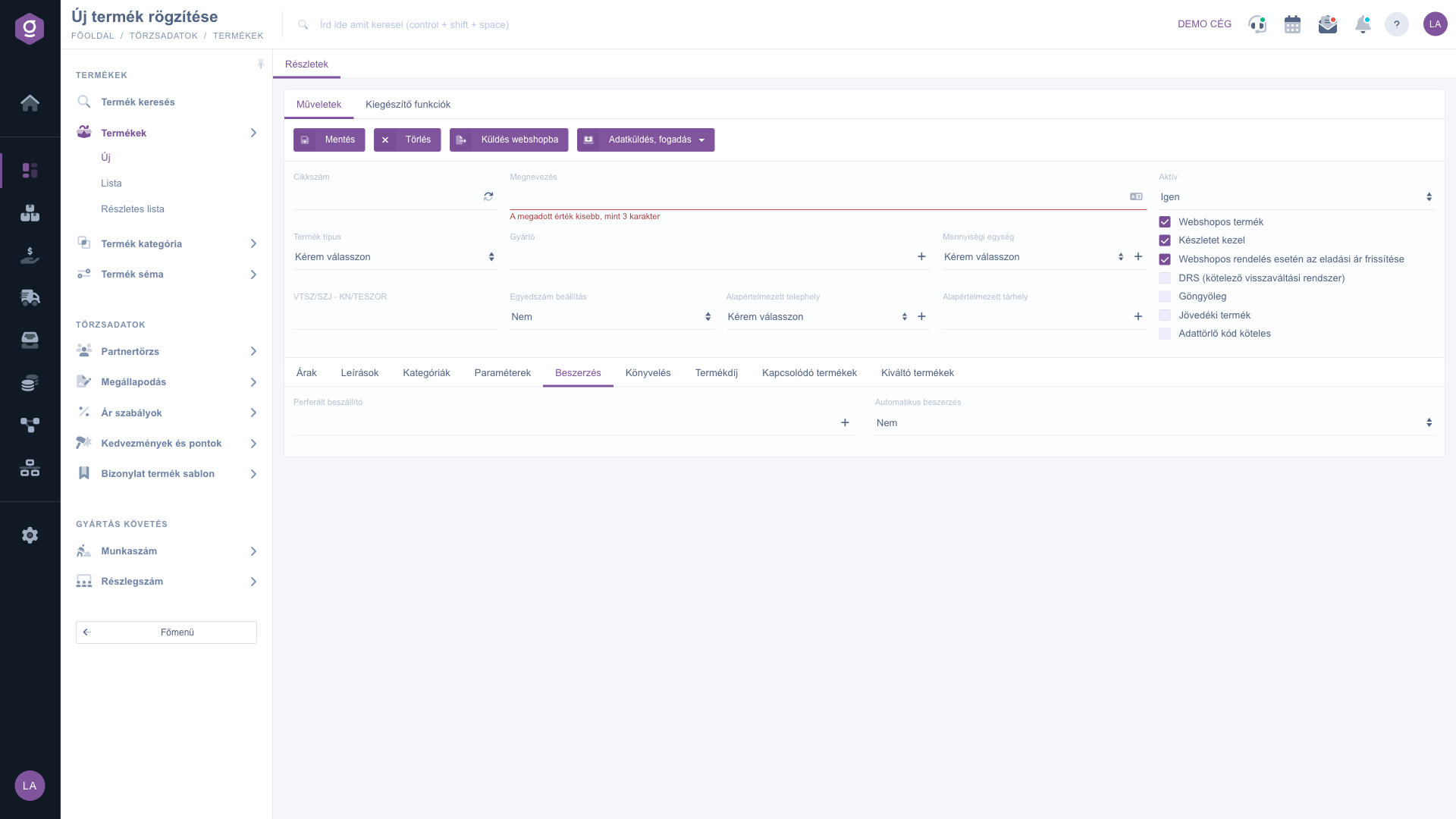
Product data sheet – the Procurement tab

10. Entering the accounting data

On the Accounting tab you can choose the ledger numbers of the product from the Ledger number - purchase, Ledger number - domestic sale and Ledger number - foreign sale lists (with the + button you can create a new one). Here you also set the Reverse charge product and Intermediated service marks, and the UN number field for dangerous goods. The EKAER required field is for information only at the moment and cannot be changed.
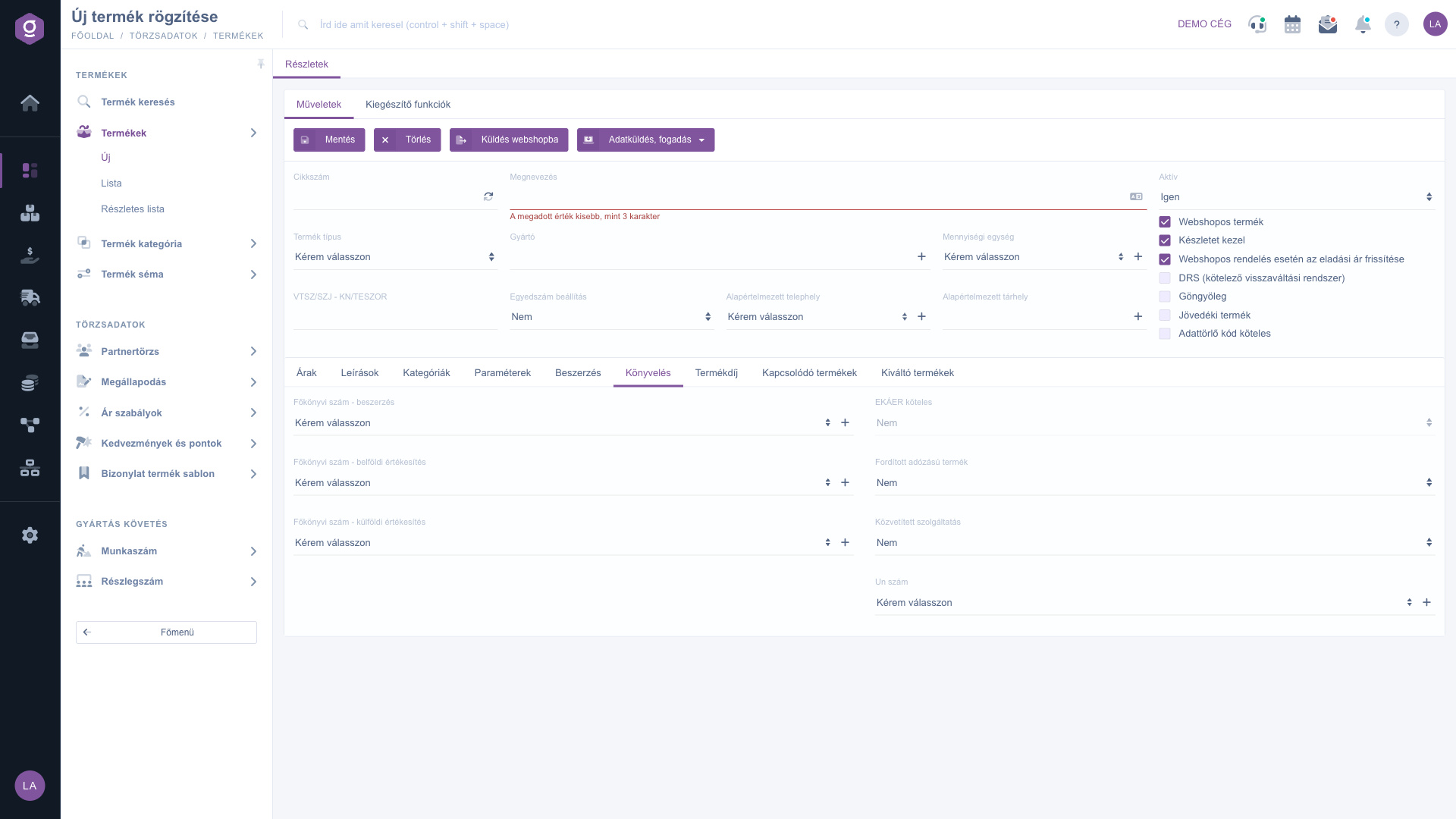
Product data sheet – the Accounting tab

11. Entering the product fee

On the Product fee tab you can enter the product fee categories of the product. To do so, you first have to create the product fee items in the settings; only after that does the category selection appear here, until then the tab shows an information message.
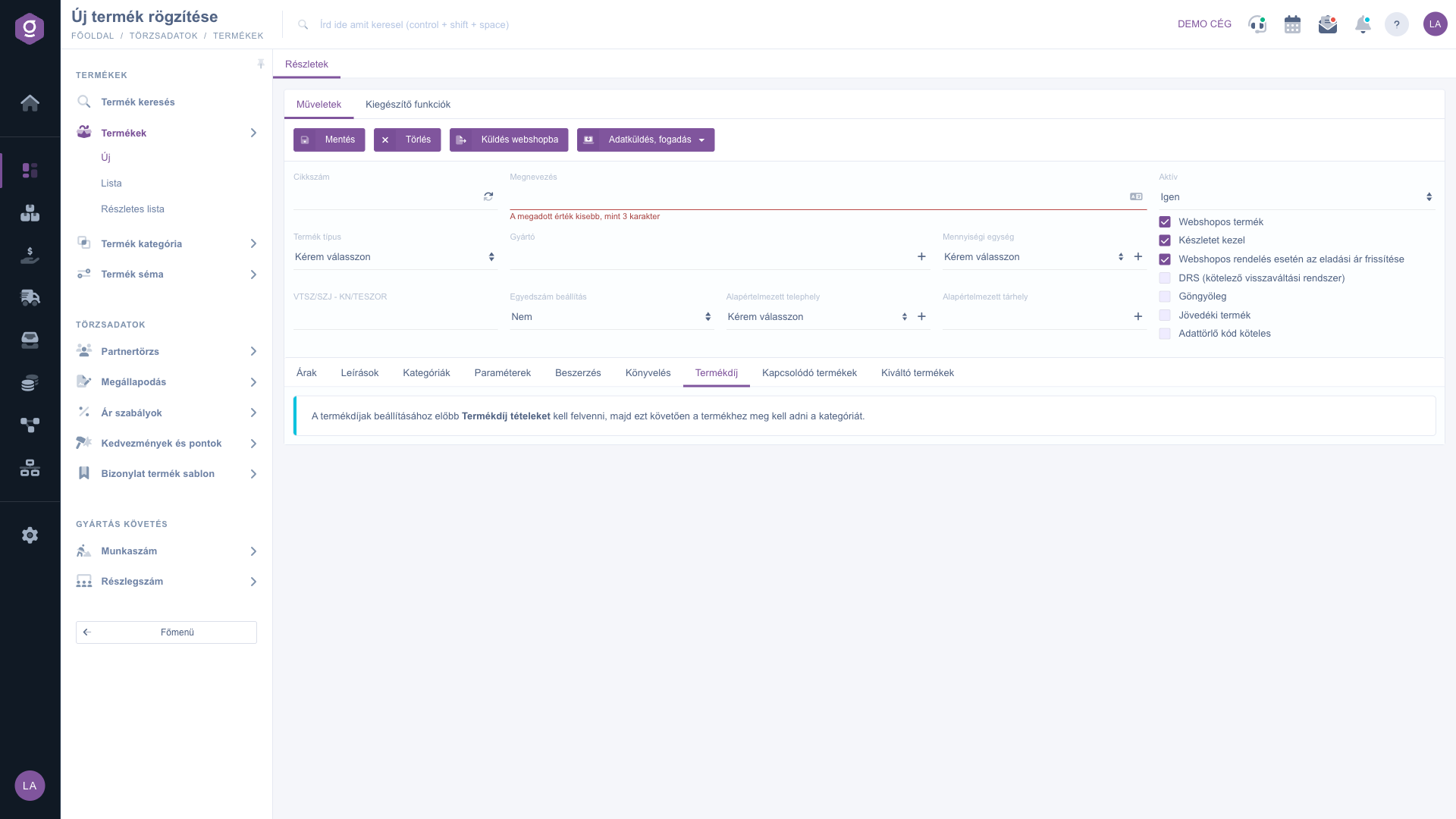
Product data sheet – the Product fee tab

12. Related and replacement products

On the Related products tab you can collect the products that go well with the product (for example accessories), and on the Replacement products tab the products that can replace it. On both tabs the New button adds a new row, the Delete button removes the selected row, and the AI suggestions button lets you request suggestions. The lists are saved together with the main Save button of the data sheet.
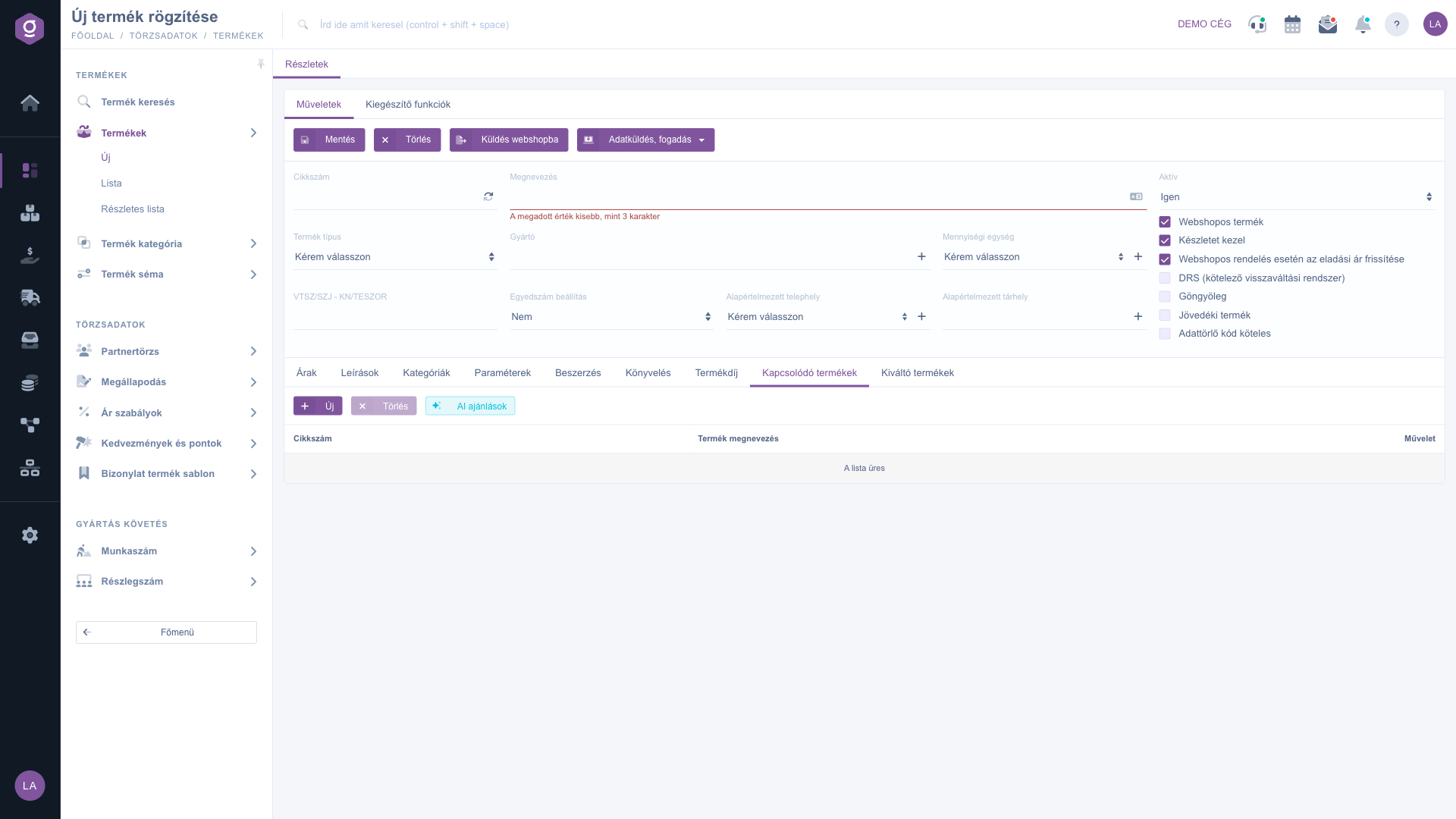
Product data sheet – the Related products tab
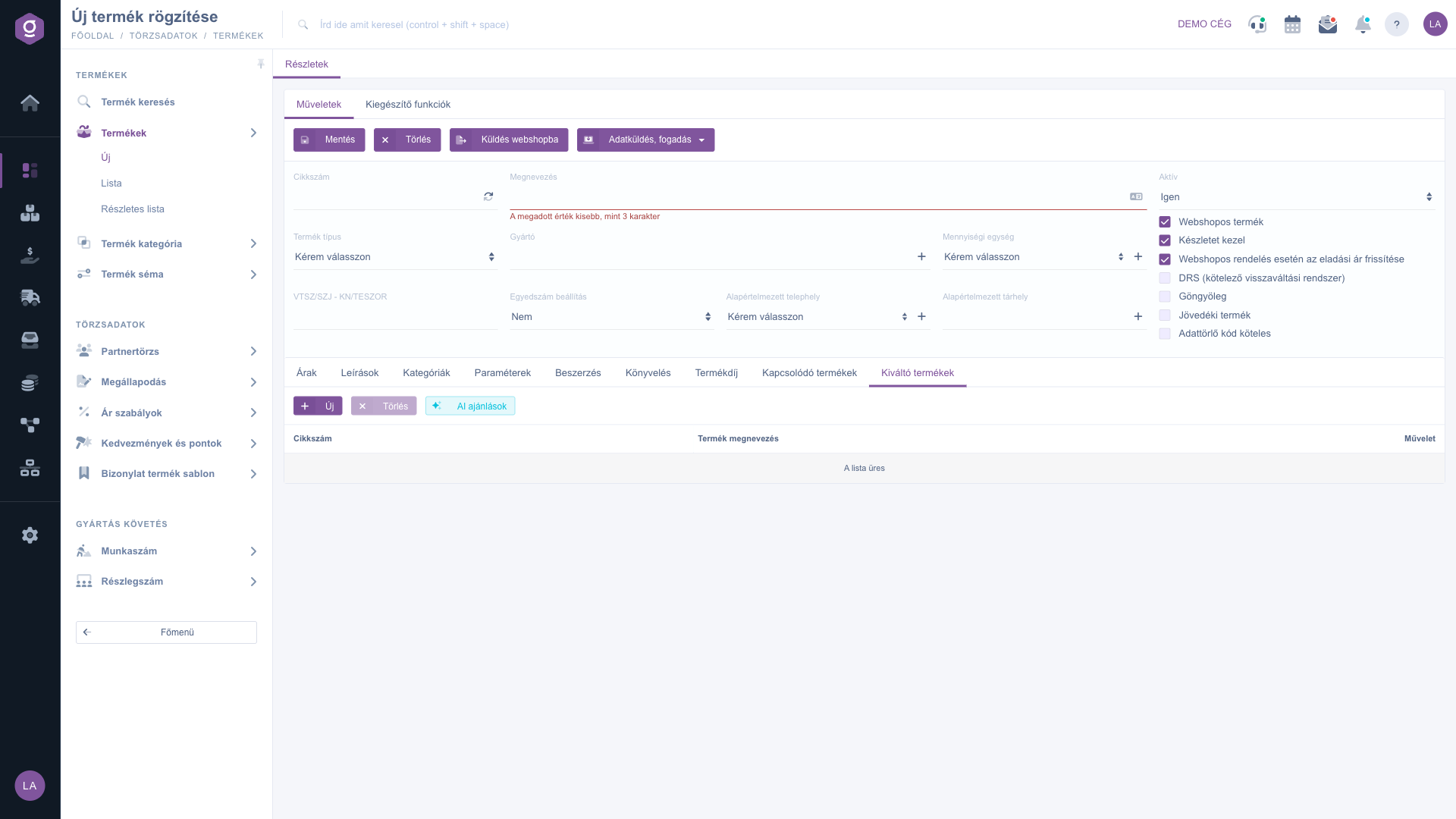
Product data sheet – the Replacement products tab

13. Type-dependent and further tabs

  • Product variations (only for a variant product): manage the variations with the New, Open, Delete, Cloning, Product label, Prices, Identifiers, Komponensek (Components) and Product card buttons. The columns of the table: Part number, Packaging value, Packaging name, and the min., opt. and max. quantity.
  • Ingredients (for Package and Recipe-based products): the ingredients with the Part number, Name and Quantity columns.
  • Pictures and Files: only visible for an already saved product; here you can upload pictures and documents.
  • NTAK (only for Virtual product - Entry ticket): Number of persons, Number of entries, Usable (from start date), Ticket price type, Discount, Age group (Korcsoport), Ticket type category and NTAK program.
  • Packaging: only visible if the Packaging deposit switch is on.

14. Saving and validation

Click the Save button on the Actions tab. The system checks the mandatory fields: if, for example, the name is shorter than 3 characters, an error message appears under the field (on the Hungarian screen: “A megadott érték kisebb, mint 3 karakter”, that is, the entered value is shorter than 3 characters) and the product is not saved. After a successful save the data sheet reloads and the elements that are only available for a saved product appear. If saving fails on the server side, a window tells you the reason.
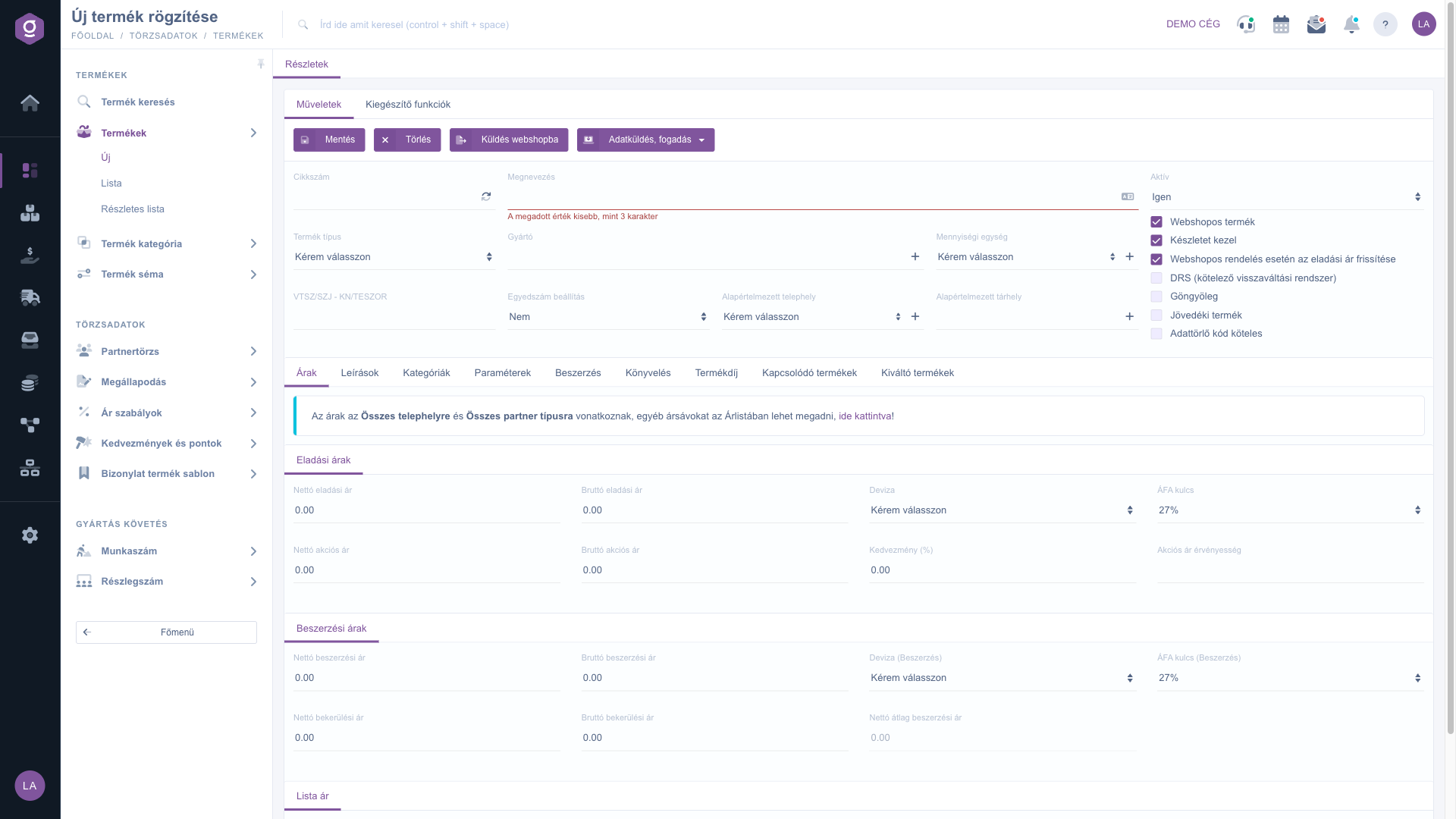
Product data sheet – the Details tab with the validation error of the Name field

15. Further actions

On the Actions tab, besides Save, you find Delete (deletes the product after confirmation) and Send to webshop. For a saved product (except the variant type) the Product card and Identifiers buttons also appear. The Data send, receive dropdown menu serves the data exchange with external systems (for example Waberers, or Brandbank if installed). On the Additional functions tab the New partner, New task, New category and New ledger number buttons open the corresponding data sheet in a new tab, so you do not have to interrupt editing the product.
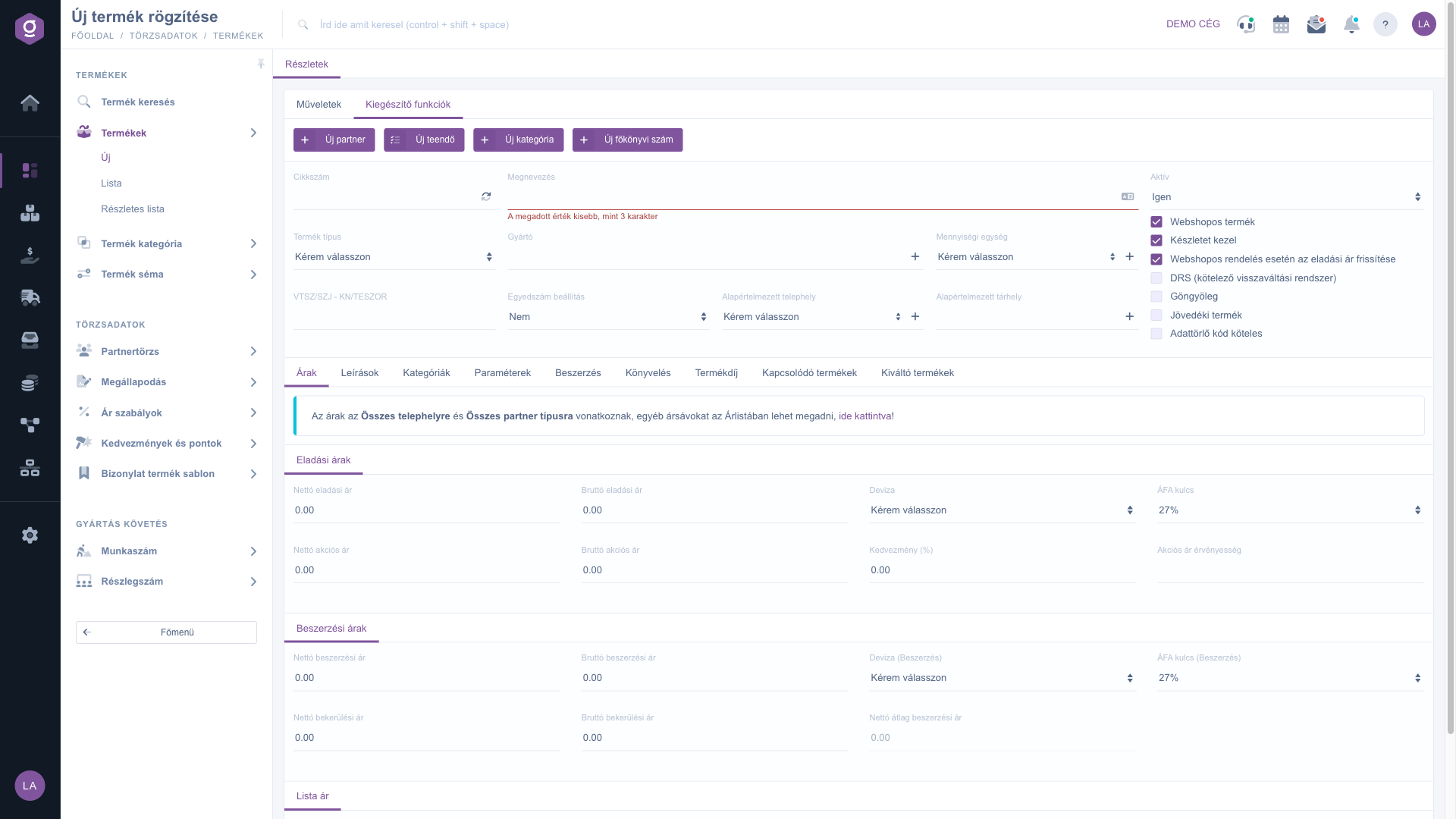
Product data sheet – the Additional functions tab

Tip


When you create a new product, first enter the type and the name, save the product, and only then fill in the Prices, Categories and Parameters tabs. For similar products use the Cloning button in the product list: this way you only have to overwrite the data that differs.


Field reference

The fields of the data sheet header (the system checks the mandatory fields when saving):

Field / ElementMandatoryDescription
Item numberThe unique identifier of the product. With the refresh button you can generate a random, 12-character, uppercase code. For a variant product the item number of the base product is inactive, the item number has to be entered at the variations.
NameThe name of the product as it appears on documents and in the webshop; at least 3 characters. With the language button you can also enter the name in another language.
Product typeThe nature of the product: Simple product, Variant product, Recipe-based product, Service, Package product or Virtual product - Entry ticket. It cannot be changed after saving and it determines which tabs appear.
ManufacturerThe partner of the manufacturer; it can be selected by searching, and with the + button you can create a new partner.
Unit of measureThe unit of measure of the product (for example pcs, kg). With the + button you can open the settings of the units of measure; it is not visible for the variant type.
VTSZ/SZJ - KN/TESZORThe customs tariff or TESZOR number of the product, which can be used for invoicing and data reporting.
Serial number settingThe way of individual tracking: No, Serial number required, LOT number required or LOT number and shelf life required.
Default siteThe default site of the product; with the + button you can create a new site.
Default storage locationThe default storage location of the product (by entering the code of the storage location); with the + button you can create a new storage location.

The switches on the right:

Field / ElementMandatoryDescription
ActiveAn inactive product is not deleted, its data and the earlier documents are kept. Its values: No and Yes.
Webshop productWhen ticked, the product takes part in the webshop synchronisation.
Manages stockWhen ticked, the system tracks the stock of the product. For a service it is off for a new product and cannot be changed.
Update selling price for webshop ordersWhen ticked, a webshop order also updates the selling price of the product. It is ticked by default for a new product.
DRS (mandatory deposit return system)Marks the products with a deposit (DRS). It is not ticked by default for a new product.
Packaging depositWhen ticked, the Packaging tab appears, where you manage the packaging belonging to the product.
Excise productMarks the products subject to excise duty.
Data erase code requiredSwitch for making the data erase code mandatory.

The fields of the Prices tab (the net and gross values work as a pair, the decimal separator is a dot):

Field / ElementMandatoryDescription
Net selling price, Gross selling priceThe net and gross value of the default selling price.
Currency, VAT rateThe currency and the VAT rate of the selling price.
Net promotional price, Gross promotional priceThe net and gross value of the promotional price.
Discount (%)The percentage of the promotion.
Sale price validityThe end of the validity of the promotional price (date picker).
Net purchase price, Gross purchase priceThe purchase price of the product in net and gross value, with its own currency and VAT rate field.
Net cost price, Gross cost priceThe cost of acquiring the product in net and gross value.
Net average purchase priceThe average purchase price calculated by the system; it cannot be edited.
Net list price, Gross list priceThe list price of the product in net and gross value, with its own currency and VAT rate field.

The fields of the further tabs:

Field / ElementMandatoryDescription
Short descriptionA short text shown on invoices and documents.
Packaging noteA text that appears as a warning notice during packaging.
Meta title, Meta keyword, Meta descriptionData used for the search engine optimisation of the webshop.
Long descriptionThe detailed, formattable description of the product.
Main category in systemThe main category of the product in the system; with the + button you can create a new category.
Webshop categoryThe category tree of the webshop in which several categories can be ticked.
Width, Height, DepthThe dimensions of the product in millimetres, including the packaging; a positive number.
Warranty (month)The length of the warranty in months.
Net weight, Gross weightThe weight of the product in grams.
Preferred supplierThe partner from whom you preferably buy the product.
Automatic purchaseNo / Yes: the setting of automatic procurement.
Ledger number - purchase, domestic sale, foreign saleThe ledger numbers of the product for procurement and for domestic and foreign sales.
EKAER requiredInformation field, currently not editable.
Reverse charge productNo / Yes: whether the product is subject to reverse charge taxation.
Intermediated serviceNo / Yes: whether it is an intermediated service.
UN numberFor dangerous goods, the selection of the UN number; with the + button you can create a new one.

The tabular and type-dependent tabs:

Field / ColumnMandatoryDescription
Product variationsFor a variant product: Part number, Packaging value, Packaging name, min., opt. and max. quantity. The variations are saved with the main Save button of the data sheet.
IngredientsFor Package and Recipe-based products: the Part number, Name and Quantity columns.
Related products, Replacement productsThe Part number, Product name and Action columns; if the list is empty, the text “The list is empty” is shown.
NTAK fieldsNumber of persons, Number of entries, Usable (from start date), Ticket price type, Discount, Age group (Korcsoport), Ticket type category, NTAK program.
PackagingIf the Packaging deposit switch is on, the list of the packaging assigned to the product (Part number, Product name, Action).

Frequently asked questions

The selection of the Product type is mandatory, but after the first save the field is inactive, because the type determines the structure of the data sheet (tabs, prices, stock management). If you chose the wrong type, create a new product with the right type and set the old one to inactive.

For a variant product the item number has to be entered at the variations, therefore the item number field of the base product is inactive and the refresh button is disabled. For the other types the field is editable.

The Name must be at least 3 characters long; if it is shorter, an error message appears (on the Hungarian screen: “A megadott érték kisebb, mint 3 karakter”) and the product is not saved. Also check the Product type and the price fields (enter a number and use a dot as the decimal separator). If the server reports an error, the text of the window shows the reason.

If you have already used the product on a document, rather set the Active field to No: this way it stays in the records and does not affect earlier documents. Use the Delete button for new products that have not been used yet; the system asks for confirmation.

Tick the Webshop product checkbox and save the product. The change goes out with the scheduled synchronisation; if you want it immediately, use the Send to webshop button on the Actions tab. Webshop orders can also update the selling price if the Update selling price for webshop orders switch is on.

The tabs depend on the type and on the saving state: the Prices tab is not visible for a variant product; Product variations only appears for a Variant product, Ingredients only for Package and Recipe-based products, NTAK only for the Virtual product - Entry ticket type; Pictures and Files only for a saved product; and the Packaging tab only if the Packaging deposit switch is on.

The prices entered on the Prices tab apply to all sites and all partner types. You can create different price bands in the Price list. Read more: Itemized price list and Grouped price list.

You first have to define the parameters in the Product schemas, and then they appear on the Parameters tab of the product. Read more: Product schema list.

In the product list select a similar product and use the Cloning button: the new data sheet opens with the data of that product and you only have to overwrite the differences. Read more: Product list.

The Products module is only visible in the menu if it is assigned to your user. If you do not see it, ask the system administrator to check the module assignment.

Need personalized help?

Don't want to spend hours searching for a solution? Choose the most efficient way: book a personalized, 45-minute online training session dedicated entirely to you. Whether it's a walkthrough of the basics or a detailed setup of a specific module, our expert colleague will guide you through the whole process, step by step.

Don't waste your time - ask for help!
Our goal is to get you using our system as quickly and efficiently as possible. Whether you're completely new to us or stuck on a specific setting, don't hesitate to ask for help!

Logzi warehouse management software

Get in touch with us

Interested in our software? Feel free to write to us!

Need help?

If you can't find the answer and need assistance

Create your account now,
pay later!

Try it free for 3 days, no risk, no obligation!
