Discounts and points list

Manage loyalty discounts and point-collecting rules: search, close, delete, copy and customise the list.

Function overview

In this module you can review and manage Discounts and points documents. Such a document is a rule of the loyalty points program: it defines how many points customers earn for a given purchase value and what value they can redeem the collected points for. The system credits the points to the partner when an In-store sale document is closed.

  • All rules in one place: the list shows every point-collecting rule with its validity period and subject.
  • Actions: from here you can start a new rule, open, close, delete or copy the selected rule.
  • Targeted search: filter by document number, status, document date, start and end date, and employee.
  • Preview window: you can review the items of the selected rule below the list without opening the sheet.
  • Customisable view: choose which columns and how many rows are shown, and in what order.

The statuses of a rule: Draft (editable, not yet in effect), Closed (final; only this status is applied to in-store sales), Cancellation and Cancelled (invalidated rules, they are not applied). A rule works if its status is Closed, it is not deleted, and today falls between the Start date and the End date.

Step by step

1. Opening the list and the actions for rules

Click Main menu / Master data / Discounts and points / List to see all discount rules recorded so far. Four tabs are shown above the list: Actions, Search, View and layout and Additional functions. (The screenshots in this guide were taken in the Hungarian demo interface, where the tabs are named Műveletek, Keresés, Nézet és elrendezés and Kiegészítő funkciók.) With the buttons on the Actions tab you work with the selected rule (click a row in the table to select it):

  • New: creates a new rule on an empty sheet.
  • Open: opens the sheet of the selected rule.
  • Close: closes the selected Draft rule. In the drop-down menu of the button you can choose between Close, Close and print and Close and download. Only a Draft rule can be closed.
  • Delete: deletes the rule; the drop-down menu offers Delete and Delete and copy. Deleting is not a permanent removal: the rule gets the Cancelled status and is no longer applied to further sales. A Cancellation or Cancelled rule cannot be deleted again.
  • Cloning: makes a copy of the selected rule, so you can quickly start a new rule from an existing one.
  • Document management: a drop-down menu where Cloning is available.
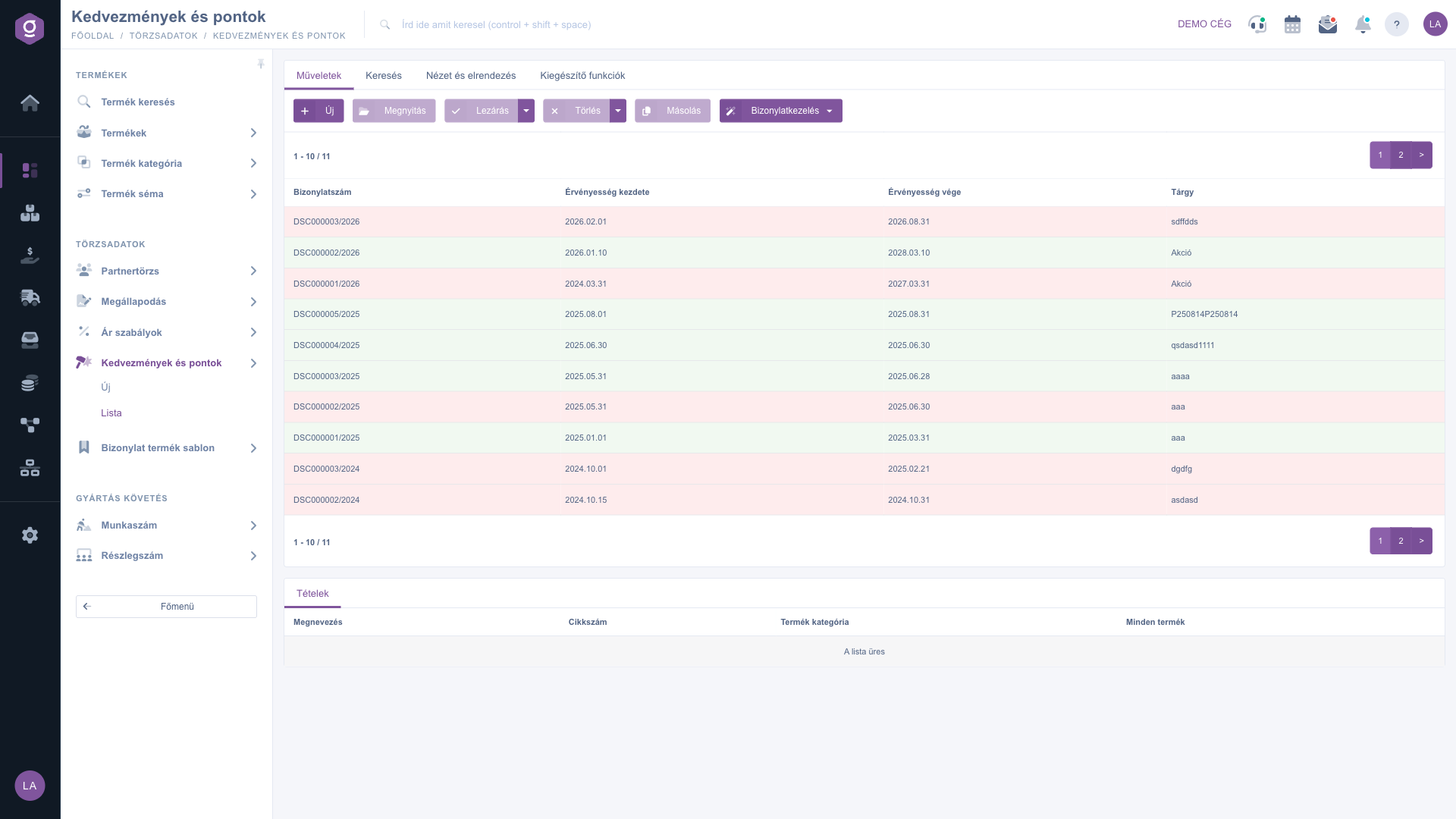
Discounts and points list – Actions tab

2. Searching among the rules

Click the Search tab to see the filter options. The fields visible right away are Document number and Status. The Expand button opens further filters: search by Document date, Start date and End date (from and to dates), and by Employee. Click the Search button to apply the conditions you set.
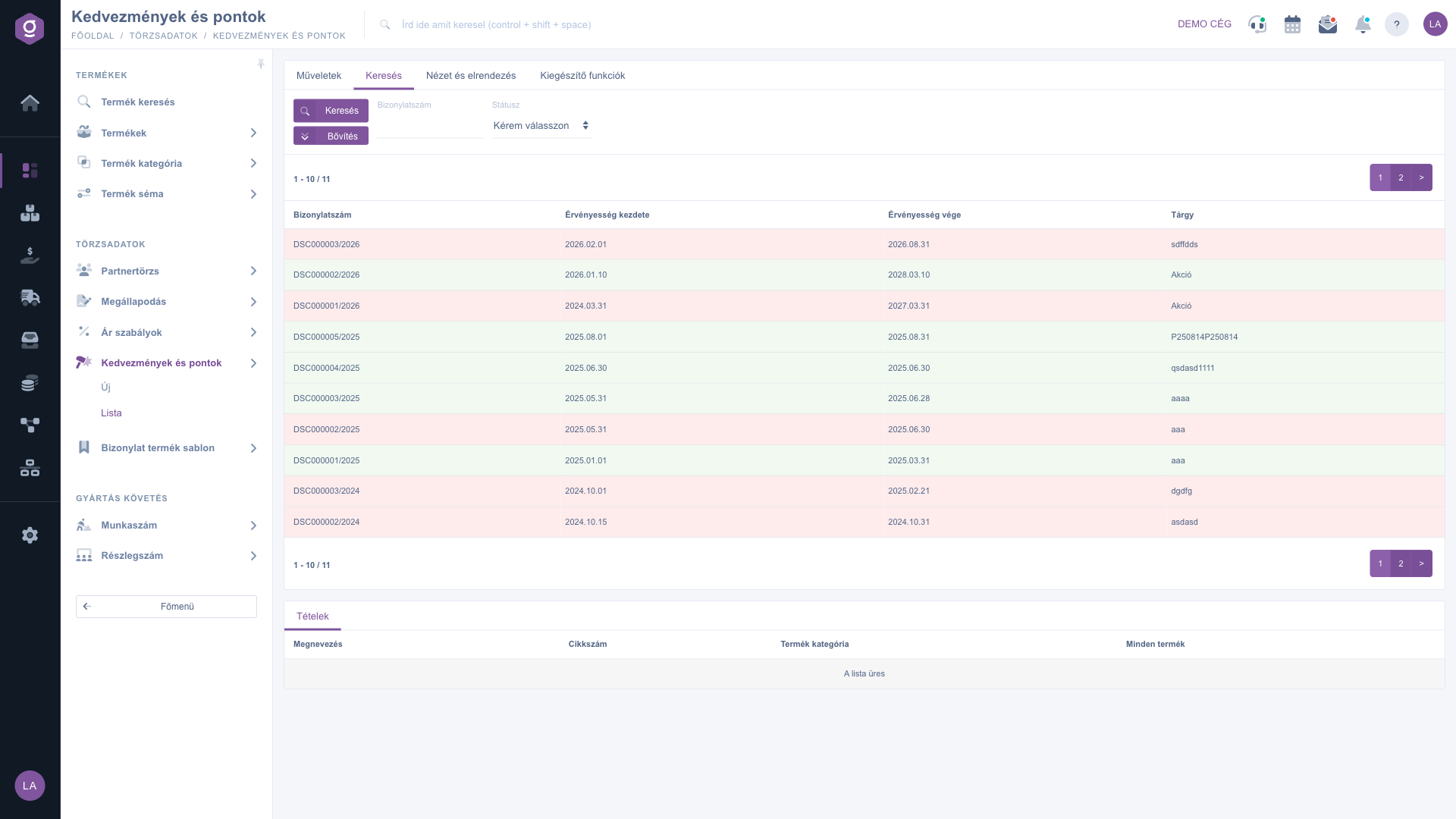
Discounts and points list – Search tab

3. Customising the view

On the View and layout tab you can set how the list is displayed for you:

  • Columns: choose which columns appear in the table. If you have not set anything yet, you see the Document number, Validity start, Validity end and Subject columns.
  • Rows: set how many rules are shown on a page.
  • Sorting: choose by which column and in which direction the list is sorted by default.
  • Preview window: opens the settings of the preview window. The window shows the Items tab of the selected rule with the Name, Item number, Product category and All products columns.
  • Interface and behavior: other display-related settings of the list.

These settings are saved personally, tied to your user, so they are kept the next time you sign in.
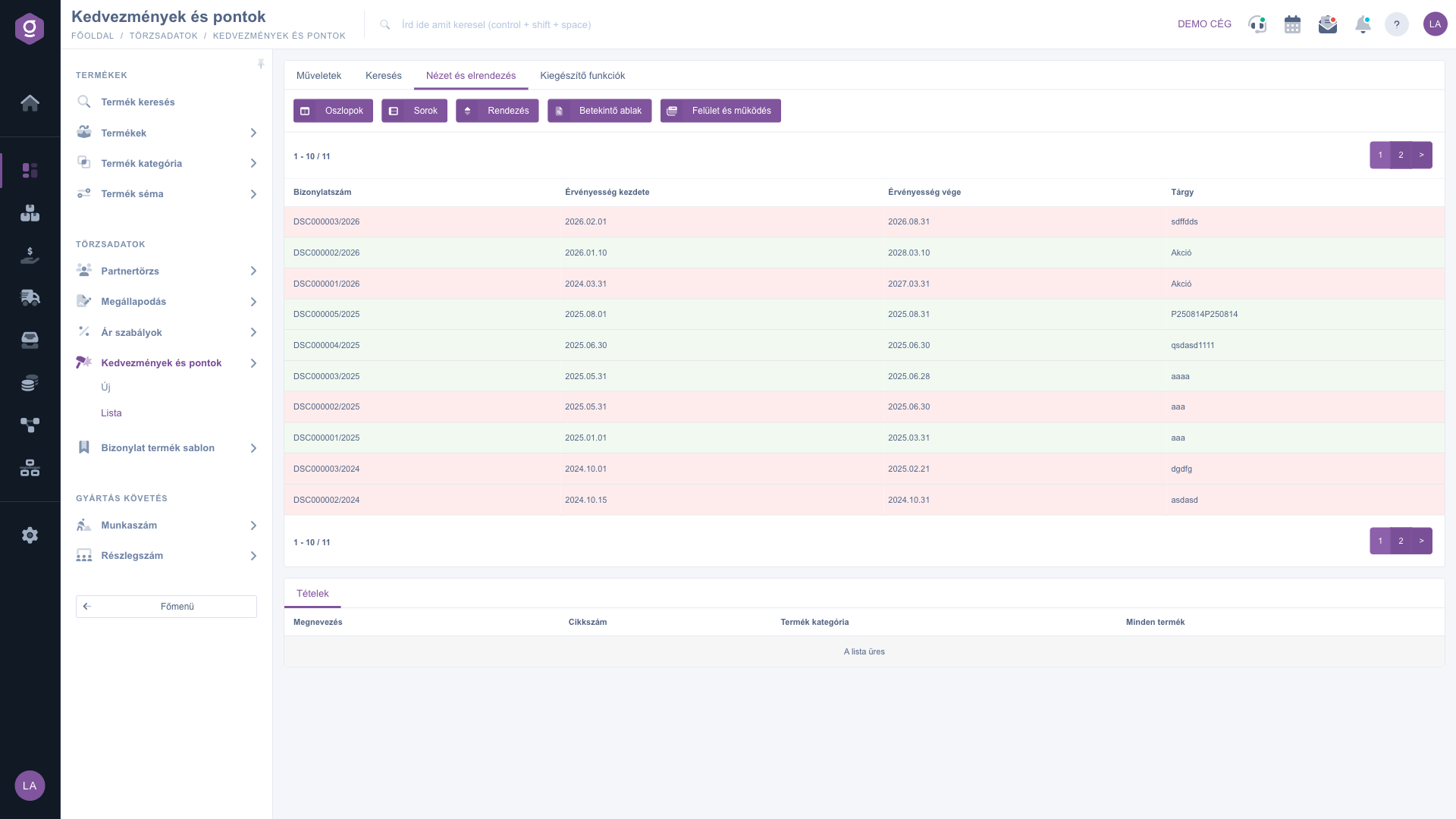
Discounts and points list – View and layout tab

4. Additional functions

On the Additional functions tab the New task button lets you record a task, for example a reminder to create a new rule before a point-collecting campaign expires.

5. How does the customer earn points?

A rule does not credit points by itself; it takes effect when an in-store sale is closed. If the in-store sale contains a product that the items of a currently valid rule select (by item number, product category or All products), the system calculates the points from the gross total of the document: the total divided by the Sale value is multiplied by the Sale points value and rounded. The credited points increase the loyalty balance of the partner. When redeeming, the system converts the points into a discount at the ratio of the Redemption points to the Redemption value.

Tip


To start a loyalty program, create a rule with the subject “Loyalty points 2026”: Sale value 1000, Sale points 1 (1 point for every 1000 HUF spent), Redemption points 1, Redemption value 10 (1 point is worth a 10 HUF discount), and add All products among the items. Close the rule, and from the very first purchase customers can collect points. In the list you can filter by End date to notice in time which rule is about to expire.


Creating a rule and its items is described in the Discount sheet guide. Collecting and redeeming points happens when the In-store sale document is closed, and in-store sales are shown in the In-store sale list.

Field descriptions

The selectable columns of the table and their meaning. You can switch the columns on or off in the Columns setting:

Field / ElementRequiredDescription
IdentifierThe internal serial number of the rule.
Document numberThe document number of the rule.
SubjectThe name entered on the sheet.
Document dateThe date the rule was created.
ModificationThe date of the last modification of the rule.
Start date, End date, Validity start, Validity endThe validity period of the rule; points are earned only within this period.
Sale value, Sale pointsThe point-collecting ratio: this many points are earned for this purchase value.
Redemption value, Redemption pointsThe redemption ratio: this many points are worth this discount.
Customer comment, Internal commentThe comments entered on the sheet.

The fields of the Search tab and their meaning:

Field / ElementRequiredDescription
Document numberFilters by the document number of the rule.
StatusFilters by the status of the rule (Draft, Closed, Cancellation, Cancelled).
Document dateFound under Expand; search by creation time with from and to dates.
Start date, End dateFound under Expand; search by the validity period with from and to dates.
EmployeeFound under Expand; filters by the employee who recorded the rule.

Frequently asked questions

Check that there is a rule with the Closed status, not deleted, and that today falls between its Start date and End date. Also check that the items of the rule select the purchased product (item number, category or All products), and that the Discount type of the rule is Total amount-based: currently only this type is used in the point calculation. The points are credited when the in-store sale is closed, and the customer must be entered as the partner on the document.

The fields of the sheet can be edited only for a Draft rule; after closing they are greyed out. Only a Draft rule can be closed as well. You cannot delete a Cancellation or Cancelled rule again. If you need a modified version of a closed rule, use the Cloning button and edit the copy.

Deleting puts the rule into the Cancelled status, so it is no longer applied to further sales. It does not change the points previously credited to partners. The balance is shown on the Loyalty data tab of the partner sheet.

Check the filters set on the Search tab (Status, Document date, Start date, End date, Employee), clear them, and search again. If the list has several pages, use the pager to go to the first page. If you have not created any rule yet, the list is empty.

On the sheet of the rule, on the Items tab. There you can specify the products by item number, product category or the All products option. The Discount sheet guide helps you fill in the fields.

The Discounts and points module appears under Main menu / Master data only if it is assigned to your user. If you cannot see it, ask the system administrator to check the module assignment in your user settings.

Need personalized help?

Don't want to spend hours searching for a solution? Choose the most efficient way: book a personalized, 45-minute online training session dedicated entirely to you. Whether it's a walkthrough of the basics or a detailed setup of a specific module, our expert colleague will guide you through the whole process, step by step.

Don't waste your time - ask for help!
Our goal is to get you using our system as quickly and efficiently as possible. Whether you're completely new to us or stuck on a specific setting, don't hesitate to ask for help!

Logzi warehouse management software

Get in touch with us

Interested in our software? Feel free to write to us!

Need help?

If you can't find the answer and need assistance

Create your account now,
pay later!

Try it free for 3 days, no risk, no obligation!
