Discount sheet

Create a loyalty points rule: validity, earning and redemption ratio, affected products, closing.

Overview

On the Discount sheet you record one rule of the loyalty points programme: when it is valid, how many points are earned for what purchase value, what discount the points can be redeemed for, and which products it applies to. The rule takes effect when an In-store sale document is closed: that is when the system credits the points to the partner.

  • Validity period: the Start date and the End date determine when points are earned.
  • Earning ratio: the Sale value and the Sale points define how many points are earned for how much spent.
  • Redemption ratio: the Redemption points and the Redemption value define what discount a number of points is worth.
  • Affected products: in the items you can specify by item number, product category or the All products option which purchases count.
  • Discount type: Total amount-based or Itemized. At present the points calculation evaluates only the Total amount-based type; the Itemized type can be selected, but it does not yet take effect in the points calculation.

Statuses of the rule: Draft (editable), Closed (final, this is the one applied in the in-store sale), Cancellation and Cancelled (invalidated). The fields of the sheet can be edited only in Draft status.

Step by step

1. Opening the sheet and the actions

Main menu / Master data / Discounts and points / New opens an empty sheet. You can open an existing rule from the List menu item. Above the sheet there are three tabs: Actions, Additional functions and View and layout; on the right there is the CRM button. (The screenshots in this guide were taken in the Hungarian demo interface, where the tabs are named Műveletek, Kiegészítő funkciók and Nézet és elrendezés.) The Actions tab has three buttons, each with a drop-down arrow:

  • Save: saves the rule in Draft status. The drop-down menu offers further save variants.
  • Close: finalizes the rule. In the drop-down menu you can choose between Close, Close and print and Close and download.
  • Delete: the drop-down menu offers Delete and Delete and copy. Deleting puts the rule into Cancelled status.
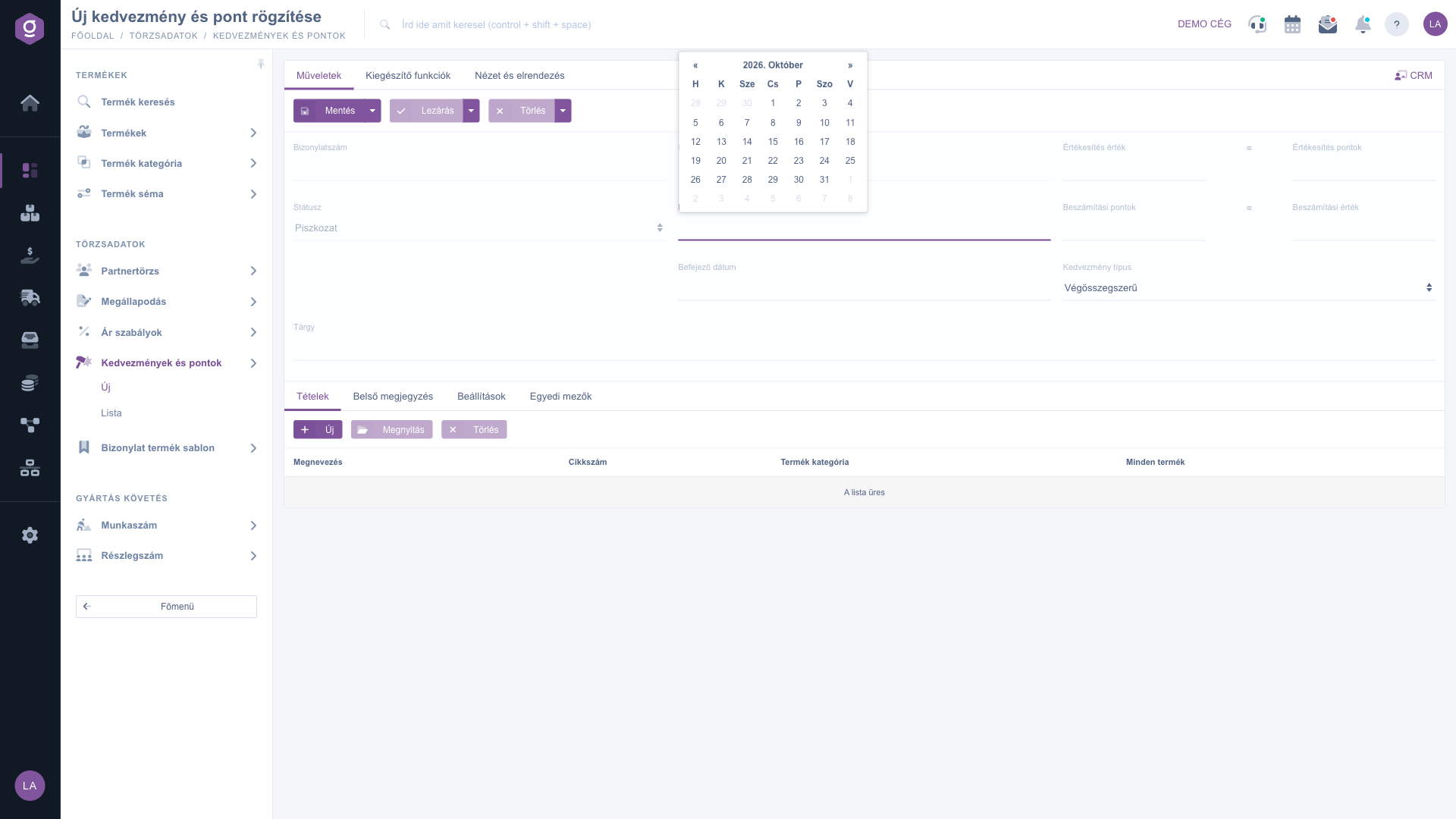
Discount sheet – Actions tab and header

2. Filling in the header

Fill in the header fields; the Start date, the End date, the Sale value, the Sale points, the Redemption points, the Redemption value, the Discount type and the Subject are mandatory, and saving does not work without them. You can pick the dates from the calendar. The Sale value and the Sale points together give the earning ratio, the Redemption points and the Redemption value give the redemption ratio. The Document date field cannot be edited.

3. Adding items

On the Items tab you define for which products points are earned. Click New and in the pop-up window choose one of three rule types: Item number rule (one specific product), Product category rule (all products of a product category) or All products. For the chosen type specify the product or the category, then confirm. The items table shows the Name, Part number, Product category and All products columns. With the Open button you can modify the selected item, with the Delete button you can remove it.

4. Further tabs

  • Internal comment: an internal note that can be attached to the rule.
  • Settings: here you select your company address in the Billing address field; it is mandatory.
  • Custom fields: extra fields defined by your company.

5. Additional functions

On the Additional functions tab, the New product, New partner and New task buttons let you create a new product, partner or task while editing the rule; the Partner card button opens the card of the partner.
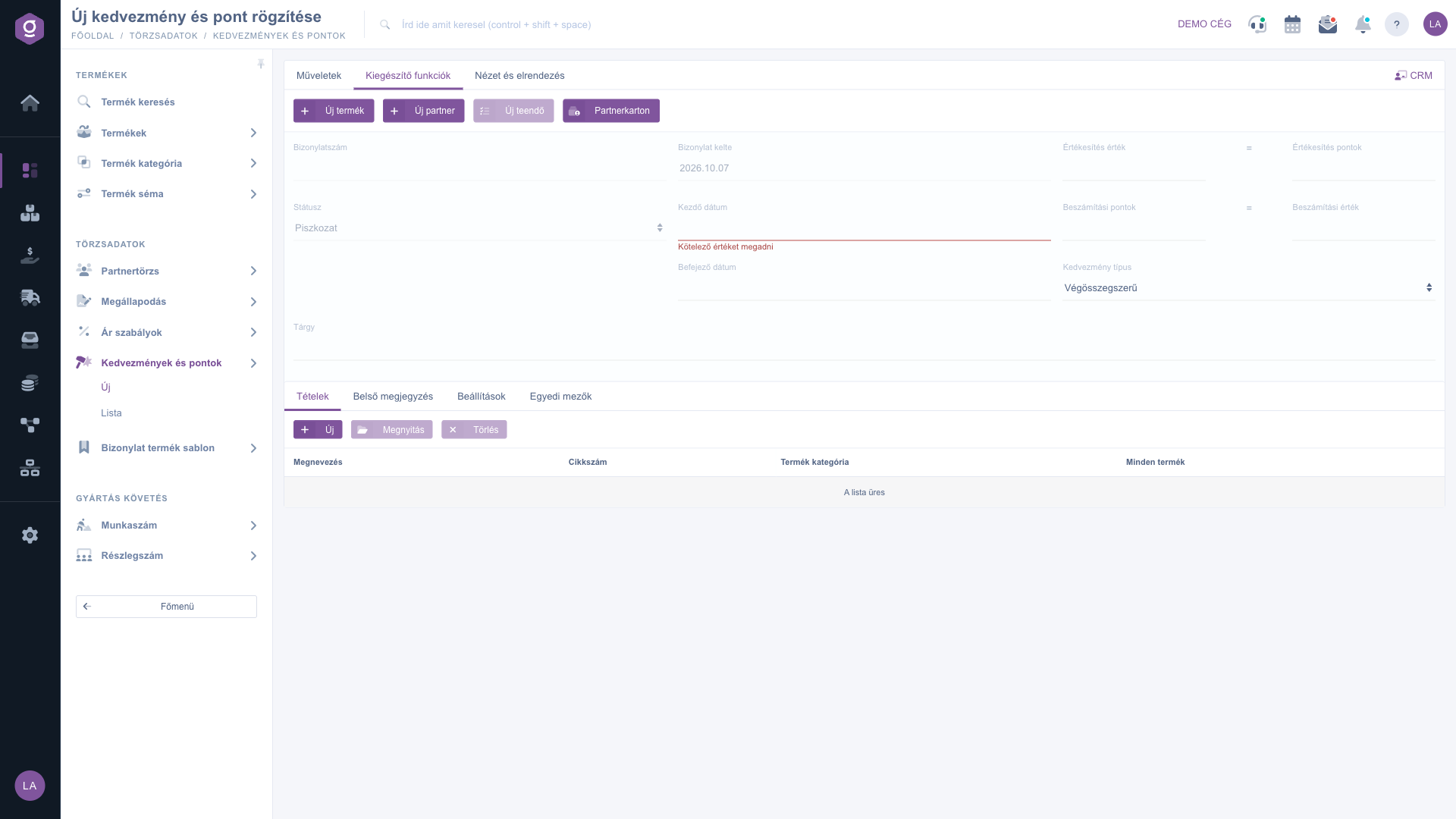
Discount sheet – Additional functions tab

6. View and layout

On the View and layout tab, the Interface and behavior button opens the display settings of the sheet interface.
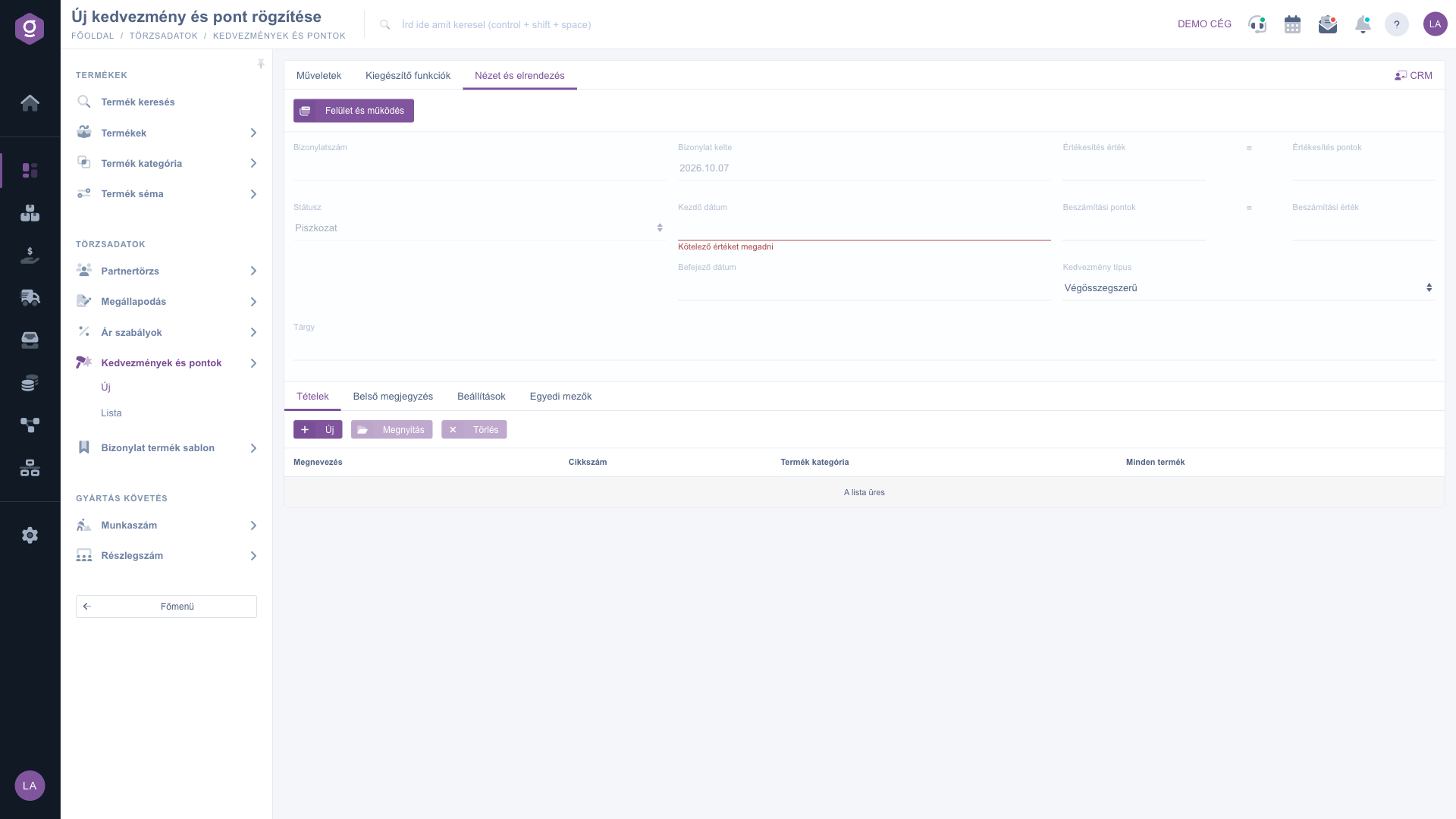
Discount sheet – View and layout tab

7. CRM panel

If you click the CRM button in the top right corner, a side panel opens next to the sheet: there you see the system messages of the document, with the Task, Email, SMS and Call buttons you can quickly record a related event, and in the field at the bottom you can ask the AI about the document.
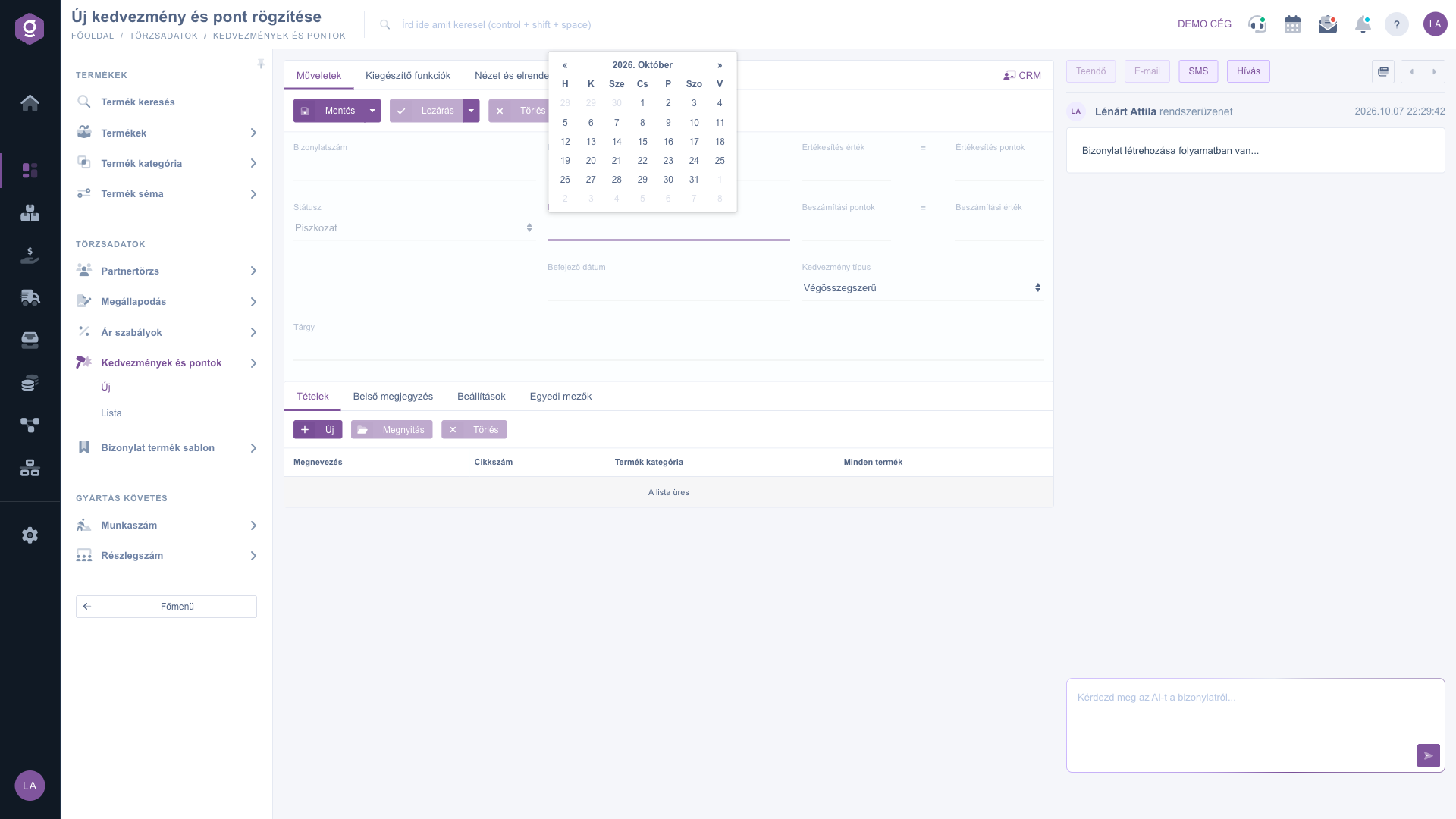
Discount sheet – CRM panel

8. Saving and closing

When all mandatory fields are filled in and the items are in order, click Save. The rule stays in Draft status and does not yet take effect in the in-store sale. If you want it to be final, click Close: the rule gets Closed status, its fields become read-only, and on the days between the Start date and the End date it credits points when in-store sales are closed.

Tip


Example of a “Loyalty points” rule: Sale value 1000 and Sale points 1, so a purchase of 10,000 HUF earns 10 points. Redemption points 1 and Redemption value 10, so 1 point is worth a 10 HUF discount. Discount type: Total amount-based, item: All products. Before closing, check the Start date and the End date, because the rule takes effect only in this period.

Searching, closing and copying existing rules is described in the Discounts and points list guide. Points are credited and redeemed when the In-store sale document is closed; the balance of the partner is shown on the Loyalty data tab of the Partner data sheet.


Field descriptions

Fields of the sheet header:

Field / ElementRequiredDescription
Document numberThe document number of the rule (still empty for a new rule).
Document dateThe date the rule was created; it cannot be edited.
StatusThe status of the rule (Draft for a new rule); the field is managed by the system.
Start dateThe first day from which the rule takes effect.
End dateThe last day until which the rule takes effect.
Sale valueThe purchase value for which the Sale points are earned.
Sale pointsThe number of points earned for the Sale value.
Redemption pointsThe number of points taken into account when redeeming.
Redemption valueThe value of the Redemption points as a discount.
Discount typeTotal amount-based or Itemized. In the points calculation the Total amount-based type currently applies.
SubjectThe name of the rule.
Billing addressThe company address selectable on the Settings tab.

Item fields:

Field / ElementRequiredDescription
Item number ruleThe rule applies to one specific product.
Product category ruleThe rule applies to the products of the selected product category.
All productsThe rule applies to all products. In the items table it is marked Yes / -.
Name, Part number, Product categoryThe columns of the items table: the data of the selected product or category.

Frequently asked questions

The rule must have Closed status, and today must fall between the Start date and the End date. The Discount type must be Total amount-based, and the items must select the purchased product (item number, category or All products). The points are credited when the in-store sale is closed.

The fields can be edited only in Draft status; editing a closed rule is disabled. A rule in Cancellation or Cancelled status cannot be deleted again. If you need to change a closed rule, make a copy in the Discounts and points list and edit the copy.

With the Total amount-based type the points are calculated from the gross total of the in-store sale. The Itemized type can be selected from the list, but it does not yet take effect in the points calculation, so use the Total amount-based type for earning points.

On the Loyalty data tab of the partner data sheet. In the in-store sale the use of points is also shown: in the Usable points, Points to use, Points credited after purchase and Currently usable points fields. Details are in the In-store sale document guide.

For a new rule the items table is empty and the text The list is empty is shown. Click the New button and specify which products the rule applies to (item number, category or All products). Without items the rule selects no product at all.

The module appears under Main menu / Master data only if it is assigned to your user. Ask the system administrator to check the assignment of the module.

Need personalized help?

Don't want to spend hours searching for a solution? Choose the most efficient way: book a personalized, 45-minute online training session dedicated entirely to you. Whether it's a walkthrough of the basics or a detailed setup of a specific module, our expert colleague will guide you through the whole process, step by step.

Don't waste your time - ask for help!
Our goal is to get you using our system as quickly and efficiently as possible. Whether you're completely new to us or stuck on a specific setting, don't hesitate to ask for help!

Logzi warehouse management software

Get in touch with us

Interested in our software? Feel free to write to us!

Need help?

If you can't find the answer and need assistance

Create your account now,
pay later!

Try it free for 3 days, no risk, no obligation!
