1. Opening the sales screen
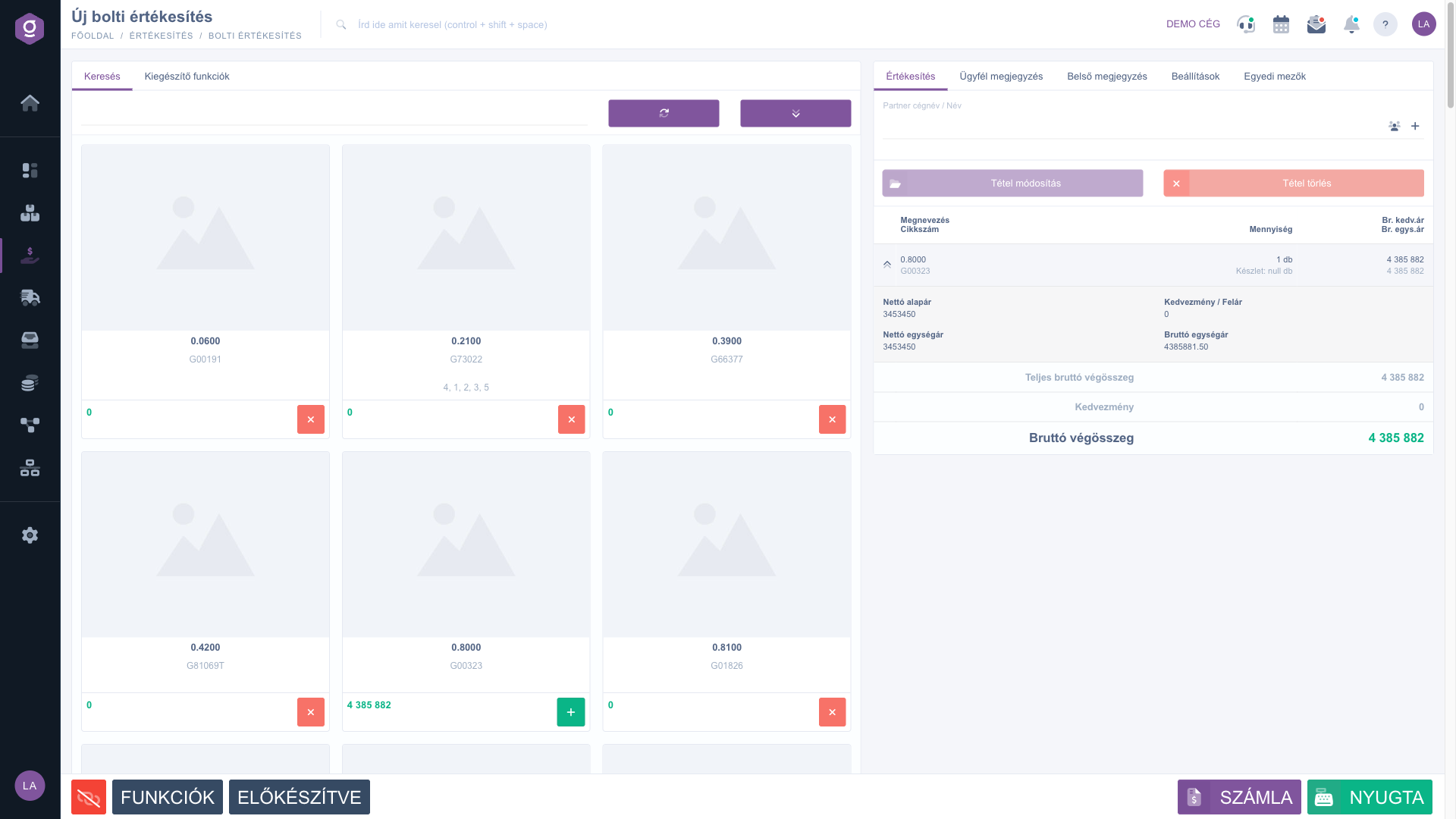
Click Main menu / Sales / In-store sale / New to open the sales screen; you can reach the same screen with the New button of the list. The screen has two parts. On the left is the product search (tabs Search and Additional functions), on the right is the basket with the tabs Sales, Customer comment, Internal comment, Settings and Custom fields. At the bottom you find the row of large action buttons: FUNCTIONS, PREPARED, RECEIPT and INVOICE.
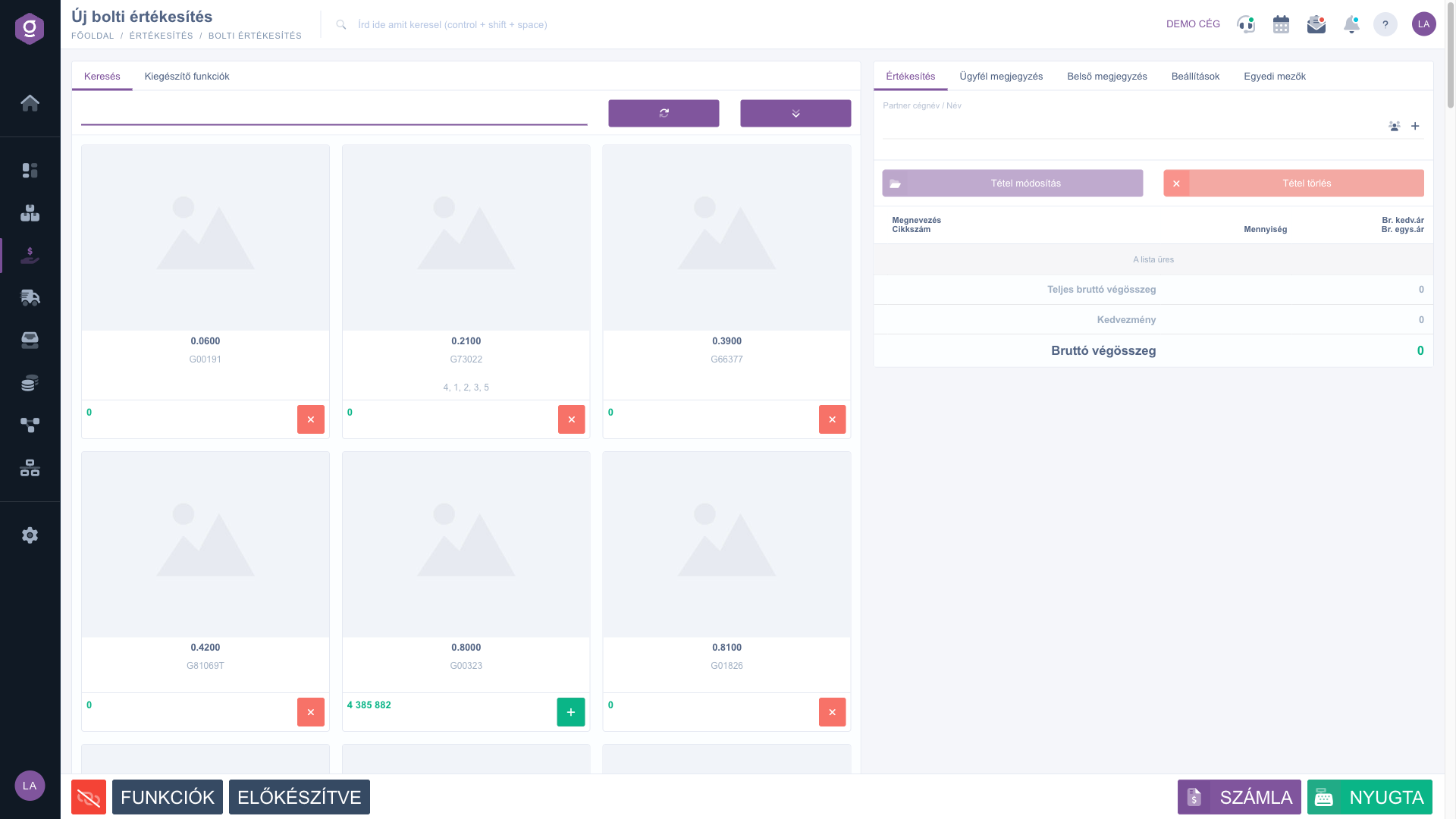
In-store sale document – the sales screen
2. Searching for a product and adding it to the basket
Type the item number into the search field on the left or scan the barcode; the refresh button next to it reloads the results. The extended search button opens further filters: Category, Web category, Manufacturer and the product parameters. The results appear as tiles; the selected product goes into the basket with a quantity of 1, which you can change later. If a product is not in the list, you can add one in a new tab with the New product or New partner buttons on the Additional functions tab.
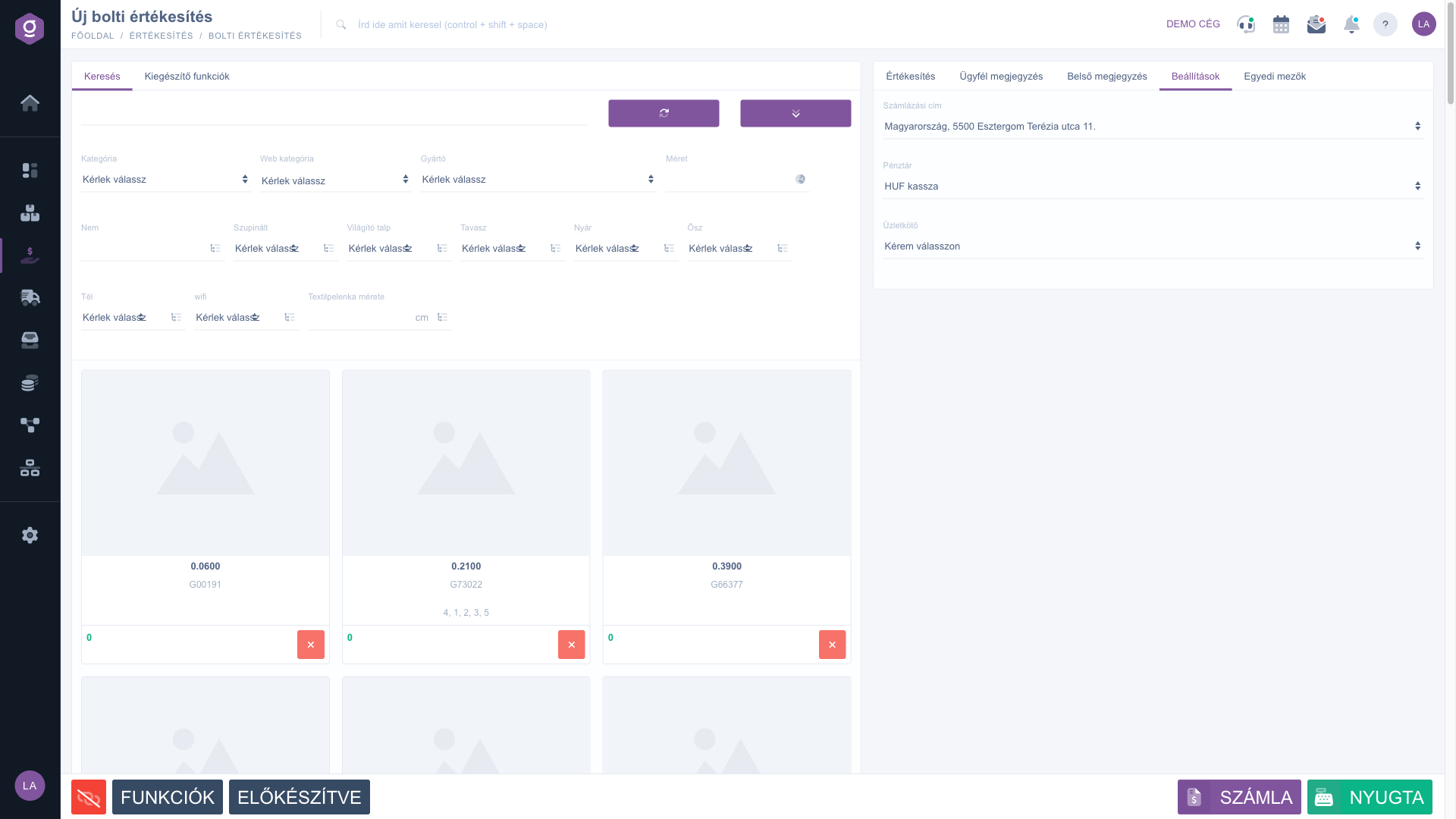
Extended search and the Settings tab
The system warns you in two cases. If no sale price is set for the product, you get a message that the product cannot be sold in the in-store sale function; in that case enter the price at the product first. If there is no free stock, a warning window about missing free stock appears: with the Hungarian-language Igen, hozzáadom (Yes, add it) button you can put the product into the basket anyway, with the Mégsem (Cancel) button you discard it.
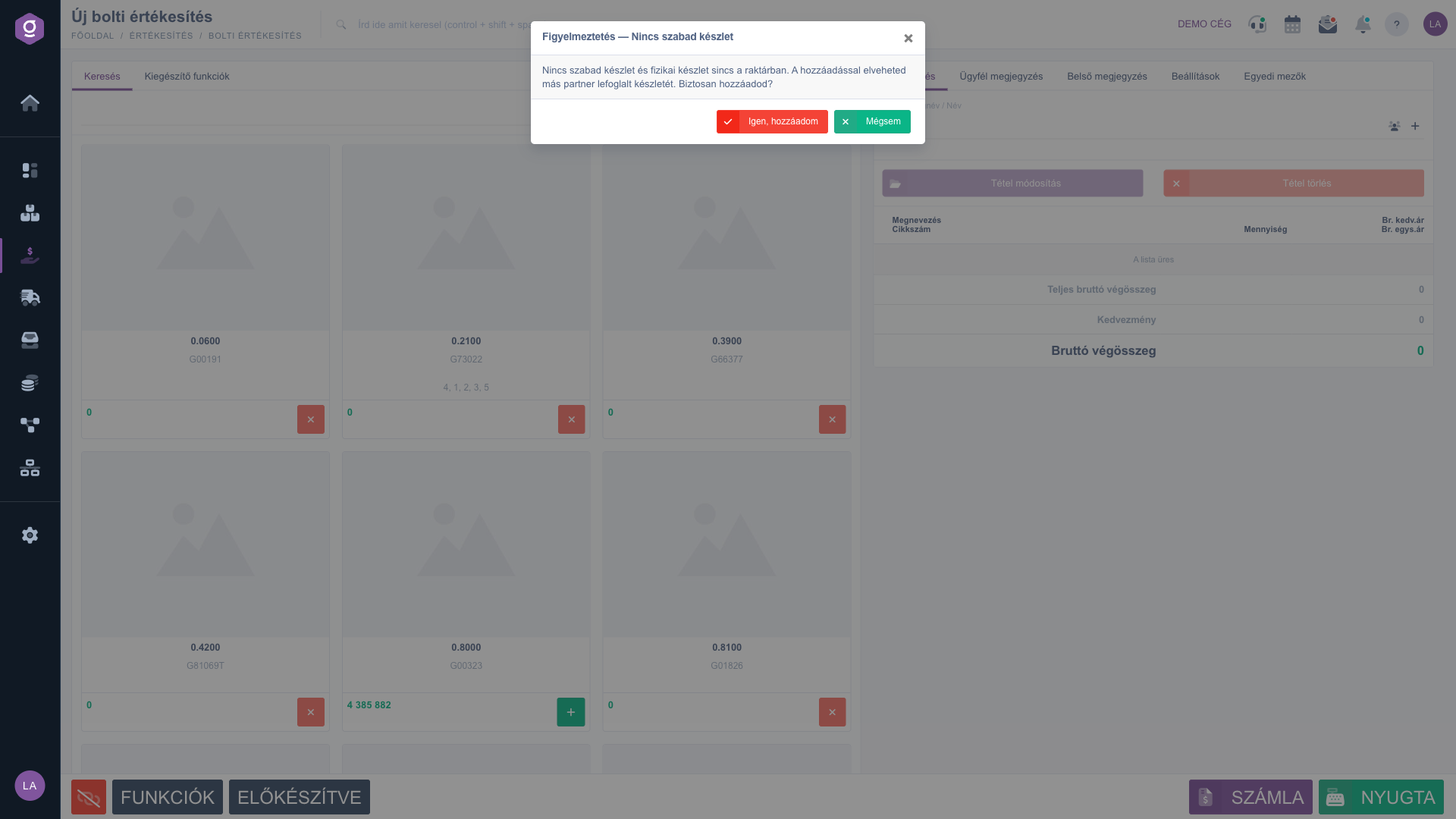
Warning about missing free stock
3. The basket and modifying items
On the Sales tab on the right, the table shows the items row by row: the Name and Item number column shows the name and item number of the product, the Quantity column shows the quantity (with the stock information Készlet: ... db below it, which stays Hungarian), and the third column shows the Gr. disc. price and the Gr. unit price; if the price differs from the base price, the original price is shown struck through.
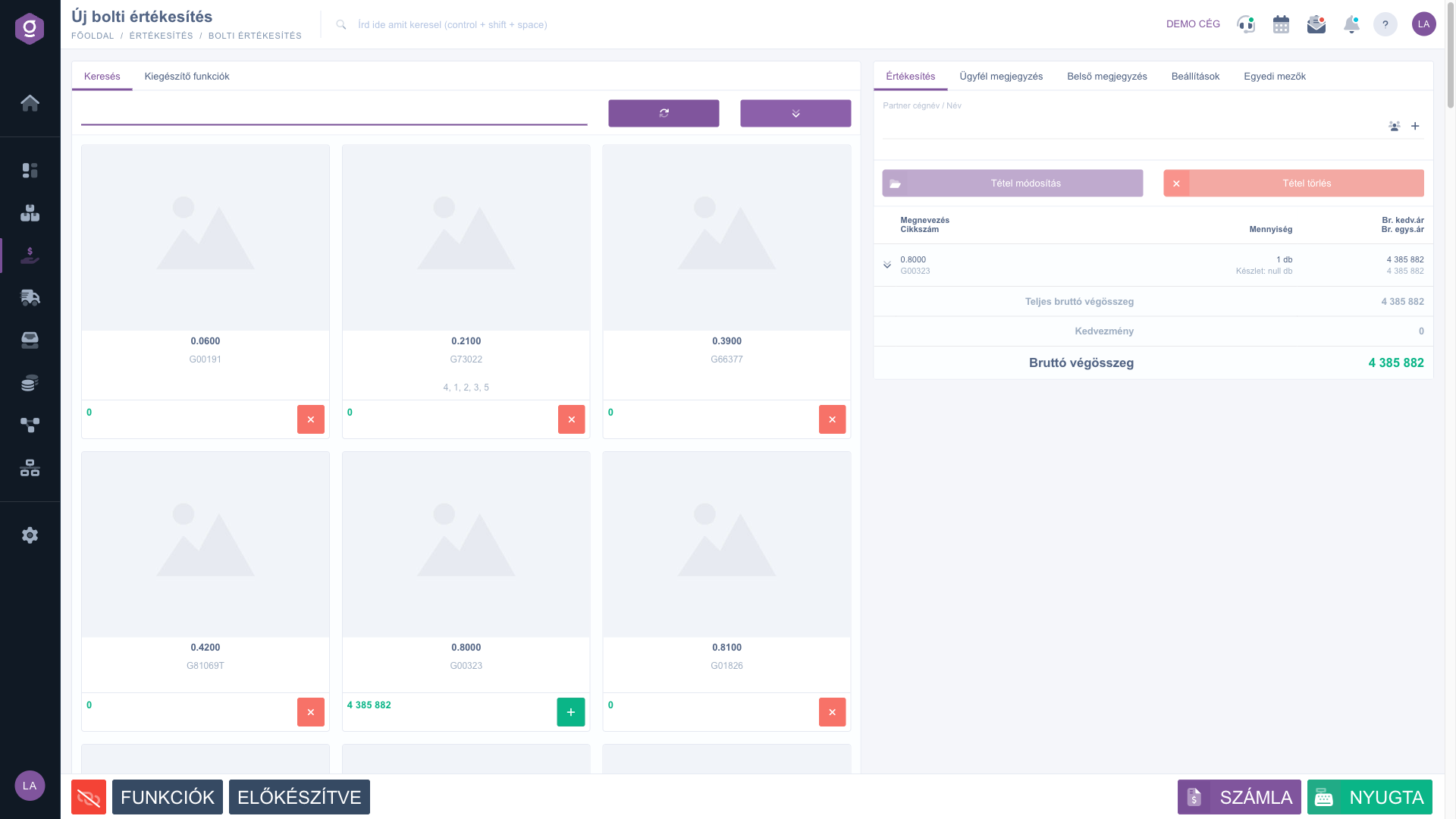
Product in the basket
The arrow at the left end of the row expands the details of the item: base net price, discount / surcharge, net unit price and gross unit price (these captions are shown in Hungarian). After you select a row, the Modify item button lets you edit the item and the Delete item button deletes it; the system asks for confirmation before deleting. The totals are shown below the table: Total gross sum, Discount and Gross total.
Expanded item row
4. Partner, loyalty points and comments
On the Sales tab you can choose a partner in the Partner company name / Name field; at the counter, for an anonymous customer, you can leave it empty. With the buttons next to the field you can open the partner sheet or add a new partner, whose data the system fills into the document automatically. If the partner has loyalty points, the Usable points field shows the available amount and in the Points to use field you enter how many you redeem; this reduces the amount to pay. On the Customer comment and Internal comment tabs you can record free text, and on the Settings tab you can set the Billing address, the Cash register and the Sales representative.
5. Payment and closing
When you click the RECEIPT button, the system creates the receipt and the payment window opens. Here you see the Gross total, the points credited after the purchase and the currently usable points, and below them the payment methods (for example cash, bank card) with check boxes. Tick the payment method used and enter its amount; several payment methods can be combined. The window shows the Amount received, the Remaining amount and the Change. In forint, the cash amount is rounded to 5 forints. If no payment method is selected, no amount is entered or the amount received is too low, the system shows an error message (in Hungarian). To close the sale you can choose from three buttons:
- Close without printing document: the receipt is closed and nothing is printed.
- Close and print document: after closing, the receipt is printed, then you can start a new sale with the Következő bizonylat (Next document) button.
- Close and send to cash register: after closing, the system generates a QR code (Sam4s) that the cash register reads; with a direct connection you can send it with the Küldés pénztárgépre (Send to the cash register) button.
The captions of the payment window and of the windows shown after closing appear in Hungarian regardless of the language of the interface.
6. Issuing an invoice and the other buttons
If the customer asks for an invoice, the INVOICE button takes you to the invoice form, where you can issue an invoice from the items of the basket. The FUNCTIONS button opens the cash register functions page (day opening, day closing, money movement) in a new tab, the PREPARED button opens the prepared barcode collector list, and the cable icon on the left starts the direct connection of the cash register.
7. Personal settings
You can set the behavior of the product search per user: on the In-store sale tab of the Interface section of your personal settings you can set the Product display for new retail sale (No, 50, 100 or All), the Listing of products in stock, and whether to Add automatically in case of a single match.
Tip
For fast service, switch on the automatic adding in case of a single match and use a barcode scanner: the scanned item number goes straight into the basket and the focus returns to the search field, so the next product can be scanned in one move.



