The screenshots show the Hungarian user interface; where useful, the Hungarian label is given in parentheses.
1. Opening a new cash register document
Clicking the Main menu / Cash register / Cash register document / New menu item opens an empty document. You can open an existing document from the Main menu / Cash register / Cash register document / List menu item. At the top of the page you find the Actions, Additional functions and View and layout tabs, below them the header of the document, then the Items tab and the further inner tabs. Further tabs are also visible at the top of the page (Részletek, Történet, E-mail, Csomagkövetés, CRM, Státusz történet, Események); you edit the data of the document on the Részletek tab (Details).
2. Filling in the header
In the header you find the following fields — their detailed description is in the Field descriptions section:
- Document number, Status and Document date: filled in by the system, not editable. A new document is in Draft status and receives its document number on the first save.
- Direction: choose whether you are recording a cash movement coming into the cash register (Incoming) or paid out of it (Outgoing).
- Cash register: the cash register whose cash movement you are recording. The + button next to the field lets you create a new cash register in the cash register settings (opens in a new tab).
- Currency and Exchange rate: when you choose the Cash register, the system fills in the currency of the cash register automatically and fetches the exchange rate.
- Opening value and Closing value: the balance of the cash register at closing; read-only, filled in by the closing.
- Partner company name: as you type the partner name, the system offers suggestions. The buttons next to the field let you open the sheet of the selected partner or quickly add a new one.
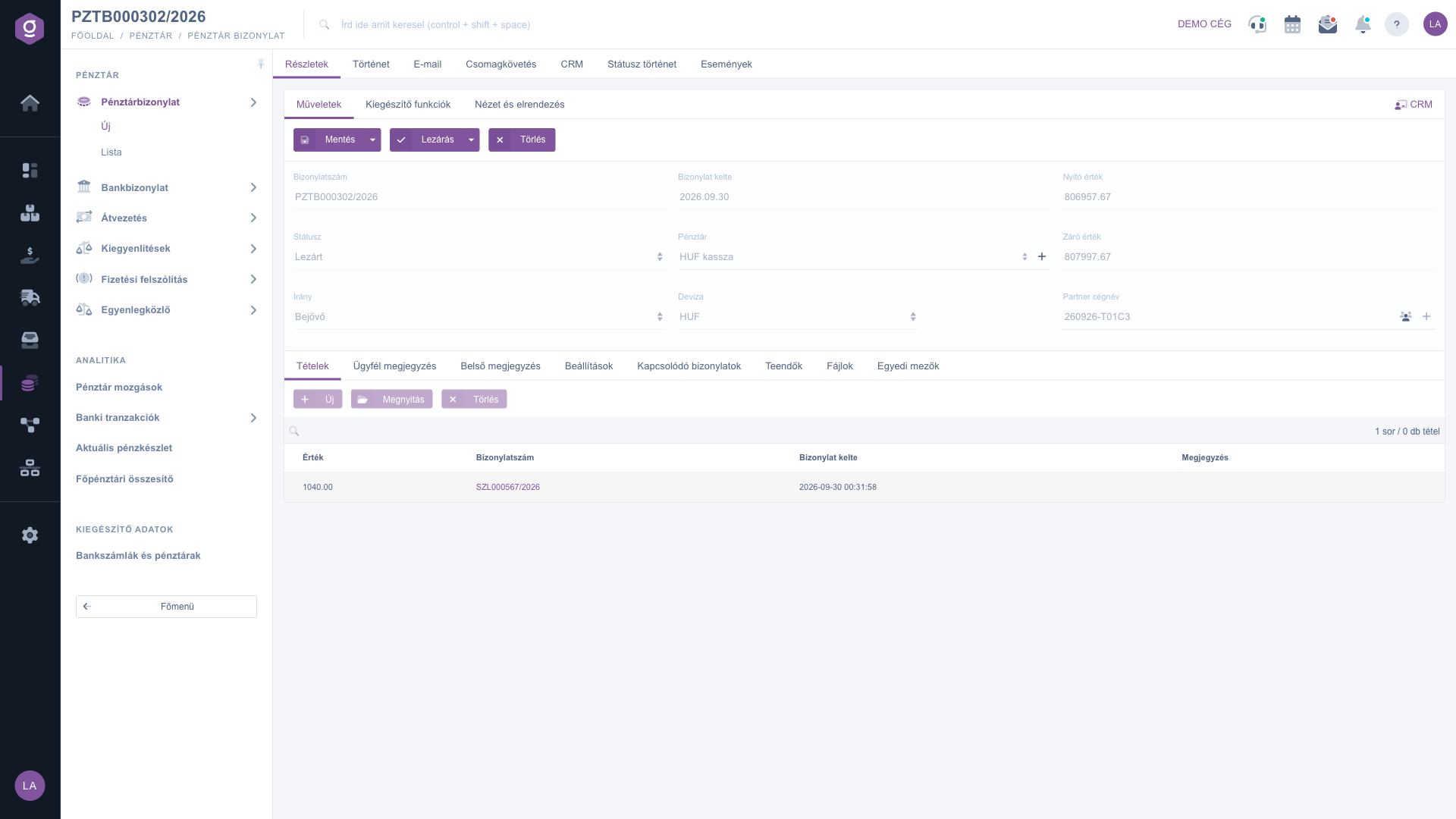
Cash register document – Actions tab and header data (Műveletek)
3. Adding items
You manage the content of the document on the Items tab, with the buttons above the item table and in the table. The table columns are: Value, Document number, Document date and Comment. Items can only be edited while the document is in Draft status.
- New: opens the item window for adding a new item.
- Open: opens the selected item for editing.
- Delete: removes the selected item from the list; the final deletion happens when you save the document.
In the Actions tab of the item window, the Add button adds the item to the document, while the Close button closes the window without adding the item. The fields of the window:
- Document type: you can specify which kind of document the cash movement relates to: In-store sale, Invoice, Advance invoice, Incoming invoice or Proforma invoice. If the item is not tied to a document, choose Other, not related to a document.
- Document number: you can choose among the documents of the selected type. The list shows the documents of the selected partner that have not been settled yet.
- Title: the title of the cash movement; the list items consist of the title name and its ledger number.
- Value: the amount. Decimals and negative numbers are allowed.
- Transaction comment (note): the note of the cash movement.
- Internal comment: a note visible only within the company, attached to the item.
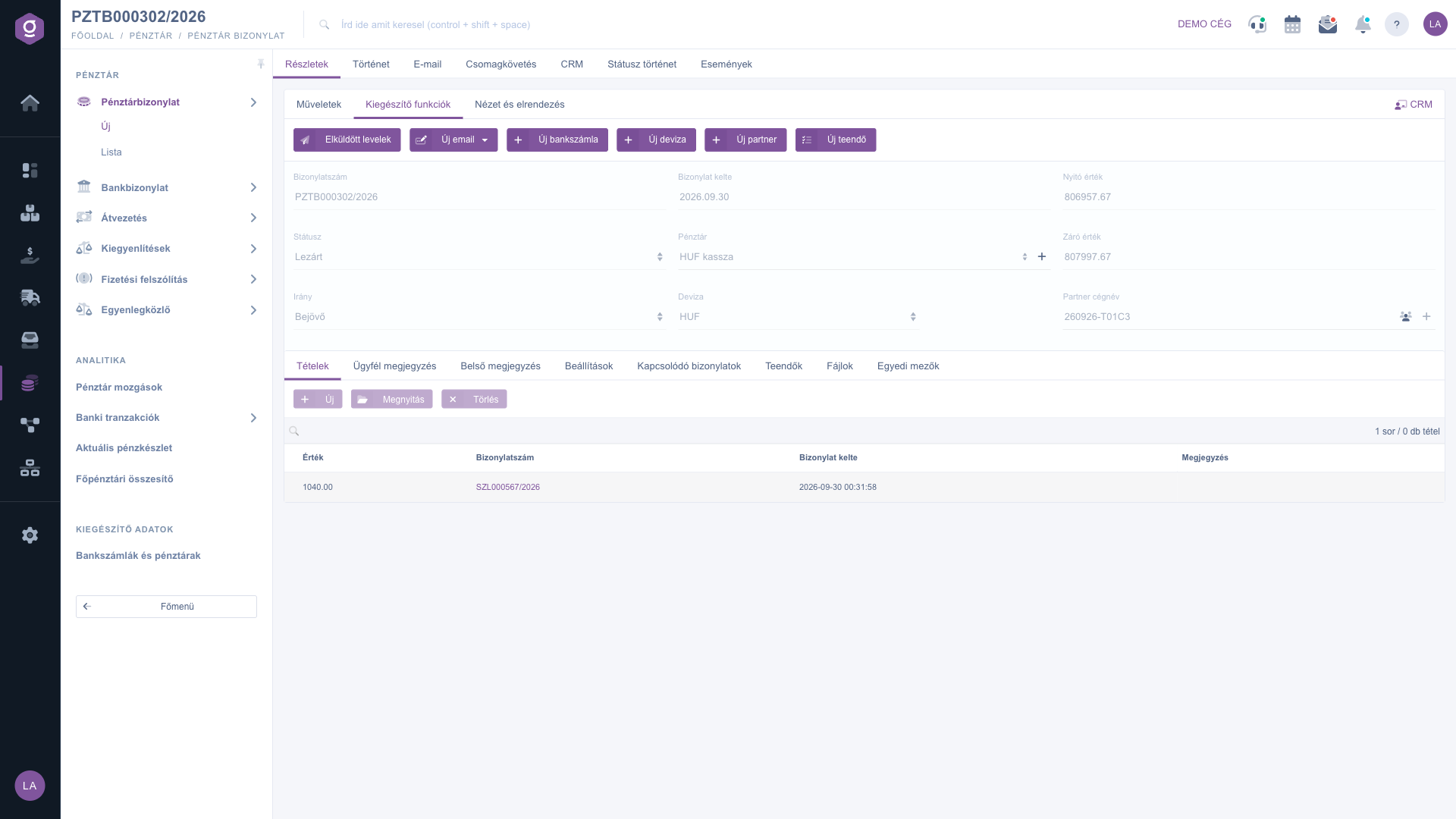
Cash register document – Items tab (Tételek)
4. Comments, billing address and further tabs
Besides the Items tab there are further inner tabs:
- Customer comment: a comment on the document intended for the customer.
- Internal comment: a note visible only within the company.
- Settings: this is where you choose the Billing address, which is a required field.
- Related documents: the list of documents related to this document, with the columns Document number, Document date, Document type, Issuing employee and Operation (shown as Művelet). If there is no related document, the list is empty.
- Tasks: the list of tasks recorded for the document.
- Files: managing the documents attached to the document.
- Custom fields: the company's own additional fields defined for the document.
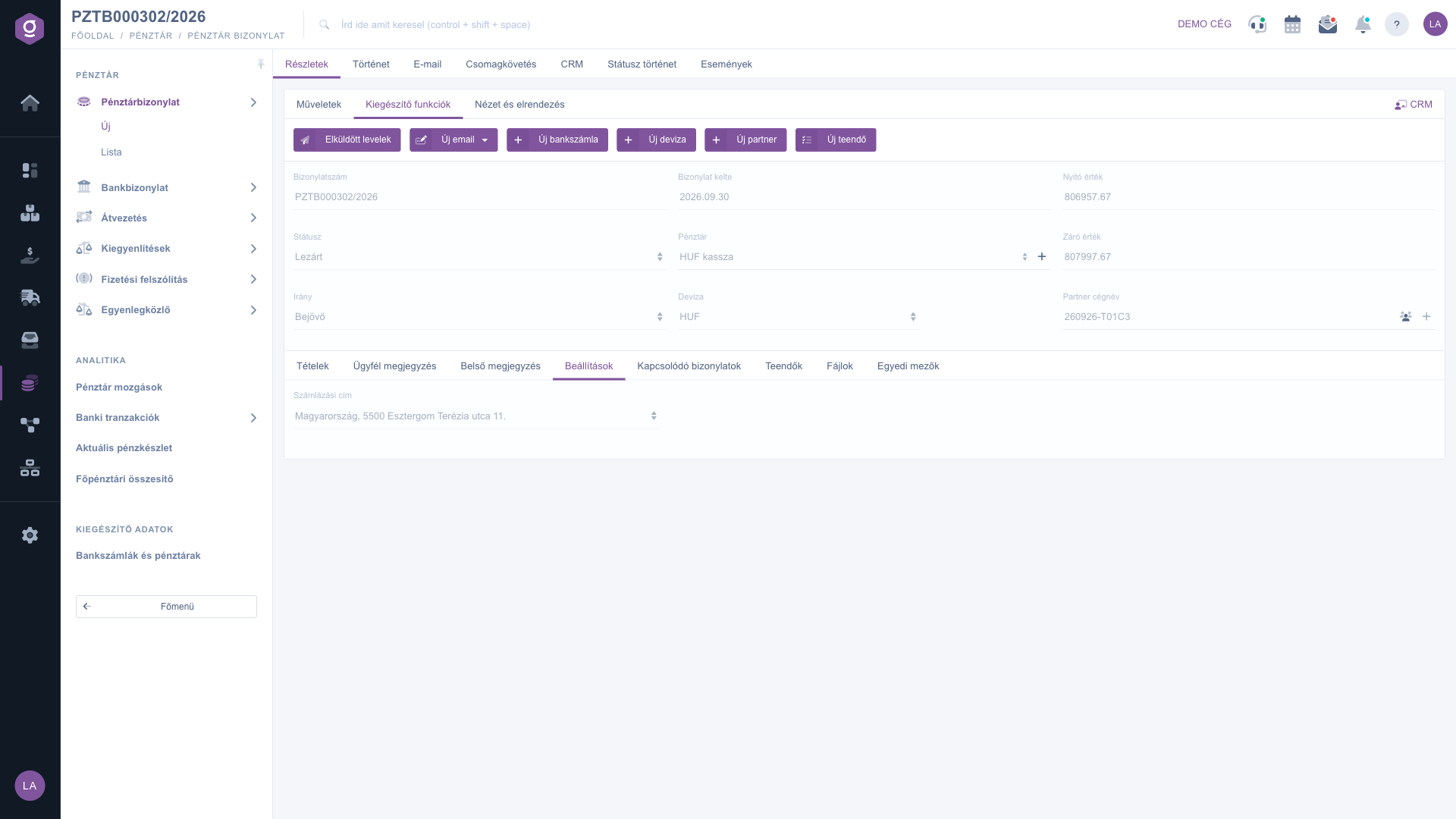
Cash register document – Settings tab (Beállítások)
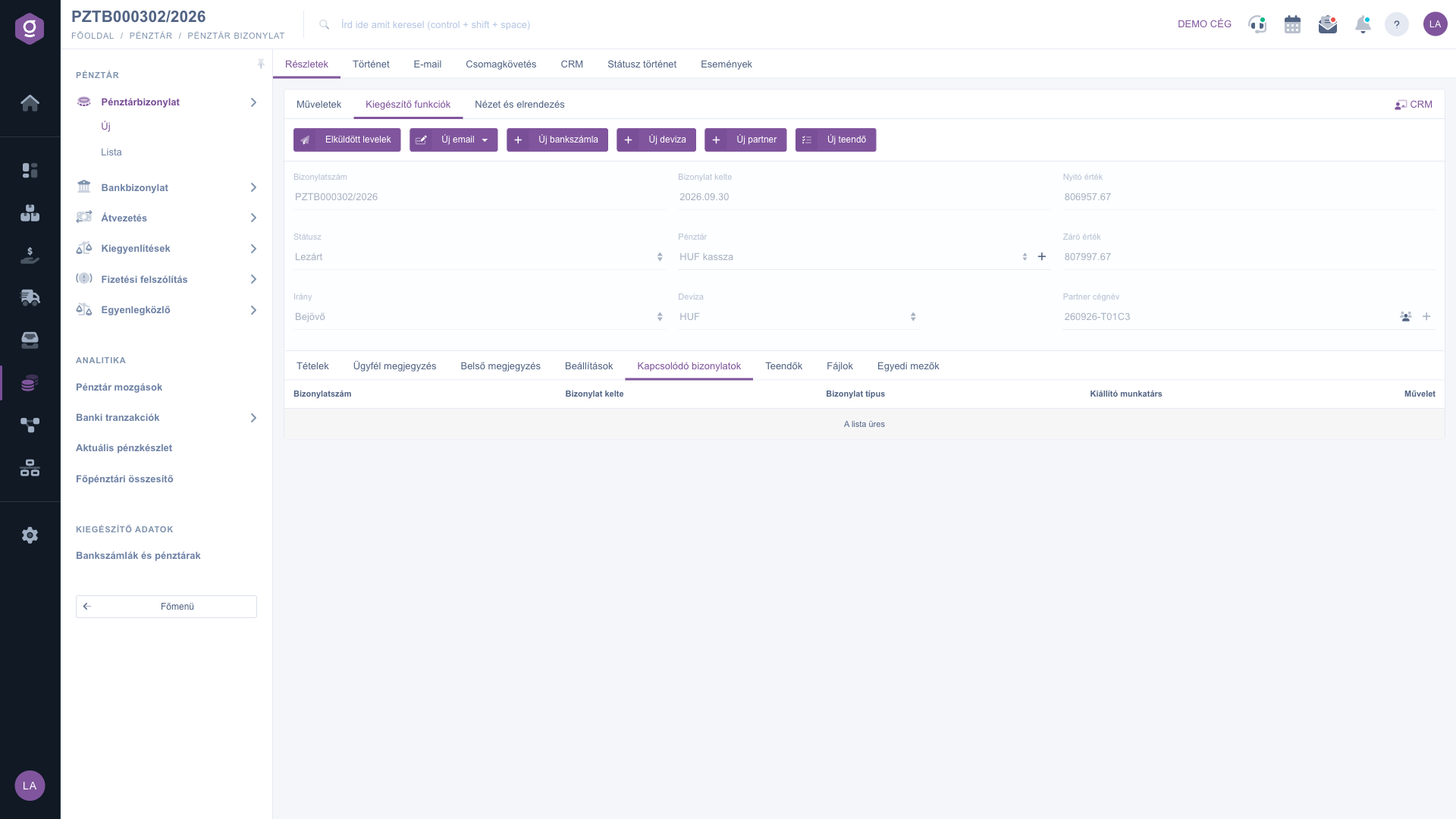
Cash register document – Related documents tab (Kapcsolódó bizonylatok)
5. Saving, closing and deleting
On the Actions tab you find the buttons that control the life cycle of the document:
- Save: the data is recorded, but the document stays in Draft status and remains editable; this does not yet change the cash register balance. At least one item is required for saving, otherwise the system shows an error message. In the dropdown of the button, Save and close saves and closes the document in a single step.
- Close: finalizes the document, and this is when the cash register balance changes — from then on the items and the header data can no longer be edited. It is only available for documents in Draft status. From the dropdown, Close and print or Close and download produces the printout right after closing.
- Delete: the document gets the Cancelled status, and it cannot be restored. On this page the Delete button is active in draft status, but the system carries out deletion only for a closed document (otherwise it shows an error message); you can delete a closed document from the document list.
- Download: after saving, the document can be downloaded in XLSX format and as a PDF preview, and after closing also in PDF and CSV format. You can write an email about the document after saving, while sending is possible for a closed document.
6. What happens to the cash register balance on closing?
On closing the system does the following:
- The document and its items become Closed.
- The balance of the cash register changes by the sum of the items. For an Incoming document the sum of the items increases the balance; for an Outgoing document the item values count with a negative sign, i.e. they decrease it.
- The balance of the cash register before the items (Opening value) and after them (Closing value) is recorded on the document.
- For items linked to an Invoice, Proforma invoice, Incoming invoice or In-store sale document, the system creates a settlement. For an item linked to a proforma invoice, the system may also create an invoice automatically on closing.
Deletion reverses these: the effect of the document is deducted from the cash register balance, the settlements are withdrawn, and the document and its items become Cancelled.
7. Additional functions and customizing the view
On the Additional functions tab you find extra options that support your daily work: the Sent items button shows the emails previously sent for the document, the New email button (External mail client or Internal mail client) lets you write a new email, the New bank account, New currency and New partner buttons let you add the missing master data in a new tab — so the document stays open — and the New task button creates a task related to the document.
On the View and layout tab, the Interface and behavior button lets you customize how the sheet is displayed. This setting is saved for your user, so it is kept the next time you log in as well.
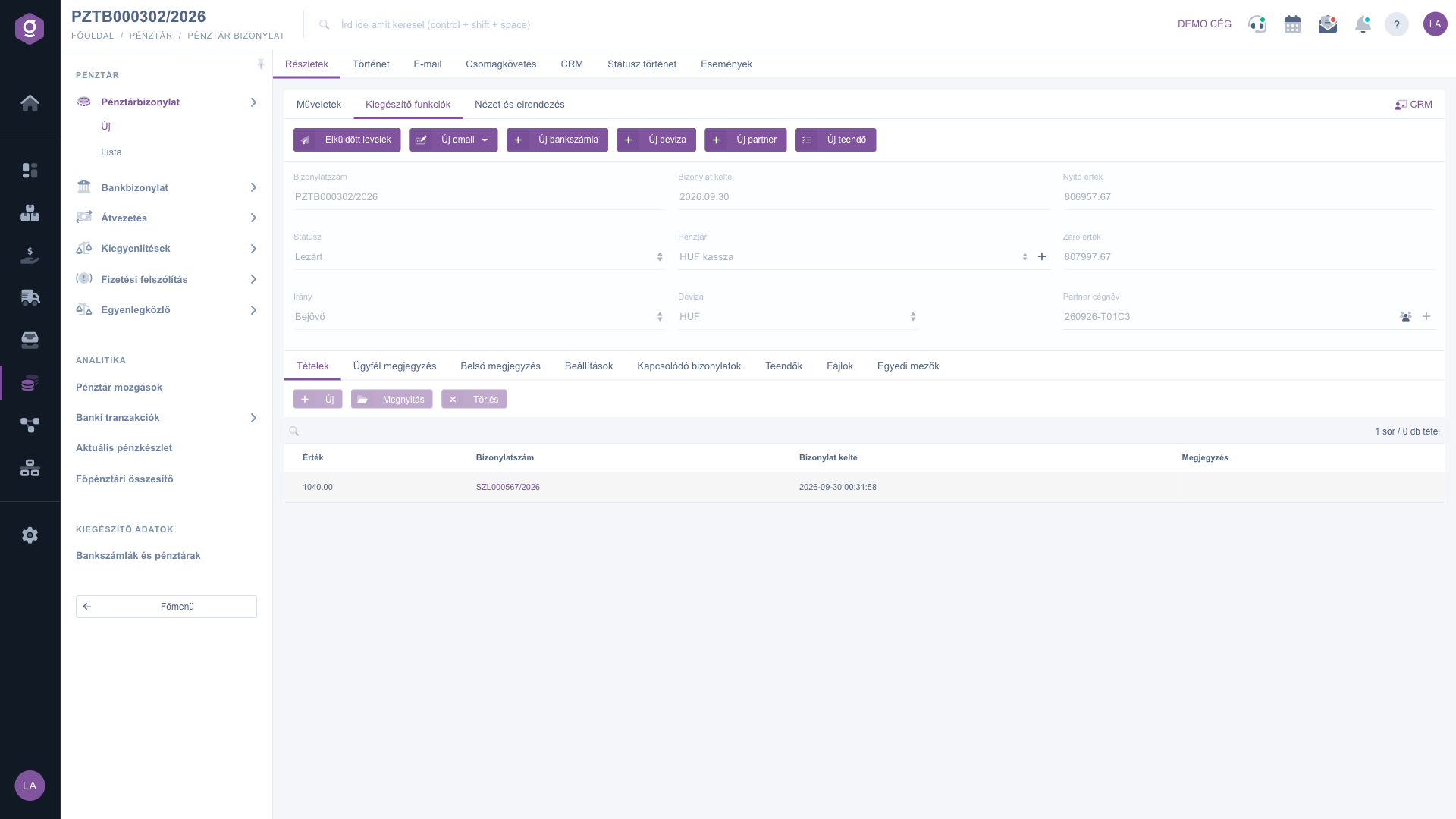
Cash register document – Additional functions tab (Kiegészítő funkciók)
Tip
If the cash movement belongs to an existing invoice or proforma invoice, first fill in the Partner company name field and only then choose the Document type and Document number of the item: the list of documents narrows down by partner, so you find the document to be settled faster. Also check the Direction before closing, because it can no longer be changed after the first save.



