1. Opening the list
Click the Main menu / Transport / Transport organization / Itemized breakdown menu item. At the top of the page you find two tabs: Search and Actions. Below them the result list appears with 10 rows per page, with pagination and the number of hits above and below the list (e.g. 1 - 10 / 1019). Below the list a panel with three tabs shows the data of the selected parcel: Documents, Documents related to the freight and Parcel tracking. The screenshots show the Hungarian demo interface.
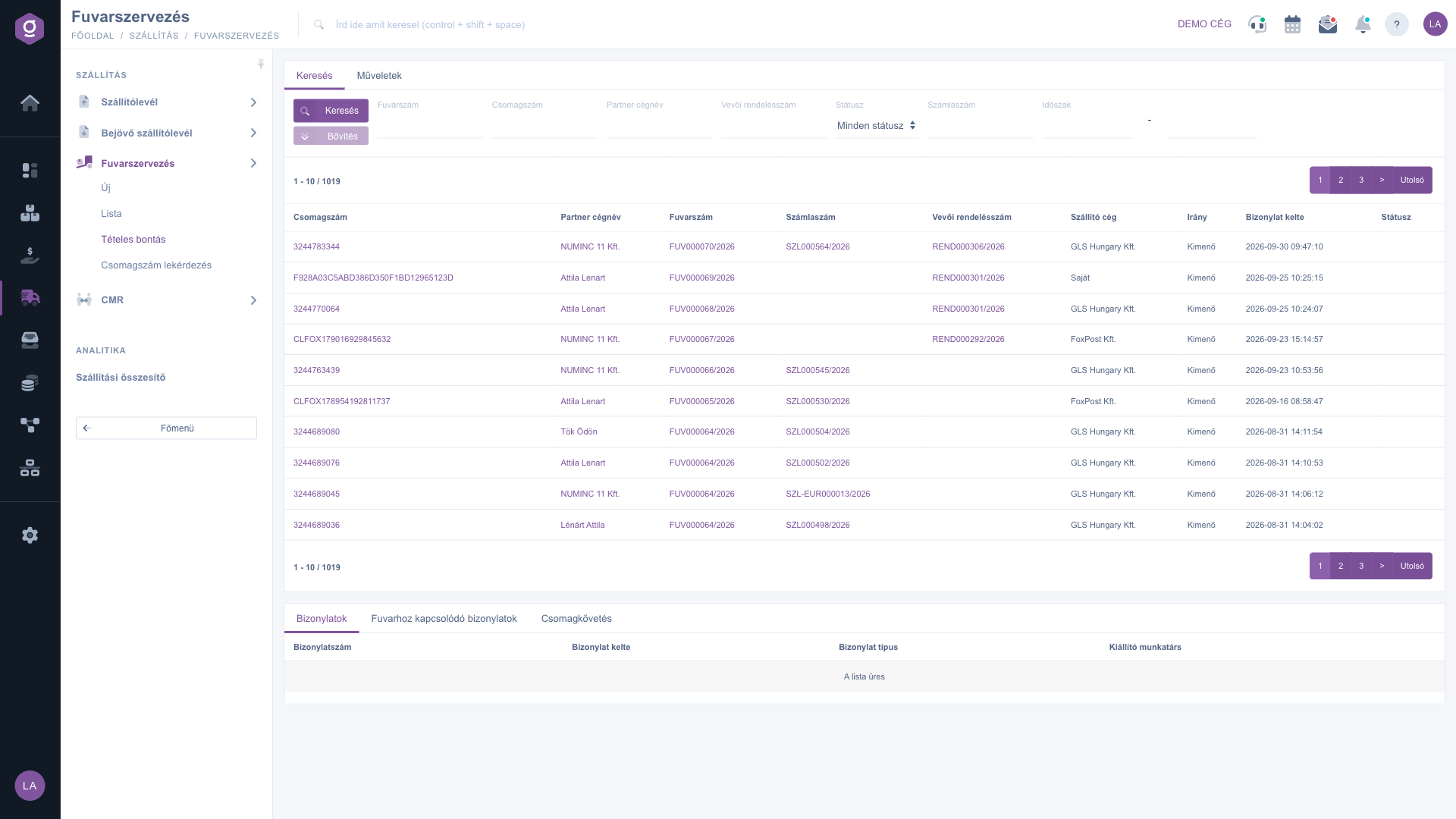
Transport organization itemized breakdown – search and parcel list
2. Searching among the parcels
On the Search tab you have the following fields, none of which is required:
- Freight number: the number of the transport organization document (e.g. FUV000064/2026).
- Parcel number: the identifier of the parcel.
- Partner company name: the name of the partner.
- Customer order number: the number of the related customer order.
- Status: the status of the parcel; the default is All statuses, i.e. no filtering.
- Invoice number: the number of the related invoice.
- Period: two dates (from and to), filtering by the document date.
Click the Search button to filter the list. The Expand button is inactive on this page and cannot be used.
3. Reading the result list
The columns of the list: Parcel number, Partner company name, Freight number, Invoice number, Customer order number, Shipping company, Direction, Document date and Status. Several of the values are clickable and open in a new tab:
- Parcel number: leads to the tracking page of the carrier.
- Partner company name: leads to the data sheet of the partner.
- Freight number: leads to the transport organization document.
- Invoice number: leads to the invoice.
- Customer order number: leads to the customer order.
The background colour of a row shows the status of the parcel: the Feladva, Kiszállítás alatt and Kiszállítva statuses each have their own pale background colour. If no status is recorded for a parcel, the Status column stays empty and the row is not coloured — this is what you see in the screenshot.
4. Viewing the details of a parcel
Click a row in the list: the data of the selected parcel appear in the panel below the list.
- Documents: the documents related to the parcel (Document number, Document date, Document type, Issuing employee); it is filled only if the display of documents in the lower panel is switched on.
- Documents related to the freight: further documents related to the customer order of the parcel with the same columns, with an open icon at the end of the row; it has content only if the row belongs to a customer order.
- Parcel tracking: the status history of the parcel: Date, Status code, Status description, Status info, Depot and Depot number.
Until you select a row, the panels show the The list is empty message — this is what you see in the screenshot.
5. Exporting the list
On the Actions tab you find two buttons:
- Open: always inactive (grey) on this page.
- Download: a dropdown menu with the XLSX lista item, with which you can save the hits to an Excel file.
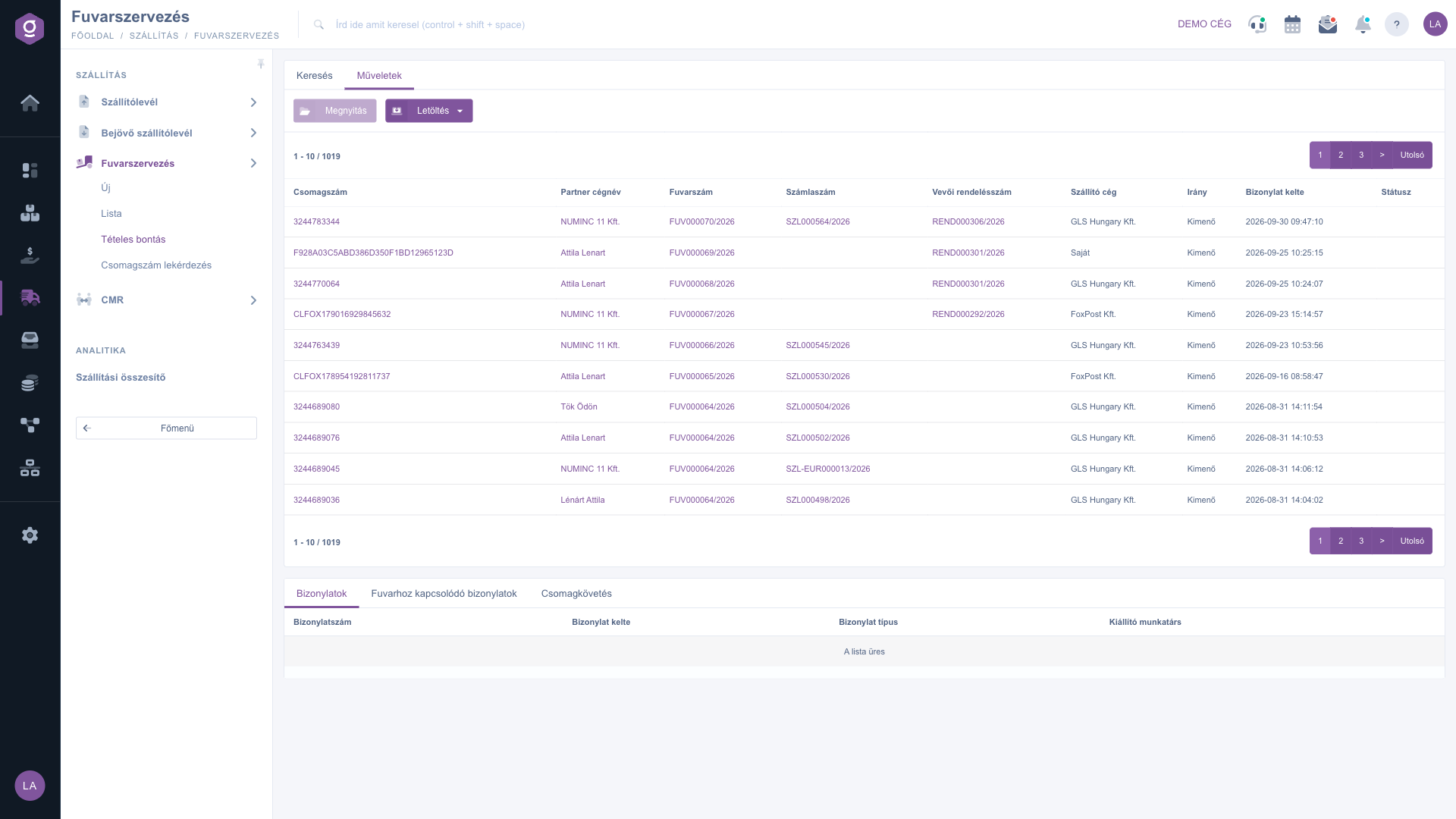
Actions tab – Open (inactive) and Download
Tip
If a partner or the carrier sends you a parcel number, type it into the Parcel number field, click Search, then click the hit row: on the Parcel tracking tab you immediately see where the parcel is.



