Storage location and shelf sheet

Learn how to create and edit a location code (storage location or shelf) on the Logzi sheet: site, row, column, floor, barcode, traversal order and label printing.

Function overview

On this sheet you can create a new location code (storage location or shelf) and edit the data of existing ones. A location code tells you which point of the warehouse a product or pallet is at: on the sheet you can enter the site, the row, the column and the floor, as well as the barcode and the name of the location code. You need these for stock management, picking and stocktaking.

  • Entering the position: use the Site, Sor (row), Oszlop (column) and Emelet (floor) fields to describe the place of the shelf.
  • Automatic code: for a new location code the barcode and the name are filled in from the data you enter, but you can overwrite them.
  • Traversal order: you can set the order in which location codes should follow each other.
  • Label: you can print the label of the location code directly from the sheet.

Location codes have no draft or closed state and there is no status workflow: a saved location code can be used immediately, and a deleted one disappears from the list.

Step by step

1. Opening the sheet

To create a new location code, click Main menu / Stock management / Storage locations and shelves / New (the menu is in the Additional data section), or the New button in the list. An empty sheet opens, titled Új helykód (New location code). To edit an existing location code, select the row on the Main menu / Stock management / Storage locations and shelves / List page and click Open. The sheet is then titled with the name of the location code. The screenshots were taken from the Hungarian interface.
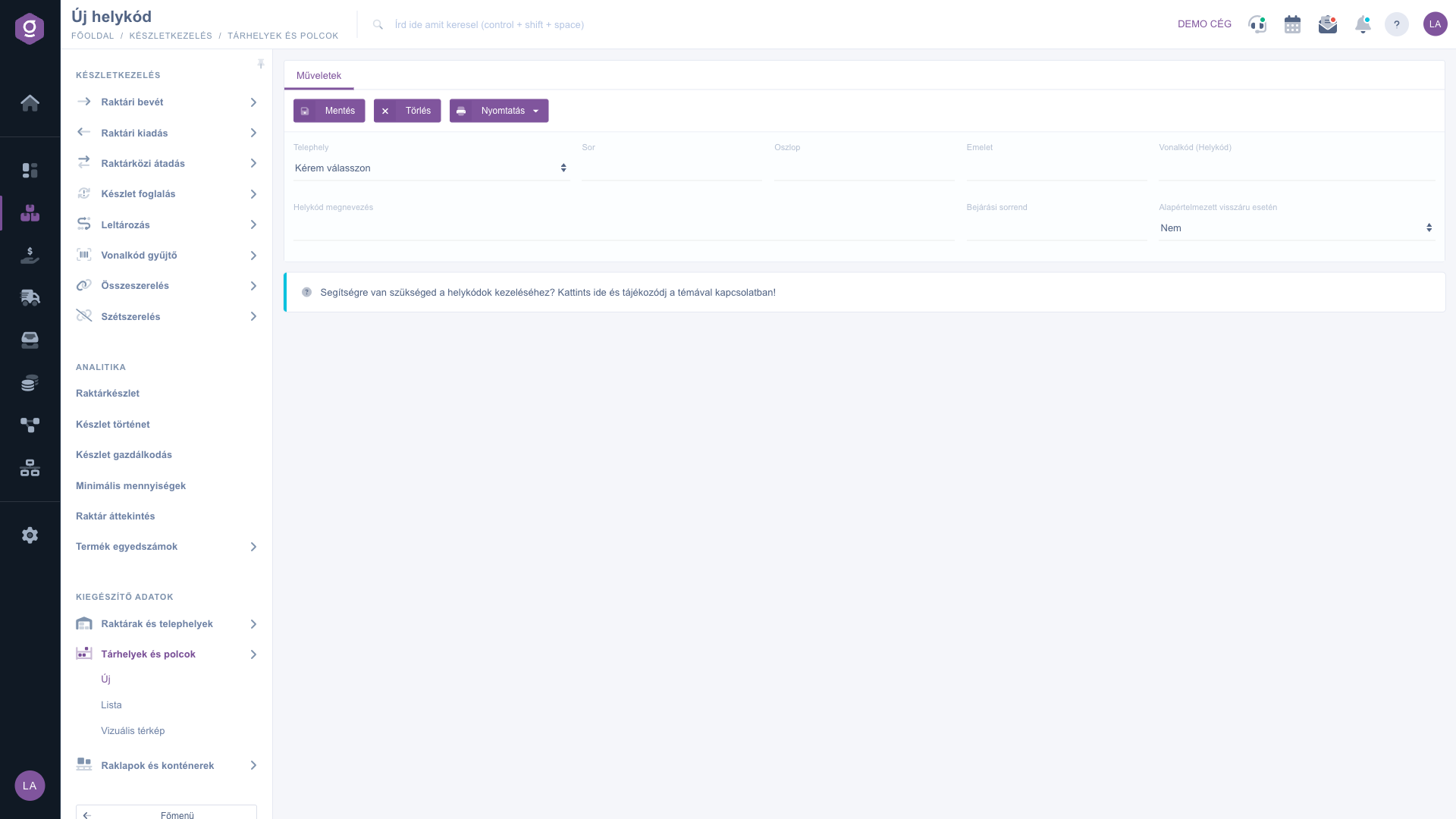
Storage location and shelf sheet – new location code (Új helykód)

2. Filling in the data

Fill in the fields:

  • Site: choose which warehouse or site the location code belongs to. Required.
  • Sor (row), Oszlop (column), Emelet (floor): give the place of the shelf as numbers. These labels are shown in Hungarian in every language.
  • Barcode (Location code): the barcode of the location code, used on the label and when scanning.
  • Location code name: the name of the location code, at least 2 characters. Required.
  • Traversal order: an optional number that sets the order of the location codes.
  • Default for returns: choose No or Yes; the default is No. Yes marks the location code as the default collection place for returned goods.

For a new location code, once you enter a value in Site, Sor, Oszlop or Emelet, the Barcode (Location code) and Location code name fields are filled in automatically from the first letter of the site name and the three numbers, separated by hyphens (for example S-1-2-3). You can overwrite both fields.
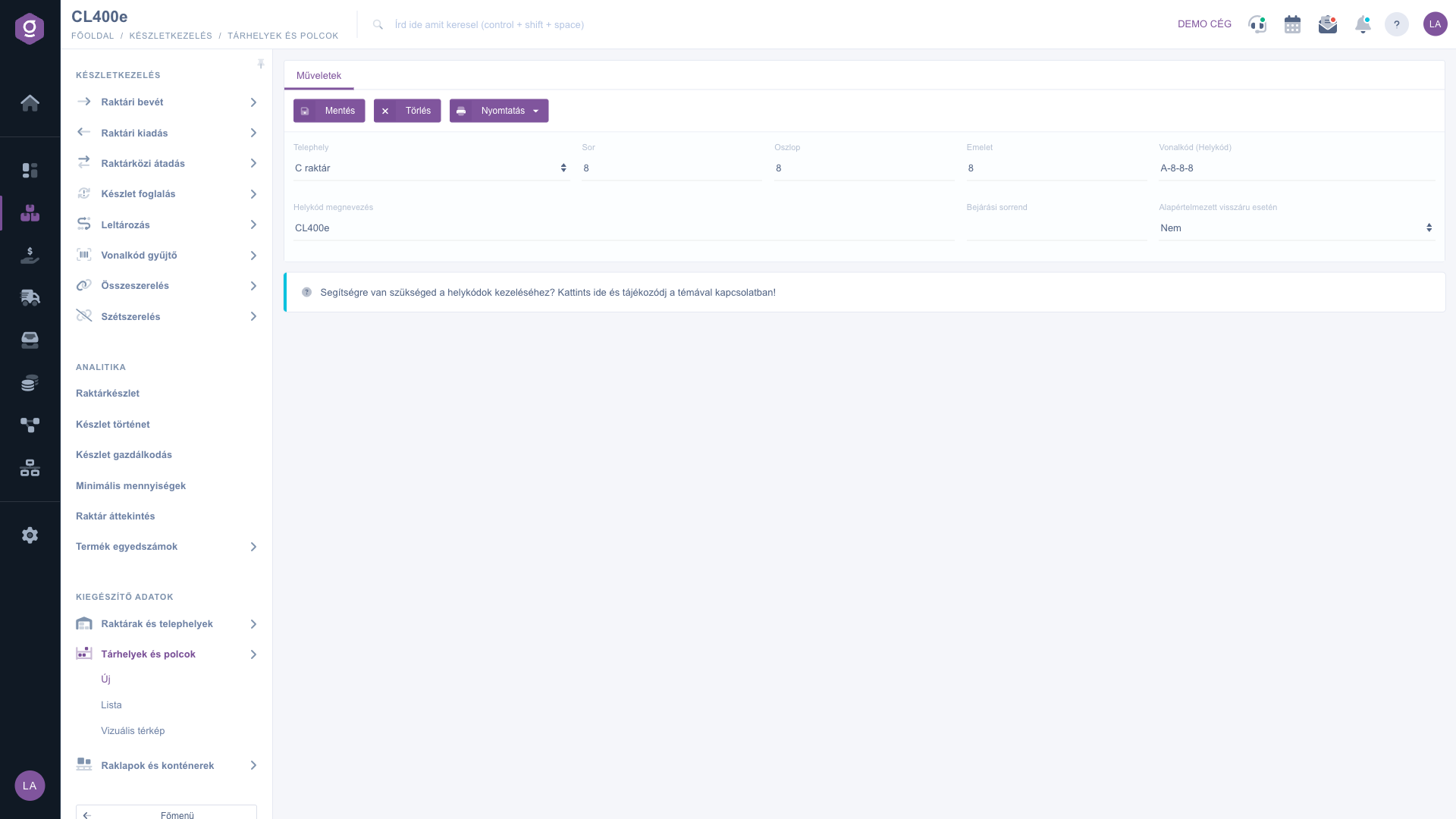
Storage location and shelf sheet – the data of an existing location code

3. Saving

Click the Save button. If a required field is missing or the name is too short, the system reports the error and does not save. After a successful save, the location code appears in the list. At the bottom of the page a blue bar contains a help link starting with a question about managing location codes.

4. Printing a location code label

With the Location code label item of the Print menu you can create the label of the location code on the sheet, to stick on the shelf. For a new location code it is worth saving the data first.
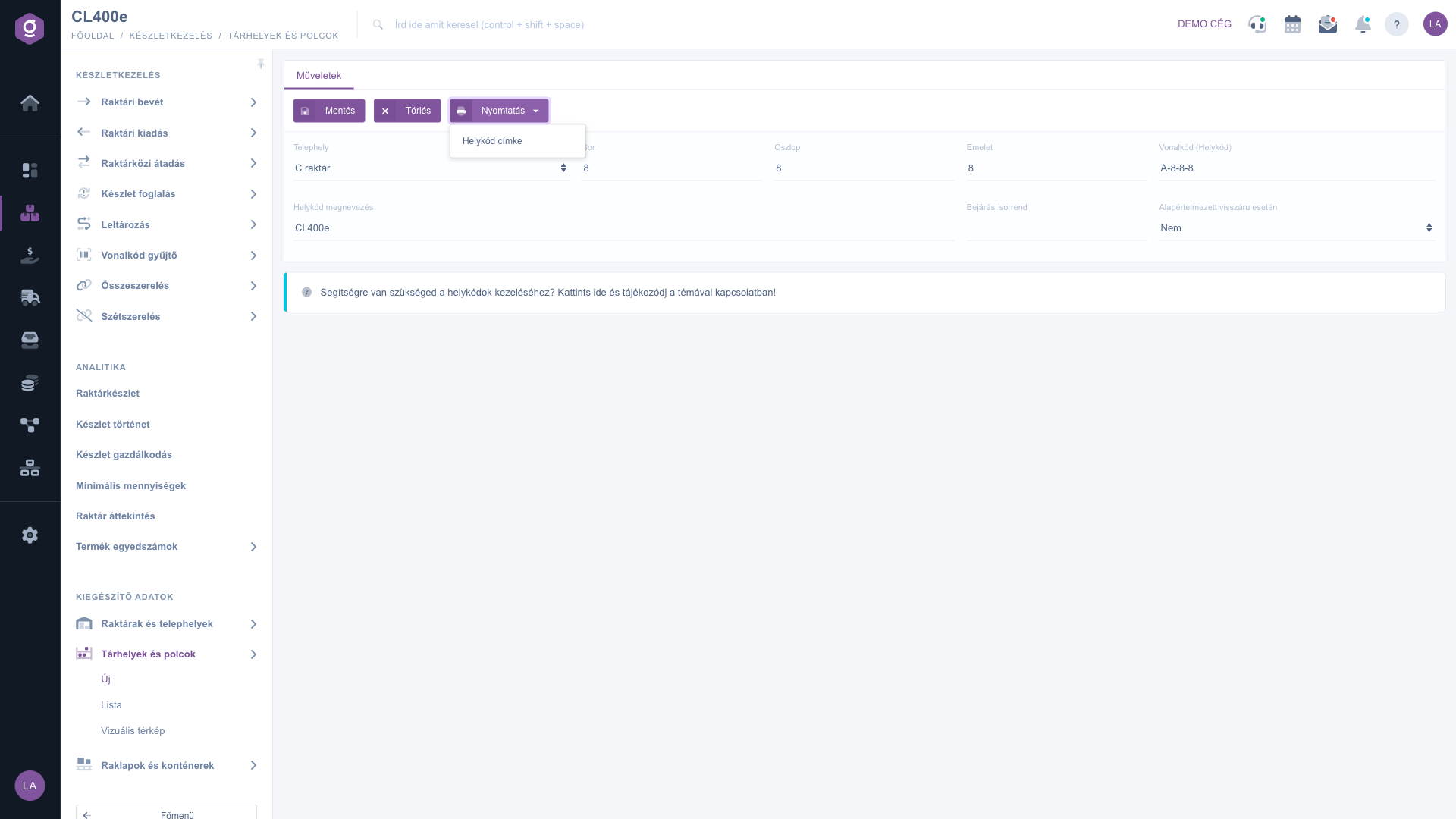
Storage location and shelf sheet – the Print menu (Nyomtatás)

5. Deleting

Hovering over the Delete button shows a hint that deleted data cannot be restored. After confirmation the location code disappears from the list. The deletion is logical and does not affect or check the stock, so before deleting, use the Products at location code button of the list to see whether any goods are still there.

To review and search location codes and to see the stock at them, see the Storage locations and shelves list guide. Creating sites is described in the Warehouse and site record.

Tip


Use a consistent coding: fill in Sor, Oszlop and Emelet consistently and keep the automatic code. Note that if two site names start with the same letter, the same numbers produce the same code; in that case change the barcode so that it stays unique.


Field descriptions

The fields of the sheet and what they mean:

Field / Item Required Description
Site The warehouse or site the location code belongs to. The Please choose value is not accepted.
Sor (row) The row number of the shelf. Only numbers can be entered.
Oszlop (column) The column number of the shelf. Only numbers can be entered.
Emelet (floor) The level number of the shelf. Only numbers can be entered.
Barcode (Location code) The barcode of the location code (e.g. A-8-8-8). Filled in automatically for a new location code and can be overwritten. Not mandatory, but recommended; the system does not check that it is unique.
Location code name The name of the location code, at least 2 characters. Filled in automatically for a new location code and can be overwritten.
Traversal order A number for the order of location codes. If you leave it empty, no value is shown in the list.
Default for returns No or Yes; the default is No. Yes marks the location code as the default collection place for returned goods.

On the sheet, the Save, Delete and Print buttons are on the Actions tab.

Frequently asked questions

For a new location code the system proposes a code from the first letter of the site name and the Sor, Oszlop and Emelet numbers (for example S-1-2-3). You can overwrite both fields. If two site names start with the same letter, the same numbers give the same code, so change the barcode in that case.

Site and Location code name are required, and the name must be at least 2 characters. The Sor, Oszlop, Emelet and Traversal order fields accept only numbers. Correct the marked field, then click Save again.

The interface has no restore. On deletion the system does not check the stock at the location code and does not move it, so before deleting, use the Products at location code button in the Storage locations and shelves list to see whether the location code is empty.

The automatic fill works only when you create a new location code. For an existing one, the barcode and the name stay unchanged when you modify the position, so overwrite them by hand if needed. Do not forget to reprint the label if the code has changed.

It is not shown on the sheet. On the Storage locations and shelves list page, select the location code, then use the Products at location code, Pallets at location code, List of serial numbers or Historical movements button.

The module is in the Additional data section of the Stock management menu, and it only appears if it is assigned to your user. If it is missing, ask your administrator to check the module assignment.

Need personalized help?

Don't want to spend hours searching for a solution? Choose the most efficient way: book a personalized, 45-minute online training session dedicated entirely to you. Whether it's a walkthrough of the basics or a detailed setup of a specific module, our expert colleague will guide you through the whole process, step by step.

Don't waste your time - ask for help!
Our goal is to get you using our system as quickly and efficiently as possible. Whether you're completely new to us or stuck on a specific setting, don't hesitate to ask for help!

Logzi warehouse management software

Get in touch with us

Interested in our software? Feel free to write to us!

Need help?

If you can't find the answer and need assistance

Create your account now,
pay later!

Try it free for 3 days, no risk, no obligation!
