The screenshots in this guide were taken in the Hungarian interface; where a button is visible in an image, its Hungarian name is given in brackets.
1. Opening a new stock reservation document
Click Main menu / Stock management / Stock reservation / New and an empty document opens. You can open an existing document from Main menu / Stock management / Stock reservation / List. At the top of the page you find the Actions, Additional functions and View and layout tabs, below them the document header, then Items and the further tabs.
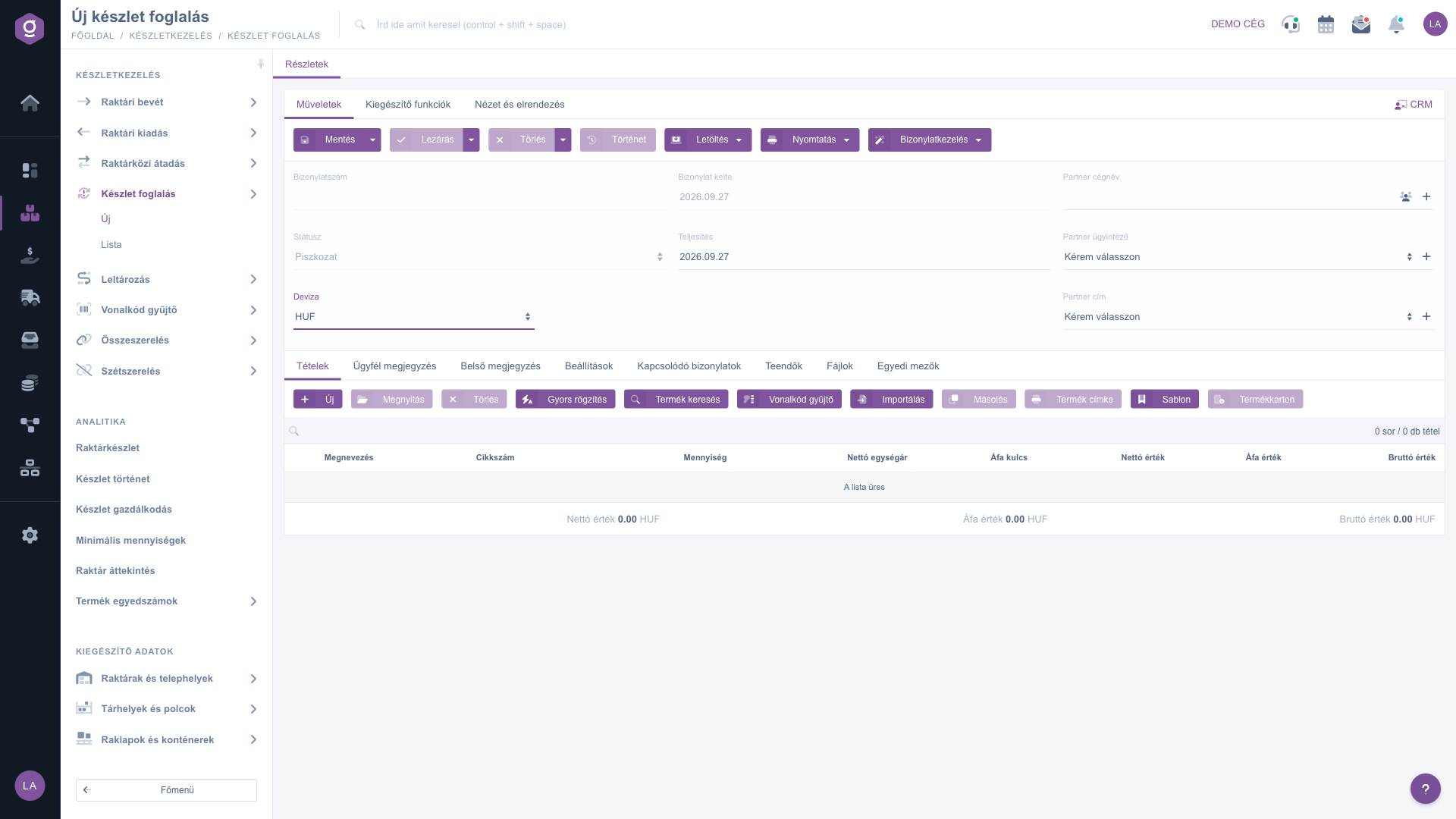
New stock reservation document – header and Items tab (Tételek)
2. Filling in the header
The header contains the following fields — you can find a detailed description of the required and optional fields in the Field reference section:
- Document number: empty before the first save; the system assigns it automatically when you save for the first time, and you cannot change it by hand.
- Document date and Performance date: the document date is filled in automatically with the day of creation; change the Performance date (the day the reservation is to be fulfilled) if the reservation is not for today.
- Currency (and Exchange rate): by default the company base currency is used. If you want to create the document in another currency, select it — the Exchange rate field then appears as well.
- Partner company name, Partner contact person, Partner address: select the partner you are setting the stock aside for, then the contact person and address. If the partner does not exist in the system yet, create it on the spot with the icon next to the field and the partner details of the document are filled in automatically. You can open the partner record with the partner card icon next to it. The CRM button in the top right corner takes you to the CRM data of the partner.
3. Adding items
You record the content of the document on the Items tab with the buttons above the item table. There are several methods — choose the one that is fastest in your situation:
- New: opens the item editor window where you select the product by item number or name and enter the quantity and the price. Choose it when you want to record a single item in detail, with all of its data.
- Quick add: a simplified item window that jumps to the Item number field and opens again right after you save an item. Use it when you have many items to enter one after another.
- Product search: lets you search among the products and pick from the results. Choose it when you do not know the exact item number and only remember the name or a characteristic of the product.
- Barcode collector: in one text field you type or scan barcodes and quantities line by line, and the system creates all the items at once. The line format is: [barcode];[quantity] — if you leave out the quantity, 1 piece is added. This is the fastest method when you reserve from an order or a picking list.
- Import: bulk entry of items from an XLSX file. In the window click the XLSX file schema link to download the expected structure of the file, then fill it in and upload it. Choose it when the list of products to reserve is already available in a spreadsheet.
On the Properties tab of the item window (New button) you can choose from the following buttons:
- Add: adds the item to the document and closes the window.
- Add and new product: adds the item, then immediately opens a new, empty item window for the next product.
- New product: if the product is not in the master data yet, you can create it here without leaving the document.
- Product card and Product search: open the detailed record of the selected product and search among the products respectively.
- Identifiers: shows the identifiers of the product (e.g. barcode).
In the item window you also see the stock figures of the selected product: Physical (the quantity actually in the warehouse), Reserved (the quantity already reserved), Available (what can still be reserved) and Incoming (the quantity on its way but not yet received). On the Warehousing master data tab selecting the Site is mandatory — it determines which site's stock is reserved — and here you can also enter the Storage locations and shelves (location code) and the Pallets and containers data.
Further buttons above the table: Open edits the selected item, Delete removes it, Cloning duplicates it, Product label prints a label, Template loads a saved item template and Product card opens the record of the selected product. The New, Quick add, Product search, Barcode collector, Import, Delete and Cloning buttons can only be used on a Draft document, and Open, Delete, Cloning and Product card also require a selected item.
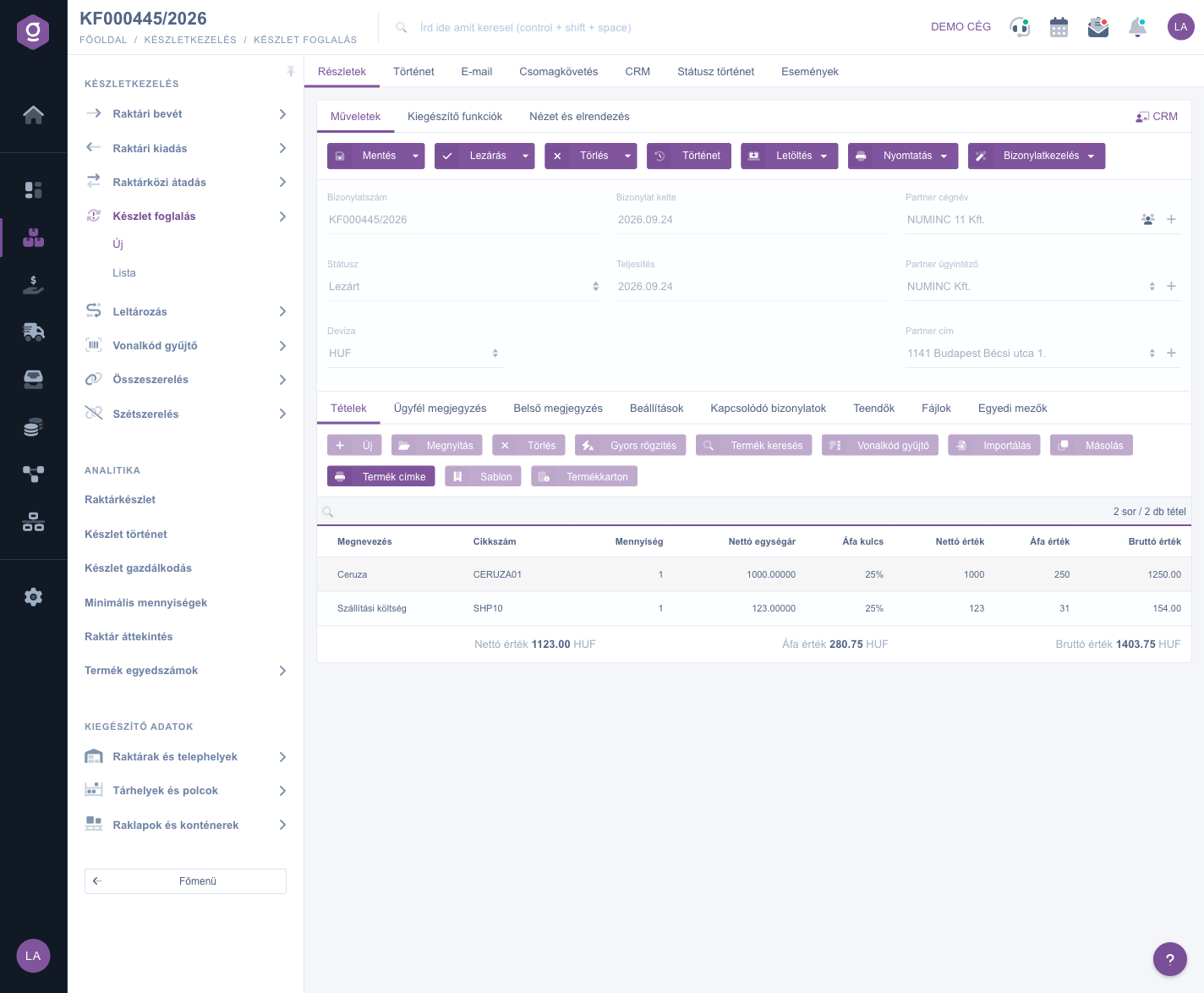
Stock reservation document – header and Items tab (Tételek)
4. Comments, settings and attachments
Besides the Items tab there are further tabs:
- Customer comment: text addressed to the partner that also appears on the printed or downloaded document. You can pick a saved text template from the drop-down at the top of the tab.
- Internal comment: a note visible only inside your company, which can also be loaded from a template.
- Settings: here you set the Billing address (which company address appears on the document — mandatory) and the Project, Job number and Department number classification. If they do not exist yet, you can create them on the spot with the icon next to the field.
- Related documents: the documents this one was created from or that were created from it (for example the cancellation document created automatically when you delete); the icon at the end of the row opens them directly.
- Tasks: the list of tasks recorded for the document with date, subject, comment and the colleague who created them.
- Files: management of documents attached to the document (e.g. the customer order): upload a New file, Open, Delete, set the classification, or browse among already uploaded files.
- Custom fields: your company own additional fields defined for the document.
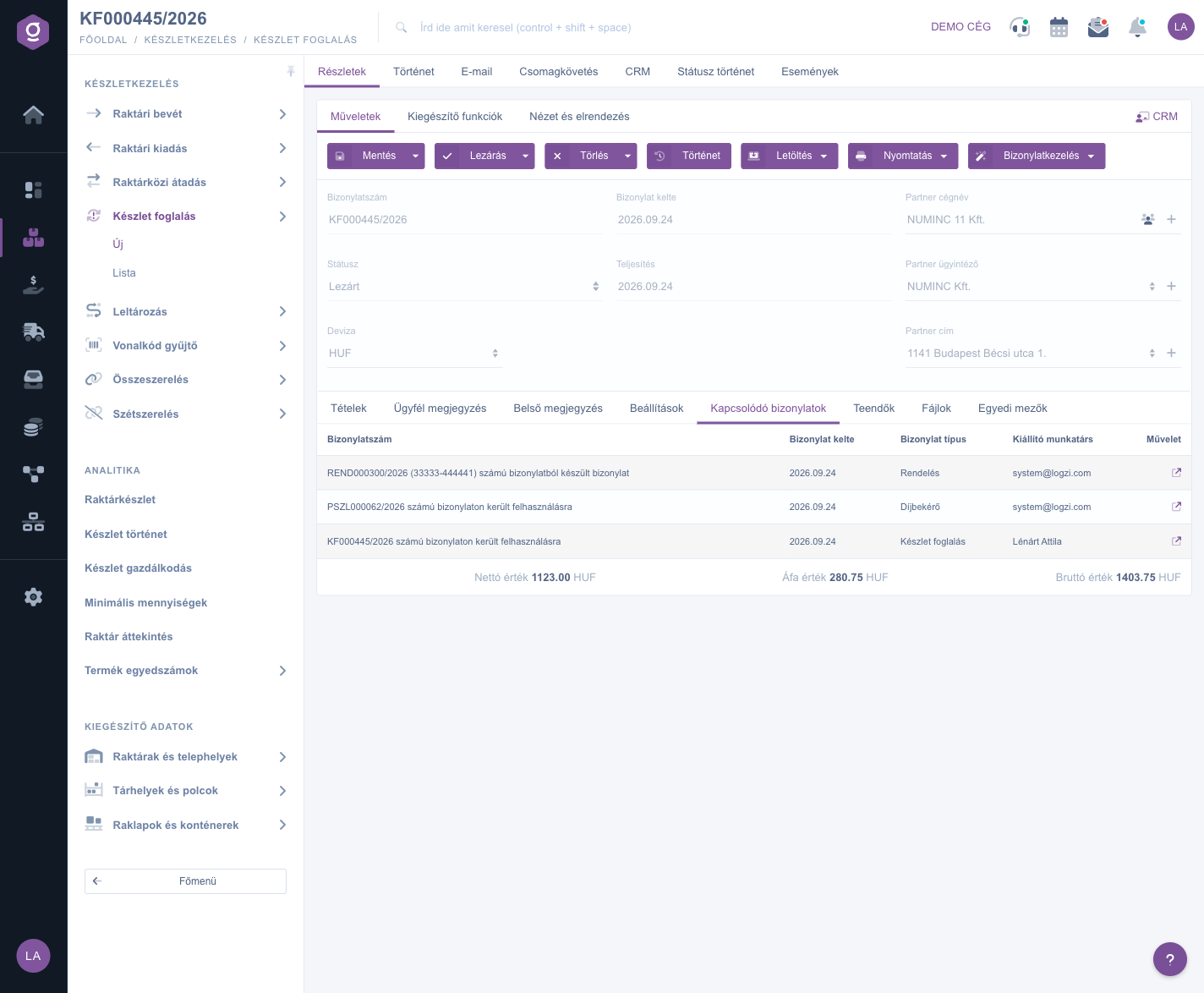
Related documents tab (Kapcsolódó bizonylatok)
5. Saving, closing and deleting — what happens to the stock?
On the Actions tab you find the buttons that control the life cycle of the document:
- Save: the data is recorded, but the document stays a Draft and can still be edited. Saving does not affect the stock. In the drop-down menu of the button, Save and close saves and closes the document in one step.
- Close: finalises the document — from then on it cannot be modified. It is only available for Draft documents. At the moment of closing, the item quantities are added to the Reserved stock of the products and the Available stock decreases by the same amount; the Physical stock does not change, because the product is still physically in the warehouse. For a product with a bill of materials (composite product) the system reserves the components. From the drop-down menu, Close and print or Close and download also produces the printout right after closing.
- Delete: the document gets a deleted or cancelled status and it cannot be restored. You can only delete Draft and Closed documents. When you delete, the original document becomes Cancelled, the system automatically creates a Cancellation document next to it with negative quantities (it also appears on the Related documents tab), and the reserved quantity returns to the available stock. The Delete and copy option in the drop-down menu also creates a copy next to the deletion — if you entered wrong data, you can start over in one step.
- History: shows the history related to the selected document.
6. Download, print and document management
- Download: the document can be downloaded as CSV, XLSX and PDF, and you can also look at it in a PDF Preview without downloading. CSV and PDF are only available for a closed document, XLSX and the PDF preview already for a saved one.
- Print: printing the Document prints the whole document, the Product label prints the labels of the items.
- Document management: from a closed reservation you can create a related Invoice, Incoming invoice, Delivery note, Retail sales or Warehouse issue — Logzi opens the new document prefilled with the items of the reservation. Cloning starts a new reservation based on the data of the document, and it is available even without closing.
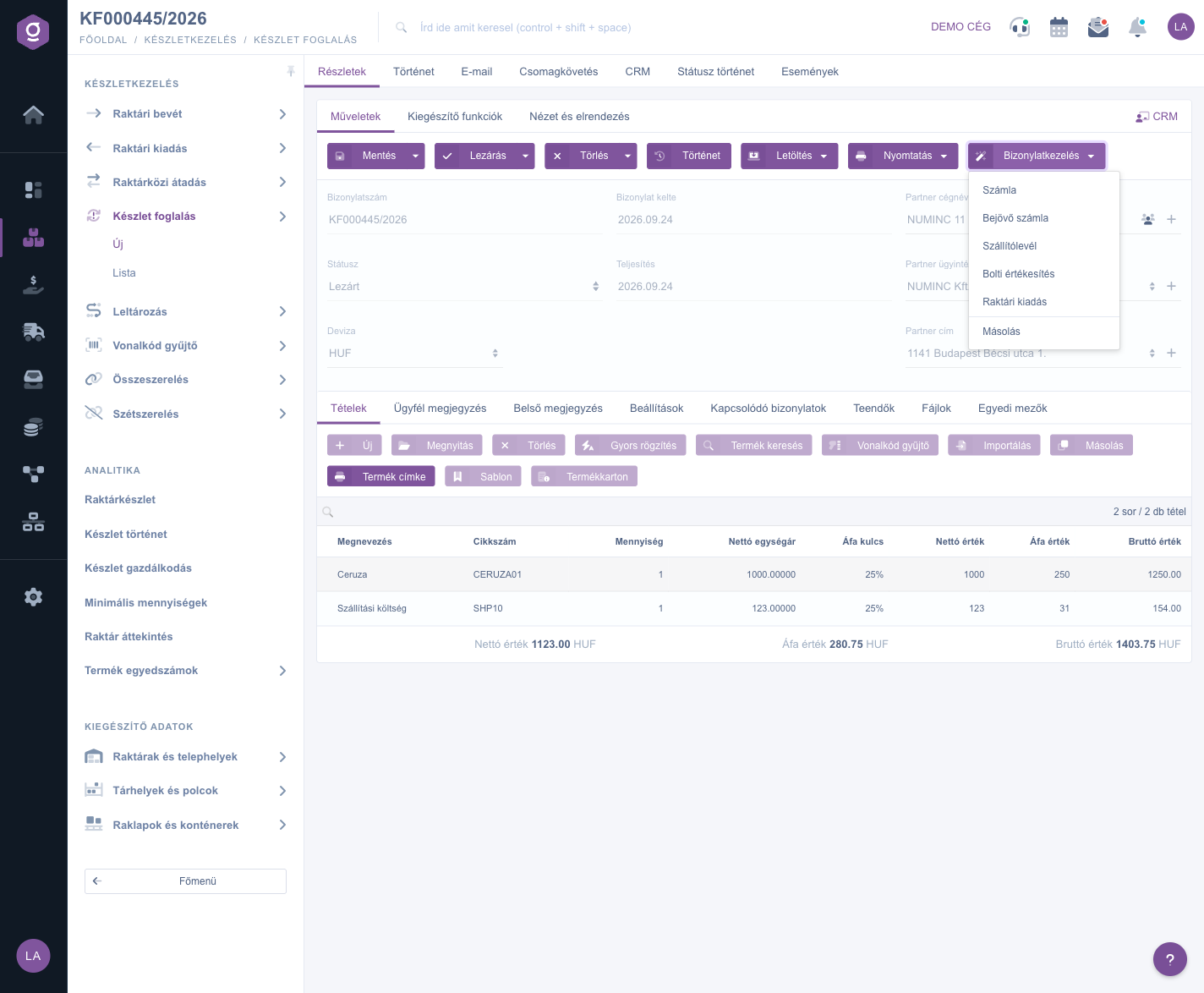
Document management (Bizonylatkezelés) – follow-up documents and Cloning (Másolás)
7. Additional functions and customising the view
On the Additional functions tab you find extras that help your daily work: viewing the Sent items, sending a New email (through an External mail client or the Internal mail client built into the system), creating a New product or New partner, creating a New task for the document, and opening the Partner card of the partner.
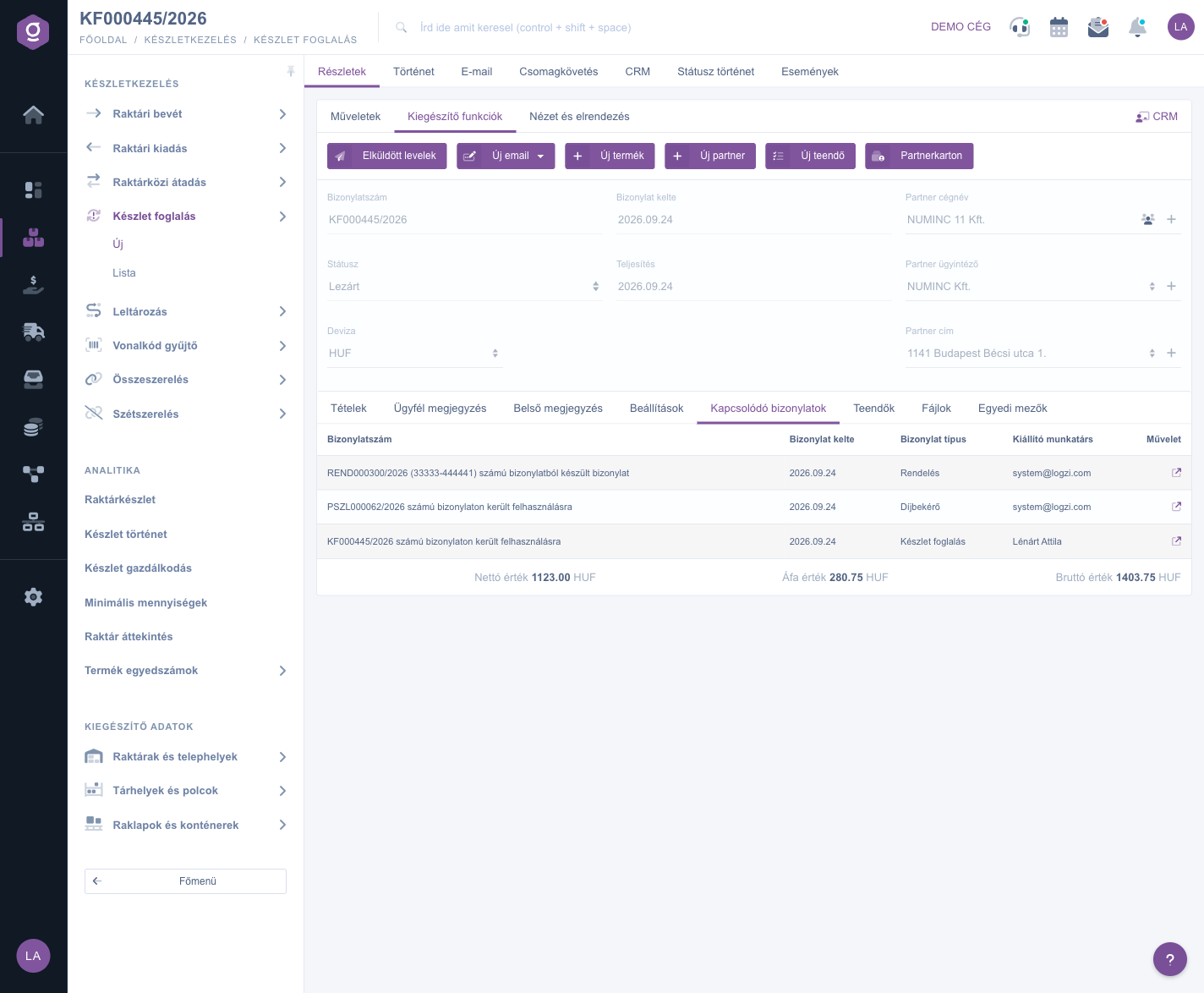
Additional functions tab (Kiegészítő funkciók)
On the View and layout tab, the Interface and behavior button lets you customise how the page is displayed and the Columns button lets you customise the columns of the item table. These settings are saved for your user, so they are kept the next time you sign in.
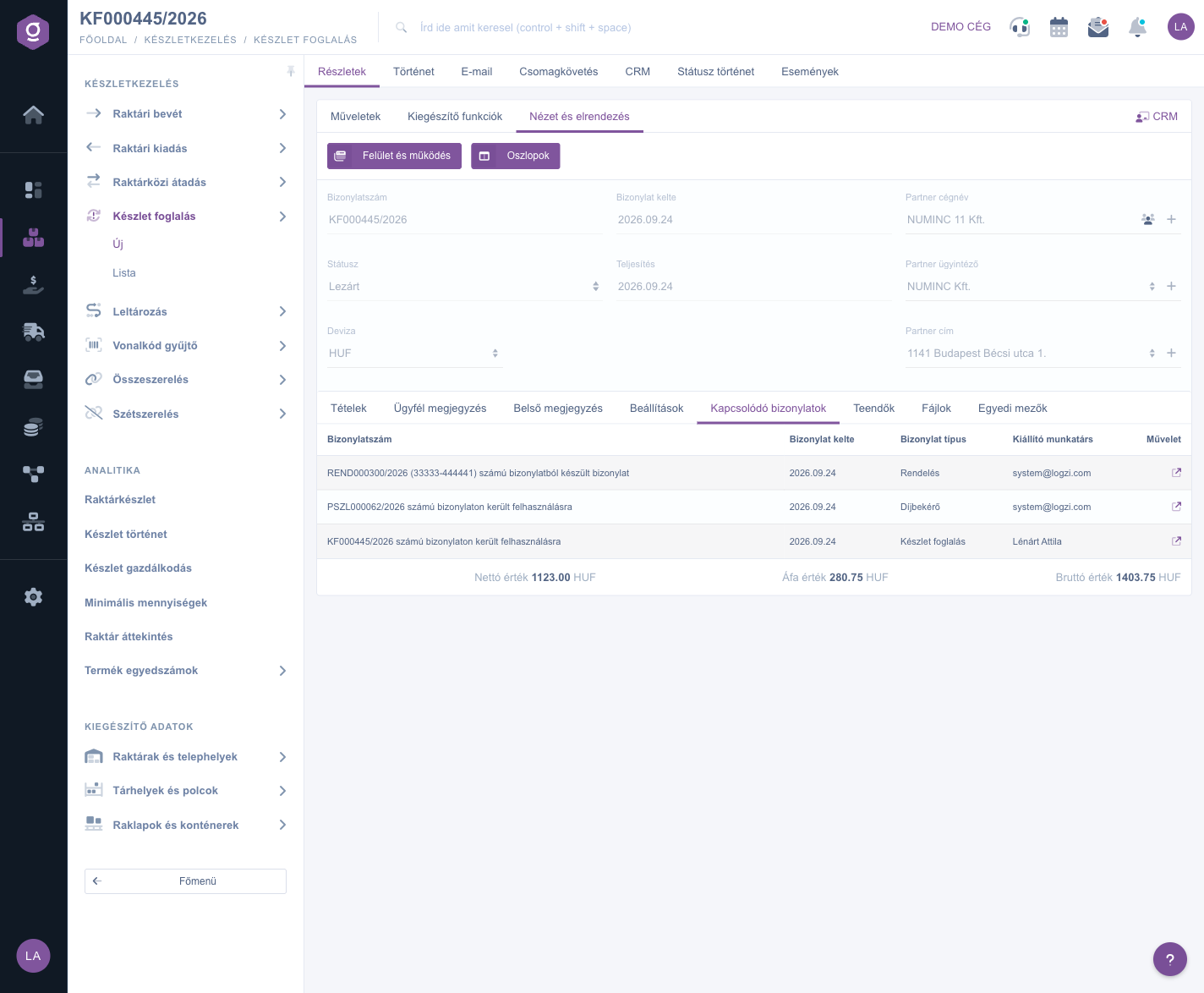
View and layout tab (Nézet és elrendezés)
Tip
Before you reserve, always check the Available stock in the item window: if, for example, 10 pieces are in the warehouse but 8 of them are already reserved, only 2 pieces are left that you can still promise. With many items the Barcode collector is the fastest: type or scan the barcode and the quantity line by line (e.g. 5901234123457;3) and the system creates all the items at once.



