The screenshots in this guide were taken in the Hungarian interface; where a button is visible in an image, its Hungarian label is shown in parentheses.
1. Opening a new worksheet
Click Main menu / Sales / Worksheet / New. At the top of the page, under the Details tab, you see the header, and below it in tabs the items, status changes, comments and further data. The top bar contains the Actions, Additional functions and View and layout tabs, and on the right the CRM link.
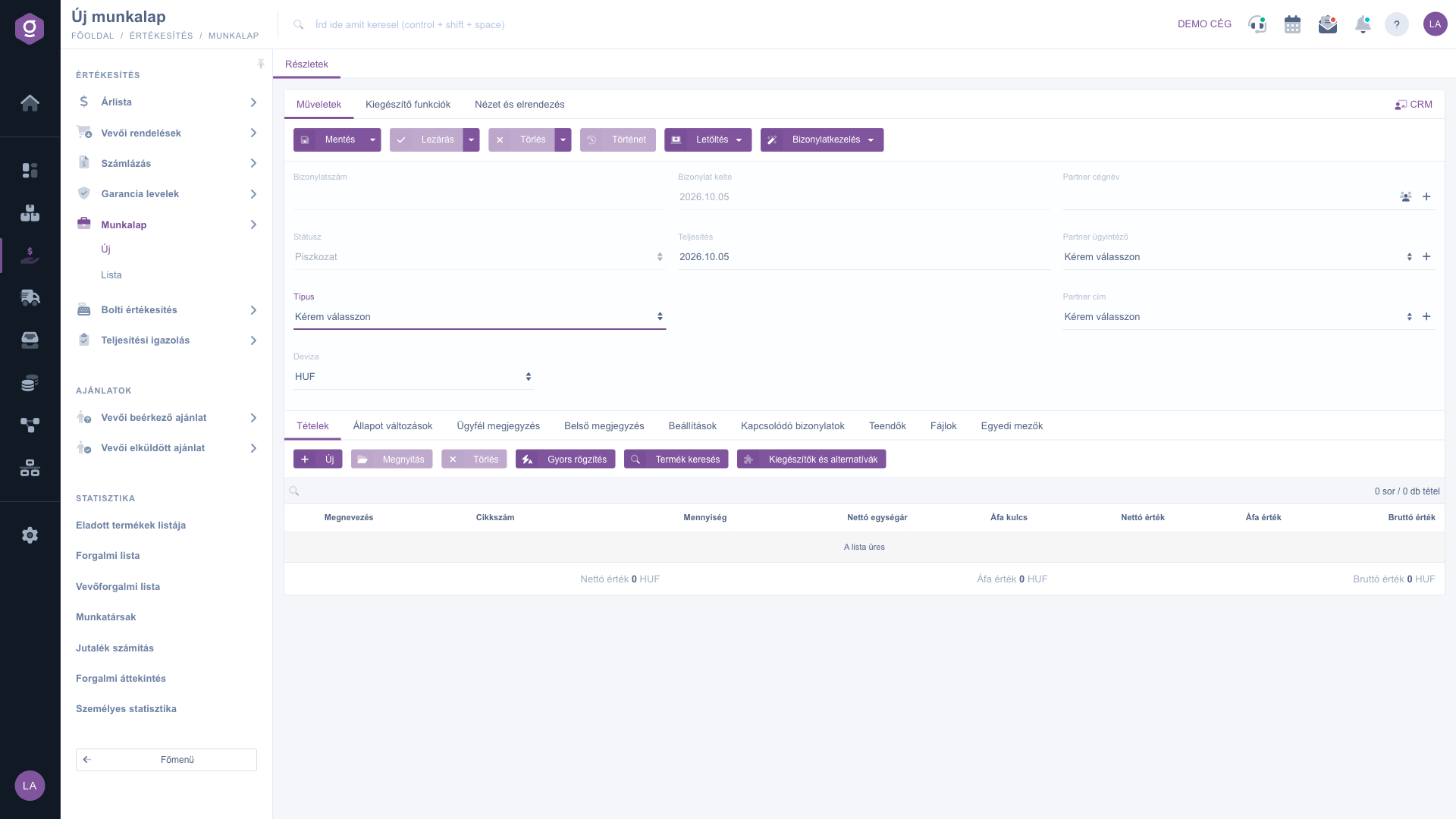
Worksheet document – header and the Items tab (Tételek)
2. Filling in the header
- The Document number, Status and Document date fields are filled in by the system; you cannot change them.
- Enter the partner in Partner company name; based on it you can also choose from the Partner contact person and Partner address lists.
- Choose the Type of the worksheet. The list of types is set by your company under Main menu / Settings / System settings / Worksheet type.
- Enter the Performance date and the currency in the Currency field. If the currency differs from the base currency of the company, the Exchange rate field also appears.
3. Adding items
On the Items tab, the New button adds a new item; Open opens the selected item and Delete removes it. Quick add and Product search help you add products that already exist quickly, and Add-ons and alternatives offers the add-ons and alternatives belonging to a product. The summary row at the bottom of the table shows the totals of Net value, VAT value and Gross value.
The New button opens a window with two tabs: on the Properties tab you find the data of the item, on the Warehousing master data tab the Site. The Add button saves the item, Add and new product starts creating a new product after saving, New product, Product card and Product search are quick product-related actions, and the Identifiers button manages the identifiers of the item (e.g. serial numbers).
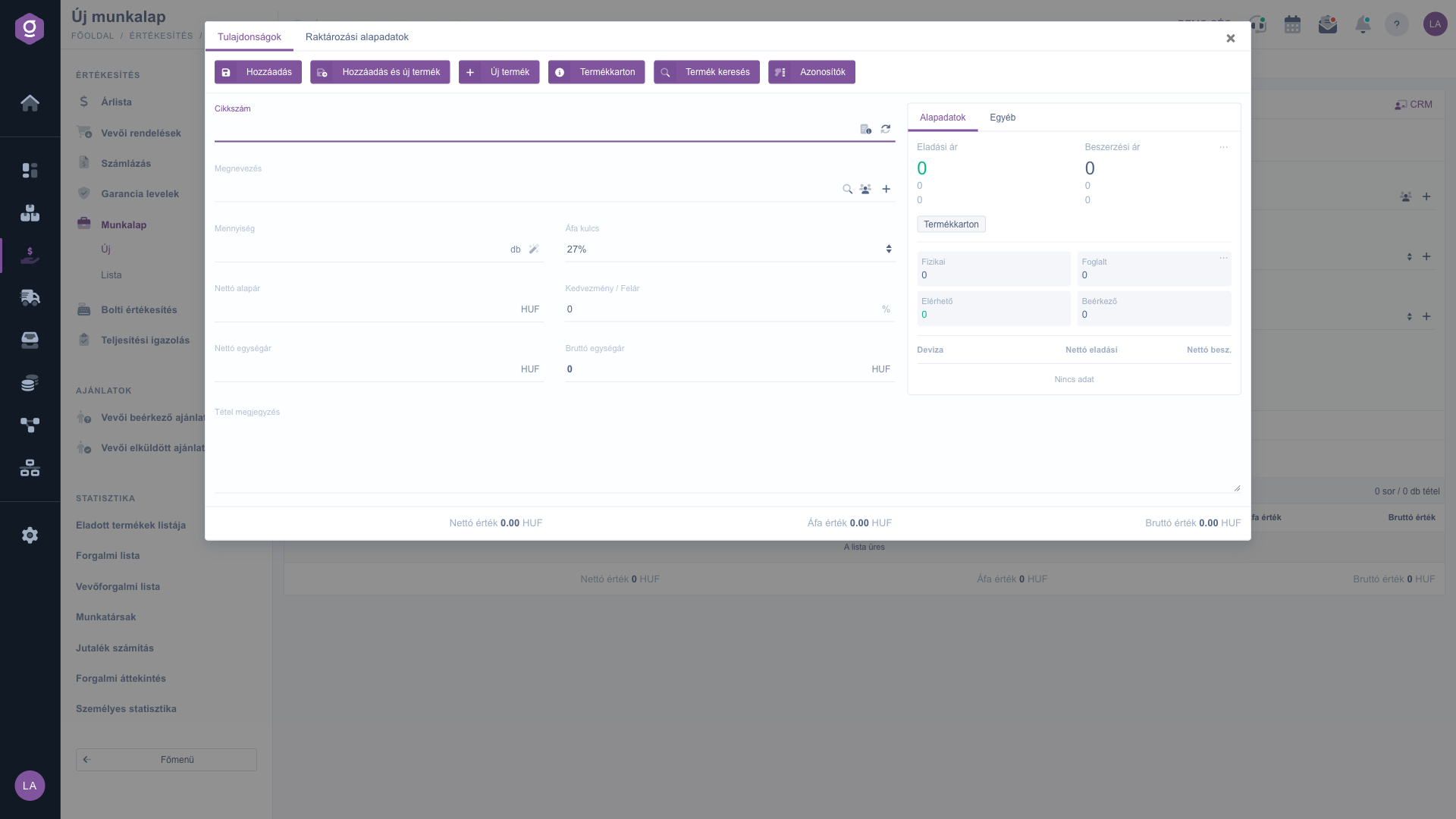
Adding an item – Properties tab (Tulajdonságok)
4. Status changes and signature
The Status changes tab is a log of signed entries: each row shows when and with whose signature the work was completed. You add a new row with the button of the tab, which opens a window.
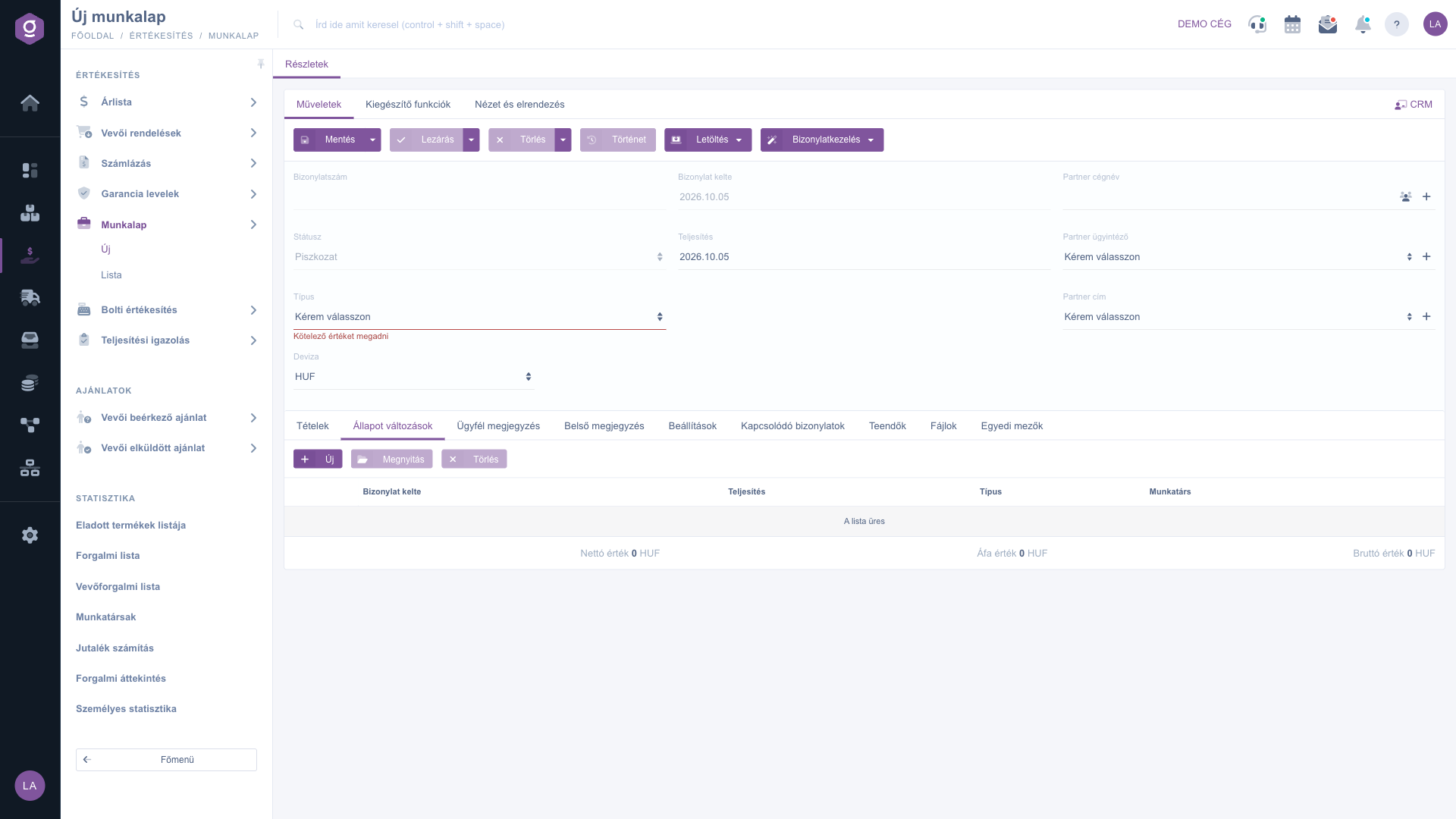
Status changes tab (Állapot változások)
In the window fill in the Comment field (optional), the Signer's name and Performance date fields (required), then draw the signature in the Signature field with a finger, mouse or pen. The Add button adds the entry to the list, the Close button closes the window. The signature cannot be modified after saving. Status changes do not change the Status of the worksheet: that depends on closing and deleting.
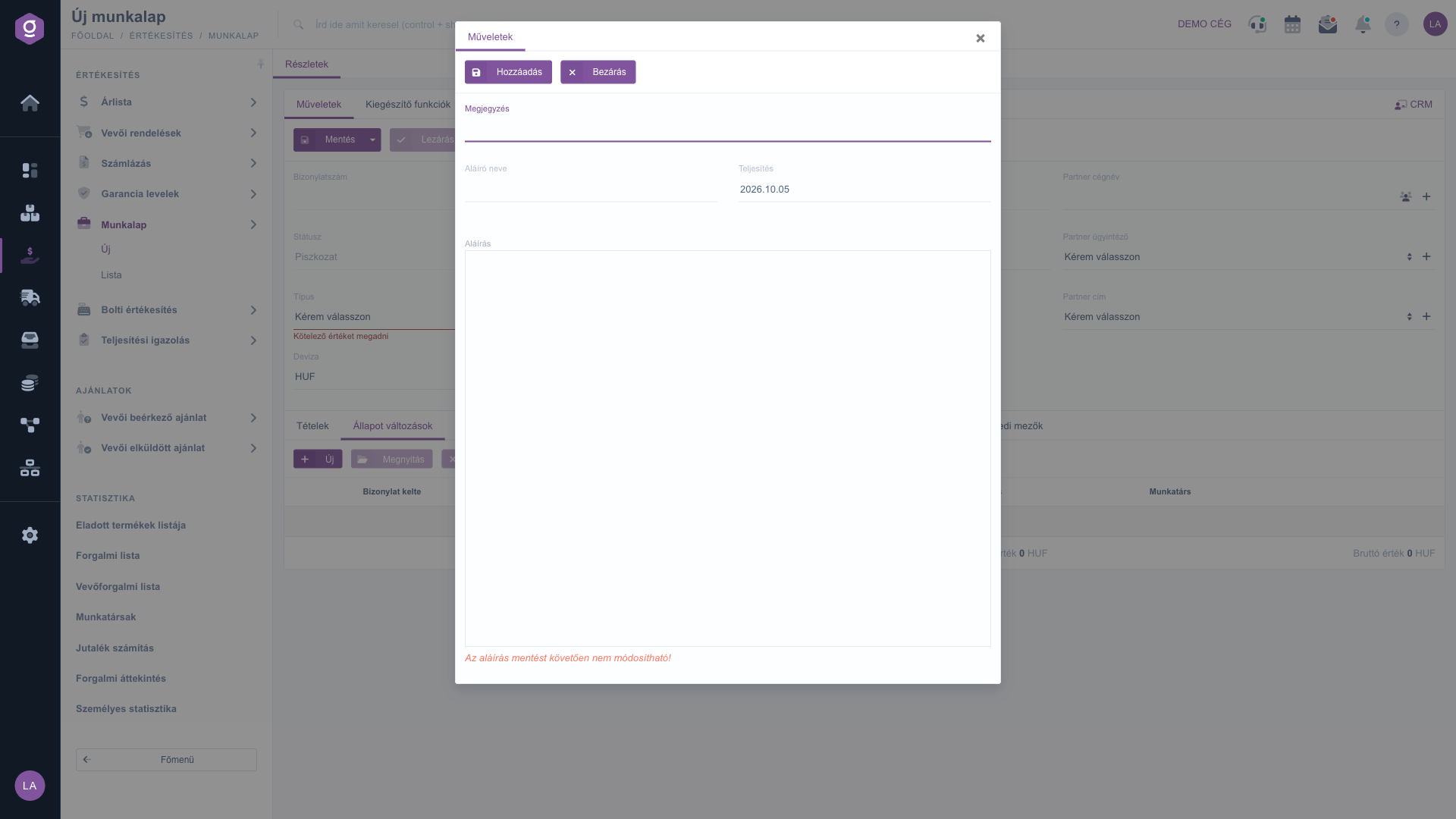
Recording a status change with a signature (Állapot változás)
5. Comments, classification and related data
On the Customer comment and Internal comment tabs you can enter free text. On the Settings tab the Billing address is required, and you can also enter the Project, Job number and Department number. The Related documents tab shows further documents belonging to the worksheet, the Tasks tab the tasks created for it, the Files tab the attached files, and the Custom fields tab the own fields of your company.
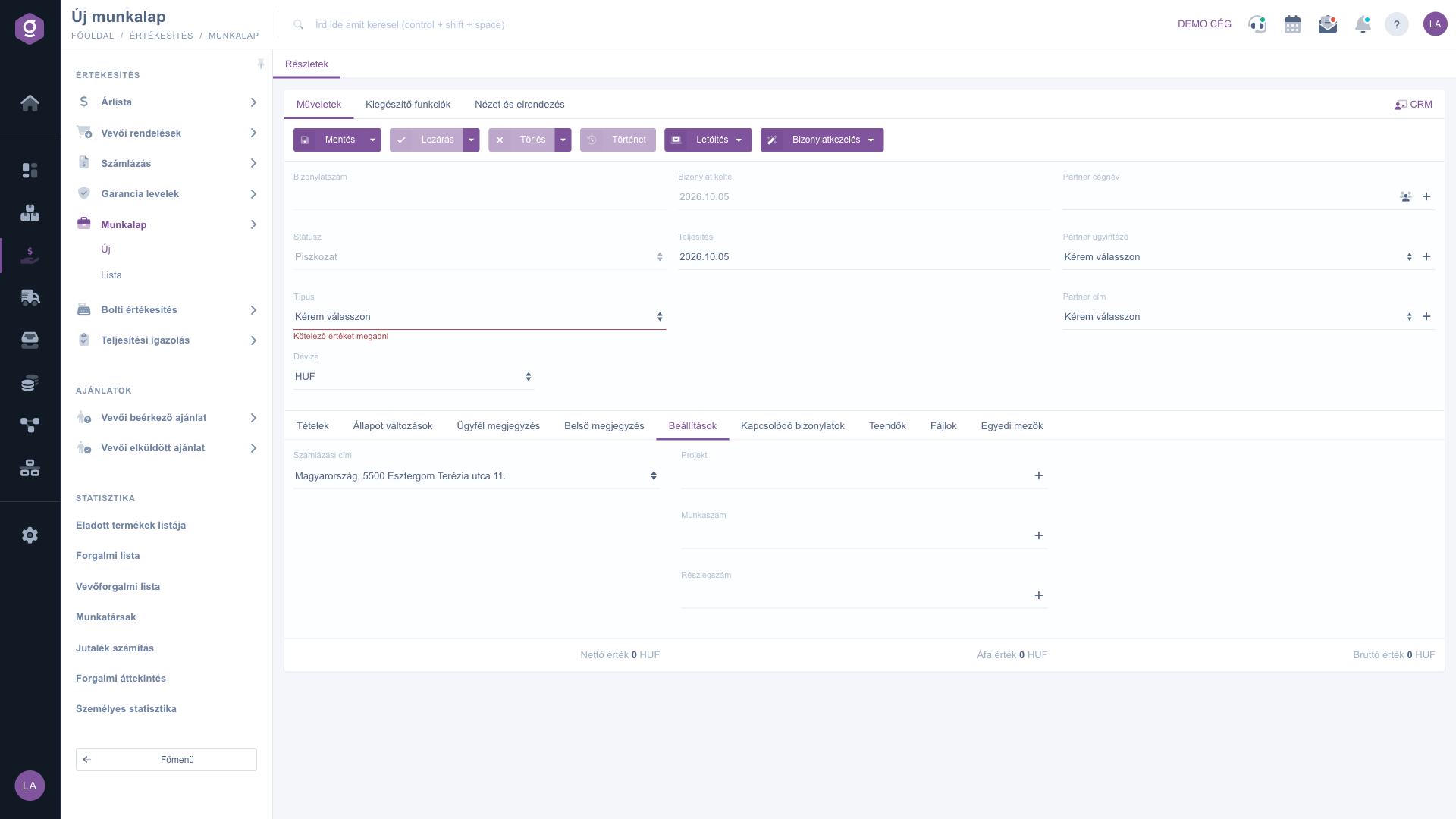
Settings tab – Billing address, Project, Job number, Department number (Beállítások)
6. Saving, closing and deleting
On the Actions tab the Save button saves the worksheet as a draft; in the dropdown menu, Save and close saves and closes it in one step. The Close button finalizes the worksheet (the Close and print and Close and download options of the dropdown menu also produce the printout right after closing). Delete puts the worksheet into Cancelled state, and Delete and copy also creates a copy next to it.
7. Download, document management and history
- Download: as CSV, XLSX, PDF and PDF preview.
- Document management: from a closed worksheet Invoicing, Delivery note, Warranty letter or Quote sent to customer; Cloning starts a new worksheet with the current data. The document created this way opens pre-filled in the editor of the target document.
- History: shows the history related to the worksheet.
8. Additional functions
On the Additional functions tab you can view the Sent items, send a New email, create a New product and a New partner, create a New task and open the Partner card. On the View and layout tab you can customize the page with the Interface and behavior and Columns settings.
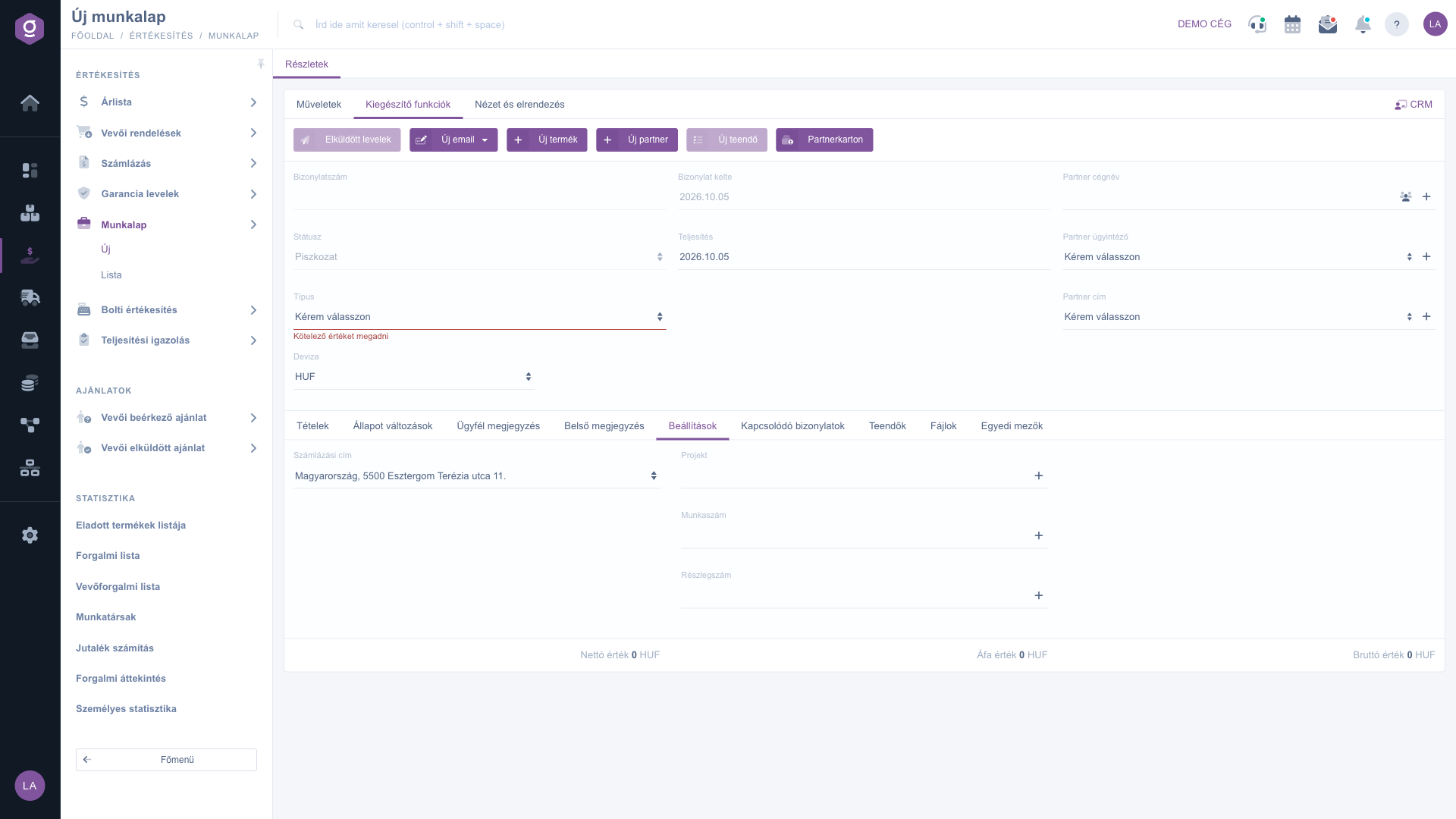
Additional functions tab (Kiegészítő funkciók)
Tip
If you do recurring work for the same partner, do not fill in the whole worksheet again: copy the existing worksheet with Document management / Cloning and only update the date, the items and the signed status changes. Set up the Type list in advance under System settings, so that you do not have to add it in the middle of your work.
If you want to search, filter, close or manage the worksheets you have already created in bulk, see the
Worksheet list guide.



