Worksheet list

Learn how to search, open, close, delete and convert worksheets (into an invoice, delivery note or warranty letter) in the Logzi Worksheet list.

Function overview

In this module you manage Worksheet documents. A worksheet records what work or service you have carried out for a partner — classified by type, with items and, where needed, confirmed by a signature. This guide describes the list of worksheets: here you can search through the worksheets you have already created, open, close, delete or clone them, and create an invoice, delivery note, warranty letter or customer quote from them.

  • Searching and filtering: on the Search tab you can narrow the results by partner, document number, currency, status, dates, employee, item number, project and comments.
  • Preview below the list: you can see the Items and Related documents of the selected worksheet without opening it.
  • Lifecycle: use the buttons of the list to close or delete a worksheet, and the History button to view its history.
  • Converting and issuing: you can download, print or email the selected worksheet, and create an invoice or a delivery note from it with the Document management menu.

The possible states of Worksheet documents are: Draft, Closed, Cancellation, Cancelled. In the list, Closed rows are shown in green and Cancelled rows in red; the restrictions of each state are explained in the Frequently asked questions section.

Use the list when you want to review, search or handle several worksheets at once. To create and edit a single worksheet, use the edit page of the Worksheet document.

Step by step

The screenshots in this guide were taken in the Hungarian interface; where a button is visible in an image, its Hungarian label is shown in parentheses.

1. Opening the list

Click Main menu / Sales / Worksheet / List to open the list of worksheets. At the top you find the Actions, Search, View and layout and Additional functions tabs; on the right there is the Analytics link and an icon that copies the table to the clipboard. A summary row is shown at the bottom of the table, and the preview of the selected worksheet appears below the list.
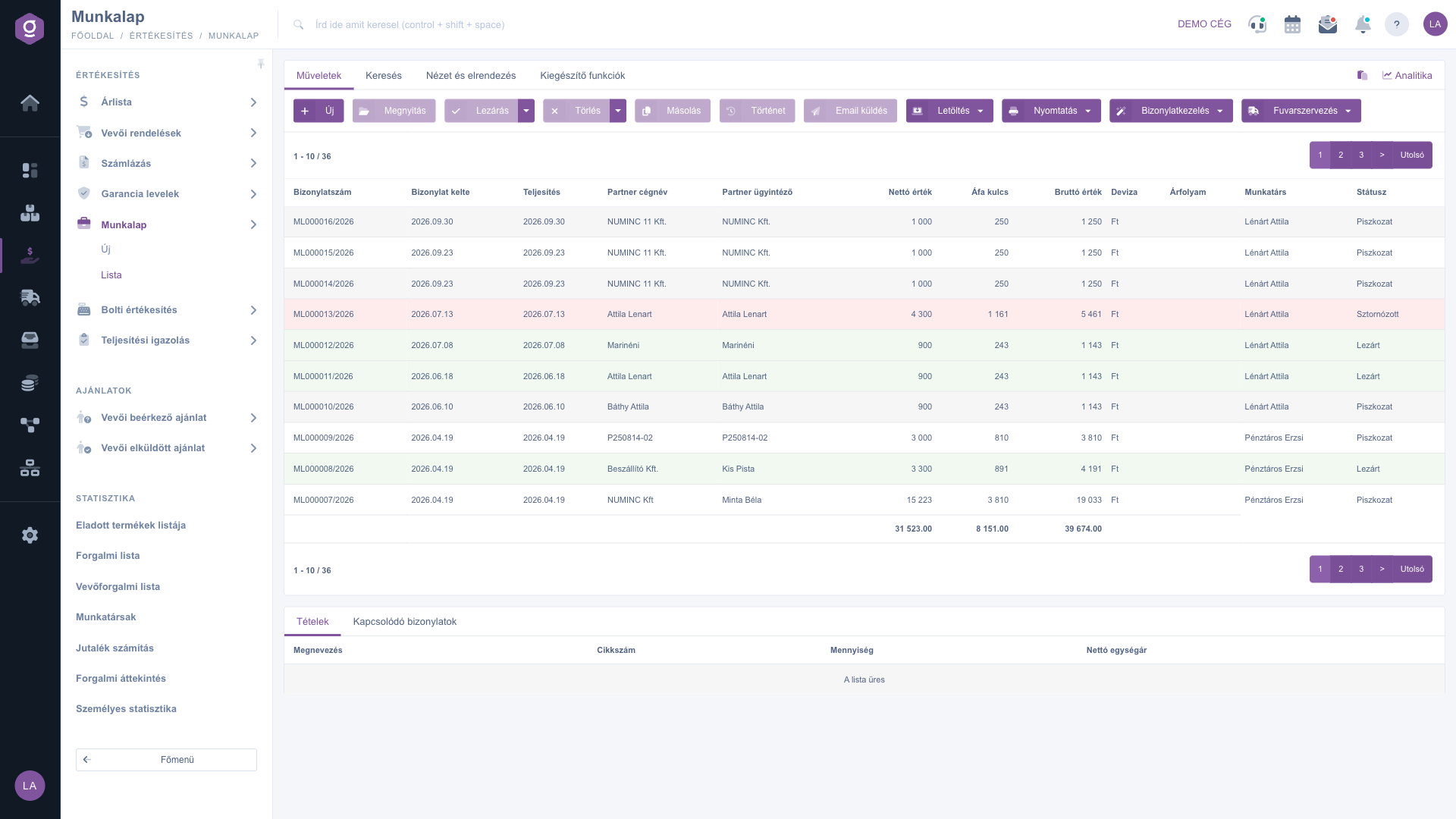
Worksheet list – Actions tab and the table of worksheets (Műveletek)

2. Searching among worksheets

On the Search tab the most common fields appear first: Partner company name, Document number, Currency and Status. In the Status field you can select several states at once. Start the search with the Search button.
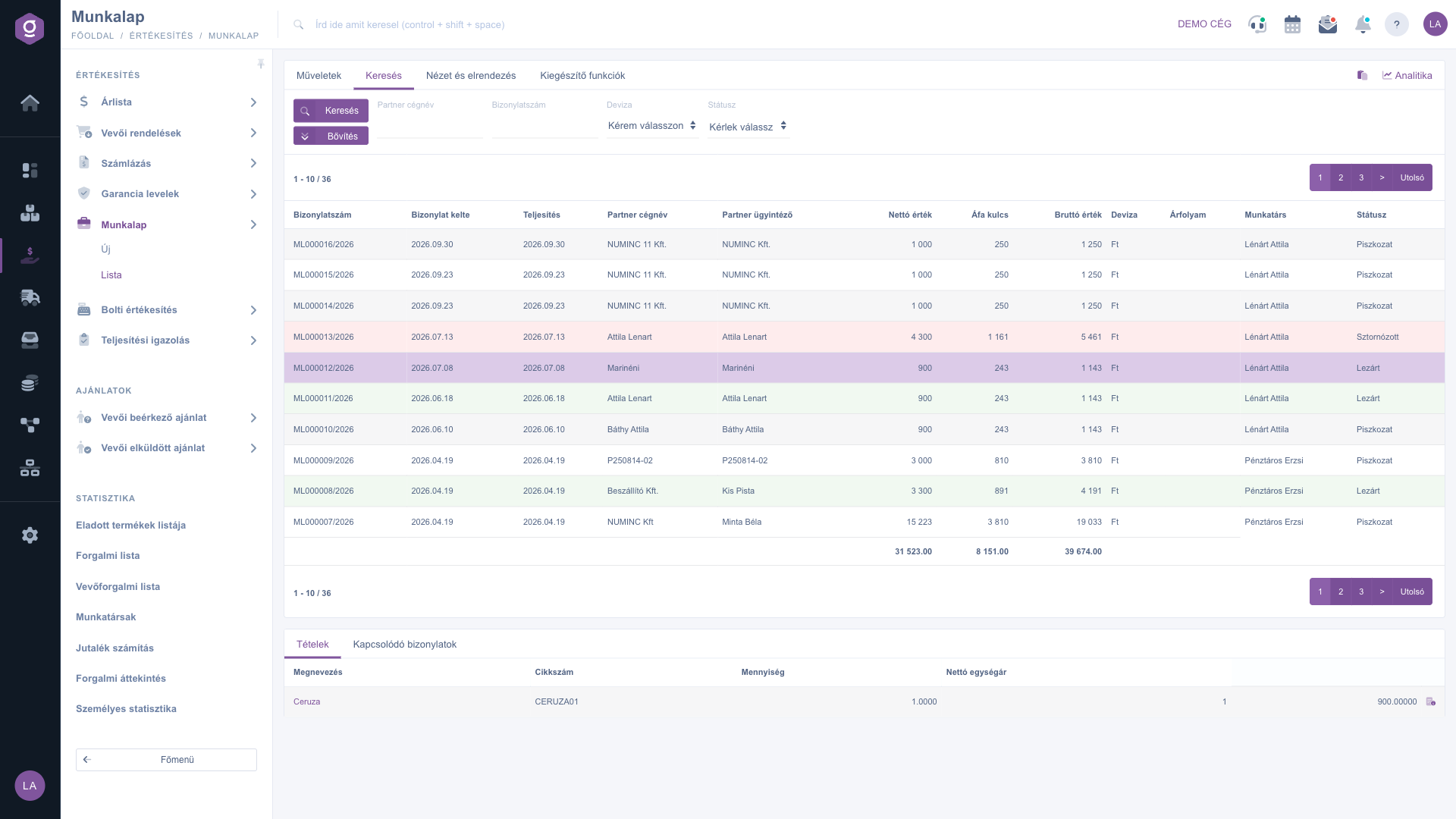
Search tab – basic search fields (Keresés)

The Expand button opens further conditions: Document date and Performance date (as a period, from and to), Employee, Item number, Project, Job number, Department number, Customer comment and Internal comment. If nothing matches the given conditions, the list stays empty; in that case change the search conditions or jump to the first page.
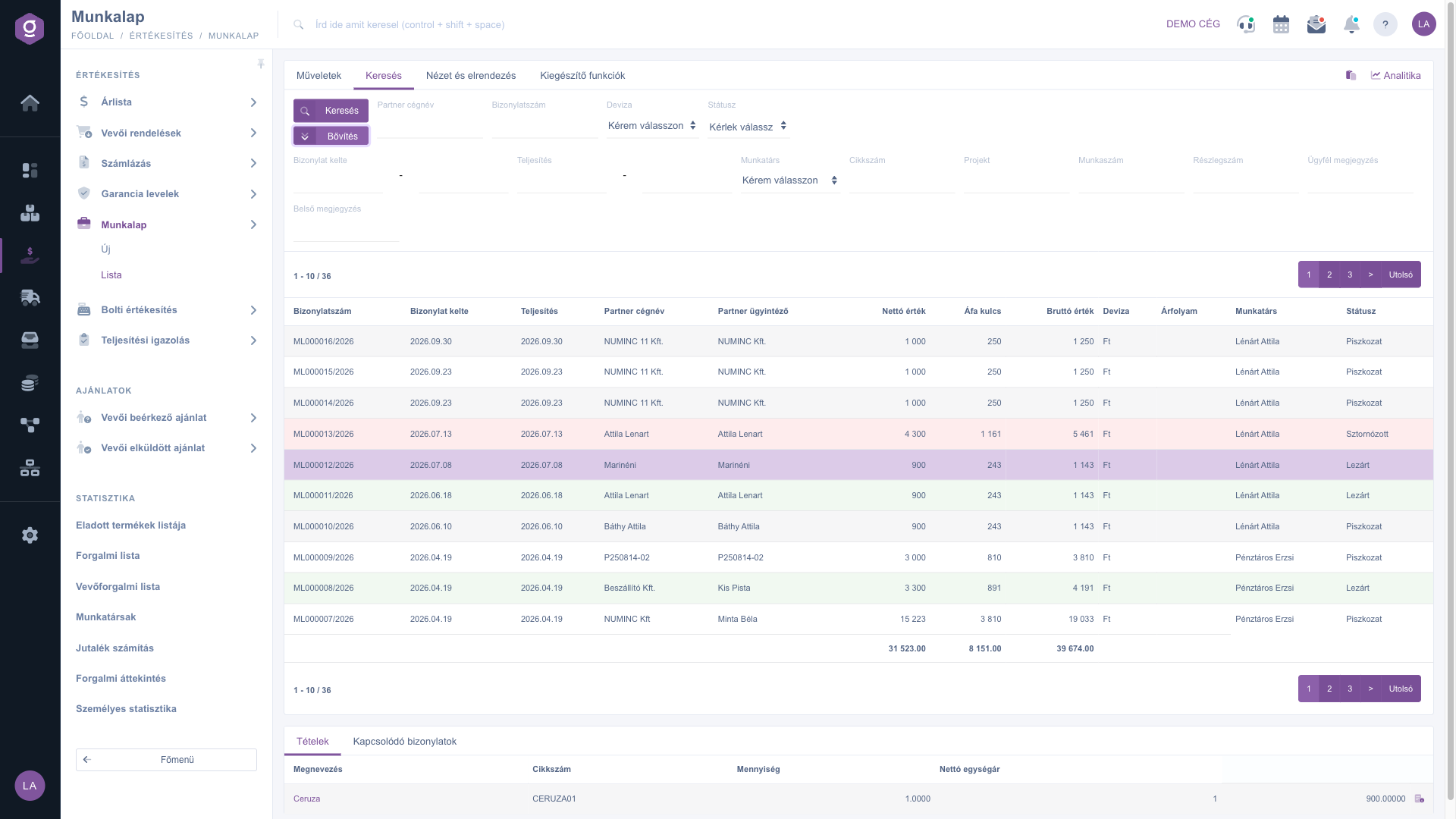
Search tab – expanded search fields (Bővítés)

3. Selecting, previewing and opening

  • Selecting: click a row in the table. Below the list, the Items tab shows the Name, Item number, Quantity and Net unit price of the worksheet, and the Related documents tab shows the documents linked to it.
  • New: opens an empty worksheet, which is described in detail in the Worksheet document guide.
  • Open: opens the selected worksheet for editing or viewing.

4. Closing, deleting, cloning and history

  • Close: finalizes the worksheet, after which it can no longer be modified. It is available only for worksheets in Draft state. In the dropdown menu of the button, Close and print or Close and download also produces the printout right after closing.
  • Delete: the worksheet changes to Cancelled state and cannot be restored. You can delete only worksheets in Draft and Closed state. The Delete and copy option in the dropdown menu also creates a copy next to the deletion, so you can start over with a wrongly entered worksheet in one step.
  • Cloning: you can start a new worksheet based on the data of the selected one.
  • History: shows the history related to the selected worksheet.

5. Document management: invoice, delivery note, warranty letter, quote

From a closed worksheet you can create a new, related document with the Document management menu: Invoicing, Delivery note, Warranty letter or Quote sent to customer. The Cloning item in the same menu starts a new worksheet with the data of the selected one. The new document opens on the edit page of the target document, pre-filled, and it also appears on the Related documents tab of the worksheet.
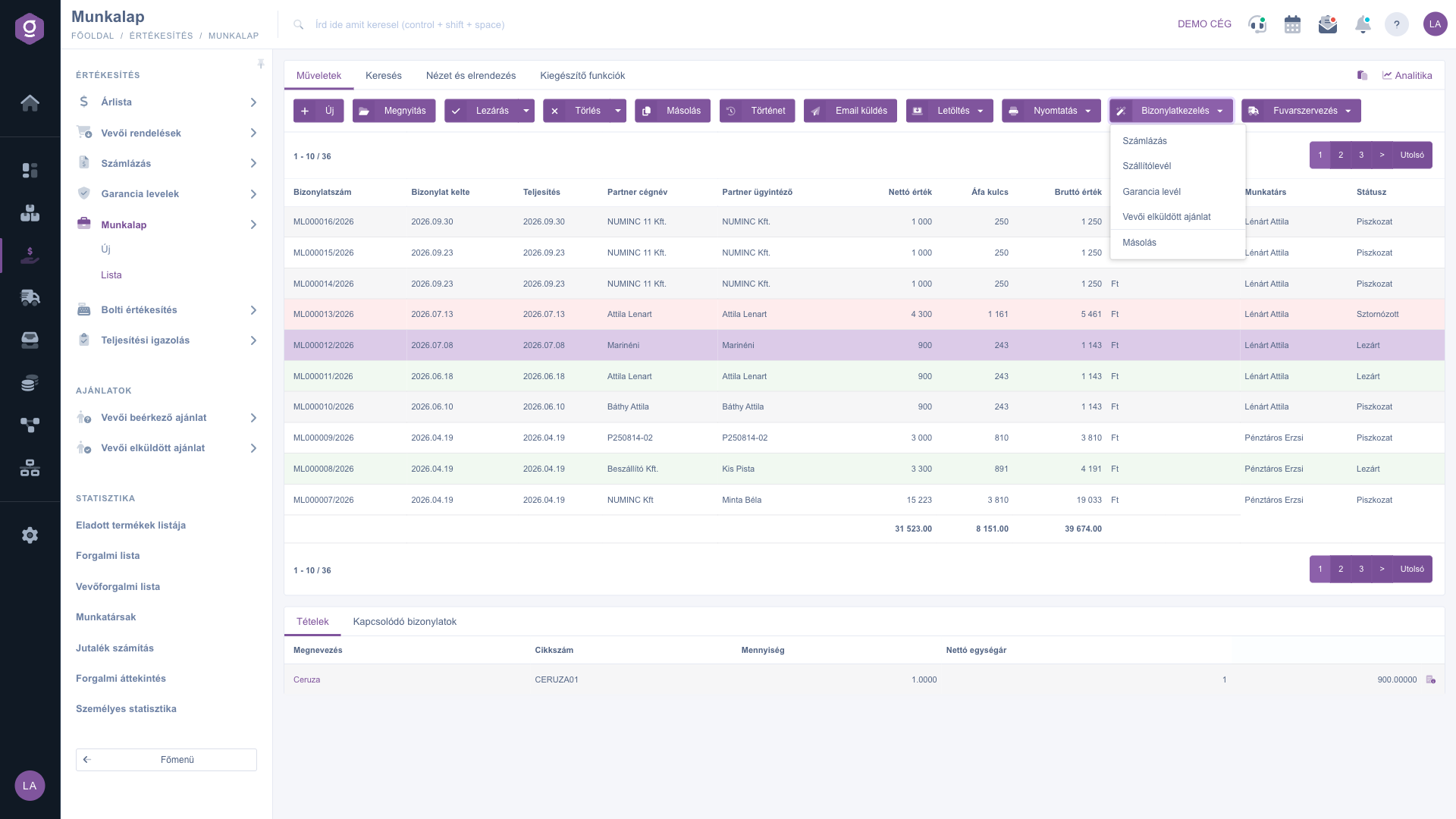
Document management – creating a related document from the selected, closed worksheet (Bizonylatkezelés)

6. Download, print, email and transport organization

  • Download: in the List operation group the whole list can be downloaded as an XLSX list or XLSX item list; in the Document operation group the selected worksheet is available as XLSX items, XLSX serial number list, PDF, PDF preview, or with the Download attachments item.
  • Print: Document prints the whole worksheet, Product label prints the labels belonging to the items.
  • Send email: you can send the selected, closed worksheet to the partner by email.
  • Transport organization: the New parcel label item creates a parcel label for the worksheet, and Parcel labels lists the labels already created.

7. Additional functions and customizing the view

The Additional functions tab contains viewing the Sent items, sending a New email (with the External mail client or the Internal mail client), creating a New task, opening the Partner card of the partner, and the CRM.
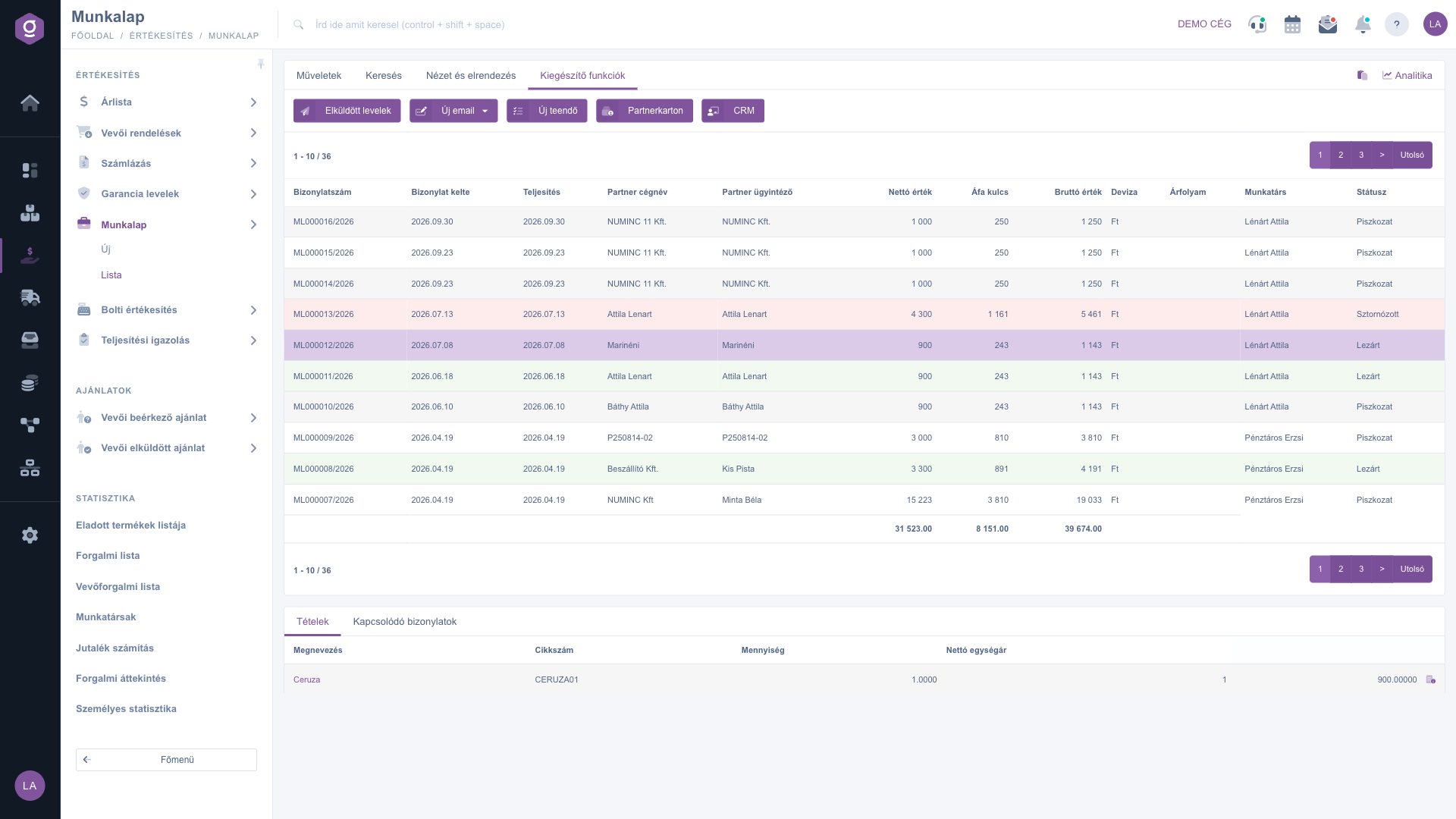
Additional functions tab (Kiegészítő funkciók)

On the View and layout tab you can customize the visible columns of the table with the Columns button, the number of displayed rows with Rows, the order with Sorting, the preview below the list with Preview window, and the behavior of the page with Interface and behavior. The settings are saved for your user, so they are kept next time as well.
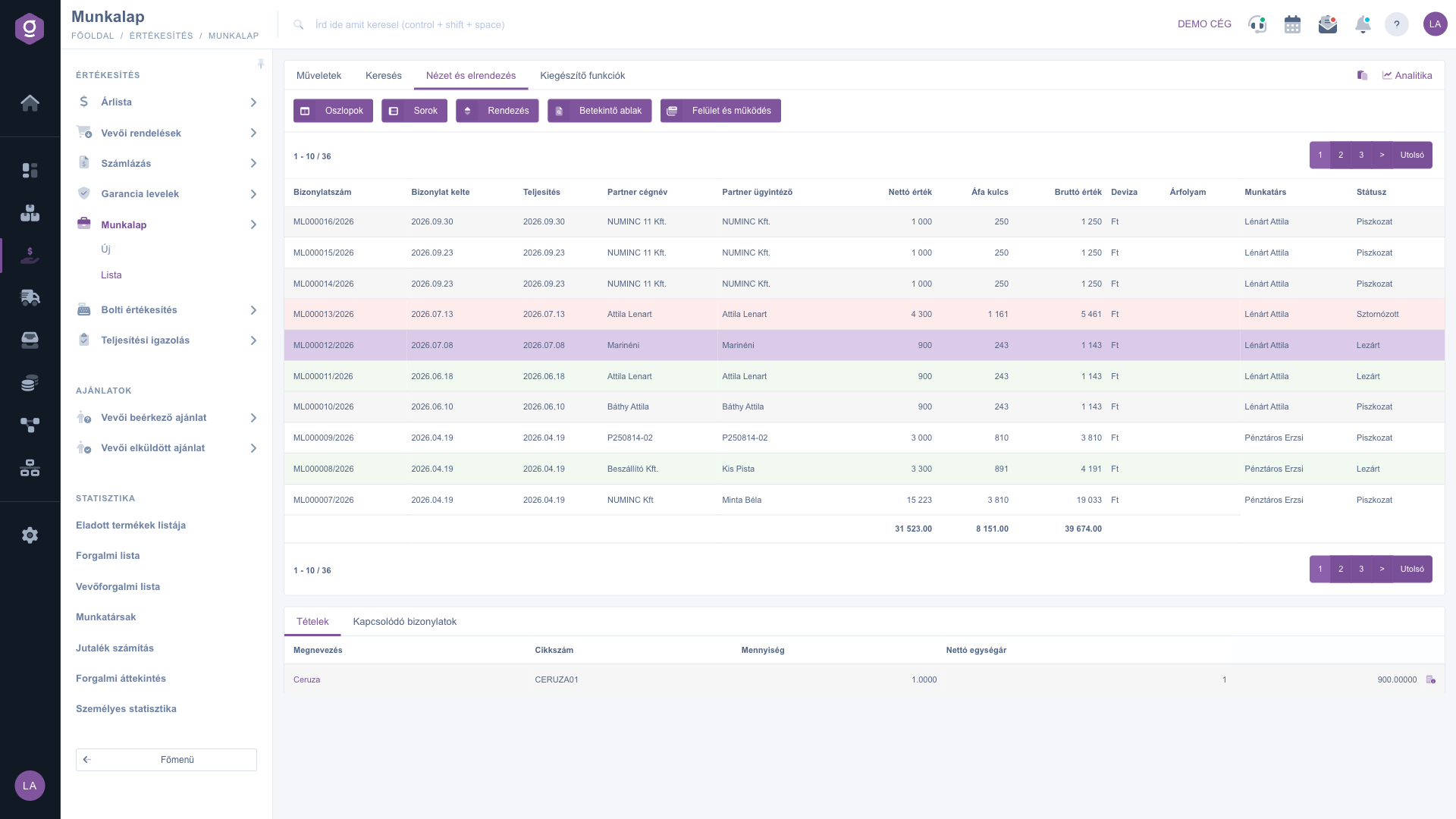
View and layout tab (Nézet és elrendezés)

Tip


To see which worksheets are still waiting to be closed, select the Draft state in the Status field on the Search tab and start the search. With a single filter you get all worksheets that can still be edited.

If you want to create a new worksheet, or edit the items and signed status changes of an existing one, see the Worksheet document guide.

Field descriptions

The columns and search fields of the list and their meaning:

Field / Element Required Description
Document number The unique identifier of the worksheet (e.g. ML000016/2026). As a search field you can also search for a part of the document number.
Document date The day the worksheet was created. In the search you can enter a period (from, to).
Performance date The date the work was performed. In the search you can also enter a period.
Partner company name The partner for whom the work was done. In the search, a part of the name is enough.
Partner contact person The name of the contact on the partner side. If it is not given on the worksheet, the column may stay empty.
Net value, VAT rate, Gross value The net amount, the VAT amount and the gross amount of the worksheet. The VAT rate column shows the VAT amount. A summary row is shown at the bottom of the table.
Currency, Exchange rate The currency of the worksheet and, if it differs from the base currency of the company, the exchange rate applied. You can also choose from the Currency search field.
Employee The colleague who issued the worksheet. In the expanded search you can pick it from a list.
Status The state of the worksheet (Draft, Closed, Cancellation, Cancelled). In the search you can select several states.
Item number Expanded search field: returns the worksheets that have an item with the given item number.
Project, Job number, Department number Expanded search fields for the classification data of the worksheet (they can be entered on the Settings tab of the worksheet).
Customer comment, Internal comment Expanded search fields for the comment texts of the worksheet: the one meant for the partner and the internal-only one.

The set of visible columns can be customized under View and layout / Columns — the list above shows the default view.

Frequently asked questions

Closing finalizes the worksheet, so its items and header can no longer be edited, and the Close button is available only in Draft state. If a correction is needed, make a copy of the worksheet with Document management / Cloning and correct the copy. For a wrongly closed worksheet you can also use the Delete and copy option.

You can delete only worksheets in Draft and Closed state. After deletion the worksheet changes to Cancelled state (shown as a red row in the list) and cannot be restored. If you only want to correct it, use the Delete and copy option: it cancels the worksheet and creates a copy that you can fix.

There are three common reasons. The given search conditions may have no match — in that case change the conditions on the Search tab. The current page may have no match — in that case jump to the first page. Or you may not have created any worksheet yet; then record the first one with the New button.

These buttons apply to a specific worksheet, so they are active only if you have selected a row in the table. The state matters too: Close works only in Draft state, while Invoicing, Delivery note, Warranty letter, Quote sent to customer and Send email can be used only for a closed worksheet.

The New button of the list (or the Main menu / Sales / Worksheet / New menu item) opens an empty worksheet where you can record the header, the items and the signed status changes. Detailed description: Worksheet document.

The module only appears in the menu if it is assigned to your user. If it is missing, ask the company administrator to check the module assignment of your user.

Need personalized help?

Don't want to spend hours searching for a solution? Choose the most efficient way: book a personalized, 45-minute online training session dedicated entirely to you. Whether it's a walkthrough of the basics or a detailed setup of a specific module, our expert colleague will guide you through the whole process, step by step.

Don't waste your time - ask for help!
Our goal is to get you using our system as quickly and efficiently as possible. Whether you're completely new to us or stuck on a specific setting, don't hesitate to ask for help!

Logzi warehouse management software

Get in touch with us

Interested in our software? Feel free to write to us!

Need help?

If you can't find the answer and need assistance

Create your account now,
pay later!

Try it free for 3 days, no risk, no obligation!

