Customer turnover list

The Customer turnover list sums up, per partner, the value of the invoices you have issued, the amount already settled and the balance still open. In one place you can see who your biggest customers are, who owes you money and when each customer last bought from you. This guide explains how each column is calculated, how to filter by period and what to watch out for when interpreting the figures.

Function overview

With the Customer turnover list you see, summed up per partner, how much business you have done with each customer, how much of it has already been paid and how much is still open. The list does not show individual documents but a single row per partner: the total of that partner's Invoice and Advance invoice documents. It gives you quick answers to these business questions: who are my biggest customers, who owes me money and how much, who has overpaid, and who has not bought anything for a long time.

  • Summary per partner: all invoices of a partner are combined in one row, so you do not have to add up the values document by document.
  • One currency: amounts are shown in the default currency of the company; invoices issued in another currency are converted with the exchange rate recorded on the invoice.
  • Filtering by period: you can set a period based on the invoice date or performance date, and only invoices within it are included in the totals.
  • Partnerkarton: you can open the summary card of the selected partner with one click, without leaving the list.
  • XLSX download: the list can be saved to an Excel file according to the current filter for further analysis.
  • Customizable view: you can set which columns are visible, how many rows appear on a page and how the list is sorted.

The list has no status of its own, but based on the Debit/Credit column you can distinguish three typical situations: a positive value (the partner still owes you), 0 (all invoices are settled) and a negative value (the partner has paid more than you invoiced, i.e. has an overpayment) — their meaning is explained in the Frequently asked questions section.

Step by step

1. Opening the page

Click Main menu / Sales / Statistics / Customer turnover list and the list opens. By default the partner with the highest turnover is at the top, because the list loads sorted by the Value column in descending order. The pager above and below the table shows how many partners the list contains in total (e.g. 1 - 10 / 1979). The screenshots were taken from the Hungarian demo interface.
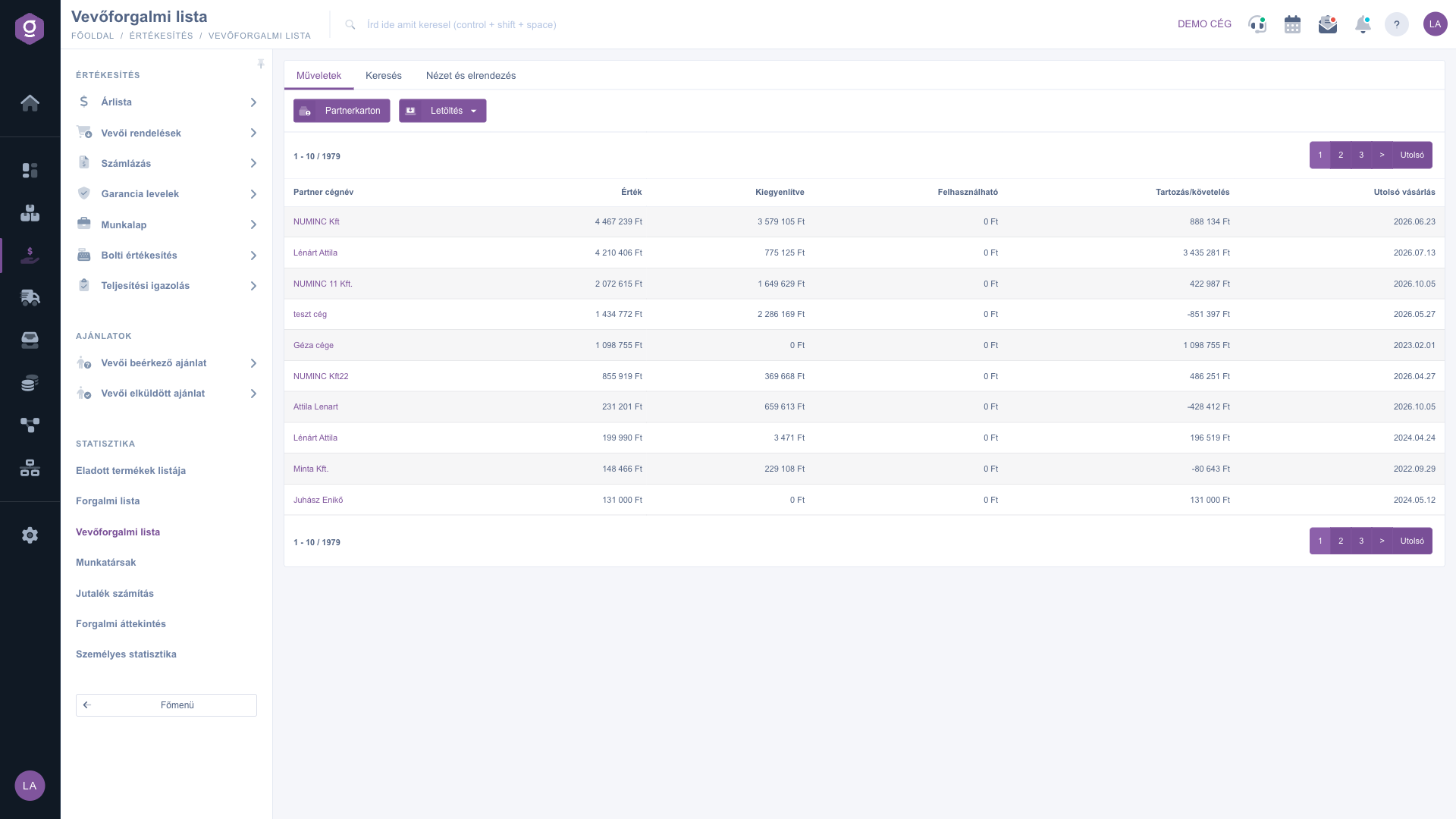
Customer turnover list – Actions tab (Műveletek) and the summary table per partner

2. How to read the table

One row means one partner. The values are calculated from the partner's invoices, taking into account only the Invoice and Advance invoice document types (manual invoices, other document types and deleted documents are not included). The columns mean:

  • Value: the gross total (including VAT) of the partner's invoices. Business question: how much have I invoiced this customer? Cancellation and corrective invoices reduce the total with a negative sign, while invoices that are not yet closed (drafts) are included.
  • Settled: the amount assigned so far as settlement to the partner's invoices. Business question: how much of it has the partner already paid?
  • Usable: the net value of the partner's advance invoice in Usable status, i.e. the advance that can still be deducted on the final invoice. If the partner has no such advance invoice, the value is 0. Business question: do I still have an unused advance from this partner?
  • Debit/Credit: the difference between Value and Settled (Value - Settled). A positive number means the partner still owes you (you have a receivable); a negative number means the partner has paid more than you invoiced. Business question: who owes me how much right now?
  • Last purchase: the latest performance date of the partner's invoices under the current filter. Business question: when did the customer last buy, is it time to get in touch?

A concrete example from the screenshot: the invoices of NUMINC Kft have a value of 4 467 239 Ft, of which 3 579 105 Ft is already settled, so the Debit/Credit column shows 888 134 Ft (4 467 239 - 3 579 105). For teszt cég the settlement (2 286 169 Ft) is higher than the invoiced value (1 434 772 Ft), so the difference is negative: -851 397 Ft of overpayment.

3. Filtering by period and partner

Click the Search tab above the table to display the filters: Partner company name, Kelte (the invoice date; this label is always shown in Hungarian) and Performance date (from–to). You must enter at least three characters of the partner name, and the system searches for them anywhere in the name. Use the Search button to filter by the set conditions.

  • Kelte: filters by the issue date of the invoice. Use it when you want to know how much you invoiced in a period.
  • Performance date: filters by the performance date of the invoice. Use it when you are interested in the sales actually performed or in the accounting period.

Important: the date filter is applied to each invoice before the totals are calculated. If, for example, you search the Performance date between 2026.07.01 and 2026.09.30, the list shows per partner only the total of the invoices falling in this period. This means Settled and Debit/Credit also refer only to these invoices, not to the partner's total debt. To see the partner's total balance, clear the date filter.
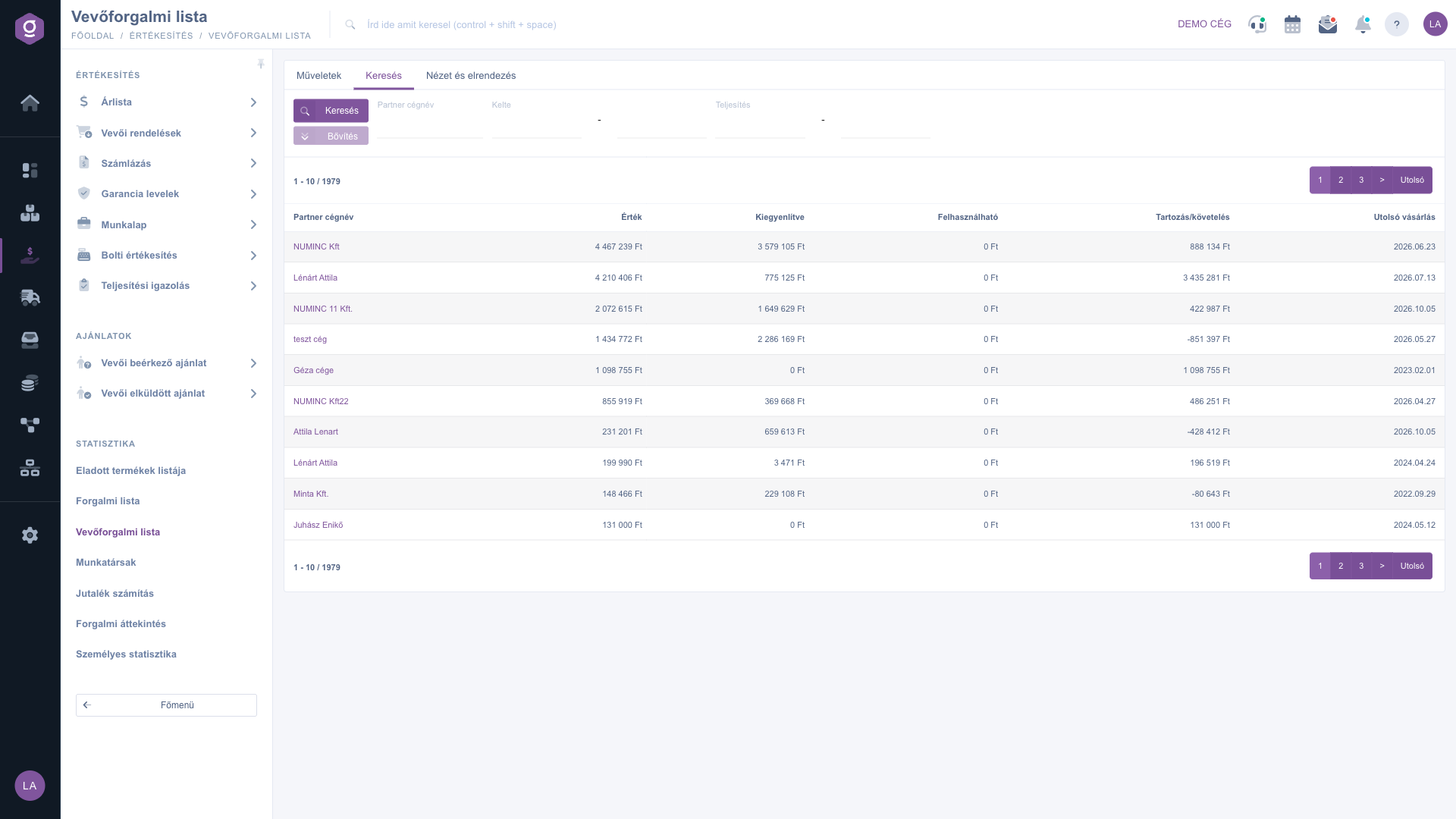
Customer turnover list – Search tab (Keresés): Partner company name, Kelte and Performance date filters

4. Opening a partner and the Partnerkarton

Click the name of a partner and the partner record opens in a new browser tab, so the list you are looking at is not lost. If you want a summary overview of the partner without leaving the list, first select the row in the table (click any column of it), then on the Actions tab click the Partnerkarton button (partner card). The pop-up window shows the partner's data, contacts and addresses, the related orders, invoices, worksheets, quotes and delivery notes, as well as the turnover, order and balance summary. If no row is selected, the Partnerkarton button does not know which partner to open.

5. Downloading to Excel

On the Actions tab, choose XLSX lista from the Download menu to download the list as an Excel file. The download uses the filters set on the Search tab (Partner company name, Kelte, Performance date) and contains all matches, not just the page you are currently viewing. If you only need the turnover of a given period, set the filter first and download the file afterwards.

6. Customizing the view

On the View and layout tab you can set how the list is displayed for you:

  • Columns: choose which fields appear in the table and in what order. Besides the columns visible by default you can also show the Partner azonosító (partner ID) and Partner adószám (partner tax number) columns, which are shown in Hungarian in every language.
  • Rows: set how many partners are shown on one page.
  • Sorting: choose which column and in which direction the list is sorted by default. You can re-sort the table at any time by clicking a column header.

These settings are saved per user, so they are preserved the next time you log in.
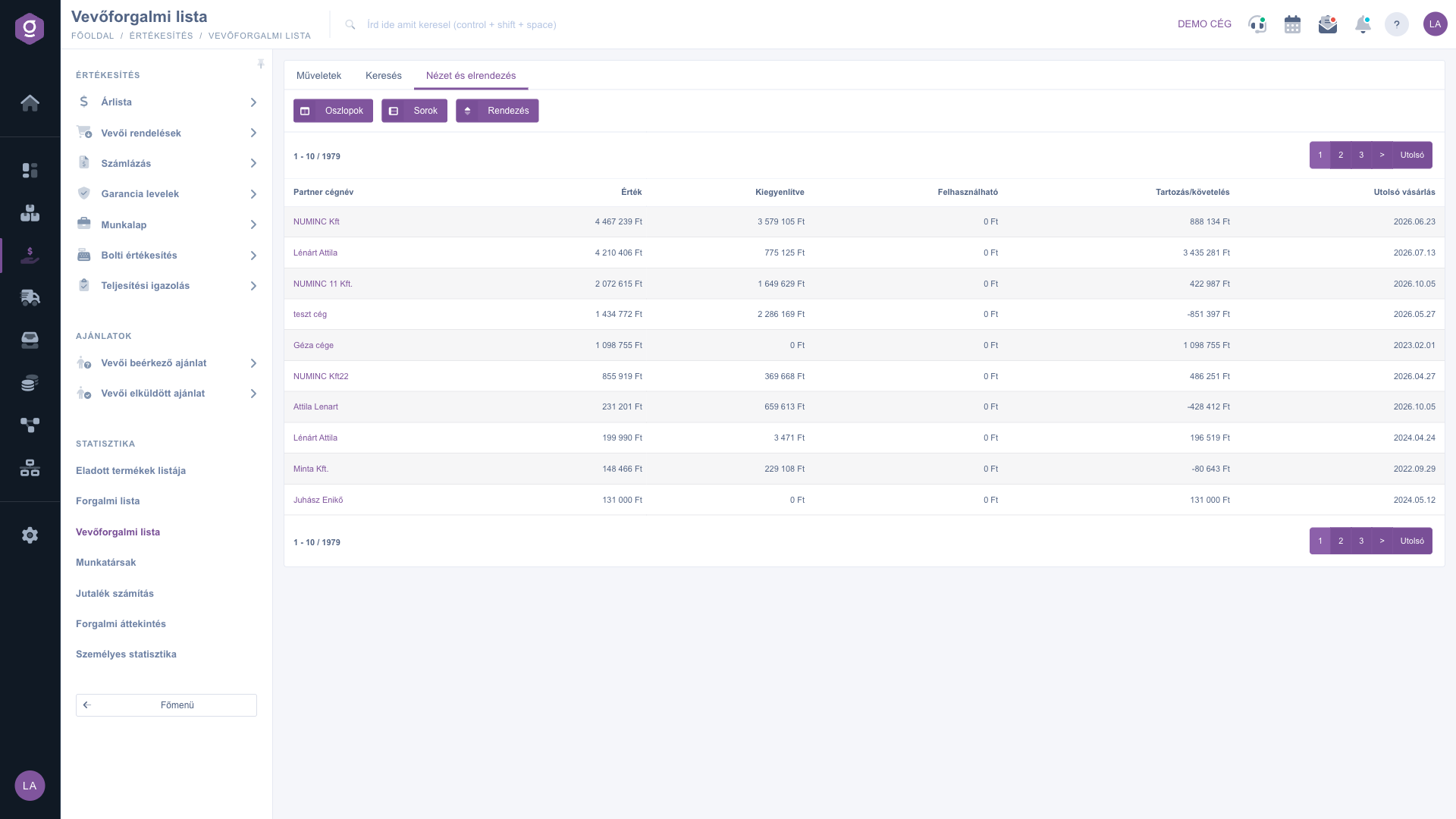
Customer turnover list – View and layout tab (Nézet és elrendezés): Columns, Rows, Sorting

Tip


If you want to find out which customers have the most open receivables, click the Debit/Credit column header to sort the list in descending order. The partners with the highest balance then appear at the top. After that, use Download / XLSX lista to hand the list straight to your finance colleague for payment reminders. For a quarterly review, first enter the first and last day of the quarter in the Performance date field, and sorted by the Value column you get the best customers of that quarter.

If you want to see a partner's invoices document by document, or check a value you saw in the summary, take a look at the Invoice list guide. You can read about customer orders, which are not part of this summary, in the Customer orders list guide.

Field reference

The columns of the list and their meaning. A tick means that the column is visible by default; a dash means that you can only switch it on in the View and layout / Columns setting:

ColumnVisible by defaultDescription
Partner company nameThe customer name from the partner master data. Clicking the name opens the partner record in a new tab. The totals are calculated per partner record, so if the same company has been created as two separate partners, it appears in two rows.
ValueThe gross total of the partner's Invoice and Advance invoice documents in the default currency. Cancellation and corrective invoices reduce it with a negative value, and draft invoices are counted as well. The default sorting (descending) is based on this column.
SettledThe total settled amount assigned so far to the invoices, in the default currency. If no payment has been received for an invoice yet, its Settled value is 0.
UsableThe net value of an Advance invoice in Usable status. If the partner has no such advance invoice, the value is 0 Ft, which is the case for most partners.
Debit/CreditValue - Settled. Positive: the partner still owes you. 0: settled. Negative: overpayment, i.e. the partner has paid more than the invoiced amount.
Last purchaseThe performance date of the partner's latest invoice (in YYYY.MM.DD format), taking the current filter into account.
Partner azonosítóThe internal ID of the partner in the partner master data. Useful when you need to tell apart two partners with the same name.
Partner adószámThe tax number of the partner. It helps to identify partners with the same name or partners created in duplicate.

Frequently asked questions

The Customer turnover list only appears under Main menu / Sales / Statistics if the module is assigned to your user. If you cannot find it, ask the system administrator to check the module assignment of your user.

The Usable column only shows the net value of an Advance invoice in Usable status. If the partner has no such advance invoice (or the advance has already been fully used in the final invoice), the value is 0 Ft. This is not an error; it means that there is no unused, not yet invoiced advance from the partner.

Debit/Credit is the difference between Value and Settled. If it is negative, the settlements assigned to the partner exceed the invoiced value: for example the partner paid in advance, transferred the amount twice, or the settlement remained in the system after an invoice was cancelled. Check the partner's invoices and settlements in the Partnerkarton and decide whether a refund or a rearrangement of the settlement is needed.

There are several typical reasons: (1) besides Invoices the Customer turnover list also contains Advance invoices, but not manual invoices; (2) cancellation and corrective invoices are included with a negative amount, and draft invoices are included regardless of their status; (3) invoices issued in another currency are converted to the default currency with the exchange rate recorded on the invoice; (4) you may have set the date filter differently on the Invoice list and here. For a detailed check, filter the Invoice list for the same partner and period.

You have to enter at least three characters in the Partner company name filter; with shorter text the filter has no effect. The list only shows a partner who has an Invoice or Advance invoice under the given filter conditions (for example in the given period). If the same name appears in two rows, the partner master data contains two separate partner records, and the totals are calculated per record. In that case, switch on the Partner azonosító or Partner adószám column to find out whether it is really a duplicate.

Last purchase is the performance date of the partner's latest invoice, not the payment date or the issue date. If you filtered by period, only the invoices in that period are considered, so the partner may have bought something after the filtered period.

The Partnerkarton always opens for the partner selected in the table. First click a row of the table so that it is selected, and only then click the Partnerkarton button on the Actions tab. If you only need the partner record, click the partner name, which opens it in a new tab.

The list is calculated exclusively from issued invoices (Invoice and Advance invoice). Customer orders and quotes are not turnover yet, so they are not included. You can find them in their own lists, for example on the Customer orders list page.

Need personalized help?

Don't want to spend hours searching for a solution? Choose the most efficient way: book a personalized, 45-minute online training session dedicated entirely to you. Whether it's a walkthrough of the basics or a detailed setup of a specific module, our expert colleague will guide you through the whole process, step by step.

Don't waste your time - ask for help!
Our goal is to get you using our system as quickly and efficiently as possible. Whether you're completely new to us or stuck on a specific setting, don't hesitate to ask for help!

Logzi warehouse management software

Get in touch with us

Interested in our software? Feel free to write to us!

Need help?

If you can't find the answer and need assistance

Create your account now,
pay later!

Try it free for 3 days, no risk, no obligation!

