1. Opening the sheet and filling in the header data
Open a new quote with Main menu / Sales / Quote sent to customer / New. You can open an existing quote in Main menu / Sales / Quote sent to customer / List by selecting the document and clicking the Open button. The screenshots were taken in the Hungarian demo interface.
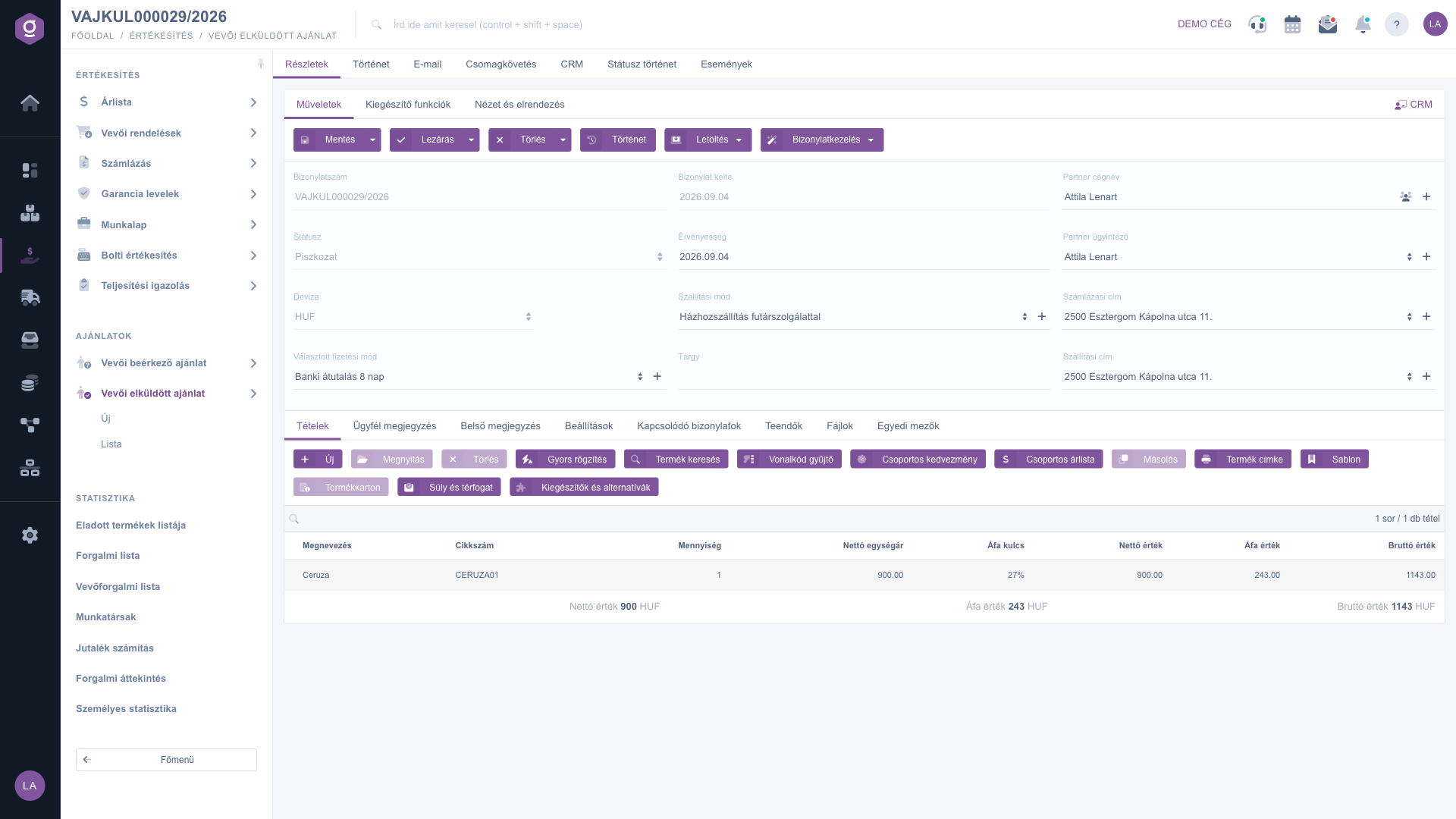
Quote sent to customer sheet – draft and the Items tab
The fields of the header data:
- Document number, Status, Document date: read-only fields that cannot be edited.
- Currency and Exchange rate: the currency is required on a new sheet; on an existing document neither the currency nor the exchange rate can be changed.
- Selected payment method: a required field; with the button next to it you can create a new payment method.
- Validity: the date until which the quote is valid — a required field. In the list column the same value is called Performance date.
- Shipping method and Subject: the choice of the shipping method and the subject of the quote.
- Partner company name: the partner linked to the document — required. With the icons next to the field you can open the partner sheet or create a new partner.
- Partner contact person, Billing address and Shipping address: the contact person and the addresses of the selected partner; the two addresses are required. With the buttons next to the fields you can add a new contact person or a new address.
2. Adding items
You manage the items of the document with the button row of the Items tab. The buttons can only be used on a document in Draft status:
- New: add a new product or service — opens the new item window.
- Open: open the selected item for editing.
- Delete: delete the selected item from the document.
- Cloning: copy the selected item.
- Product search: search for a new product or service in the master data.
- Group discount and Group price list: change the discount or the price list of the selected items together.
- Product label: print the product labels belonging to the items.
- Product card: open the product card of the product belonging to the selected item.
- Quick add, Barcode collector, Template, Weight and volume, Add-ons and alternatives: judging by their names, these buttons help you add and complete items faster; this guide does not describe how they work in detail.
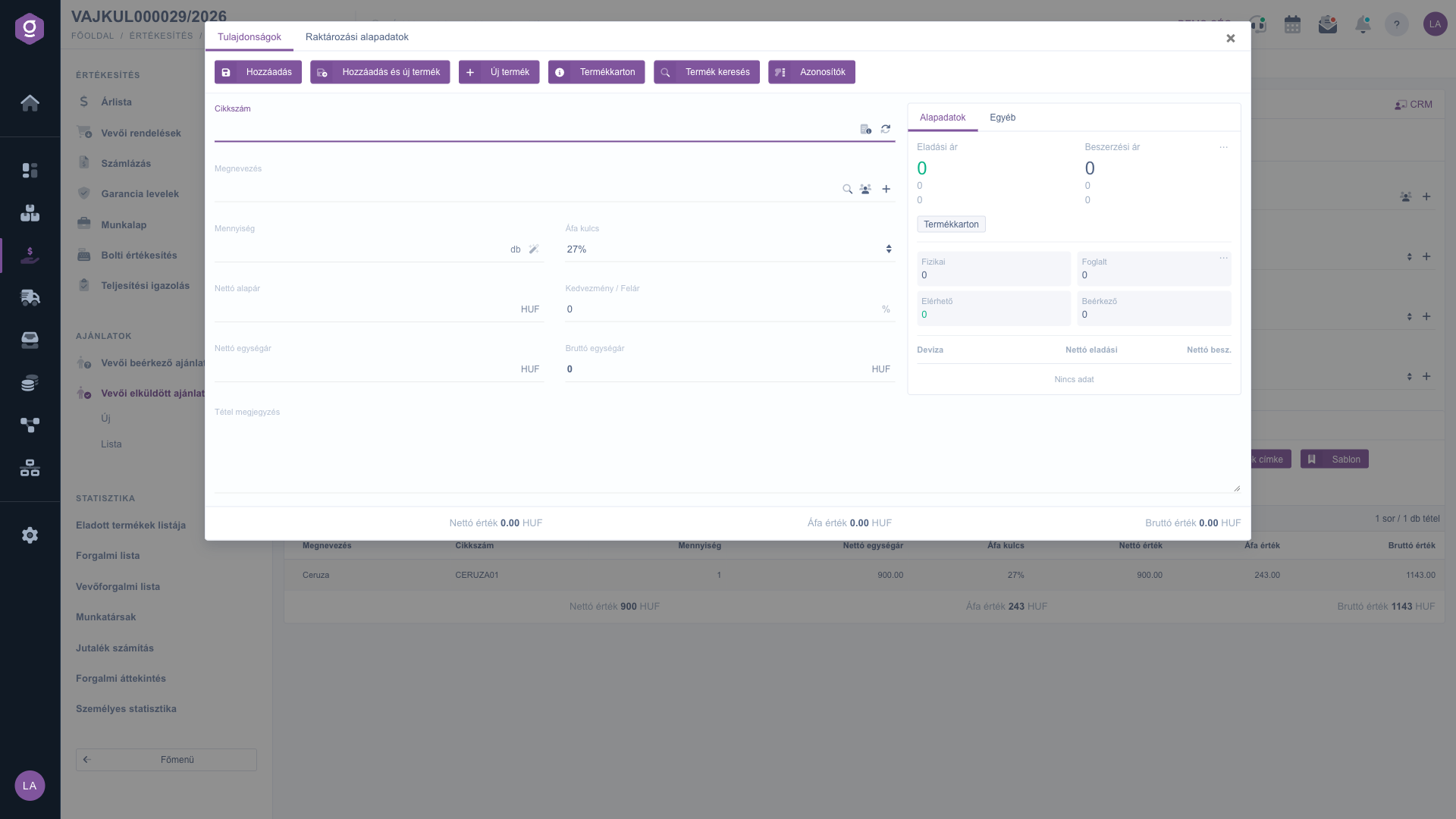
Quote sent to customer sheet – new item window
On the Properties tab of the new item window enter the data of the item: Item number, Name, Quantity, VAT rate, Net base price, Discount / Surcharge, Net unit price, Gross unit price, Item comment. The panel on the right shows the prices and stock data of the product for information on its Basic data and Other tabs. At the bottom of the window you can see the Net value, VAT value and Gross value of the item; it is worth checking them before saving, because the price fields are interrelated values. On the Warehousing master data tab you can specify the site and, if you use them, the location code and the pallet.
The buttons of the window:
- Add: adds the item to the document (keyboard shortcut: ESC then SHIFT + CMD/CTRL + ENTER).
- Add and new product: adds the item and moves on to entering a new item (keyboard shortcut: ESC then SHIFT + ENTER).
- New product: create a new product in the master data, on a new browser tab.
- Product card, Product search, Identifiers: open the card of the product, search among the products, and manage the identifiers of the product.
3. Comments, settings and further tabs
- Customer comment and Internal comment: free-text comments on the document. The customer comment is the text addressed to the customer, the internal comment is for your own colleagues. You can also choose a previously saved comment from the list above the editor.
- Settings: the Billing address of your company (required), the Project, the Job number, the Department number, the Customer order number and the The customer can order it on their storage setting (Yes / No, required).
- Related documents: a table of other documents linked to the document (document number, document date, document type, issuing employee, action).
- Tasks: the list of tasks recorded for the document.
- Files and Custom fields: the place for files attached to the document and for the custom fields introduced at your company.
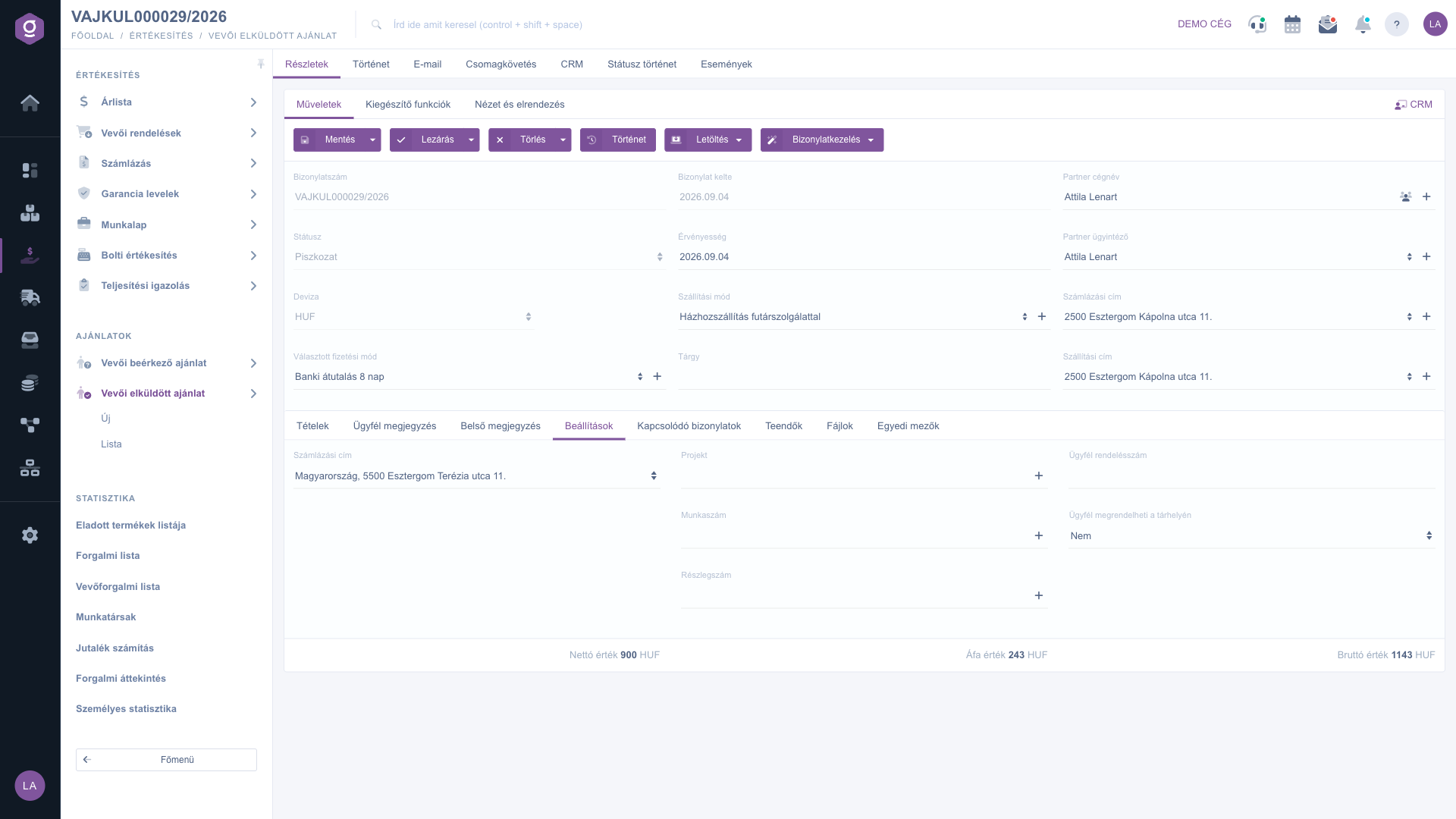
Quote sent to customer sheet – Settings tab
On the Related documents tab you can see which documents were created from the quote and on which document it was used. The text of the rows shows the direction of the link (for example “… was used on document no. …” or “document created from document no. …”).
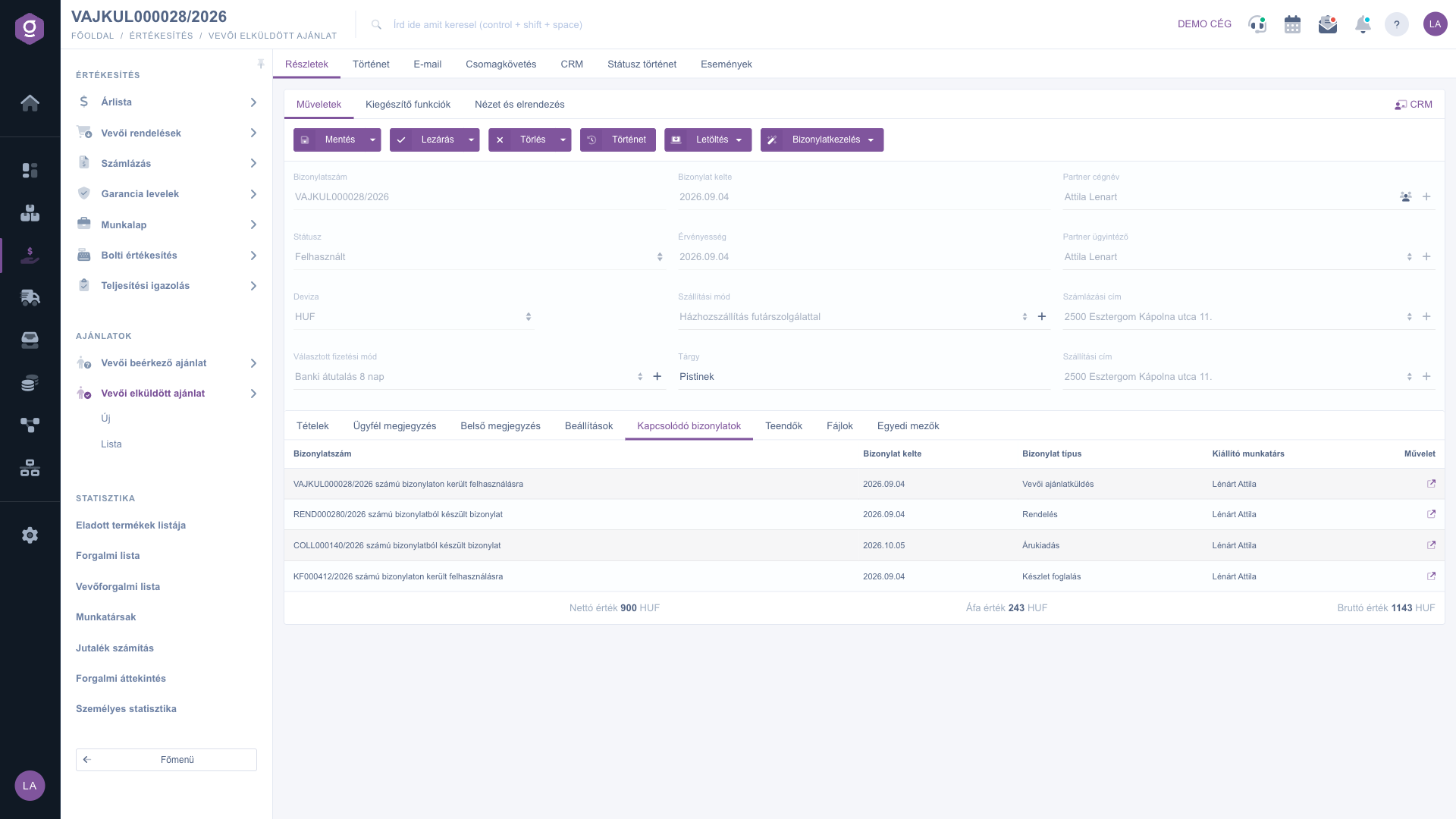
Quote sent to customer sheet – Related documents tab
4. Saving, closing and deleting
The first three buttons of the Actions tab take the quote through its statuses. The Close and Delete buttons are active only on a document in Draft status:
- Save: the data is recorded, but the document is not final yet. The arrow next to the button also offers the Save and close option.
- Close: finalizes the document — after that no further modification is possible. With the arrow next to the button, the Close and print or Close and download option combines closing with printing or downloading right away.
- Delete: the document gets the Cancelled status. With the arrow next to the button, the Delete and copy option also makes a copy in addition to deleting.
- History: shows the history related to the document.
On the sheet of an already closed quote the Close and Delete buttons are inactive. Deleting a closed quote and setting it to Used are found among the actions of the list.
5. Downloading and starting a new document
- Download: you can choose from the CSV, XLSX, PDF and PDF preview options. The CSV and the final PDF are only available for a closed (or further progressed) document; the PDF preview and the XLSX are also available for a saved document in draft status.
- Document management: you can start a new document from the quote: Customer orders, Invoicing, Delivery note or Worksheets; the Cloning option makes a copy. Customer orders, Invoicing and Delivery note can only be selected for a closed (or further progressed) document; on a draft the Worksheets option is inactive as well, while Cloning can be used.
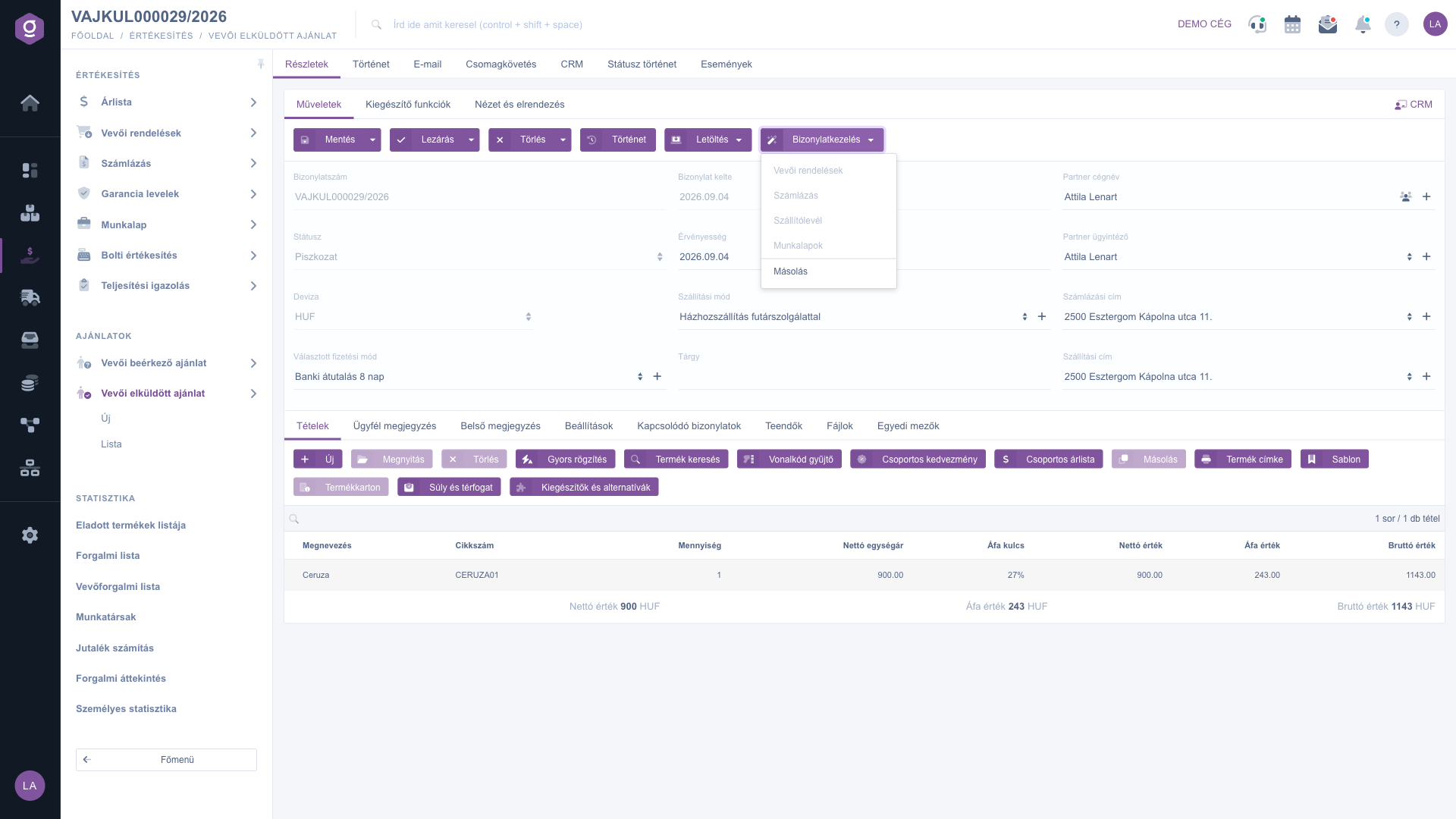
Quote sent to customer sheet – Document management menu
6. Additional functions and view
On the Additional functions tab you find the Sent items view, the New email button (External mail client or Internal mail client), the New product, New partner and New task buttons, and the opening of the Partner card. New email can only be used on a saved document. On the View and layout tab, the Interface and behavior and Columns settings let you adjust the appearance and the columns of the item table. At the right end of the row of tabs, the CRM link opens the CRM notes related to the document.
Tip
Save the quote before you close it or start a new document from it: closing and the Document management actions work from the saved state. If you want to send the quote to the customer right away, choose the Close and download option from the arrow next to the Close button, so you get the final PDF in one step.



