Supplier order document

Creating and managing a supplier order in Logzi: header, items, receiving products below stock level, comments, settings, saving, closing, printing and continuing with a warehouse receipt or incoming delivery note.

Feature overview

This page is the Supplier order document: here you record what you order from a supplier. You create a new order under Main menu / Procurement / Supplier orders / New; existing orders can be opened from the Supplier orders list page. You fill in the order, save it, close it, print or download it, and record the arrival of the goods with related documents (warehouse receipt, incoming delivery note). The screenshots in this guide are taken from the Hungarian user interface; the Hungarian label is given in parentheses in the captions.

  • Header: partner, currency, performance date and the partner address.
  • Items: adding the ordered products, quick add, product search, barcode collector or import, group discount and group price list.
  • Automatic item filling: on the Additional functions tab you can take products below stock level or items awaiting order into the order.
  • More data: customer and internal comment, Settings, Related documents, Tasks, Files and Custom fields tabs.
  • Closing and follow-up: saving, closing, downloading, printing, creating documents from the order and handing it over to the supplier.

The Status of the document can take nine values: Draft, Closed, Cancellation, Cancelled, Fulfilled, Finalized, Approved, Partially fulfilled and Ready to ship. A new order always starts as Draft. The data and items of the order can be edited only in Draft status; after closing they can no longer be modified. The Fulfilled status is set on the list page.

Step by step

1. Opening a new order

Click Main menu / Procurement / Supplier orders / New and an empty order opens. At the top there are three tabs: Actions, Additional functions and View and layout. Below them are the header fields, then the Items tab and the other tabs. Until you save the order, the buttons for closing and for creating documents are grayed out.
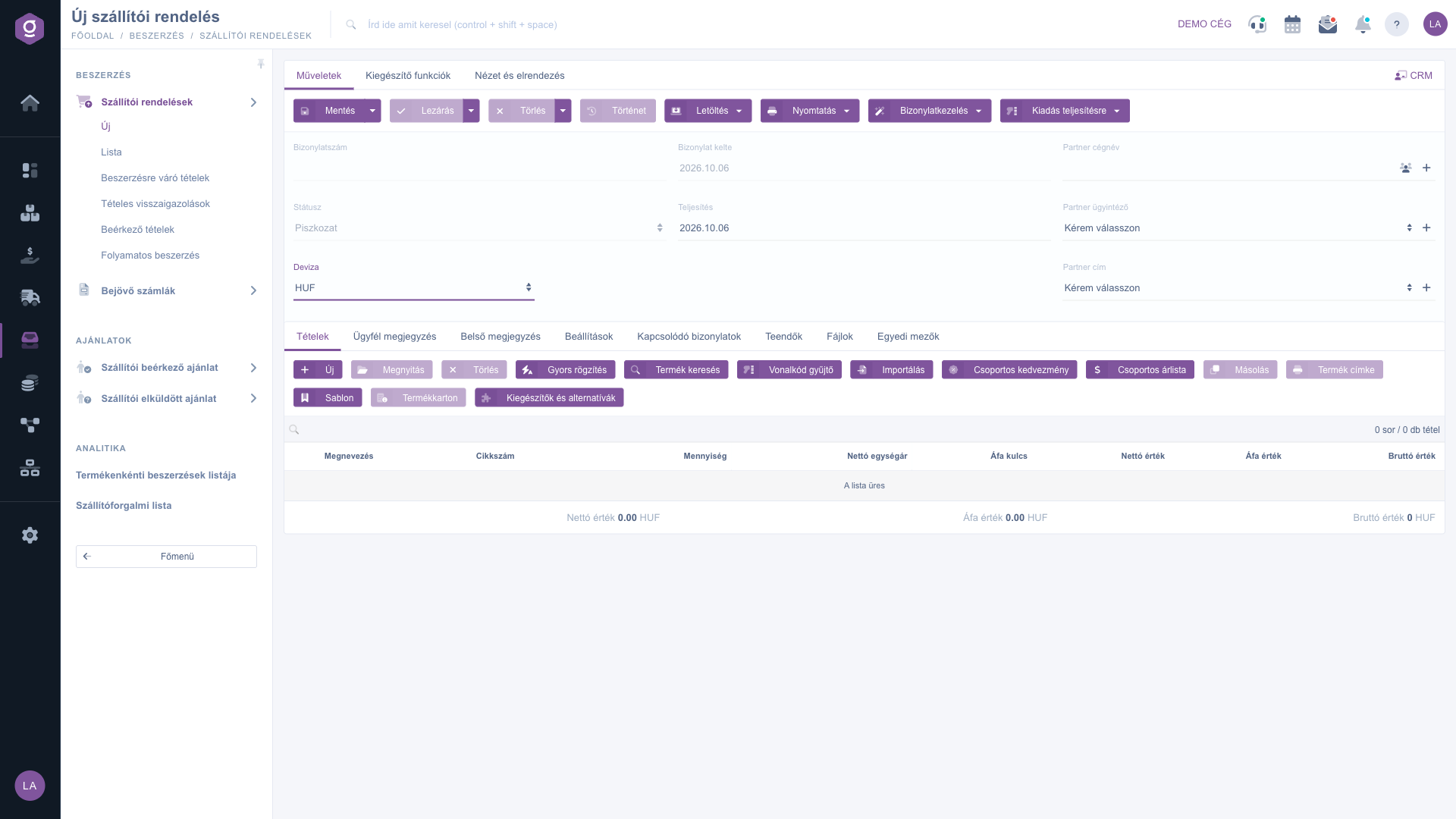
New supplier order – header and Items toolbar (Új szállítói rendelés, Tételek)

2. Filling in the header

The Document number, Status and Document date fields are filled in by the system and cannot be edited. Enter the following:

  • Currency (required) and Exchange rate: the currency of the order. On a saved order the currency can no longer be changed.
  • Performance date (required): the date of performance; for a new order it defaults to today.
  • Partner company name (required): the supplier. Next to the field there are icons for opening the Partner card and for adding a new partner.
  • Partner contact person: the contact of the supplier; you can add a new contact next to it.
  • Partner address (required): the address of the supplier; you can add a new address next to it.

3. Adding items

The toolbar of the Items tab contains the following buttons: New, Open, Delete, Quick add, Product search, Barcode collector, Import, Group discount, Group price list, Cloning, Product label, Sablon (Template), Product card and Add-ons and alternatives. Items can be edited only in Draft status: New and Barcode collector can be used only then, and for Open you must select a row. Delete and Cloning require a selected row and Draft status. The Sablon label is always shown in Hungarian.

The Add item window that opens with New has two tabs: Properties and Basic warehousing data. On the Properties tab you enter the item data (item number, name, quantity, VAT rate, net base price, discount or surcharge, item comment); the system calculates the net and gross unit price. The side panel of the window shows the prices and stock data of the product (physical, reserved, available and incoming stock). The Add button adds the item, Add and new product adds it and opens an empty window for the next item, while New product, Product card, Product search and Identifiers help you select the product and open its data. The columns of the item table are Name, Item number, Quantity, Net unit price, VAT rate, Net value, VAT value and Gross value; below the table you see the totals Net value, VAT value and Gross value. You can set the columns with the Oszlopok (Columns) button on the View and layout tab, and the behavior of the page with the Interface and behavior button. The Oszlopok label is always shown in Hungarian.
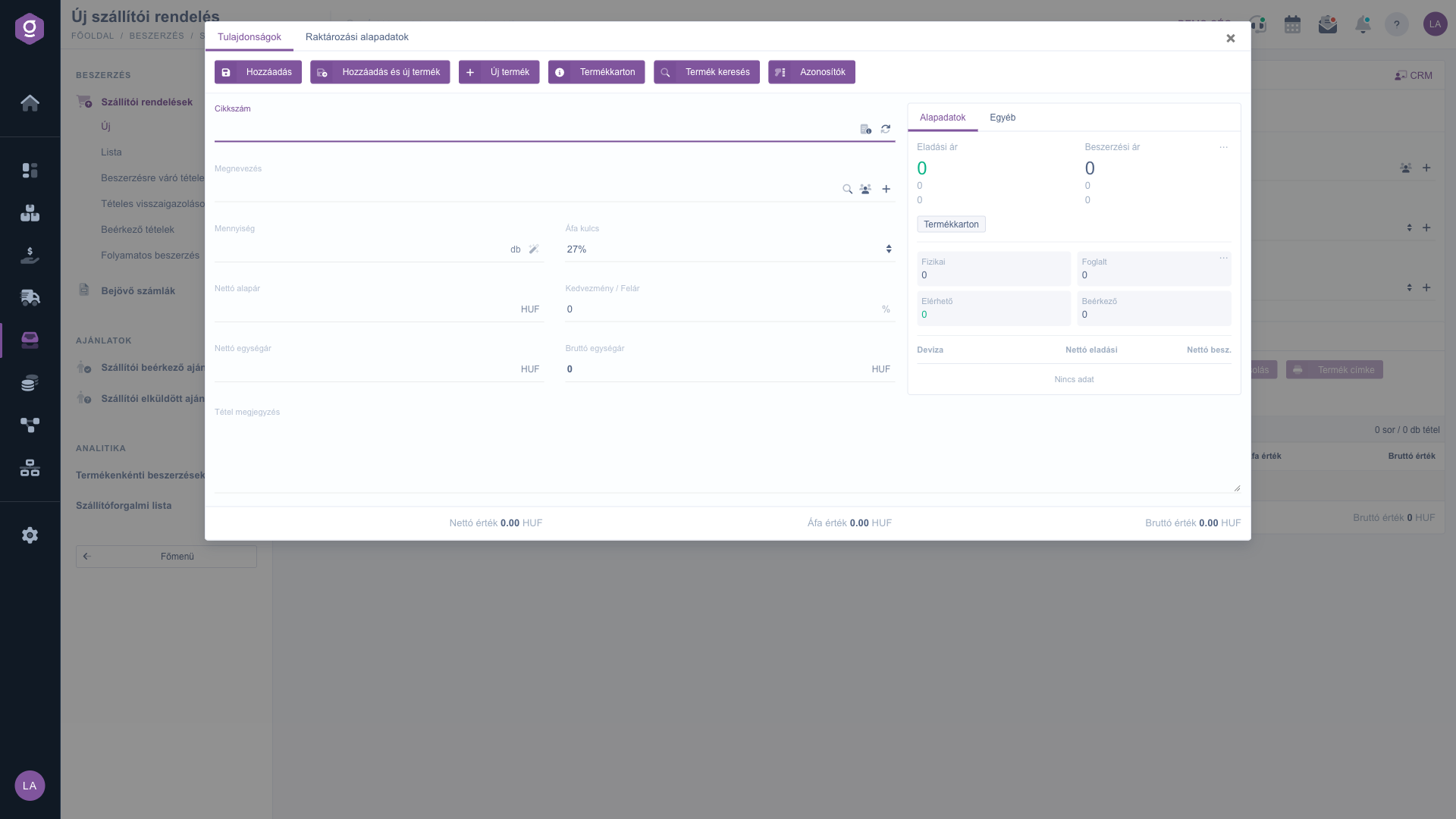
Add item window (Tétel hozzáadása)

4. Comments, settings and attachments

Next to the items you find further tabs:

  • Customer comment and Internal comment: free-text editor; the internal comment also has a template list.
  • Settings: the billing and shipping address of the order (both required, you choose from the addresses of your own company), Project, Job number, Department number, Partner confirmation number and Direct shipping (Yes/No, default No).
  • Related documents: the list of documents related to the order (document number, document date, document type, issuing employee, action).
  • Tasks: the tasks recorded for the order (document date, subject, comment, issuing employee).
  • Files: the files attached to the order.
  • Custom fields: the custom fields set up in your company.
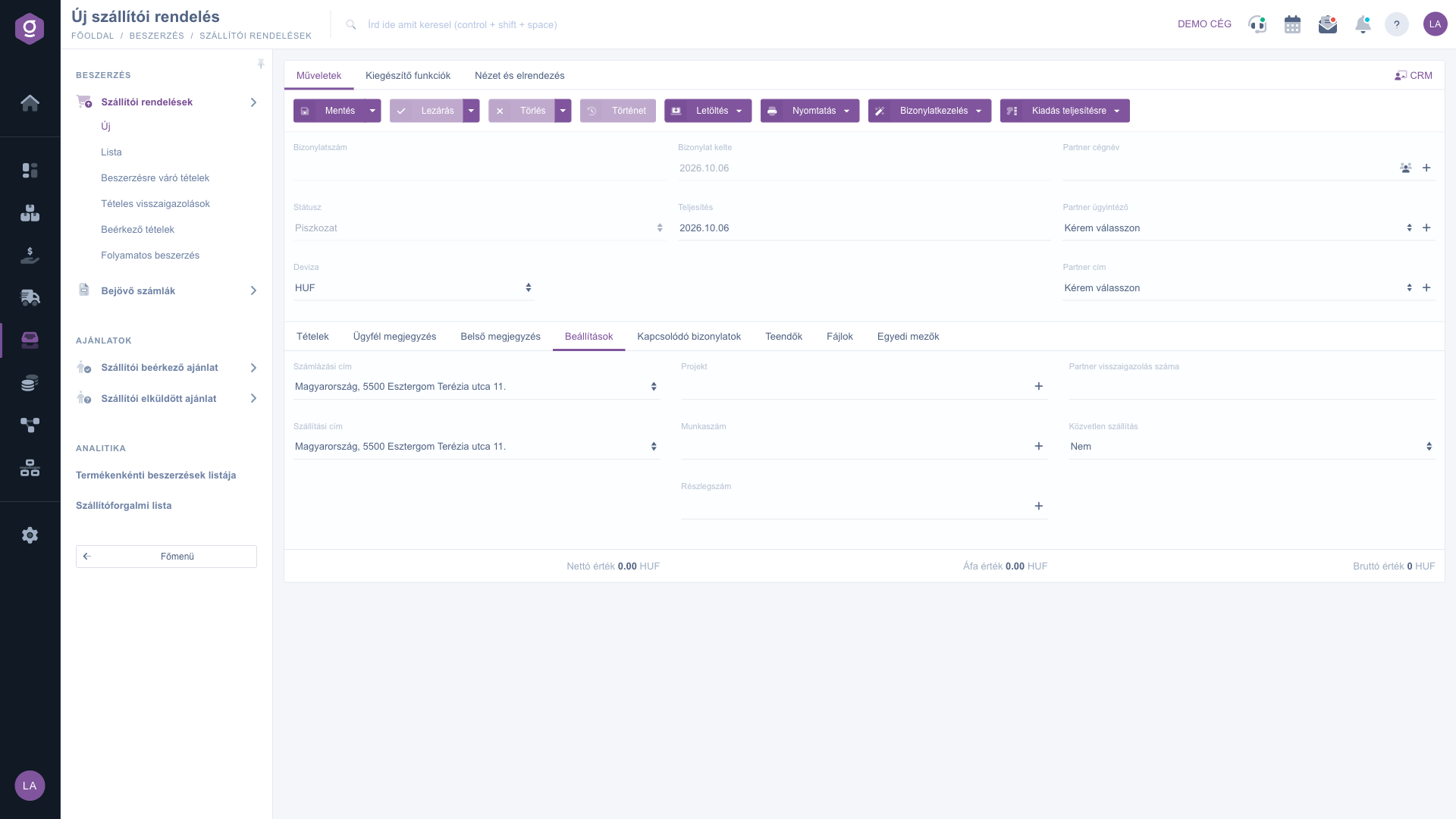
Settings tab (Beállítások)

5. Filling in items automatically on the Additional functions tab

The Additional functions tab offers: Sent items (for closed or higher status), New email (External mail client or Internal mail client), New product and New partner (opens in a new tab), New task, Partner card, and two item-filling functions that can be used only in Draft status:

  • Receive items below stock level: a dropdown menu with the group By supplier containing By minimum value, By optimal value and By maximum value, and below it the Filter item. The system orders the difference between the selected level (minimum, optimal or maximum) and the available plus already ordered quantity of the product. In the Filter window you can narrow the products by the product preferred supplier, the product manufacturer and the stock level; Save accepts the settings, Close closes the window without saving.
  • Receive items awaiting order: loads the items awaiting order for the selected partner into the order.

Both functions require you to select a partner first, otherwise the system shows the warning Kérlek válassz egy partnert! (Please select a partner!), which is always displayed in Hungarian. Important: both functions overwrite the items already entered in the order.
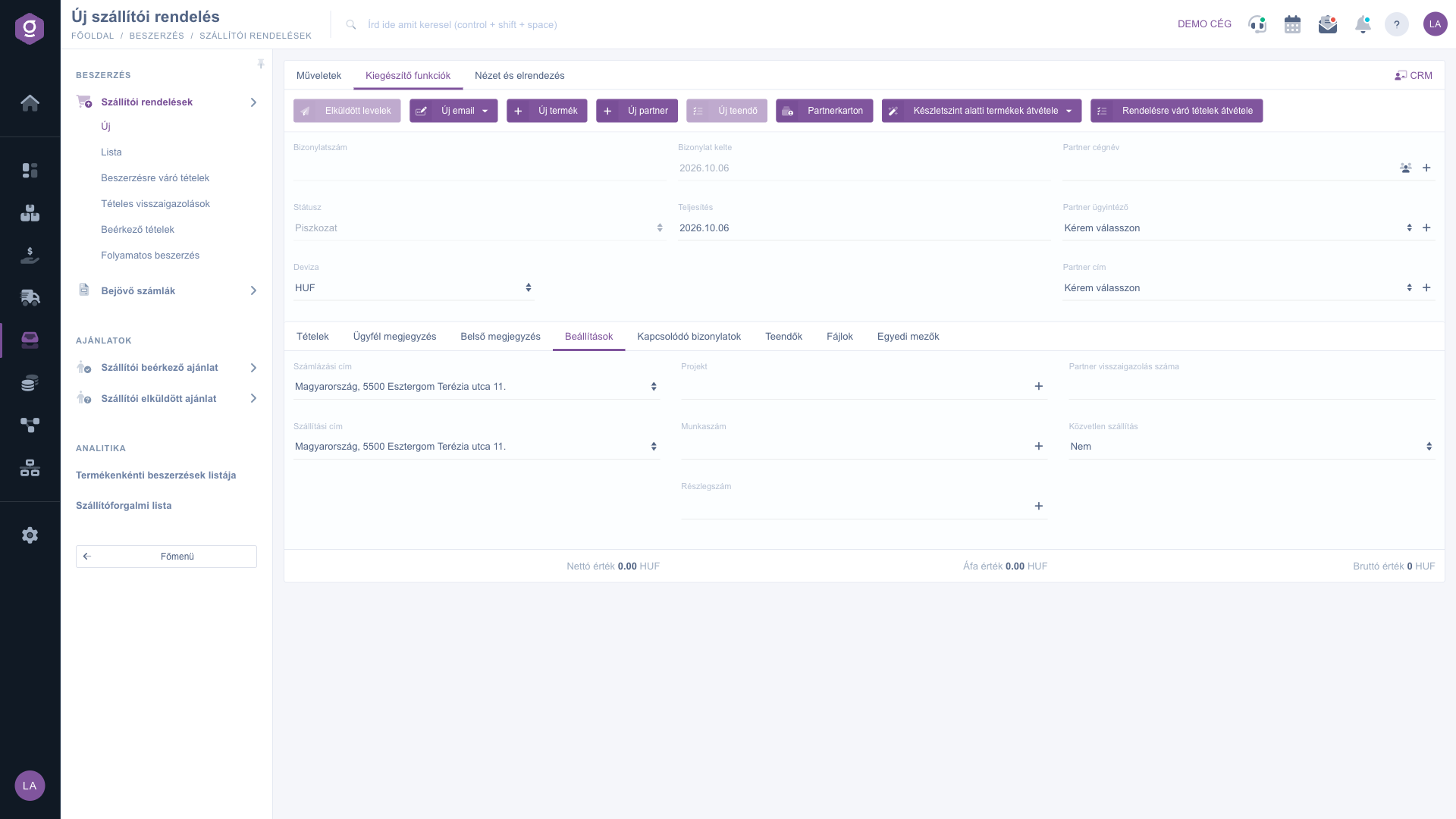
Additional functions tab (Kiegészítő funkciók)
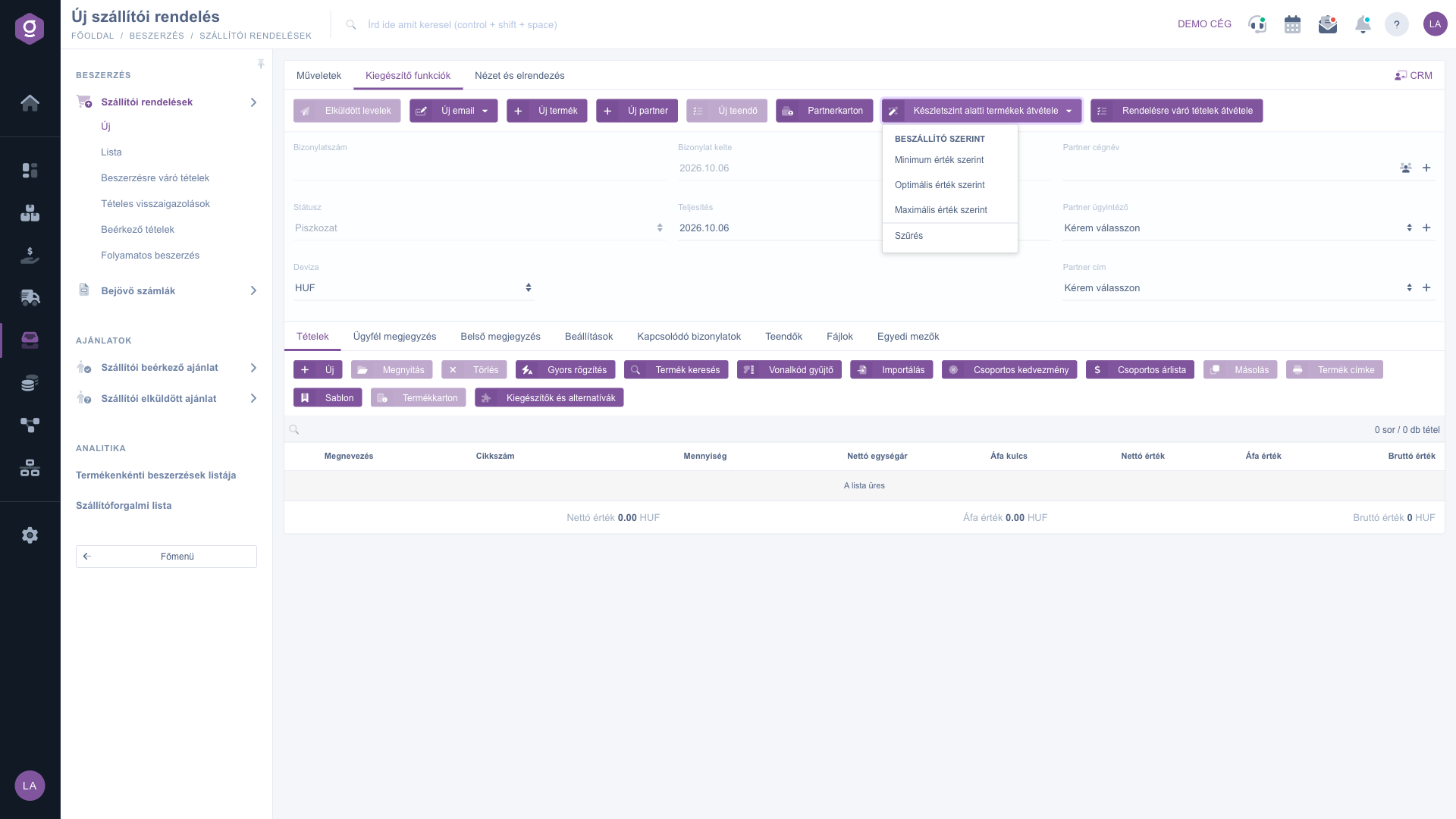
Receive items below stock level menu (Készletszint alatti termékek átvétele)

6. Saving, closing and deleting

The buttons of the Actions tab:

  • Save: saves the order. The Save and close item of the dropdown menu also closes the document after saving.
  • Close: closes a saved order. The Close and print and Close and download items of the dropdown menu produce the printout right after closing; they are available only in Draft status.
  • Delete: deletes the order, while Delete and copy also creates a copy (for closed or cancellation status). Whether deletion is allowed in a given status is decided by the system, which warns you if necessary.
  • History: shows the history related to the order.

If the partner of the order has a Logzi application identifier (APP ID), that is, your supplier is also a Logzi user, the system asks after closing whether to send the order to the supplier system. Igen (Yes) sends it, Igen, lezárással (Yes, with closing) sends it and also closes it on the receiving side, Nem (No) sends nothing. These labels are always displayed in Hungarian.

7. Download, print and follow-up

  • Download: CSV and PDF (closed or higher status), XLSX and PDF preview (saved order).
  • Print: Product label and Document.
  • Document management: from a closed or higher-status order you can start a new document: Warehouse receipt, Incoming invoices, Incoming delivery note, Worksheets, Delivery note; Cloning is always available. For editing these documents see Warehouse receipt document, Incoming delivery note document, Worksheet document and Delivery note document.
  • Issue for fulfillment: Transfer between Logzi systems sends the order to the Logzi system of the supplier, Fulfillment handover hands it over to a fulfillment provider; both are available for closed or higher status.
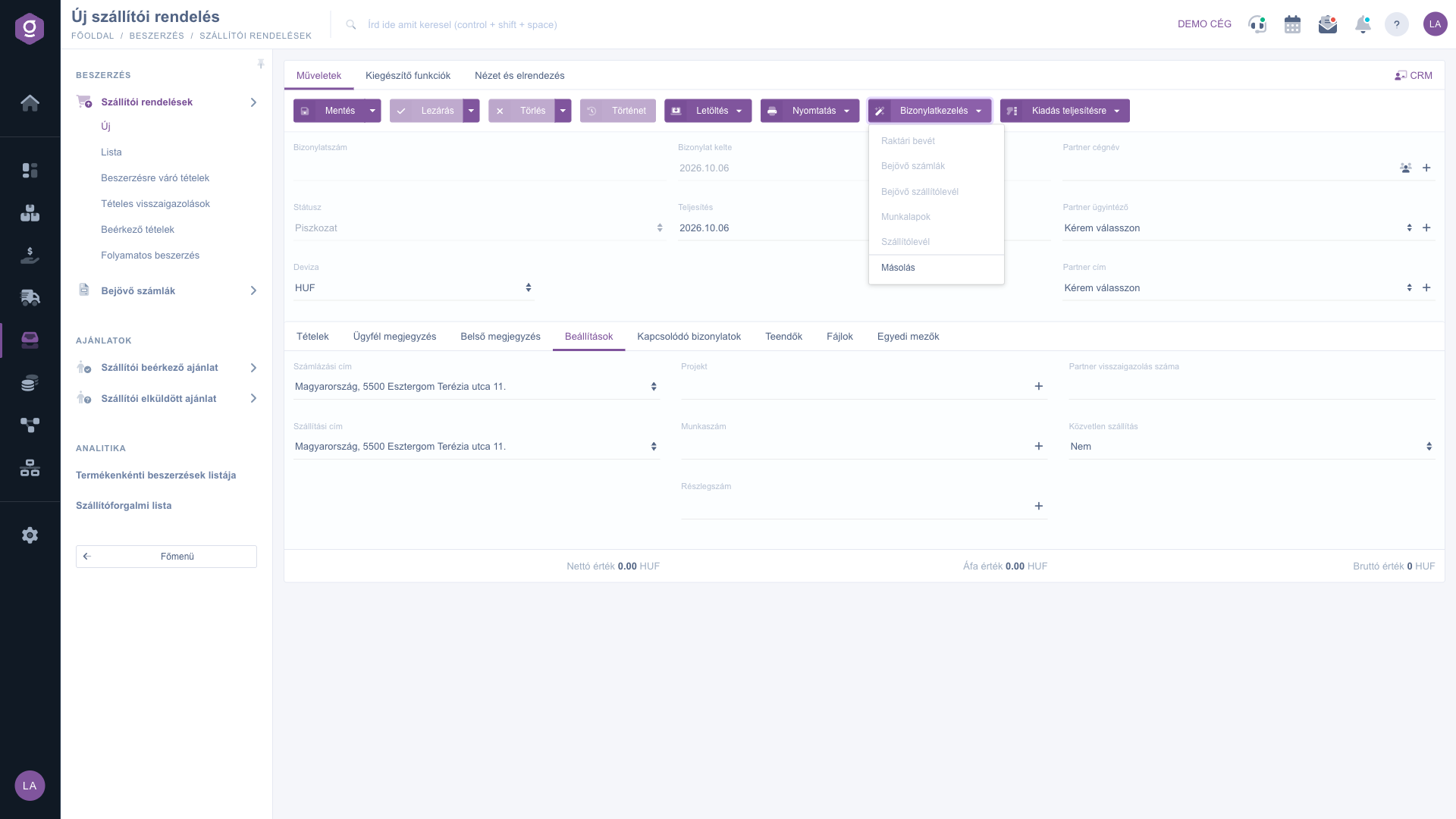
Document management menu, grayed out before saving (Bizonylatkezelés)

Tip


If you need to order many products at once, use the Receive items below stock level function, but only with an empty item table: because it overwrites the items already entered, manually added rows are lost. You can still review and modify the quantities before closing.


To search, close and fulfill orders, see the Supplier orders list guide. You can record the arriving goods following the Warehouse receipt document or the Incoming delivery note document guide.

Field descriptions

The header of the document:

Field / ElementRequiredDescription
Document numberThe identifier of the order; assigned by the system, cannot be edited.
StatusThe state of the order; cannot be edited.
CurrencyThe currency of the order; cannot be changed on a saved order.
Exchange rateThe exchange rate of the currency.
Document dateThe date of the document; cannot be edited.
Performance dateThe date of performance; defaults to today.
Partner company nameThe supplier; next to the field the partner card and adding a new partner are available.
Partner contact personThe contact of the supplier.
Partner addressThe address of the supplier.

The fields of the Settings tab:

Field / ElementRequiredDescription
Billing addressA billing address of your own company.
Shipping addressA shipping address of your own company.
ProjectProject classification; a new project can be added next to the field.
Job numberInternal job number; you can add a new one next to the field.
Department numberInternal department number; you can add a new one next to the field.
Partner confirmation numberThe number of the supplier confirmation.
Direct shippingYes or No; defaults to No.

The fields of the Add item window and the Items table:

Field / ColumnRequiredDescription
Item numberThe item number of the product.
NameThe name of the ordered product.
QuantityThe ordered quantity.
VAT rateThe VAT rate that applies to the item.
Net base price, Discount / SurchargeThe price and the discount or surcharge on it; the net unit price is calculated from them.
Net unit price, Gross unit priceThe net and gross value of the unit price.
Item commentA comment attached to the item.
Net value, VAT value, Gross valueThe value of the item; the totals are shown below the table.

You can set the columns of the Items table with the Oszlopok (Columns) button, so your screen may show different columns.

Frequently asked questions

These functions require a saved order. Fill in the header, add the items and click Save; after that Close becomes available. Document management, Issue for fulfillment and Sent items can be used only for an order in closed or higher status.

The data and items of the order can be edited only in Draft status; in closed or higher status the fields and the item buttons (New, Delete, Cloning, Barcode collector) cannot be used. When you open a new order the item table is of course empty: fill it with New, Quick add or the item-filling functions of the Additional functions tab. If you need to change a closed order, Delete and copy gives you a new, editable copy.

Closing is possible for a saved order in Draft status. Deletion is allowed or refused by the system based on the status, and it warns you if necessary. The Fulfilled status is not set on this document but on the list page; you can read about it in the Supplier orders list guide.

Both are on the Additional functions tab and fill the items of the order. Receive items below stock level takes the products whose stock is below the selected level (minimum, optimal or maximum), which you can narrow in the Filter window by supplier, manufacturer and stock level. Receive items awaiting order loads the items awaiting order for the partner. Both require a selected partner and both overwrite the items already entered.

Close the order, then in the Document management menu choose Warehouse receipt or Incoming delivery note; the system opens a pre-filled document. For editing see the Warehouse receipt document and Incoming delivery note document guides.

If the partner has an APP ID, that is, your supplier also uses Logzi, the system asks whether to send the order to their system. Igen (Yes) sends it, Igen, lezárással (Yes, with closing) sends it and also closes it on the receiving side, Nem (No) sends nothing. You can start the same transfer later with Transfer between Logzi systems in the Issue for fulfillment menu.

It is a Yes/No marker on the Settings tab with which you can mark the order as direct shipping. Its default value is No.

The module appears in the menu only if it is assigned to your user. If it is missing, ask the system administrator of your company to check the module assignment of your user.

Need personalized help?

Don't want to spend hours searching for a solution? Choose the most efficient way: book a personalized, 45-minute online training session dedicated entirely to you. Whether it's a walkthrough of the basics or a detailed setup of a specific module, our expert colleague will guide you through the whole process, step by step.

Don't waste your time - ask for help!
Our goal is to get you using our system as quickly and efficiently as possible. Whether you're completely new to us or stuck on a specific setting, don't hesitate to ask for help!

Logzi warehouse management software

Get in touch with us

Interested in our software? Feel free to write to us!

Need help?

If you can't find the answer and need assistance

Create your account now,
pay later!

Try it free for 3 days, no risk, no obligation!
