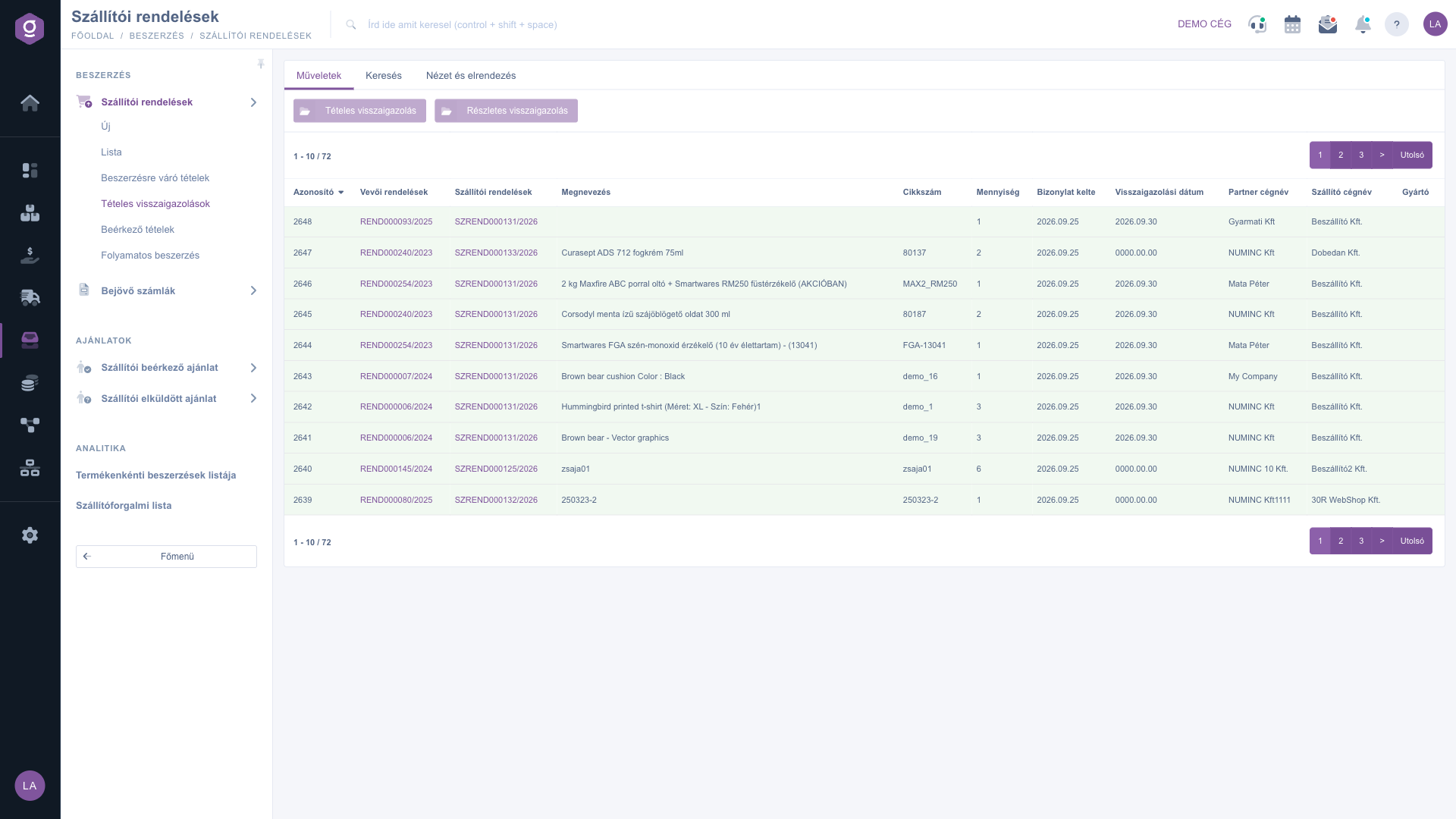
On the Itemized confirmations page you track whether suppliers have confirmed the items you ordered from them, and if so, for when. Here you record the confirmation date per item, and from here you can email your customer to tell them when the ordered product is expected.
The supplier order process is followed by three item-level worklists, one after the other:
Each row of the list is an item that you ordered from the supplier based on a customer order (it is created by the procurement started from the Items awaiting procurement page), and the supplier order is in Closed or Approved status.
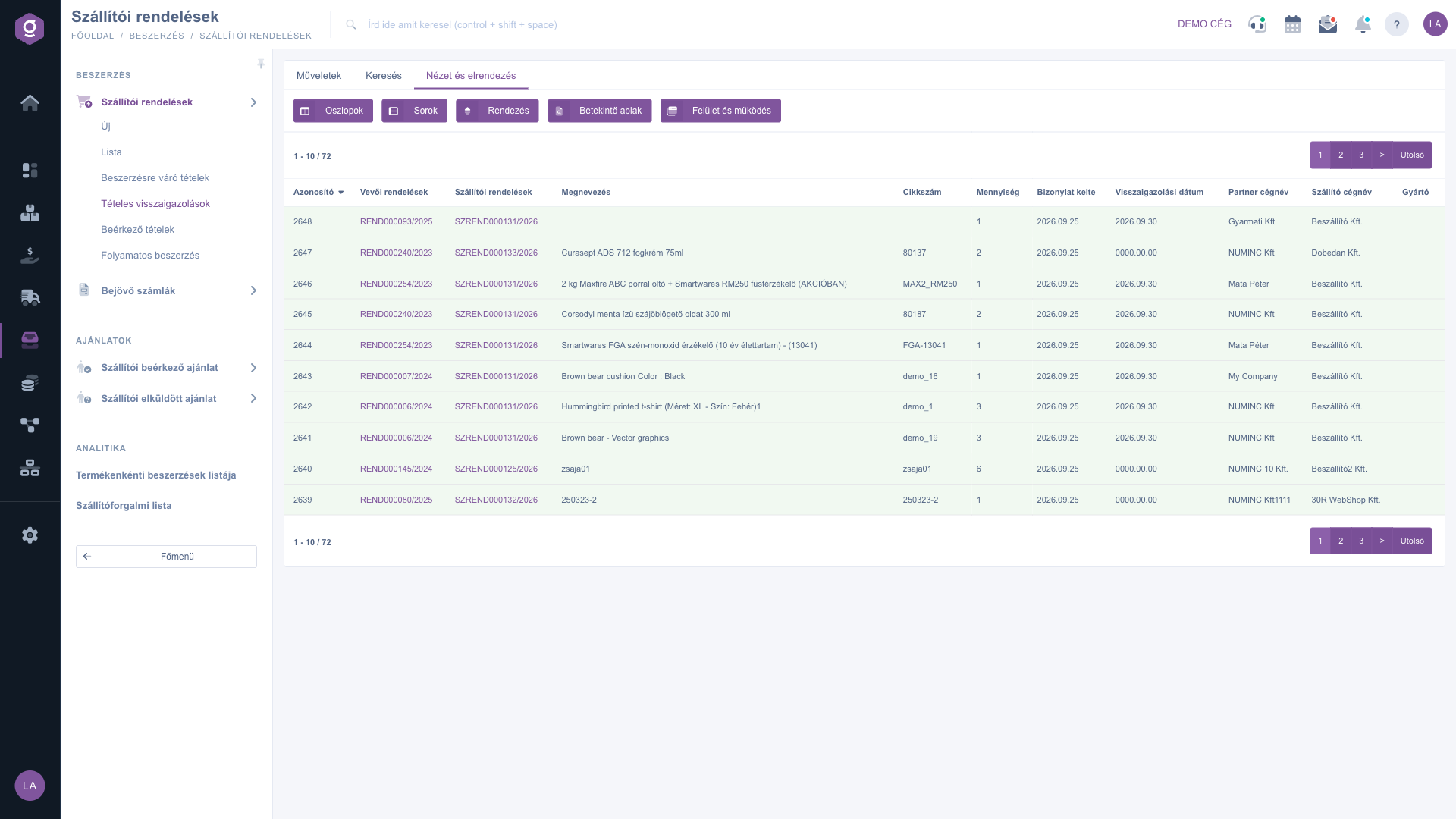
Click Main menu / Procurement / Supplier orders / Itemized confirmations. At the top of the page you see the Actions, Search and View and layout tabs, and below them the table of items. The screenshots in this guide are from the Hungarian interface; in the image captions the Hungarian label is shown in brackets. In the Confirmation date column the value 0000.00.00 means that the item has not been confirmed yet.
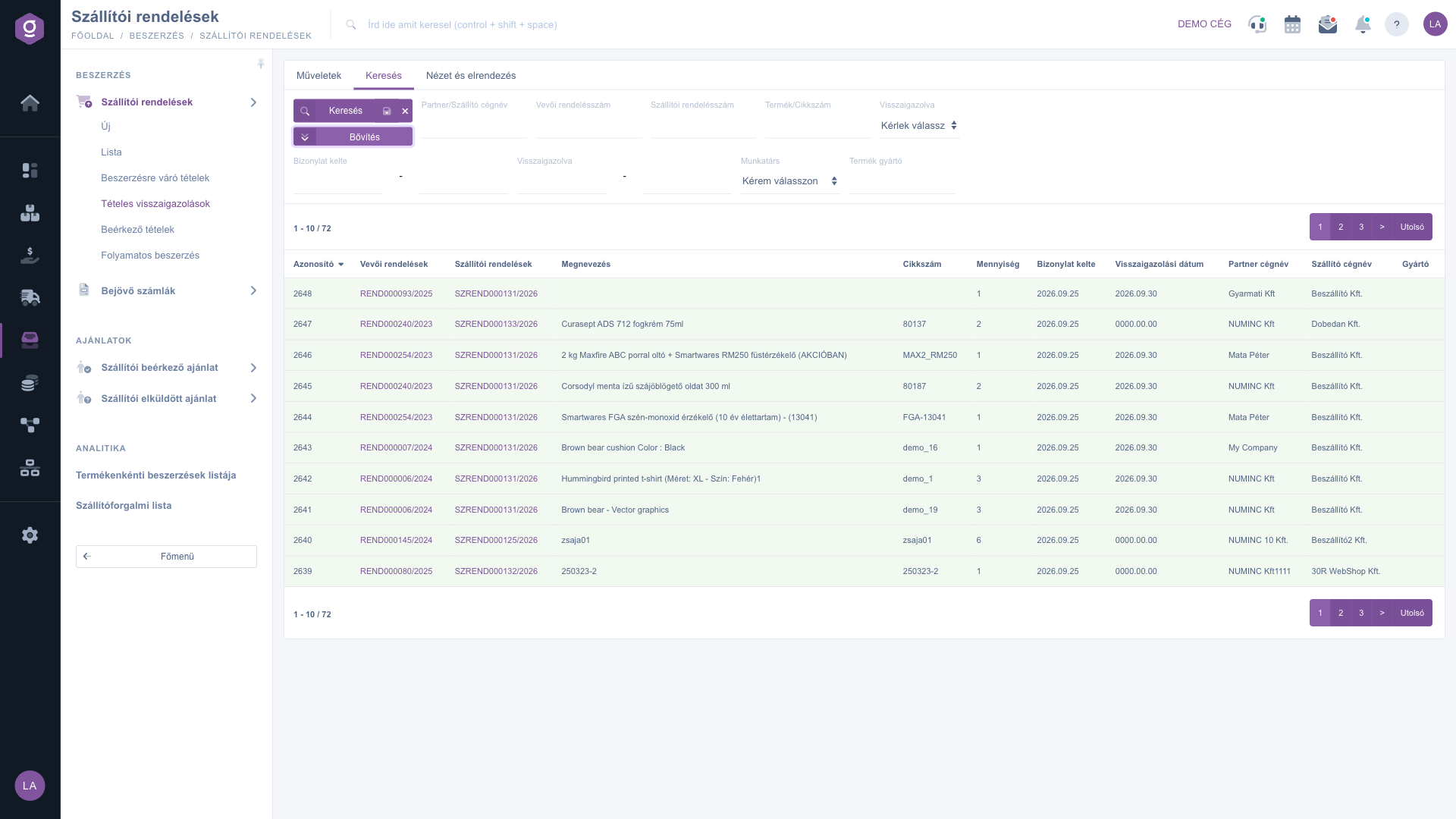
On the Search tab you can narrow the results by Partner/Supplier company name, Customer order number, Supplier order number, Product/Item number and Confirmed (Please choose / yes / no). If you only want to see the items still waiting for confirmation, set Confirmed to no. The Expand button opens more filters: the Document date and Confirmed periods (from–to), Employee and Product manufacturer. You can also save the search, and the page then loads with the saved filters next time.
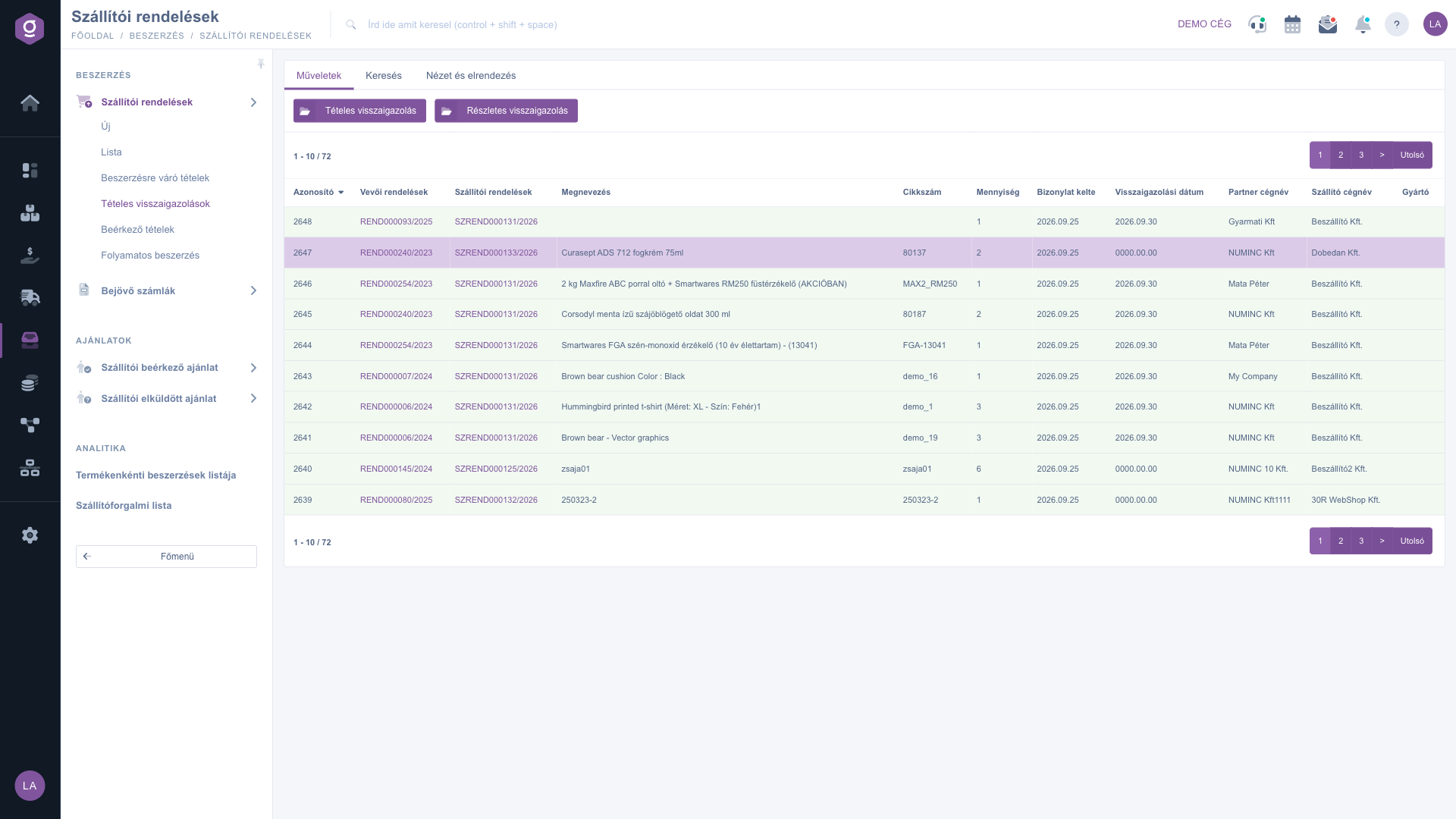
Click the row of the item in the table, then switch to the Actions tab. There are two buttons here: Line item confirmation and Detailed confirmation. If you click the identifier in the Customer orders or Supplier orders column, the document opens in a new tab.
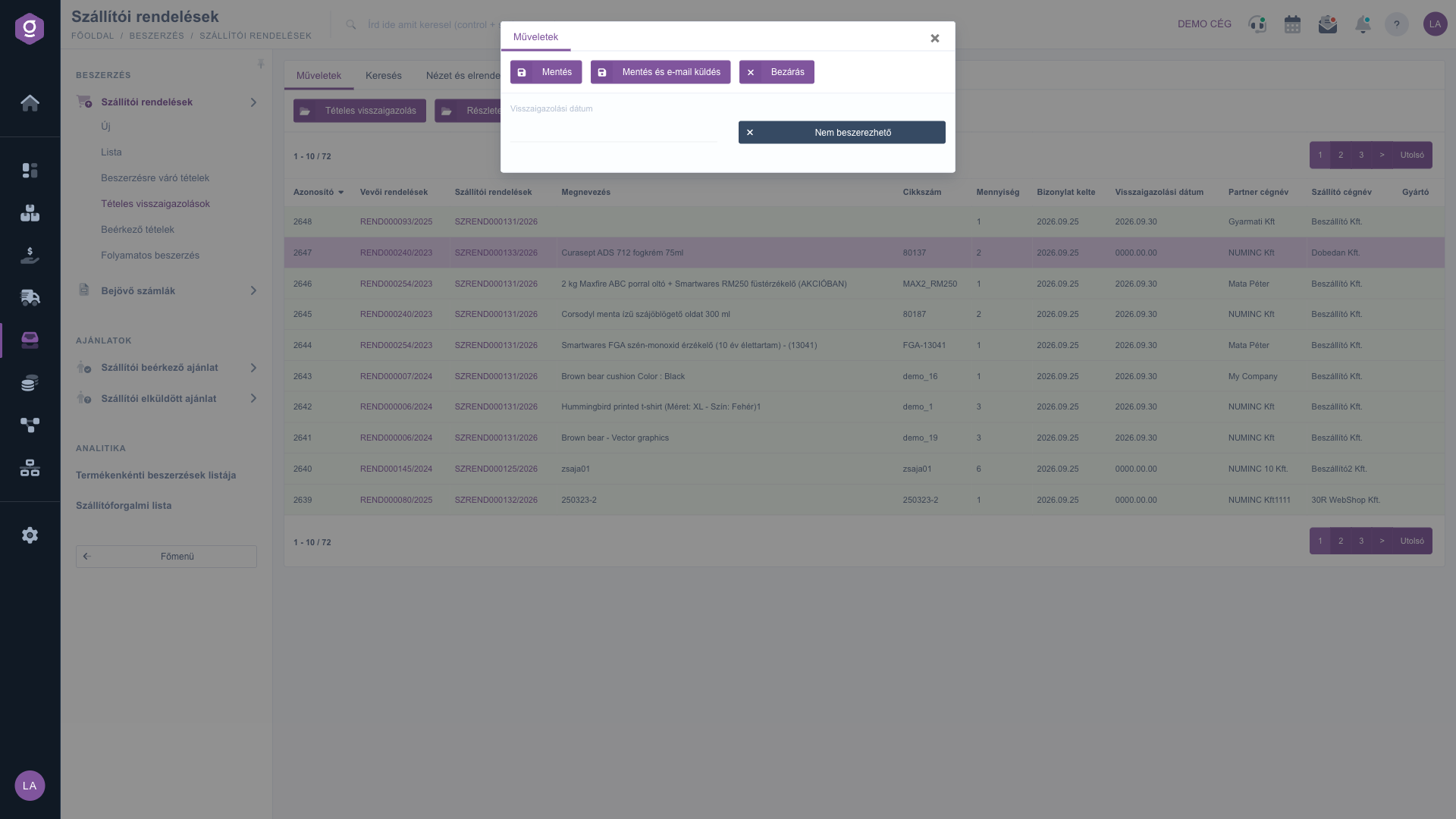
The Line item confirmation button records the confirmation date of a single item. In the window that opens, fill in the Confirmation date field (required, selectable from a calendar), then choose the right button:
If the supplier cannot fulfil the item, tick the Not procurable option in the window. The item then gets the Not procurable status, and you do not have to enter a date.
The Detailed confirmation button shows, in a larger window, all items of the customer order to which the selected item belongs. This way you can enter the dates item by item in one place. The date fields are saved automatically as soon as you change them. At the end of every row there is a Send email button, which stays inactive until the row has a confirmation date. With the Send email for all items button at the bottom of the window you can inform the customer about all items in a single email.
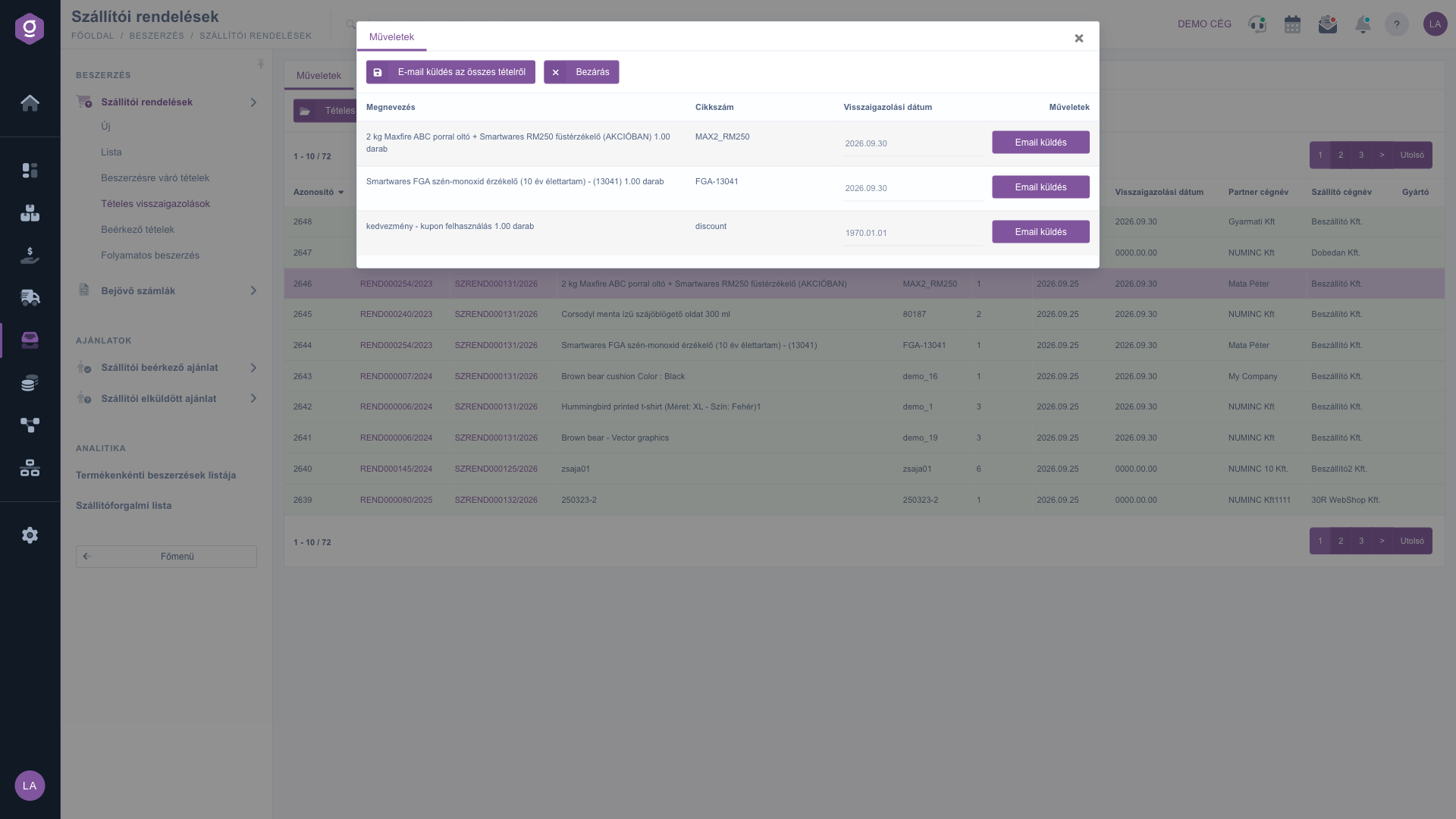
The email contains an item table (name, partnumber, quantity, price, order date, confirmation date) and a download link. The system sends it to the email address of the user of the partner who placed the customer order, not to the supplier.
On the View and layout tab, the Oszlopok (columns), Sorok (rows) and Sorting buttons let you set which columns are visible, how many rows appear on a page and in what order. The names of the first two buttons are shown in Hungarian only. The Preview window and Interface and behavior buttons on the same tab change the look and behavior of the list; this page has no preview panel.
If you ordered several items of one customer order, use the Detailed confirmation button: you can fill in the dates one after another and then notify the customer at once with the Send email for all items button, so they do not receive several separate emails.

Basic filters of the Search tab (none of them is required):
| Field / Element | Required | Description |
|---|---|---|
| Partner/Supplier company name | Part of the company name of the customer (the partner of the customer order) or of the supplier. | |
| Customer order number | The identifier of the customer order the item belongs to. | |
| Supplier order number | The identifier of the order sent to the supplier. | |
| Product/Item number | The product name or item number of the item. | |
| Confirmed | Please choose, yes or no: with yes only the already confirmed items are shown, with no only the items still waiting for confirmation. |
Filters opened by the Expand button:
| Field / Element | Required | Description |
|---|---|---|
| Document date (from – to) | The period of the document date; the date can be selected from a calendar. | |
| Confirmed (from – to) | The period of the confirmation date. | |
| Employee | The employee who issued the document; selectable from the drop-down list. | |
| Product manufacturer | The name of the manufacturer of the product. |
Columns of the table:
| Field / Column | Required | Description |
|---|---|---|
| Azonosító (identifier) | The internal identifier of the item. | |
| Customer orders | The identifier of the customer order; opens in a new tab on click. | |
| Supplier orders | The identifier of the supplier order; opens in a new tab on click. | |
| Name | The name of the item. | |
| Item number | The item number of the product. | |
| Quantity | The ordered quantity with its unit. | |
| Document date | The day the document was created. | |
| Confirmation date | The date promised by the supplier. The value 0000.00.00 means it has not been confirmed yet. | |
| Partner company name | The partner who placed the customer order. | |
| Supplier company name | The supplier you ordered the item from. | |
| Gyártó (manufacturer) | The manufacturer of the product. |
Fields of the confirmation windows:
| Field / Element | Required | Description |
|---|---|---|
| Confirmation date | The delivery deadline given by the supplier; selectable from a calendar in the Line item confirmation window. In the Detailed confirmation window it is saved automatically when you change it. | |
| Not procurable | Shows that the item cannot be procured; the item gets the Not procurable status. | |
| Send email | Sends an email to the customer about the confirmation of one item; active only once a date is set. | |
| Send email for all items | Informs the customer about all items of the customer order in a single email. |
Columns, rows and sorting can be customized on the View and layout tab. The labels of the Oszlopok and Sorok buttons are in Hungarian in every language.
The list only shows items that you have already ordered from the supplier based on a customer order, and whose supplier order is in Closed or Approved status. If the item is still among the Items awaiting procurement, order it first. Also check the filters, especially the value of Confirmed.
Line item confirmation handles the single selected item, and with one button you can save, or save and send an email. Detailed confirmation shows all items of the customer order in one window, the dates are saved automatically when you change them, and you can send an email per row or about all items.
The email goes to the user of the partner who placed the customer order, not to the supplier. The system only sends it when you ask for it: with the Save and send email, Send email or Send email for all items button. A plain Save does not send an email.
If the supplier tells you that they cannot deliver the item, you can record this with the Not procurable mark. The item gets the Not procurable status, and you do not have to enter a confirmation date.
The page is available at Main menu / Procurement / Supplier orders / Itemized confirmations if the module is assigned to your user. If it is missing, ask the administrator of your company to check the module assignment of your user.
Don't want to spend hours searching for a solution? Choose the most efficient way: book a personalized, 45-minute online training session dedicated entirely to you. Whether it's a walkthrough of the basics or a detailed setup of a specific module, our expert colleague will guide you through the whole process, step by step.
Don't waste your time - ask for help!
Our goal is to get you using our system as quickly and efficiently as possible. Whether you're completely new to us or stuck on a specific setting, don't hesitate to ask for help!
Create your account now,
pay later!

