Quote sent to supplier sheet

A guide to filling in the sheet of a quote request sent to a supplier (quote sent to supplier): header data, items, settings, saving, closing and moving on to the incoming supplier quote.

Feature overview

On the sheet of the Quote sent to supplier you put together the quote request that you send to the supplier: you select the partner, enter by when you want performance, and list the requested products with item number and quantity. The document contains no prices and values — the very purpose of the quote request is that the supplier gives a price. You record the priced reply of the supplier later on another document, the Incoming supplier quote sheet.

  • Header data: document number, date, partner, contact person, performance date, currency and subject.
  • Items: the requested products with item number, name and quantity.
  • Settings and comments: billing address, project, job number, department number, and the customer and internal comments.
  • Moving on: from the closed document, with the Document management menu you can start an incoming supplier quote or a worksheet.
  • Related documents: here you see which document the quote request was created from (for example a customer quote request) and which documents were started from it.

What this is and what it is not: this is the quote request towards the supplier. The quote request of a customer is the Incoming customer quote, the price quote sent to a customer is the Quote sent to customer, and the priced quote received from the supplier is found in the Incoming supplier quote module. The statuses of the document are: Draft, Closed, Cancellation, Cancelled.

Step by step

1. Creating a new document and filling in the header data

To create a new quote request, click the Main menu / Procurement / Quote sent to supplier / New menu item (or the New button of the list). At the top of the sheet, on the Details tab you can fill in the header data. The screenshots were taken in the Hungarian demo interface.

  • Document number, Document date and Status: the system fills these in; they are shown in grey and cannot be edited. The document number gets its final value at the first save.
  • Partner company name (required): the supplier from whom you ask for a quote. You can type the name or select it from the partners with the icon next to the field; with the + icon you can also add a new partner.
  • Partner contact person: you can choose from the contacts of the selected partner, or add a new one with the + icon.
  • Performance date (required): the date by which you want the performance (delivery). You can pick the date from the calendar.
  • Currency (required): the currency of the document. After the first save of the document the currency can no longer be changed. If you choose a currency other than the base currency of your company, the Exchange rate field also appears.
  • Subject: a free-text note about the subject of the document, which helps you identify the quote request later.
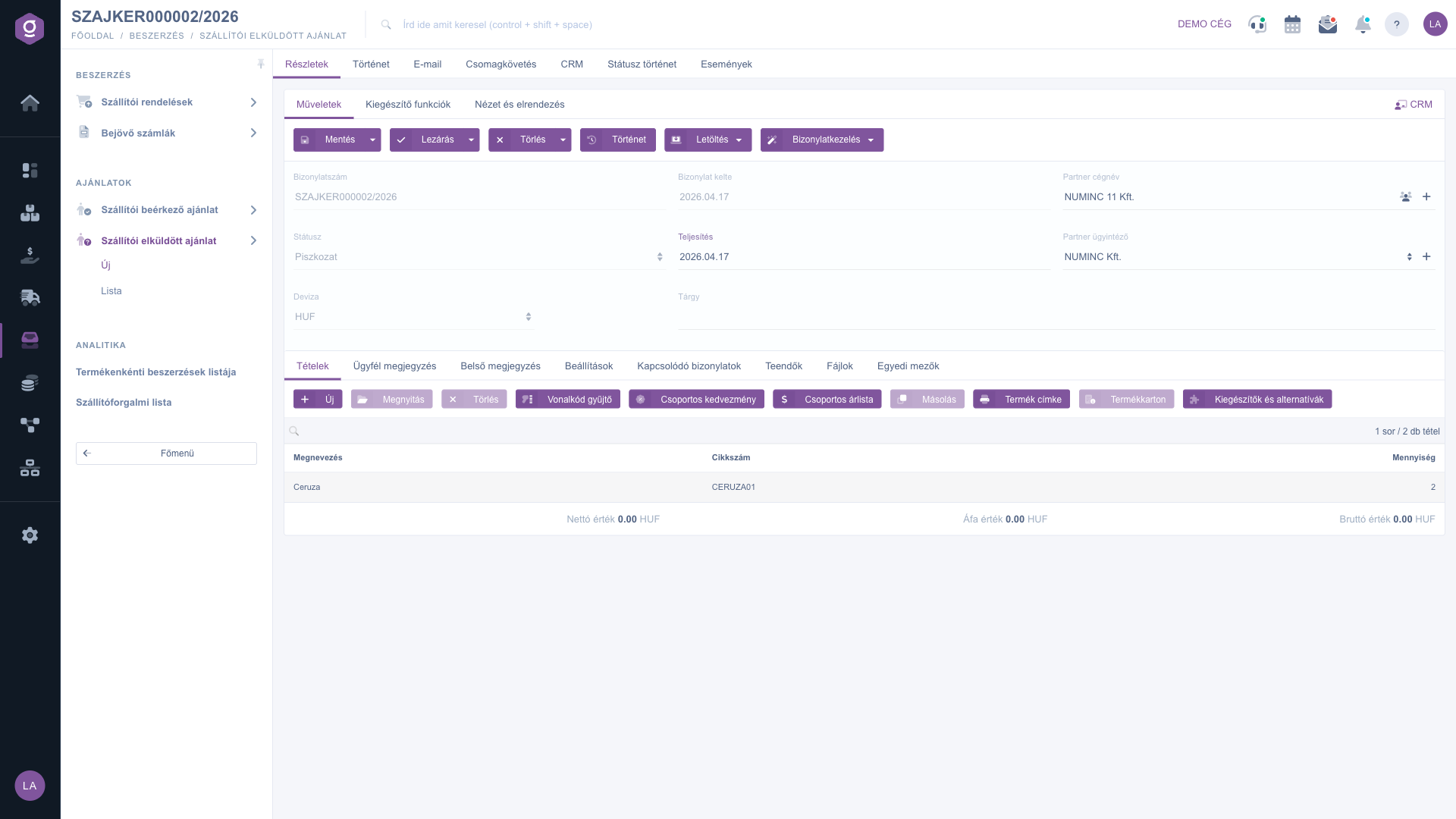
Quote sent to supplier sheet – header data (Részletek) and Items tab (Tételek)

2. Adding items

The requested products are on the Items tab. The items can be edited only on a document in Draft status. The buttons of the tab:

  • New: adding a new item in a window.
  • Open: modifying the selected item.
  • Delete: removing the selected item from the document.
  • Barcode collector: adding items with a barcode reader.
  • Group discount and Group price list: functions for handling items in groups; a quote request contains no price, so you usually do not need them here.
  • Cloning: copying the selected item.
  • Product label: printing the label belonging to the product.
  • Product card: opening the sheet of the selected product.
  • Add-ons and alternatives: managing the add-ons and alternatives recorded for the product.

In the window that opens with the New button you fill in the item on the Actions tab: Item number (required), Quantity, Name (required) and Comment. With the Add button the item is placed on the document, with the Close button the window closes. If the given product is not yet in the master data, the system asks whether to create it as a simple product or as a service — so the quote request is not blocked by a product that has not been recorded yet (this prompt is shown in Hungarian). The item table shows the Name, Item number and Quantity columns.
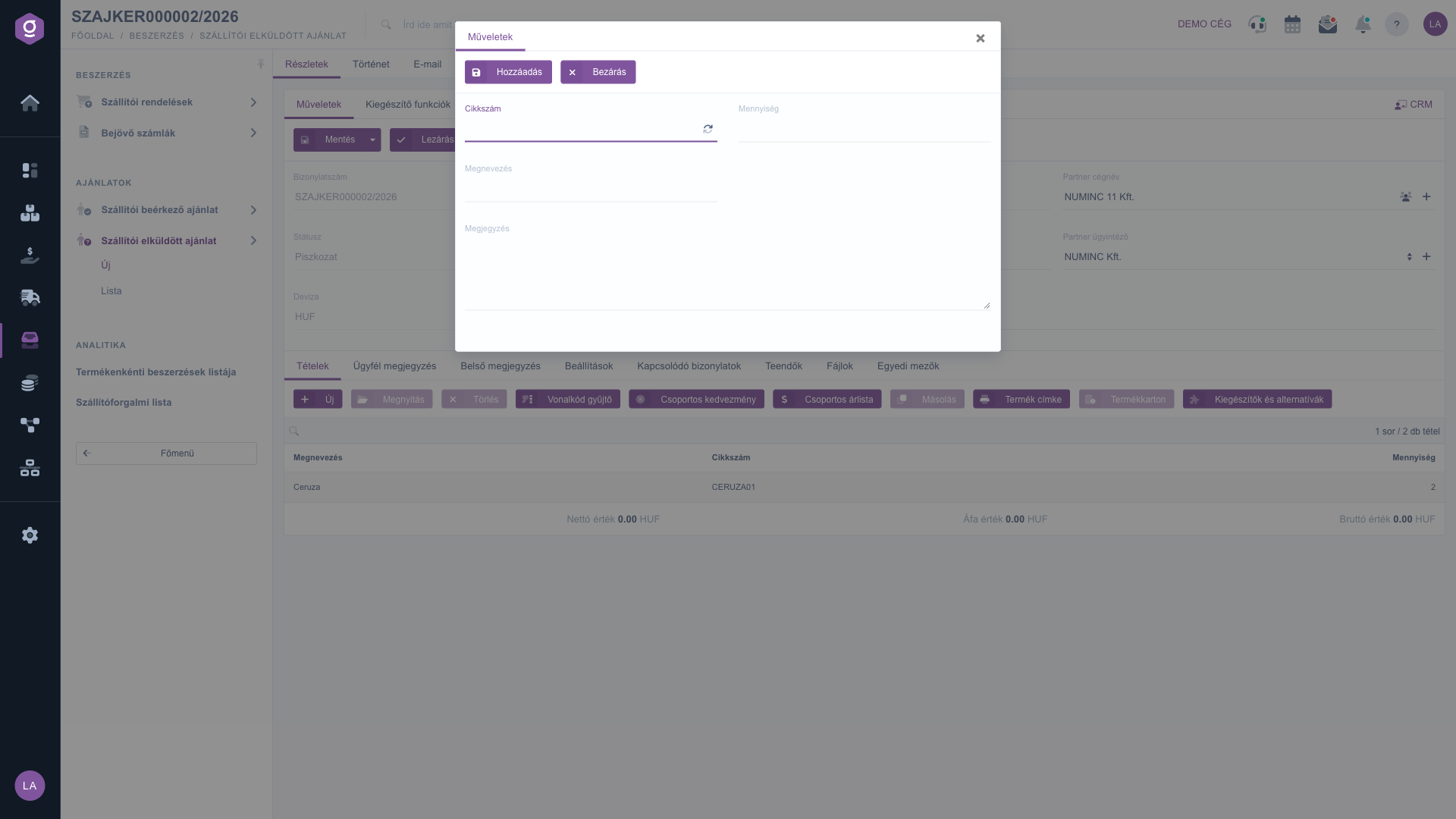
Quote sent to supplier sheet – new item window (Új)

3. Settings

On the Settings tab you can enter the further data of the document: Billing address (required; you choose from the own billing addresses of your company), Project, Job number, Department number and Customer order number. Based on the project, job number and department number you can later filter in the list.
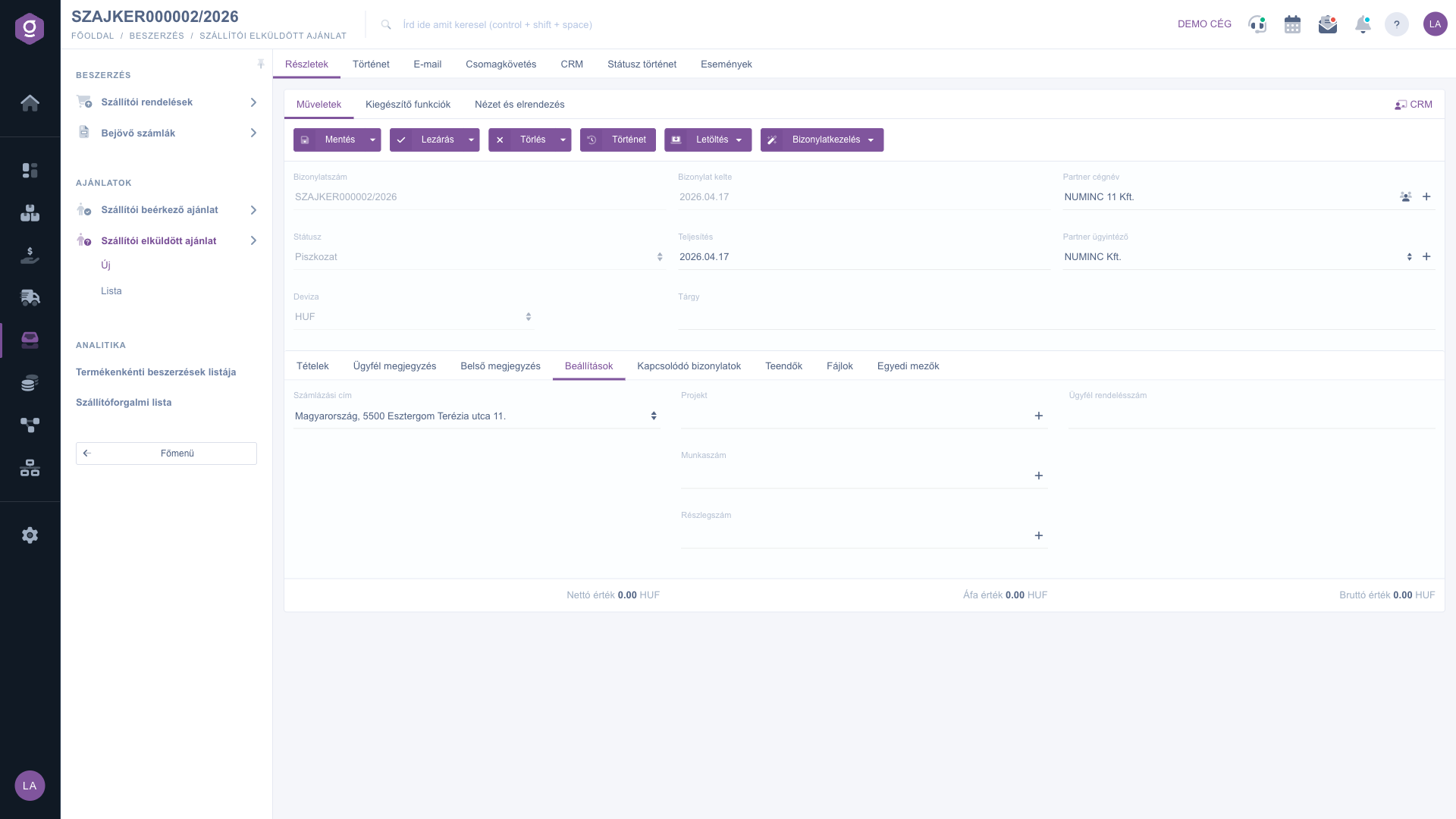
Quote sent to supplier sheet – Settings tab (Beállítások)

4. Comments and other tabs

On the Customer comment and Internal comment tabs you can write free text; above the text box you can also choose from the previously saved comment templates, if there are any. On the Tasks tab you manage the tasks related to the document, on the Files tab the attached documents, and on the Custom fields tab the extra data fields tailored to your company. At the top of the sheet there are further tabs as well: History, E-mail, Parcel tracking, CRM, Status history and Events.
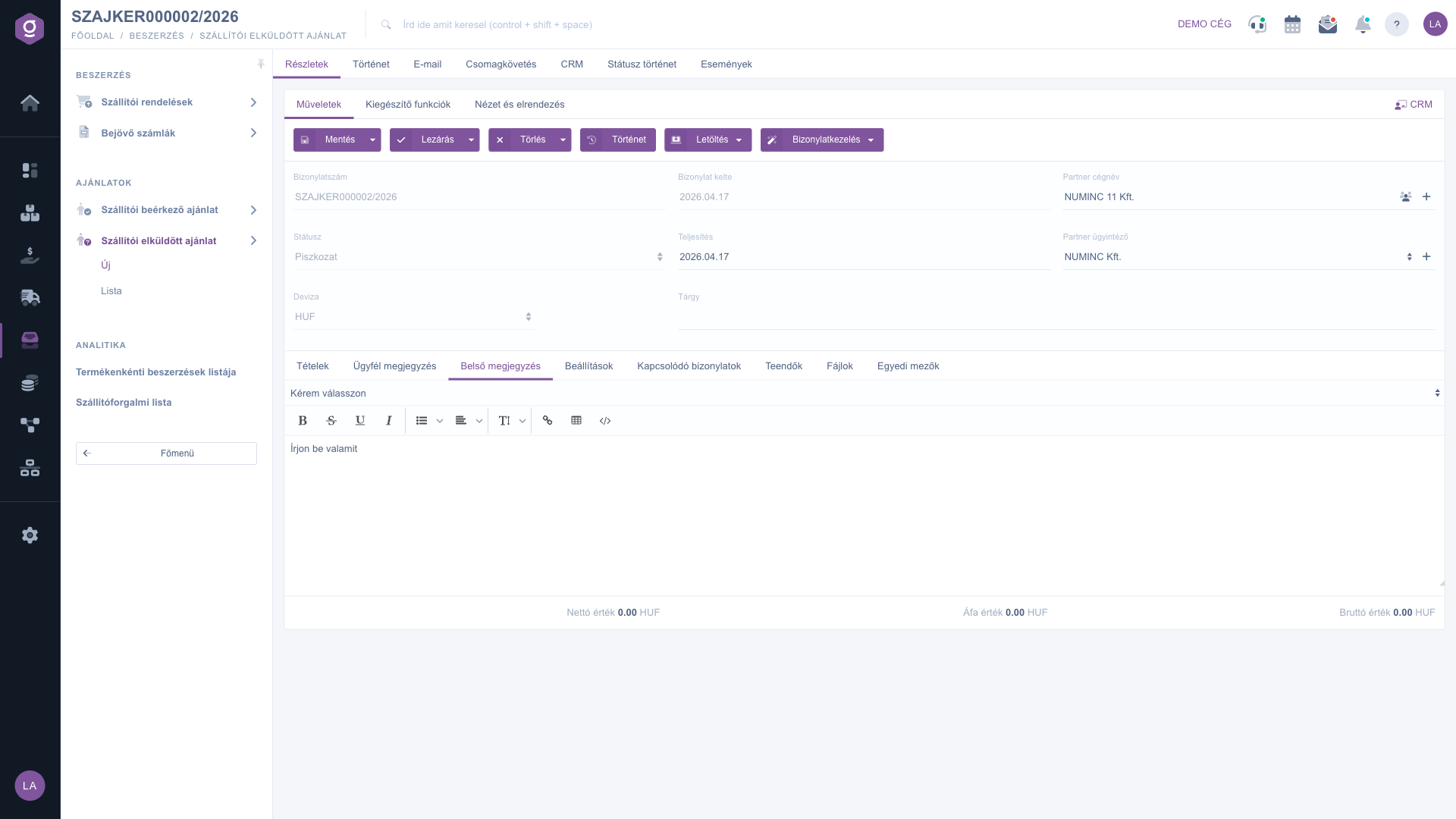
Quote sent to supplier sheet – Internal comment tab (Belső megjegyzés)

5. Saving, closing, downloading

The buttons of the Actions tab:

  • Save: saves the document as a draft; from the arrow next to the button the Save and close option is also available.
  • Close: finalizes the document. The arrow offers closing combined with printing or downloading (Close and print, Close and download).
  • Delete: deletes the document (a draft or a closed one); the deleted document gets the Cancelled status.
  • History: viewing the modifications of the document.
  • Download: CSV, XLSX and PDF export, as well as PDF Preview.
  • Document management: starting a new document from the quote request.

After closing, the data of the document can no longer be modified. On the Additional functions and View and layout tabs you find further helper functions and display settings.

6. Moving on and related documents

On a closed quote request the Document management menu offers three options: Incoming supplier quote, Worksheets and Cloning. Use the Incoming supplier quote option when the supplier has replied: the new sheet opens prefilled with the data of the quote request, and you only enter the prices and the validity. The new document is created only if you save it. Cloning can be used for a draft as well. On the Related documents tab, with the document number, date, type, issuing employee and action columns, you see the chain of documents: the earlier (for example a customer quote request) and later (for example an incoming supplier quote) documents belonging to the quote request.
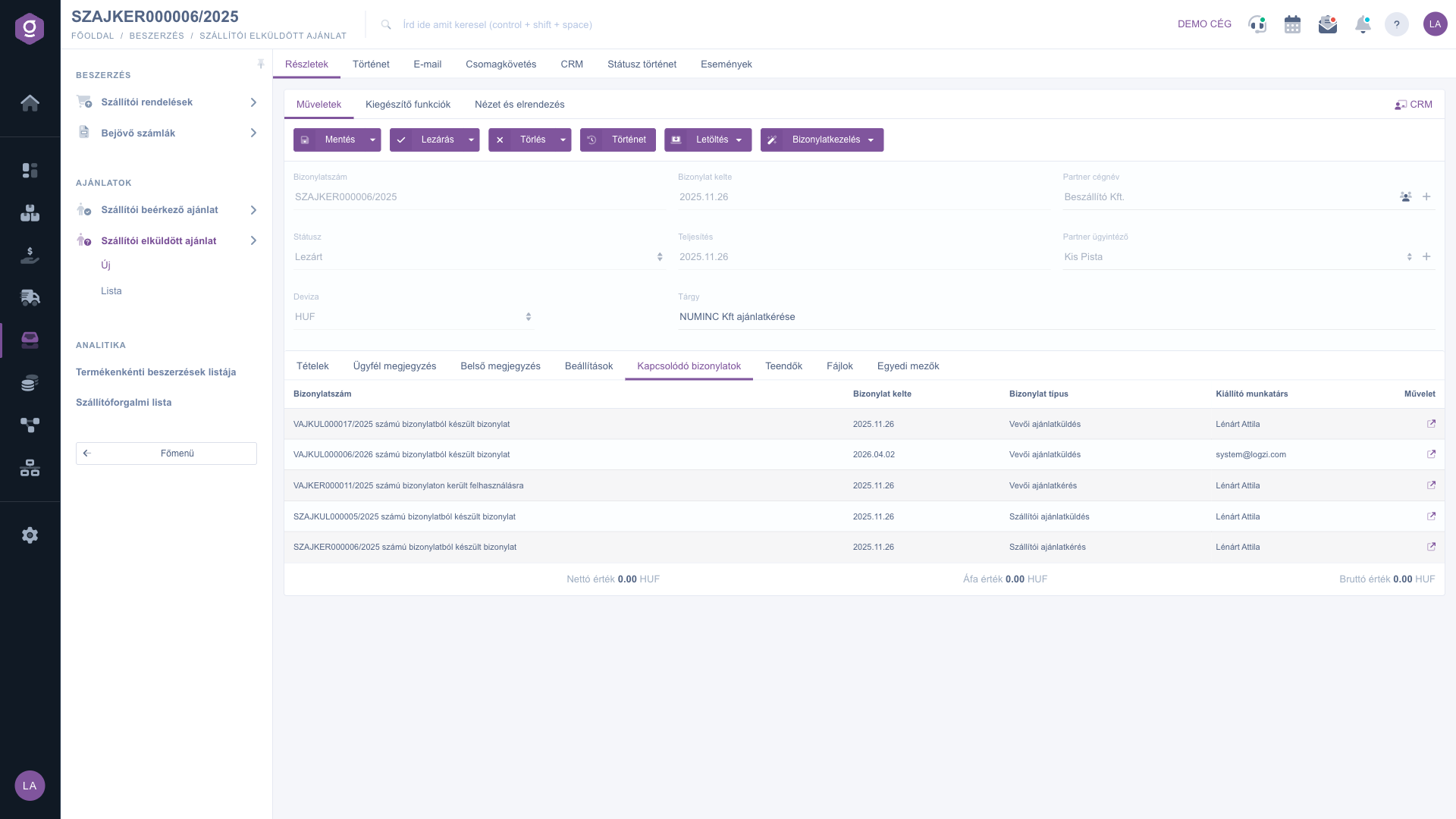
Quote sent to supplier sheet – Related documents tab (Kapcsolódó bizonylatok)
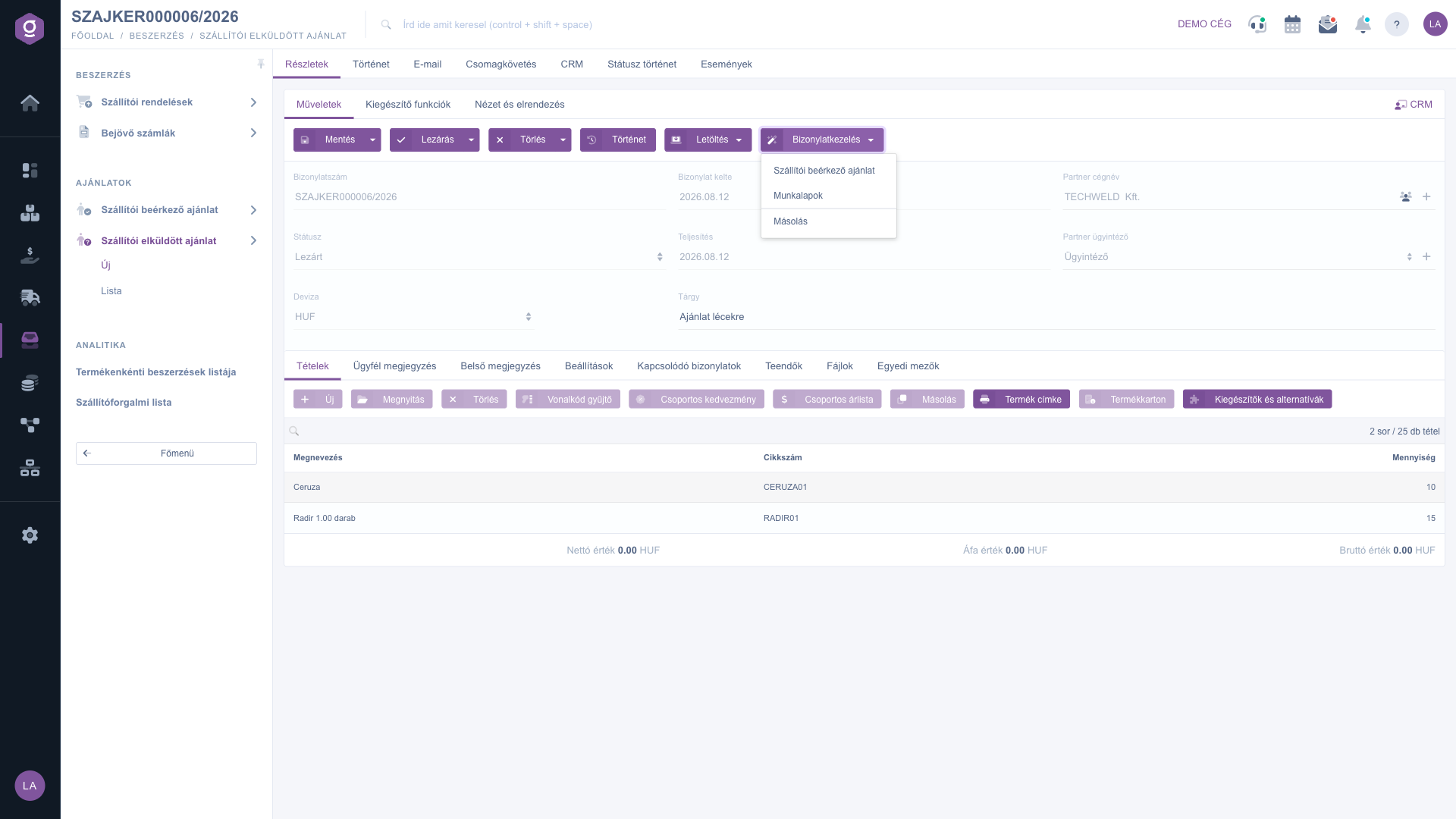
Quote sent to supplier sheet – Document management menu on a closed document (Bizonylatkezelés)

7. An example from start to finish

Your customer asks you for 2 pencils. You create a new quote request to the supplier: you select the partner, enter the requested date in the Performance date field, and on the Items tab with the New button you add the product with item number CERUZA01 with a quantity of 2. You save it, close it (for example with Close and download) and send the PDF to the supplier. When the price arrives, from the closed quote request you record the reply with the Document management > Incoming supplier quote option.

Tip


Before closing, check the item numbers and quantities of the items and the partner: a closed document can no longer be modified, and in case of an error you can make a corrected version only with the Delete and copy option (list) or the Cloning option. If you ask several suppliers for a quote for the same list of items, copy the first one and only replace the partner.


You can read about reviewing the quote requests in the Quote sent to supplier list, about recording the priced reply of the supplier in the Incoming supplier quote sheet, about the quote request of a customer in the Incoming customer quote sheet, and about the worksheet in the Worksheet document guide.

Field reference

The header data of the sheet:

Field / ElementRequiredDescription
Document numberThe identifier assigned by the system; it cannot be edited.
Document dateThe day the document was created; it cannot be edited.
Partner company nameThe supplier from whom you ask for a quote.
StatusThe state of the document (Draft, Closed, Cancellation, Cancelled); it changes as a result of the actions and cannot be modified by hand.
Performance dateThe requested performance date.
Partner contact personThe contact person at the supplier, from the contact persons of the partner.
CurrencyThe currency of the document; it cannot be changed after the first save.
Exchange rateThe exchange rate; it appears if you choose a currency other than the base currency of your company.
SubjectA free-text subject to make identification easier.

The fields of the Settings tab:

Field / ElementRequiredDescription
Billing addressThe own billing address of your company that appears on the document.
ProjectThe project the document belongs to.
Job numberAn internal job number for tracking costs.
Department numberThe number of the department handling the document.
Customer order numberThe reference number used by the partner, if there is one.

Item fields (in the window that opens with the New button):

Field / ElementRequiredDescription
Item numberThe item number of the requested product; if it is empty you get an error message.
QuantityThe quantity requested from the supplier.
NameThe name of the product or service; if it is empty you get an error message.
CommentA free comment attached to the item.

The Required mark shows that filling in the field is necessary at saving (or when the item is added). The free-text fields of the Customer comment and Internal comment tabs are not required.

Frequently asked questions

Because this is a quote request: you record on it what you would like to receive from the supplier, and the supplier gives the price. You can record the prices you receive on the Incoming supplier quote document, which you can start from the closed quote request with the Document management menu. That is why the item table shows only the name, the item number and the quantity.

Save stores the document as a draft, which you can still edit later. Close finalizes it: after that the data cannot be modified, but the Document management menu, the PDF and e-mail sending become available. Delete puts the document into Cancelled status; this cannot be undone. Save and close does the two in one step.

The items and the header data can be edited only in Draft status. After closing, the fields are locked. If you need to make a change, make a copy of the closed document with the Document management > Cloning option and correct it there. The Currency cannot be modified after the first save of the document, even in draft.

The Incoming supplier quote and Worksheets options are available only for a document that is closed (or beyond). Close the document and then select the option. For a draft only Cloning works.

The system asks whether to create the product in the master data as a simple product or as a service (the prompt is shown in Hungarian). If you accept, the product is added to the master data and you can use it elsewhere later. If you leave the item number or the name empty, the system gives an error message and the item is not added to the document.

For a new or independently created document the list is empty, because there is no related document yet. A row appears in it when the quote request was created from another document (for example a customer quote request), or when you start a further document from it (for example an incoming supplier quote). The text of the row shows the direction: “document created from document no. …” or “used on document no. …” (the wording of these rows is shown in Hungarian).

Close the document, then download it with the Download > PDF option and send it to the supplier; or use the Additional functions > New email option, with which you can start the e-mail from the document. Closing and downloading can also be done in one step with the Close and download option.

The Quote sent to supplier module appears under Main menu / Procurement only if it is assigned to your user. If you do not see it, ask the system administrator to check the module assignment in your user settings.

Need personalized help?

Don't want to spend hours searching for a solution? Choose the most efficient way: book a personalized, 45-minute online training session dedicated entirely to you. Whether it's a walkthrough of the basics or a detailed setup of a specific module, our expert colleague will guide you through the whole process, step by step.

Don't waste your time - ask for help!
Our goal is to get you using our system as quickly and efficiently as possible. Whether you're completely new to us or stuck on a specific setting, don't hesitate to ask for help!

Logzi warehouse management software

Get in touch with us

Interested in our software? Feel free to write to us!

Need help?

If you can't find the answer and need assistance

Create your account now,
pay later!

Try it free for 3 days, no risk, no obligation!
