Document product template sheet

Learn how to create and edit a document product template on the Logzi sheet: header, currency, recording items and saving.

Function overview

On the Document product template sheet you put together a reusable package of items: you enter the subject and the currency of the template, then add the products or services that you later want to insert into another document with one click (for example into an invoice, an order or a quote). The sheet follows the same layout as other documents, but it is simpler: there is no partner, no document number and no status.

  • Header: Subject, Currency, Exchange rate and Document date.
  • Items: the products or services of the template with quantity, VAT rate and a net or gross price.
  • Custom fields: fields tailored to your company, on a separate tab.
  • CRM: in the top right corner of the sheet you can open the notes panel for the template.

A template has no status: there is no Draft, Closed or Cancelled state, so every field and item stays editable after saving. There are two exceptions: the Currency can no longer be changed after the first save, and the Document date is always the day of creation and cannot be edited.

Step by step

1. Opening the sheet

To create a new template, click Main menu / Master data / Document product template / New. You can open an existing template in Main menu / Master data / Document product template / List by selecting the row and clicking Open, or start a new one from an existing template with the Cloning button. Above the sheet there are three tabs: Actions, Additional functions and View and layout. The Actions tab has two buttons:

  • Save: saves the template and its items. For a new template this is when the template is created and appears in the list.
  • Delete: deletes the template together with its items. Deletion is permanent, the template cannot be restored.
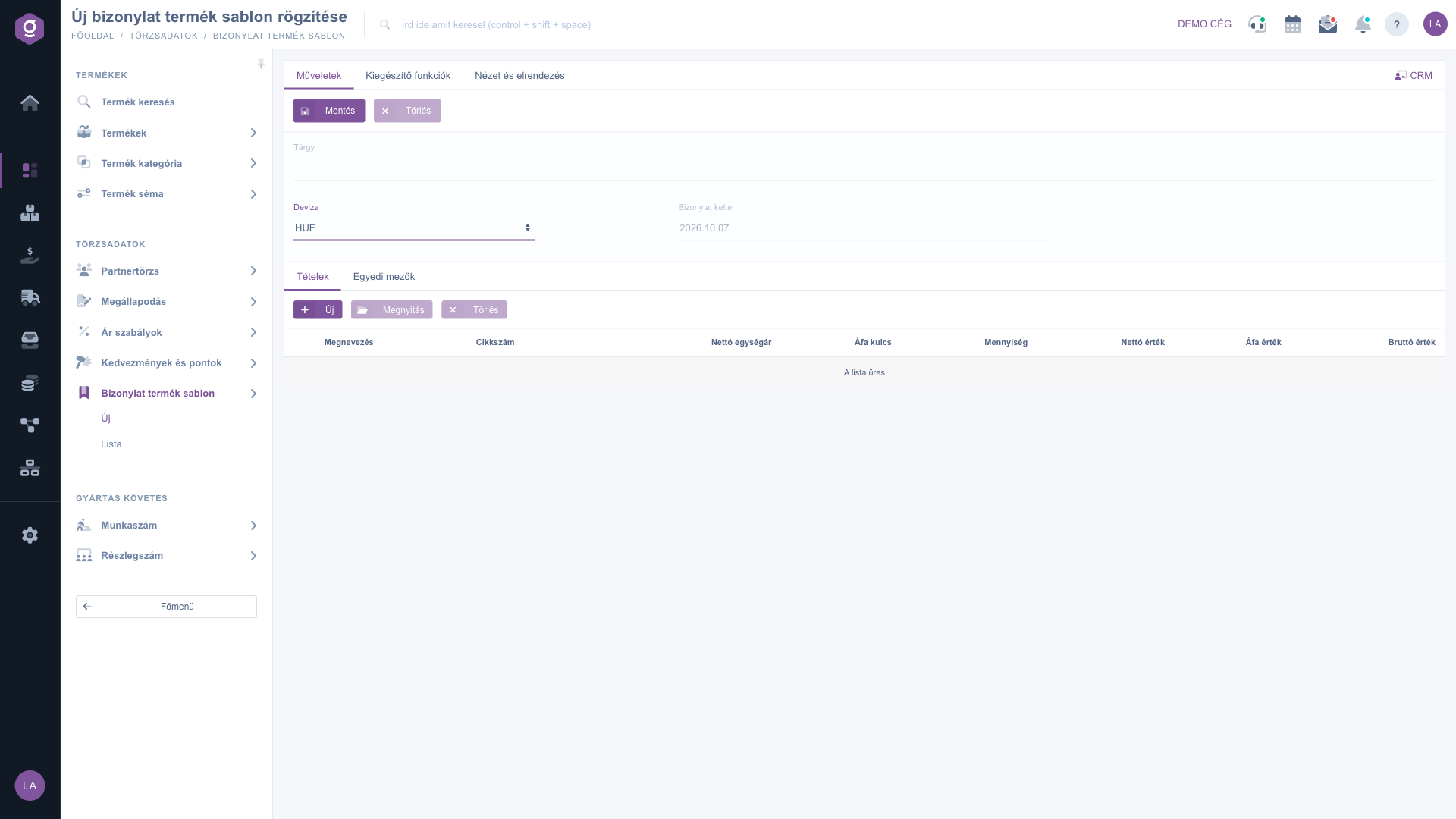
Document product template sheet – Actions tab

2. Filling in the header

Enter the Subject of the template: this is the name you will use to find the template when you load it on a document with the Template button, so make it descriptive (for example “Monthly maintenance”). In the Currency field choose the currency of the template; after the selection the Exchange rate field is filled in automatically, and you can overwrite it if needed. The Document date field shows the current day and cannot be changed.

3. Adding items

On the Items tab you manage the rows of the template with the New, Open and Delete buttons:

  • New: adds a new item in a pop-up window. Enter an Item number: as you type, the system suggests products and fills in the data of the selected product (name, VAT rate, price). You can also search by product name by typing into the Name field. If you cannot find the product, you can create it in a new tab with the New product button at the bottom of the window.
  • Open: edits the item selected in the table in the same window. If you have not selected an item, the system shows a warning.
  • Delete: removes the selected item from the template.

In the item window the Name and the VAT rate are required. Enter the Quantity and the price: it is enough to fill in either the Net value or the Gross value field, the system calculates the other one from the VAT rate, and at the bottom of the window you see the net, VAT and gross amounts of the item. In the Comment field you can add a text to the item. The Add button puts the item into the table. Important: at this point the item is only on the sheet, it gets into the template with the Save button.

4. Saving

Click the Save button. After saving, the page reloads with the template already created, which also appears on the List page. When you modify it later, the Subject and the items change; the Currency does not.

5. Using the template on a document

Open the document to which you want to add the items, for example an invoice. Among the item buttons click Template, choose the template in the Template selection field, then click Load product template. The items of the template are added to the existing items of the document. The loaded items are independent on the document: later changes to the template do not alter documents that are already made.
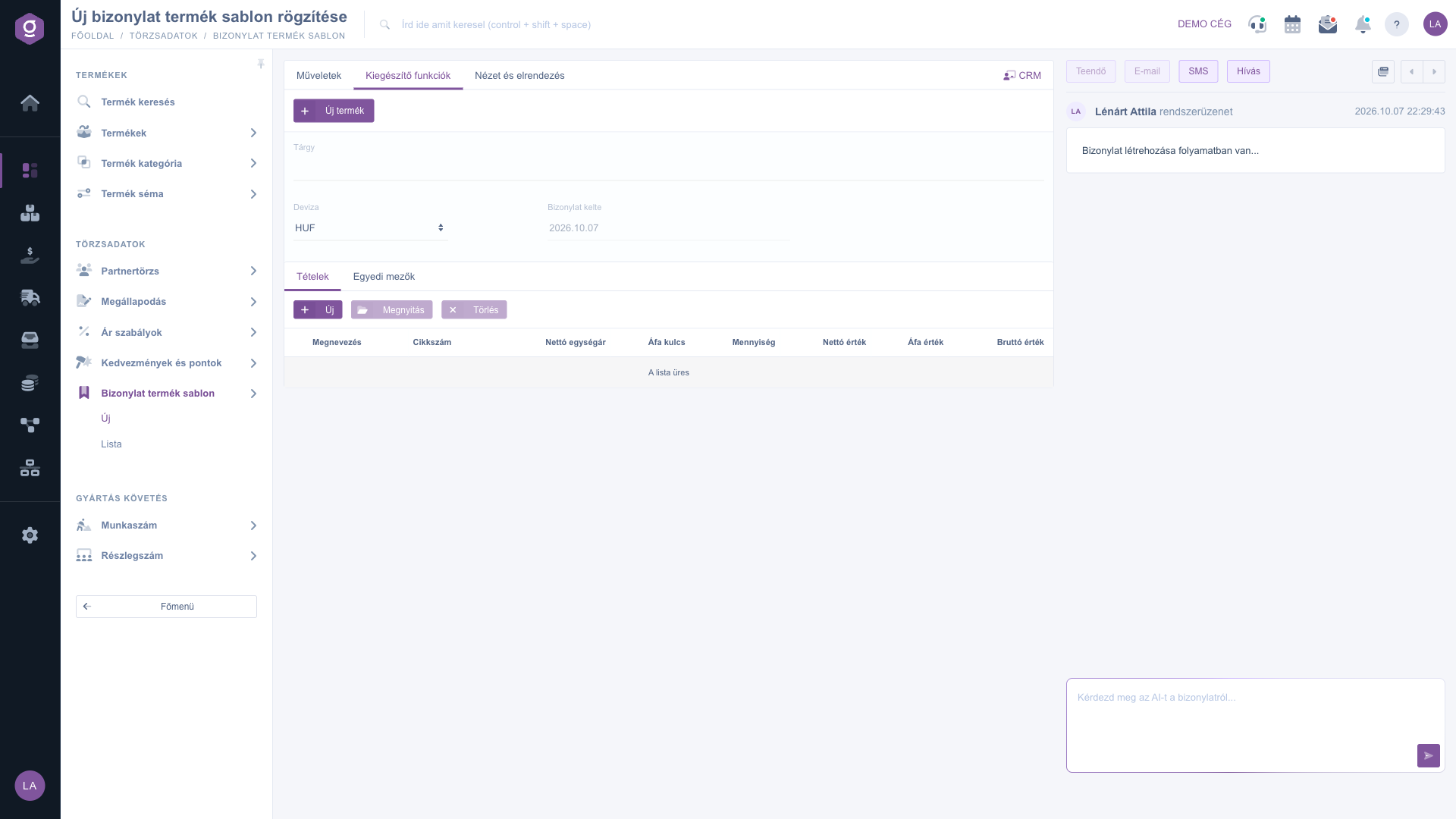
Document product template sheet – Additional functions tab

Additional functions and view

On the Additional functions tab the New product button lets you create a product in a new tab if the template needs an item that is not among your products yet. On the View and layout tab the Interface and behavior button gives access to the settings related to the appearance of the sheet. On the Custom fields tab you can fill in the fields tailored to your company, if there are any.
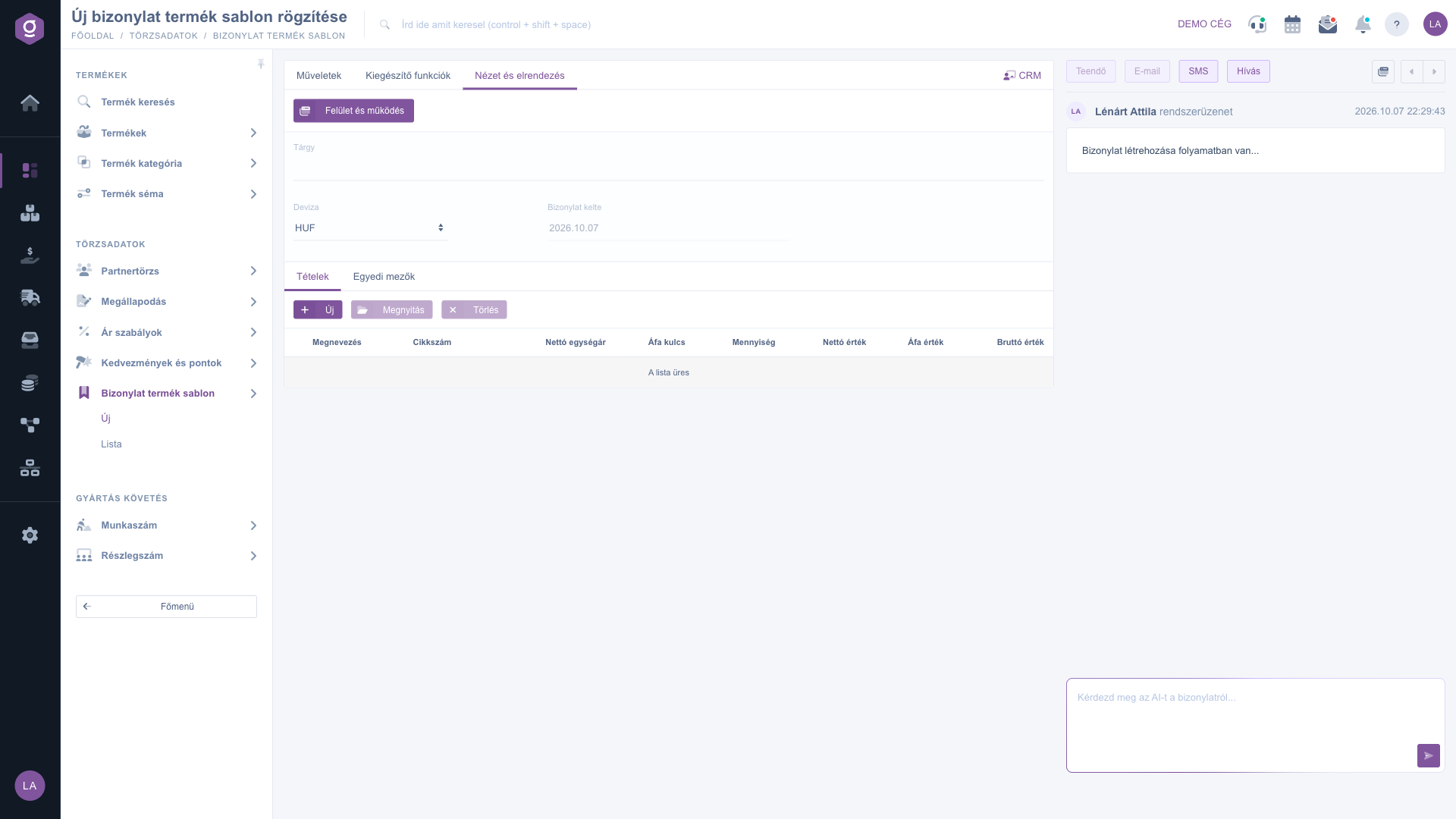
Document product template sheet – View and layout tab

Tip


It is worth entering the prices in the template as well: if, for example, in the “Monthly maintenance” template the labour is 150 and the call-out fee is 50, on the invoice you only have to check the quantities. If the price of an item changes often, leave the last used price in the template and overwrite it on the document after loading. Once the document is done, you do not have to touch the template.


Reviewing, searching, copying and deleting templates is described in the Document product template list guide. You can see where the template is loaded on a document, for example, in the Invoice sheet guide.

Field descriptions

The header fields of the sheet and their meaning:

Field / ElementRequiredDescription
SubjectThe name of the template; you find it by this name in the template selection list on documents. It is worth always filling it in.
CurrencyThe currency of the template. It cannot be changed after the first save.
Exchange rateThe exchange rate of the selected currency; it is filled in automatically when you choose the currency.
Document dateThe day the template was created, not editable.

The columns of the Items table and their meaning:

Item fieldRequiredDescription
NameThe name of the product or service in the item window. It is filled in automatically when you choose a product.
Item numberThe item number of the product; as you type, the system suggests products and loads the data of the chosen one.
Net unit priceThe net price per unit. In the item window you enter it in the Net value field.
VAT rateThe VAT rate applied to the item.
QuantityThe quantity of the item.
Net valueThe net amount of the item (unit price multiplied by the quantity).
VAT valueThe VAT amount of the item.
Gross valueThe gross amount of the item. In the item window you can also start from the gross price with the Gross value field.
CommentA text you can enter for the item in the item window.

Frequently asked questions

A template has no status, so it cannot be closed and it stays editable after saving. The Delete button permanently removes the template together with its items, it cannot be restored. Items that were loaded into documents earlier remain, because they are the own items of the document.

The Currency field can only be chosen when you create a new template; after the first save it is greyed out and cannot be changed, because the prices of the items belong to this currency. If you need a template in another currency, copy the template on the List page, or create a new one with the currency you want.

The Add button of the item window only puts the item into the table, it does not save it to the database. If you leave the sheet without clicking Save, the items you added are lost. Always confirm your changes with the Save button on the Actions tab.

No. When a template is loaded, the items are placed on the document as copies, so later modifying or deleting the template does not affect documents made earlier. It only affects items loaded afterwards. You can also see the steps of loading in the Invoice sheet guide.

On the Document product template list page select the template to start from and click the Cloning button. The new sheet opens with the items; change the Subject and the items you need, then click Save.

The Document product template module appears under Main menu / Master data only if it is assigned to your user. If you cannot see it, ask the system administrator to check the module assignment in your user settings.

Need personalized help?

Don't want to spend hours searching for a solution? Choose the most efficient way: book a personalized, 45-minute online training session dedicated entirely to you. Whether it's a walkthrough of the basics or a detailed setup of a specific module, our expert colleague will guide you through the whole process, step by step.

Don't waste your time - ask for help!
Our goal is to get you using our system as quickly and efficiently as possible. Whether you're completely new to us or stuck on a specific setting, don't hesitate to ask for help!

Logzi warehouse management software

Get in touch with us

Interested in our software? Feel free to write to us!

Need help?

If you can't find the answer and need assistance

Create your account now,
pay later!

Try it free for 3 days, no risk, no obligation!
