Document product template list

Learn how to search, open, copy and delete document product templates in the Document product template list of Logzi.

Function overview

In this module you can review and manage Document product template records. A template is a pre-built package of items: products or services with quantity, VAT rate and price, which you can insert into another document with one click, for example into an invoice, an order or a quote. If you often put together the same list of items, you do not have to type it again every time. The list shows all templates in one place, you can search among them, and you can start a new template, open, delete or copy one from here.

  • Reusable item packages: you can load the items of a template on the sheet of a document with the Template button.
  • Targeted search: you can filter by the colleague who recorded the template and by the document date.
  • Preview panel: if it is switched on for you, below the list you can review the items (Name, Item number, Quantity) of the selected template without opening the sheet.
  • Customizable view: you can set which columns and how many rows are shown on a page, and in what order the data is sorted.

Templates have no status: there is no Draft, Closed or Cancelled state, and every template can be edited at any time. Accordingly, there is no need to close a template, and deleting it is permanent.

Step by step

1. Opening the list and the actions you can perform on templates

Click Main menu / Master data / Document product template / List to see all the templates recorded so far. Above the list there are three tabs: Actions, Search and View and layout. The buttons on the Actions tab work on the selected template (to select a row, click it in the table):

  • New: creates a new template on an empty sheet. The sheet opens with the default currency and today date. Choose it when you are putting together a completely new package of items.
  • Open: opens the sheet of the selected template together with its items. If you select several rows at once, each one opens in a separate tab; if you select none, the system shows a warning.
  • Delete: deletes the selected template together with its items. Deletion is permanent and cannot be undone, so use it only if you are sure you will not need the template.
  • Cloning: opens a new sheet from the selected template, taking over its items. Choose it when you want a new variant by slightly changing an existing package, for example with a different quantity or an extra item. The copy is only created when you click the Save button on the new sheet.

If you right-click a row, the same actions are available in the context menu. The Close item cannot be used for templates, because a template has no closed state.
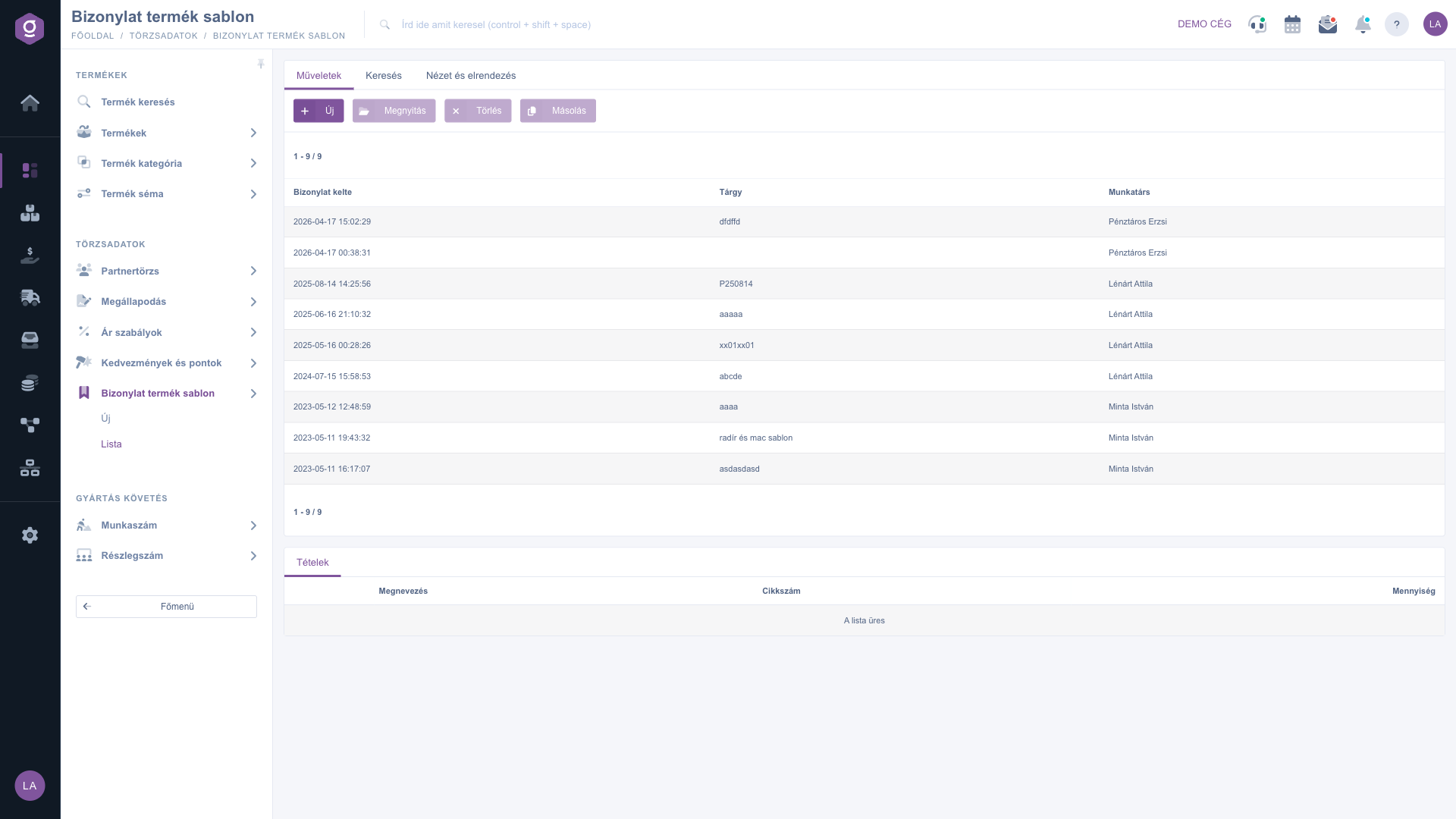
Document product template list – Actions tab

Searching among templates

Click the Search tab to see the filter options. The Subject field is visible right away. The “Expand” button opens further filters: searching by Document date as a period (with a from and to date) and choosing the Employee. Click the Search button to filter by the conditions you set. Please note that the text you type into the Subject field currently searches in the name of the colleague who recorded the template, not in the subject of the template; if you are looking for a template by name, sort the list instead or filter with the Employee field.
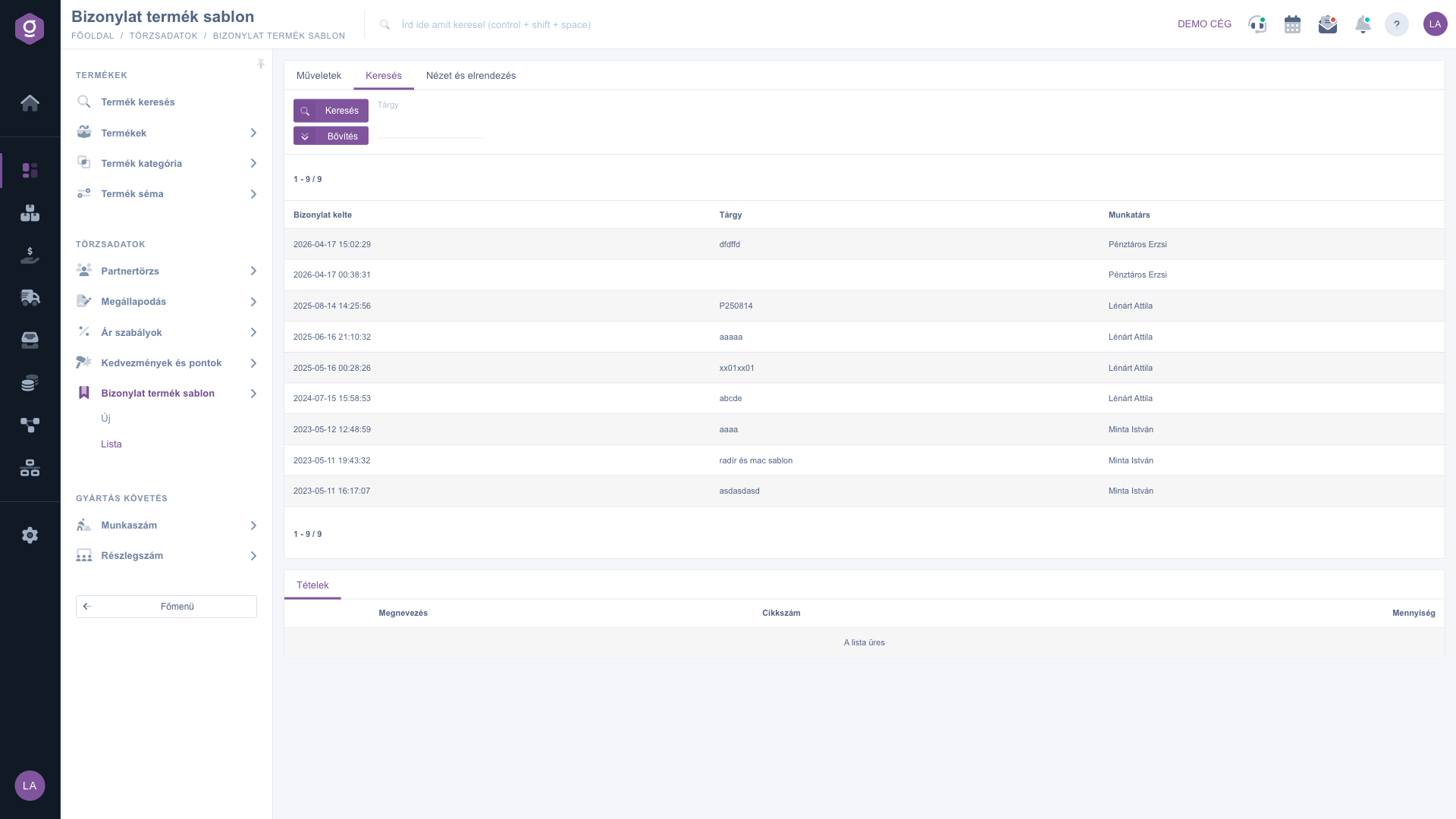
Document product template list – Search tab

Customizing the view

On the View and layout tab you can set how the list is displayed for you:

  • Oszlopok (Columns): you can choose which columns appear in the table. If you have not set anything yet, you see the Document date, Subject and Colleague columns (on smaller screens all except Subject are hidden).
  • Sorok (Rows): you can set how many templates appear on one page.
  • Sorting: you can choose which column and in which direction the list is sorted by default.

These settings are saved personally, tied to your user, so they are kept the next time you sign in.
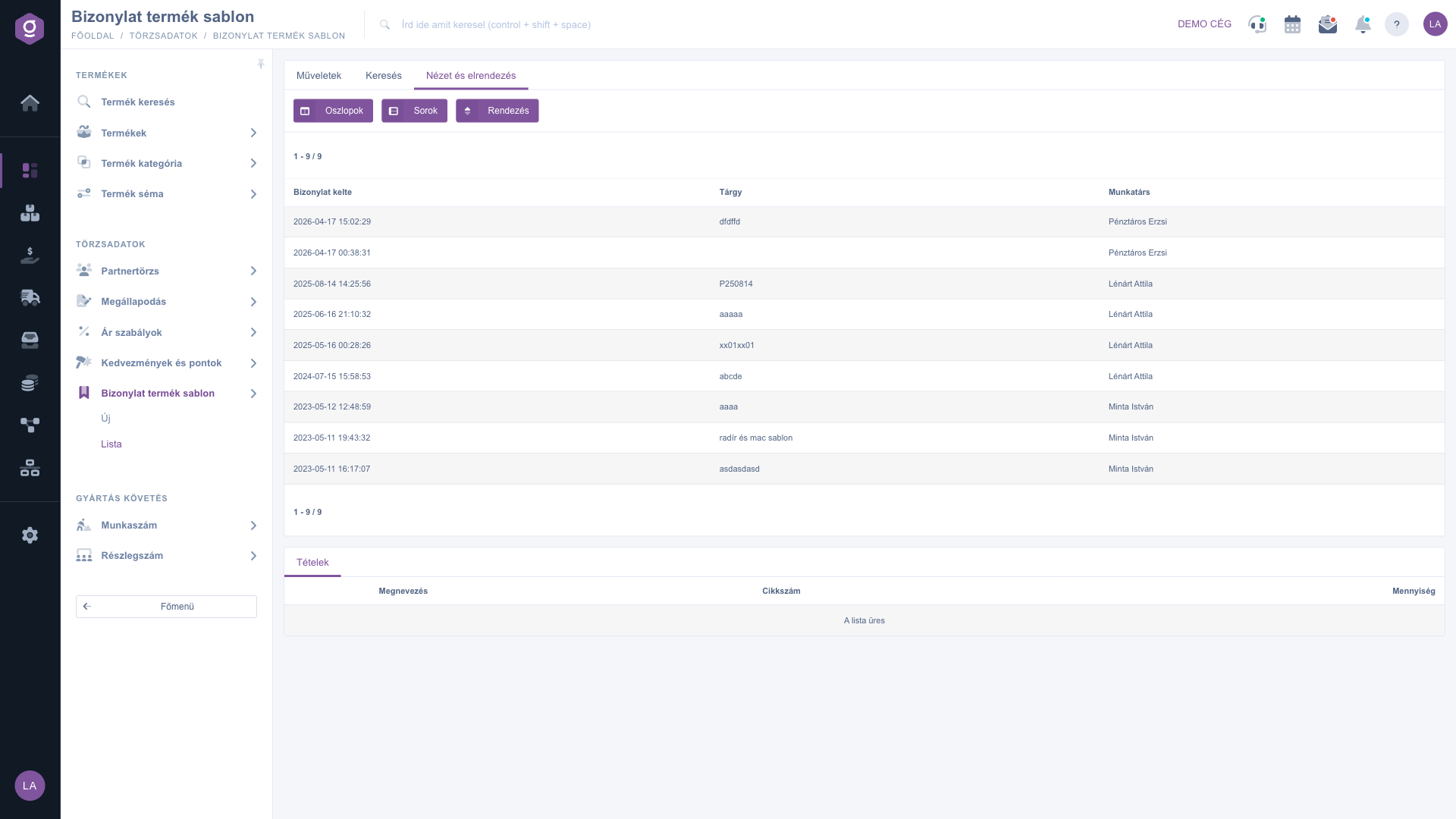
Document product template list – View and layout tab

Tip


If, for example, you invoice the same maintenance package every month (labour, call-out fee, spare part), record it once as a template. Next month you do not have to put it together again: on the invoice sheet you load it with the Template button. If a customer needs a slightly different package, make a copy with the Cloning button, change the items, and save it as a new template.


Creating a template and its items is described in the Document product template sheet guide. You can learn how to load a template into a document, for example, in the Invoice sheet guide.

Field descriptions

The selectable columns of the table and their meaning. You can switch the columns on or off in the Oszlopok (Columns) setting:

Field / ElementRequiredDescription
Azonosító (Identifier)The system serial number of the template.
Megnevezés (Name), SubjectThe subject of the template entered on the sheet; this is the name you use to find the template in the Template window of a document.
Exchange rateThe currency exchange rate applied when the template was recorded.
Document dateThe date the template was created.
ModificationThe date the template was last modified.
ColleagueThe name of the colleague who recorded the template.

The fields of the Search tab and their meaning:

Field / ElementRequiredDescription
SubjectSearches for a piece of text; currently in the name of the colleague who recorded the template.
Document dateFound under Expand; searches by creation date with a from and to date.
EmployeeFound under Expand; filters by the colleague who recorded the template.

The columns of the Items tab of the preview panel below the list:

Field / ElementRequiredDescription
NameThe name of the item of the selected template.
Item numberThe item number of the product of the item.
QuantityThe quantity of the item.

Frequently asked questions

No, because a template has no status: there is no closing and no cancellation. Every template can be edited at any time. Delete, however, is permanent: the template disappears together with its items and cannot be restored. Items that were previously loaded into a document do not change, because they were placed on the document as copies when they were loaded.

Currently the Subject field filters by the name of the colleague who recorded the template, not by the subject of the template. If you type the name of the template, you therefore get no result. Use the Employee and Document date filters under Expand instead, or sort the list with the Sorting setting and find the template in the table.

On the sheet of a document (for example an invoice, an order or a quote) you find the Template button among the item buttons. Click it, choose the template in the Template selection field, then click Load product template and the items are added to the document. Loading does not delete the existing items, it appends the new ones to them. You can find the invoice example in the Invoice sheet guide.

The Cloning button only opens the new sheet with the items taken over; the template has not been created yet. The copy gets into the list when you click the Save button on the sheet. If you leave the page without saving, the copy is lost. Editing the items is described in the Document product template sheet guide.

Check the filters set on the Search tab (Subject, Document date, Employee), clear them and search again. If the list has several pages, use the pager to go to the first page. If you have not recorded any template yet, or you have deleted the one you are looking for, the list is empty. To create the first template, click the New button.

The Document product template module appears under Main menu / Master data only if it is assigned to your user. If you cannot see it, ask the system administrator to check the module assignment in your user settings.

Need personalized help?

Don't want to spend hours searching for a solution? Choose the most efficient way: book a personalized, 45-minute online training session dedicated entirely to you. Whether it's a walkthrough of the basics or a detailed setup of a specific module, our expert colleague will guide you through the whole process, step by step.

Don't waste your time - ask for help!
Our goal is to get you using our system as quickly and efficiently as possible. Whether you're completely new to us or stuck on a specific setting, don't hesitate to ask for help!

Logzi warehouse management software

Get in touch with us

Interested in our software? Feel free to write to us!

Need help?

If you can't find the answer and need assistance

Create your account now,
pay later!

Try it free for 3 days, no risk, no obligation!
