The screenshots show the Hungarian user interface; where useful, the Hungarian label is given in parentheses. Some labels, such as “Telephely” (site), appear in Hungarian regardless of the language setting.
1. Open a new price rule
Click Main menu / Master data / Price rules / New. The empty sheet opens with the title “Új árszabály rögzítése” (record a new price rule). To open an existing rule, use the Open button in the Price rules list. At the top of the sheet there are three tabs: Actions (Műveletek), Additional functions (Kiegészítő funkciók) and View and layout (Nézet és elrendezés), and the CRM button on the right.
2. Fill in the header
The header fields are in the upper part of the page. Document number, Status and Document date are grey and filled in by the system; you enter the rest:
- Validity start and Validity end (required): pick the dates from the calendar. Prices are applied only within this period.
- Partner type: if you choose a partner type, the rule changes only that price list row. Left empty it keeps the value Valid for all.
- Telephely (site): in the same way you can tie the price to one site; the default is Valid for all.
- Currency (required) and Exchange rate: the currency of the rule; the rate is filled in after you pick the currency.
- Currency rounding for gross selling prices (required): choose from the list how gross selling prices are rounded.
- Subject (required): the name of the rule, shown in the list as well, for example “Summer sale 2026”.
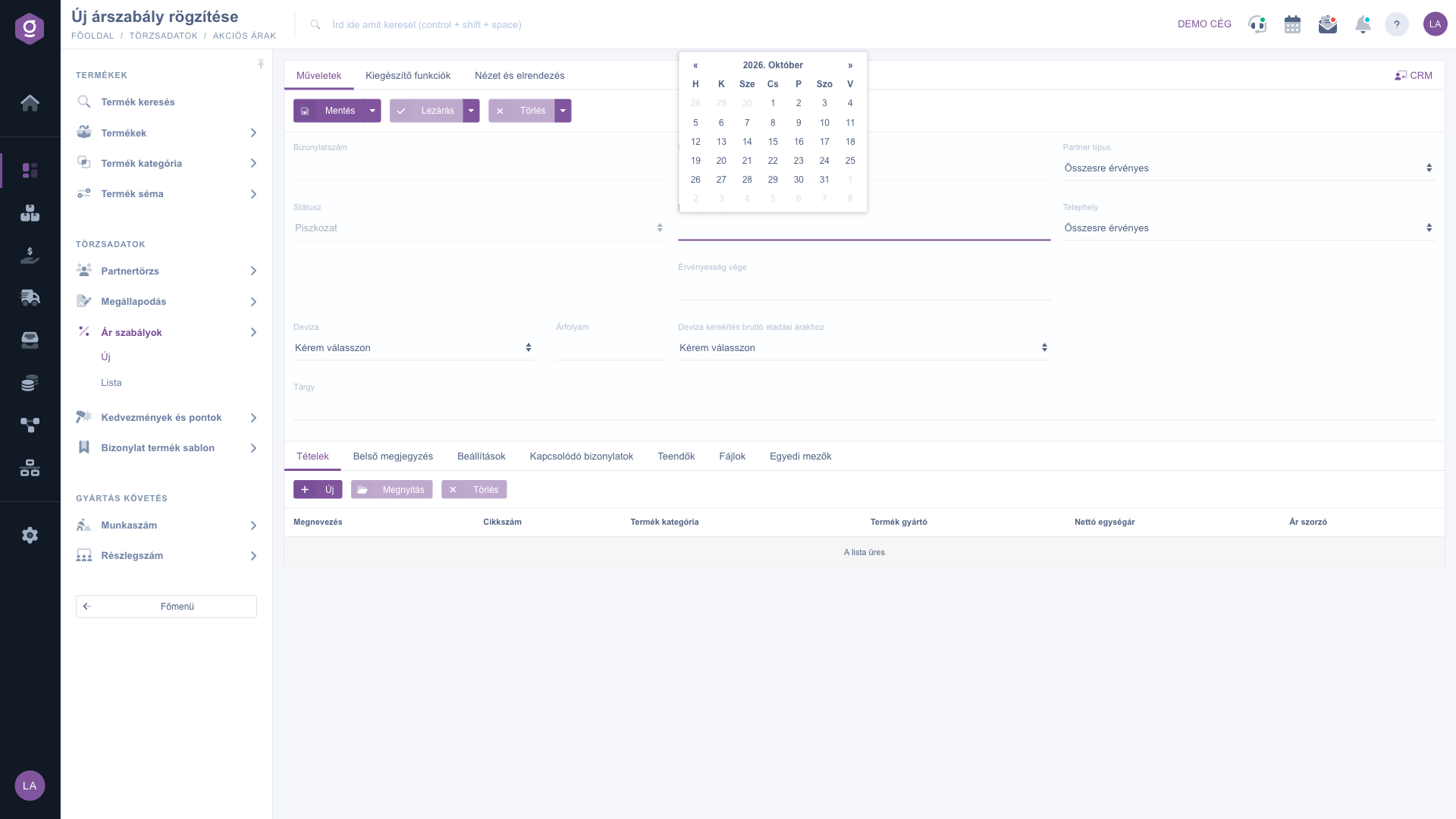
Price rule sheet – Actions tab (Műveletek) and header fields
3. Add the items
In the lower part of the sheet, the Items tab (Tételek) lists the items of the rule. The table columns are: Name, Item number, Product category, Product manufacturer, Net unit price and Price multiplier. The tab buttons are New (new item), Open (edit the selected item) and Delete (remove the selected item). In the window that opens with New:
- First choose the rule type: Item number rule (one specific product), Product category rule (products of the selected category) or Product manufacturer (products assigned to the given manufacturer).
- Then enter the matching value: the Item number (the Name is filled in), the Product category or the Product manufacturer field. In the Comment field you can write an internal note.
- In the Price calculation section you choose the pricing method. With Direct price you type the desired net selling price in Net value. With Percentage price you choose the base value (Purchase price, Cost price or List price, each from the All sites, All partner types row) and enter the Price multiplier: 1.10 = +10%, 0.80 = -20%.
- The Add button puts the item into the rule, Close discards it.
You can add several items to a rule, even of different types and with different pricing.
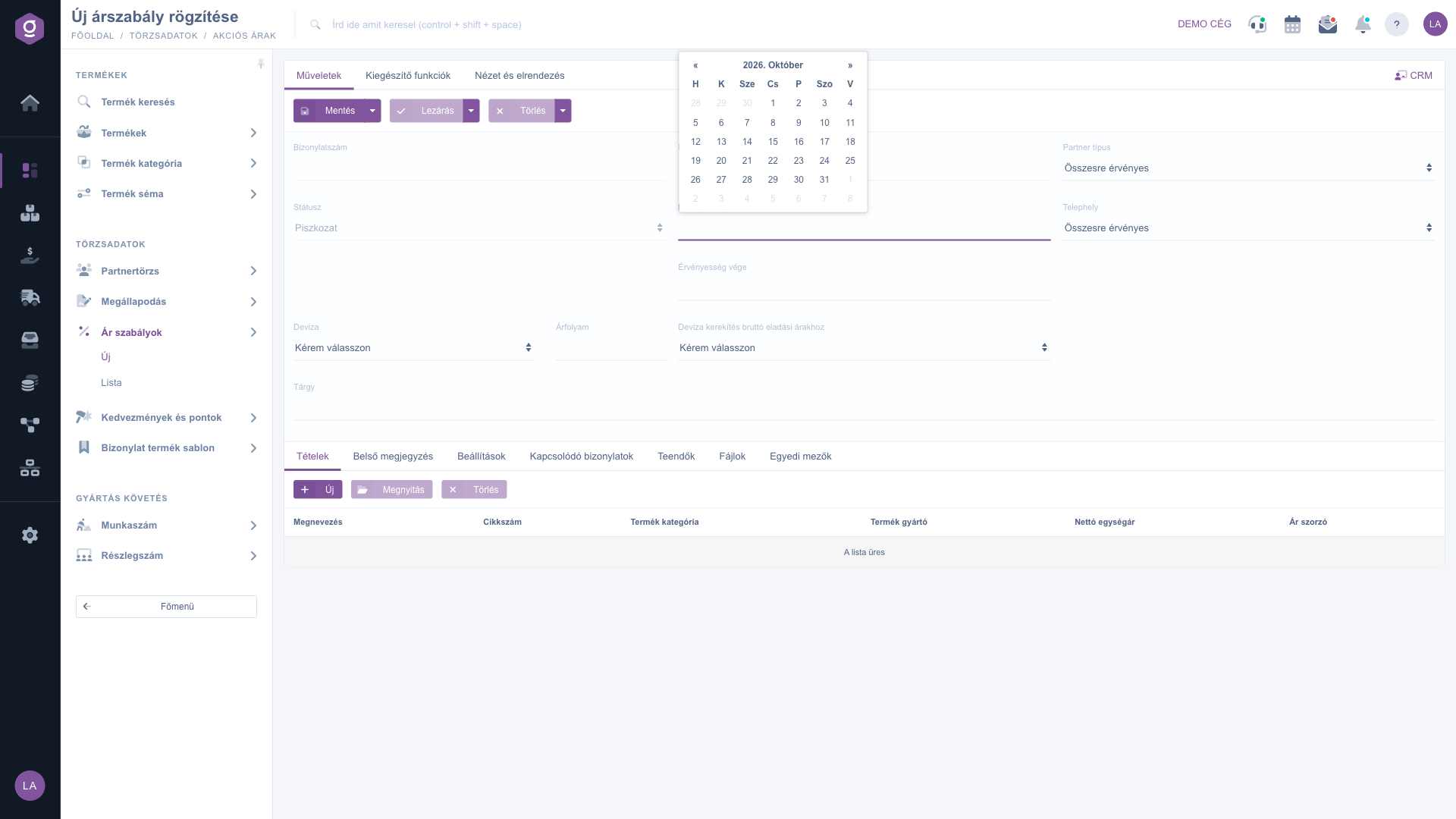
Price rule sheet – the Items tab (Tételek)
4. Save and close
On the Actions tab there are three button groups:
- Save: the dropdown offers Save and Save and close. The rule receives its document number at the first save.
- Close: its dropdown contains Close, Close and print and Close and download. Closing sets the rule to Closed, and the fields can no longer be edited.
- Delete: its dropdown contains Delete and Delete and copy. A deleted rule becomes Cancelled and cannot be applied.
Prices actually change when, during the validity period of the closed rule, you press the Apply prices button on the Actions tab of the Price rules list.
5. Additional functions, view and CRM
On the Additional functions tab, the New product, New partner and New task buttons let you create a product, partner or task without leaving the sheet. The Interface and behavior button on the View and layout tab changes the display settings of the screen. The CRM button at the top right opens the CRM side panel, where you can follow the tasks, emails and calls related to the rule.
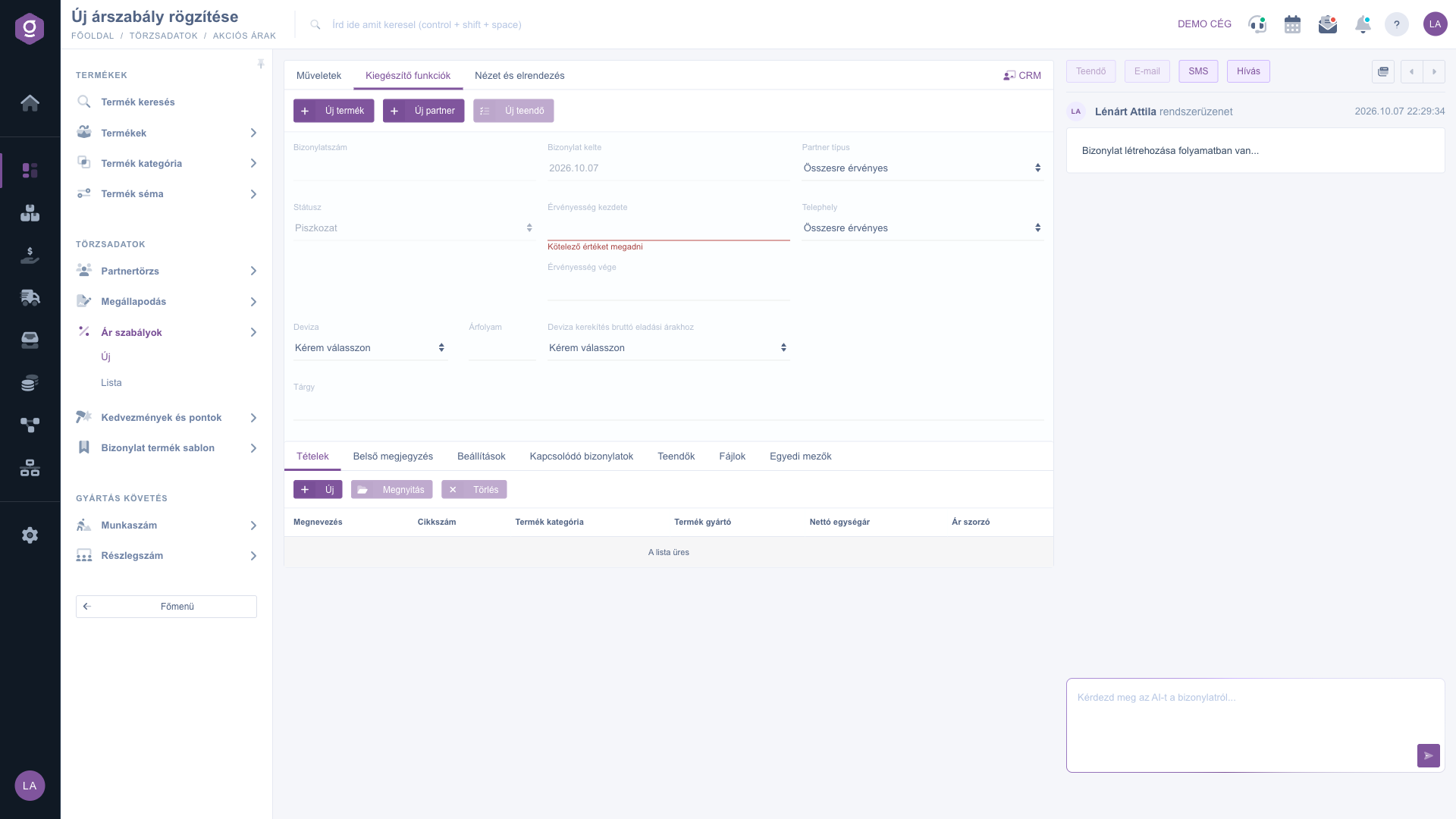
Price rule sheet – Additional functions tab (Kiegészítő funkciók) and CRM panel
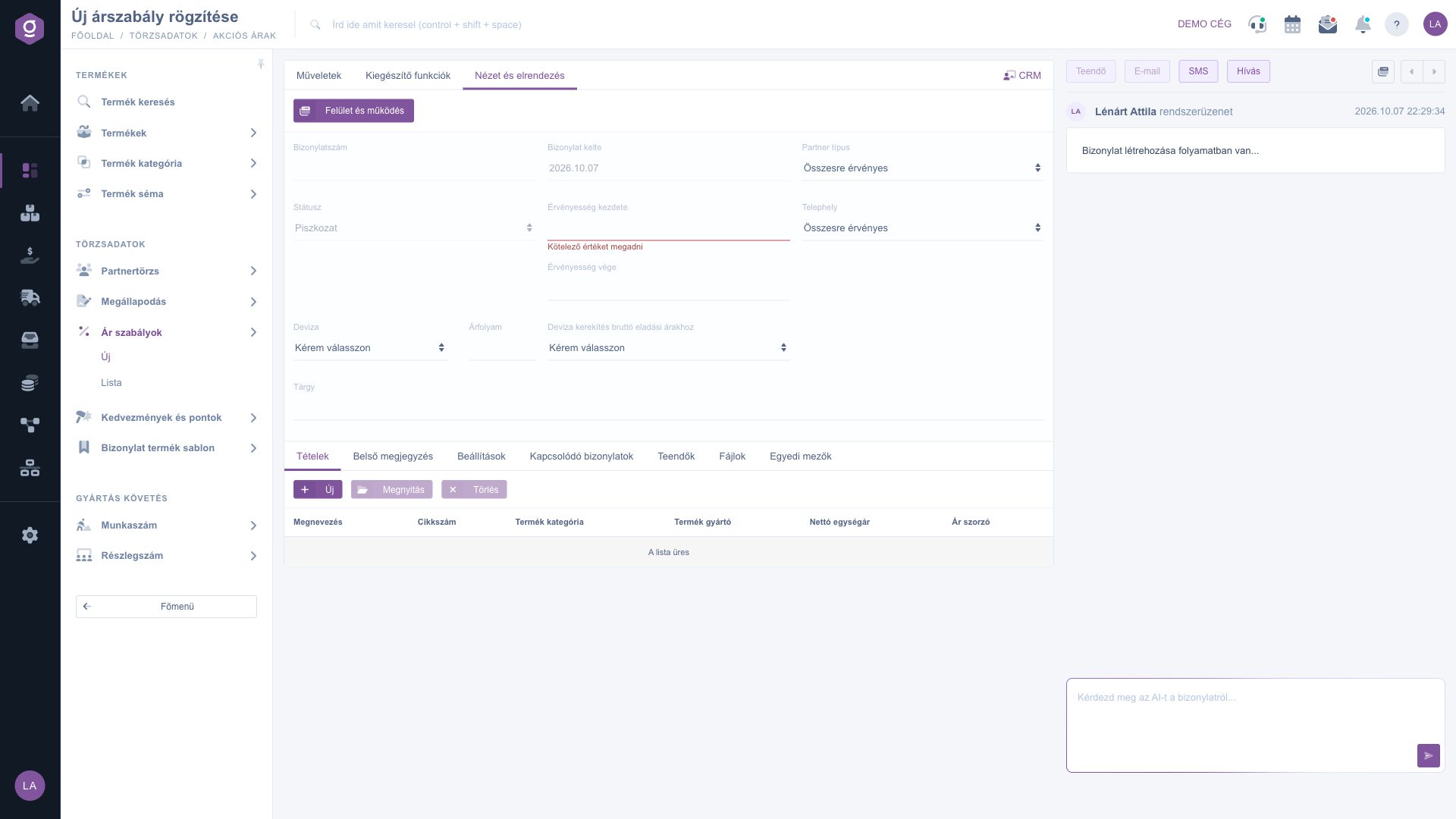
Price rule sheet – View and layout tab (Nézet és elrendezés)
6. Further tabs
Below the items table there are more tabs: Internal comment (a note visible only inside your company), Settings (among others the billing address), Related documents, Tasks, Files (attached documents) and Custom fields (extra data tailored to your company).
Tip
To give your wholesale partners a 10% discount on all products of one manufacturer: create a rule with the subject “Wholesale discount”, choose the wholesale type in Partner type, add a Product manufacturer item in Percentage price mode with the List price base and a multiplier of 0.90, then close the rule. After Apply prices only the price list row of the wholesale partners changes; the prices of other partners remain untouched.
Managing price rules is described in the
Price rules list guide, and the resulting prices are shown in the
Itemized price list. You manage the item numbers and categories used in a rule in the Product and Product category modules.



