Price rules list

Learn how to search, open, close and apply the price rules that change the prices of many products at once in the Logzi Price rules list.

Feature overview

In this module you review and manage your Price rules documents. A price rule is a document that sets the selling price of several products at once: for one specific product, for all products of a product category or for the products of a manufacturer, either with a directly entered (direct) price or with a percentage price calculated from a base price. The list shows all rules in one place, lets you search among them, and is the starting point for creating a new rule, opening, closing, deleting and copying rules, and for applying closed rules to the price list.

  • Apply prices: with one click you write the prices of the closed, currently valid rules into the price list.
  • Targeted search: filter by partner company name, document number, currency, status, document date, performance date and employee.
  • Preview window: review the items and related documents of the selected rule without opening its sheet.
  • Customizable view: choose which columns and how many rows are shown on a page, and how the data is sorted.

The statuses of a price rule are: Draft (editable, not yet in effect), Closed (final; Apply prices only considers these), Cancellation and Cancelled (invalidated rules, these have no effect).

Step by step

The screenshots show the Hungarian user interface; where useful, the Hungarian label is given in parentheses. A few labels, for example “Oszlopok” (Columns) and “Sorok” (Rows), always appear in Hungarian.

1. Opening the list and the actions available for a rule

Clicking Main menu / Master data / Price rules / List shows all price rules recorded so far. Above the list there are four tabs: Actions (Műveletek), Search (Keresés), View and layout (Nézet és elrendezés) and Additional functions (Kiegészítő funkciók). With the buttons on the Actions tab you work with the selected rule (click a row in the table to select it):

  • New: creates a new price rule on a blank sheet.
  • Open: opens the sheet of the selected rule.
  • Close: closes the selected Draft rule. In the dropdown of the button you can choose between Close, Close and print and Close and download. Only a Draft rule can be closed.
  • Delete: deletes the rule; the dropdown offers Delete and Delete and copy. Deleting is not a permanent removal: the rule gets the Cancelled status and no longer has any effect. A rule with Cancellation or Cancelled status cannot be deleted again.
  • Cloning: makes a copy of the selected rule, so you can quickly start a new rule from an existing one.
  • Document management: a dropdown that contains Cloning.
  • Apply prices: the live execution of the rules, see below.

Closing a price rule does not change any price yet. When you press Apply prices, the system first refreshes the currency exchange rates, then goes through the rules that have Closed status, are not deleted, and whose period between Validity start and Validity end includes today. For every item it affects the products that the item selects: one specific product, all products of a product category or the products of a manufacturer. For a Direct price item it writes the given net price into the matching price list row; for a Percentage price item it multiplies the base price of the general price list row (All partner types, All sites) by the price multiplier and the exchange rate. Which price list row is changed depends on the Partner type and the site (Telephely) given in the header of the rule. The rule overwrites the selling price and the currency of the price list; it does not change the promotional price fields entered on the product sheet.
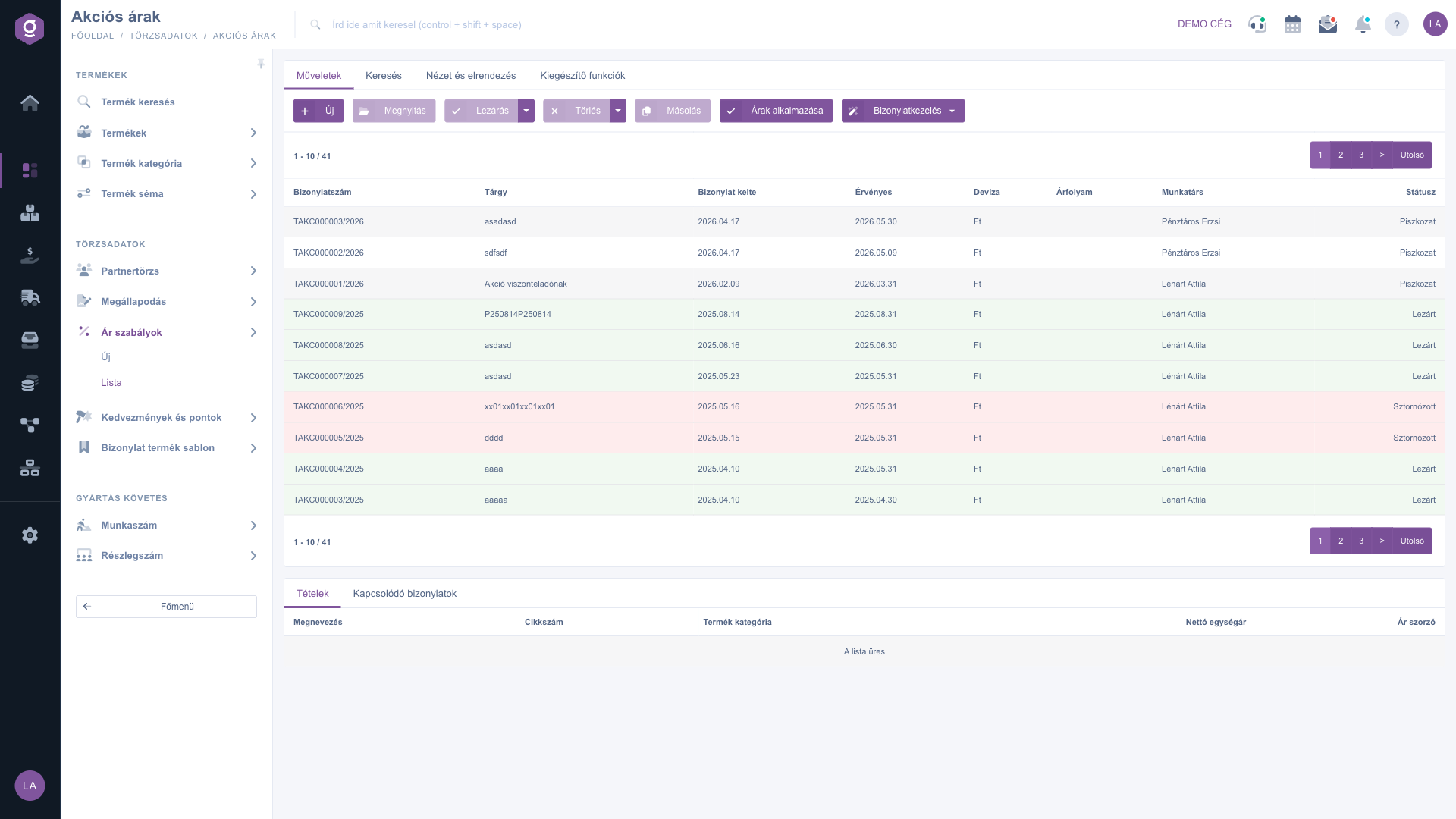
Price rules list – Actions tab

Searching among the price rules

Click the Search tab (Keresés) to see the filters. The fields visible at once are Partner company name, Document number, Currency and Status. The “Expand” button opens more filters: searching by Document date and Performance date (from and to dates), and by Employee. Use the Search button to filter by the conditions you set.
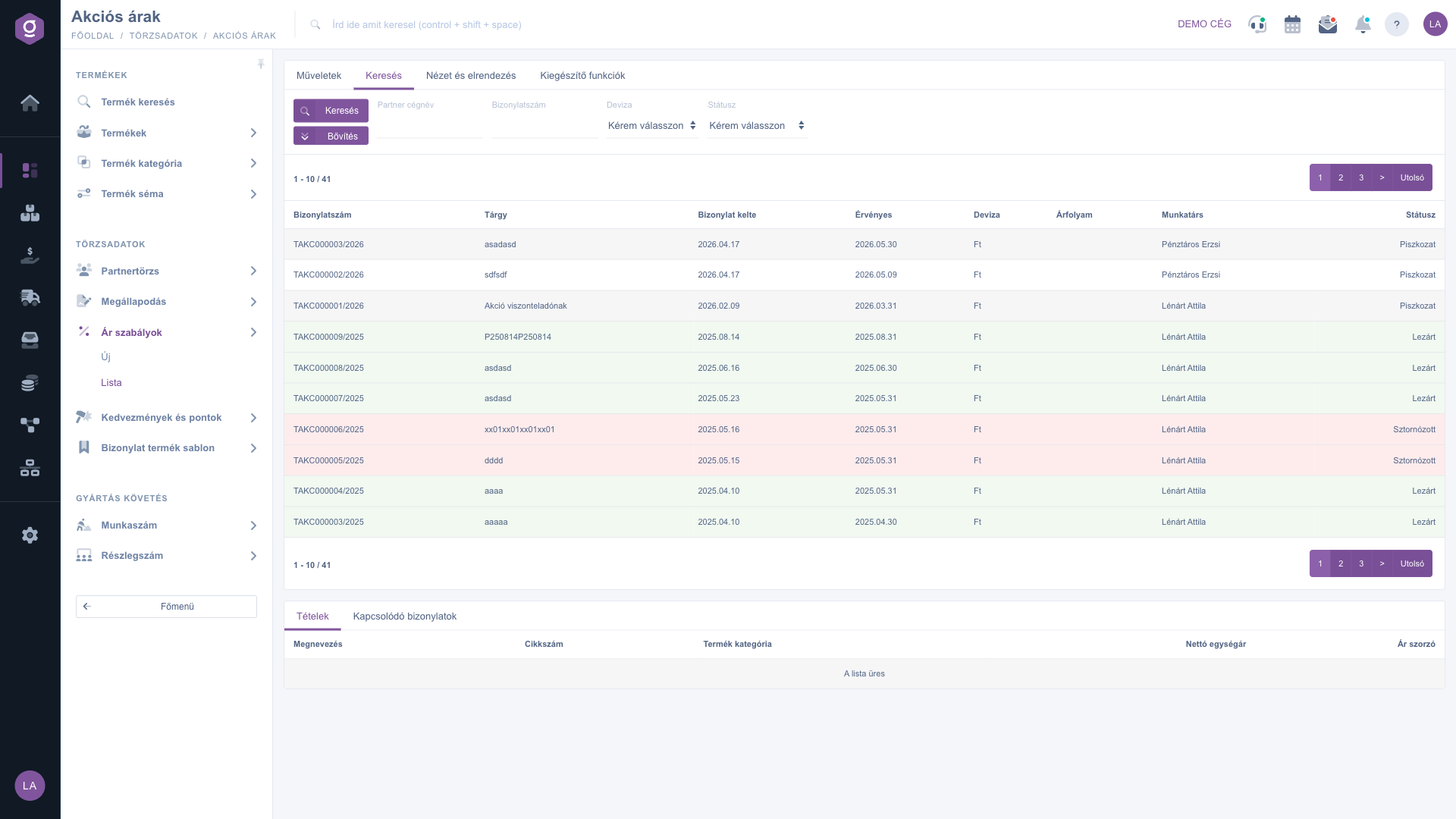
Price rules list – Search tab

Customizing the view

On the View and layout tab (Nézet és elrendezés) you set how the list is displayed for you:

  • Columns (Oszlopok): choose which columns appear in the table. If you have not set anything yet, you see the Document number, Subject, Document date, Valid, Currency, Exchange rate, Employee and Status columns.
  • Rows (Sorok): set how many price rules are shown on a page.
  • Sorting: choose by which column and in which direction the list is sorted by default.
  • Preview window: opens the settings of the preview window. The window shows the Items and Related documents tabs of the selected rule.
  • Interface and behavior: other display settings of the list interface.

These settings are saved per user, so they are kept the next time you sign in.
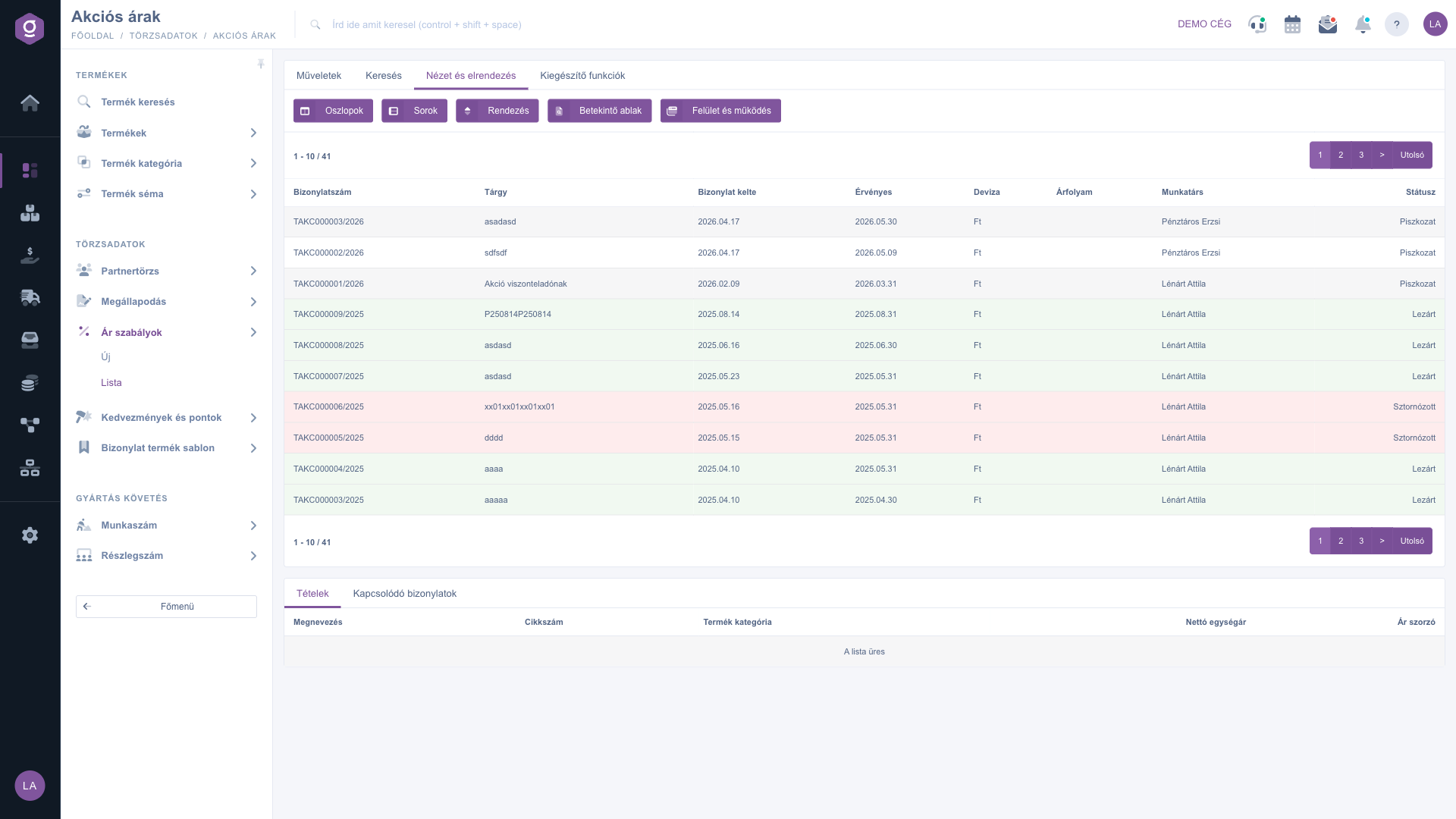
Price rules list – View and layout tab

Additional functions

On the Additional functions tab (Kiegészítő funkciók) the New task button lets you record a task, for example a reminder to create a new rule before an existing one expires.

Tip


For a summer sale create a rule valid from 2026-06-01 to 2026-08-31 with a Percentage price item, the List price base value and a multiplier of 0.90: the prices of the affected products become 90% of the list price. Close the rule and press Apply prices on the first day of the sale. After the rule expires, the old price has to be restored in the price list or with a new rule.


How to create a price rule and its items is described in the Price rule sheet guide. The prices changed by a rule are shown in the Itemized price list.

Field descriptions

The selectable columns of the table and their meaning. You can switch the columns on or off in the Columns (Oszlopok) setting:

Field / ElementRequiredDescription
ID (Azonosító)The internal serial number of the price rule.
Document numberThe document number of the price rule.
Subject, Name (Megnevezés)The name given to the rule on its sheet.
Document dateThe date the rule was created.
Valid, Performance dateThe validity period of the rule, and the Validity end entered on the sheet.
ModificationThe date of the last modification of the rule.
Currency, Exchange rateThe currency of the rule and the exchange rate used.
EmployeeThe name of the employee who recorded the rule.
StatusThe status of the rule: Draft, Closed, Cancellation or Cancelled.
CommentThe comment attached to the rule.

The fields of the Search tab and their meaning:

Field / ElementRequiredDescription
Partner company nameFilters by the company name of the partner.
Document numberFilters by the document number of the price rule.
CurrencyFilters by the currency of the rule.
StatusFilters by the status of the rule (Draft, Closed, Cancellation, Cancelled).
Document dateFound under Expand; search by creation time with a from and a to date.
Performance dateFound under Expand; search by performance date with a from and a to date.
EmployeeFound under Expand; filters by the employee who recorded the rule.

Frequently asked questions

Closing alone does not change the price list. The rule must have Closed status, today must fall between Validity start and Validity end, and you have to start the execution with the Apply prices button. Rules with Draft, Cancellation or Cancelled status are ignored. You can check the result in the price list described in the Itemized price list guide.

The fields of the sheet can only be edited while the rule has Draft status; after closing they are greyed out. Only a Draft rule can be closed. A rule with Cancellation or Cancelled status cannot be deleted again. If you need a modified version of a closed rule, use the Cloning button and edit the copy.

No. Deleting sets the rule to Cancelled status, so later runs of Apply prices ignore it, but the prices already overwritten in the price list are not restored. You can correct them in the price list or with a new rule.

Check the filters set on the Search tab (Status, Currency, Document date, Performance date, Employee), clear them and search again. If the list has several pages, use the pager to go to the first page. If you have not created any rule yet, the list is empty.

You enter the items on the sheet of the rule, on the Items tab. After clicking New or Open, the Price rule sheet guide helps you fill in the fields.

The Price rules module only appears under Main menu / Master data if it is assigned to your user. If you cannot see it, ask your system administrator to check the module assignment in your user settings.

Need personalized help?

Don't want to spend hours searching for a solution? Choose the most efficient way: book a personalized, 45-minute online training session dedicated entirely to you. Whether it's a walkthrough of the basics or a detailed setup of a specific module, our expert colleague will guide you through the whole process, step by step.

Don't waste your time - ask for help!
Our goal is to get you using our system as quickly and efficiently as possible. Whether you're completely new to us or stuck on a specific setting, don't hesitate to ask for help!

Logzi warehouse management software

Get in touch with us

Interested in our software? Feel free to write to us!

Need help?

If you can't find the answer and need assistance

Create your account now,
pay later!

Try it free for 3 days, no risk, no obligation!