Partner contact persons list

Learn how to quickly find the contact person of any partner, write an email to them, add a task for them and open the partner card.

Function overview

The partner contact persons list shows the contacts of all partners in a single table. You do not have to open the sheet of each partner one by one to find out whom to call or write to: here you search by name, company name, phone number or email address, and from the result you can write an email with one click, add a task or open the partner card.

  • All contact persons in one place: the table shows the contacts with name, partner company name, salutation, email address, phone number and fax number.
  • Quick search: you can filter by six fields, for example by the company name of the partner or by the name of the contact person.
  • Direct contact: for the selected contact person you can start a new email with one click, using an external or an internal mail client.
  • Task and partner card: you can add a task linked to the selected row or open the summary card of the partner.
  • Quick access: click the partner company name to open the sheet of the partner in a new tab.

Contact persons have no document status (there is no Draft or Closed state): every contact person you have created appears in the list. Contact persons are created and edited on the partner sheet.

Step by step

1. Opening the list

Click Main menu / Master data / Partner master data / Contact persons. Above the list there are two tabs: Search and Actions. The columns of the table are Name, Partner company name, Salutation, Email address, Phone number and Fax number. Click the partner company name to open the partner sheet in a new tab, and click the email address to start a new message to the contact person.
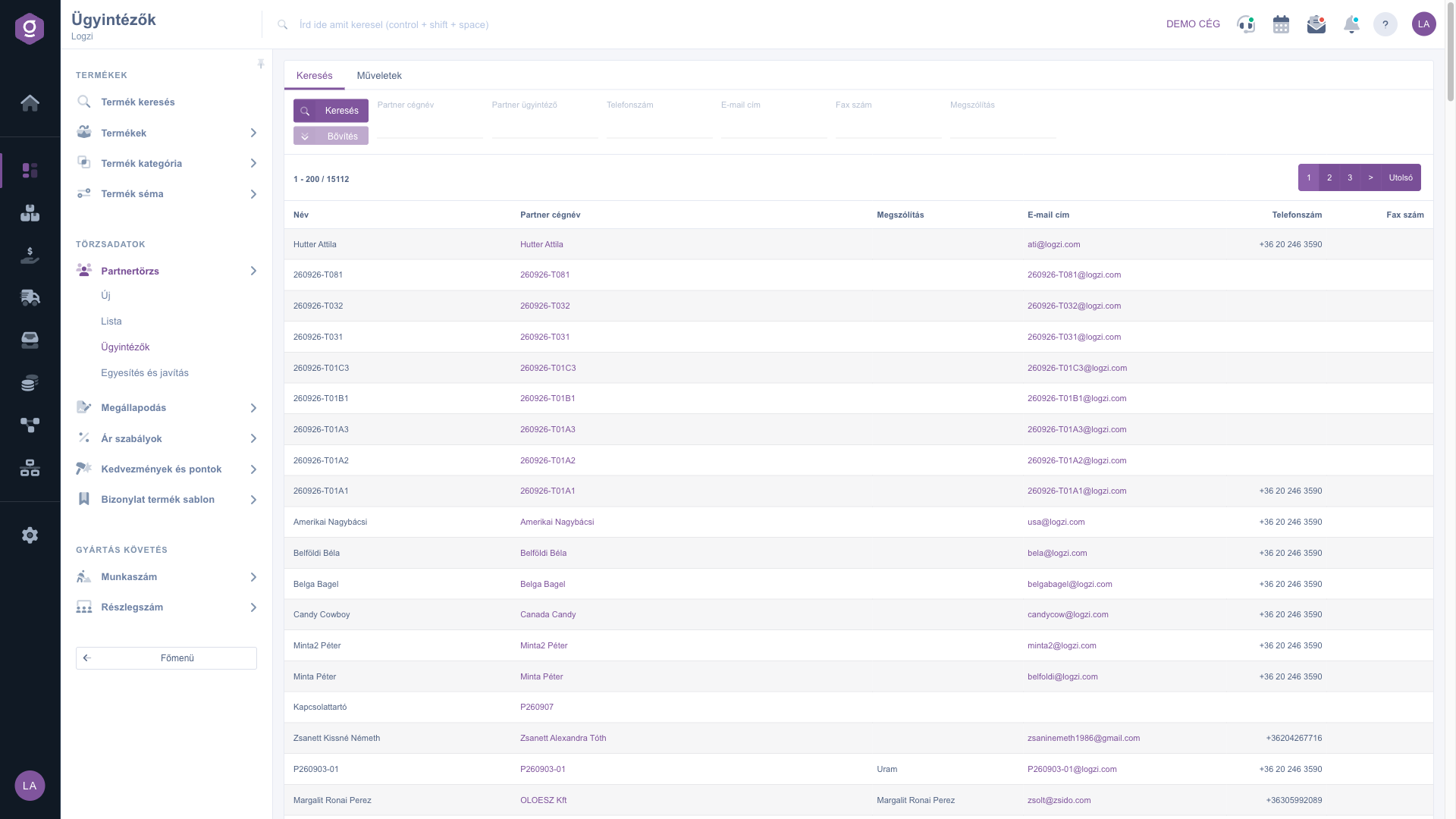
Partner contact persons list – Search tab (Keresés)

Searching among the contact persons

On the Search tab you can filter by six fields: Partner company name, Partner contact person, Phone number, Email address, Fax number and Salutation. Fill in the fields that matter to you and click the Search button. The Expand button is inactive on this list because there are no further filters. To see everything again, empty the fields and search again.
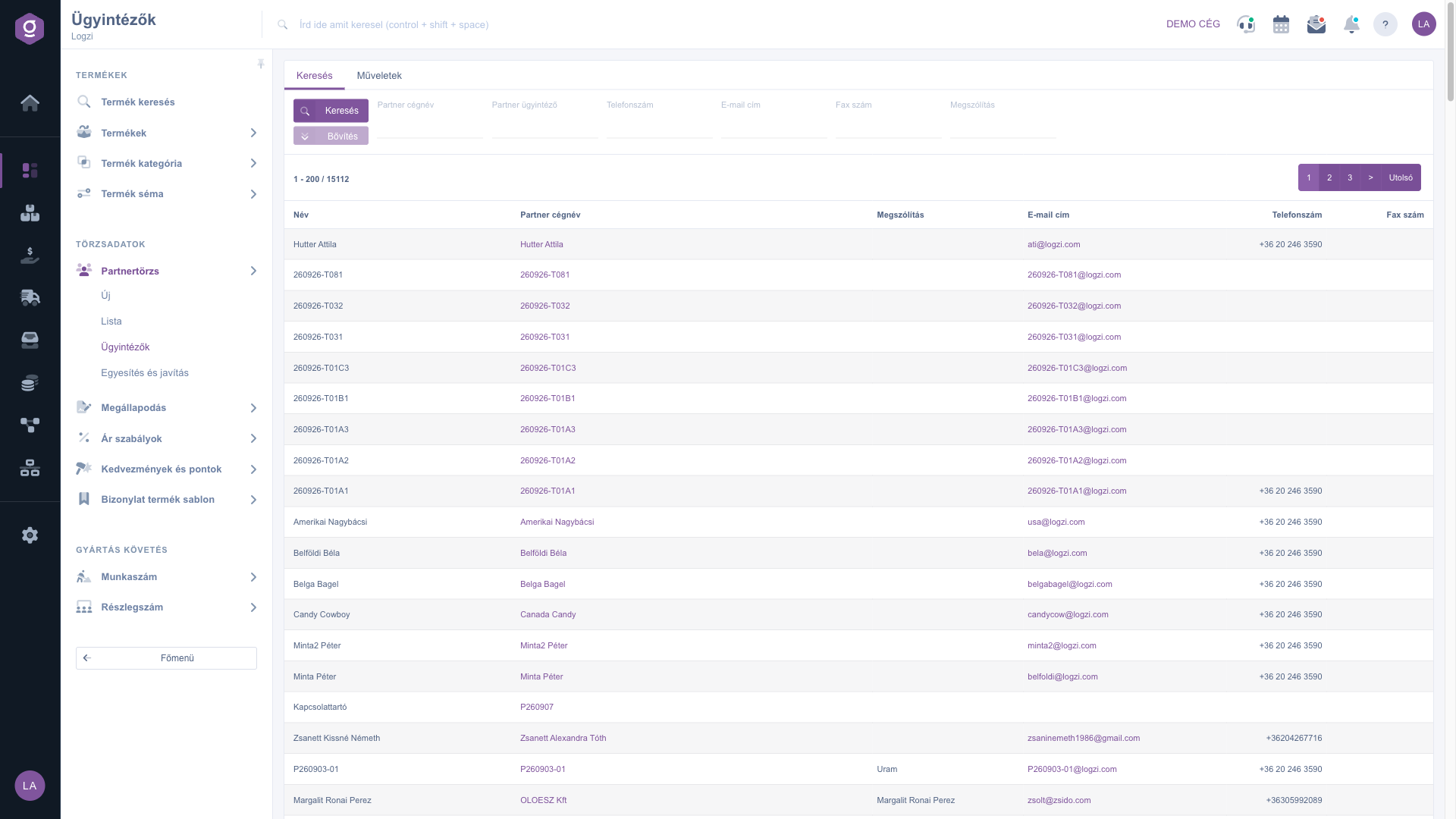
Partner contact persons list – Results table (Találati táblázat)

Actions with the selected contact person

Click a row in the table to select the contact person. Then three buttons are available on the Actions tab:

  • New email: in the dropdown, External mail client opens your default mail program with the email address of the contact person, while Internal mail client opens a new message in the own mailer of Logzi with the recipient filled in.
  • New task: create a new task linked to the contact person.
  • Partner card: the summary card of the partner of the contact person, where you see the data and documents of the partner in one place (the button label appears in Hungarian, Partnerkarton, in every language).

As long as no row is selected, these buttons are greyed out.

New contact person, open and delete

Right-click a row to open a context menu with New, Open and Delete. New opens an empty contact person sheet, Open opens the sheet of the selected contact person and Delete deletes the selected contact person. Most often you manage contacts on the partner sheet, on the Partner contact person tab.

You can edit all data of the contact persons on the partner sheet, which is described in the Partner sheet guide. The full list of partners is shown by the Partner master data list.

Tip


If you are looking for the contact details of a customer contact but only know the name, type a part of the name (for example “Smith”) into the Partner contact person field, click Search, select the result and choose New email / External mail client to start the message.


Field descriptions

The columns of the table and their meaning:

Field / ElementRequiredDescription
NameThe name of the contact person. Required when creating the contact person, at least 3 characters.
Partner company nameThe name of the partner the contact person belongs to. Click the name to open the partner sheet.
SalutationThe salutation of the contact person, for example the form used in letters.
Email addressThe email address of the contact person. Click it to start a new message.
Phone numberThe phone number of the contact person.
Fax numberThe fax number of the contact person.

The fields of the Search tab and their meaning:

Field / ElementRequiredDescription
Partner company nameThe company name (or a part of it) of the partner the contact persons belong to.
Partner contact personThe name (or a part of it) of the contact person.
Phone numberThe phone number of the contact person.
Email addressThe email address of the contact person.
Fax numberThe fax number of the contact person.
SalutationFiltering by the salutation of the contact person.

Frequently asked questions

These buttons refer to a selected contact person, so they stay inactive until you click a row in the table. The Open and Delete items of the right-click menu also apply to the selected row.

The simplest way is on the partner sheet: open the partner, click New on the Partner contact person tab, enter the name and the position, then save. You can find the process in the Partner sheet guide. In the list you can also use the New item of the right-click menu.

Yes. Right-click the row and choose Delete. Only the contact person is deleted, the partner itself remains. If a contact person has only changed, it is better to modify the data with Open.

The message uses the address entered in the Email address field of the contact person, so if the contact person has no email address, the recipient stays empty. Add the address on the partner sheet. For the External mail client option a default mail program must be set up on your computer, while the Internal mail client opens a message in the own mailer of Logzi.

The Main menu / Master data / Partner master data / List menu item shows the list of partners, which is described in the Partner master data list guide.

The Contact persons submenu (Main menu / Master data / Partner master data) belongs to a separate module from the basic Partner master data module. If you cannot see it, ask the system administrator to check the module assignment in the settings of your user.

Need personalized help?

Don't want to spend hours searching for a solution? Choose the most efficient way: book a personalized, 45-minute online training session dedicated entirely to you. Whether it's a walkthrough of the basics or a detailed setup of a specific module, our expert colleague will guide you through the whole process, step by step.

Don't waste your time - ask for help!
Our goal is to get you using our system as quickly and efficiently as possible. Whether you're completely new to us or stuck on a specific setting, don't hesitate to ask for help!

Logzi warehouse management software

Get in touch with us

Interested in our software? Feel free to write to us!

Need help?

If you can't find the answer and need assistance

Create your account now,
pay later!

Try it free for 3 days, no risk, no obligation!
