Partner sheet

Learn how to create and manage partners: filling in data from the tax number, contact persons, addresses, settings, financial data and queries in one place.

Function overview

The partner sheet is the place where you record and maintain all the data of a customer or supplier in one spot: the company name, tax number, payment method, credit limit, contact persons, addresses, financial settings and the related files, emails and tasks. Whatever you fill in here once, the system reuses automatically on every document (invoice, order, quote, delivery note), so you never have to retype it.

  • Automatic data entry: with the refresh icon next to the tax number you can fill in the company data, addresses and contact persons from the NAV database, and with the one next to the international tax number from the EU VIES system.
  • Contact persons and addresses: you can record any number of contacts and addresses for a partner.
  • Settings and financial data: contact language, contact colleague, ledger numbers, default VAT rate and currency, forbidden payment methods.
  • Duplicate check: when you save, the system warns you if the tax number already exists for another partner.
  • Queries and partner card: with one click you can see the partner orders, invoices, quotes, settlements and turnover.

A partner has no document status (there is no Draft or Closed state): a partner is either active or deleted. Deleting is not permanent, the system only hides the partner and its documents are kept, and a deleted partner can be restored on the Partner deleted page.

Step by step

1. Creating a new partner

Click Main menu / Master data / Partner master data / New (or the New button on the List page) to open the New partner form. At the top of the sheet there are three tabs: Actions, Queries and Additional functions. The Actions tab holds the Save and Delete buttons. Fill in the header fields: the Partner company name must be at least 3 characters long, and choose the value of Type, Legal entity type and Payment method. With the + sign next to the drop-down lists you can add a new value. The Credit limit, receivables limit field is pre-filled with a default value that you can overwrite.
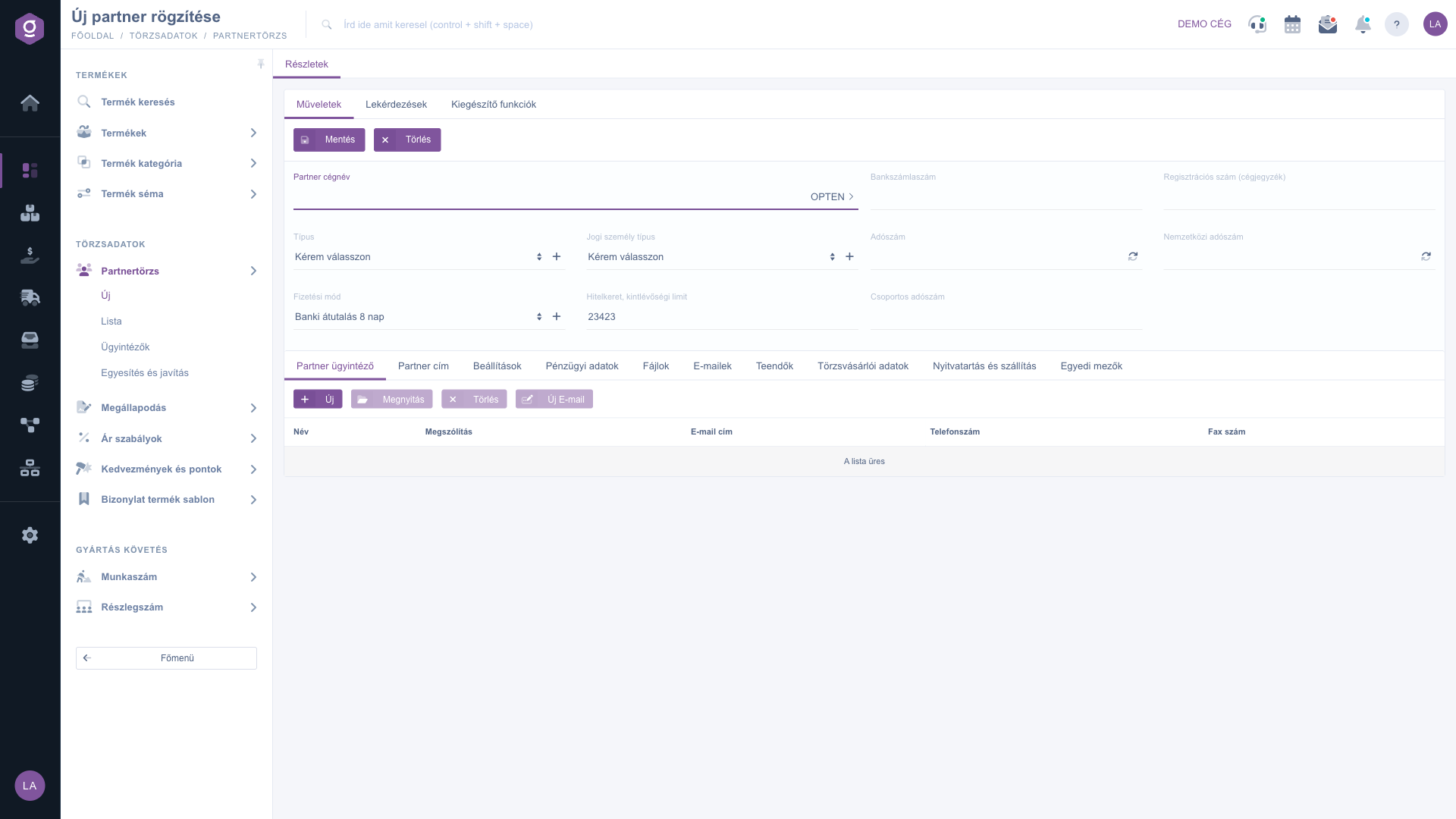
Partner sheet – Actions tab (Műveletek)

Filling in from the tax number (NAV and VIES)

When you add a Hungarian partner, enter the tax number in the Tax number field and click the refresh icon next to it. The system queries the NAV database (using the first 8 digits of the tax number) and fills in the Partner company name, the Tax number and, if there is one, the Group tax number, sets the Type and Legal entity type if they are still empty, and adds the addresses registered at NAV. If the credit limit is empty, it enters 100 000. For a foreign (EU) partner, do the same with the icon next to the International tax number: this time you get the company name and address from the EU VIES system. The OPTEN button next to the Partner company name opens the Opten company search in a new tab with the name you typed, in case you want to look a company up.

Saving and the checks

When you click Save, the system first checks that all required fields are filled in. If something is missing or too short (for example the company name has fewer than 3 characters), a red error message appears under the field and nothing is saved. If everything is fine, the system also checks the tax number: if the Tax number or the International tax number already exists for another partner, a Figyelmeztetés (warning) window appears. With the Folytatom button you can save the partner anyway, with Javítom you return to the sheet and correct the data (this window appears in Hungarian in every language).
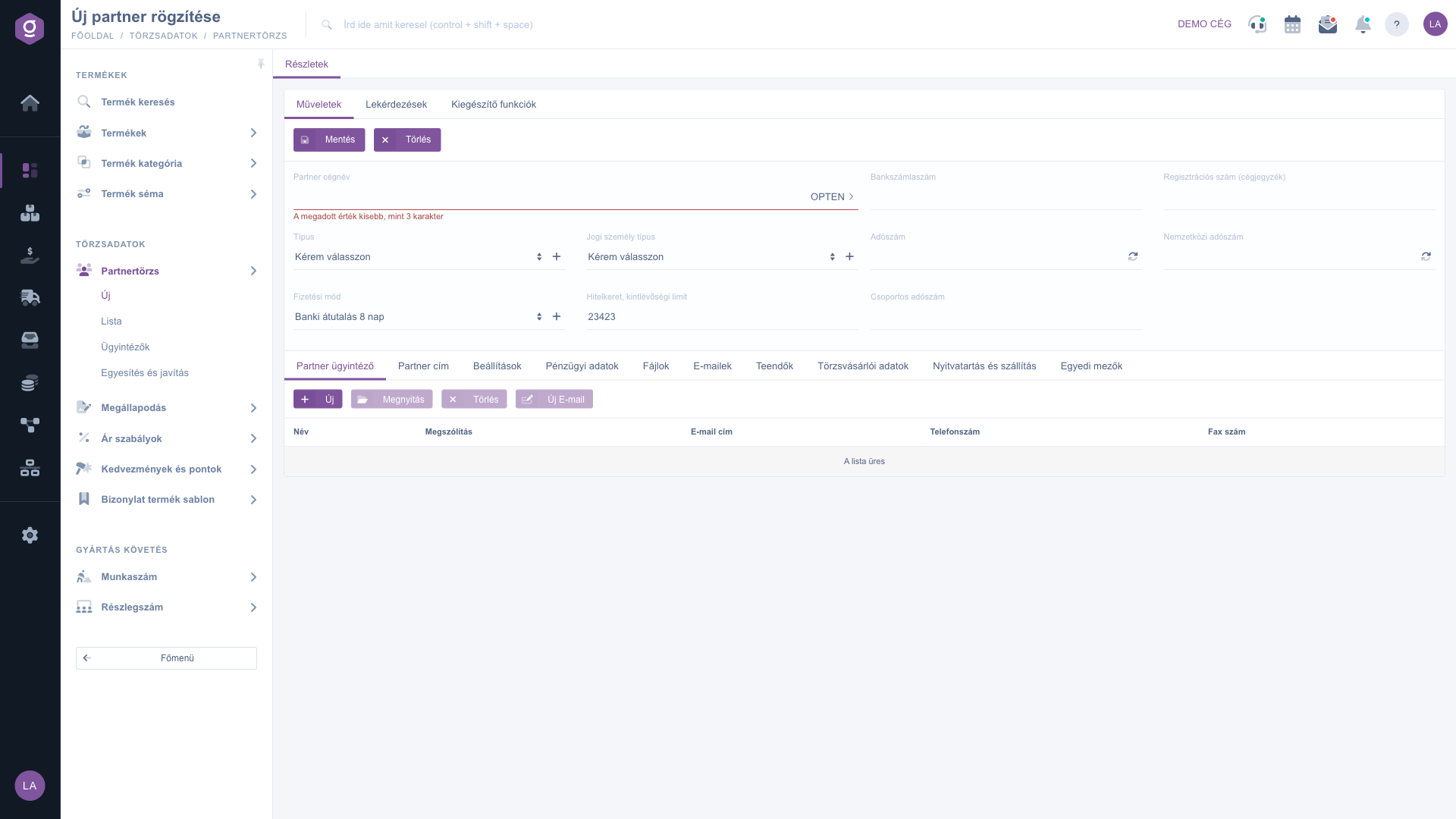
Partner sheet – error message at the required fields (Hibaüzenet a kötelező mezőknél)

Contact persons and addresses

Below the header there is a block of tabs. The Partner contact person tab lists the contacts of the partner (Name, Salutation, Email address, Phone number, Fax number). With New you add a new contact person, with Open you edit the selected one, with Delete you remove it, and with New E-mail you write a message to it. On the Partner address tab you manage the addresses of the partner in the same way (Address type, Country, Zip, City, Address). A contact person or address is recorded in a pop-up window with the Save button. You can also review contact persons in a separate list, see below.

Other tabs

  • Settings: business settings of the partner, for example the contact language, the contact colleague, the partner source, and enabling email and SMS sending.
  • Financial data: ledger numbers, default VAT rate and currency as customer and as supplier, the reverse charge flag and the forbidden payment methods.
  • Files: documents attached to the partner (for example a contract or a certificate).
  • Emails: the messages exchanged with the partner, where you can use the New email and Open buttons.
  • Tasks: tasks related to the partner, you can create a new one or open the selected one from here too.
  • Loyalty data: the documents of the partner with the used discounts and points.
  • Opening hours and shipping: the opening and shipping times of the partner by day.
  • Custom fields: your own additional fields tailored to your company.

Queries

The buttons on the Queries tab open, in a new tab, the version of the given list filtered to this partner: Customer orders, Sent customer quotes, Customer invoices, Customer relations, Incoming settlements, Customer turnover list and Delivery note. This way you quickly see what the partner ordered, what you invoiced and how much was paid.
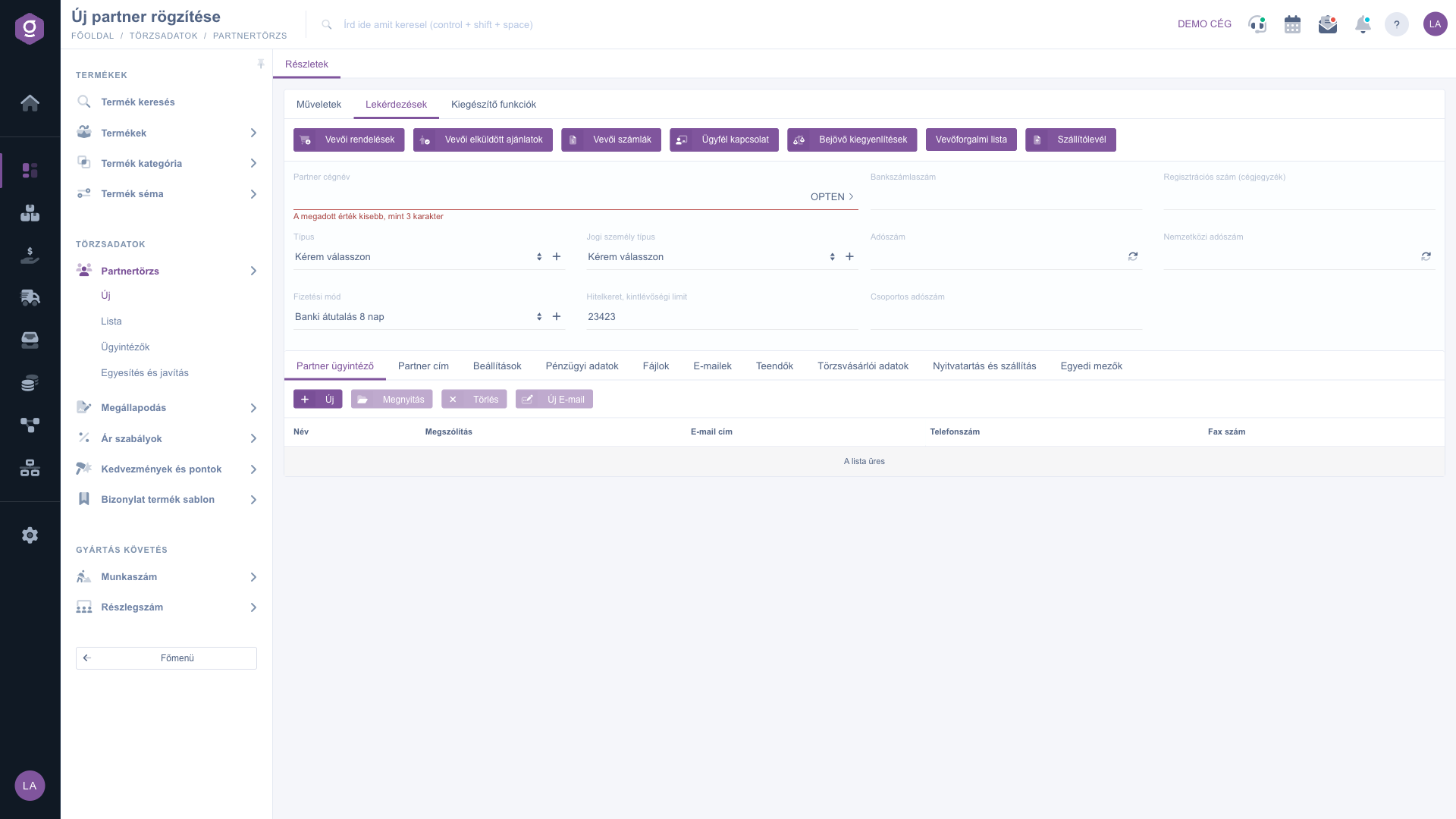
Partner sheet – Queries tab (Lekérdezések)

Additional functions

The Additional functions tab has three buttons: in the drop-down of New email you can choose between the External mail client and the Internal mail client, with New task you create a task for the partner, and the Partner card button opens the summarized card of the partner.
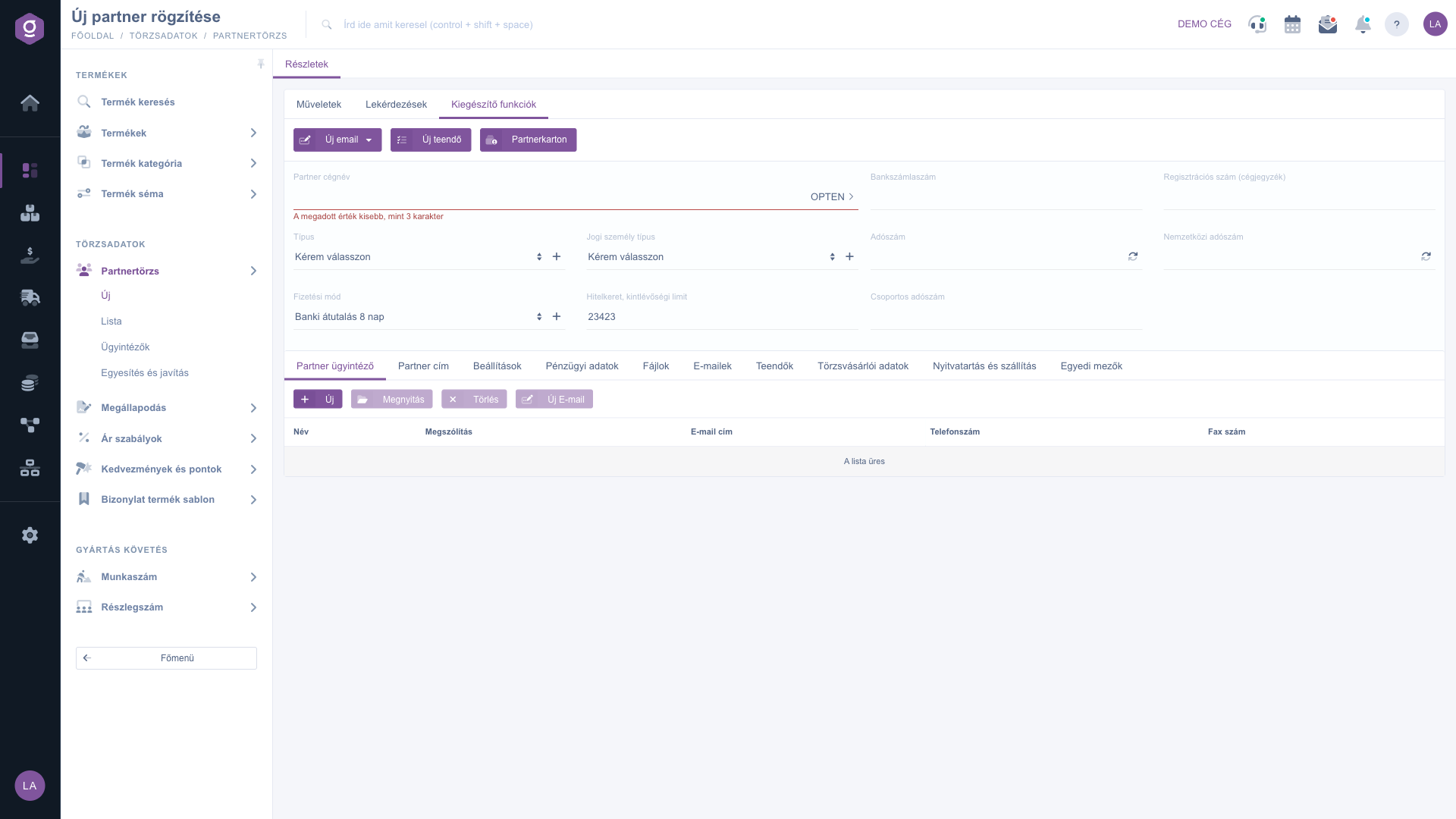
Partner sheet – Additional functions tab (Kiegészítő funkciók)

Deleting a partner

With the Delete button you can delete the partner. Deleting is not permanent: the partner disappears from the list, but its documents are kept and you can restore it later.

You can also find the contact persons of the partners in a separate list, which is described in the Partner contact persons list help. The customer relations of the partner are shown by the Customer relations list.

Tip


The easiest way to add a new supplier is from the tax number: type for example the tax number “12345678” into the Tax number field, click the refresh icon, check the filled-in data, choose the Payment method (for example Bank transfer 8 days) and save. If the same company got into the master data twice by accident, the Main menu / Master data / Partner master data / Merge and fix menu item helps you merge them.


Field descriptions

The fields in the header of the sheet:

Field / ElementRequiredDescription
Partner company nameThe name of the partner, or the name of the person for an individual. At least 3 characters.
TypeThe type of the partner from the drop-down list. With the + sign next to it you can add a new type.
Legal entity typeMarks a legal entity or an individual, chosen from the list.
Payment methodThe default payment method the system suggests on the documents of the partner.
Credit limit, receivables limitThe credit limit granted to the partner, as a number (decimals are allowed).
Bank account numberThe bank account number of the partner.
Registration number (Company registry)The company registration number.
Tax numberThe Hungarian tax number of the partner. The icon next to it fills in the sheet from the NAV database.
International tax numberThe EU VAT number of a foreign partner. The icon next to it fills in the data from the EU VIES system.
Group tax numberThe group tax number of a partner in a VAT group. It can be filled in automatically by the NAV query.

The fields of the Settings tab:

Field / ElementRequiredDescription
Contact colleagueThe colleague of yours who is responsible for the partner.
Contact languageThe language of communication with the partner.
Partner codeQuick partner code for searching customers.
Partner sourceThe channel through which the partner came to you.
Relationship qualityThe quality determines the nature of the communication directed to the customer.
SatisfactionYou can mark the satisfaction level of your customer with you.
Reason for lossIf you lost the partner, you can record the reason here.
Central email addressIf set, this address also receives a copy of any mail sent to a contact person through Logzi.
Contact colleague commission (%)The commission calculated from the gross total.
Email sending enabledIf you turn it off, the contact persons of the partner do not receive automatic email notifications about documents.
SMS sending enabledSending SMS consumes purchased credit, so it is disabled by default. Turn it on only if the contact persons should also receive SMS notifications.
Logzi IDIf filled in, automatic connection points are established between two customers using the Logzi system.
Storage linkEvery customer has a unique storage link through which their documents are accessible externally.

The fields of the Financial data tab:

Field / ElementRequiredDescription
Ledger number - Customer, Ledger number - SupplierThe ledger number assigned to the partner as a customer and as a supplier.
Default VAT rate - Customer, Default VAT rate - SupplierThe VAT rate suggested on the documents of the partner.
Default currency - Customer, Default currency - SupplierThe currency suggested on the documents of the partner.
Reverse chargeMarks that the reverse charge applies to the partner.
Forbidden payment methodsWith the checkboxes you select the payment methods you do not allow for this partner.

The fields of the Partner contact person tab (the window for adding a contact person):

Field / ColumnRequiredDescription
NameThe name of the contact person, at least 3 characters.
Phone numberThe phone number of the contact person.
Email addressThe email address of the contact person. The system sends documents to this address.
PositionThe position of the contact person, chosen from the list.

The fields of the Partner address tab (the window for adding an address):

Field / ColumnRequiredDescription
CountryThe country of the address, from the list.
ZipThe postal code.
CityThe name of the city, at least 2 characters.
DistrictThe district, if there is one.
AddressThe name of the public space, at least 3 characters.
TypeThe kind of public space from the list (for example street).
House number, Building, Staircase, Floor, DoorFurther details of the address.
CommentA free-text comment on the address.
Recipient name (If not filled in, the Partner company name is displayed)For a shipping address, the name of the recipient. If empty, the company name of the partner is shown.

Frequently asked questions

Yes. Delete is not permanent, the system only hides the partner from the list and its documents are kept. If you later open the sheet of a deleted partner (for example from an old document), you can restore it on the Partner deleted page with the Yes, I want to make it active again button.

Most likely a required field is missing. Check that the Partner company name is at least 3 characters long, that Type, Legal entity type and Payment method are selected, and that the Credit limit, receivables limit field contains a number. On the Settings tab the Contact colleague is required too. A red message under the faulty field tells you what to fix.

It means that the Tax number or International tax number you entered already exists for another partner. With Javítom you return to the sheet, with Folytatom you save it anyway. If the same company really appears twice in the master data, it is worth merging them with the Merge and fix menu item.

The icon next to the Tax number requests the company name, tax number, group tax number and addresses from NAV, and the one next to the International tax number requests the name and address from the EU VIES system. Both only help with data entry: it is worth checking the received data before saving and correcting it if needed.

The buttons on the Queries tab open the lists filtered to the partner. The Customer relations button shows the list of customer relations, which is described in the Customer relations list help.

The Partner master data module appears under Main menu / Master data only if it is assigned to your user. The Contact persons and Merge and fix submenus belong to a separate module. If you cannot see one of them, ask the system administrator to check the module assignment of your user.

Need personalized help?

Don't want to spend hours searching for a solution? Choose the most efficient way: book a personalized, 45-minute online training session dedicated entirely to you. Whether it's a walkthrough of the basics or a detailed setup of a specific module, our expert colleague will guide you through the whole process, step by step.

Don't waste your time - ask for help!
Our goal is to get you using our system as quickly and efficiently as possible. Whether you're completely new to us or stuck on a specific setting, don't hesitate to ask for help!

Logzi warehouse management software

Get in touch with us

Interested in our software? Feel free to write to us!

Need help?

If you can't find the answer and need assistance

Create your account now,
pay later!

Try it free for 3 days, no risk, no obligation!
