Payment demand document

Learn how to create a payment demand from a partner's unpaid invoices, and how to save, close and download it.

Feature overview

On the payment demand document you prepare a demand for the invoices a partner has not yet paid. You select the partner and add the invoices as items, and the system shows the net, VAT and gross values and the late payment interest. You create a new document under Main menu / Cash register / Payment demand / New, and you open an existing one from Main menu / Cash register / Payment demand / List with the Open button.

Above the document there are three tabs and a link:

  • Actions: save, close, delete and download.
  • Additional functions: sent items, new email, new partner, new task and partner card.
  • View and layout: access to the Interface and behavior settings.
  • CRM: opens the CRM panel of the document.

Below the document there are further tabs: Items, Customer comment, Internal comment, Settings, Related documents, Tasks, Files and Custom fields. The amount on the printed demand is the sum of the gross value of the invoices, the late payment interest and the collection cost.

Step by step

1. Filling in the header, saving and closing

Start with the Partner company name field (required): while you type, the system suggests partners. The buttons next to the field open the data sheet of the selected partner or let you create a new partner. From the Partner contact person list you pick the contact of the partner, and you can add a new contact next to it. Enter the Performance date (required) and, if needed, change the Collection cost. Document number, Status and Document date cannot be edited. Save saves the data; the arrow next to it also offers Save and close. Close finalizes the document, and the arrow offers Close and print and Close and download. Use Delete to delete the document. The Download menu offers CSV, XLSX, PDF and PDF preview: PDF and CSV are available after closing, while XLSX and the PDF preview also work for a draft.
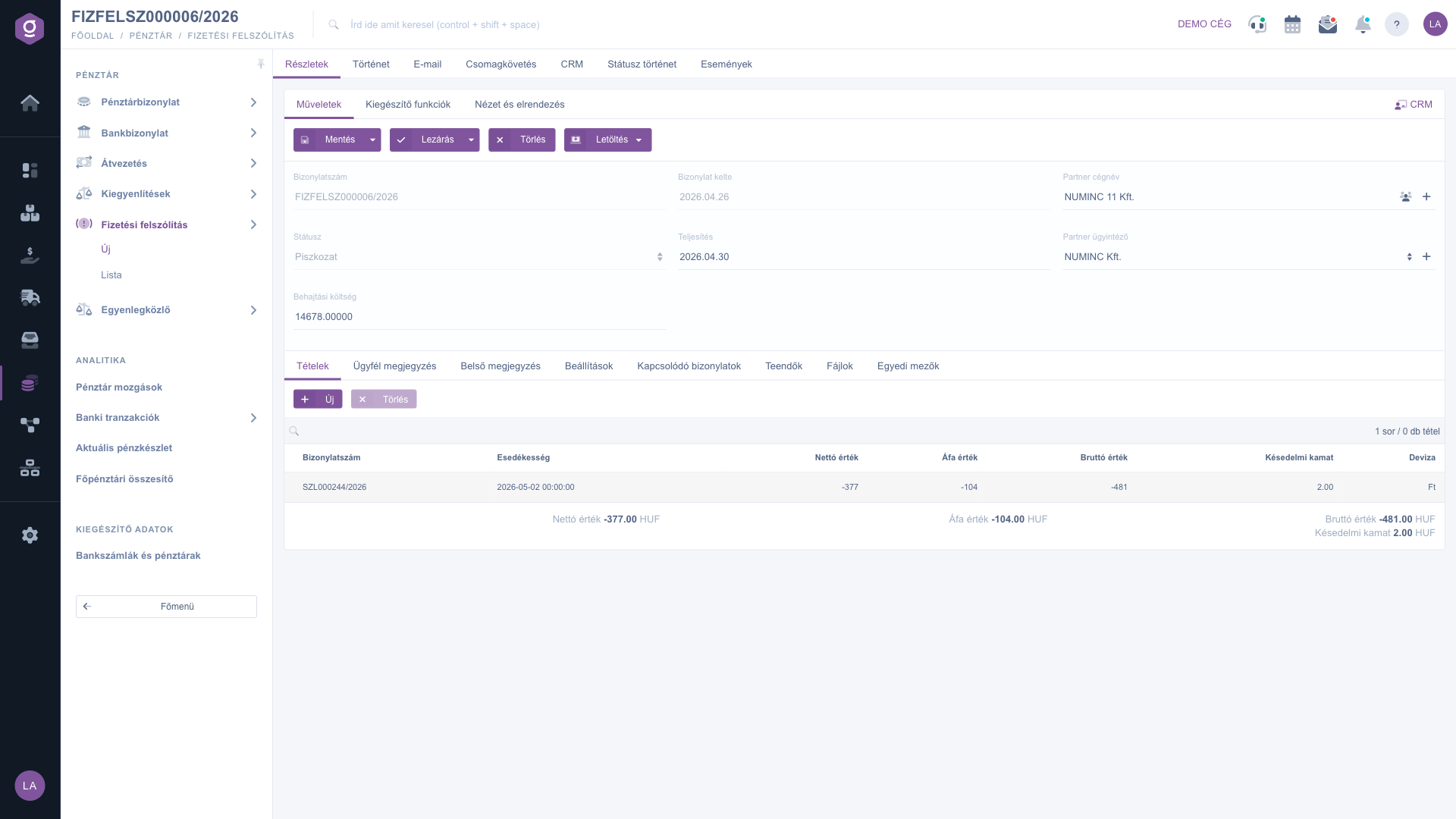
Payment demand document – Actions tab (Műveletek)

2. Additional functions

On the Additional functions tab, Sent items shows the emails belonging to the document, and from the New email menu you can write a message with the External mail client or the Internal mail client. New partner opens the creation of a partner in a new browser tab, New task records a task for the document, and Partner card shows the card of the selected partner.
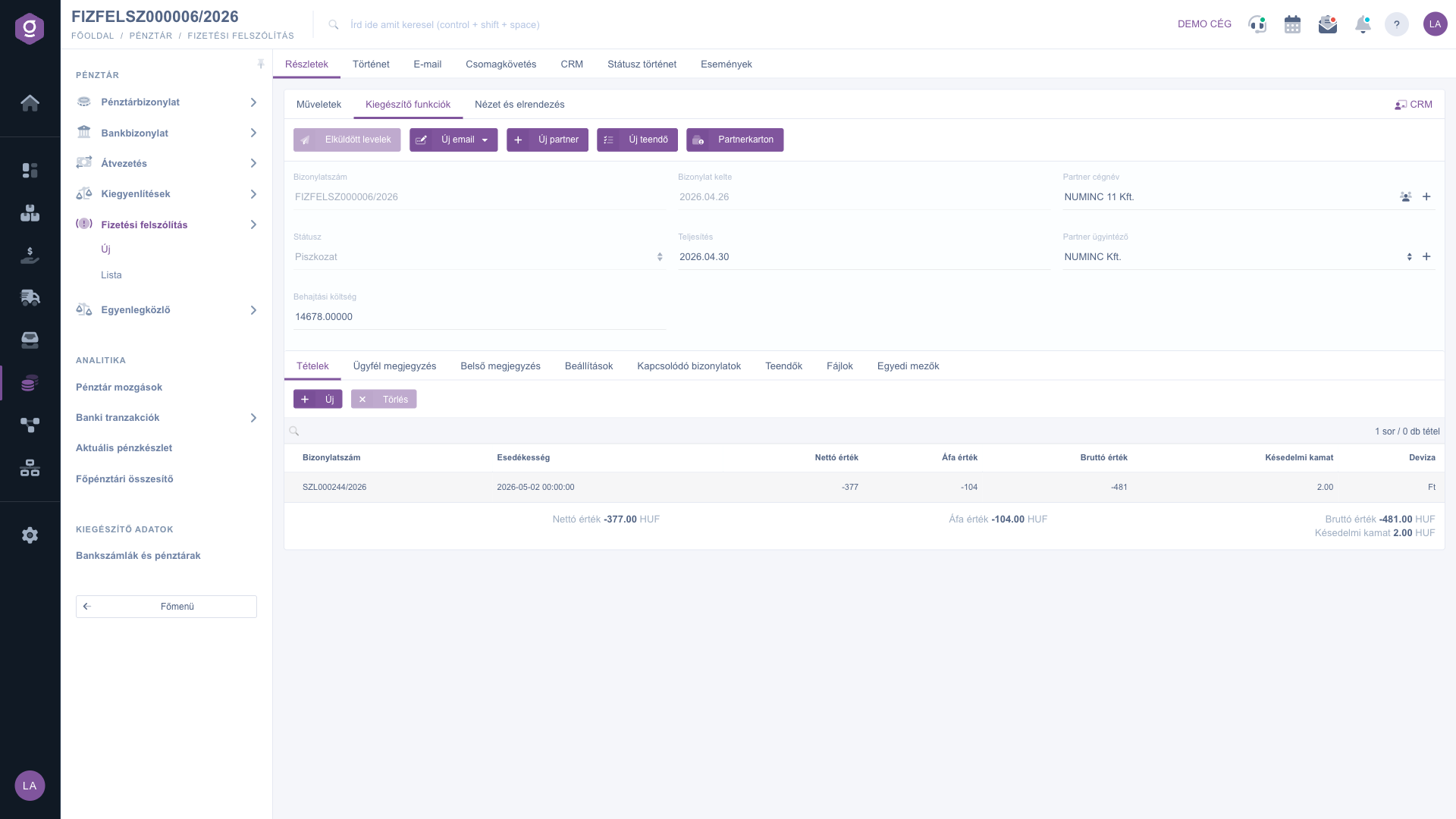
Payment demand document – Additional functions tab (Kiegészítő funkciók)

3. Adding items

On the Items tab, use New to add an invoice to the demand; this only works for a draft. Select a partner first, otherwise the system tells you that a partner must be chosen. In the window you choose one of the partner's invoices that are not yet settled; after you select it, its net, VAT and gross values and its due date are filled in automatically. Add adds the item and Close closes the window. After selecting a row you can remove the item with Delete. Below the items the system totals the Net value, VAT value, Gross value and Late payment interest.
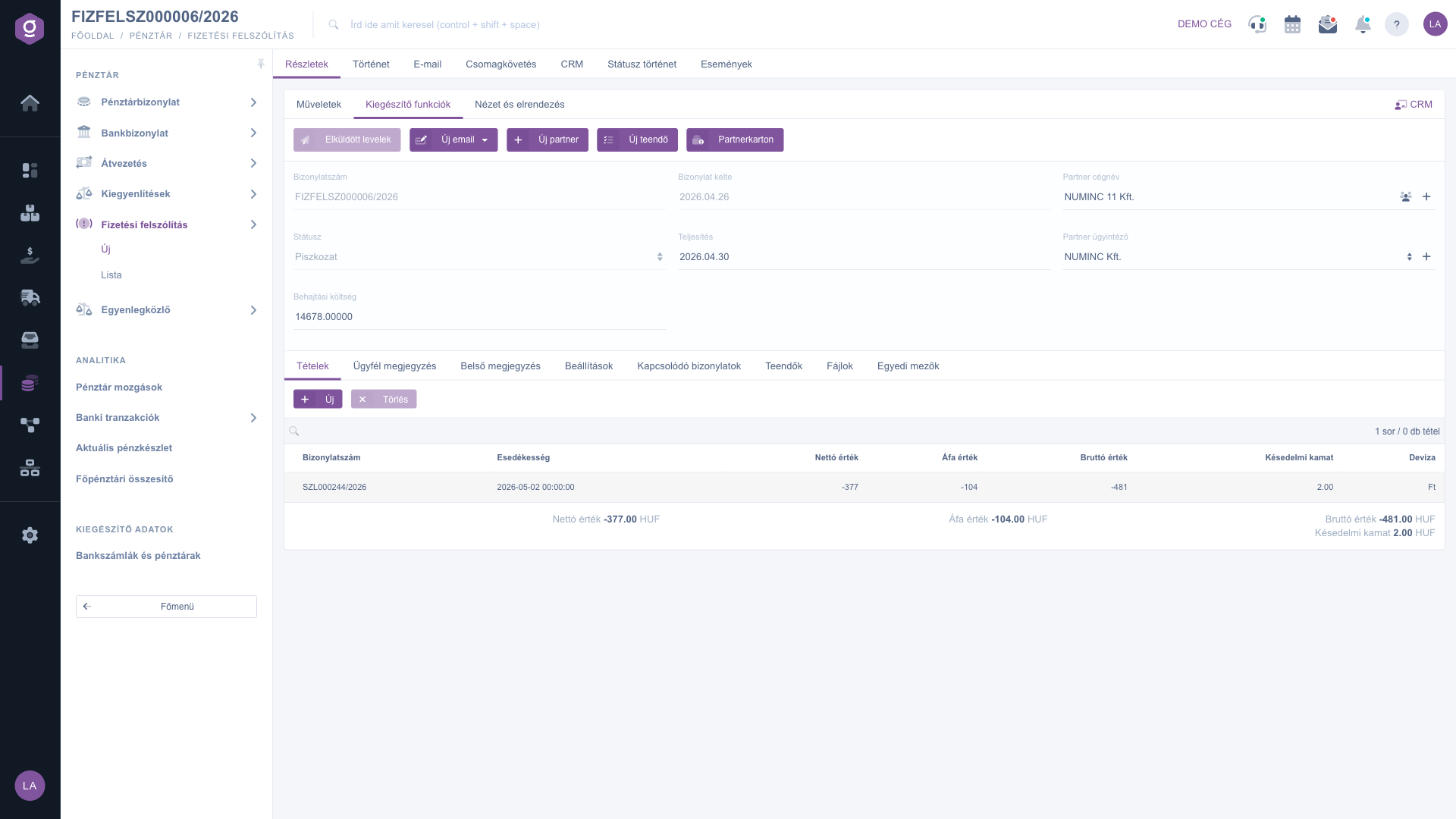
Payment demand document – Items tab (Tételek)

4. Settings and comments

On the Settings tab you can enter the Billing address (required), Project, Job number and Department number, and choose a Template. On the Customer comment and Internal comment tabs you can write free-text comments for the demand.
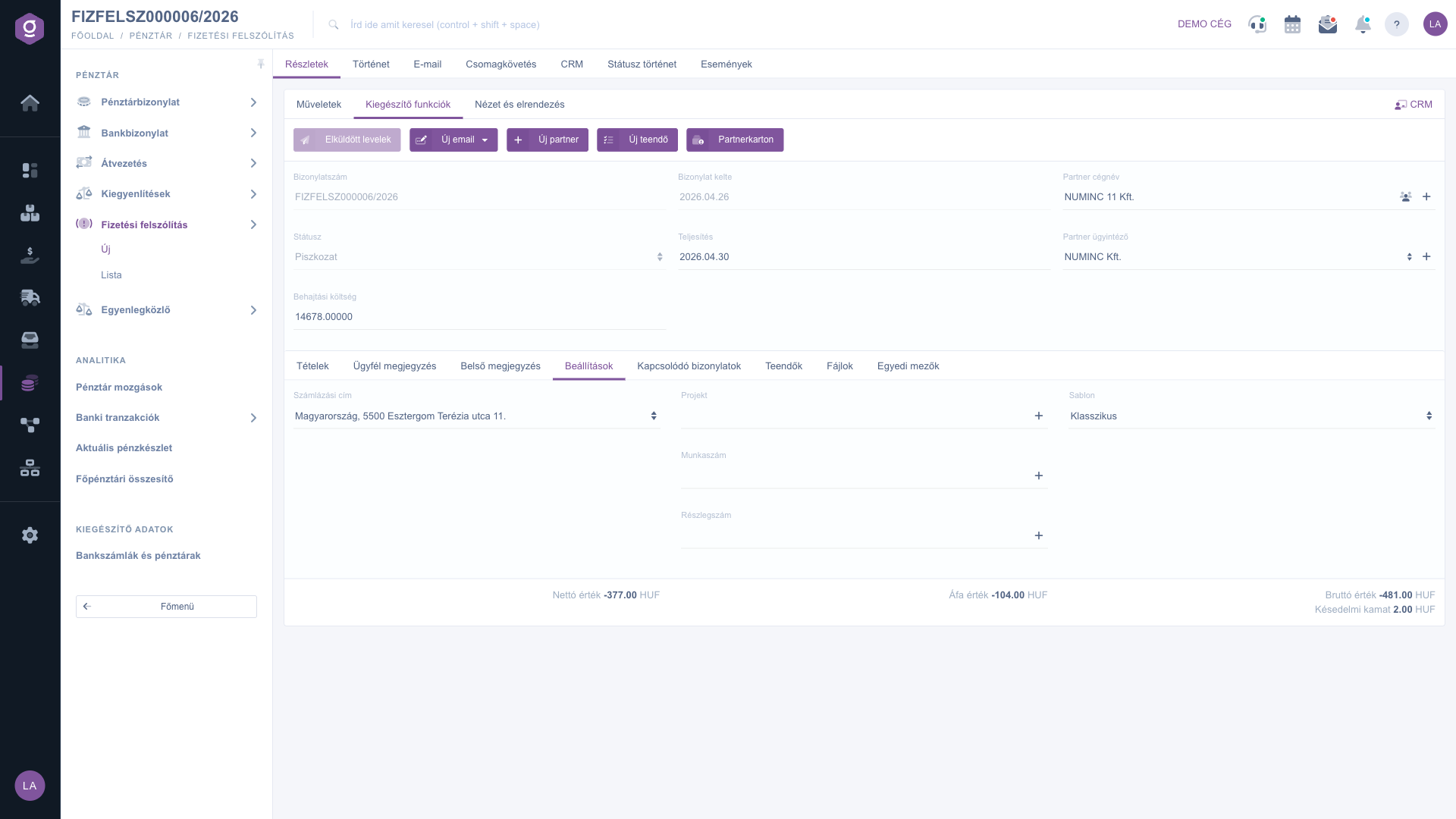
Payment demand document – Settings tab (Beállítások)

5. Related documents, tasks, files

The Related documents tab shows other documents linked to this one (Document number, Document date, Document type, Issuing employee, Action). The Tasks tab shows the tasks recorded for the document (Document date, Subject, Comment, Issuing employee). On the Files tab you manage the files attached to the document, and on the Custom fields tab you fill in your company's custom fields.
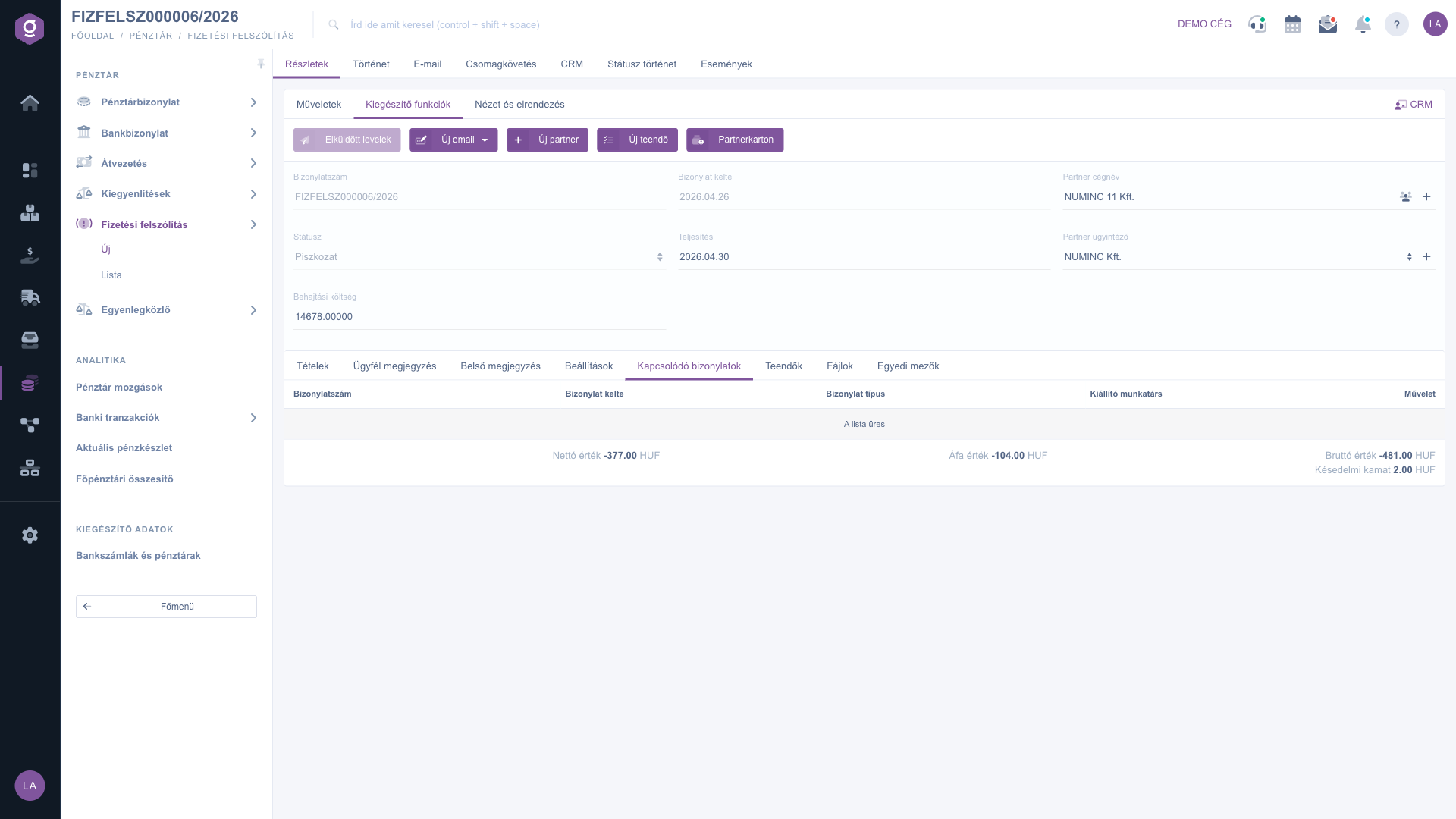
Payment demand document – Related documents tab (Kapcsolódó bizonylatok)

Tip


Before saving, check the Performance date and the Billing address, because they are required. After closing, the document can no longer be modified.


Field descriptions

Field / ElementRequiredDescription
Document numberThe identifier of the demand; cannot be edited.
StatusThe state of the document (Draft, Closed, Cancellation, Cancelled); cannot be edited.
Collection costThe flat-rate collection cost. The default is the HUF equivalent of 40 euros at the MNB mid-rate valid on the first day of delay, payable in HUF.
Document dateThe time the document was created; cannot be edited.
Performance dateThe performance date, with a date picker.
Partner company nameThe partner you send the demand to; searches among partners as you type.
Partner contact personThe contact of the partner; you can add a new one with the button next to it.
Customer commentFree-text comment for the demand.
Internal commentFree-text comment visible only inside your company.
Billing addressSelected on the Settings tab from your company's addresses.
Project, Job number, Department numberInternal identifiers for classifying the document.
TemplateThe template used for the document.

Item columns

ColumnDescription
Document numberThe identifier of the invoice added to the demand.
Due dateThe payment deadline of the invoice; filled in when you select the invoice.
Net valueThe net amount of the invoice.
VAT valueThe VAT amount of the invoice.
Gross valueThe gross amount of the invoice.
Late payment interestLate payment interest depends on your company setting: if the calculation is switched on, it is calculated from the outstanding gross amount, the central bank base rate valid on the due date and the number of days overdue, truncated to a whole value.
CurrencyThe currency of the invoice.

You can read about the invoices that go into the demand here: Invoice list, Invoice sheet. About the list of demands: Payment demand list.

Frequently asked questions

You can only add items to a draft document, and you have to choose a partner first. The window only lists the partner's invoices that are not yet settled.

The calculation of late payment interest depends on your company setting. If you see no interest, ask your company administrator to check this setting.

The Close and Delete buttons can only be used on a document that can still be modified, that is, a draft. Fill in the required fields before closing.

PDF and CSV download are available after the document has been closed. For a draft you can use the PDF preview and the XLSX download.

The amount in the PDF is the sum of the gross value of the added invoices, the late payment interest and the collection cost.

The Main menu / Cash register / Payment demand item is shown based on your permissions and your company plan. If you cannot see it, ask your company administrator to check your permissions.

Need personalized help?

Don't want to spend hours searching for a solution? Choose the most efficient way: book a personalized, 45-minute online training session dedicated entirely to you. Whether it's a walkthrough of the basics or a detailed setup of a specific module, our expert colleague will guide you through the whole process, step by step.

Don't waste your time - ask for help!
Our goal is to get you using our system as quickly and efficiently as possible. Whether you're completely new to us or stuck on a specific setting, don't hesitate to ask for help!

Logzi warehouse management software

Get in touch with us

Interested in our software? Feel free to write to us!

Need help?

If you can't find the answer and need assistance

Create your account now,
pay later!

Try it free for 3 days, no risk, no obligation!
