Payment demand list

Learn how to find, open, close, send and download payment demands in the list.

Feature overview

The Payment demand list shows the payment demands you have issued. From here you can create a new one, open, close or delete demands, send them by email and download them. You can find the list under Main menu / Cash register / Payment demand / List.

There are four tabs above the list:

  • Actions: new, open, close, delete, send email and download.
  • Search: filtering by partner, document number, status and further criteria.
  • View and layout: columns, rows, sorting and interface behavior settings.
  • Additional functions: sent items, new email, new task, partner card and CRM.

By default the Document number, Document date, Performance date, Partner company name, Partner contact person, Employee and Status columns are shown. Closed rows are shown with a greenish background and cancelled rows with a reddish one.

Step by step

1. Actions

On the Actions tab, use New to create a new payment demand. Open opens the document of the selected row. The arrow next to Close also offers Close and print and Close and download. Delete deletes the selected demand and Send email sends it by email. The Download menu has two groups: under List operation you find XLSX list and XLSX item list; under Document operation you find XLSX items, PDF, Preview and Download attachments. PDF download and sending by email are available after the demand has been closed; XLSX download and the preview also work for a draft.
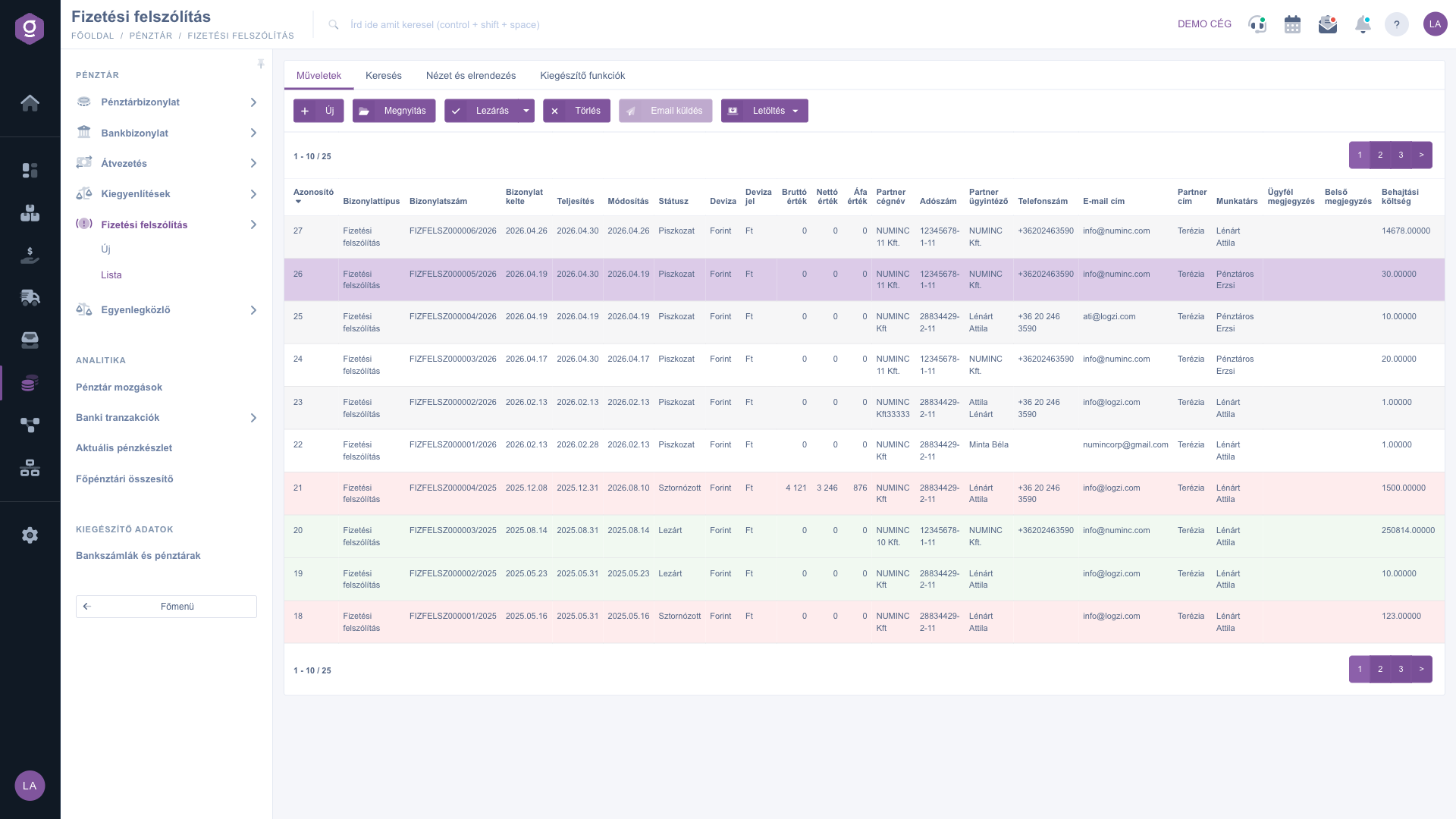
Payment demand list – Actions tab (Műveletek)

2. Search

On the Search tab you can filter by Partner company name, Document number and Status; you can select several statuses at once. The Expand button reveals further criteria: Document date and Performance date (from-to), Employee, Internal comment, Project, Job number and Department number. Start filtering with the Search button.
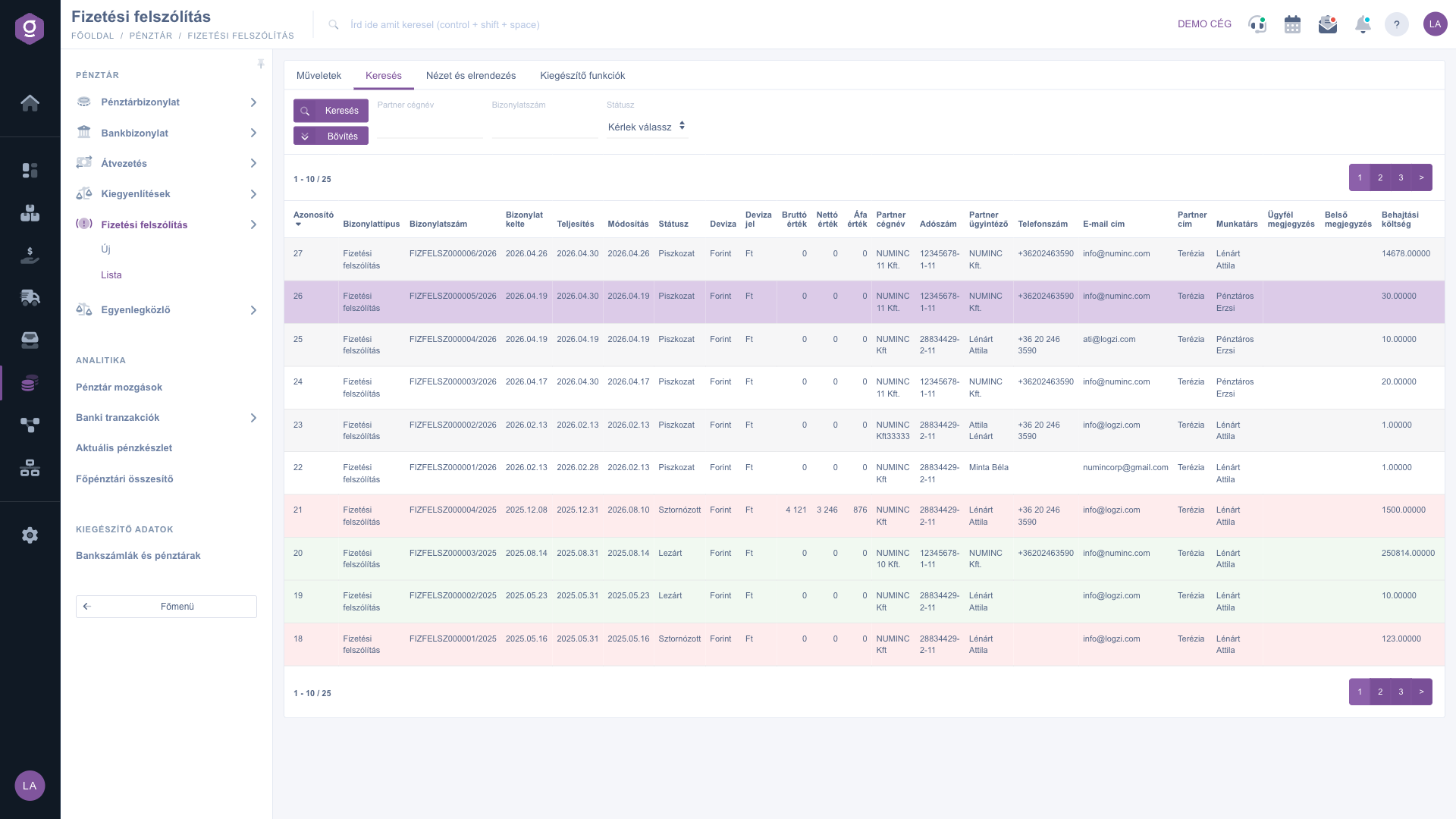
Payment demand list – Search tab (Keresés)

3. View and layout

On the View and layout tab, the Oszlopok (columns) button lets you choose which columns are shown (for example Collection cost), the Sorok (rows) button sets the number of rows displayed, and Sorting sets the order of the list. The Preview window and Interface and behavior buttons give you further display settings; in the latter you can also turn on pagination above the list.
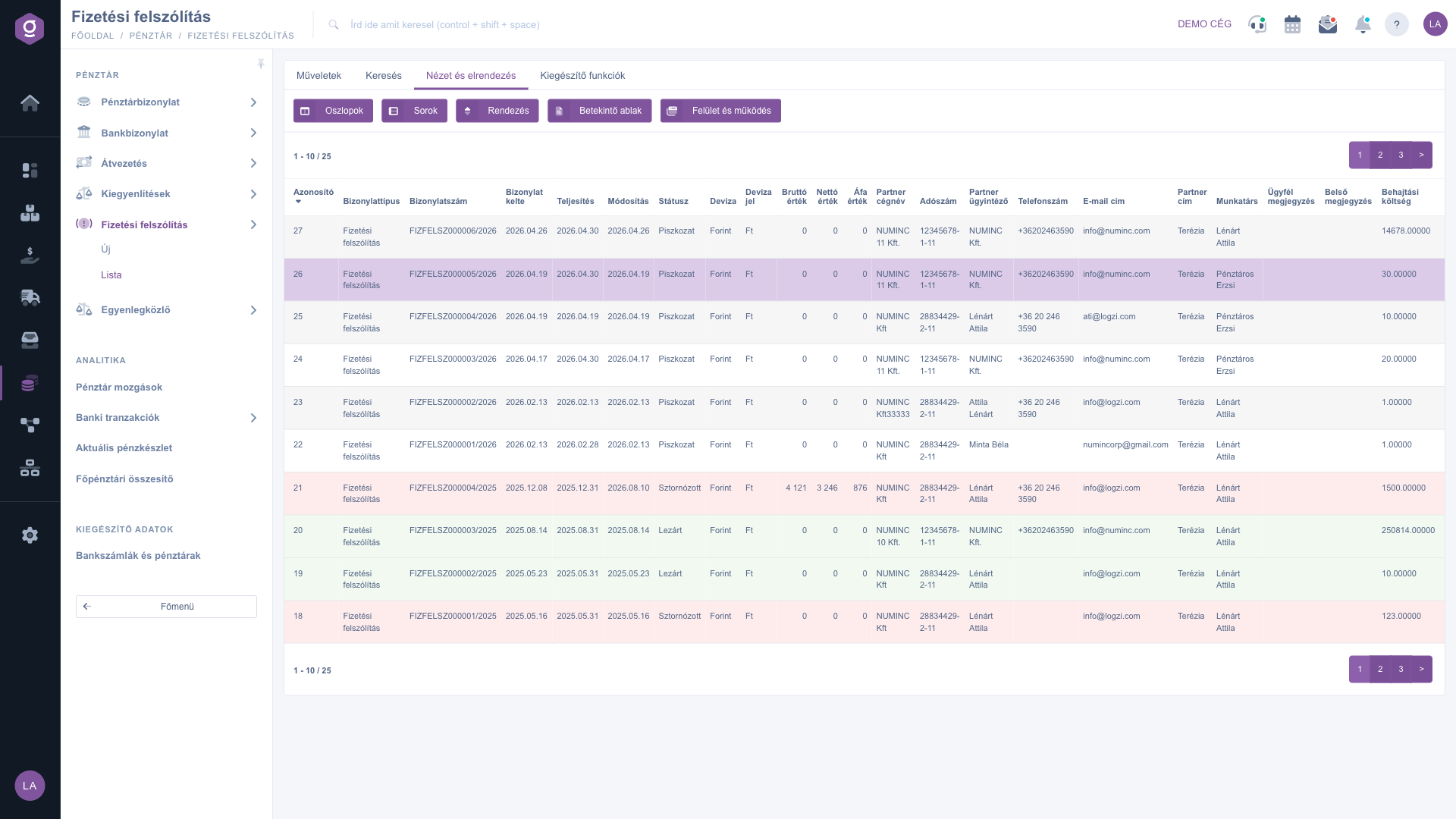
Payment demand list – View and layout tab (Nézet és elrendezés)

4. Additional functions

On the Additional functions tab, Sent items shows the emails belonging to the document. From the New email menu you can write a message with the External mail client or the Internal mail client. New task records a task, Partner card opens the data sheet of the partner of the selected demand, and CRM opens the CRM panel of the document.
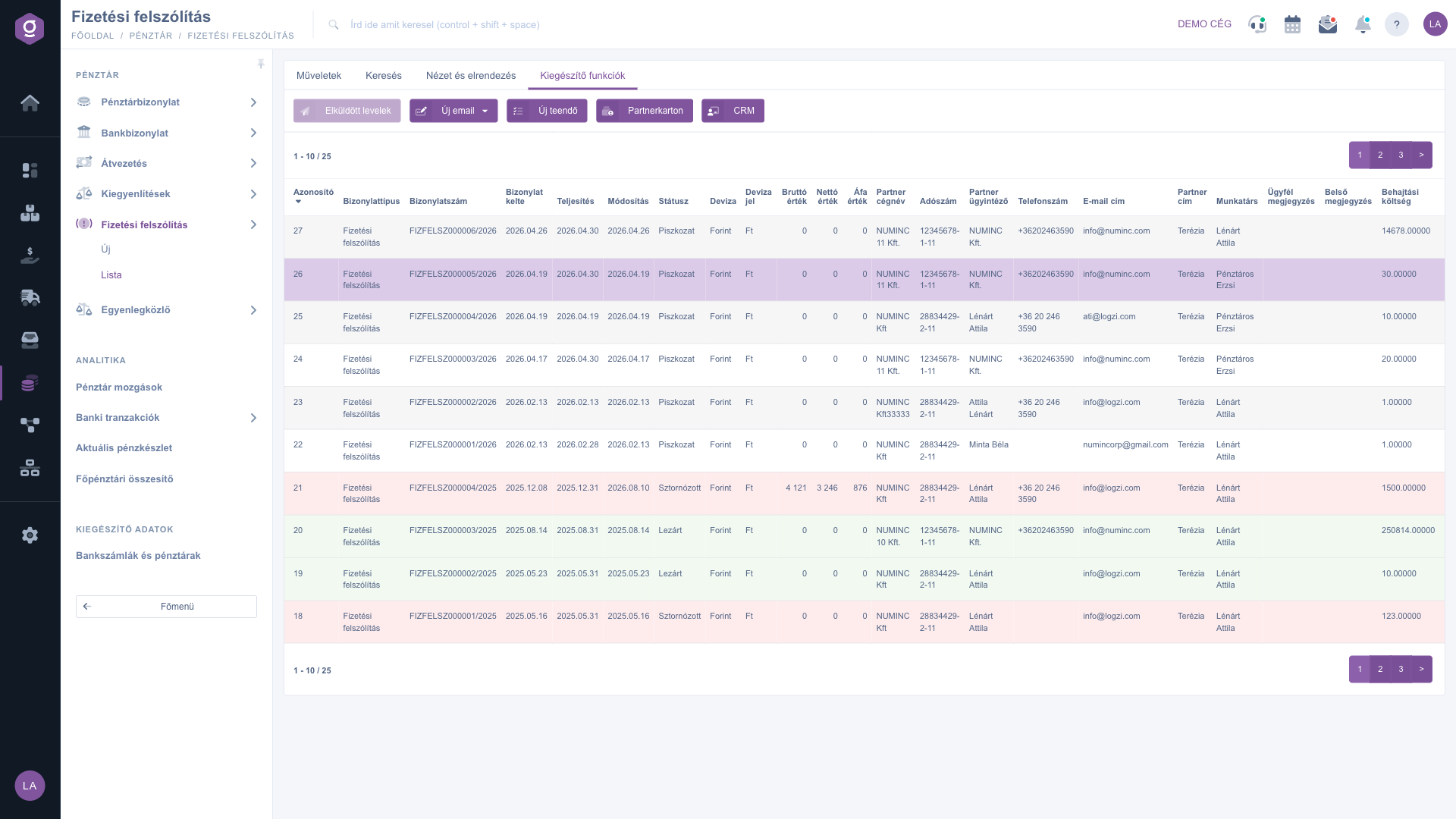
Payment demand list – Additional functions tab (Kiegészítő funkciók)

Tip


If you turn on Open document in new tab in the Interface and behavior settings, the demand opens in a new browser tab and the list stays open next to it.


Field descriptions

Field / ElementRequiredDescription
Partner company nameSearch by the name of the partner of the demand; also shown as a column.
Document numberThe identifier of the demand; usable as a search field and as a column.
StatusThe state of the demand (Draft, Closed, Cancellation, Cancelled); several can be selected in the search.
Document dateThe date the document was created; in the extended search you can filter by period.
Performance dateThe performance date; in the extended search you can filter by period.
Partner contact personThe contact person of the partner; a default column.
EmployeeThe employee who issued the document; usable as a filter and as a column.
Collection costAn additional column that you can turn on with the Oszlopok (columns) button.
Internal comment, Project, Job number, Department numberFurther search criteria behind the Expand button.

You can read about filling in a payment demand document here: Payment demand document.

Frequently asked questions

PDF download and Send email are available after the demand has been closed. For a draft you can use Preview and the XLSX download. First close the document with the Close button.

Select the row in the list, then click Open on the Actions tab. In the Interface and behavior settings you can choose to have the document open in a new tab.

On the View and layout tab, click the Oszlopok (columns) button and tick the column you want to show.

On the Actions tab, in the List operation group of the Download menu, choose XLSX list or XLSX item list.

Select the demand, then click Sent items on the Additional functions tab.

The Main menu / Cash register / Payment demand item is shown based on your permissions and your company plan. If you cannot see it, ask your company administrator to check your permissions.

Need personalized help?

Don't want to spend hours searching for a solution? Choose the most efficient way: book a personalized, 45-minute online training session dedicated entirely to you. Whether it's a walkthrough of the basics or a detailed setup of a specific module, our expert colleague will guide you through the whole process, step by step.

Don't waste your time - ask for help!
Our goal is to get you using our system as quickly and efficiently as possible. Whether you're completely new to us or stuck on a specific setting, don't hesitate to ask for help!

Logzi warehouse management software

Get in touch with us

Interested in our software? Feel free to write to us!

Need help?

If you can't find the answer and need assistance

Create your account now,
pay later!

Try it free for 3 days, no risk, no obligation!
