Bank transactions

The list of incoming and outgoing bank transactions recorded on your bank accounts: status icons, search, opening and closing a transaction, syncing integrated banks, XLSX download.

Function overview

The list shows the bank transactions recorded on your bank accounts item by item: how much was received or paid, from or to whom, which invoice it is linked to, and whether the related bank document is closed. The transactions arrive in the system through the synchronization of integrated banks; here you can review them, link them to invoices and close them.

The list is available in three views, depending on the modules assigned to you:

  • List: all transactions; you only see it if both the incoming and the outgoing module are assigned to your user.
  • Incoming: only incoming (credit type) transactions.
  • Outgoing: only outgoing (debit type) transactions.

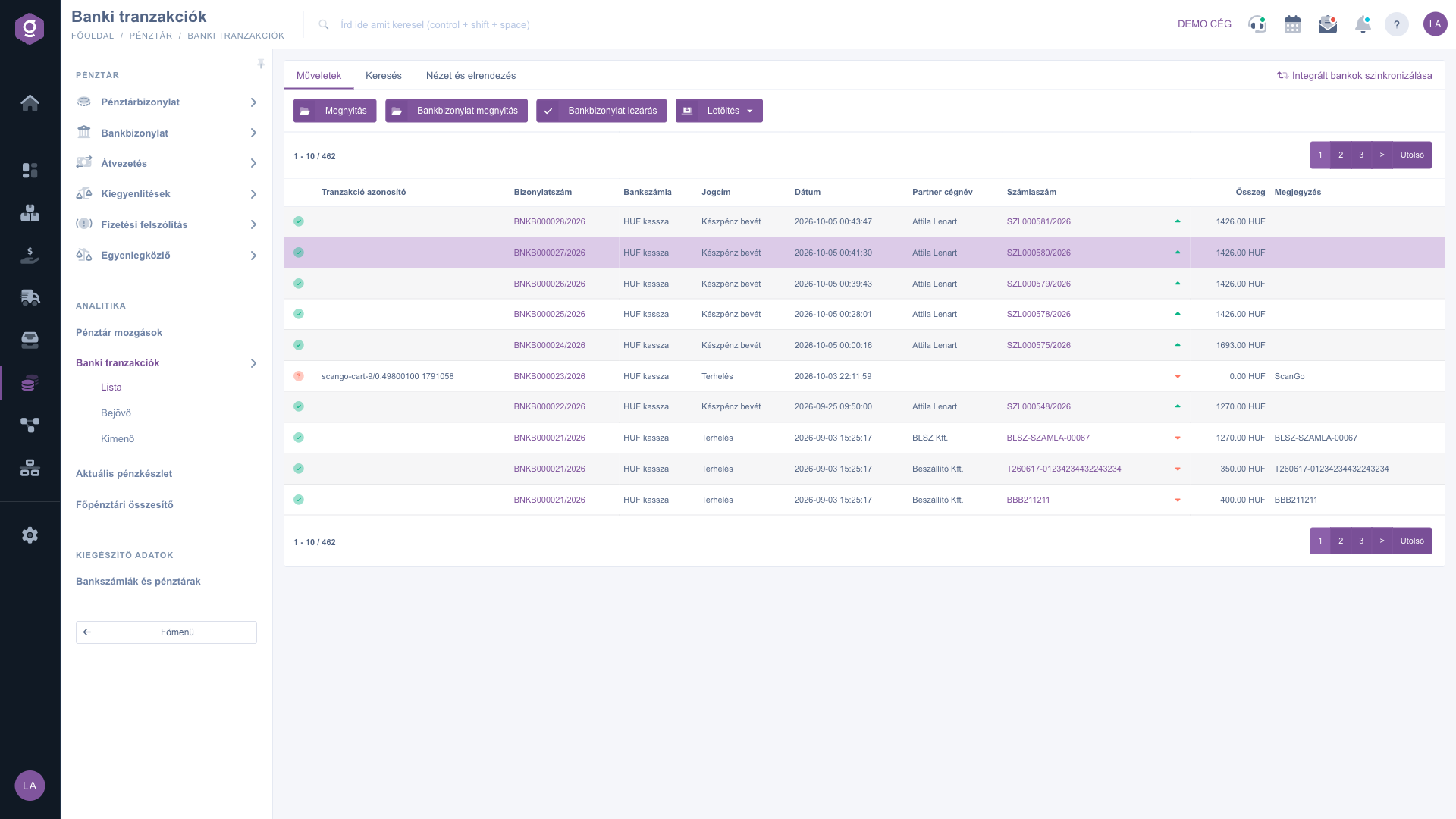
The status icon at the start of the row shows the state of the transaction:

  • Red question mark: No invoice number specified and the bank document is not closed.
  • Yellow exclamation mark: The bank document is not closed (an invoice is already linked to the transaction).
  • Green check mark: Closed and booked item.

The Yes value of the Booked filter returns the items linked to an invoice and closed, the No value returns the items without an invoice or not yet closed. On the Actions tab you can open the transaction, open and close the bank document, and download the list to an XLSX file.

If no transaction matches the conditions, you see this message instead of the list: the results list is empty or contains no items to display.

Step by step

1. Opening the page

Click Main menu / Cash register / Bank transactions / List (you find it in the Analytics group). The Incoming and Outgoing items open the same list filtered to the given direction. The list opens with the latest transactions, 10 rows per page. The picture shows the buttons of the Actions tab, the status icons, and in the top right corner of the page the Sync integrated banks link.
Bank transactions list

2. Searching among the transactions

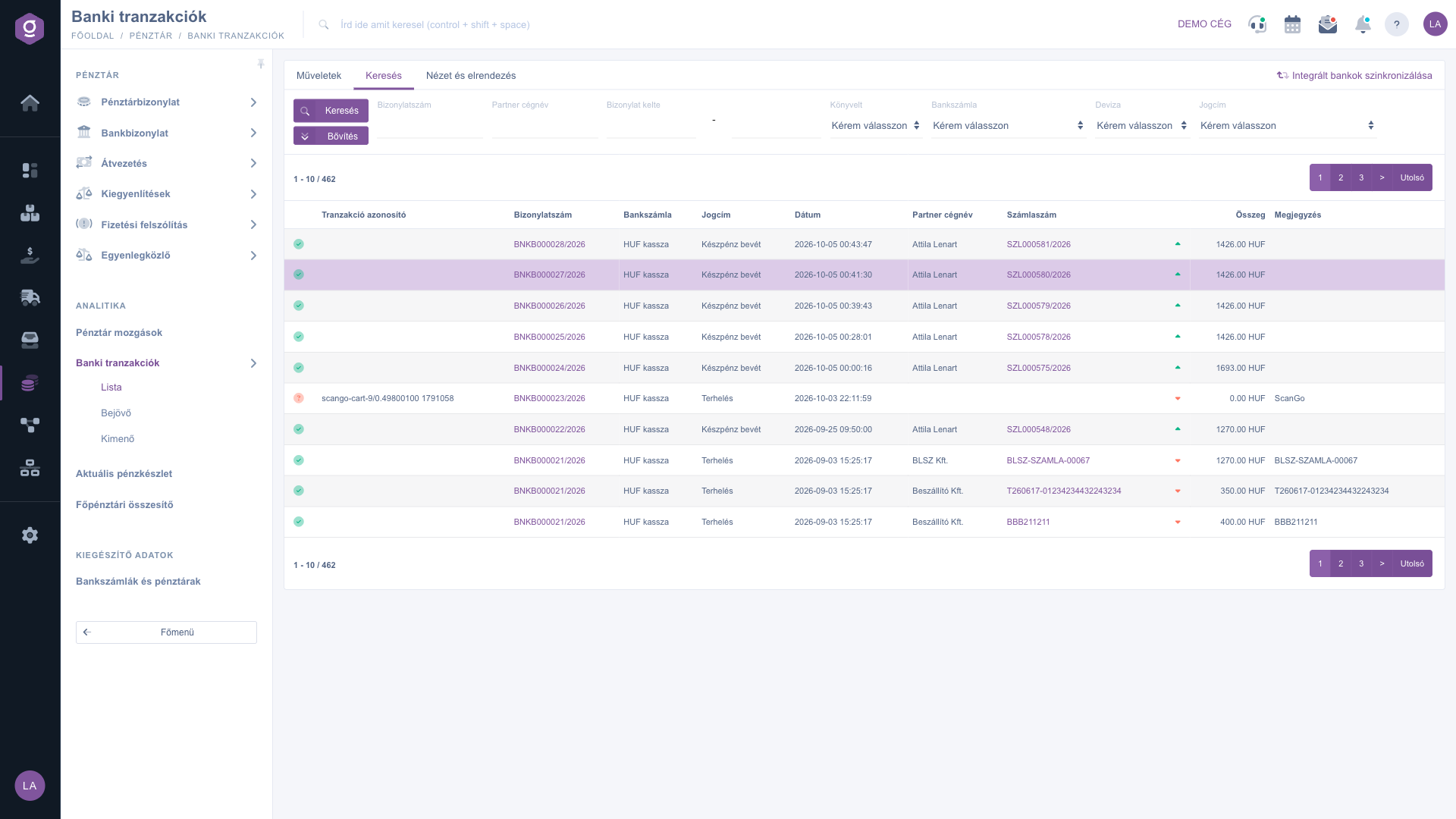
Open the Search tab, enter the conditions, then click the Search button. The Expand button reveals two more filters: Value (from–to) and Memo.
Searching the bank transactions

3. View and layout

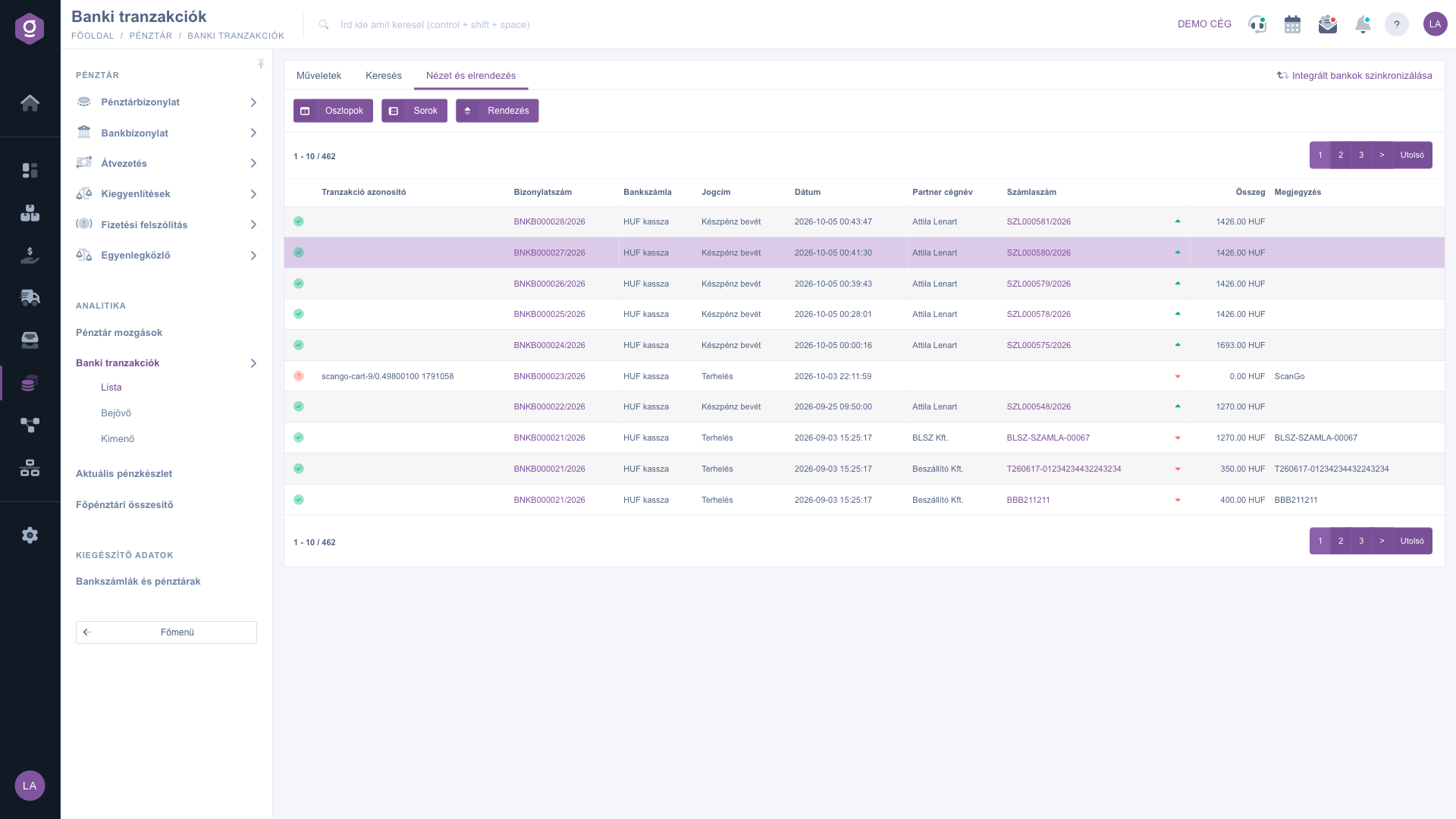
On the View and layout tab you find three settings: with the Columns button you choose which columns are visible and in what order, with the Rows button you set how many rows appear on a page, and with the Sorting button you can set Ascending or Descending order by column. The system remembers your settings for the duration of your logged-in session. If you use a custom column setting, the status icon, the direction icon and the links are not displayed.
View and layout settings

4. Opening and completing a transaction

Click a row to select it, then click the Open button on the Actions tab. In the window you can enter the partner, the document type and number, the title, the value and the comments (the fields are described in the Field reference section). The Save and close button saves the item and closes the bank document, the Close button closes the window without saving. If the bank document is already closed, the fields of the window are read-only and the Save and close button is not displayed.

5. Opening and closing the bank document

With a row selected, the Open bank document button takes you to the page of the bank document belonging to the transaction, and the Close bank document button closes it. If closing is not possible, a warning window shows the reason; after a successful closing the page reloads.

6. Syncing integrated banks

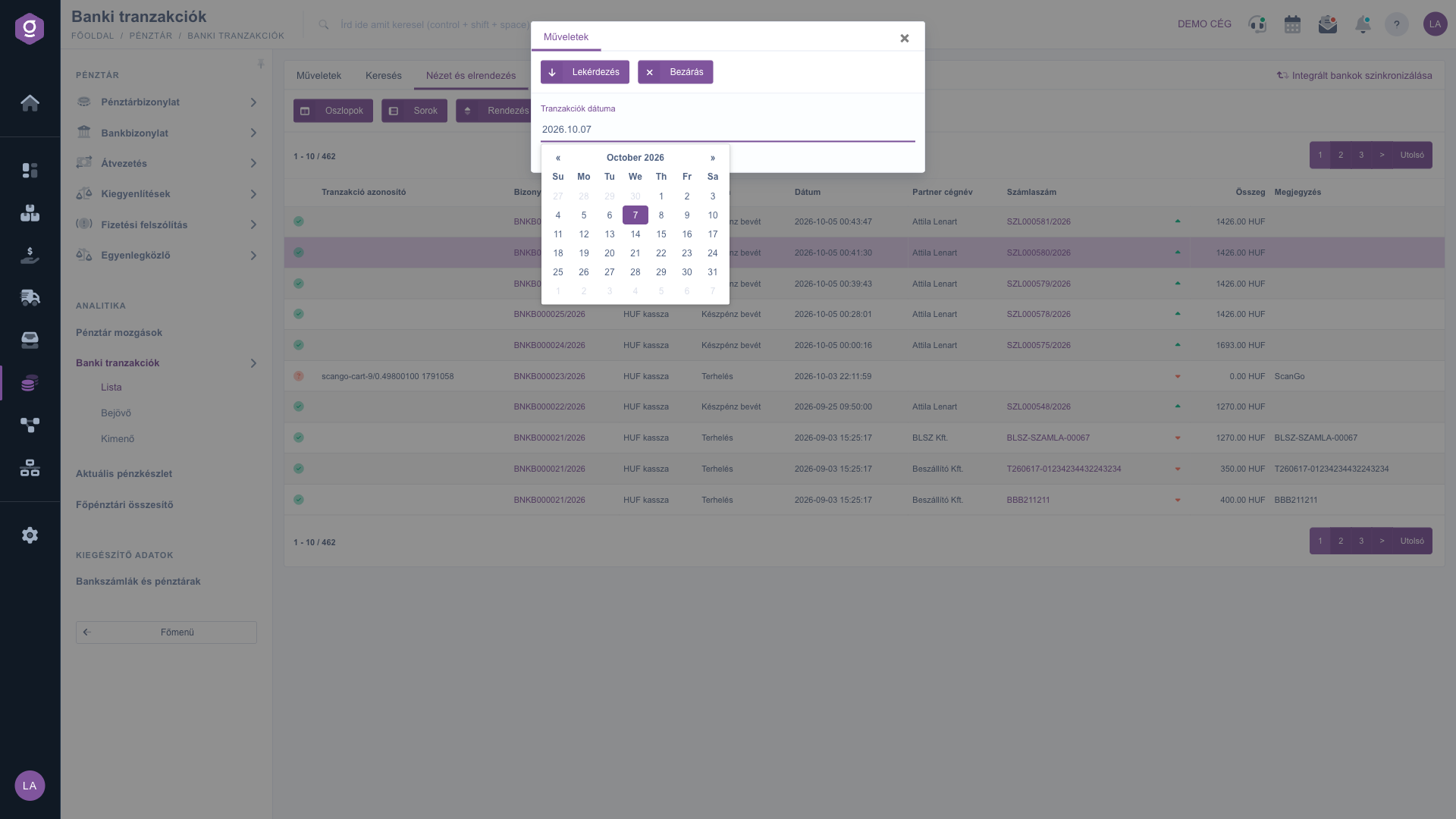
Click the Sync integrated banks link in the top right corner of the page. In the window that opens, enter the day to be queried in the Transaction date field (today by default), then click the Query button. The system queries the transactions of that day from the active bank connections set up under Integrations. The data exchange runs asynchronously, so the new transactions may appear in the list only after 5-10 minutes. You can close the window with the Close button.
Sync integrated banks window

Transactions that were already read earlier are skipped. The partner name and bank account number go into the Internal comment field, the bank memo goes into the Transaction comment (note) field. The system tries to match the transaction to an open invoice (for example by the invoice number in the memo and the amount). If it succeeds, it closes the bank document, settles the invoice and sends a notification. Unmatched items stay open with the red question mark icon; you can link them to an invoice manually in the Open window. The synchronization also refreshes the Banki egyenleg value on the Current cash balance page.

7. Downloading the list to XLSX

On the Actions tab click the Download button, then choose XLSX lista. The download takes the Document number, Partner company name, Document date, Value and Booked filters into account; it does not take the Bank account, Deviza and Title filters into account.

Tip


The Memo filter looks for an exact match, so paste the complete memo. If you are looking for transactions not yet linked to an invoice, set the Booked field to No.


You can read about bank documents in the Bank document list guide. Information about settling invoices is in the Invoice list and Incoming invoice list guides.

Field reference

The columns of the list and their meaning. The check mark shows that the column is visible by default, the dash shows that you can only switch it on in the View and layout / Columns setting. In the Columns window some column names are displayed in Hungarian in every language.

ColumnVisible by defaultDescription
Status icon (the first column without a title)The state of the transaction; hover over the icon to see its description.
Transaction identifierThe identifier given by the bank; the list cuts it to 32 characters, the full text is shown on hover.
Document numberThe identifier of the bank document; click it to open the bank document.
Bank accountThe bank account the transaction took place on.
TitleThe title of the transaction.
DateThe date of the transaction.
Partner company nameThe name of the partner.
Invoice numberThe identifier of the linked invoice; click it to open the invoice.
Direction iconShows whether the transaction is incoming or outgoing.
SumThe amount of the transaction.
CommentThe comment belonging to the transaction.
IdentifierThe internal identifier of the transaction in the system.
OpeningThe balance of the bank account before the transaction.
ClosingThe balance of the bank account after the transaction.

Fields of the Open window

FieldRequiredDescription
Partner company nameThe partner the transaction relates to.
Document typeYou can set which document the transaction relates to; the value Other, not related to a document can also be selected.
Document numberChoose from the open invoices the one that the transaction settles.
TitleThe title of the transaction; the list shows the name and the ledger number of the title.
ValueThe amount of the transaction.
Transaction comment (note)The bank memo.
Transaction identifierThe transaction identifier given by the bank.
Internal commentYour own comment for internal use.

Filters on the Search tab

  • Document number: you can also search for a part of the bank document identifier.
  • Partner company name: you can also search for a part of the name.
  • Document date: a period given from date to date.
  • Booked: Yes or No.
  • Bank account: the transactions of one particular bank account.
  • Deviza (currency): the currency of the transaction.
  • Title: the title of the transaction.
  • Expand / Value: amount from–to.
  • Expand / Memo: exact match on the memo.

Frequently asked questions

The red question mark means that no invoice number is specified and the bank document is not closed. The yellow exclamation mark means that the bank document is not closed although an invoice is already linked to the transaction. The green check mark marks a closed and booked item. Hover over the icon to see its description.

If the bank document belonging to the transaction is already closed, the fields of the Open window are read-only and the Save and close button is not displayed. Only the items of a bank document that is not yet closed can be modified.

The data exchange runs asynchronously and can take 5-10 minutes. Wait a little, then refresh the page. Also check that you entered the correct day in the Transaction date field, because a query covers only one day at a time.

All three open the same list: List shows all transactions, Incoming only the incoming ones, Outgoing only the outgoing ones. The List item only appears if both modules are assigned to your user.

Select the row, click Open, choose the document type, then the open invoice in the Document number field, and finally click Save and close. You can read about invoices in the Invoice list guide.

Select the row, then click Open bank document on the Actions tab, or click the link in the Document number column. The list of bank documents is described in the Bank document list guide.

The menu items only appear under Main menu / Cash register / Bank transactions if the corresponding module is assigned to your user. If you see only Incoming or only Outgoing, the other module is not assigned. If you cannot find any of them, ask your system administrator to enable it.

Need personalized help?

Don't want to spend hours searching for a solution? Choose the most efficient way: book a personalized, 45-minute online training session dedicated entirely to you. Whether it's a walkthrough of the basics or a detailed setup of a specific module, our expert colleague will guide you through the whole process, step by step.

Don't waste your time - ask for help!
Our goal is to get you using our system as quickly and efficiently as possible. Whether you're completely new to us or stuck on a specific setting, don't hesitate to ask for help!

Logzi warehouse management software

Get in touch with us

Interested in our software? Feel free to write to us!

Need help?

If you can't find the answer and need assistance

Create your account now,
pay later!

Try it free for 3 days, no risk, no obligation!
