Bank document list

Learn how to list, search and manage bank documents in the Logzi interface.

Function overview

In this module you can review and manage Bank document records. A bank document records the turnover of a bank account: one document contains the opening and closing value of the account and the items that took place on it (credits and debits), each with its partner, its amount and – if there is one – the related invoice. The list gives you one place to access all the bank documents you have created, to search among them, and to start the most important actions directly from here (creating a new document, opening, closing, deleting, copying, downloading, sending an e-mail).

  • Clear list: documents are shown in a paginated table by document number, date, bank account number, value, colleague and status.
  • Quick actions: you can open, close, delete, copy or download the selected document with one click, without entering each document.
  • Targeted search: you can filter by partner company name, document number, currency, status, direction and bank account number, and in the extended search also by date, employee and comments.
  • Customisable view: you can set which columns are shown, how many rows appear on a page and in what order the data is sorted.

The possible states of Bank document records are: Draft, Closed, Cancellation, Cancelled – the restrictions of each state are described in the Frequently asked questions section.

Please note: the screenshots in this guide show the Hungarian interface, so the tab and button names on the images appear in Hungarian; in the text you find them in your own language, with the Hungarian name in brackets where it helps.

Step by step

1. Viewing the list and the actions you can perform on documents

Click Main menu / Cash register / Bank document / List to see all the bank documents created so far. On the Actions tab (Műveletek) above the table you find the buttons for working with the selected document:

  • New: creates a new bank document on an empty form – choose it when you want to record further turnover of a bank account.
  • Open: opens the detailed view of the selected document, where you can edit the items and header data. You can select several documents; in that case all of them are opened.
  • Close: closes the document – available only for documents in Draft state. With the arrow next to the button you can combine closing with printing (Close and print) or downloading (Close and download), so the paper or file version of the document is at hand immediately.
  • Delete: deletes the document – only a document in Closed state can be deleted. The action cannot be undone: the document moves to a deleted or cancelled status.
  • Download: exports the list or the selected document. In the List operation block you can download the whole list (XLSX list, or XLSX item list together with the items of the documents), in the Document operation block the data of the selected document (XLSX items, PDF, PDF preview, Download attachments). The final PDF can be created only from a closed document, the PDF preview and the XLSX exports also from a draft.
  • Print: with the Document option you can print the selected document.

If you right-click a document row, the same quick actions (New, Open, Close, Delete) are available in a context menu, extended with the Cloning option, which creates a new document from the data of the selected one – if you have to create a similarly structured document for a bank account, this is faster than entering everything from scratch.
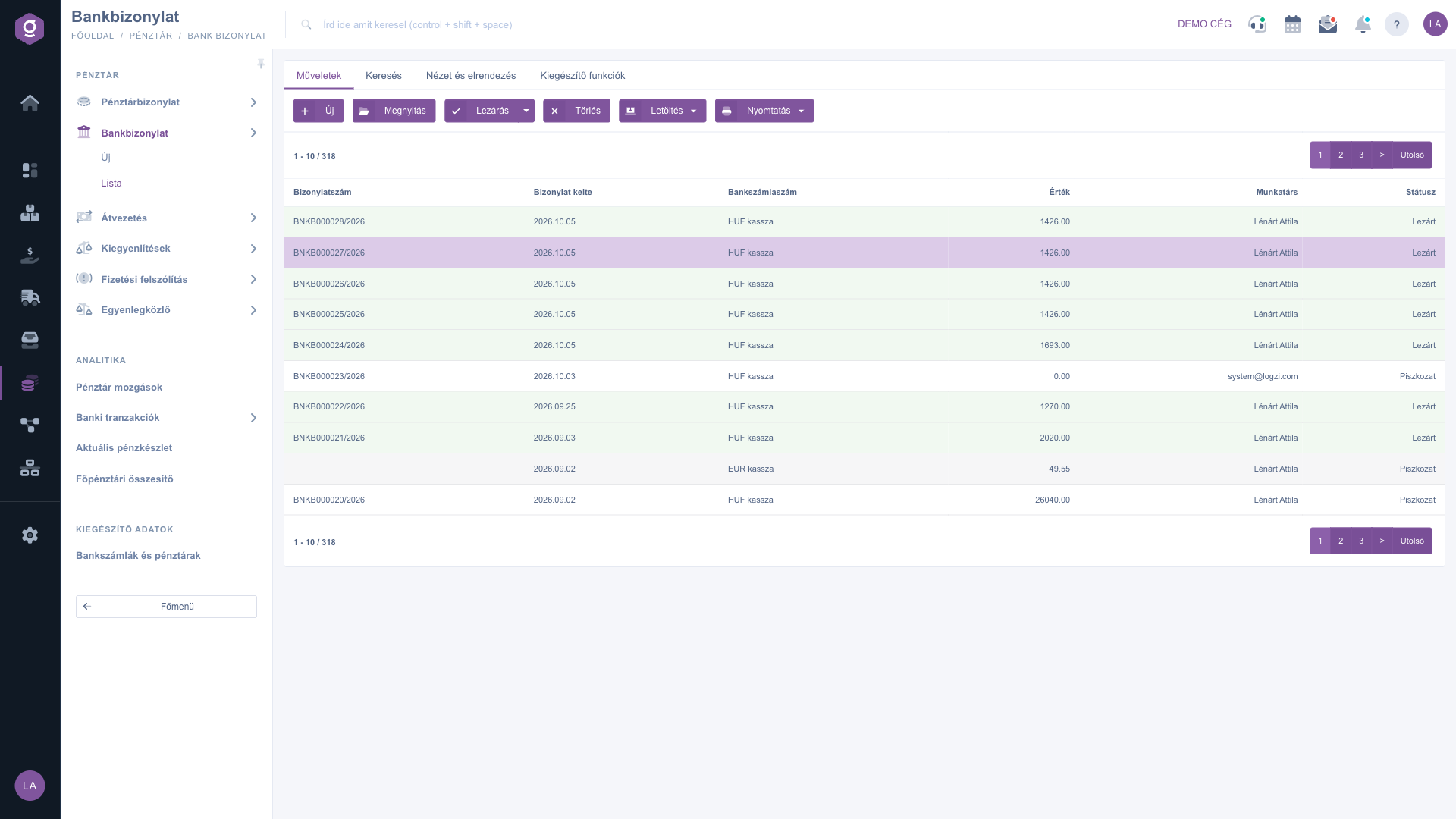
Bank document list – Actions tab (Műveletek)

Searching among the documents

Click the Search tab (Keresés) among the tabs above the table to see the filter options. The fields visible right away are: Partner company name, Document number, Currency, Status (you can select several states at once), Direction (Incoming or Outgoing) and Bank account number. The “Expand” button opens further filters: searching by period in Document date and Modification (with from and to dates), Employee, Customer comment and Internal comment. Use the Search button to filter by the conditions you set.
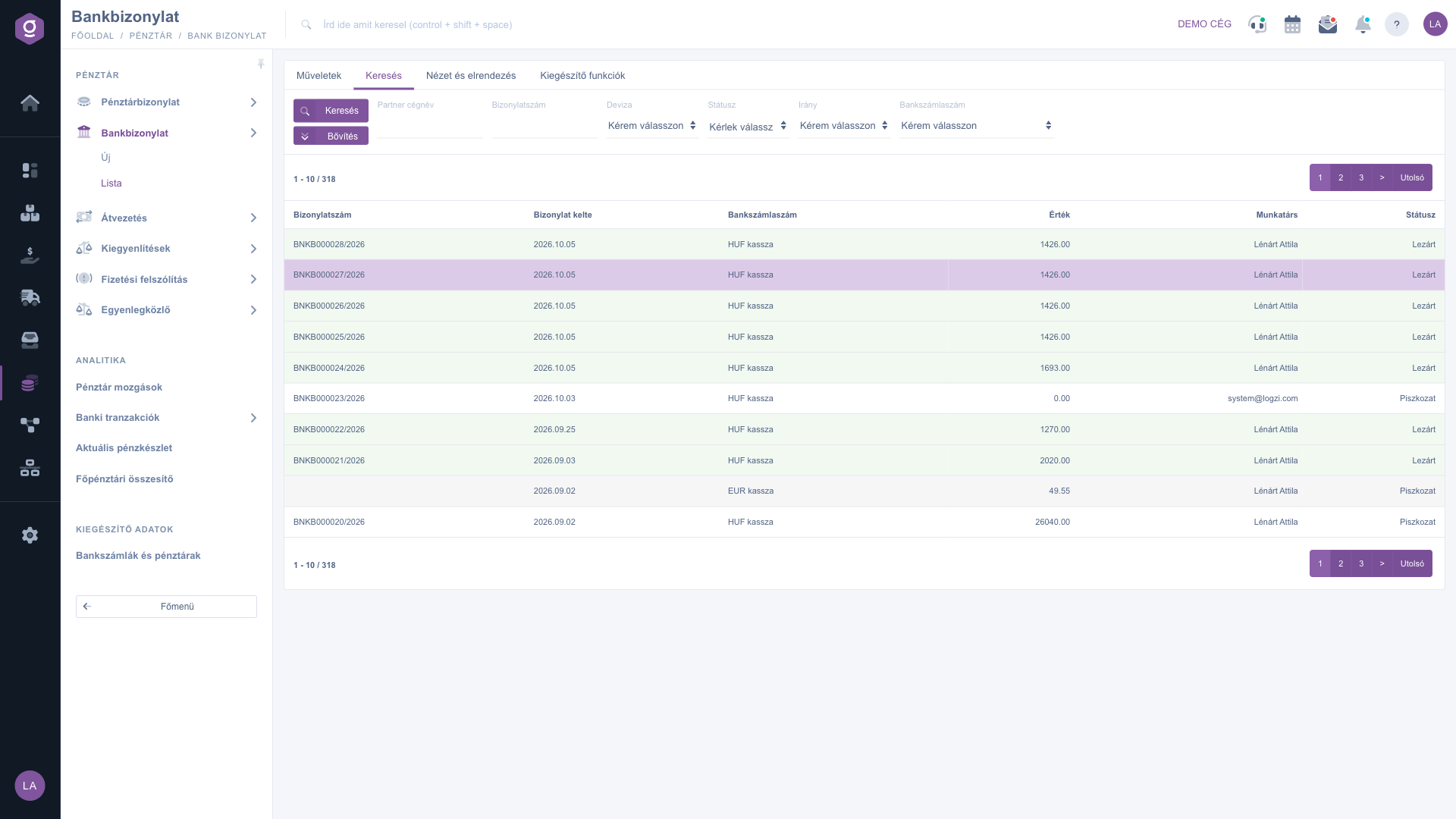
Bank document list – Search tab (Keresés)

Customising the view

On the View and layout tab (Nézet és elrendezés) you can set how the list is displayed for you:

  • Columns (Oszlopok): choose which columns are shown in the table.
  • Rows (Sorok): set how many documents appear on one page.
  • Sorting: choose by which column and in which direction the list is sorted by default.
  • Preview window: the setting of the preview panel. On the bank document list no panel is shown below the table; you can see the items of a document with the Open button.
  • Interface and behavior: other display-related settings of the list interface.

These settings are saved per user, so they are kept the next time you sign in.
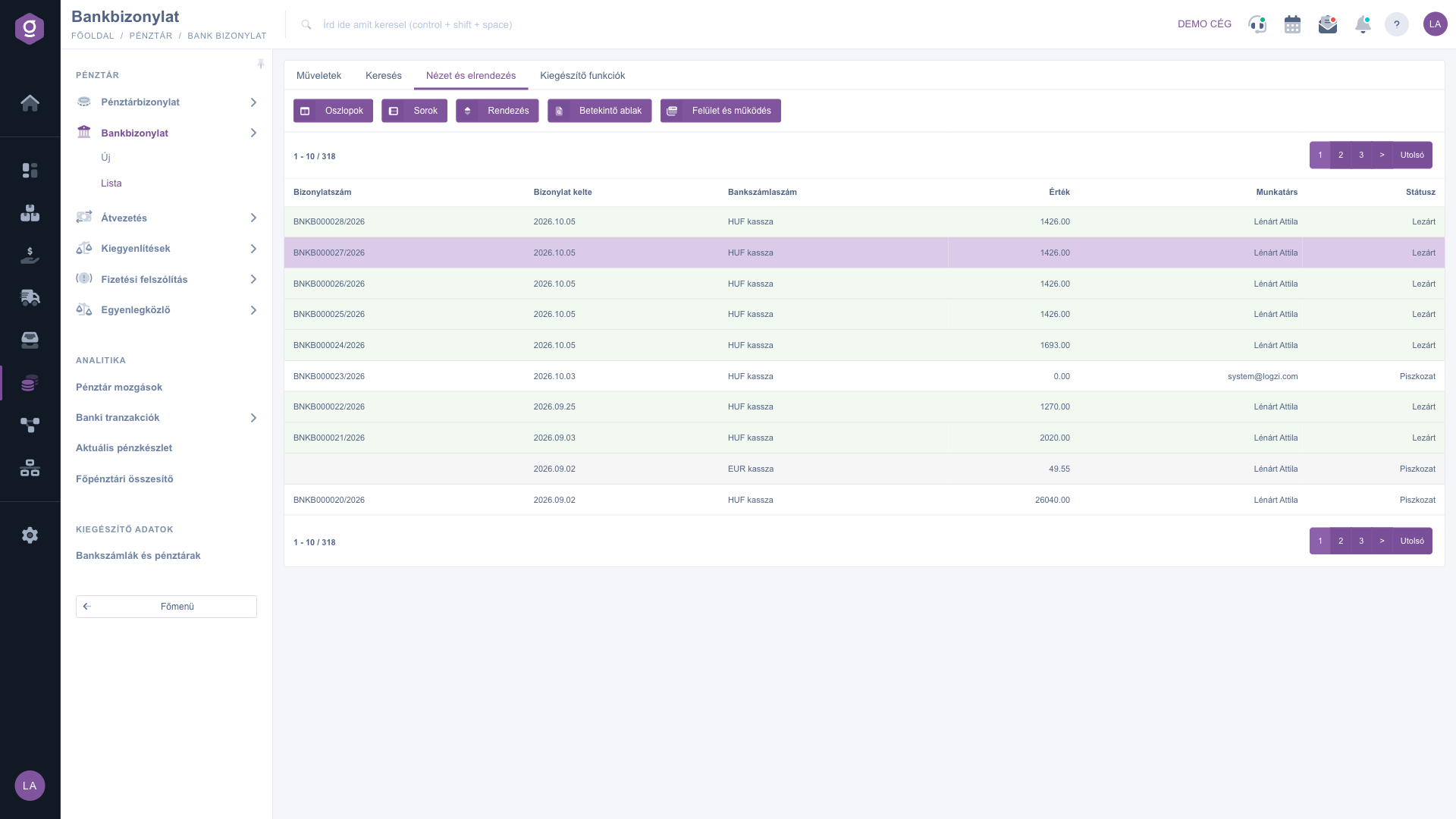
Bank document list – View and layout tab (Nézet és elrendezés)

Additional functions

On the Additional functions tab (Kiegészítő funkciók) you find extra options related to the selected document that help your daily work:

  • Sent items: shows the e-mails previously sent for the document.
  • New email: write a new message related to the document, using either the External mail client or the Internal mail client built into the system. The external client is a good choice if you want to send from your own mail program, the internal one if the message should stay inside Logzi and the correspondence should be traceable in the system.
  • New task: create a task related to the document.
  • CRM: shows the CRM notes and records belonging to the document.
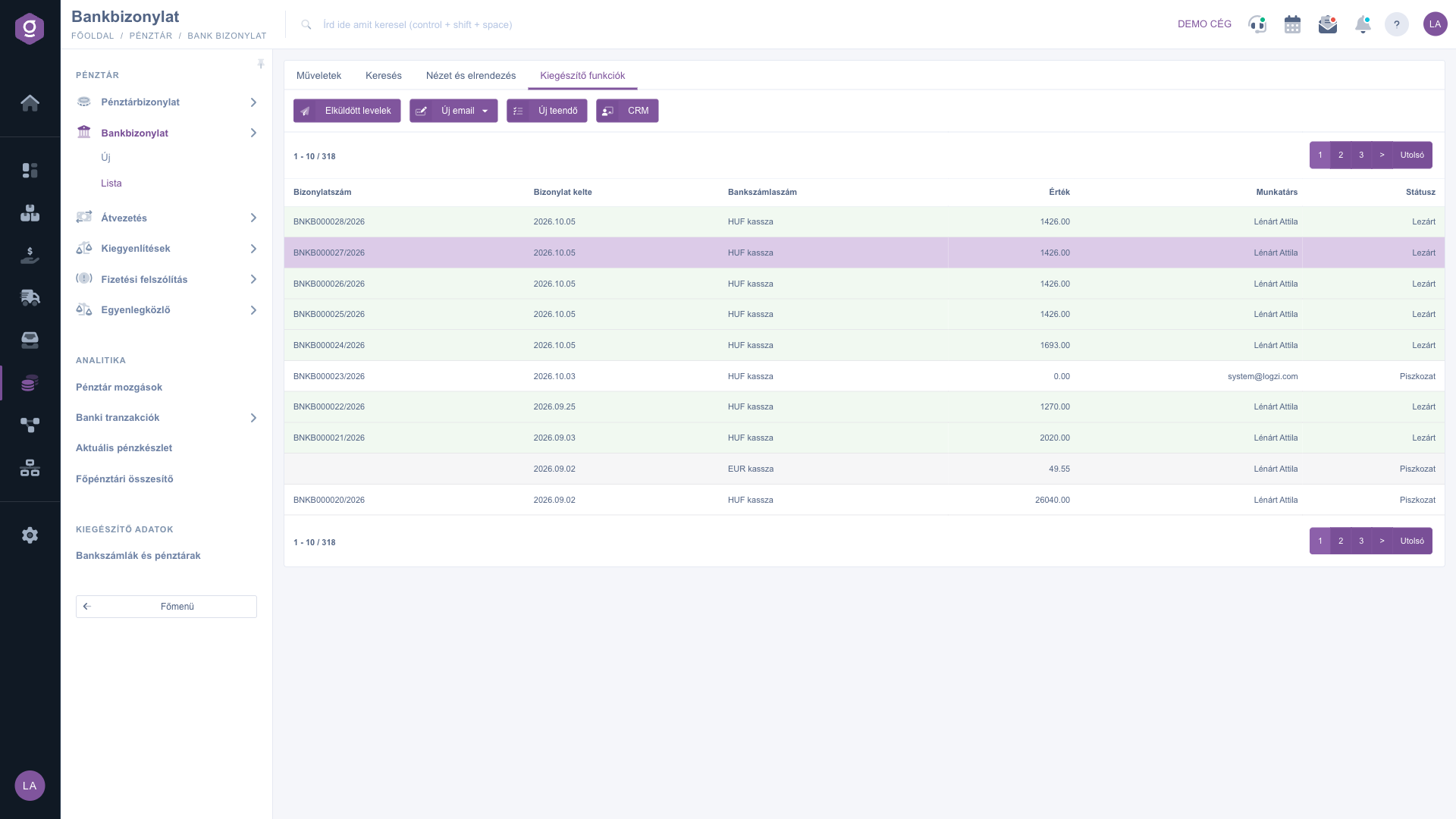
Bank document list – Additional functions tab (Kiegészítő funkciók)

Tip


If you want to review the turnover of a given month or a given bank account in one go, open the Search tab, click Expand, enter the Document date period, and narrow the list to the account with the Bank account number field. With Download > XLSX item list you can then save the filtered documents together with their items in one spreadsheet. If you need the PDF right after closing a document, choose Close and download from the arrow next to the Close button.

The details of creating a bank document, importing the items and editing them are described in the Bank document sheet guide. The items of a bank document can also be linked to invoices; you can read about the list of invoices in the Invoice list guide.

Field descriptions

The default columns of the table and their meaning (the columns can be changed with View and layout > Columns):

Field / ElementRequiredDescription
Document numberThe unique identifier of the bank document. The system assigns it when the document is saved for the first time.
Document dateThe date the document was created.
Bank account numberThe bank account whose turnover the document records.
ValueThe value of the items of the document.
ColleagueThe name of the colleague who recorded the document.
StatusThe current state of the document (Draft, Closed, Cancellation, Cancelled).

Frequently asked questions

Only a document in Draft state can be closed, and only a document in Closed state can be deleted – documents in Cancellation and Cancelled state can be neither closed nor deleted. In that case the system shows an error message (“Bizonylatot lezárni csak nyitott státusszal lehet!” for closing, “Bizonylatot törölni csak lezárt státusszal lehet!” for deleting – the system messages appear in Hungarian). Deleting cannot be undone, so the system asks for confirmation first.

The availability of the buttons depends on the state of the selected document. Close, Close and print and Close and download can be used only in Draft state, while the final PDF and sending an e-mail are available only in Closed state (or later). From a draft the PDF preview and the XLSX exports are also available. Also make sure the row is selected in the table, because without a selection the buttons are not active.

If the “The list is empty” message appears instead of the table, no document matches the search conditions you set – check the filters on the Search tab (for example the Status or the Document date field), or clear all conditions. The bank document list has no preview panel below the table: after selecting a row, use the Open button to see the items and details of the document.

The list is for reviewing and managing documents. Entering items, importing the bank statement and exporting the transfer file are done on the document sheet: use the New button for a new document or the Open button for an existing one; the details are described in the Bank document sheet guide.

Filter the list to the documents you want on the Search tab, then use Download > XLSX list to export the whole list you currently see to one spreadsheet, even without a selection. If you also need the items, use the XLSX item list option.

The Bank document module appears under Main menu / Cash register only if it is assigned to your user. If you cannot see it, ask the system administrator to check the module assignment in your user settings.

Need personalized help?

Don't want to spend hours searching for a solution? Choose the most efficient way: book a personalized, 45-minute online training session dedicated entirely to you. Whether it's a walkthrough of the basics or a detailed setup of a specific module, our expert colleague will guide you through the whole process, step by step.

Don't waste your time - ask for help!
Our goal is to get you using our system as quickly and efficiently as possible. Whether you're completely new to us or stuck on a specific setting, don't hesitate to ask for help!

Logzi warehouse management software

Get in touch with us

Interested in our software? Feel free to write to us!

Need help?

If you can't find the answer and need assistance

Create your account now,
pay later!

Try it free for 3 days, no risk, no obligation!

