In this module you can review and manage your Project records. A project is the record of a job or an order tied to a partner, to which you can assign an expected completion date, a status, additional services and items, as well as related documents, tasks and files. The list gives you access to all projects in one place, lets you search among them, and lets you start the most important actions directly from here (creating a new project, opening, closing, deleting, creating a document).
Project statuses can be edited in the system, so the statuses in your company may differ from the examples shown in the help images (Tervezés alatt, Folyamatban, Lezárt, Meghiúsult). A new project starts with the status that has the ID 1.
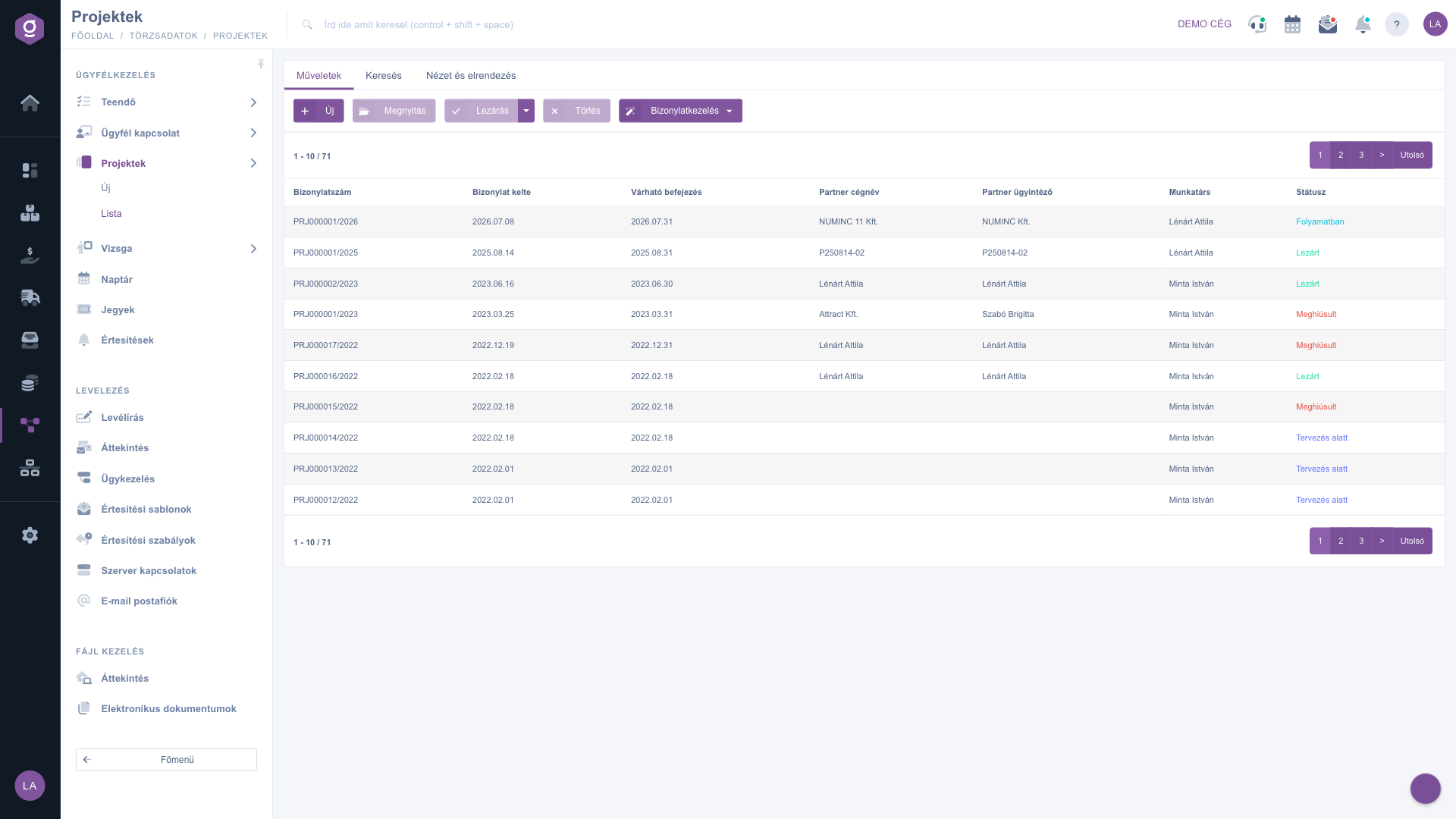
Click Main menu / CRM / Customer management / Projects / List to open the list of projects. By default it starts with the most recently created project and shows 10 rows per page. Above the table you will find three tabs: Actions (Műveletek), Search (Keresés) and View and layout (Nézet és elrendezés). On the Actions tab you work with the selected project:
If you right-click a project row, New, Open and Delete are also available from a context menu. The round + button in the lower right corner of the list also opens a new project.
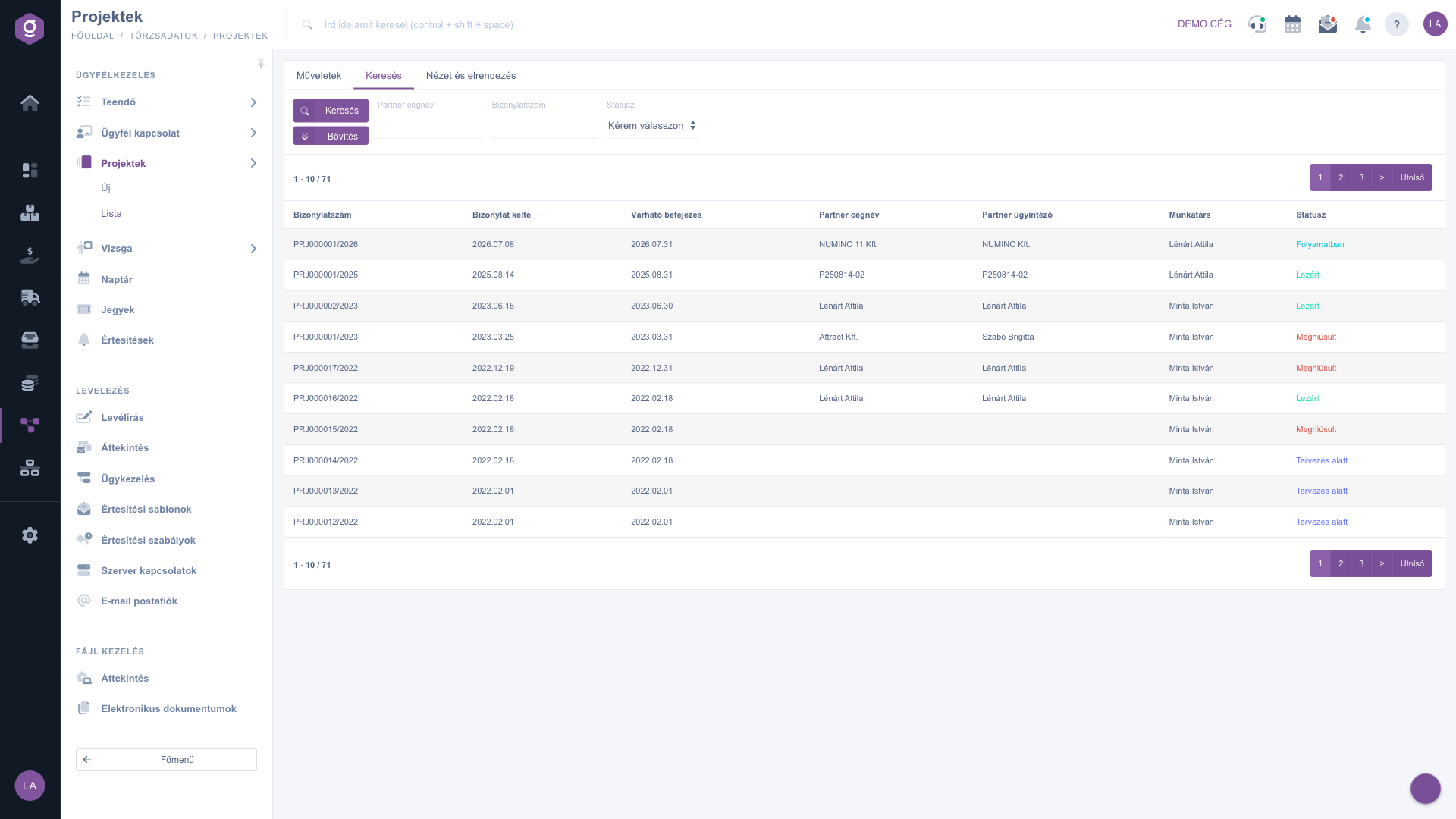
Click the Search (Keresés) tab to see the filters. The fields visible right away are Partner company name, Document number and Status. The Expand button opens further filters: Document date and Performance date (the expected completion date of the project) as from-to date ranges, Employee, Item number and Pallet (Raklap). The Item number and Pallet filters return the projects whose linked documents contain the given product or pallet among their items.
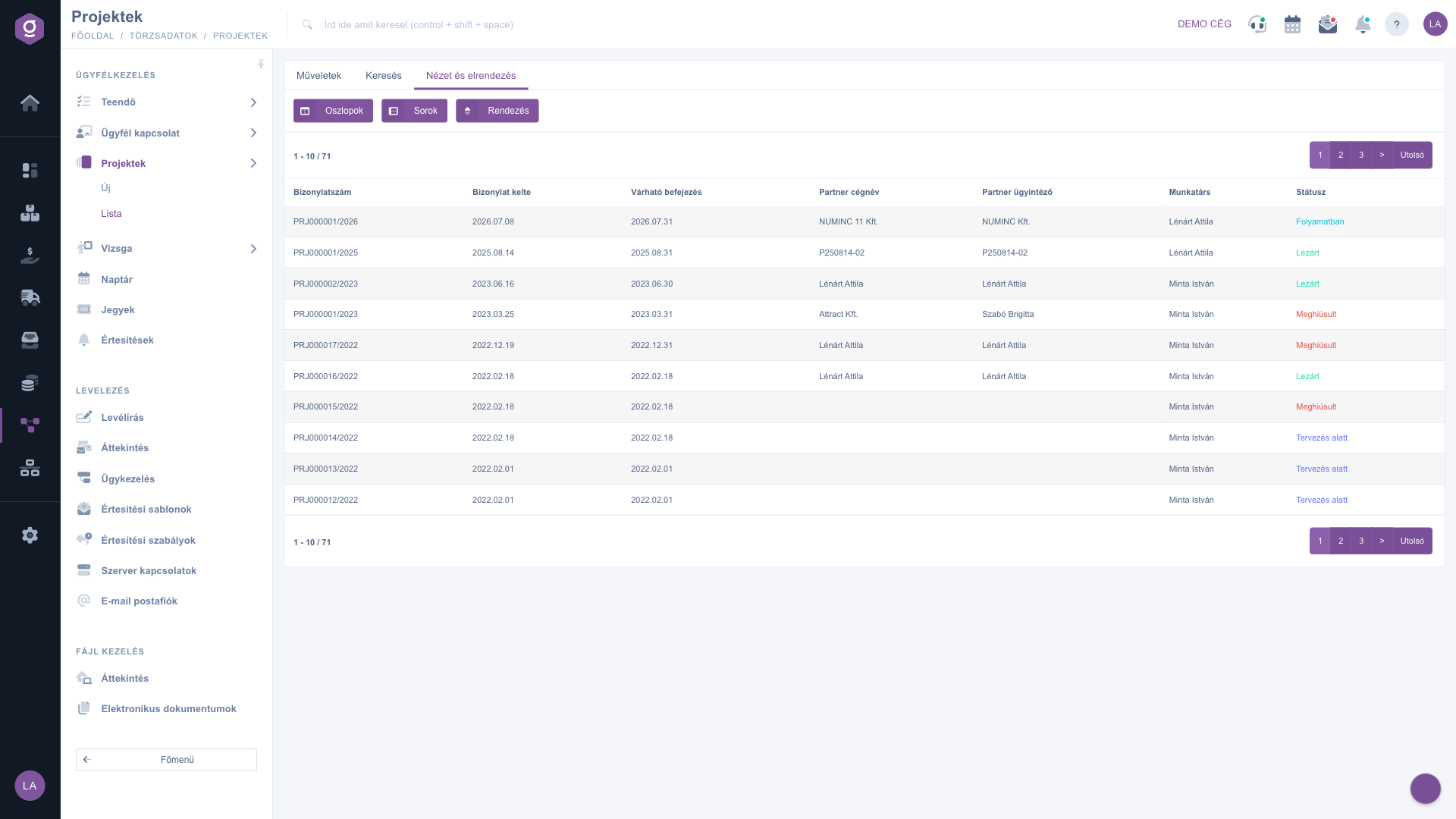
On the View and layout (Nézet és elrendezés) tab you set how the list is displayed for you:
These settings are saved per user, so they are kept the next time you sign in. The pager above and below the list shows which rows of the total you see, and lets you move to another page.
If you want to find the project belonging to a certain product or pallet, use the Item number and Pallet (Raklap) fields on the Search tab under Expand. The Status filter lets you quickly pick, for example, the projects that are in progress.
The selectable columns of the table and their meaning. You can turn the columns on or off in the Columns (Oszlopok) setting. Some column names appear in Hungarian in the interface, they are given here in parentheses:
| Field / Element | Required | Description |
|---|---|---|
| Document type (Bizonylattípus) | The type of the document. | |
| Document number | The identifier of the project. | |
| Document date | The date the project was created. | |
| Performance date (as a default column: Expected completion) | The expected completion date of the project. | |
| Modification | The date of the last modification of the project. | |
| Subject (Tárgy) | The short name of the project. | |
| Tags (Címkék) | The tags added to the project, shown as badges. | |
| Status | The current status of the project as a coloured label (for example Folyamatban, Lezárt). | |
| Partner company name, Tax number, Partner contact person, Phone number | The data of the partner linked to the project and its contact person. | |
| Employee | The name of the employee who created the project. | |
| Customer comment (Ügyfél megjegyzés), Internal comment (Belső megjegyzés) | The customer and the internal comment recorded for the project on the sheet. |
The fields of the Search tab and their meaning:
| Field / Element | Required | Description |
|---|---|---|
| Partner company name | Filters by the name of the partner linked to the project. | |
| Document number | Filters by the identifier of the project. | |
| Status | Filters by the status of the project. You can choose among the statuses defined in the system. | |
| Document date | Found under Expand. Search by creation date with a from and a to date. | |
| Performance date | Found under Expand. Search by the expected completion date with a from and a to date. | |
| Employee | Found under Expand. Filters by the employee who created the project. | |
| Item number | Found under Expand. Returns the projects whose linked document has the product with the given item number among its items. | |
| Pallet (Raklap) | Found under Expand. Returns the projects whose linked document has the pallet with the given barcode among its items. |
First check the filters set on the Search tab (for example Status, Document date or Item number), clear them and search again. If the list has several pages, use the pager to go to the first page. Also check that you are looking for a project with the right status: the status of a deleted project changes, so it may appear differently in a filter by status.
Close sets the status of the selected project to the status with the ID 2, and Delete sets it to the status with the ID 4. In these statuses the fields of the project sheet can no longer be edited. The name and order of the statuses can be changed in the system, so you will find the exact names in your own status list.
Invoicing, Warehouse issue and Delivery note can be chosen only if you have selected a project in the list and its status is at least the status with the ID 2 (for example after Close). For an open project, for example one with the status ID 1, these items are grey.
On the Search tab click the Expand button, then enter the value you are looking for in the Item number or Pallet (Raklap) field. The results are the projects to which you linked, under Related documents, a document that has the product or the pallet among its items. Linking documents is described in the Project sheet guide.

You enter the goal of the project, the partner, the additional services and items, the related documents, the files and the custom fields on the project sheet. After the New or Open button, the Project sheet guide helps you fill in the fields.
The Projects module appears under Main menu / CRM / Customer management only if it is assigned to your user. If you do not see it, ask the system administrator to check the module assignment in your user settings.
Don't want to spend hours searching for a solution? Choose the most efficient way: book a personalized, 45-minute online training session dedicated entirely to you. Whether it's a walkthrough of the basics or a detailed setup of a specific module, our expert colleague will guide you through the whole process, step by step.
Don't waste your time - ask for help!
Our goal is to get you using our system as quickly and efficiently as possible. Whether you're completely new to us or stuck on a specific setting, don't hesitate to ask for help!
Create your account now,
pay later!

