File manager – Job description template

Prepare an editable job description from the ready-made template: fill in the name and the sections, save it, export it to PDF and add comments.

Feature overview

The Job description (Munkaköri leírás) template is a ready-made, editable electronic document. When you open it, the editor already contains the whole skeleton of a job description: a header with data lines (employee name, job title, place of work, start of employment, direct supervisor), eight numbered sections and the signature lines. You only have to replace the text with your own data and save it.

  • Editing: you can rewrite and extend the text directly in the editor.
  • Saving: the saved document is added to the electronic documents and you can open it any time later.
  • Export PDF: a PDF can be created from a saved document with one click.
  • Comments: you can attach internal comments to a saved document.
  • Document tree: the tree on the right shows the other electronic documents and lets you open them.

Note: the pre-written text of the template is in Hungarian regardless of the interface language; you can overwrite it in the editor.

Step by step

1. Opening the template

Click Main menu / CRM / File management / Overview (Főmenü / CRM / Fájl kezelés / Áttekintés), then in the left menu of the file manager, in the Templates (Sablonok) group, choose Job description (Munkaköri leírás). You get to the same place with the card in the Templates section of the start page.
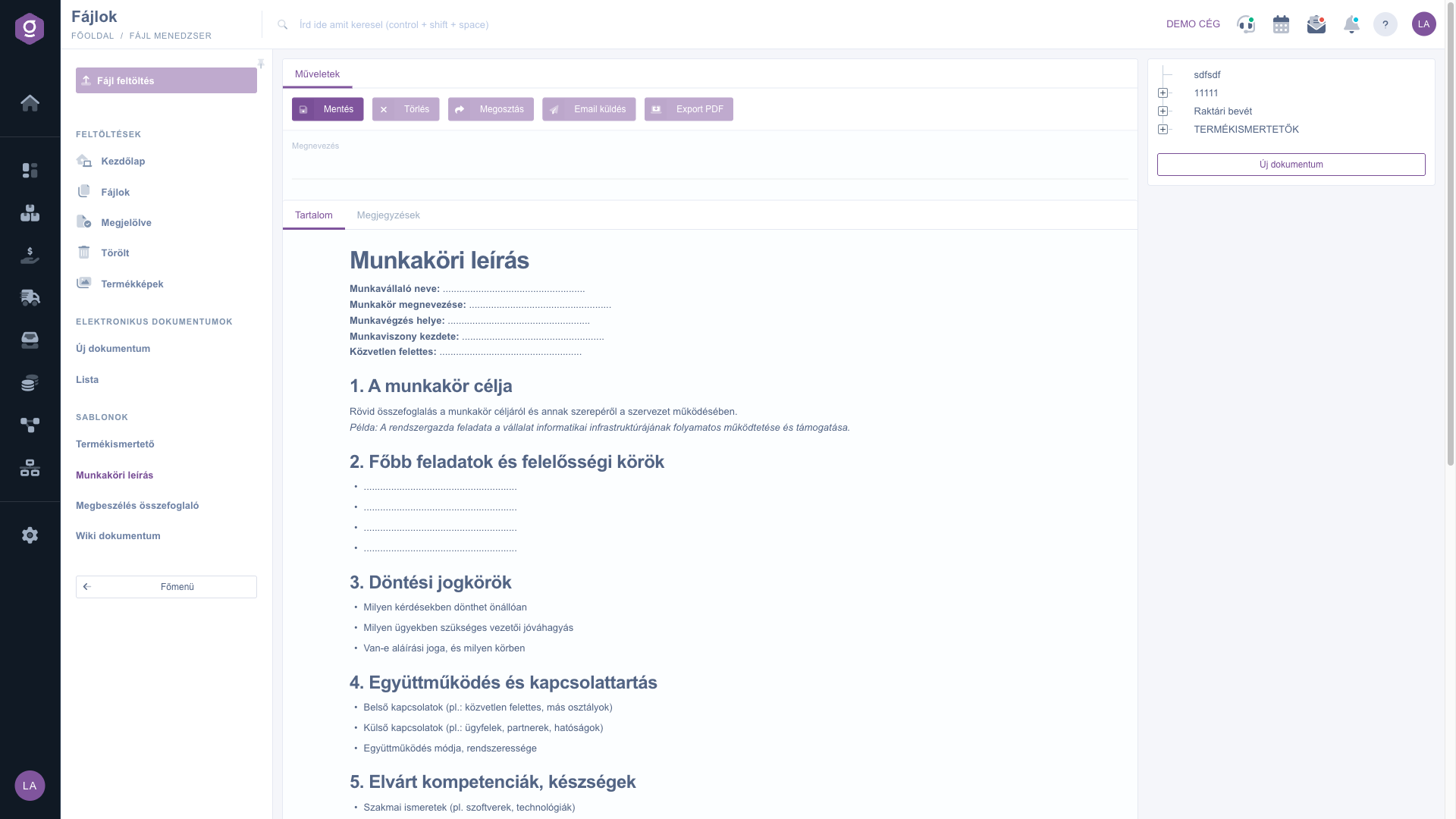
Job description template – document editor

2. Entering the name

In the Name (Megnevezés) field, type what you want to call the document (e.g. the job title and the name). The field is required and must be at least 2 characters long. This name appears in the document tree and in the list, and it also becomes the name of the PDF file.

3. Filling in the text

On the Tartalom (Content) tab you can go through the pre-filled parts in the editor and rewrite them:

  • The data lines of the header: Employee name (Munkavállaló neve), Job title (Munkakör megnevezése), Place of work (Munkavégzés helye), Start of employment (Munkaviszony kezdete), Direct supervisor (Közvetlen felettes).
  • 1. Purpose of the position (replace the italic example with your own text).
  • 2. Main tasks and responsibilities.
  • 3. Decision-making authority.
  • 4. Cooperation and contacts.
  • 5. Required competencies and skills.
  • 6. Equipment belonging to the position.
  • 7. Performance measurement and evaluation.
  • 8. Other remarks.
  • The signature lines: Date (Kelt), Employee signature (Munkavállaló aláírása), Direct supervisor signature (Közvetlen felettes aláírása).

4. Saving

Click the Save (Mentés) button. After saving, the document reloads and from then on the Export PDF button and the Comments (Megjegyzések) tab become active.

5. Export PDF

For a saved document you can create a PDF file with the Export PDF button. The file name is the name of the document followed by the .pdf extension.

6. Comments

On the Comments tab type the text of the comment, then click Add comment (Megjegyzés hozzáadása). You can remove a comment with the delete icon next to it, after confirmation. While there is no comment, the message „There is no comment on this document yet.” is shown.

7. Document tree and new document

The document tree on the right also shows the other electronic documents; click a row to open it, and rows can be arranged below each other by dragging. With the New document (Új dokumentum) button you can start a new document.

8. Deleting

You can delete a saved document with the Delete (Törlés) button. The system asks for confirmation (Yes / No) and after a positive answer takes you back to the list of electronic documents.

Tip


Save the document first and export the PDF only afterwards: this way the file contains the latest text and gets the file name made from the name. You can create several documents from the template, so include both the job title and the employee name in the name to find the document easily later.


You can read about the other views of the file manager in the File manager – Start page guide, and about the list of product images in the File manager – Product images guide.

Field descriptions

The fields and buttons of the document editor:

Field / Element Required Description
Name (Megnevezés) The name of the document, at least 2 characters. It is shown in the tree and in the list, and it is the name of the PDF file.
Tartalom (Content, tab) The editable document text: the data lines of the header, the eight numbered sections and the signature lines.
Comments (Megjegyzések, tab) Internal comments on the document. Can be used only after saving.
Save (Mentés) Saves the document.
Delete (Törlés) After confirmation deletes the saved document and takes you back to the list.
Export PDF Creates a PDF file from the document. Active only after saving.
Share (Megosztás), Send email (Email küldés) Buttons that are currently not active on this page.
Document tree (right side) The tree of electronic documents: a click opens a document, dragging arranges them. With the New document button you can start a new document.

Frequently asked questions

The File management group appears in the CRM menu only if the file manager module is assigned to your account. If you cannot see it, ask your administrator.

Both work only for a document that has already been saved. Enter the Name, click Save, and you can use them after the document reloads.

On this editor page these two buttons are currently not active. If you need to deliver the document to somebody, export it to PDF and send it from your own mailbox.

The pre-written text of the template is in Hungarian, regardless of the interface language. If you need a job description in another language, open the template and rewrite the text in the editor in your own language.

Need personalized help?

Don't want to spend hours searching for a solution? Choose the most efficient way: book a personalized, 45-minute online training session dedicated entirely to you. Whether it's a walkthrough of the basics or a detailed setup of a specific module, our expert colleague will guide you through the whole process, step by step.

Don't waste your time - ask for help!
Our goal is to get you using our system as quickly and efficiently as possible. Whether you're completely new to us or stuck on a specific setting, don't hesitate to ask for help!

Logzi warehouse management software

Get in touch with us

Interested in our software? Feel free to write to us!

Need help?

If you can't find the answer and need assistance

Create your account now,
pay later!

Try it free for 3 days, no risk, no obligation!
