File manager – Product images

Get to know the Product images list: search the uploaded product pictures by picture name, product name or item number and view them in a larger size.

Feature overview

On the Product images page (Termékképek) you see in one table all pictures uploaded for products: the small preview of the picture, the picture name, the product it belongs to, the item number of the product, the order of the picture and the time of the last modification. The page is useful when you are looking for a picture name, the related product or an item number and do not want to open every product one by one.

  • Search: you can narrow down the list by picture name, product name or item number.
  • Preview: pointing at the small picture shows a larger preview, and double-clicking the row opens the full picture in a new tab.
  • Paged list: 10 pictures are shown on a page, the most recently modified ones at the top.

This page is only for viewing and searching: you cannot upload or modify pictures here.

Step by step

1. Opening the page

Click Main menu / CRM / File management / Overview (Főmenü / CRM / Fájl kezelés / Áttekintés), then choose Product images (Termékképek) in the Uploads group of the file manager menu on the left. You get to the same place with the Product pictures (Termék képek) card in the Products section of the start page.
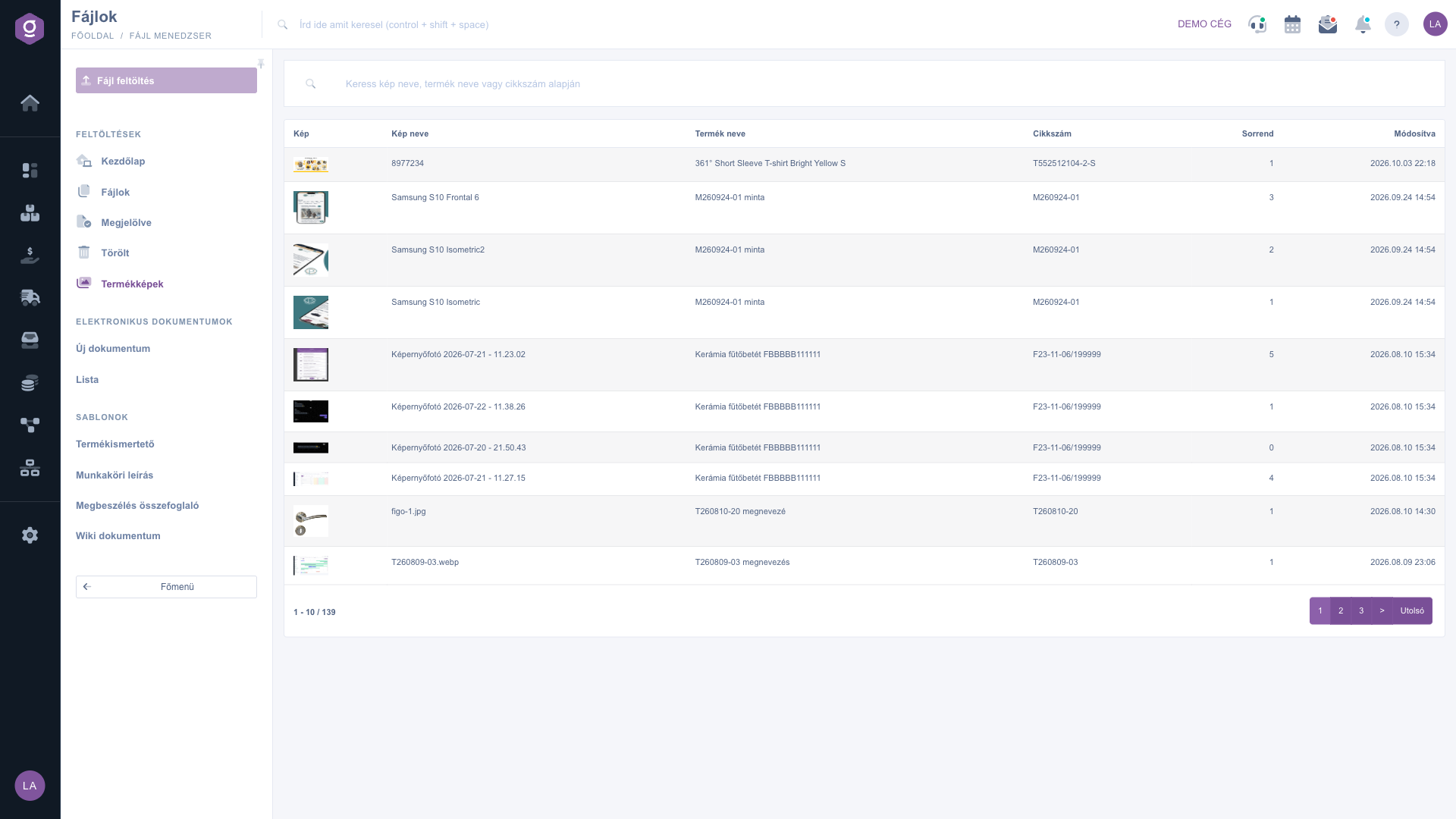
Product images list
Product images list

2. Searching among the pictures

In the search box above the list (“Search by picture name, product name or part number”) type a part of the picture name, the product name or the item number, then start the search. The results appear in the table; if you empty the search box, all pictures are shown again.

3. Viewing a picture

  • If you move the mouse pointer over the small picture in the Picture column, a larger preview (about 300 pixels wide) appears.
  • If you double-click the row, the full-size picture opens in a new browser tab.

4. Paging

Below the table, on the left you see which results the current page shows and how many pictures there are in total (e.g. 1 - 10 / 139); on the right you can page with the page numbers, the > sign and the Utolsó (Last) button.

Tip


If you want to go through all the pictures of a product, search for the item number of the product: the pictures belonging to it appear one under the other, and in the Sorrend (order) column you see the sequence they follow. You do not have to open a picture to check it quickly: just move the mouse over the small picture.

This page is part of the file manager; you can read about the other views (Files, Marked, Deleted) and the start page in the File manager – Start page guide.

Field descriptions

The columns of the table and their meaning:

Field / Element Required Description
Picture The small preview of the picture; pointing at it shows a larger preview.
Picture name The name of the picture (e.g. the name of the uploaded file).
Product name The name of the product the picture belongs to.
Item number The item number of the product. If the product has several item numbers, the list shows one of them.
Sorrend (Order) The sequence number of the picture; it is only displayed here and cannot be changed.
Modified The time of the last modification of the picture. The list is sorted by it: the most recently modified picture is at the top.

Frequently asked questions

The File management group appears in the CRM menu only if the file manager module is assigned to your account. If you cannot see it, ask your administrator.

If no picture has been uploaded for any product yet, the page shows the message “No product pictures have been uploaded yet”. If the list is empty after a search, try a shorter term or empty the search box.

There is no upload or editing option on this page, and the Sorrend column is for information only. To manage pictures you have to use the data sheet of the product itself. The greyed-out Fájl feltöltés button in the left menu is currently not active.

Move the mouse over the small picture for a quick, larger preview, or double-click the row: the full-size picture opens in a new browser tab.

Need personalized help?

Don't want to spend hours searching for a solution? Choose the most efficient way: book a personalized, 45-minute online training session dedicated entirely to you. Whether it's a walkthrough of the basics or a detailed setup of a specific module, our expert colleague will guide you through the whole process, step by step.

Don't waste your time - ask for help!
Our goal is to get you using our system as quickly and efficiently as possible. Whether you're completely new to us or stuck on a specific setting, don't hesitate to ask for help!

Logzi warehouse management software

Get in touch with us

Interested in our software? Feel free to write to us!

Need help?

If you can't find the answer and need assistance

Create your account now,
pay later!

Try it free for 3 days, no risk, no obligation!

