File manager – Start page

Get to know the Files start page: your own directories, folders by document type, product pictures and the most recently uploaded files in one place.

Feature overview

The Files start page (Fájlok – Kezdőlap) gives you one place to reach the files stored in Logzi: your own directories, folders grouped by document type, product pictures and the most recently uploaded files. From here you can quickly find a document, create a new directory, share it with your colleagues or download the file you are looking for.

  • Quick search: in the search box at the top you can search by file name or by the number of the document the file belongs to.
  • My directories: you can create directories, upload files into them and share them with your colleagues.
  • By document types: files attached to documents are available in separate folders for each document type.
  • Last uploaded: the 12 most recent files are at hand for downloading, marking or deleting.

The menu on the left side of the page also gives access to the other file manager views (Files, Marked, Deleted, Product images), the electronic documents and the templates.

Step by step

1. Opening the start page

Click Main menu / CRM / File management / Overview (Főmenü / CRM / Fájl kezelés / Áttekintés). In the file manager, the menu on the left side of the page is divided into the following groups:

  • Uploads: Start page (Kezdőlap), Files (Fájlok), Marked (Megjelölve), Deleted (Törölt), Product images (Termékképek).
  • Electronic documents: New document (Új dokumentum), List (Lista).
  • Templates: Product description (Termékismertető), Job description (Munkaköri leírás), Meeting summary (Megbeszélés összefoglaló), Wiki document (Wiki dokumentum).

With the Main menu button (Főmenü) at the bottom of the menu you can return to the main menu of Logzi.
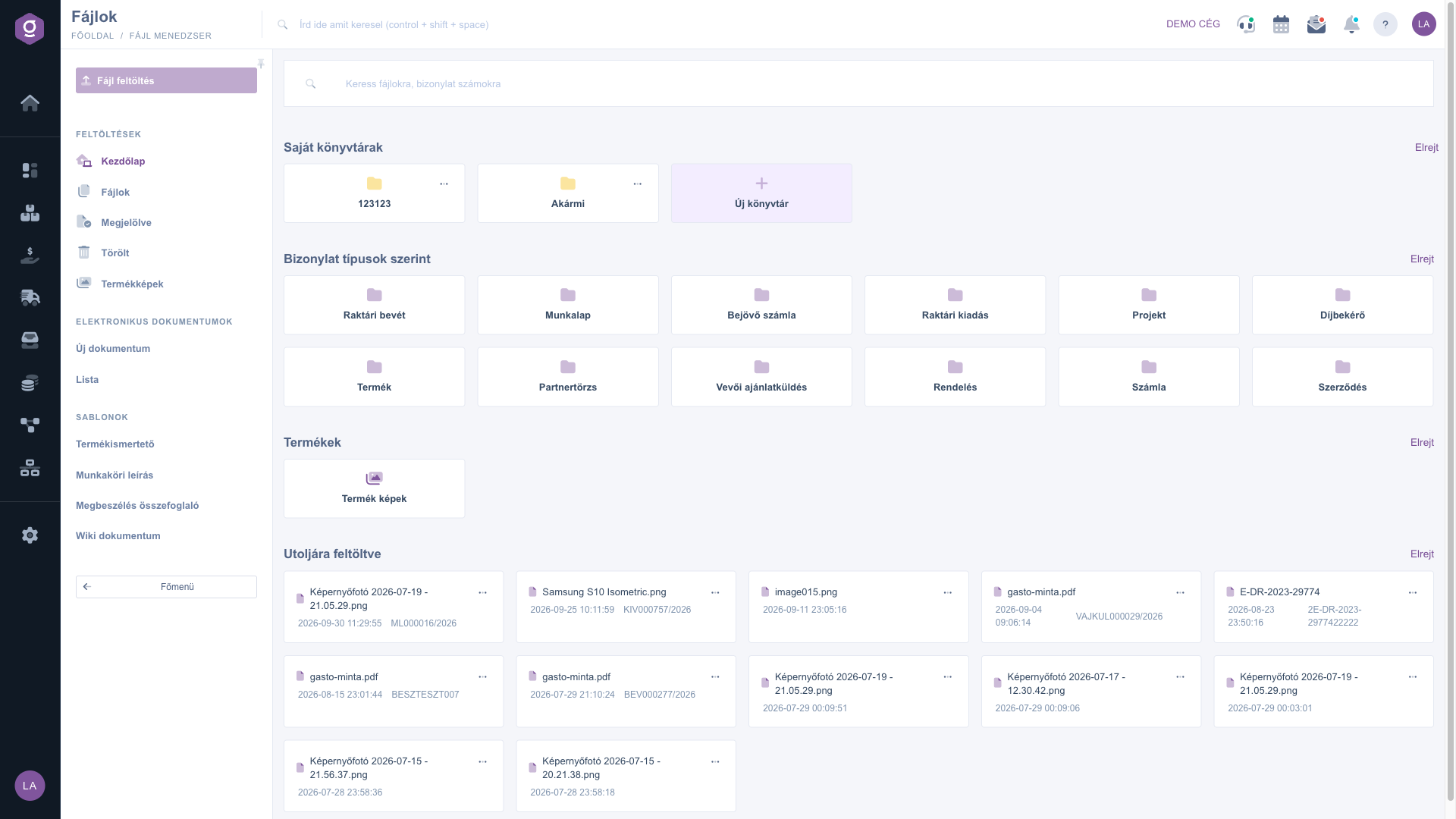
Files – Start page
Files – Start page

2. Searching for files and document numbers

In the search box at the top of the page (“Search for files, document numbers”) type a part of the file name or the exact number of the document the file belongs to (e.g. KIV000757/2026), then submit the search. The results appear on the Files page.

3. Creating and using your own directory

In the My directories section the yellow folders are your directories. You can create a new directory by clicking the New directory (Új könyvtár) card:

  • In the Új könyvtár létrehozása window that opens, enter the name in the Könyvtár neve field (directory name, e.g. Szerződések 2024) and click Létrehozás (Create). A directory cannot be created with an empty name; the Mégse (Cancel) button closes the window.
  • Clicking a directory opens the Files page, where you see the contents of that directory. The Upload new file tile also appears here: click it, drag the file into the Fájl feltöltése window (or click to choose it) and press Feltöltés (Upload). The file is placed in the directory that is open.
  • The ··· menu on the directory card offers Share (Megosztás) and Delete (Törlés).
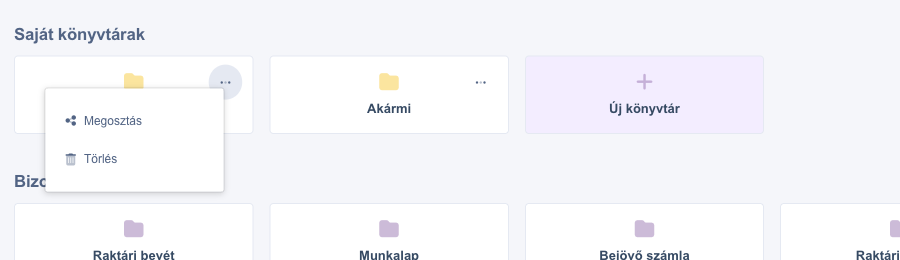
Directory menu – Share and Delete

4. Sharing a directory with your colleagues

In the ··· menu of the directory click Share (Megosztás). In the window that opens you can set two things:

  • People with access: in the first row you are shown as Owner, below you the other colleagues in the system with a checkbox. Tick the ones you want to give access to.
  • General access: choose Private (only the specified people have access) or Public (anyone with the link can view it).

Save the setting with the Mentés (Save) button; the Bezárás (Close) button closes the window without saving. If there is no other colleague in the system, the window tells you so.

Tip


Create a separate directory for each customer, project or year (e.g. Szerződések 2024), tick only the colleagues who need it in the Share window and leave the general access on Private. This keeps your files organised and not everyone sees them.

5. Files by document type

In the By document types section the blue folders stand for the document types (e.g. Számla, Szerződés, Rendelés) that have at least one file. Clicking a folder shows only the files of documents of that type on the Files page. If a document type has no files, its folder is not displayed.

6. Product pictures

The Product pictures (Termék képek) card in the Products section leads to the list of pictures uploaded for products.

7. Last uploaded files

The Last uploaded section shows the 12 most recent files. Each card shows the file name, its date and – if the file belongs to a document – the document number. On the card:

  • click the star next to the name to mark the file (click again to remove the mark); marked files can be found under Marked in the menu on the left;
  • the ··· menu offers Download (Letöltés) and Delete (Törlés); double-clicking the file name also downloads the file.
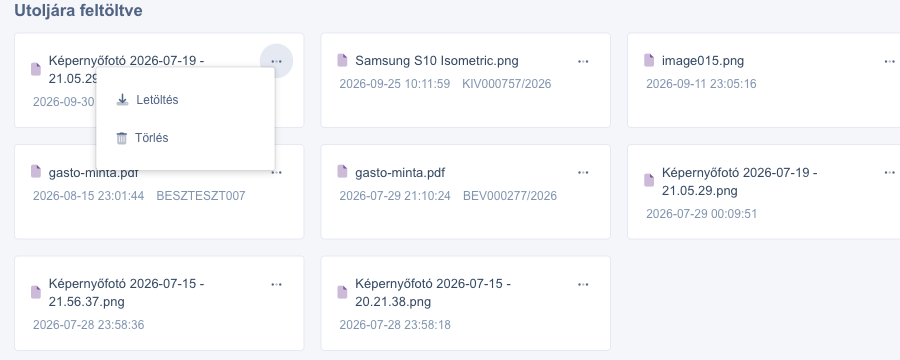
File menu – Download and Delete

Next to the title of each section, the Elrejt (Hide) / Felfed (Expand) link collapses or expands that part, which keeps the page easy to survey.


You can read about browsing and searching the pictures uploaded for products in the File manager – Product images guide, and about document templates (e.g. job description) in the File manager – Job description template guide.

Field descriptions

The elements of the start page and their meaning:

Field / Element Required Description
Search box You can search by file name (also by a part of it) or by the exact number of the document the file belongs to.
My directories The directories created by you and the ones shared with you.
Directory name (Könyvtár neve) The name of the new directory in the Új könyvtár létrehozása window; it cannot be saved empty.
By document types One folder per document type, only for the types that have files.
Last uploaded The 12 most recent files with the file name, date and the number of the document they belong to.
Star Marks the file; marked files are collected on the Marked page.
People with access In the Share window: the owner and the colleagues you can select with checkboxes.
General access In the Share window: Private (only the specified people have access) or Public (anyone with the link can view it).

Frequently asked questions

The File management group appears in the CRM menu only if the file manager module is assigned to your account. If you cannot see it, ask your administrator.

Only the document types that already have at least one file are shown here. If there is no file for a type yet, its folder is not visible either.

Open the directory on the start page by clicking its card. On the Files page that opens, the Upload new file tile appears. The upload goes into the directory that is open, so the file lands in the right place when it is uploaded. The greyed-out Fájl feltöltés button in the left menu is currently not active.

Deleted files are still listed on the Deleted page of the left menu and can be downloaded from there. However, there is no restore function in the interface, so always think twice before deleting that you really do not need the file.

Need personalized help?

Don't want to spend hours searching for a solution? Choose the most efficient way: book a personalized, 45-minute online training session dedicated entirely to you. Whether it's a walkthrough of the basics or a detailed setup of a specific module, our expert colleague will guide you through the whole process, step by step.

Don't waste your time - ask for help!
Our goal is to get you using our system as quickly and efficiently as possible. Whether you're completely new to us or stuck on a specific setting, don't hesitate to ask for help!

Logzi warehouse management software

Get in touch with us

Interested in our software? Feel free to write to us!

Need help?

If you can't find the answer and need assistance

Create your account now,
pay later!

Try it free for 3 days, no risk, no obligation!
