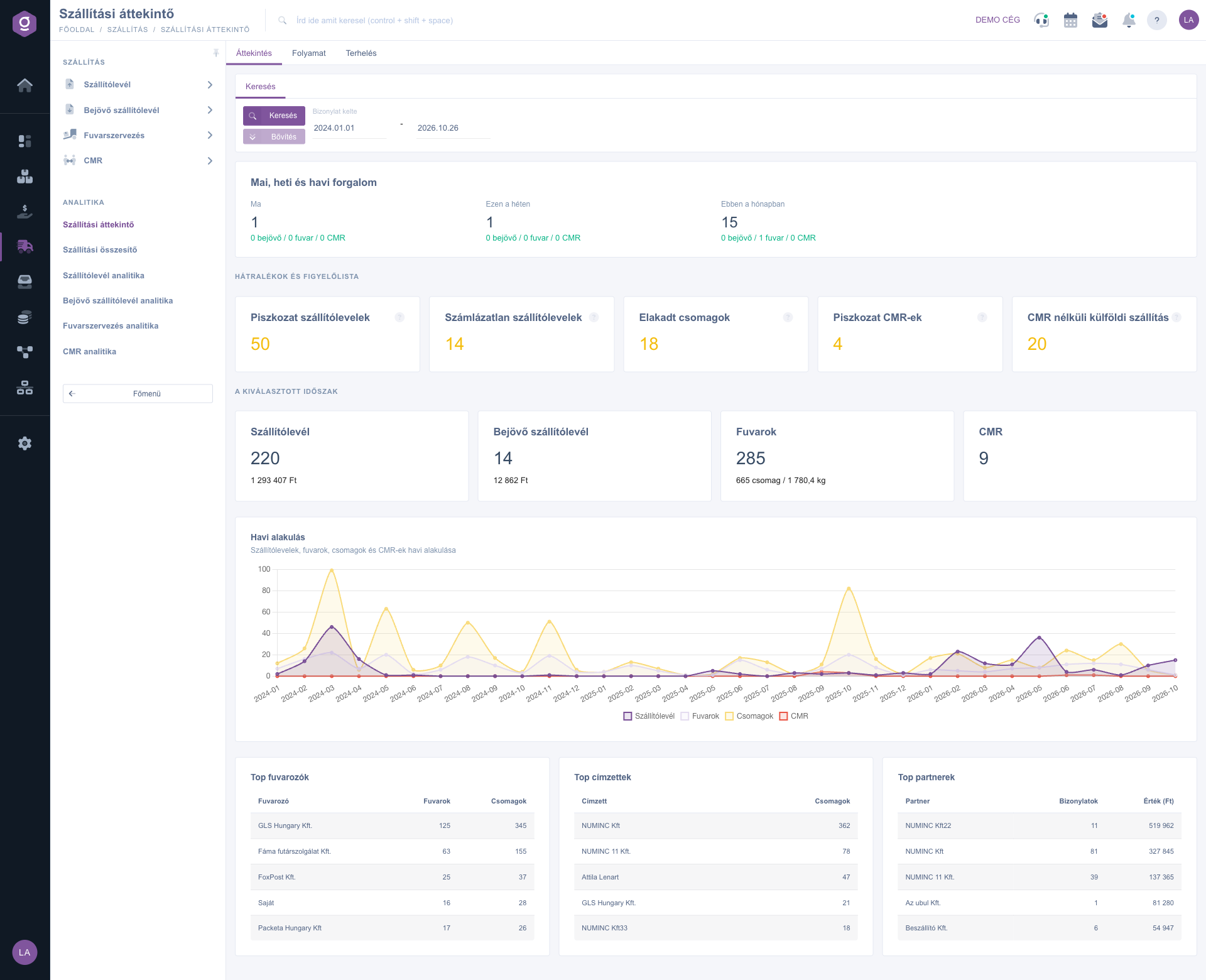
The Logistics overview is the common statistics page of the Transport modules. You see the most important numbers of delivery notes, transports, parcels and CMRs in one place, so you can quickly decide where you have work to do and which detailed analytics page to open. It helps you answer questions such as:
The page shows only the parts for which you have the module: Delivery note, Incoming delivery note, Transport organization or CMR (and the Shipping summary module). The numbers cover valid documents: among delivery notes and CMRs the Draft, Cancellation and Cancelled ones and the deleted documents are left out, while Closed and Used ones are counted. For transports, the cancelled ones are left out.
Click Main menu / Transport / Analytics / Logistics overview to open the page. On the Search tab you set the period (from – to) with the Document date field pair. When you open the page, the period from 1 January of the current year to today is shown. The new period is loaded with the Search button. The screenshots are taken from the Hungarian demo interface.
You find four things below each other:
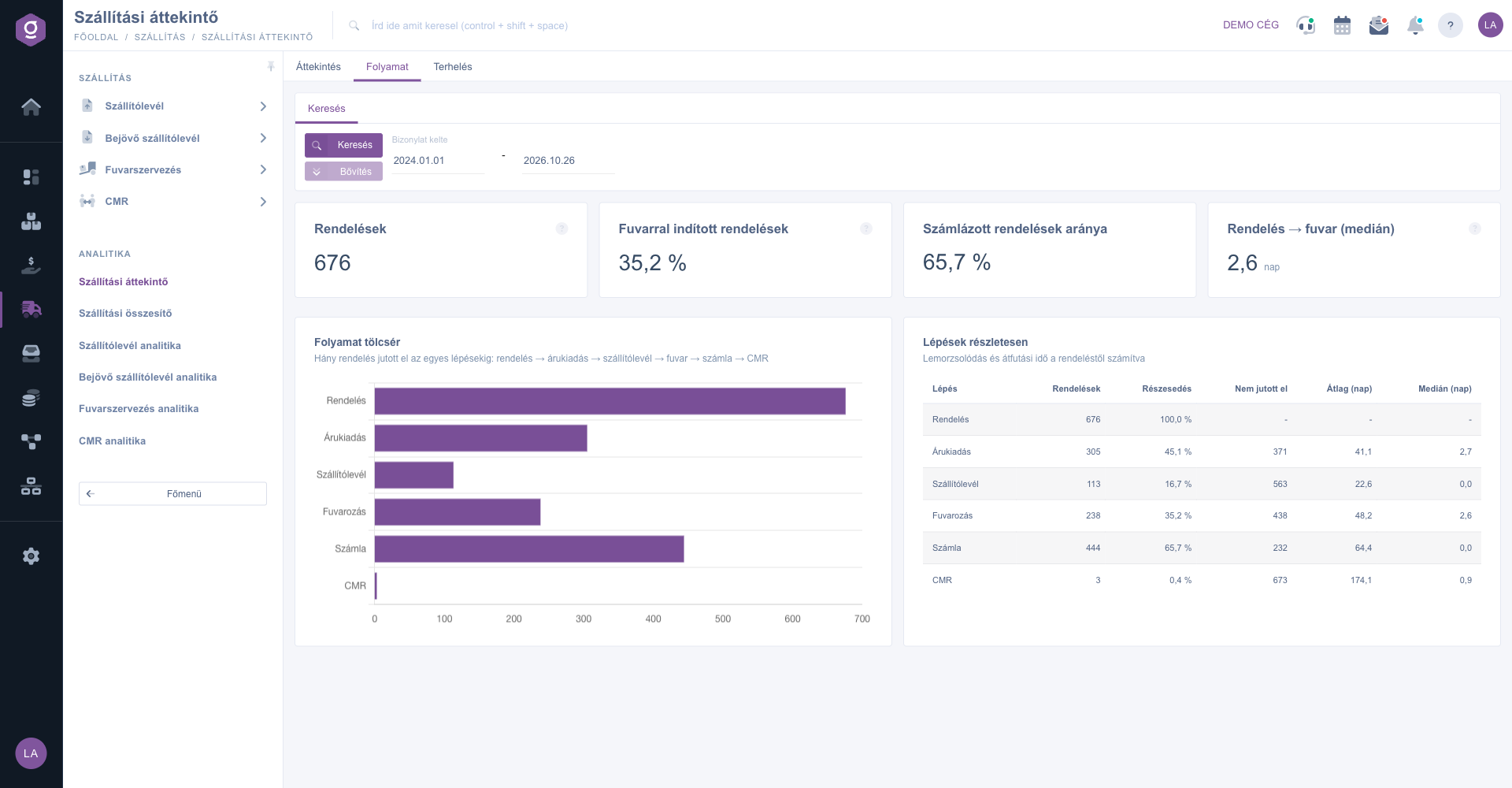
The tab shows how many orders reached each step of the process: Goods issue, Delivery note, Transport, Invoice, CMR. The system looks for a document of the given type in the business process of the order. Example: if a delivery note and an invoice were created from an order but no transport, the order is counted at the Delivery note and Invoice steps and shown in the Not reached column at the Transport step. The steps are counted independently, so the numbers do not necessarily decrease in order. The Average (days) and Median (days) columns give the time from the order to the step. The median is less sensitive to extreme values, so it is the more reliable estimate of the real lead time.
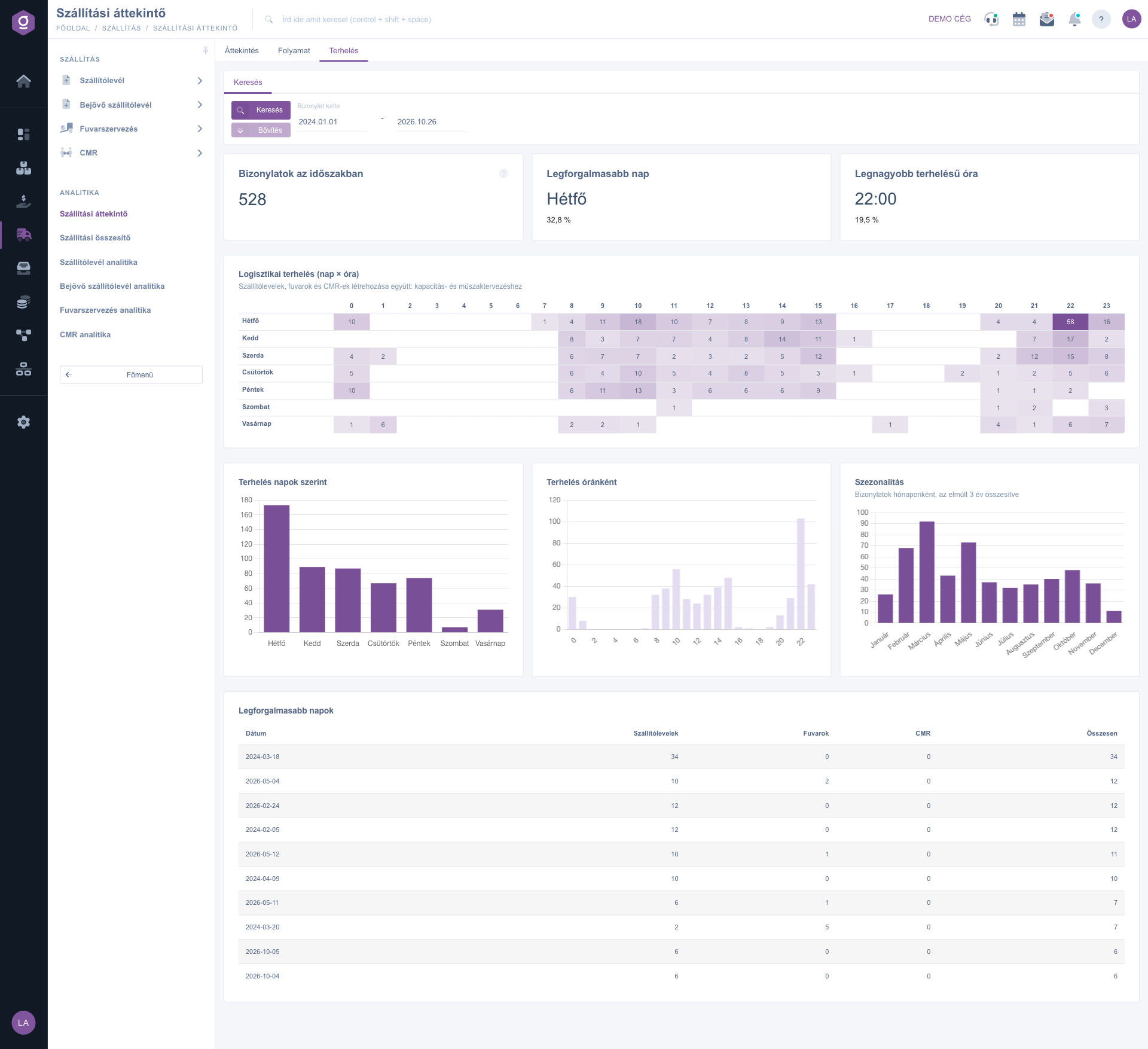
The Logistics workload (weekday x hour) heatmap shows when delivery notes, transports and CMRs are created: the darker a cell, the more documents were created then. Below it you see the column charts by weekday, hour and month (seasonality sums the last 3 years and does not depend on the period) and finally the Busiest days table.
On Monday morning look at the tiles of the Backlogs and watch list first. If the Uninvoiced delivery notes tile is yellow, open the Process tab of the Delivery note analytics: it also gives you the list of the oldest open delivery notes, so you can invoice them one by one.

The elements of the Search tab and their meaning:
| Field / Element | Required | Description |
|---|---|---|
| Document date (from – to) | The analysed period. By default 1 January of the current year and today. You can pick from the calendar or type the date in YYYY.MM.DD format. | |
| Search button | Reloads the active tab with the new period. |
The meaning of the main indicators:
| Indicator | What it shows | How it is calculated |
|---|---|---|
| Draft delivery notes | The number of delivery notes waiting to be finalized. | Not deleted delivery notes in Draft status, from all periods. |
| Uninvoiced delivery notes | Closed delivery notes that have no invoice yet. | Closed status, no invoiced value, and no invoice in the process. |
| Stuck parcels | Tracked parcels that have not arrived. | No Delivered event and at least 5 days since the last status. Visible only for carriers that return the parcel status. |
| Foreign shipments without CMR | Invoices for foreign countries without a CMR. | Issued invoice whose shipping address is not in the country of the company and the process has no CMR. |
| Orders started to ship | The percentage of the orders that have a transport. | On the Process tab, from the valid customer orders created in the period. |
| Order → transport (median) | The time between the order and the first transport, in days. | From the creation of the order to the creation of the first linked transport, the median value. |
The menu item appears if the Shipping summary module and at least one of the source modules are assigned to you: Delivery note, Incoming delivery note, Transport organization or CMR. If a source module is missing, the page does not show the blocks that belong to it. Ask your administrator to check your module assignment.
The backlogs show the work that is still to be done, so they always watch all periods. The daily, weekly and monthly traffic and the seasonality chart of the Workload tab are also independent of the period. The indicators of the selected period, the monthly trend, the TOP lists, the funnel and the heatmap follow the period.
The funnel starts from customer orders and finds only the documents that belong to the business process of the order. If you created the delivery note or the transport manually, independently of the order, it is not counted in the steps of the order. In that case look at the ratio of the linked documents on the Process tab of the Delivery note analytics.
The tile watches only tracked parcels, that is, parcels for which the carrier returned a status event. If your carrier is not integrated or the parcel has not received a status yet, it is not included. The five-day limit counts from the last status event. You find the detailed list on the Lead time and delivery tab of the Transport analytics.
Don't want to spend hours searching for a solution? Choose the most efficient way: book a personalized, 45-minute online training session dedicated entirely to you. Whether it's a walkthrough of the basics or a detailed setup of a specific module, our expert colleague will guide you through the whole process, step by step.
Don't waste your time - ask for help!
Our goal is to get you using our system as quickly and efficiently as possible. Whether you're completely new to us or stuck on a specific setting, don't hesitate to ask for help!
Create your account now,
pay later!