On the Shipping summary page you can see how many parcels you dispatched per month in a selected year through each of your carrier partners (courier services), and how much those parcels weighed. The page does not list individual documents, it summarises them: one row is the combination of one month and one carrier partner. It helps you quickly answer questions such as:
The Shipping summary is a statistics page, so it has no states, views or submodules of its own beyond the Search tab. The summary does not check the status of the Transport organization document: the parcels of every document that has parcels recorded are counted. The Expand button is currently inactive and there is no other filter field.
Click Main menu / Transport / Analytics / Shipping summary to open the page. When it opens, the Search tab is active and you see the data of the current year. The screenshots were taken from the Hungarian demo interface.
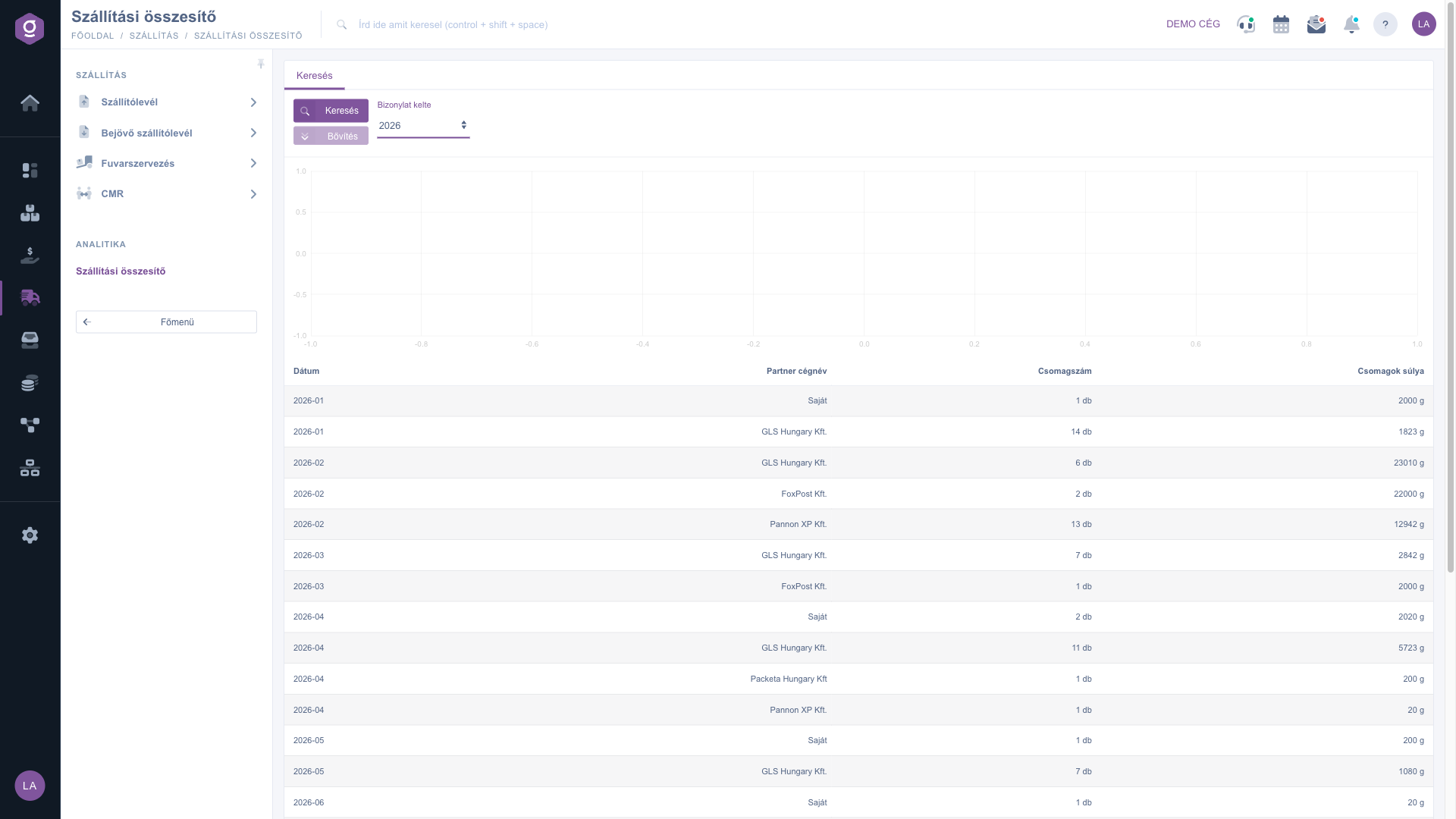
From top to bottom the page consists of the Search tab (the Search and Expand buttons and the Document date year selector), the monthly column chart and the summary table. The screenshot shows the search tab and the table.
In the Document date list you can choose any year from 2018 up to the current year. Pick the year you want and click the Search button: the page reloads and the chart and the table show the data of that year. If the Please choose entry stays selected in the list, the page uses the current year.
The Expand button is grey and cannot be used. There is no other filter field, so you cannot filter by month or by a specific partner; months and partners are separated by the rows of the table.
The columns of the table are Date, Partner company name, Parcel number and Package weight. One row is the summary of one month and one carrier partner, and the rows follow each other in ascending order by month. If you shipped with several partners in a month, the month has several rows.
Example from the demo data: the month 2026-02 has three rows: GLS Hungary Kft. 6 db and 23010 g, FoxPost Kft. 2 db and 22000 g, Pannon XP Kft. 13 db and 12942 g. So in February a total of 21 parcels went out, weighing 57952 g together (about 58 kg). In 2026-01 the Saját row shows 1 db parcel and a weight of 2000 g.
If you want to know the average parcel weight of a courier service, divide the Package weight value by the Parcel number value. In the demo data, based on the GLS Hungary Kft. row of 2026-02, 23010 g / 6 db = 3835 g, that is about 3.8 kg per parcel. This way you can quickly compare what kind of parcels go with which partner, for example when you choose a courier service or negotiate prices.
The data come from the parcels of Transport organization documents. The system sums up the parcel records that are recorded for a recipient of a Transport organization document, and groups them by month and by the carrier partner of the document:
The column chart below the search tab shows the parcel counts of the table: its horizontal axis shows the number of the month (1 = January), its vertical axis shows the parcel count, and each partner has its own series of columns. When you move the mouse over a column, its value appears. The chart does not contain partner names, so you can find out which column belongs to which partner from the table. The chart shows the parcel count, not the weight.
The chart is only a supporting overview: always read the exact values of each month in the table. If the chart looks empty while the table has rows, rely on the data of the table.

The elements of the Search tab and their meaning:
| Field / Element | Required | Description |
|---|---|---|
| Document date | Year selector list from 2018 up to the current year. The current year is selected by default. When you choose the Please choose entry, the data of the current year are shown as well. | |
| Search button | Reloads the chart and the table with the selected year. | |
| Expand button | Currently inactive (grey) and cannot be used; there is no further filter field. |
The columns of the summary table and their meaning:
| Column | What it shows | How it is calculated |
|---|---|---|
| Date | The month in YYYY-MM format (e.g. 2026-02). | Based on the month of the last modification of the recipient row the parcel belongs to. |
| Partner company name | The name of the carrier partner. The Saját row marks the shipments without an integrated parcel label. | The carrier partner of the Transport organization document (Shipping company). |
| Parcel number | How many parcels belong to the given month and partner, with the unit db (pieces). | The number of parcel records; every record counts as 1 db. |
| Package weight | The total weight of the parcels of the given month and partner, with the unit g (gram). | The sum of the weights recorded for the parcels; where no weight is recorded, it counts as 0 g. |
The elements of the monthly column chart:
| Element | What it shows |
|---|---|
| Horizontal axis | The number of the month (1 = January). |
| Vertical axis | The parcel count (db). |
| Columns | A separate series of columns for each partner, with one column per month; when you move the mouse over a column, its value appears. |
Only parcels that are recorded for a recipient of a Transport organization document, and whose recipient row was last modified in the selected year, appear in the table. If there is no such parcel for the year, the list is empty and the system shows the empty-list message. Choose another year in the Document date list and click the Search button. If there is no data in any year, read the Transport organization list guide to see how to record a shipment that contains parcels.
The Saját row marks the shipments where you chose No in the Integrated parcel label creation field when you created the Transport organization document, so you did not dispatch the parcel with the label of an integrated courier service. In this case the system assigns the shipment to the partner named Saját, so these parcels appear in a separate row next to the courier services.
The Parcel number gives the number of parcel records: every record counts as 1 db, even if a different quantity is entered for a parcel on the document. In addition, parcels fall into the month of the last modification of the recipient row, so the parcels of one document do not necessarily all appear in the same month. If you need the exact piece count of a document, check it on the document itself.
Although the label of the search list is Document date, the page calculates the month and the year not from the date of the document but from the time of the last modification of the recipient row the parcel belongs to. If the recipient of a document is modified later, its parcels move to the month and year of the new modification.
No. The summary does not check the status of the document, the only condition is that parcels are recorded for the recipient of the document. Therefore the Shipping summary is meant for an overview of the parcel volume, not for an exact report of closed or delivered shipments.
The chart draws the months from the beginning of the year up to the number of the current month, and it shows only the parcel count, not the weight. It can happen that the chart is empty or does not show the columns of every month even if the table has data. In this case always treat the values of the table as the reference.
On this page only the year can be selected. The Expand button is currently inactive, and there is no filtering by month or partner and no download. To get the parcel count of all partners for a month, add up the rows of that month in the table.
The Shipping summary appears under Main menu / Transport in the Analytics block only if the module is assigned to your user. If you cannot see it, ask the system administrator to check the module assignment in your user settings.
Don't want to spend hours searching for a solution? Choose the most efficient way: book a personalized, 45-minute online training session dedicated entirely to you. Whether it's a walkthrough of the basics or a detailed setup of a specific module, our expert colleague will guide you through the whole process, step by step.
Don't waste your time - ask for help!
Our goal is to get you using our system as quickly and efficiently as possible. Whether you're completely new to us or stuck on a specific setting, don't hesitate to ask for help!
Create your account now,
pay later!

