1. Opening the page and filtering
Click Main menu / Transport / Analytics / Transport analytics to open the page. On the Search tab you can narrow the data with the Document date field pair (the creation of the transport), a part of the company name typed into the Carrier field and the Employee list, then click the Search button. When you open the page, the period from 1 January of the current year to today is shown. On the Shipping methods tab only the date filter is available because there the date of the orders counts. The screenshots are taken from the Hungarian demo interface.
2. Overview
The top strip shows the number of transports and parcels for Today, This week, This month, This year and All (independent of the filter). Below it the Transports, Stops, Parcels and Weight (kg) indicators are compared with the previous period of the same length (+/- %), followed by the average stops per transport, the average parcels per stop, the Stops without parcel and the number of Carriers. The Stops without parcel turns yellow if there is any: a recipient to whom no parcel is recorded. The charts show the monthly trend and the split by status and by outgoing/incoming direction, the table shows the transports of the colleagues.
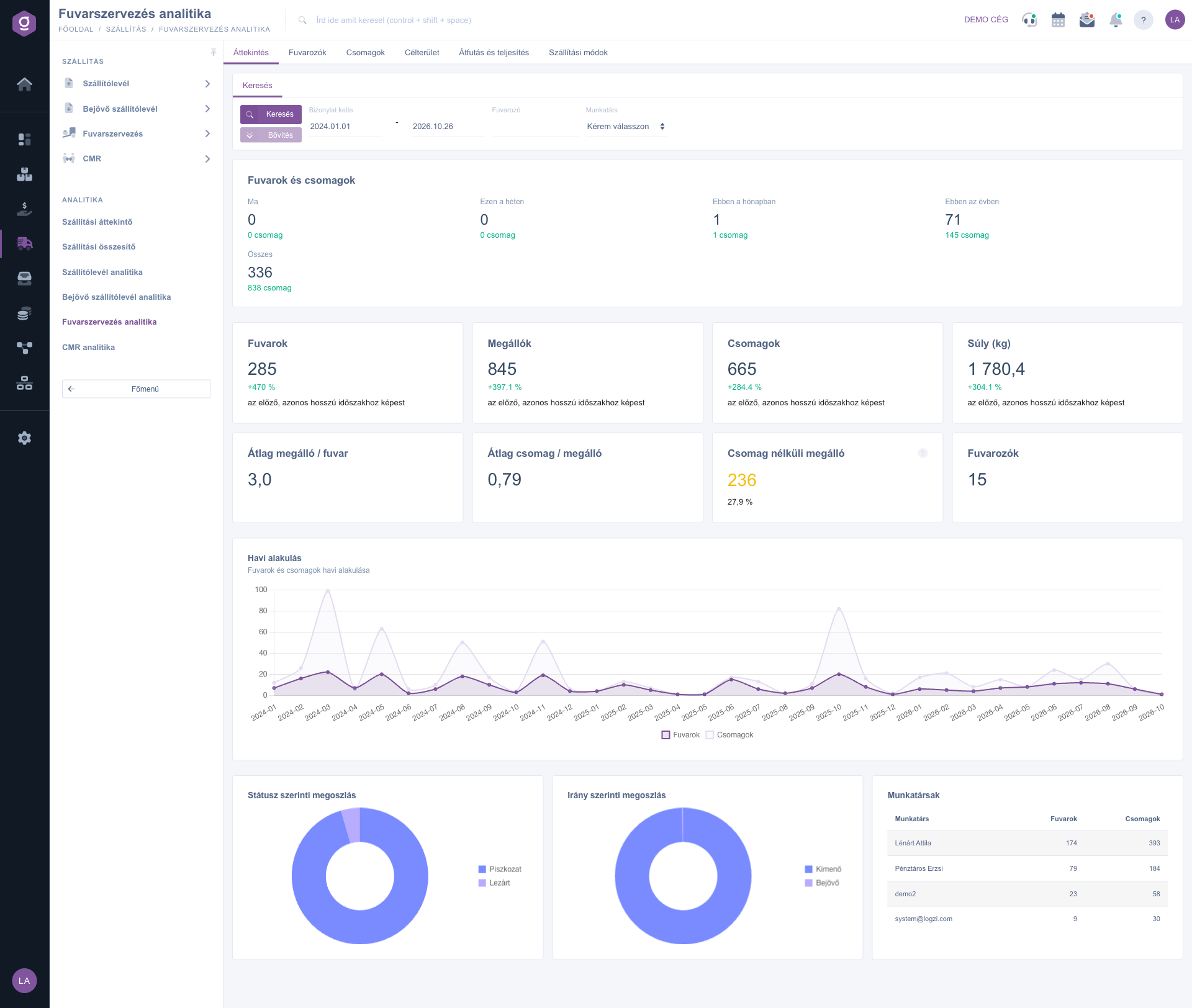
Transport organization analytics – Overview tab (Áttekintés)
3. Carriers
The Carrier mix by month stacked column chart shows the parcel count of the TOP 6 carriers and collects the rest in the Other column. The Carrier scorecard gives per carrier the number of transports, stops and parcels, the total and average weight, the shipping fee, the Cost / parcel and Cost / kg, the cash on delivery, the Delivered ratio and the Avg. transit (hours). The cost is visible only where a fee is recorded on the parcels (the Parcels with fee ratio shows how complete the data is), and the delivery ratio and transit time only for integrated carriers that return a status. Where there is no data, a dash is shown.
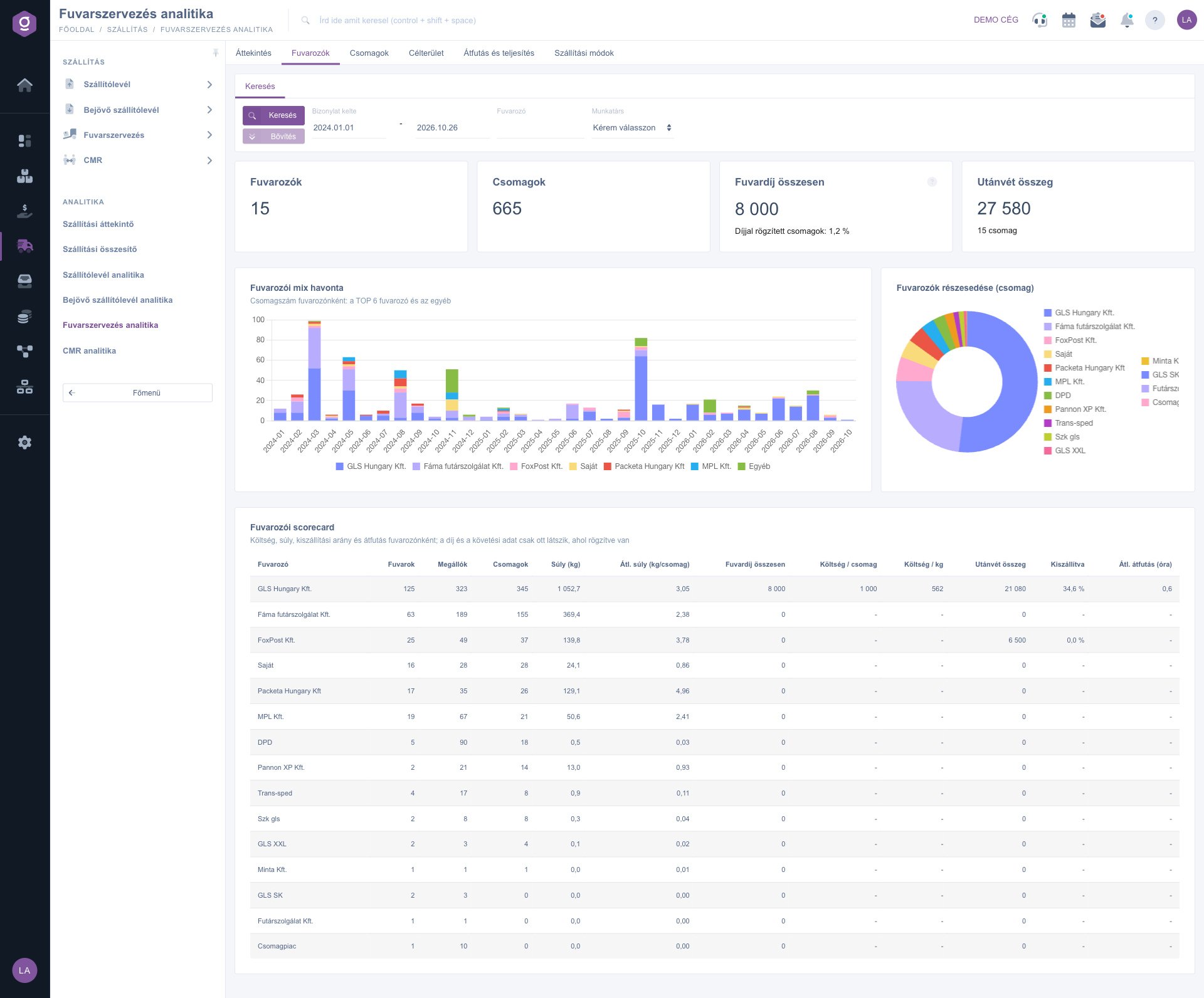
Transport organization analytics – Carriers tab (Fuvarozók)
4. Parcels
The Delivery mode split shows the ratio of the parcels by mode (e.g. Home delivery, Parcel locker, Pickup point). The Weight classes chart shows the number of parcels in eight categories (No weight, < 1 kg, 1–5 kg, 5–10 kg, 10–20 kg, 20–30 kg, 30–100 kg, > 100 kg). The Data quality block counts four types of problems: Stops without parcel, Parcels without tracking number, Parcels without weight and Parcels with suspicious weight (over 100 kg). A parcel with suspicious weight is not included in the kilogram totals. The Parcels to check table lists the latest 30 faulty parcels; click the identifier of the transport to open the document and correct the data.
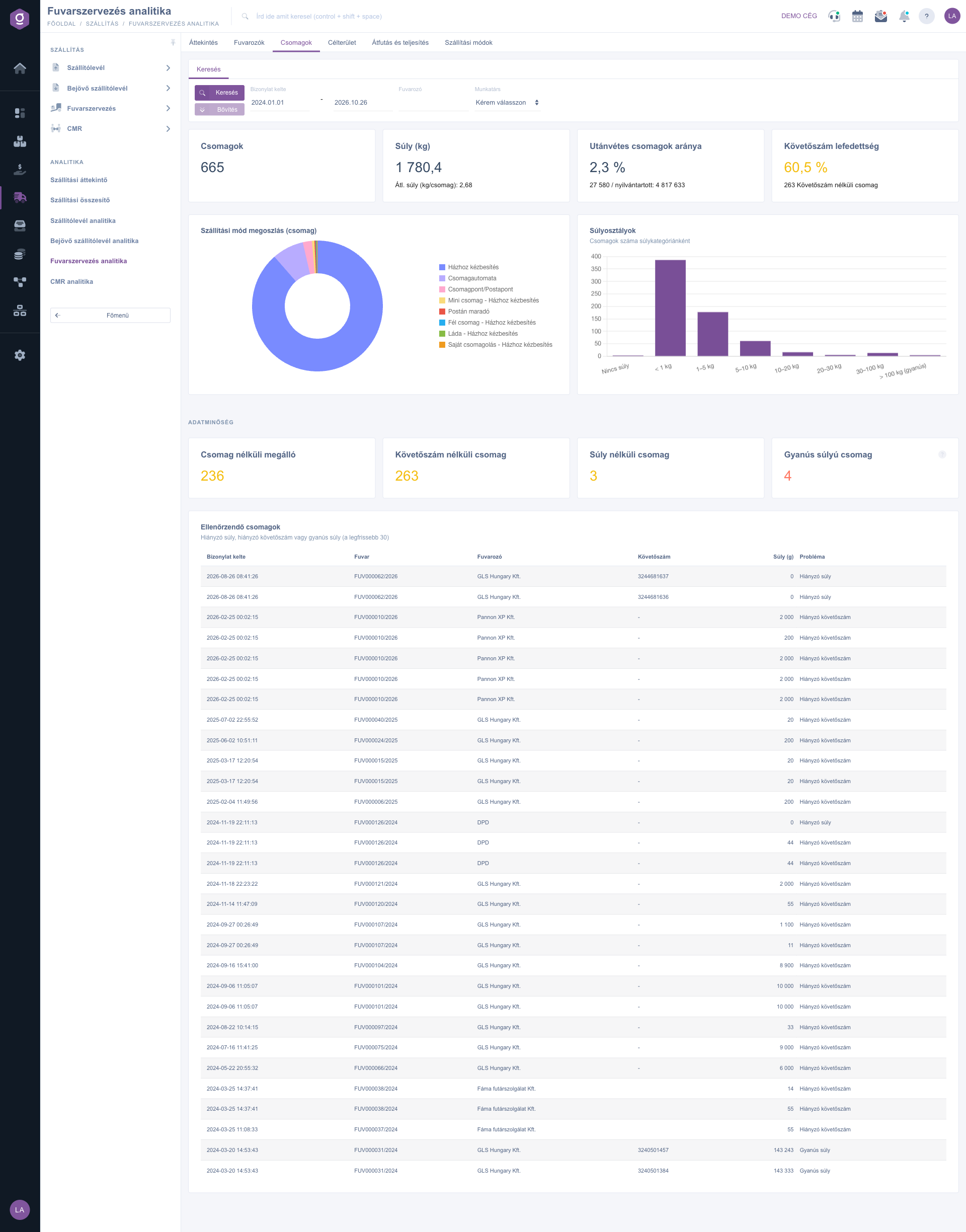
Transport organization analytics – Parcels tab (Csomagok)
5. Destinations
The Domestic share is the share of the most frequent destination country, the International share is that of all the others. The Top destination cities, Countries, Postal code regions (by the first two digits of the postal code) and Top recipients show where and to whom you deliver the most.
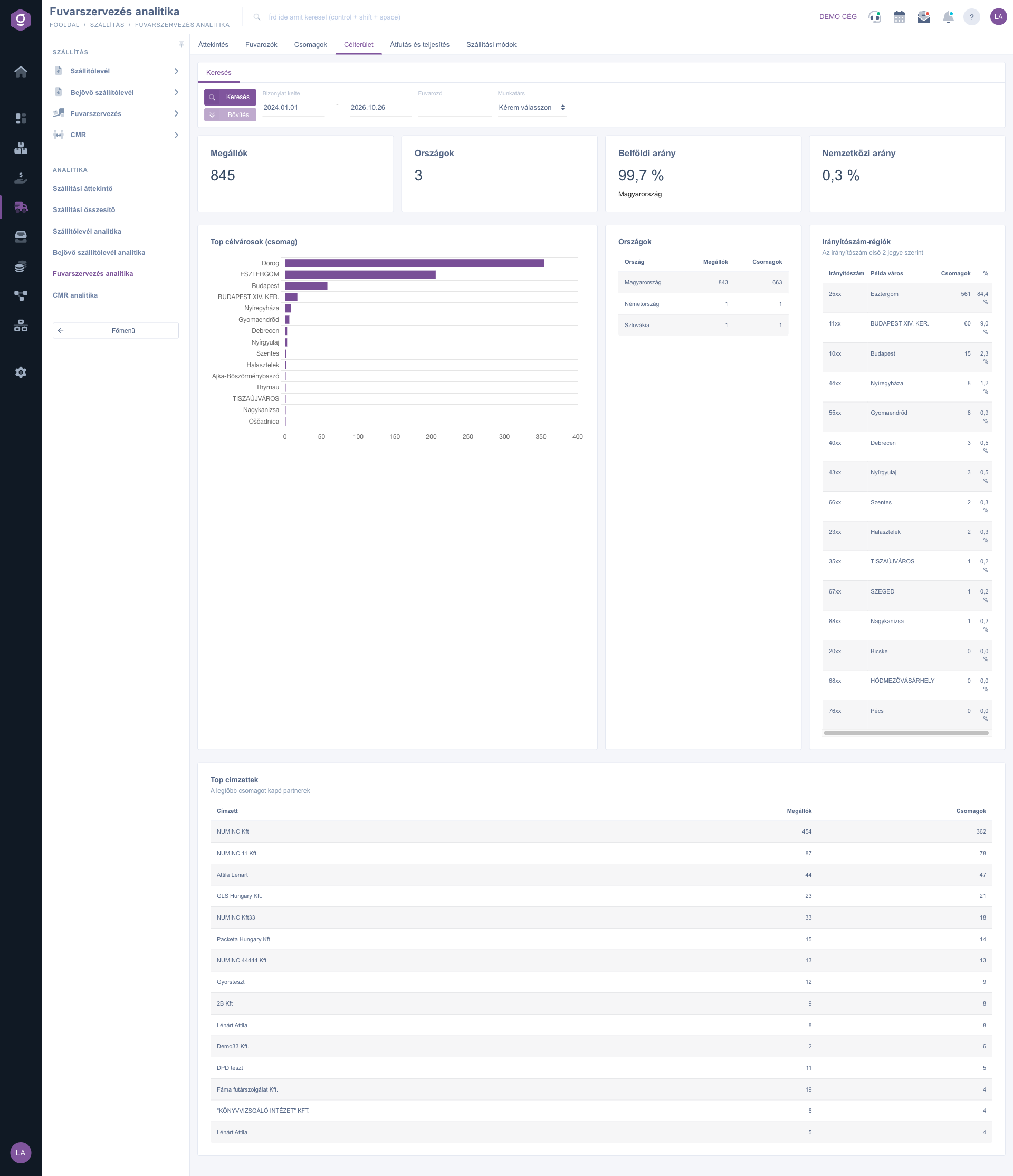
Transport organization analytics – Destinations tab (Célterület)
6. Lead time and delivery
The Order → transport (median) and Goods issue → transport (median) indicators give the time from the creation of the document to the creation of the first linked transport in hours; the charts show the split in bands (within 1 day, 1–2 days, 2–3 days, 3–7 days, over 7 days). The ratios of the Transports created before 12:00 and Transports created before 14:00 estimate keeping the same-day dispatch deadline. The Transport creation (weekday x hour) heatmap helps planning the packing and the courier pickup. The Stuck parcels are tracked parcels that have no Delivered event and at least 5 days passed since the last status.
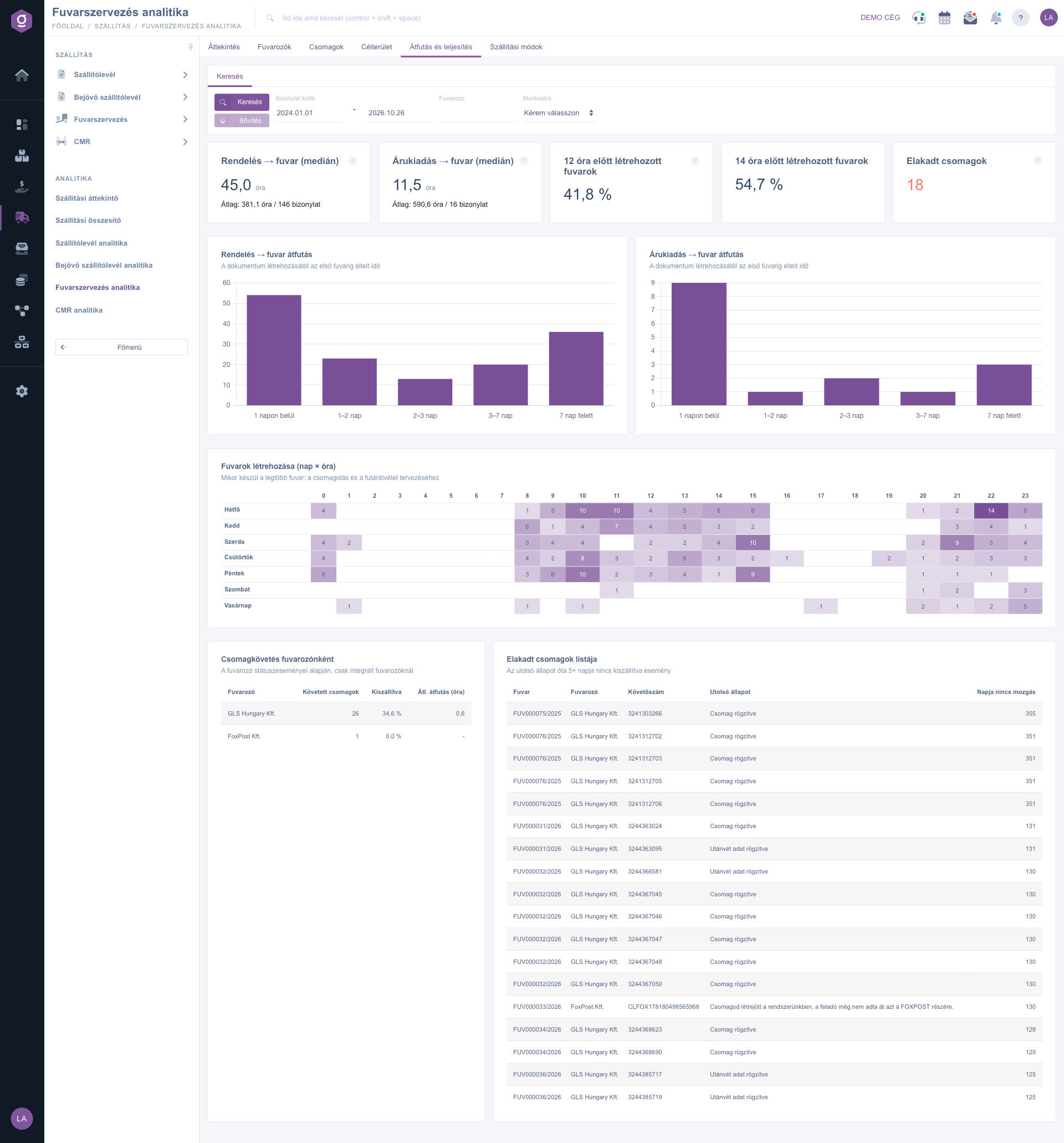
Transport organization analytics – Lead time and delivery tab (Átfutás és teljesítés)
7. Shipping methods
Here you see the shipping method of the customer orders: the split of the methods, the monthly trend of the shipping types (home, pickup point, parcel locker), the number and value of orders per method, and the value of the orders linked to a transport per carrier.
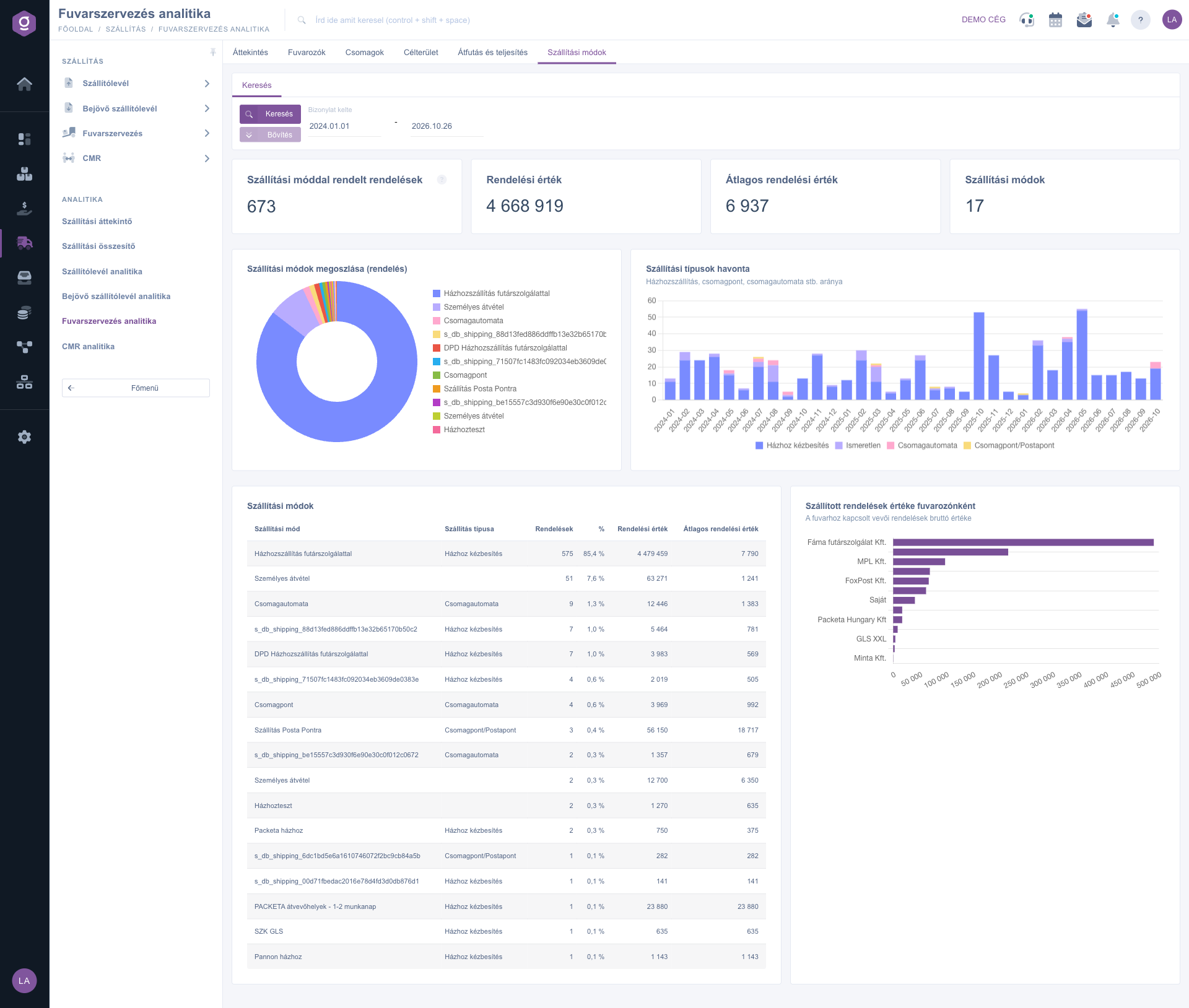
Transport organization analytics – Shipping methods tab (Szállítási módok)
Tip
Before you sign a contract with a new carrier open the Carriers tab and compare the Cost / parcel and Cost / kg columns with your current partners. If one carrier is 20 % cheaper per kilogram but only 60 % of its parcels are delivered, look at the Stuck parcels list as well first.



