Warehouses and sites list

Learn how to browse, search, import, export and delete warehouses and sites in Logzi.

Feature overview

In this module you can review and manage the master data of the Warehouses and sites used by your company. A warehouse is the place the stock belongs to: warehouse receipts, issues, transfers and stocktaking documents always refer to a specific warehouse. The list shows all the warehouses you have created in one place, and from here you can start creating a new warehouse, open or delete one, and use the import and export functions.

  • Simple list: the table has three columns: ID, Name and Sorting. The most recently created warehouse is at the top, and the list is paged in blocks of 10 rows.
  • Search by name: on the Search tab you can filter the list by name (or part of a name) with the Name field.
  • Quick actions: create a new warehouse, or open or delete the selected one with a single click, or from the context menu by right-clicking a row.
  • Import and export: you can create many warehouses at once from a spreadsheet, and save the existing ones to an XLSX file.

Warehouses have no draft or closed status: a warehouse is either active (it appears in the list and in the selection lists) or deleted (it disappears from the list). Further properties, such as Default or External/virtual warehouse, are set on the warehouse record.

Step by step

1. Viewing the list and the actions

Click Main menu / Stock management / Additional data / Warehouses and sites / List to see all the warehouses created so far. Above the table, on the Actions tab, you will find the buttons:

  • New: create a new warehouse on an empty record - use it when you want to enter a single new warehouse or site by hand.
  • Open: open the record of the selected warehouse to edit its data.
  • Delete: delete the selected warehouse after confirmation.
  • Import: opens the import wizard in a new tab - use it when you want to create many warehouses at once from a spreadsheet.
  • Export: opens the export wizard in a new tab, to export the warehouse data.
  • Download: a drop-down menu, currently with the XLSX option - it immediately downloads the list of warehouses as an Excel spreadsheet.

The Open and Delete buttons are shown faded and inactive until you select a row: click the row of the warehouse you want (the selected row is highlighted) and the buttons become active. If you right-click a row, the same actions (New, Open, Delete) are also available from a context menu. The screenshots were taken in the Hungarian interface.
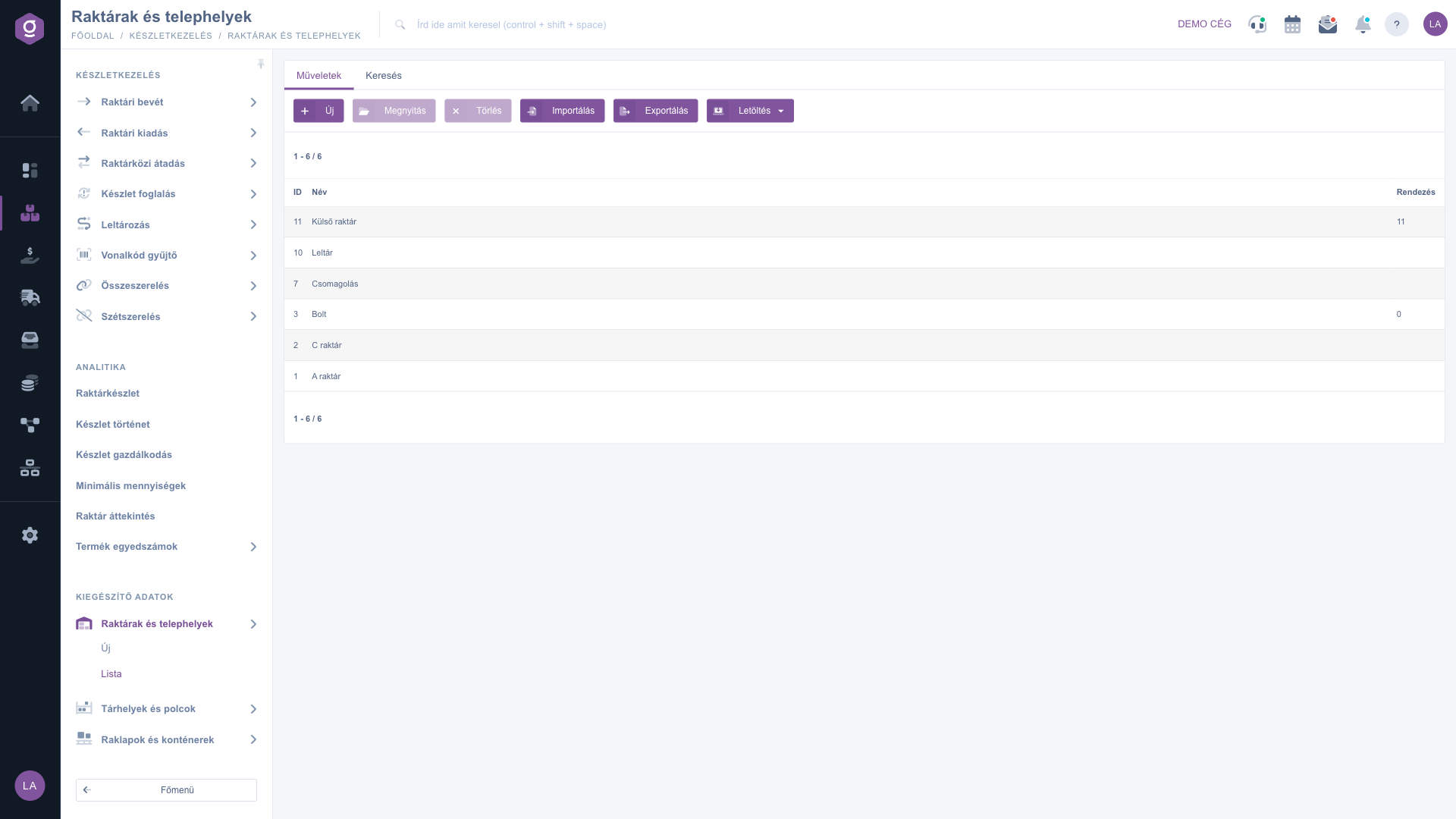
Warehouses and sites list - Actions tab (Műveletek)

2. Searching among the warehouses

Click the Search tab and you will see a single filter field: type the name of the warehouse, or part of it, into the Name field (e.g. warehouse), then click the Search button. The list filters on text appearing anywhere in the name, and after the search the system keeps the Search tab open. If the result list is empty, the table also lists the possible reasons, with links to modify the search criteria or jump to the first page.
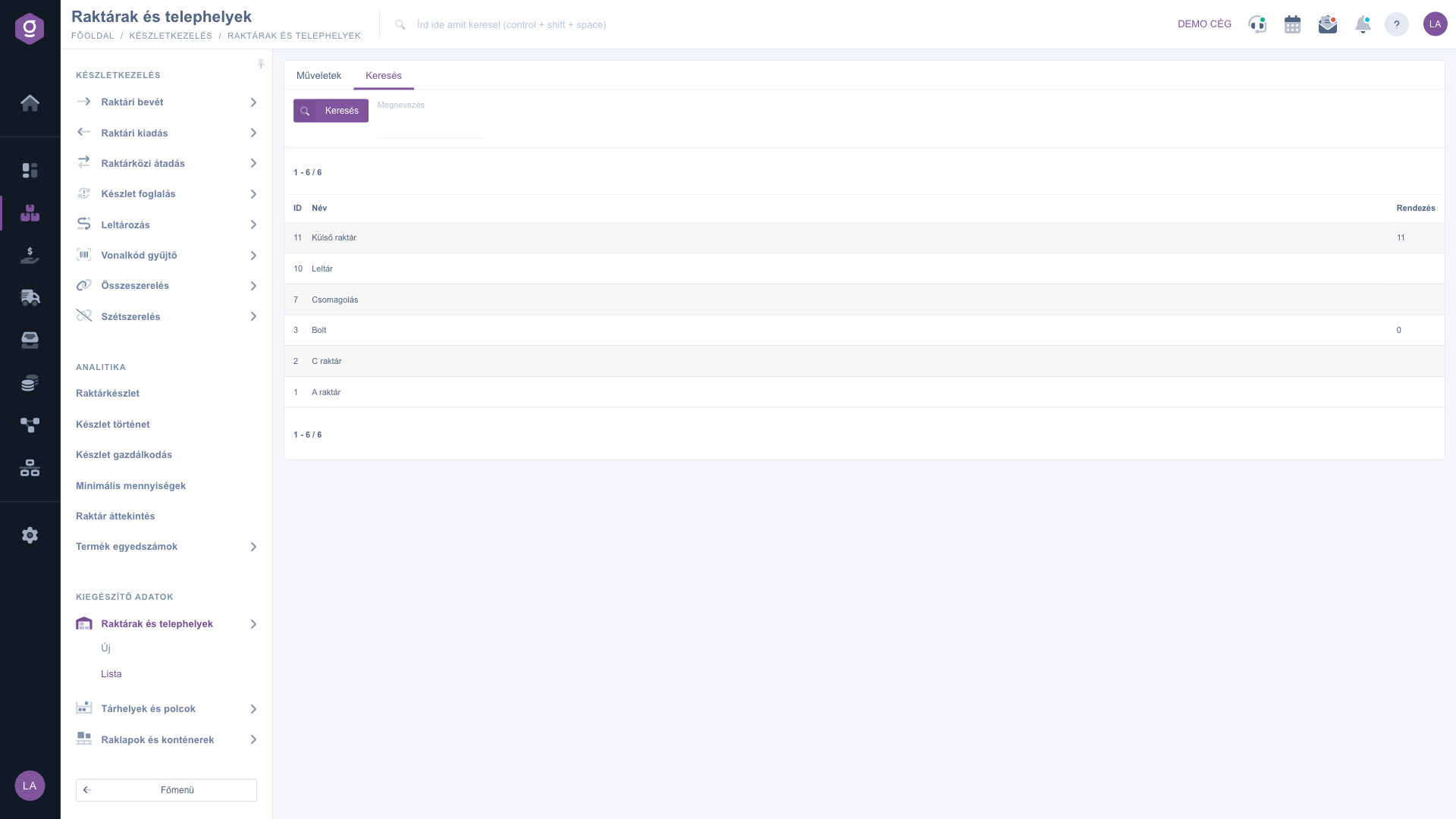
Warehouses and sites list - Search tab (Keresés)

3. Download to an XLSX file

Click the Download button and a drop-down menu opens with the XLSX option. The downloaded store-export.xlsx file has two worksheets: the help sheet describes the fields (type, whether required, meaning), and the store sheet holds the data of the warehouses.
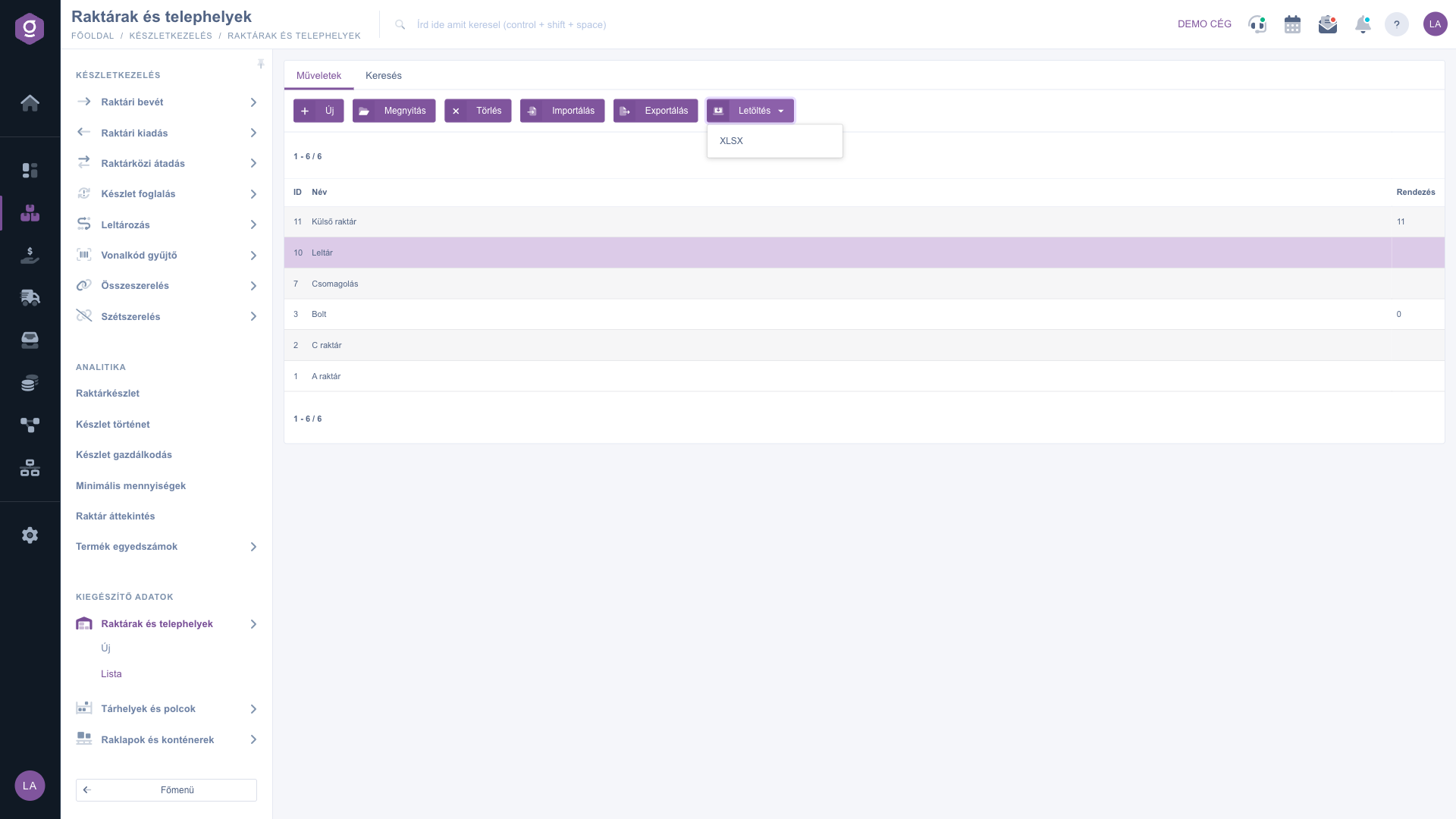
Warehouses and sites list - selected row and the Download menu (XLSX)

4. Import and export wizard

The Import and Export buttons open the shared import/export wizard in a new browser tab. You will find the columns to fill in and their meaning on the help sheet of the Download > XLSX file.

5. Deleting a warehouse

Select a row, then click the Delete button. The system asks for confirmation, and after you confirm, the warehouse disappears from the list. The deletion is logical: the data is not physically removed, but there is no restore option in the interface, so always think twice before deleting.

If you want to create a new warehouse, or edit an existing one (address, default settings, ledger numbers), see the Warehouse and site record guide.

Tip


If you need to create many sites at once (for example the shops of a new franchise network), first download the Download > XLSX file: the help sheet shows the columns to fill in, and the store sheet shows the data of the existing warehouses as an example. Copy the data of the new warehouses into it, then upload it with the Import wizard - this way you do not have to click through the records one by one.


Field descriptions

The columns of the list and the search field, and what they mean:

Field / Element Required Description
ID The unique identifier of the warehouse assigned by the system. It increases automatically, you do not have to enter it; the identifiers of deleted warehouses are missing from the list, so there can be gaps between the IDs.
Name The name of the warehouse or site (e.g. A raktár, Bolt, Külső raktár). This is what appears on documents and in selection lists.
Sorting A number that you enter on the record to define the display and traversal order of the warehouse. If you leave it empty, the column stays blank.
Name (Search tab) Filter field: filters on the text (or part of a text) contained in the name of the warehouse.

The list has no column settings: these three columns are always shown, ordered by ID in descending order. You will find the further data of a warehouse (address, default settings, ledger numbers) on its record.

Frequently asked questions

These two buttons are only active when a warehouse is selected. Click one of the rows in the list and the buttons become usable immediately. Delete always applies to one warehouse at a time.

The identifier increases automatically and continuously when a warehouse is created, but deleted warehouses are no longer shown in the list. The missing numbers therefore belong to warehouses deleted earlier - this is not an error.

There is no restore option in the interface, so only delete a warehouse when you are sure it is no longer needed. Deleting only marks the warehouse as deleted; it does not move the stock in it automatically. Before deleting, check that the warehouse holds no stock any more, and if necessary move it elsewhere first.

Sorting is an optional number you can enter on the warehouse record. Where it was not filled in the cell is empty; if someone explicitly entered 0, then 0 is shown. This value does not affect the ordering of the list, which is always shown by ID in descending order. Editing the field is described in the Warehouse and site record guide.

The module is in the Additional data section of the Stock management menu, and it only appears if the module is available in your account. If it is missing, ask your administrator to check the access setting of the module.

Need personalized help?

Don't want to spend hours searching for a solution? Choose the most efficient way: book a personalized, 45-minute online training session dedicated entirely to you. Whether it's a walkthrough of the basics or a detailed setup of a specific module, our expert colleague will guide you through the whole process, step by step.

Don't waste your time - ask for help!
Our goal is to get you using our system as quickly and efficiently as possible. Whether you're completely new to us or stuck on a specific setting, don't hesitate to ask for help!

Logzi warehouse management software

Get in touch with us

Interested in our software? Feel free to write to us!

Need help?

If you can't find the answer and need assistance

Create your account now,
pay later!

Try it free for 3 days, no risk, no obligation!
