On the Interface page you set the personal settings of the Logzi interface and of document handling. The settings apply to your own user, so everyone can work the way that is most comfortable for them.
Click Main menu / Settings / Personal settings / Interface. At the top of the page you see the Save button (Mentés), below it three drop-down lists (Szoftver nyelv – the software language, Timezone, Default language for PDF download), and then six tabs. The screenshots were taken in the Hungarian interface; where needed, the Hungarian label is given in brackets.
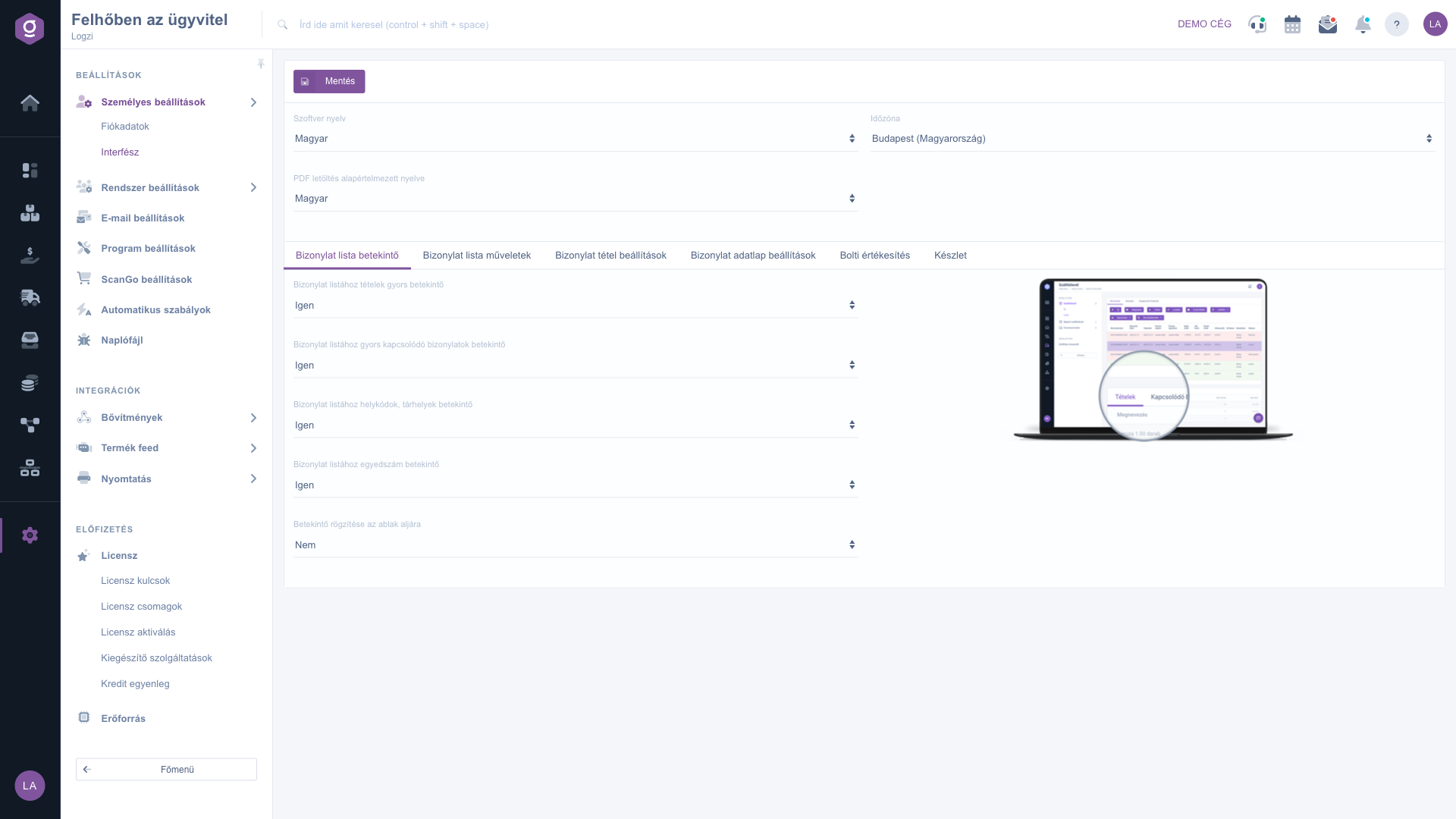
In the Szoftver nyelv list (software language) you choose the language of the interface, in the Timezone list the timezone of your location (for example Budapest (Magyarország)), and in the Default language for PDF download list the language in which PDF documents are created by default when you download them.
On the Document list preview tab you turn the quick previews on with a Yes/No choice: Quick item preview for the document list, Quick related documents preview for the document list, Location codes, storage preview for the document list and Serial number preview for the document list. The Pin preview to the bottom of the window setting keeps the preview at the bottom of the window. The picture on the right illustrates the preview. On the Document list actions tab you find Open document in new tab and Show pagination above the document list.
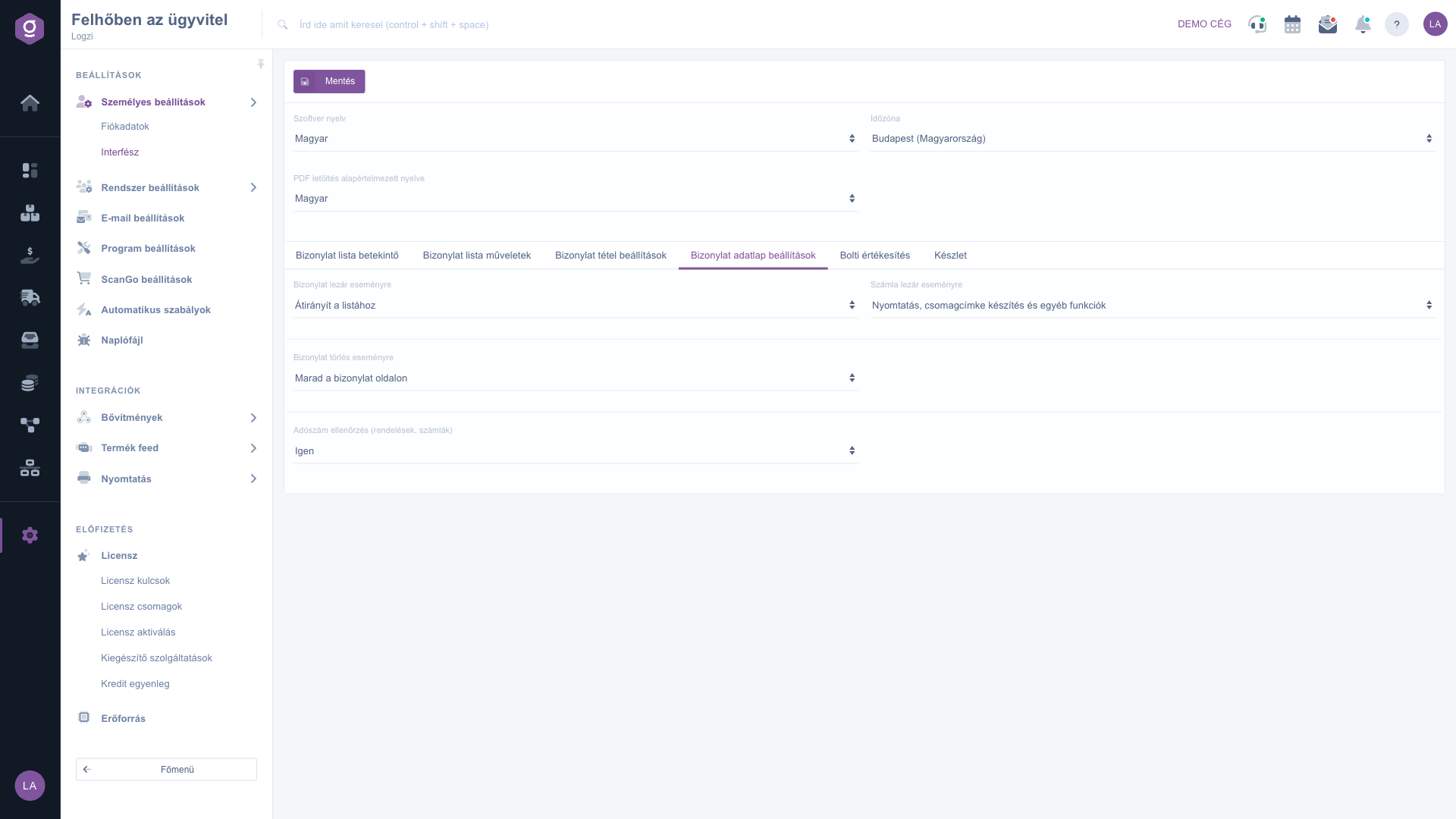
On the Document item settings tab, the Display product pictures switch shows product pictures at the document items. On the Document data sheet settings tab you decide what happens after a document is closed or deleted: in the On document close event and On document delete event lists you can choose Redirect to the list or Stay on the document page, and in the On invoice close event list Printing, parcel label creation and other functions or Redirect to the list. The Tax number check (orders, invoices) setting turns the tax number check on.
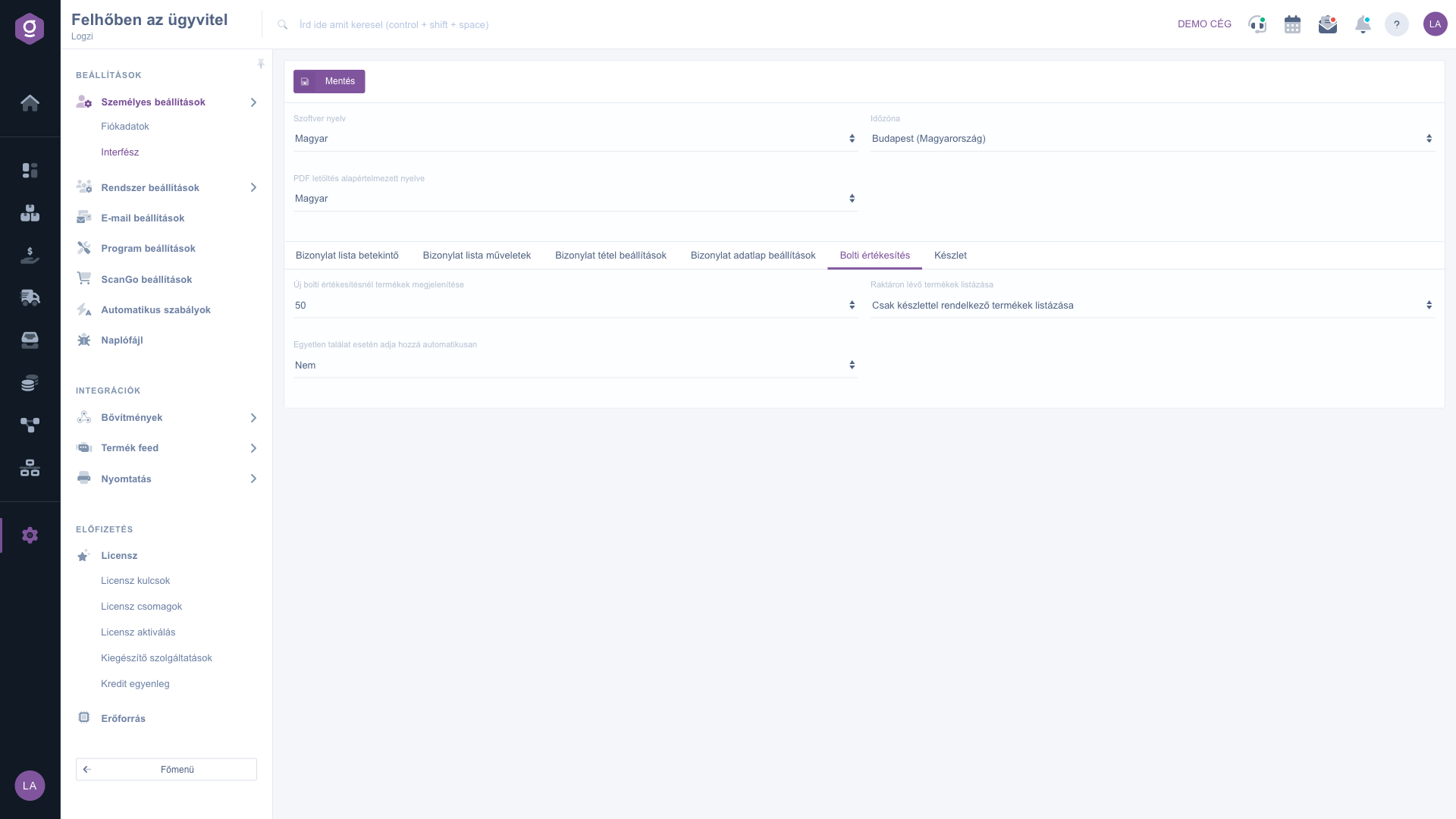
On the Retail sales tab, in the Product display for new retail sale list you choose between No, 50, 100 or All. With Listing of products in stock you decide between All products (does not check stock, can be negative) and List only products with stock. With the Add automatically in case of a single match switch, the single result of a search is added to the retail sale automatically. On the Stock tab, the Number of stock decimal places list lets you set a value between 0 and 5.
Use Save to record your changes; after a successful save the page reloads. The settings of all tabs are stored together with a single save.
If you work with many documents, turn on the Document list preview settings: you can then check the items and related documents quickly, without opening the document.
The settings of the Interface page and their meaning. None of the settings is required.
| Field / Item | Required | Description |
|---|---|---|
| Szoftver nyelv | The language of the interface (software language). | |
| Timezone | The timezone used, for example Budapest (Magyarország). | |
| Default language for PDF download | The default language of downloaded PDF documents. | |
| Quick item preview for the document list | If Yes, the document list has a quick item preview. | |
| Quick related documents preview for the document list | If Yes, the list also shows a quick preview of related documents. | |
| Location codes, storage preview for the document list | If Yes, location codes and storage places can also be viewed from the list. | |
| Serial number preview for the document list | If Yes, serial numbers can also be viewed from the list. | |
| Pin preview to the bottom of the window | If Yes, the preview stays at the bottom of the window. | |
| Open document in new tab | If Yes, the document opens in a new tab. | |
| Show pagination above the document list | If Yes, the pagination is also shown above the list. | |
| Display product pictures | If Yes, product pictures are shown at the document items. | |
| On document close event | Redirect to the list or Stay on the document page after closing. | |
| On invoice close event | Printing, parcel label creation and other functions, or Redirect to the list after closing the invoice. | |
| On document delete event | Redirect to the list or Stay on the document page after deleting. | |
| Tax number check (orders, invoices) | If Yes, the tax number of orders and invoices is checked. | |
| Product display for new retail sale | No, 50, 100 or All: how many products are listed in a new retail sale. | |
| Listing of products in stock | All products (stock is ignored, can be negative), or only products with stock. | |
| Add automatically in case of a single match | If Yes, a single search result is added automatically. | |
| Number of stock decimal places | The number of decimal places of the stock, between 0 and 5. |
No, the Interface settings are personal: they apply to your own user, so everyone sets up their own.
With Redirect to the list, after closing or deleting a document the system takes you back to the document list. With Stay on the document page, you remain on the page of that document.
In that case the retail sale does not take the stock into account, so the stock can become negative. If you only want to see products with stock, choose List only products with stock.
This language is used by default when you download a PDF document, so you do not have to choose it separately every time.
The menu item is under Main menu / Settings / Personal settings. If you cannot see it, your user probably does not have the required module or permission assigned; ask your administrator to check the settings.
Don't want to spend hours searching for a solution? Choose the most efficient way: book a personalized, 45-minute online training session dedicated entirely to you. Whether it's a walkthrough of the basics or a detailed setup of a specific module, our expert colleague will guide you through the whole process, step by step.
Don't waste your time - ask for help!
Our goal is to get you using our system as quickly and efficiently as possible. Whether you're completely new to us or stuck on a specific setting, don't hesitate to ask for help!
Create your account now,
pay later!


