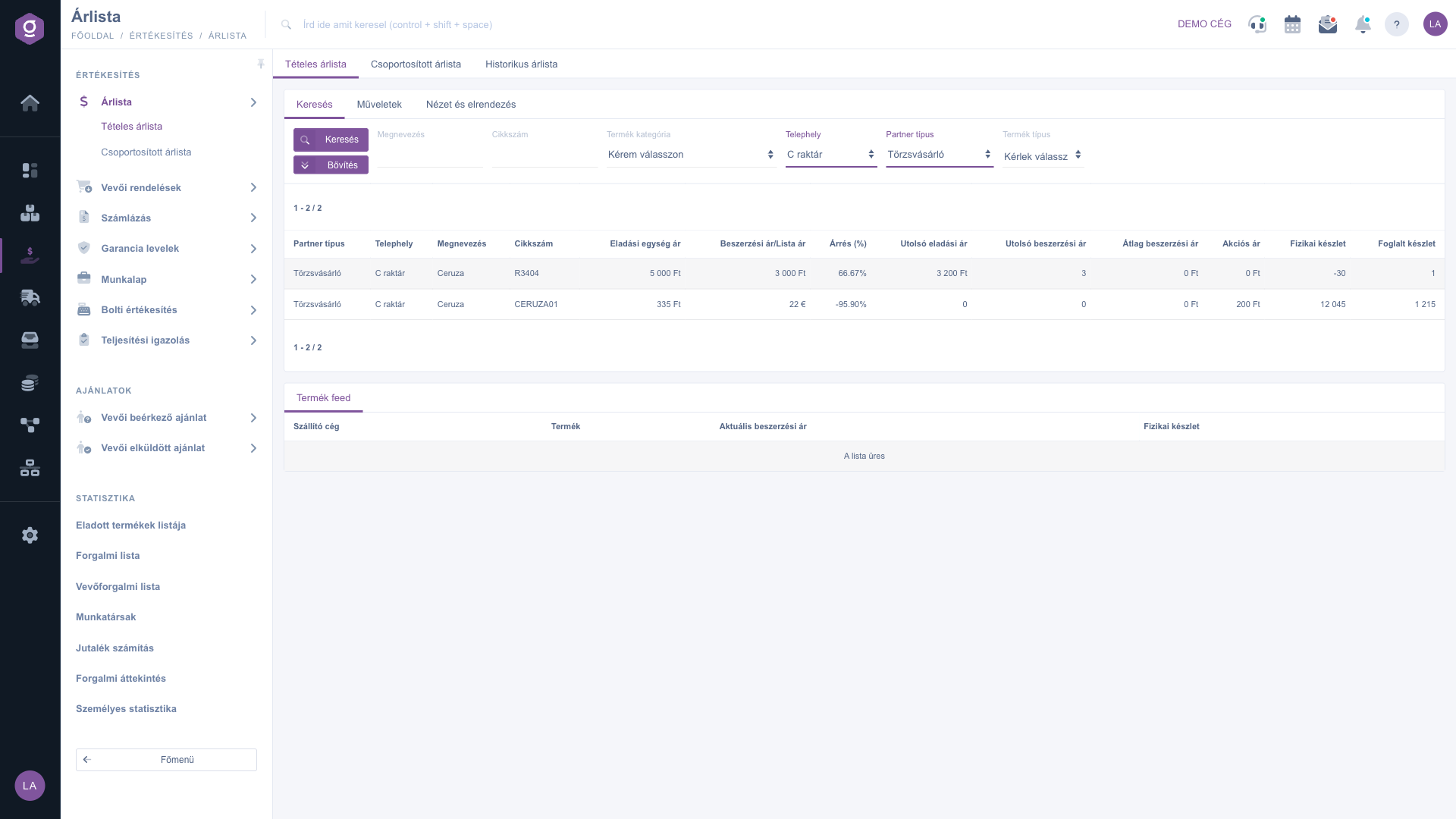
The grouped price list is a summary view: it shows how many price rules (that is, prices defined for how many products) belong to each Partner type and Site combination. This way you can see at a glance where prices are defined (for example how many products have a separate price for regular customers in a given warehouse) and which combinations are still empty. If you open a combination from the list, you can jump to the correspondingly filtered view of the Itemized price list, where you can also edit the prices.
The grouped list is read-only: you cannot create, edit or delete prices here, and its rows have no document status either (there is no Draft or Closed state). The list can be in two states: if at least one price has already been recorded, the combination rows are shown; if there is no price at all yet, the message The result list is empty or contains no items to display appears.
Click Main menu / Sales / Price list / Grouped price list to see the table of combinations with three columns: Partner type, Site (shown with the Hungarian header "Telephely" in the current interface) and Number of price rules. In the last column the number is followed by the unit "db" (pcs). At the top and bottom of the list, the paging helps when there are more combinations than fit on one page. Note: the screenshots show the Hungarian demo interface; the names in your own language are the ones written in bold in this guide.
Click the row in the table that you want to look at, which selects it. Then click the Open button on the Actions tab. The system takes you to the Itemized price list page, where the list is already filtered by the selected Site and Partner type, so you only see the prices belonging to that combination.
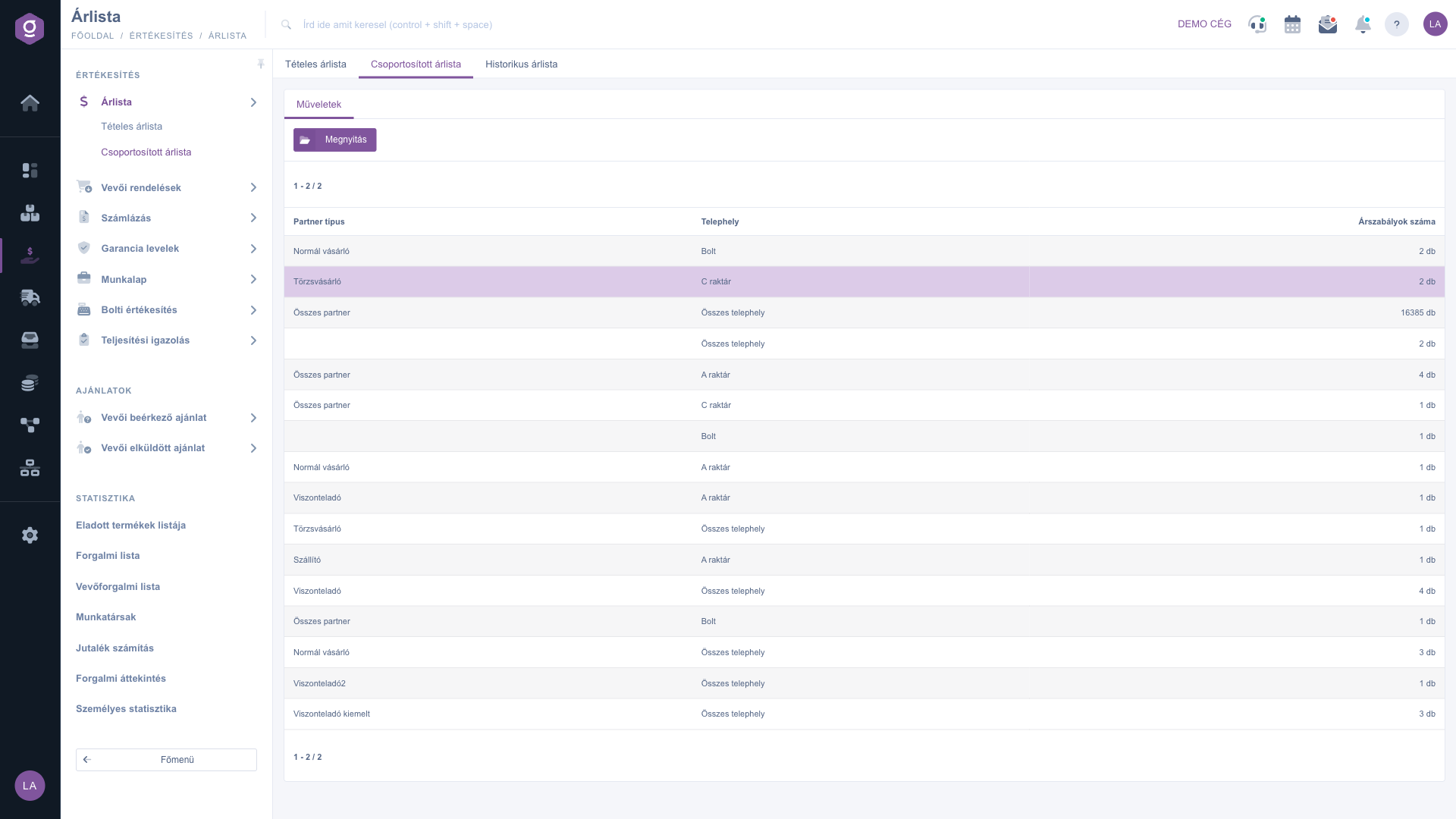
Rows with the value All partner types or All sites summarize the general prices. When you open such a row, the itemized list does not narrow down by the dimension concerned: for example, opening an All sites row does not narrow the list to one specific site.
You cannot edit prices in the grouped list. To create a new price, or to edit or delete an existing one, use the opened Itemized price list page, where the New, Open and Delete actions are available.
If you want to check whether you have defined prices for every partner type and site, review this list first: if a combination is missing or has only a few price rules, you can fill it in with the New button of the Itemized price list. For an existing combination, the Open button takes you straight to its prices.

The columns of the table and the elements of the Actions tab:
| Field / Element | Required | Description |
|---|---|---|
| Partner type | The partner type the prices of the row apply to (for example Regular customer). All partner types stands for the general prices. | |
| Site | The site the prices of the row apply to (for example Warehouse C). All sites stands for the general prices. In the current interface the column header is the Hungarian word "Telephely". | |
| Number of price rules | How many prices (price rules defined for how many products) belong to the partner type and site combination, with the unit "db" (pcs). | |
| Open | Opens the prices of the selected row in the Itemized price list, filtered for the combination. |
This list is a read-only summary: the numbers change as prices are created or deleted in the Itemized price list.
The grouped price list only shows a summary; prices cannot be edited in it. Click the row you want, open it with the Open button, and then in the Itemized price list that appears you can choose between the New, Open and Delete actions with the selected price.
The list is built from the prices already recorded, so it stays empty until you create at least one price. In that case the message The result list is empty or contains no items to display is shown. Create a price in the Itemized price list with the New button, and its combination will then appear in this list as well. If the list has several pages, the link in the message takes you back to the first page.
They summarize the general prices: those that you did not record for one specific partner type or site, but that apply to everyone or to every site. When you open them, the itemized list does not narrow down by the dimension concerned.
The Grouped price list summarizes by combination and only shows the count. The Itemized price list shows the actual prices per product, and that is where you create, edit or delete prices. For details see the Itemized price list guide.
The Price list module appears under Main menu / Sales only if it is assigned to your user. If you cannot see it, ask your system administrator to check the module assignment in your user settings.
Don't want to spend hours searching for a solution? Choose the most efficient way: book a personalized, 45-minute online training session dedicated entirely to you. Whether it's a walkthrough of the basics or a detailed setup of a specific module, our expert colleague will guide you through the whole process, step by step.
Don't waste your time - ask for help!
Our goal is to get you using our system as quickly and efficiently as possible. Whether you're completely new to us or stuck on a specific setting, don't hesitate to ask for help!
Create your account now,
pay later!