1. Opening a new agreement and the actions
Click Main menu / Master data / Agreement / New to open an empty sheet titled Recording a new contract. You can open an existing agreement from the Main menu / Master data / Agreement / List page with the Open button. On the Actions tab the following buttons are available:
- Save: records the data; the agreement stays a draft, and finalization happens only on closing. In the arrow menu next to the button, Save and close saves and then takes you straight back to the list of agreements — choose it when you have finished editing.
- Close: finalizes the agreement, and it can no longer be modified. In the arrow menu you can also choose Close and print (for printing right away) and Close and download (to download the PDF right away).
- Delete: the agreement moves to a deleted or cancelled state and cannot be restored. In the arrow menu, Delete and copy is useful when you delete an incorrect agreement but want to create a new copy with its data.
- Send email: sends the agreement by email; it can only be used for a closed (non-draft) agreement.
- Download: CSV and PDF are only available for a closed agreement, while XLSX is also available for a saved draft.
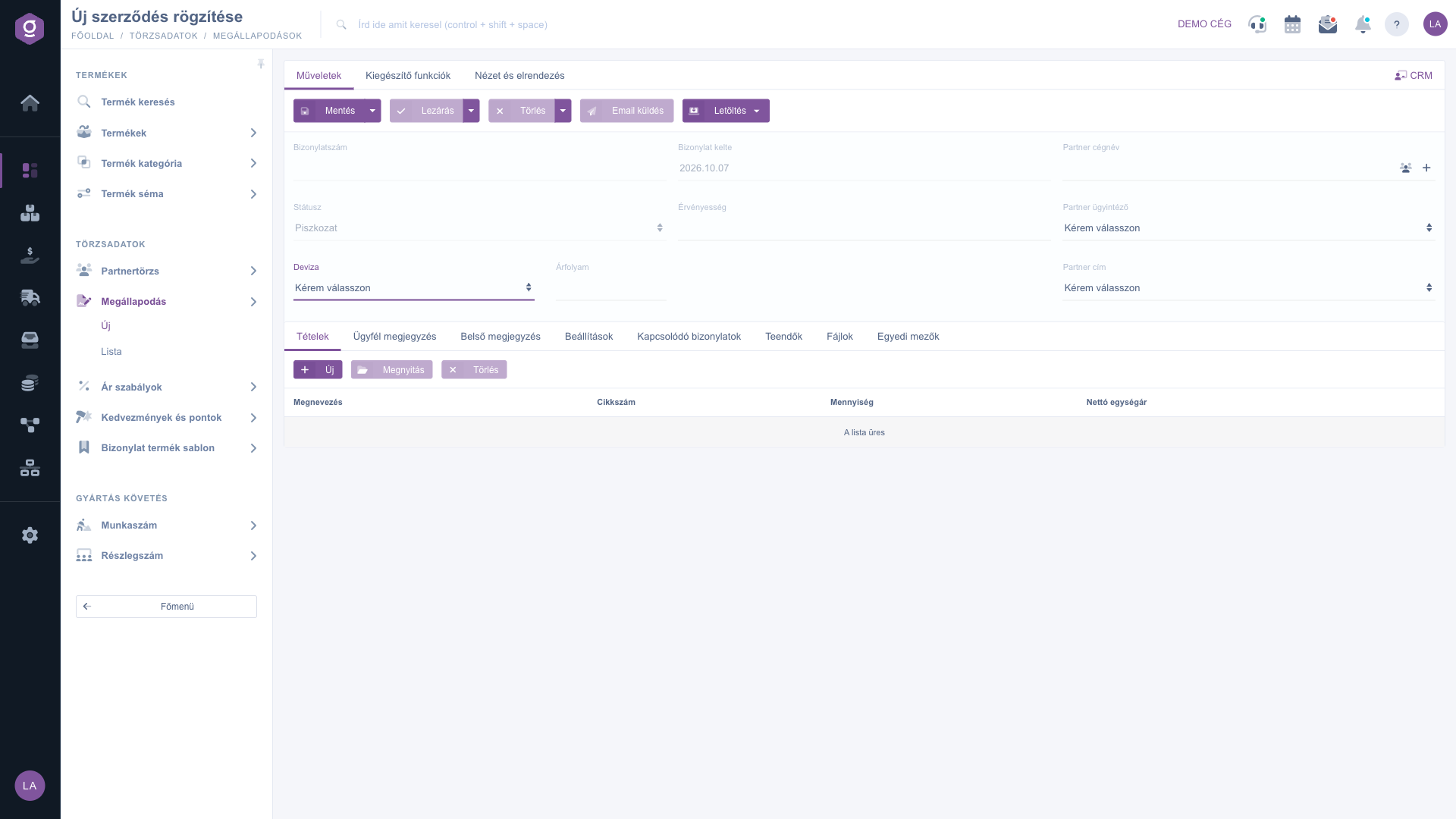
Agreement sheet – Actions tab
2. Filling in the header
At the top of the sheet you can fill in the following fields:
- Document number, Status, Document date: the system fills these in; they cannot be edited. The document number is created on the first save.
- Currency: required. If you choose a currency other than the base currency, the Exchange rate field also appears. After the first save the currency and the exchange rate can no longer be modified.
- Validity: a required date; this is the date shown in the Performance date column of the list. When you change it, the system also refreshes the exchange rate.
- Partner company name: required. Type into the field (it searches by partner name, tax number or code) and select the partner from the result list. With the icons next to the field you can open the partner sheet, or add a new partner with the Add new partner icon, whose data is then filled in automatically on the agreement.
- Partner contact person and Partner address: required; after selecting the partner you can choose from the contact persons and addresses recorded for the partner.
Without filling in the fields, Save does not run: a red error message appears under the missing required field.
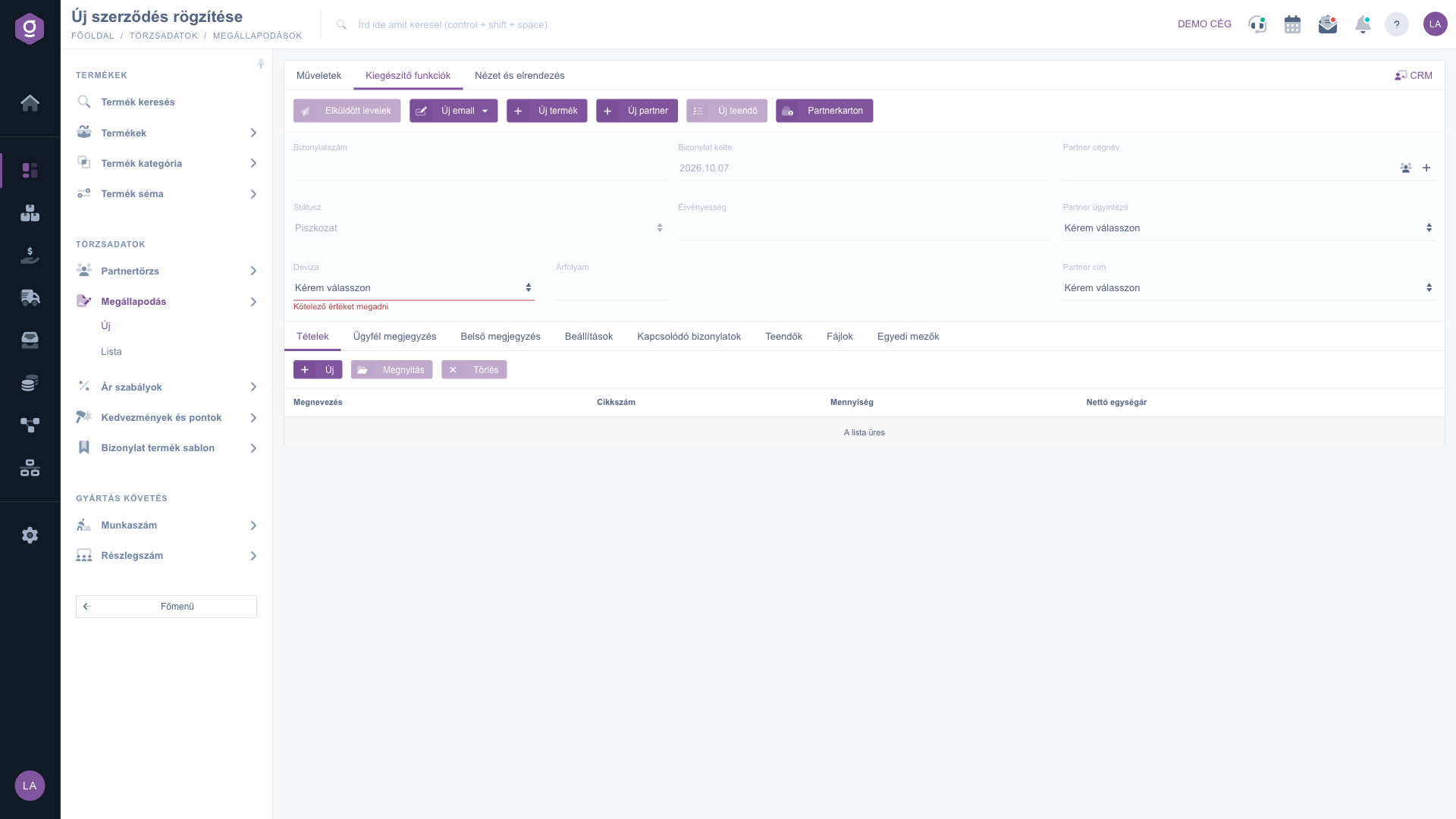
Agreement sheet – Additional functions tab and the required field error message
3. Adding items
On the Items tab, use the New button to add an item, the Open button to edit the selected item, and the Delete button to remove it. The columns of the table are: Name, Item number, Quantity and Net unit price. The New button opens a window where you can enter:
- Item number: while you type, the system suggests existing products; based on the selected or entered item number the name is filled in automatically, and you can query it again with the refresh icon next to it.
- Name: required; the name of the product or service. It must be a product already recorded in the master data.
- Quantity and Net value: numbers (decimal and negative values are allowed); the net value is the net unit price of the item. The price is not filled in automatically from the selected product, you enter it yourself.
- Comment: free text attached to the item.
The Add button adds the item to the table, and the Close button closes the window. The items are recorded with the agreement's Save button. If you enter a product that is not yet in the master data, the system offers to create it right away as a simple product or as a service.
4. Comments, settings and related data
On the further tabs below the items table you will find the following:
- Customer comment: text intended for the customer; you can also choose from predefined comments.
- Internal comment: text for internal use only; you can also choose a predefined comment here.
- Settings: the Billing address (required), and the Project, Job number and Department number that can be assigned to the agreement; next to them the + icon lets you create a new element.
- Related documents: the list of documents related to the agreement (document number, date, type, issuing employee).
- Tasks, Files, Custom fields: the tasks linked to the agreement, the attached files and the custom fields defined by your company.
5. Additional functions, view and CRM panel
On the Additional functions tab, Sent items shows the emails sent about the agreement, from the New email dropdown you can start an email with the External mail client or the Internal mail client, New product and New partner open the corresponding sheet in a new tab, New task creates a task, and Partner card opens the partner's summary sheet. On the View and layout tab, the Interface and behavior button gives you access to the display settings of the sheet.
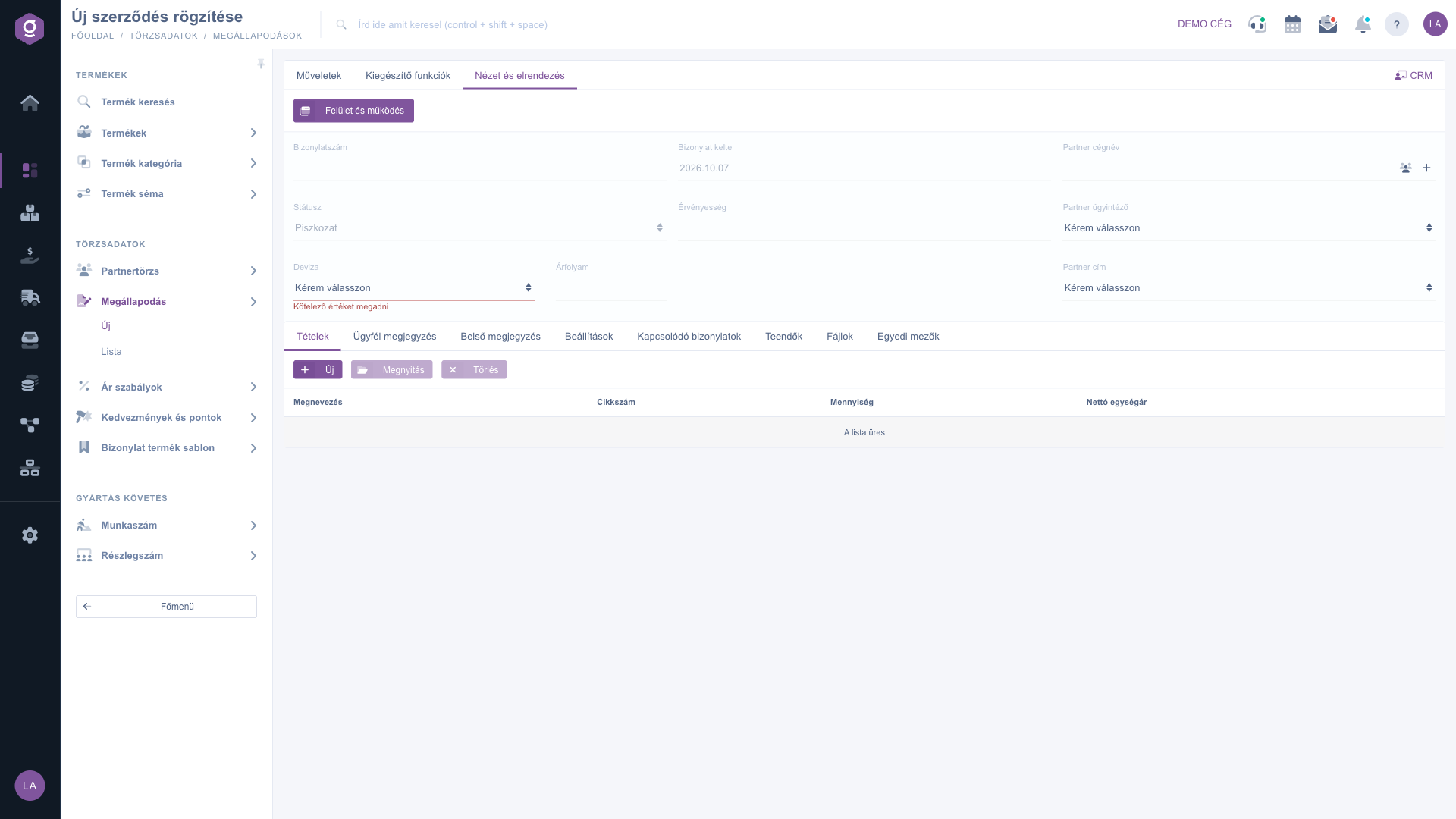
Agreement sheet – View and layout tab
If you click the CRM link at the right edge of the tabs, a side panel opens next to the sheet. Here you can switch between the Task, E-mail, SMS and Call tabs, and at the bottom of the panel you can also ask the AI a question about the document.
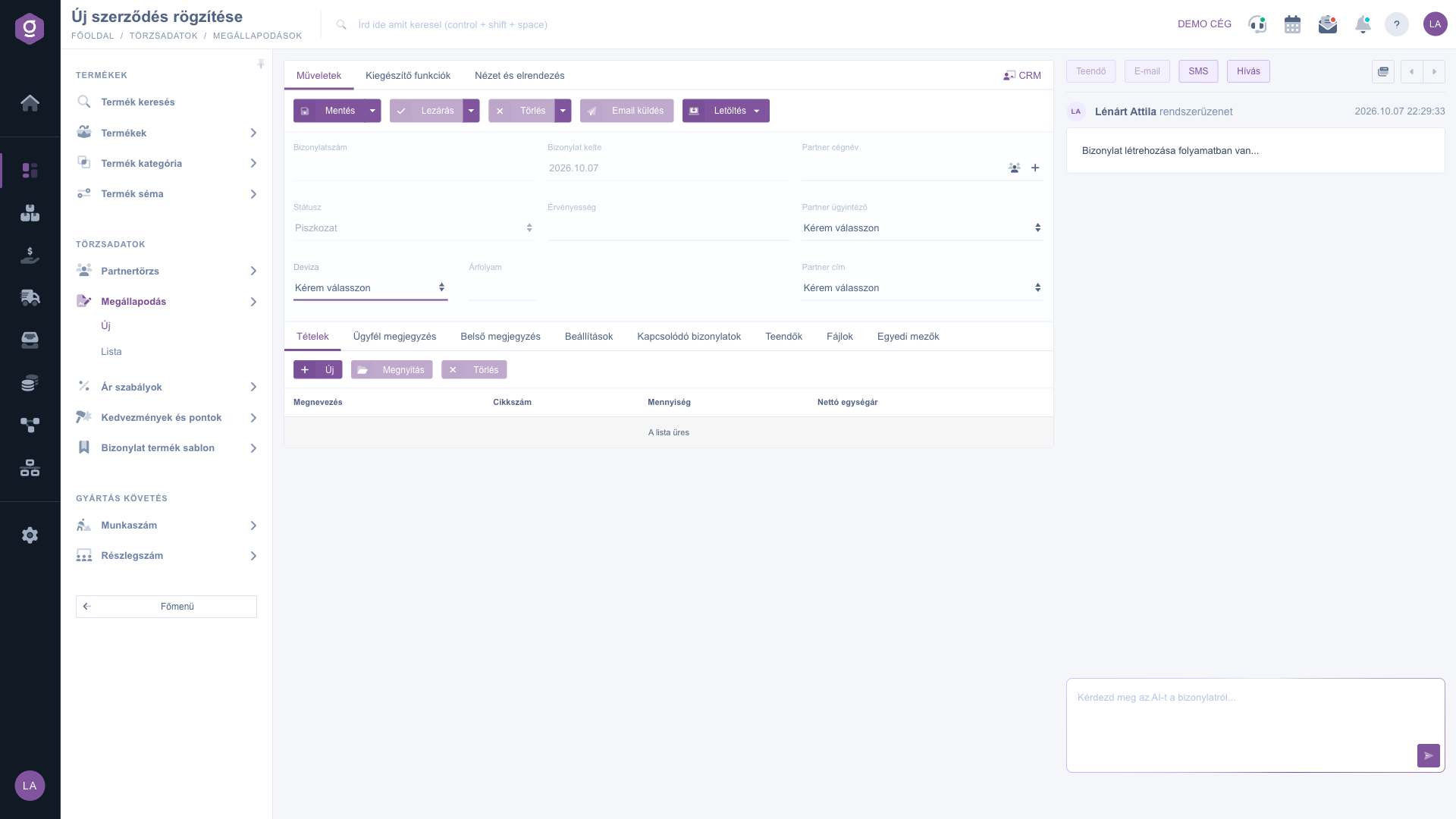
Agreement sheet – CRM side panel
Tip
If the partner is not yet in the system, do not leave the sheet: with the Add new partner icon next to the Partner company name field you can quickly add it, and the partner data of the agreement is filled in automatically. Before saving, make sure you have added at least one item.
Listing, searching and closing agreements are covered in the
Agreement list guide.



