1. Viewing the list and the actions available for agreements
Click Main menu / Master data / Agreement / List to display the list of agreements. Above the table, the buttons on the Actions tab work on the selected row (click a row to select it):
- New: creates a new agreement on an empty sheet — choose it when you want to record a new contract.
- Open: opens the sheet of the selected agreement for viewing or editing.
- Close: finalizes the selected draft; once closed, the agreement can no longer be modified. In the arrow menu next to the button, besides Close you will find Close and print (choose it if you want to print right after closing) and Close and download (choose it if you also want to download the PDF after closing).
- Delete: deletes the selected agreement; the document moves to a deleted or cancelled state and cannot be restored. In the arrow menu, Delete and copy is useful when you delete an incorrect agreement but want to create a new one with the same data.
- Cloning: opens a new agreement with the data of the selected one — use it when you need to record a similar contract.
- Send email: sends the selected agreement by email; it can only be used for a closed (non-draft) agreement.
- Download: in the List operation group, XLSX list downloads the rows of the list and XLSX item list downloads the items as a spreadsheet; from the selected agreement you can create XLSX items and (only for a closed agreement) a PDF.
If you right-click a row, the quick actions (New, Open, Close, Delete, Cloning) are also available from a context menu.
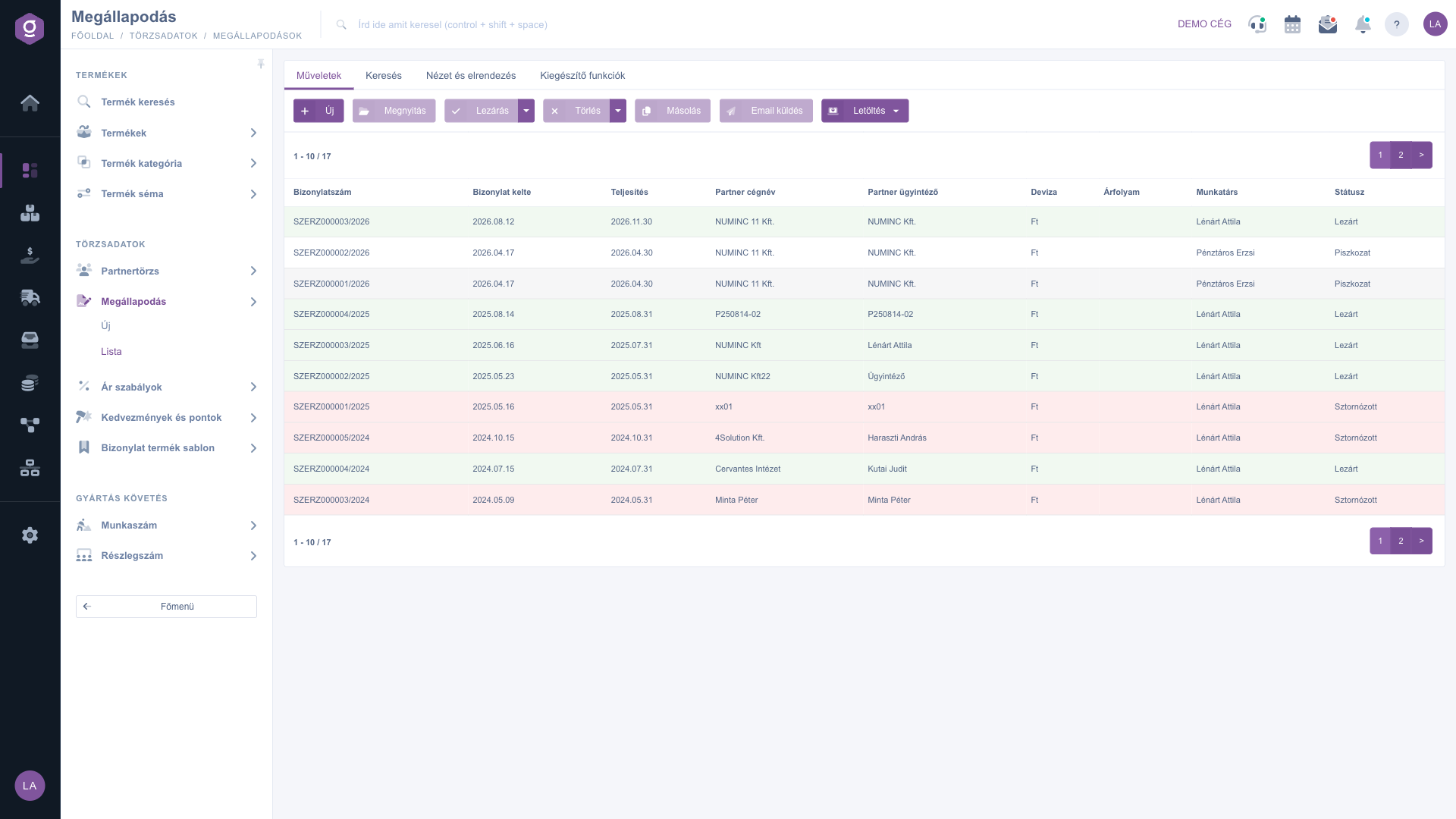
Agreement list – Actions tab
2. Searching among agreements
Click the Search tab above the table to display the filtering options. The fields visible right away are Partner company name, Document number, Currency and Status. Clicking the "Expand" button opens further filters: searching by Document date and Performance date period (with from and to dates), Employee (colleague), Project, Job number and Department number. Use the Search button to filter by the conditions you have set.
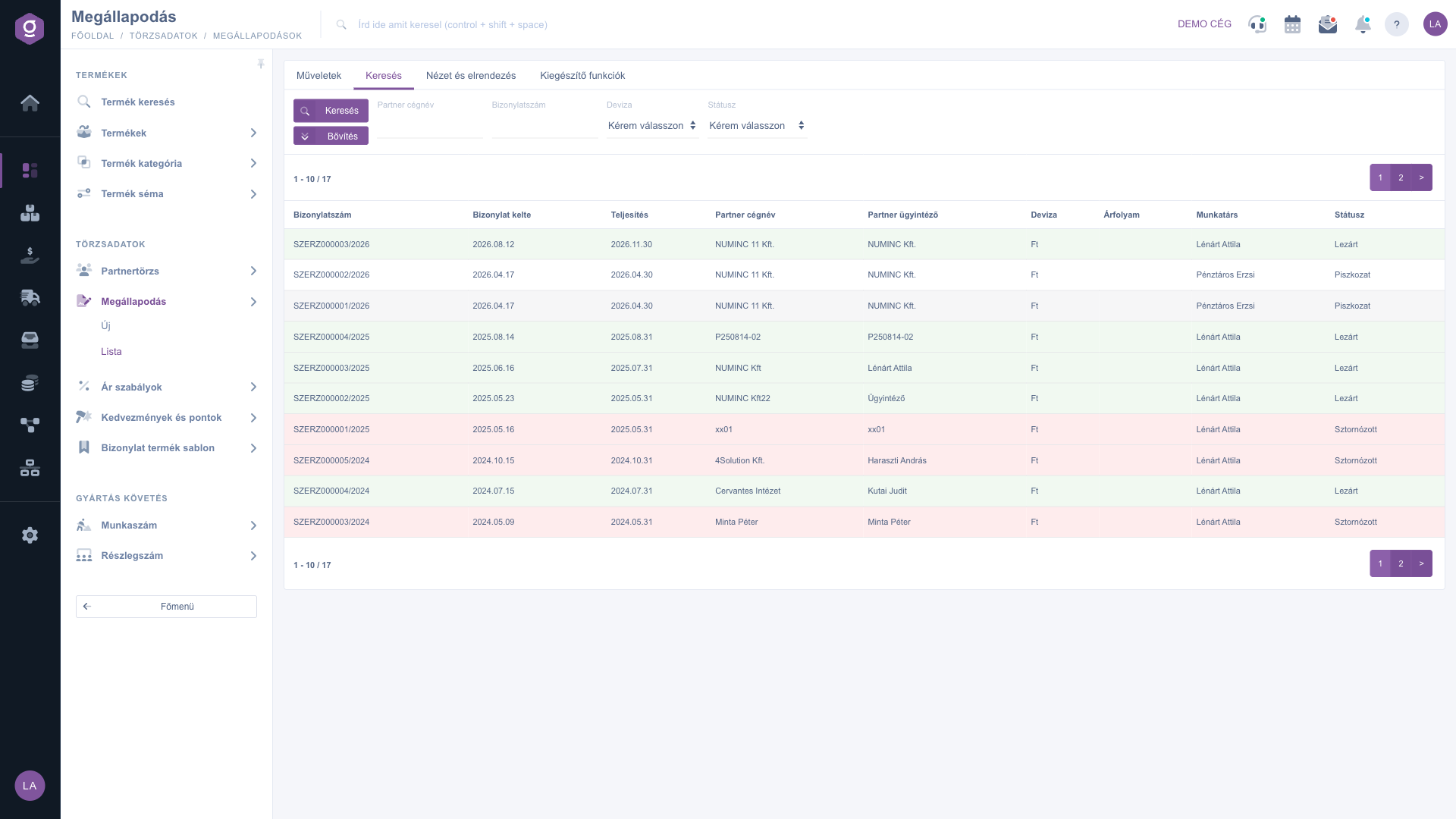
Agreement list – Search tab
3. Customizing the view
On the View and layout tab you can set how the list is displayed for you:
- Columns: choose which columns appear in the table. If you have not set anything yet, you see the Document number, Document date, Performance date, Partner company name, Partner contact person, Currency, Exchange rate, Employee (colleague) and Status columns.
- Rows: set how many agreements appear on one page.
- Sorting: choose which column and in which direction the list is sorted by default.
- Preview window: opens the preview window settings.
- Interface and behavior: other display-related settings of the list interface.
These settings are saved personally, tied to your user, so they remain the next time you sign in.
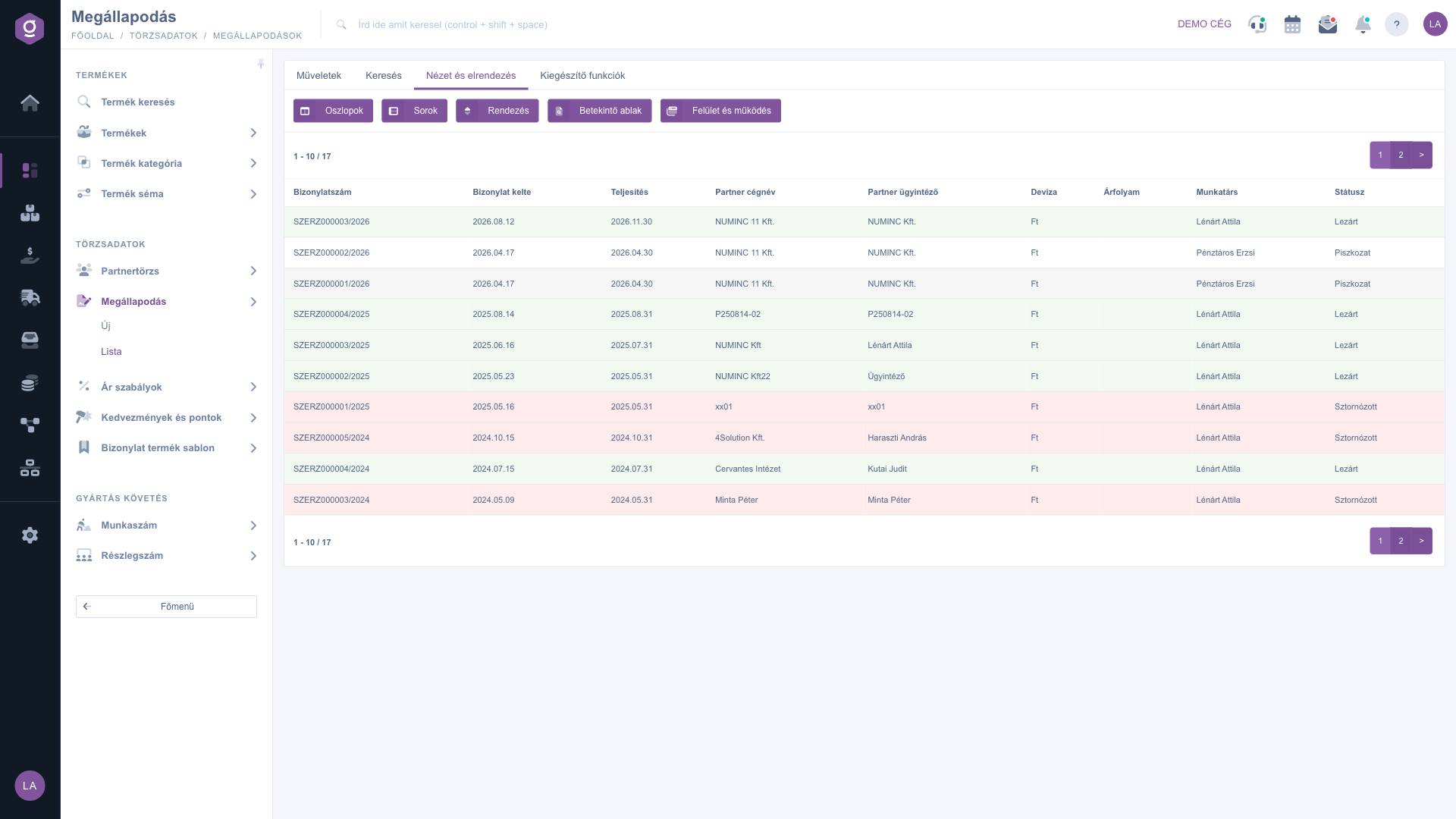
Agreement list – View and layout tab
4. Additional functions
On the Additional functions tab you find shortcuts related to the selected agreement: Sent items shows the emails sent about the agreement, the New email dropdown lets you start a new email with the External mail client or the Internal mail client, New task creates a task for the agreement, Partner card opens the partner's summary sheet, and CRM displays the CRM panel belonging to the agreement.
Tip
If you need to create something similar to an already recorded agreement, do not start from scratch: select the row and click Cloning. The copy opens as a draft, so you can still change the partner, the items or the validity before closing.
The details of creating and editing an agreement are described in the
Agreement sheet guide.



