The Feed products page shows all products that the product feed imports have downloaded (the page title on the sheet is Downloaded products). A row shows the name, item number, price and stock of the product, and an icon at the left edge shows whether the product is already among your own products.
Open Main menu / Integrations / Product feed / Feed products. On the Search tab enter the product in the Product/Item number field, choose the Product feed source, set the Product registered filter and click Search. The screenshots were taken in the Hungarian interface.
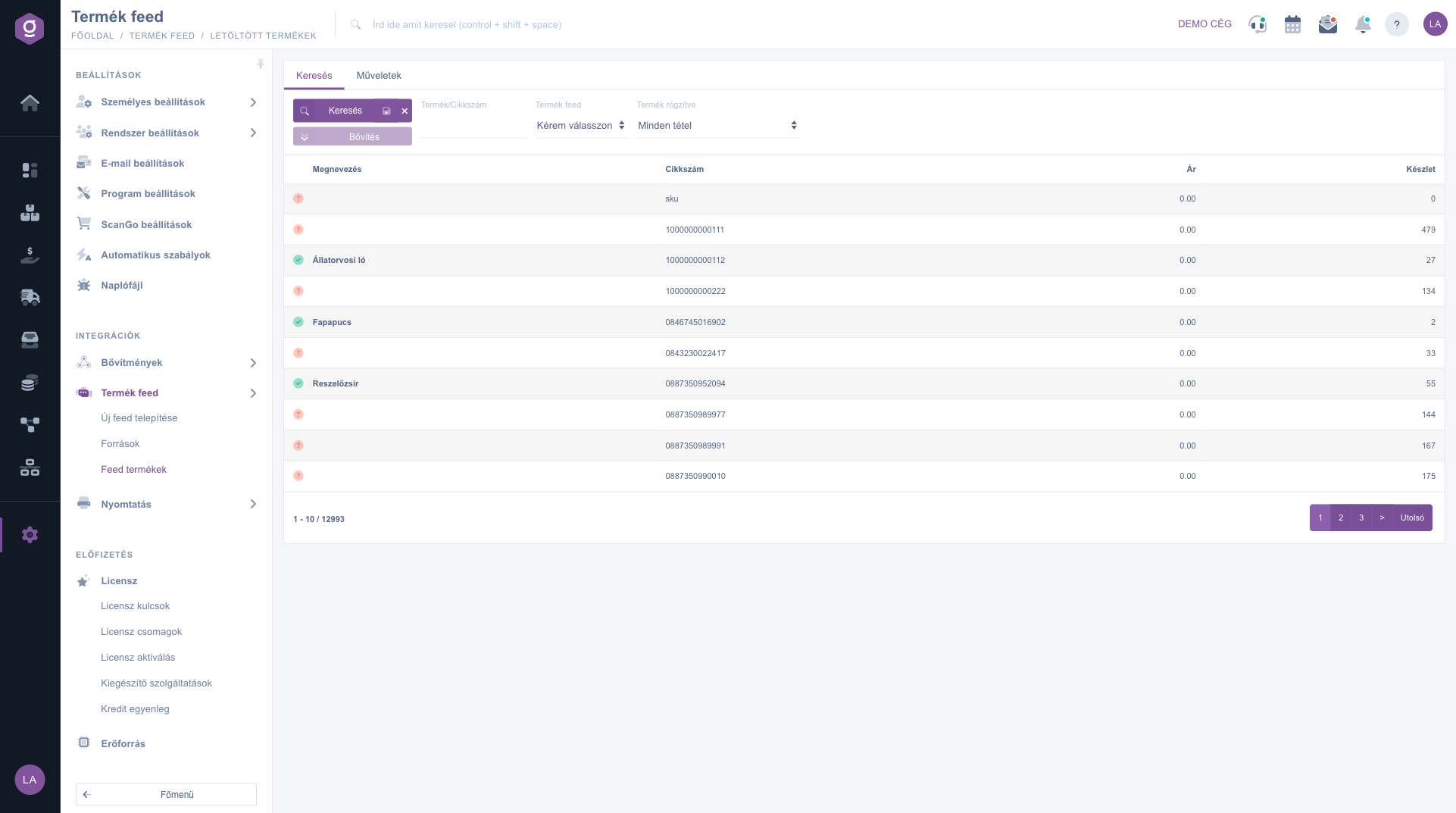
The icon at the start of the row shows the state: the red question mark icon means the product is not registered yet, the green check icon means it is already among your own products. For a registered product the product name used in Logzi is shown in bold above the feed name.
Select the row, open the Actions tab and click Register product. If the product is already registered, the existing product opens. If not, the new product form opens pre-filled with the feed data: item number, name, description, and the price as both selling and purchase price. Check the data, complete what is missing and save the product.
The Delete button deletes the selected item from the downloaded products. The Delete all items button deletes all downloaded items and asks for confirmation first.
Before using Delete all items, remember that the action cannot be undone. Deleted items may be downloaded again at the next import.

Fields of the Search tab and columns of the list.
| Field | Required | Description |
|---|---|---|
| Product/Item number | Part of the name or item number. While typing an item number the system suggests item numbers of your own products. | |
| Product feed | The source from which the products were downloaded. The list contains the feeds created on the Sources page. | |
| Product registered | Choose between all items, Csak ami a rendszerben szerepel (only products already registered) and Csak ami nincs a rendszerben (only products not registered yet). | |
| Status icon | Red question mark: not registered yet. Green check: already among your own products. | |
| Name | The product name in the feed; for a registered product the name used in Logzi is shown above it in bold. | |
| Item number | The supplier item number. | |
| Price | The price in the feed. | |
| Stock | The stock in the feed. |
Buttons of the Actions tab:
Next to the Search button on the Search tab there are two small icons: one saves the current search so that the list loads like this next time, the other deletes the saved search and loads the full list.
The list is empty if no source import has run yet, or if the filters leave no results. Clear the filters and check on the Sources page whether the import has run.
Delete removes only the selected item, Delete all items removes all downloaded items. The latter asks for confirmation and cannot be undone.
Deleting the feed item affects only the downloaded list; your own registered product stays.
The products are downloaded by the import of the sources, which you can start on the Sources page with Start import or Import. You can also upload items manually with Import / XLSX.
The Product feed menu is in the Integrations group of the Main menu. If you do not see it, you probably do not have permission; ask your administrator to grant access.
Don't want to spend hours searching for a solution? Choose the most efficient way: book a personalized, 45-minute online training session dedicated entirely to you. Whether it's a walkthrough of the basics or a detailed setup of a specific module, our expert colleague will guide you through the whole process, step by step.
Don't waste your time - ask for help!
Our goal is to get you using our system as quickly and efficiently as possible. Whether you're completely new to us or stuck on a specific setting, don't hesitate to ask for help!
Create your account now,
pay later!

