Feed sources

Learn about the Sources page: it lists the installed product feeds and is where you set their access, field mapping and product registration rules and start the import.

Function overview

The Sources page lists all installed product feeds. A source tells Logzi where to download the product data (item number, name, price, stock, picture) of your supplier or webshop, how to map that data to your own fields, and what should happen with the downloaded products.

  • The New button creates a new source (you choose the feed type on the Install new feed page).
  • The Open button opens the sheet of the selected source, where all settings are in one place.
  • The Delete button deletes the selected source.
  • The Import button starts the import of all sources at once.

You can review the downloaded products on the Feed products page and register them from there among your own products.

Choosing the feed type and installing it is described in the Install new feed help page, the downloaded products in the Feed products page.

Step by step

1. Open the source

Open Main menu / Integrations / Product feed / Sources. The list shows the Name, URL and Time of last call columns of each source. Click a row, then the Open button: the source sheet opens in a new tab. The screenshots were taken in the Hungarian interface.
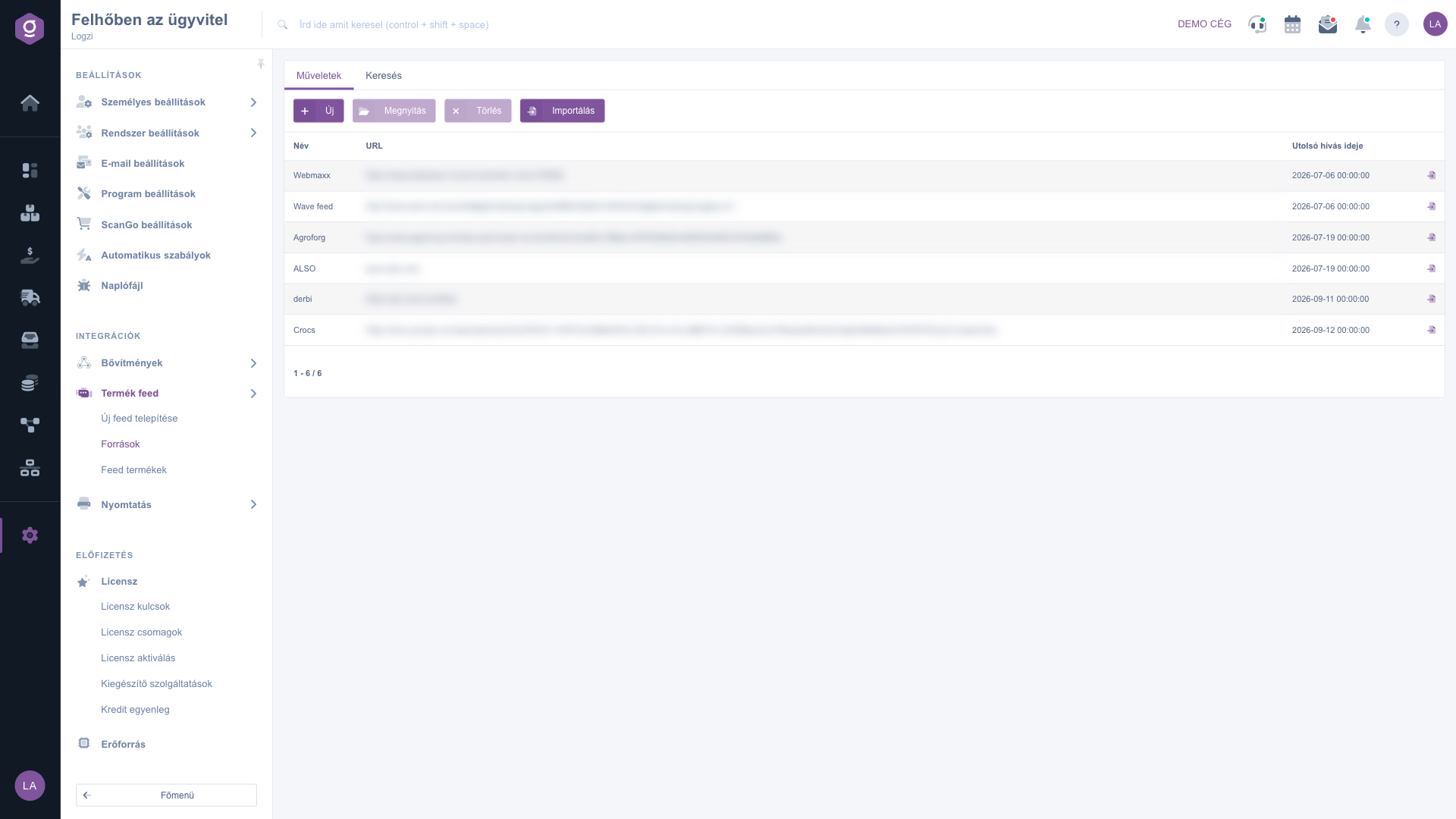
List of feed sources with the New, Open, Delete and Import buttons

2. Enter the authentication

On the Authentication tab of the source sheet enter the access given by your supplier: API kulcs (API key), Username, Password or Auth. Which field is needed depends on the feed type, and you get the access from your supplier.
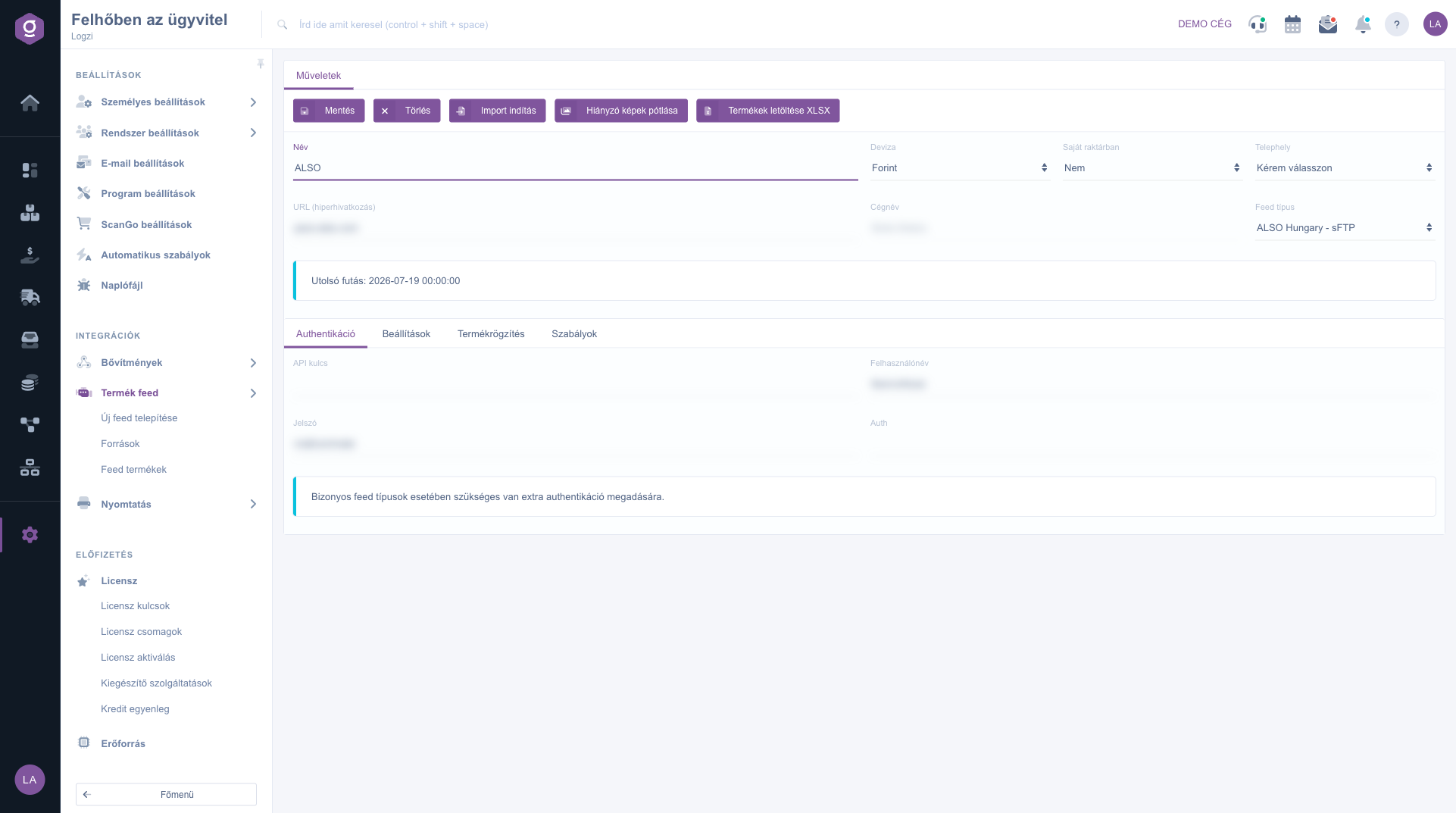
The source sheet on the Authentication tab (sensitive data blurred)

3. Set the fields and the rules

On the Settings tab, for file-based feeds (CSV, XLSX, XML, IOF), you specify which column contains which data (part number, name, description, price, stock and the optional fields). On the Rules tab you can exclude products based on the value of a field.

4. Set the product registration

On the Product registration tab you decide whether Logzi should register new products automatically, update existing ones, download pictures and parameters, and what margin to add to the purchase price. If Register product is not set to Yes, the other registration fields are inactive.
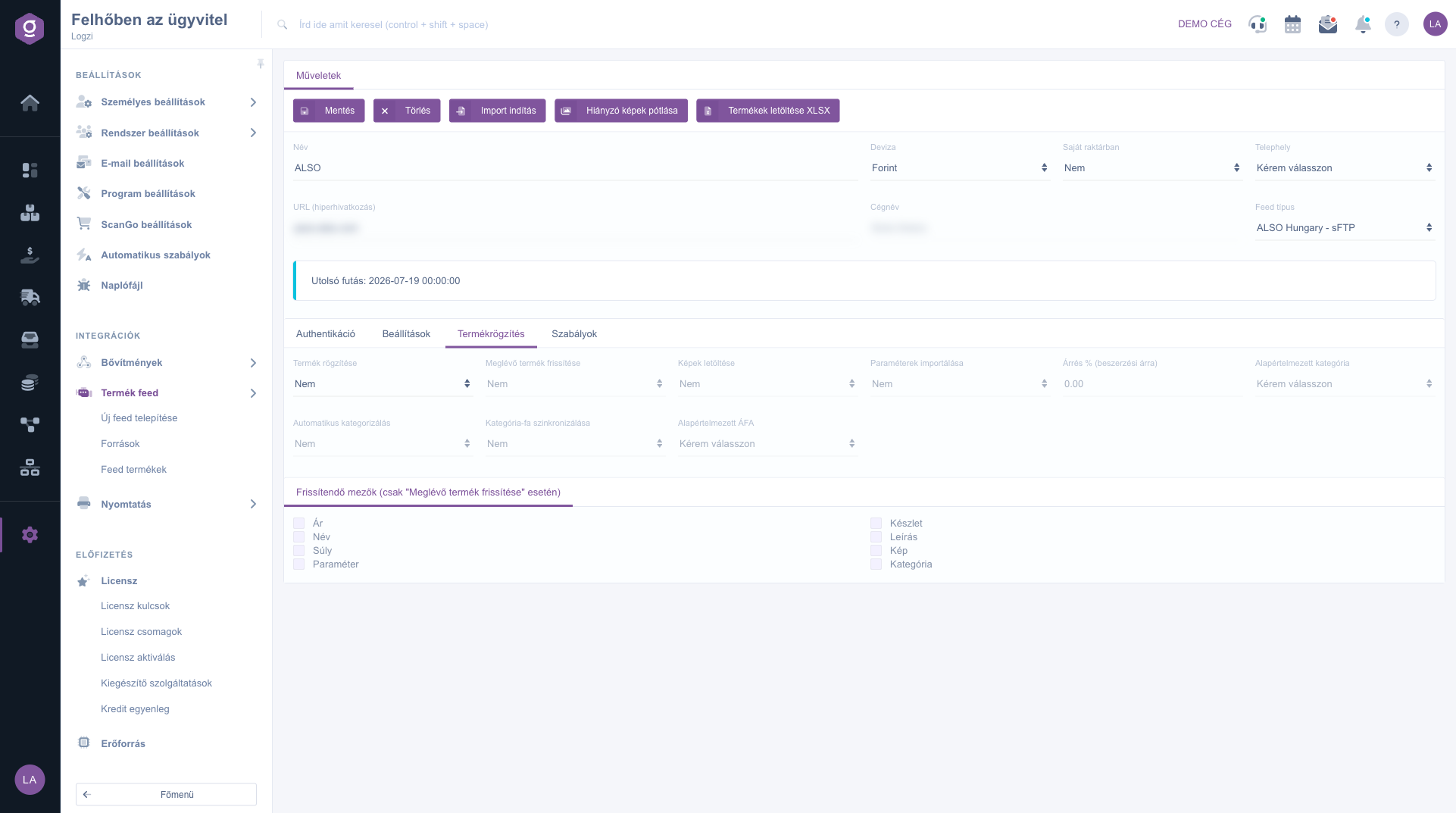
The source sheet on the Product registration tab

5. Save and start the import

Click Save, then Start import. The import runs in the background; you see the result in the Last run and Status fields, and in detail on the Log file page.

Tip


Save the source first and only then start the import. After the first run check on the Feed products page that the item number, price and stock came from the right column.


Field description

You find the following fields in the header and on the tabs of the source sheet.

FieldRequiredDescription
NameName of the source; you find it by this name in the list and in the Feed products filter.
CurrencyCurrency of the prices in the feed.
In own warehouseIf Yes and a Site is selected, the stock of the feed is also written into the stock of the selected site, and the stock of products that disappear from the feed is zeroed.
SiteYour own site to which the stock of the feed is assigned.
URL (hyperlink)Download address of the feed or the address of the server (host:port for FTP and sFTP).
Company nameThe supplier partner. The products of the feed are linked to this partner.
Feed typeThe type chosen at installation (for example Universal - CSV or Octopus - WSDL).
Last run and StatusDisplay only: time and result of the last import.
API kulcs, Username, Password, AuthFields of the Authentication tab. Which one is needed depends on the feed type.
Part number field, Name field, Description field, Price field (net), Stock fieldMandatory field mappings on the Settings tab: the name or number of the column in the feed.
Delimiter for CSV type, Header rowFor CSV feeds the delimiter (, or ; or \t) and whether the first row is a header, so that you can reference columns by name.
EAN / barcode, Manufacturer, Category, Weight (net), VAT, Picture URL, Parameter fieldOptional field mappings for richer product data.
Rule field, Rule valueThe field and the values (one per line) based on which a product is left out of the import.
Register product, Update existing product, Download pictures, Import parameters, Automatic categorization, Sync category treeYes/No selectors of the Product registration tab.
Margin % (on purchase price), Default category, Default VATMargin, category and VAT rate of new products.
Fields to updateWhen updating an existing product you can select which data is updated: Price, Stock, Name, Description, Weight, Picture, Parameter, Category.

Actions on the source sheet:

  • Save and Delete: save or delete the source.
  • Start import: starts the import of this source only. The Import button of the list, in contrast, imports all sources.
  • Requeue missing images: queues the picture download again for products that have no picture yet.
  • Download products XLSX: exports the products of the source to an Excel file.
  • Force price sync: visible only for the Octopus and Caseking feed types; it updates prices separately.

Payment classes tab (Octopus only): Octopus provides prices per payment class. With the Add class button you add a class (Payment class code), choose its Partner type and Site (that is, which Logzi price list receives the price), the Target field (Selling price or Purchase price) and tick Active. The Sync column shows the state of the last sync (Running, Successful or Error).

Tip


Octopus allows one query per class per day. If you restart the sync on the same day, Logzi re-applies the prices already downloaded. For the price sync, product update and the Price field must both be enabled.

Frequently asked questions

The Import button on the list starts the import of all sources, Start import on the source sheet only that source. If an import is still running, starting another does not run in parallel; the lock lasts at most 2 hours.

Import and registration are background processes, so a warning may appear on the source sheet that items are waiting in the queue. With the Run queue now button you can have them processed immediately.

In the Last run and Status fields of the source sheet, and in detail on the Log file page where you can filter for Feed messages. The log file is described in the Log file help page.

Force price sync appears only for the Octopus and Caseking types, and the Payment classes tab only for the Octopus type.

The Product feed menu is in the Integrations group of the Main menu. If you do not see it, you probably do not have permission; ask your administrator to grant access.

Need personalized help?

Don't want to spend hours searching for a solution? Choose the most efficient way: book a personalized, 45-minute online training session dedicated entirely to you. Whether it's a walkthrough of the basics or a detailed setup of a specific module, our expert colleague will guide you through the whole process, step by step.

Don't waste your time - ask for help!
Our goal is to get you using our system as quickly and efficiently as possible. Whether you're completely new to us or stuck on a specific setting, don't hesitate to ask for help!

Logzi warehouse management software

Get in touch with us

Interested in our software? Feel free to write to us!

Need help?

If you can't find the answer and need assistance

Create your account now,
pay later!

Try it free for 3 days, no risk, no obligation!
