Transfer document

Learn how to create a transfer document between two cash registers or bank accounts and how to close it.

Feature overview

With the Transfer document you move money between two cash registers or bank accounts: you enter the currency, the title, the source and destination account and the amount. You can create a new document under Main menu / Cash register / Transfer / New, and open an existing one under Main menu / Cash register / Transfer / List with the Open button.

Above the document there are three tabs and a CRM link:

  • Actions: save, close and delete.
  • Additional functions: sent items, new email, new bank account, new currency and new task.
  • View and layout: access to the Interface and behavior settings.
  • CRM: opens the CRM panel of the document.

Below the data there are further tabs: Internal comment, Settings, Related documents, Tasks, Files and Custom fields. The transfer document has no items tab; you enter the amount directly in the Value field. This description covers the Részletek (details) tab of the document.

Step by step

1. Filling in the data, saving and closing

Select the Currency. If the currency is not the default currency of your company, the Exchange rate field appears and the system fills it in automatically. Then enter the Title, and select the Source account (the money leaves this account) and the Destination account (the money arrives here). Next to these fields you can add a new entry with the + button. Finally, enter the transferred amount in the Value field. The Save button records the data; the arrow next to it also offers Save and close. Close finalizes the document, after which it can no longer be modified; the arrow offers Close and print and Close and download as well. The Delete button deletes the document.
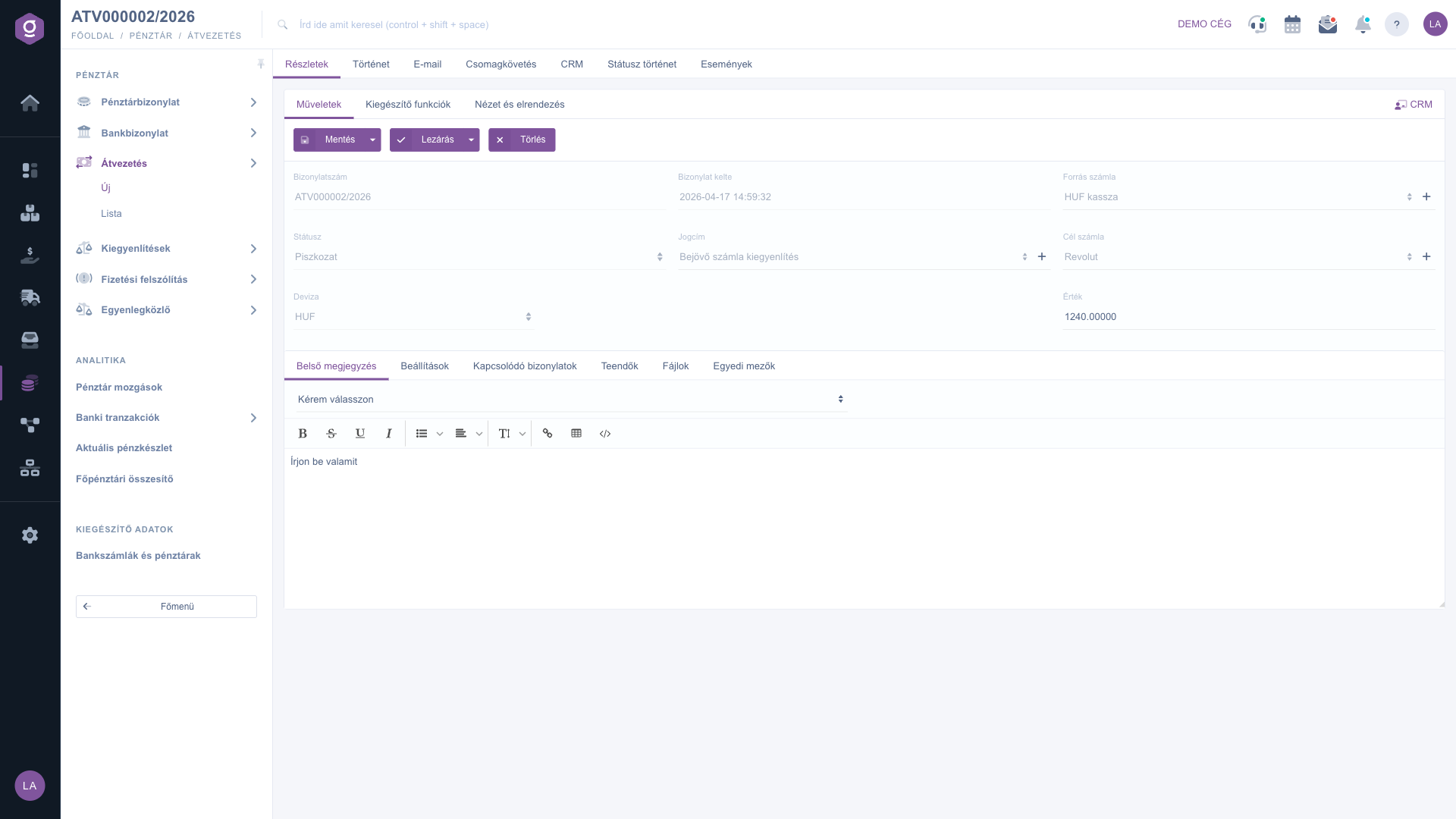
Transfer document – Actions tab (Műveletek)

2. Additional functions

On the Additional functions tab, Sent items shows the emails belonging to the document, and from the New email menu you can write a message with the External mail client or the Internal mail client. New bank account opens the bank account settings page in a new tab, New currency adds a new currency, and New task records a task related to the document.
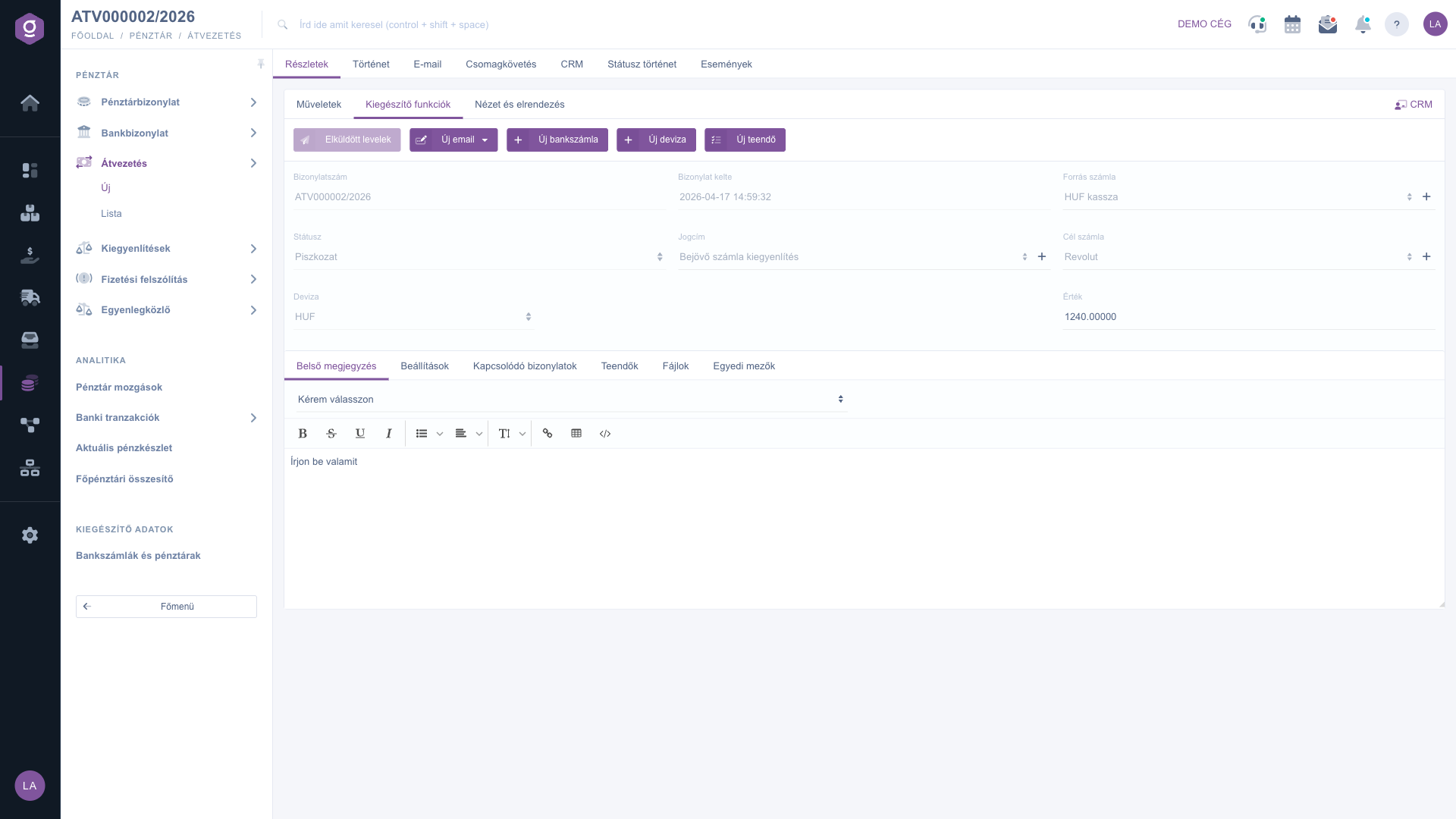
Transfer document – Additional functions tab (Kiegészítő funkciók)

3. Settings and comment

On the Settings tab you choose the Billing address from the addresses of your company; this field is required. On the Internal comment tab you can choose a template from the Template drop-down list and write the text in the editor. The internal comment is visible only inside your company.
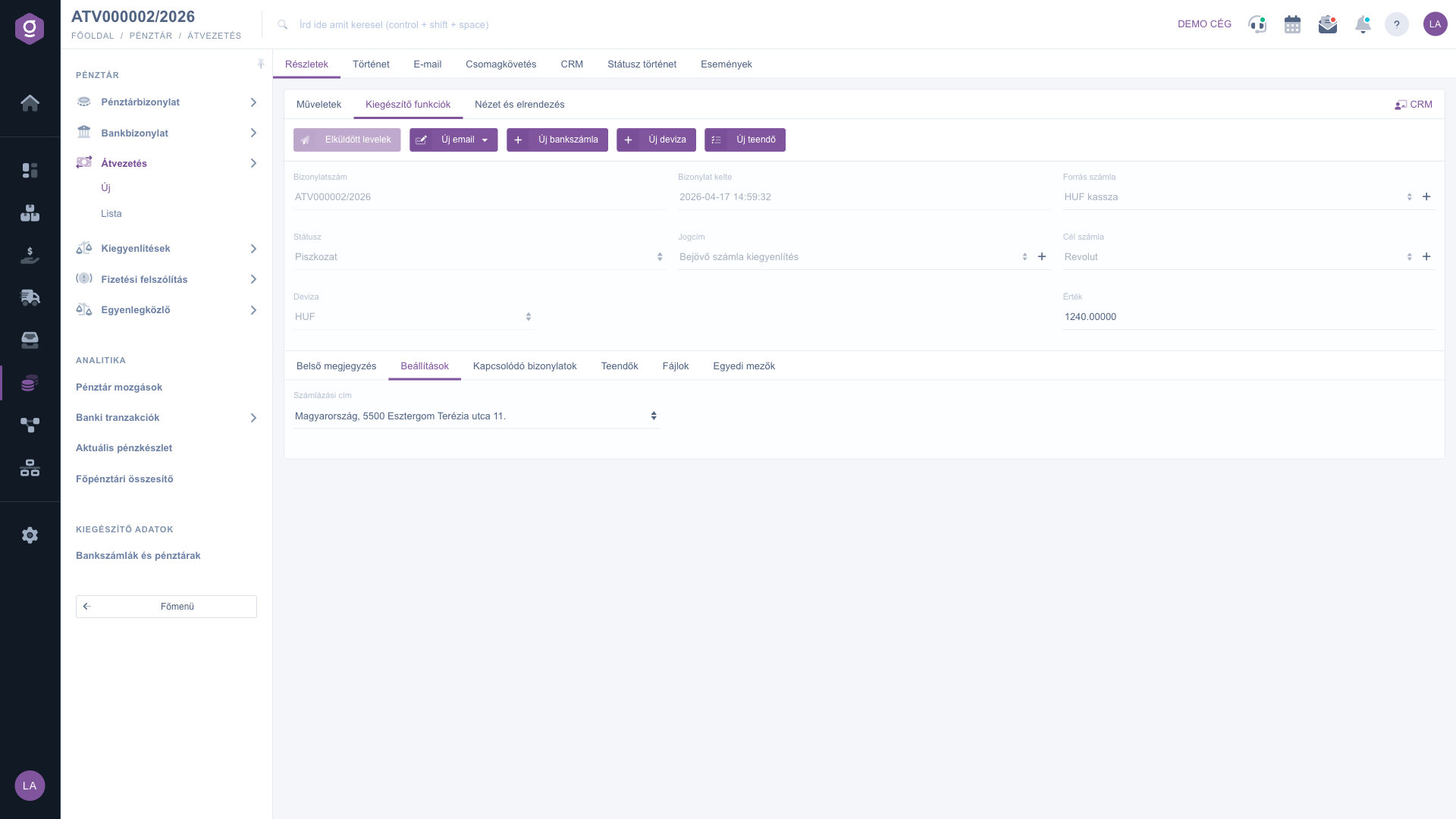
Transfer document – Settings tab (Beállítások)

4. Related documents, tasks, files

The Related documents tab lists the other documents related to this document (Document number, Document date, Document type, Issuing employee, Action); if there are none, the list is empty. On the Tasks tab you see the tasks recorded for the document (Document date, Subject, Comment, Issuing employee). On the Files tab you manage the files attached to the document, and on the Custom fields tab you fill in the own fields of your company.
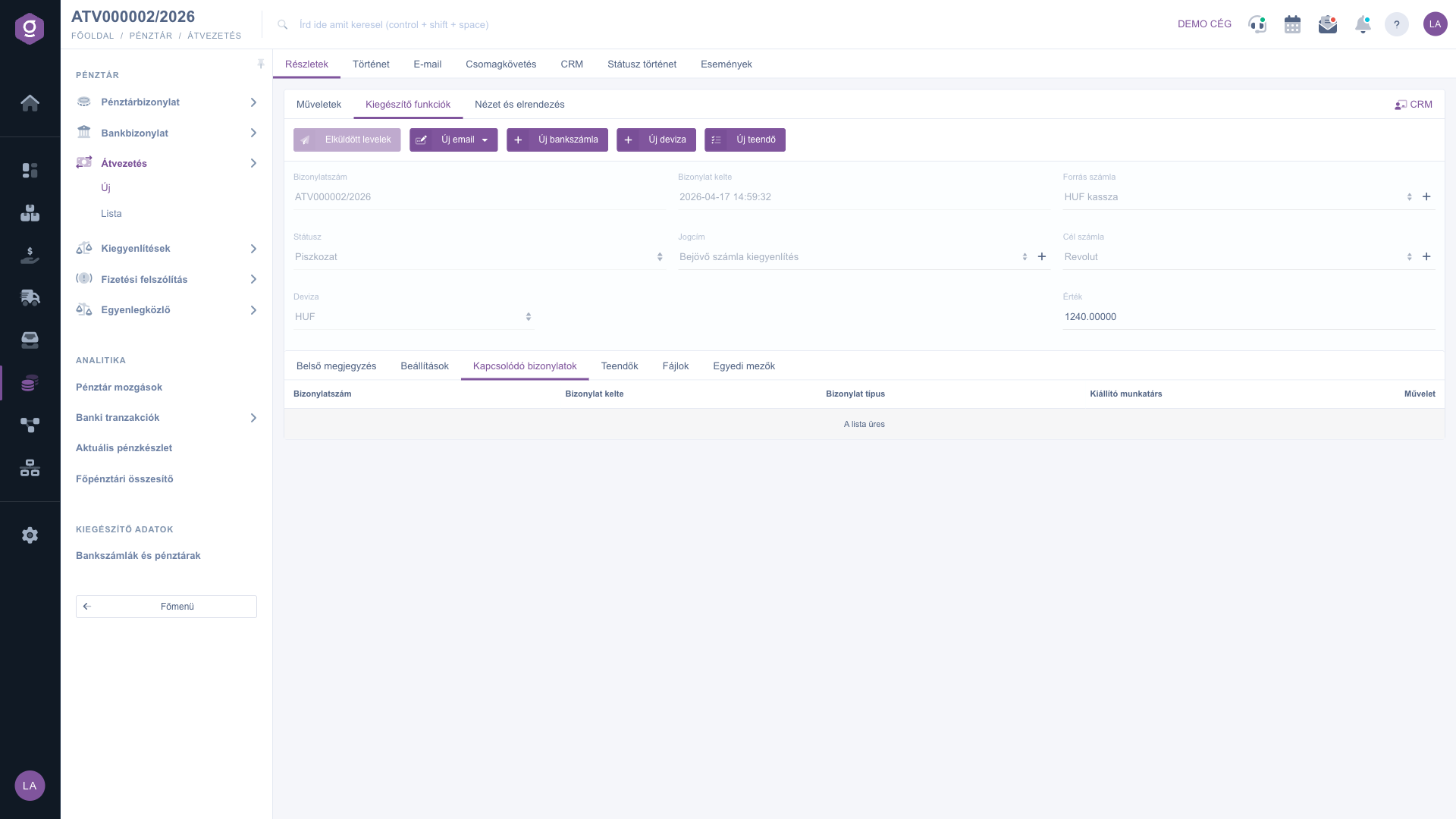
Transfer document – Related documents tab (Kapcsolódó bizonylatok)

Tip


On a saved document the Currency, Exchange rate, Title, Source account and Destination account fields can no longer be changed. Check these values before saving.


Field descriptions

Field / ElementRequiredDescription
Document numberThe identifier of the document; it cannot be edited.
StatusThe state of the document (Draft, Closed, Cancellation, Cancelled); it cannot be edited.
CurrencyThe currency of the transfer. It cannot be changed after saving.
Exchange rateShown only if the currency is not the default currency of your company; the system fills it in automatically.
Document dateThe time the document was created; it cannot be edited.
TitleThe title of the transfer. You can add a new one with the + button next to it.
Source accountThe cash register or bank account the amount leaves.
Destination accountThe cash register or bank account the amount is transferred to.
ValueThe transferred amount.
Billing addressSelectable on the Settings tab from the addresses of your company.
Internal commentFree text visible only inside your company; it can also be filled in from a template.

You can read about the list of transfer documents here: Transfer list.

Frequently asked questions

On a saved document the Currency, Exchange rate, Title, Source account and Destination account fields are locked. Check the values before saving.

The Exchange rate field appears only if the selected currency is not the default currency of your company. For the default currency no exchange rate is needed.

The Close and Delete buttons can be used only on a document that can still be modified, that is, one with Draft status. A closed document can no longer be modified. Fill in the required fields before closing.

On the Additional functions tab with the New bank account and New currency buttons. New bank account opens the bank account settings page in a new tab.

The Sent items button on the Additional functions tab shows the emails belonging to the document.

The Main menu / Cash register / Transfer menu item is displayed depending on your permissions and the subscription of your company. If you do not see it, ask your company administrator to check your permissions.

Need personalized help?

Don't want to spend hours searching for a solution? Choose the most efficient way: book a personalized, 45-minute online training session dedicated entirely to you. Whether it's a walkthrough of the basics or a detailed setup of a specific module, our expert colleague will guide you through the whole process, step by step.

Don't waste your time - ask for help!
Our goal is to get you using our system as quickly and efficiently as possible. Whether you're completely new to us or stuck on a specific setting, don't hesitate to ask for help!

Logzi warehouse management software

Get in touch with us

Interested in our software? Feel free to write to us!

Need help?

If you can't find the answer and need assistance

Create your account now,
pay later!

Try it free for 3 days, no risk, no obligation!
