The Transfer list gives you an overview of transfer documents. With a transfer you move money between two cash registers or bank accounts: on the document you enter the source and destination account and the amount. In the list you can find, open and close documents. You can reach the function here: Main menu / Cash register / Transfer / List.
There are four tabs above the list:
Click a row of the list to select the document. Rows with the Cancelled status are shown struck through.
The Actions tab has three buttons. New opens a new transfer document, Open opens the selected document, and Close finalizes the selected document. After closing, the document can no longer be modified. Click the arrow next to the Close button to reach Close and print and Close and download as well. There is no Delete button in the list; a document can be deleted from its data sheet.
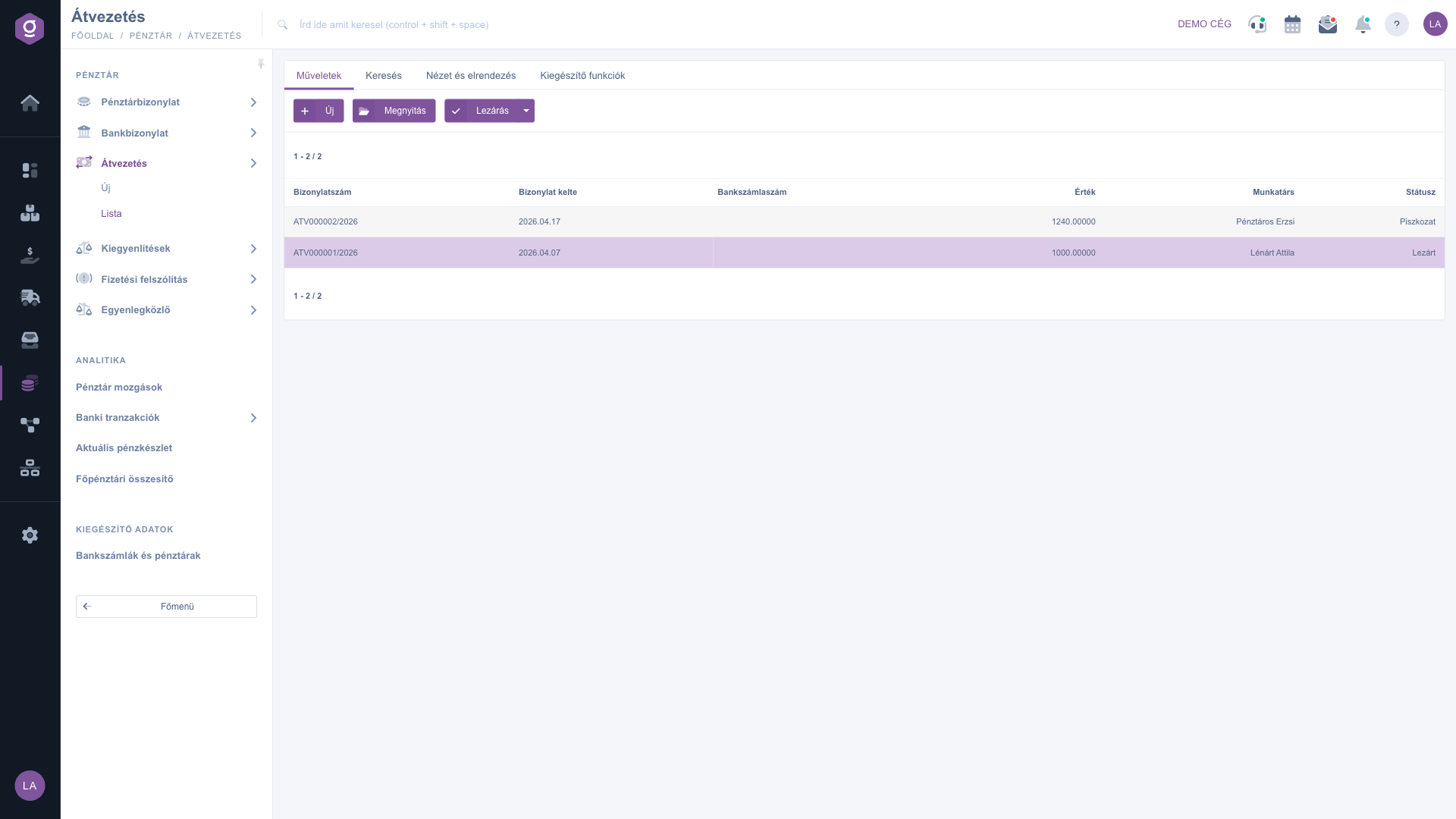
The Search tab shows the filter options: Document number, Currency and Status (several statuses can be selected). Click the Expand button to open more filters: the Document date range (from / to), Employee and Internal comment. Apply the conditions with the Search button.
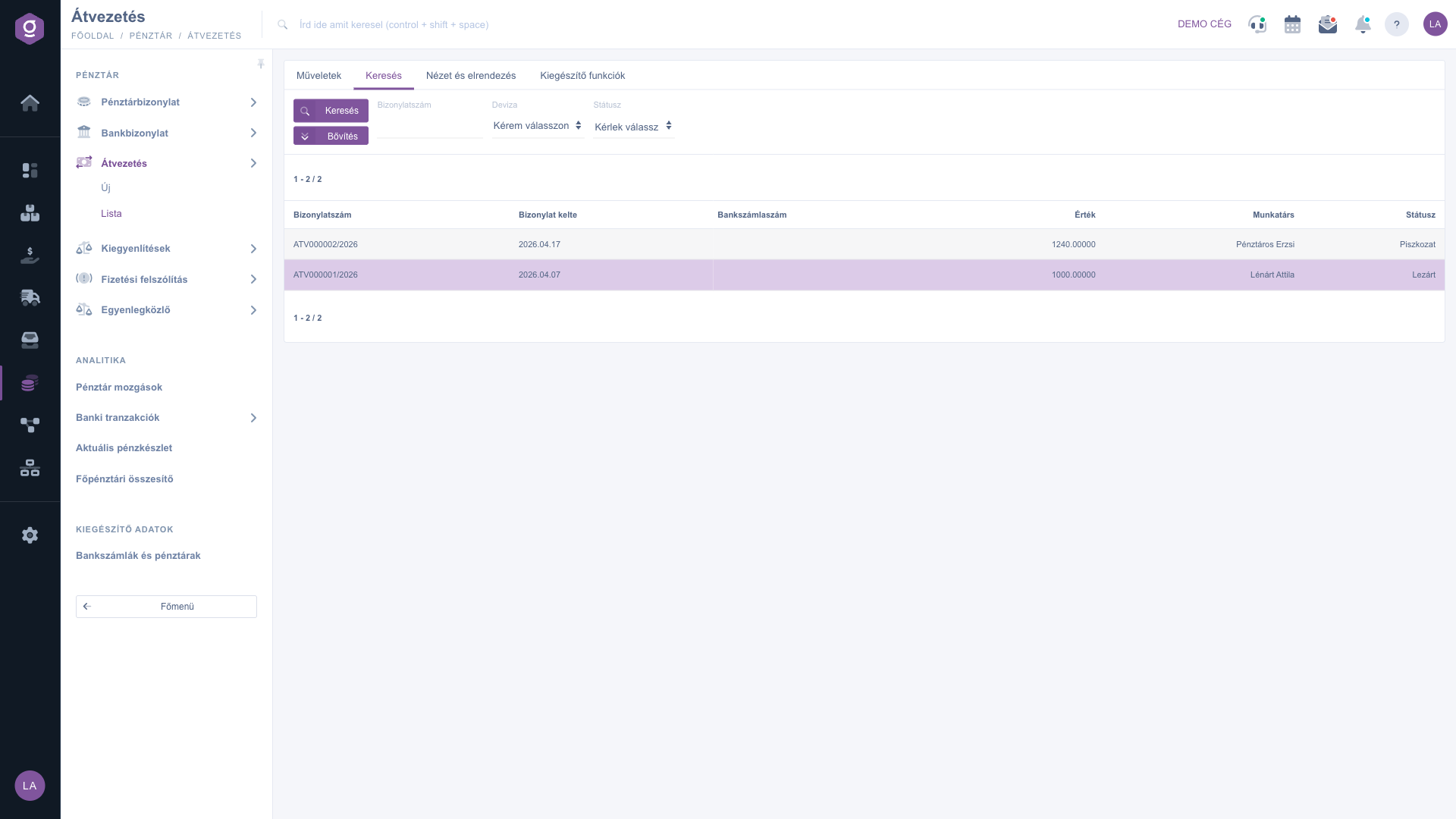
On the View and layout tab you can customize how the list looks: the Oszlopok button (columns) sets the visible columns, the Sorok button (rows) sets the number of rows per page, and the Sorting button sets the order. The Interface and behavior button gives you access to three yes/no settings: Open document in new tab, Show pagination above the document list and Show CRM panel on the data sheet. The Preview window setting is available too, but no preview panel is displayed in this list; open the document with the Open button to see its data. The settings are saved per user, so they are kept at your next login.
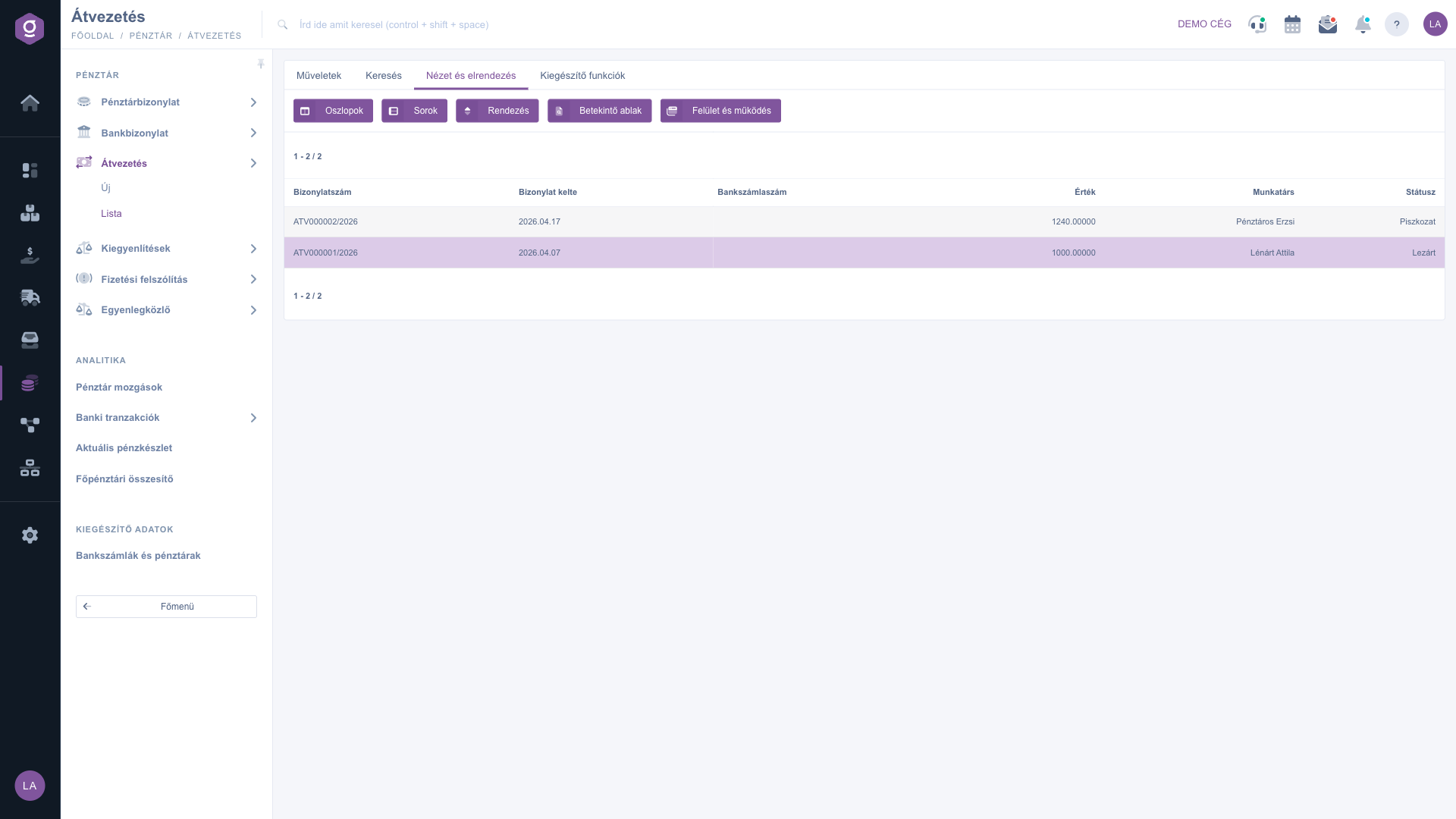
The Additional functions tab contains the actions related to the selected document: Sent items shows the e-mails belonging to the document, the New email menu lets you write a message with the External mail client or the Internal mail client, New task records a task, and CRM opens the CRM panel of the document. These buttons can be used once you have selected a document.
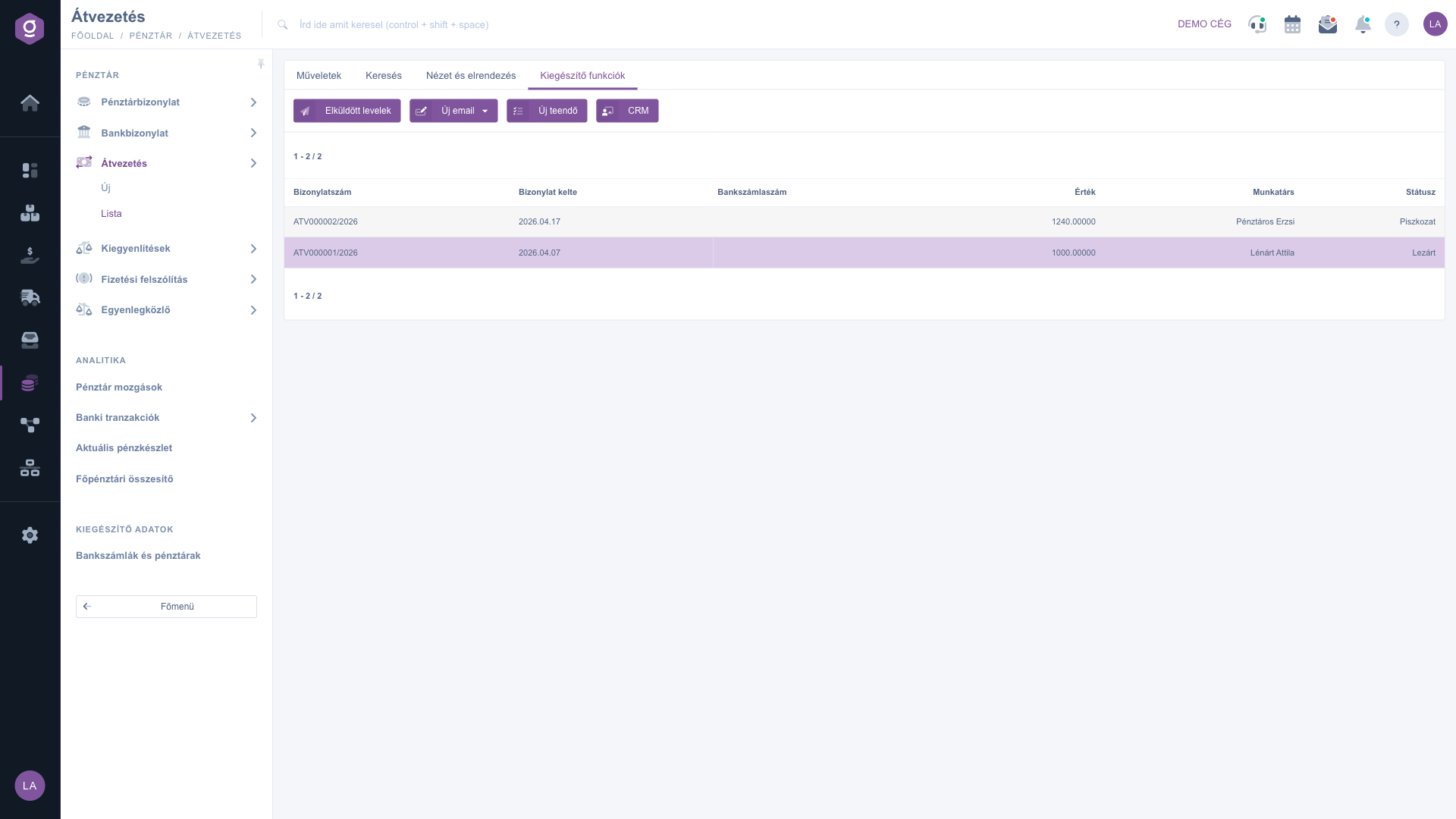
If you want to issue the document right after closing it, use the arrow next to the Close button: Close and print or Close and download closes the document and produces the printout in a single step.

Fields of the Search tab:
| Field / Element | Required | Description |
|---|---|---|
| Document number | The identifier of the document; a part of it is enough. | |
| Currency | Filter by the currency of the document. | |
| Status | Select one or more statuses (Draft, Closed, Cancellation, Cancelled). | |
| Document date | Enter a period from / to (shown after clicking Expand). | |
| Employee | The employee who issued the document (shown after clicking Expand). | |
| Internal comment | Search in the internal comment of the document (shown after clicking Expand). |
The default columns of the list are: Document number, Document date, Bank account number, Value, Colleague and Status. With the Oszlopok button (columns) you can display other columns as well.
You can read about filling in the transfer document here: Transfer document.
Most likely because of the conditions set on the Search tab. Change or clear the filters, then click the Search button. It is also possible that the current page has no results; in that case go to the first page.
There is no Delete button in the list. Open the document with the Open button, and you will find the Delete button on the data sheet.
The actions apply to the selected document. Click a row of the list to select the document, then use the button you need.
In the list, the transferred amount is shown in the Value column. You can find the Source account and Destination account fields on the data sheet after opening the document.
The Main menu / Cash register / Transfer menu item is displayed depending on your permissions and the subscription of your company. If you do not see it, ask your company administrator to check your permissions.
Don't want to spend hours searching for a solution? Choose the most efficient way: book a personalized, 45-minute online training session dedicated entirely to you. Whether it's a walkthrough of the basics or a detailed setup of a specific module, our expert colleague will guide you through the whole process, step by step.
Don't waste your time - ask for help!
Our goal is to get you using our system as quickly and efficiently as possible. Whether you're completely new to us or stuck on a specific setting, don't hesitate to ask for help!
Create your account now,
pay later!

