1. Creating a new document and filling in the header
Click Main menu / Cash register / Bank document / New to open a new, empty bank document (you can reach an existing document from the List menu item with the Open button). On the Actions tab (Műveletek) you find the following buttons:
- Save: records the data – when saving, the document is not final yet; finalising happens when you close it. With the arrow next to the button the Save and close option does both steps at once.
- Close: finalises the document – after closing, the document can no longer be modified. With the arrow you can combine closing with printing (Close and print) or downloading (Close and download).
- Delete: deletes the document – on deletion the document moves to a deleted or cancelled status and it cannot be restored. Only a closed document can be deleted.
In the header you can specify the Direction (Incoming or Outgoing) and the Bank account number. When you select the Bank account number, the system automatically fills in the Currency, the Opening value and the Closing value, and refreshes the Exchange rate – you do not have to enter these by hand. If the bank account or currency you need is not in the list, you can add a new one with the + button next to the bank account number, or with the New bank account and New currency buttons of the Additional functions tab. The Document number is assigned by the system on the first save, while Document date and Status are display-only.
The screenshots show a document that is already closed, so some of the editing fields and buttons are inactive (greyed out) – this is the normal behaviour for a closed document.
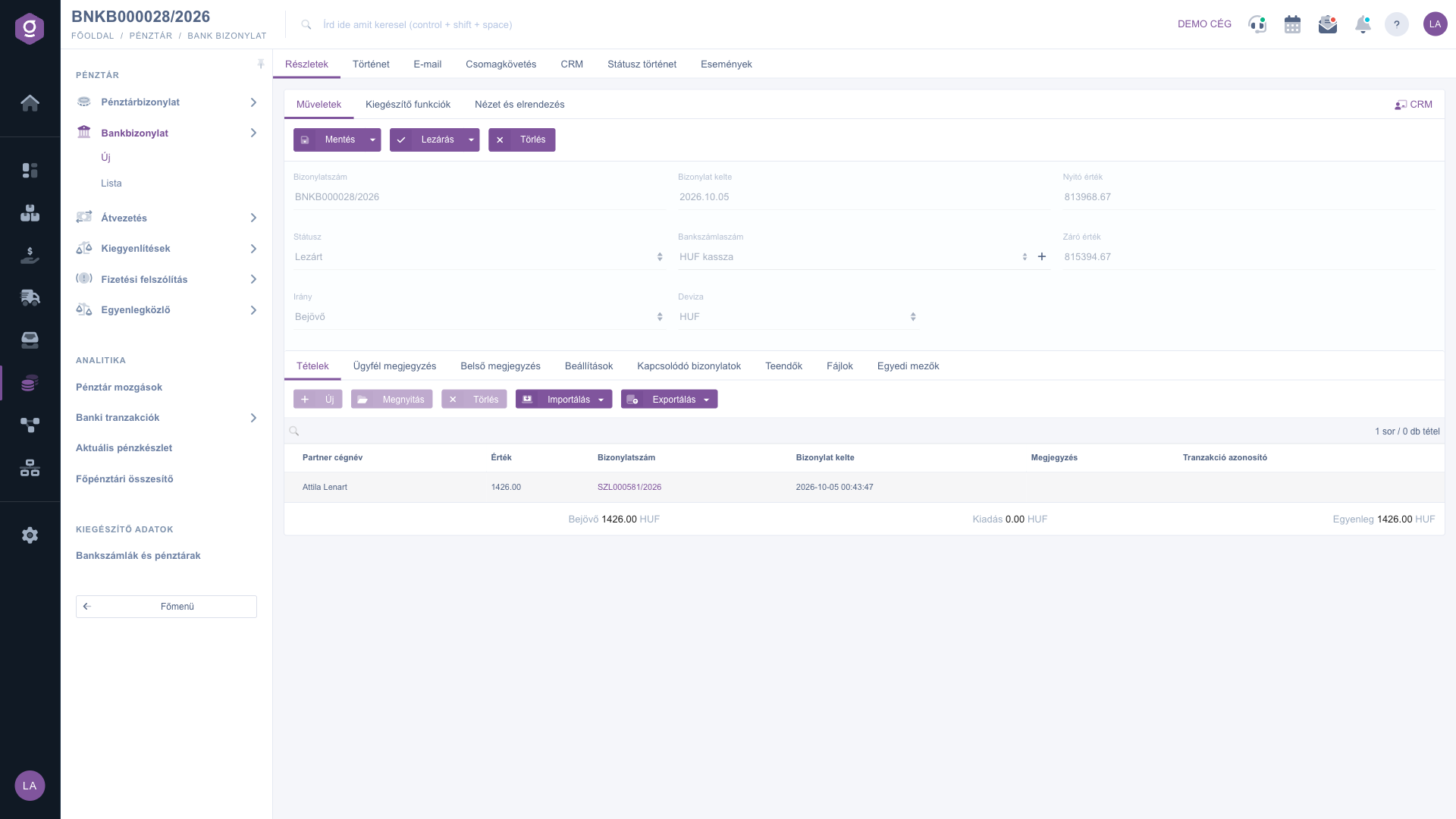
Bank document sheet – Actions tab (Műveletek) and header data
2. Additional functions
On the Additional functions tab (Kiegészítő funkciók) you find extra options related to the document:
- Sent items: shows the e-mails previously sent for the document.
- New email: write a new message related to the document, using the External mail client (your own mail program) or the Internal mail client built into the system.
- New bank account: adds a new bank account – the settings open in a new browser tab, so your half-filled document is not lost.
- New currency: adds a new currency, in case your bank account is held in a currency that is not yet in the system.
- New task: create a task related to the document.
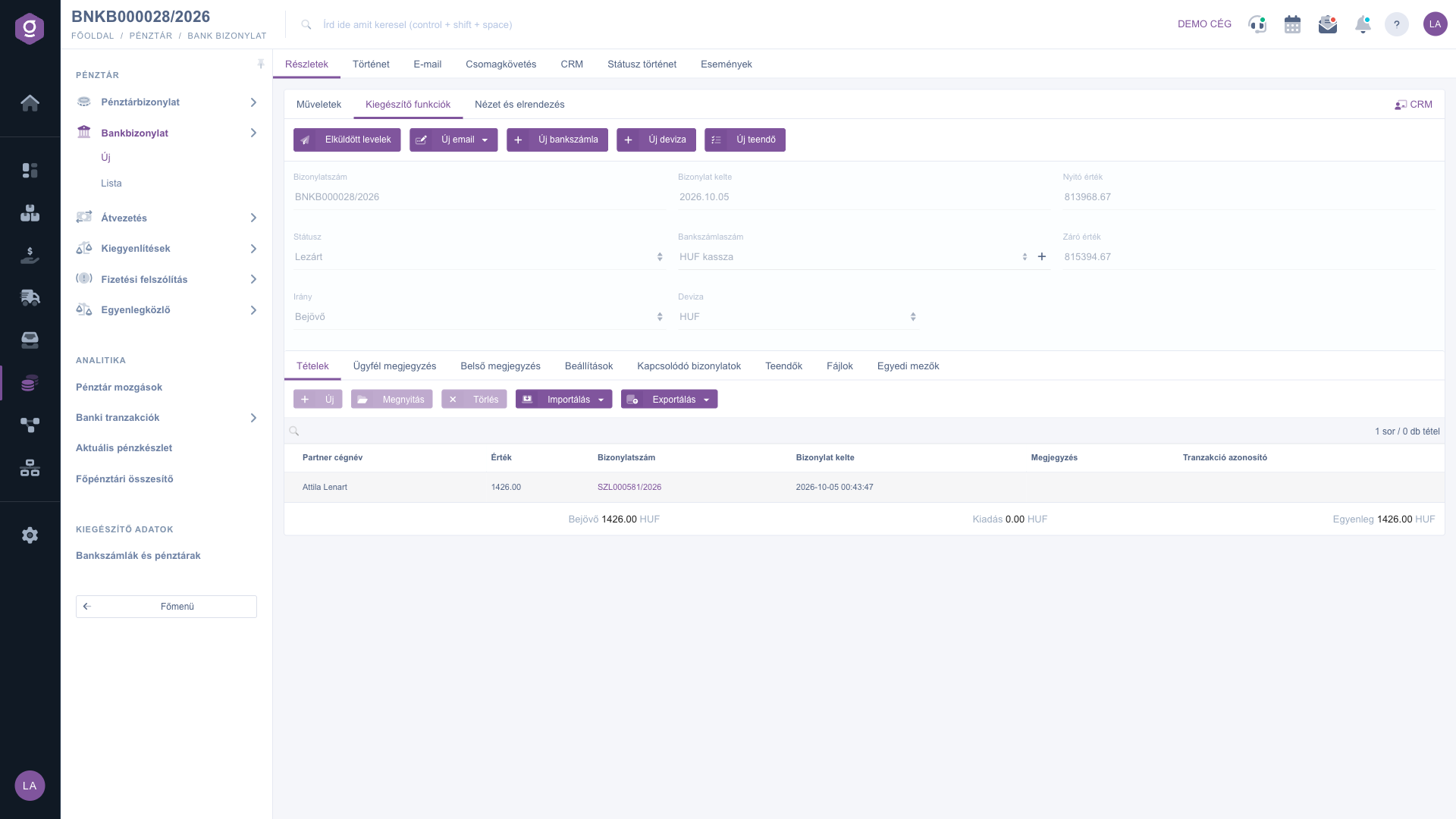
Bank document sheet – Additional functions tab (Kiegészítő funkciók)
3. Managing the items: adding, importing, exporting
The Items tab contains the transactions that took place on the bank account. The buttons of the toolbar:
- New: adds a new item by hand – choose it when you want to record only a few transactions, or when you have to add an item missing from an import.
- Open: opens the selected item for editing. Without a selected row the system shows the message “Kérlek válassz egy tételt a listából!” (“Please choose an item from the list!”).
- Delete: deletes the selected item. The row disappears from the table immediately, but the deletion takes effect only when you save the document – the totals are already calculated without the deleted item.
- Import: loads the file provided by the bank – choose it when you have to enter many items at once (see below).
- Export: creates a transfer file for the bank from the items of the document (see below).
In the item window you can specify: Partner company name (start typing the name and choose from the list), Document type and Document number (to select the invoice or other document the item belongs to; if the item is not related to a document, choose the Other, not related to a document option), Title (Jogcím), Value, Transaction comment (note), Transaction identifier and Internal comment. For a new item you record the data with the Add button, when modifying an existing item with the Save and close button – the latter only closes the item window, not the document; the document itself is saved separately with the Save button of the document. The Close button closes the window without saving.
Below the item table the system sums up the Incoming (items with a positive amount), the Expense (items with a negative amount) and the Balance.
How does the import work?
Click the Import button and choose your bank: Raiffeisen, OTP or Tatrabank. In the File upload window, pick the file provided by the bank with the Choose the file button, or drag it into the window (csv, xls or xlsx files are accepted), then click Save. Always choose the bank that issued the file, because the structure of the files differs from bank to bank. The system then does the following:
- it creates rows from the items of the file (transaction identifier, date, amount, comment); to an item with a positive amount it assigns the Credit title, to one with a negative amount the Debit title (the system names these Jóváírás and Terhelés);
- it skips the items whose transaction identifier already exists in the system as a saved item, so the same transaction is not added twice;
- it tries to link the item to an invoice: first it looks for an invoice number in the comment and for an invoice whose gross amount differs from the amount of the item by at most 10; if that fails, it identifies the partner by bank account number or company name and looks for an open invoice of that partner whose amount matches that of the item (with a difference of at most 10).
Please note that the import replaces the current items of the document with the rows read from the file, so it is best to import into an empty document. The imported items are recorded permanently only when you click the Save button of the document. Rows for which the system found no invoice or partner are marked with a warning triangle in the item table – open them and enter the partner and the related document by hand.
How does the export work?
With the Export button you can create a transfer file from the items of the document: choose the Gránit Bank (XML) or the OTP Elektra (DAT) format, depending on which bank you want to upload it to. For every item the file contains the name and bank account number of the partner, the amount (in forints) and the comment. You have to save the document before exporting – otherwise the system shows the message “Kérlek először mentsd el a bizonylatot!” (“Please save the document first!”).
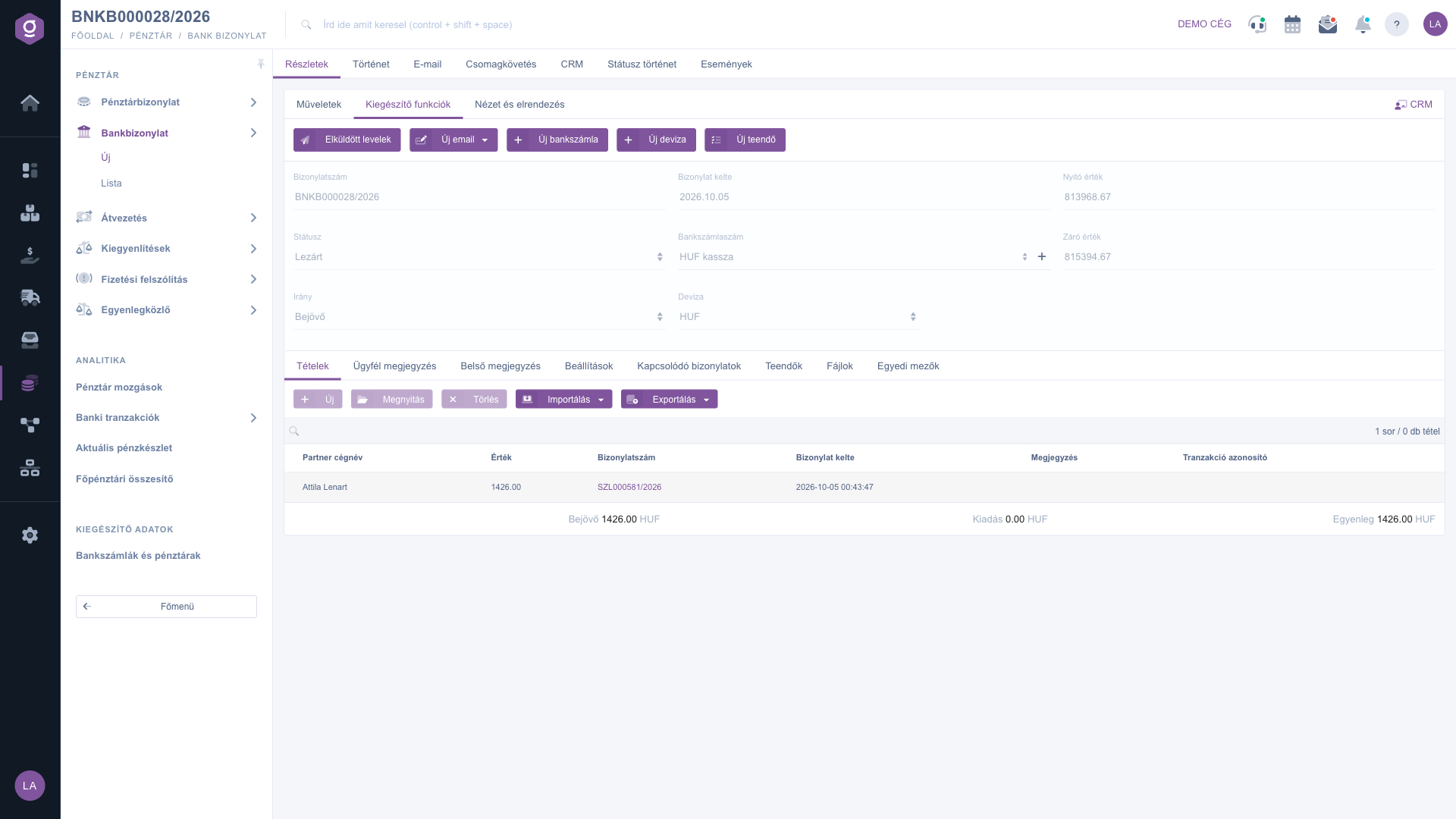
Bank document sheet – Items tab (Tételek)
4. Billing address on the Settings tab
On the Settings tab (Beállítások) you select the Billing address of the document; this field is required and you have to fill it in before saving.
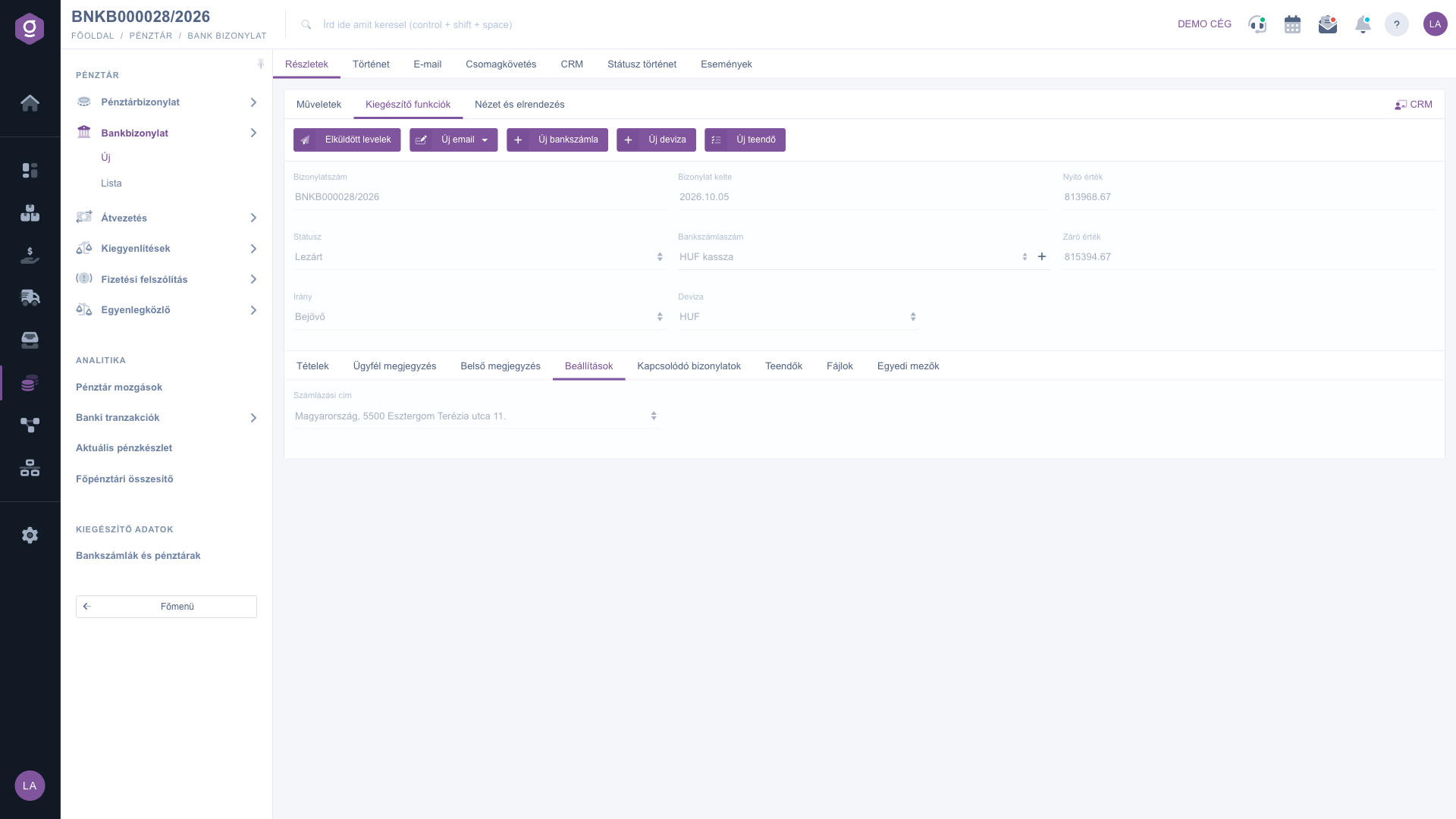
Bank document sheet – Settings tab (Beállítások)
5. Comments, related documents, tasks, files
- Customer comment and Internal comment: freely editable text fields for the document. The customer comment is meant for the partner, the internal comment is a note only for your own colleagues.
- Related documents: other documents belonging to this document, with document number, date, type and the issuing employee; they can be reached from the Action column.
- Tasks: the tasks created for the document, with subject, comment and the issuing employee.
- Files: the files attached to the document.
- Custom fields: the custom (customised) fields belonging to the document.
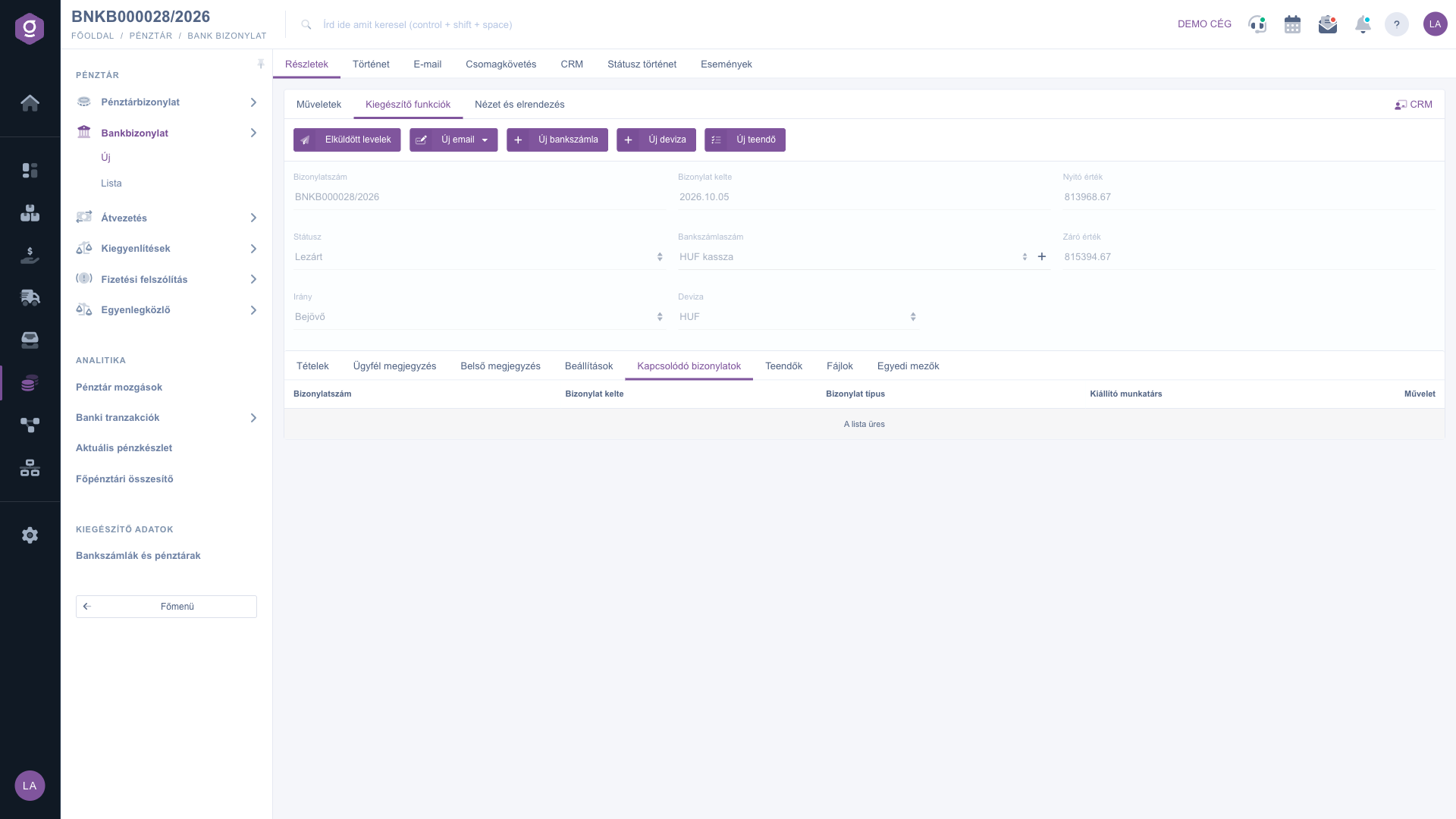
Bank document sheet – Related documents tab (Kapcsolódó bizonylatok)
Tip
After an import, before saving the document, go through the rows marked with a warning triangle: open them with the Open button, enter the Partner company name, then select the related invoice in the Document type and Document number fields. This way the item is linked to the invoice, and no unresolved row is left when you close the document. If you cannot find the invoice you want, check that the amount of the item does not differ significantly from the amount of the invoice.
You can read about reviewing and searching bank documents and the actions of the list in the
Bank document list guide. The data of the invoices linked to the items is described in the
Invoice sheet guide.



