1. Opening the list
Click Main menu / Cash register / Balance statement / List. At the top you see four tabs: Actions, Search, View and layout and Additional functions. By default the list shows these columns: Document number, Document date, Performance date, Partner company name, Partner contact person, Colleague and Status. If you do not have any balance statement yet, the list is empty.
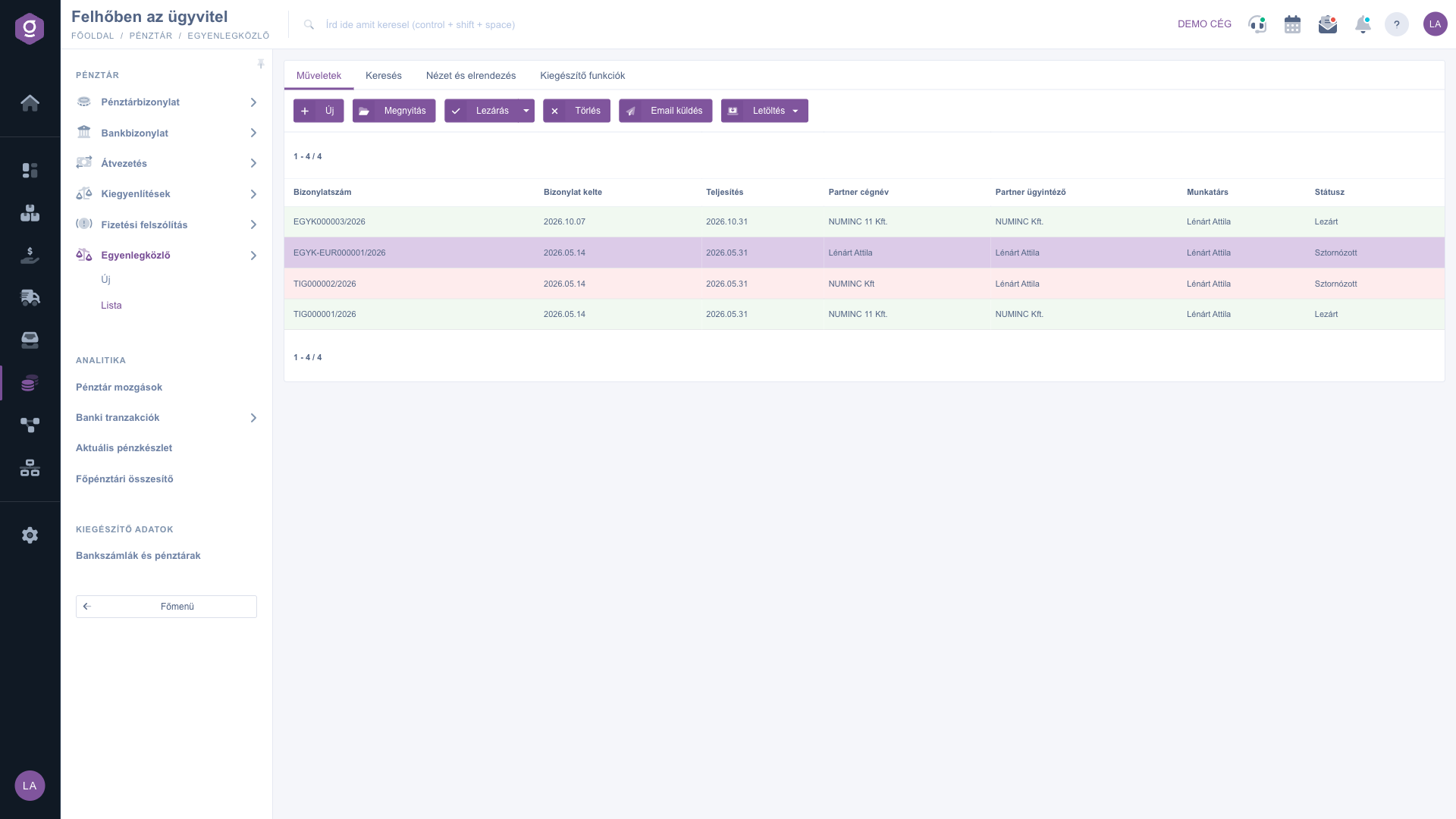
Balance statement list – Actions tab (Műveletek) and the list
2. Searching on the Search tab
On the Search tab you can narrow the list with these fields: Partner company name, Document number and Status (several can be selected at once). Example: if you are looking for the balance statements of one partner, type its name into Partner company name and click Search.
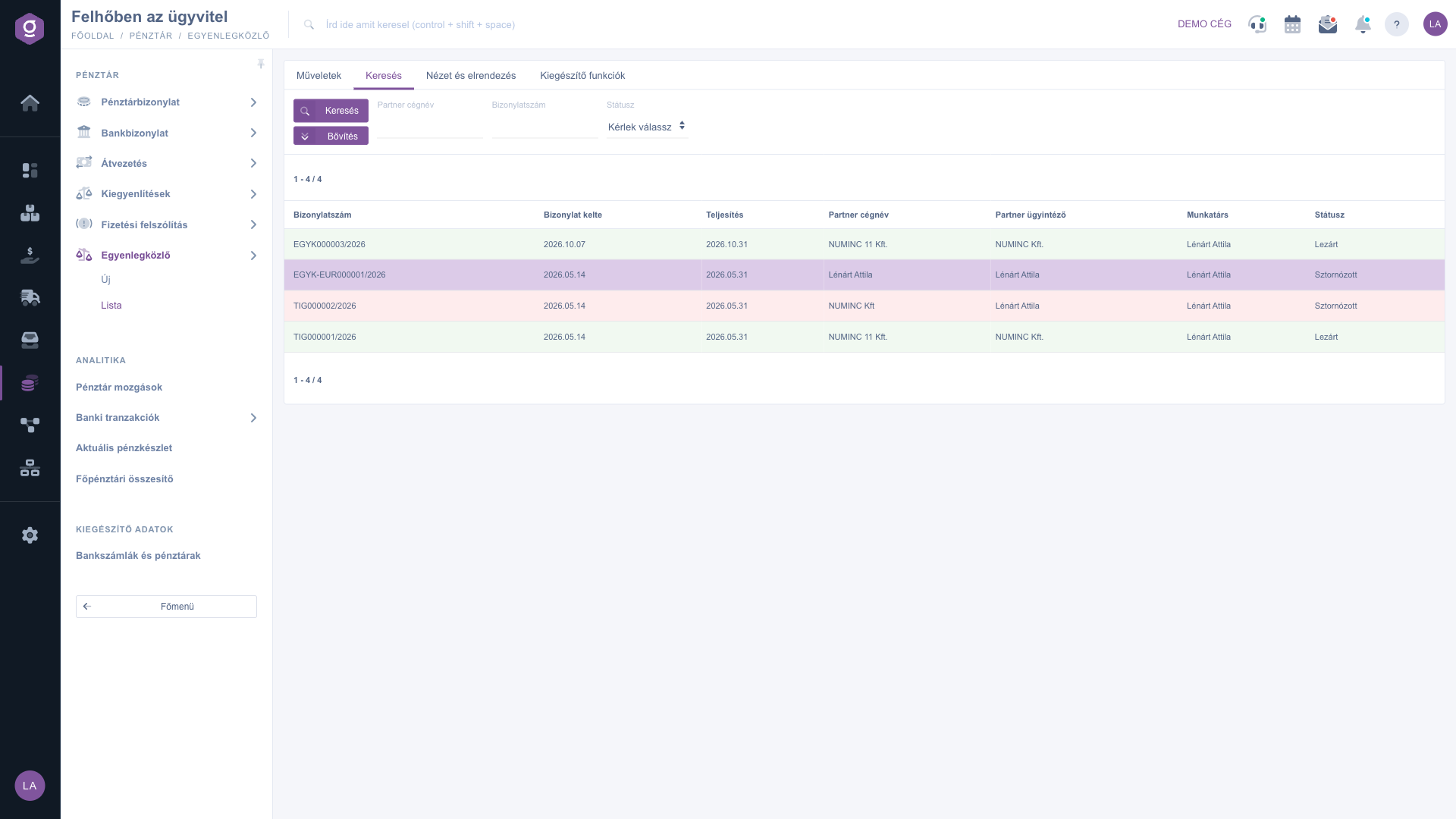
Search tab (Keresés) – basic fields
3. Extended search
The Expand button opens further filters: Document date, Performance date and Period start (each with a "from" and a "to" value), plus Employee, Job number and Department number. Example: if you are looking for balance statements performed in one month, enter the first and the last day of that month into the Performance date "from" and "to" fields, then click Search.
4. View and layout
On the View and layout tab you customize how the list looks: under Columns (Oszlopok) you choose which columns are visible and in what order; Rows (Sorok) sets the number of rows per page; Sorting sets the default sort column and direction; Preview window turns the preview panel below the list on, off or pins it; Interface and behavior contains further display settings. The settings are saved per user. Please note: the Balance statement list shows no preview panel below the list, so the Preview window setting has no visible effect here.
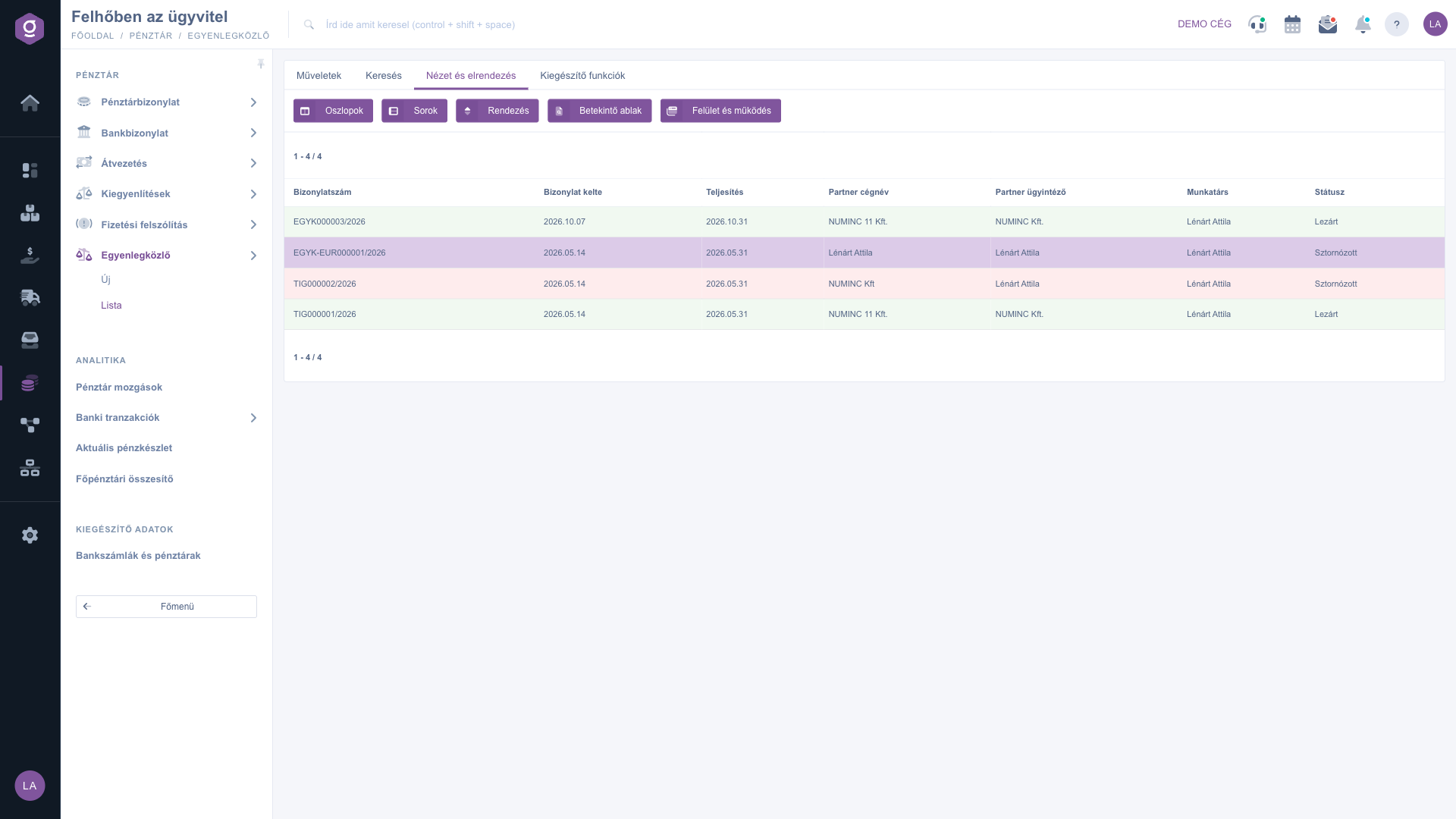
View and layout tab (Nézet és elrendezés)
5. Actions on the selected balance statement
On the Actions tab you find the following buttons. Most of them apply to the balance statement selected in the list, so click its row first:
- New: create a new balance statement.
- Open: open the sheet of the selected document for editing or viewing.
- Close: finalize a draft; available only for documents in Draft status. After closing, the document can no longer be modified. The dropdown also offers Close and print and Close and download.
- Delete: delete the document. On deletion the document does not disappear but gets the Cancelled status, and no separate cancellation document is created. You can delete drafts and closed documents, but not an already cancelled one.
- Send email: opens the Sent items window, from where you can send a new email about the document. Available only for closed documents.
- Download: a dropdown. In the List operation group, XLSX lista downloads the contents of the list. The Document operation group contains the options for the selected document: XLSX items, PDF, PDF Preview and Download attachments. The PDF download requires the document to be closed; XLSX items and PDF Preview also work for a draft.
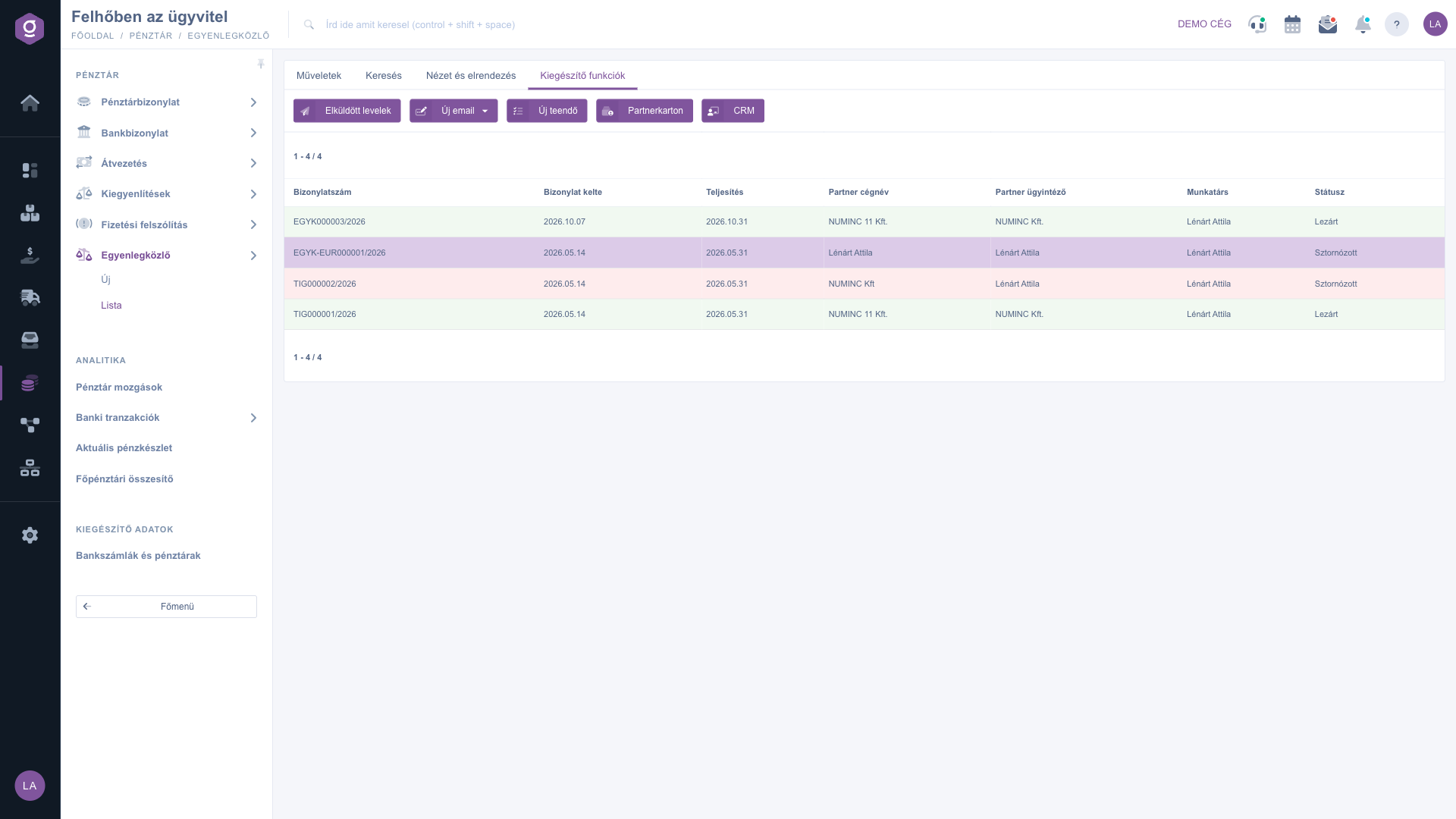
Additional functions tab (Kiegészítő funkciók)
On the Additional functions tab you find Sent items, New email (External mail client or Internal mail client), New task, Partner card and CRM, for example to create a task for the partner or to look at the partner card.
Tip
A closed balance statement can no longer be modified, so always check the items and the amounts on the sheet before closing. If you still find a mistake, delete the document (it gets the Cancelled status) and create a new one.
How to fill in and close the document is described in the
Balance statement sheet guide. The shared elements of handling the list (search, columns) are also covered in the
Invoice list guide.



