1. Opening the sheet
For a new document click Main menu / Cash register / Balance statement / New. For an existing one open the List page, select the row and click Open. At the top of the sheet you see three tabs: Actions, Additional functions and View and layout, and the CRM link on the right. The image shows a closed balance statement, so the editing buttons are dimmed; for a draft they are active.
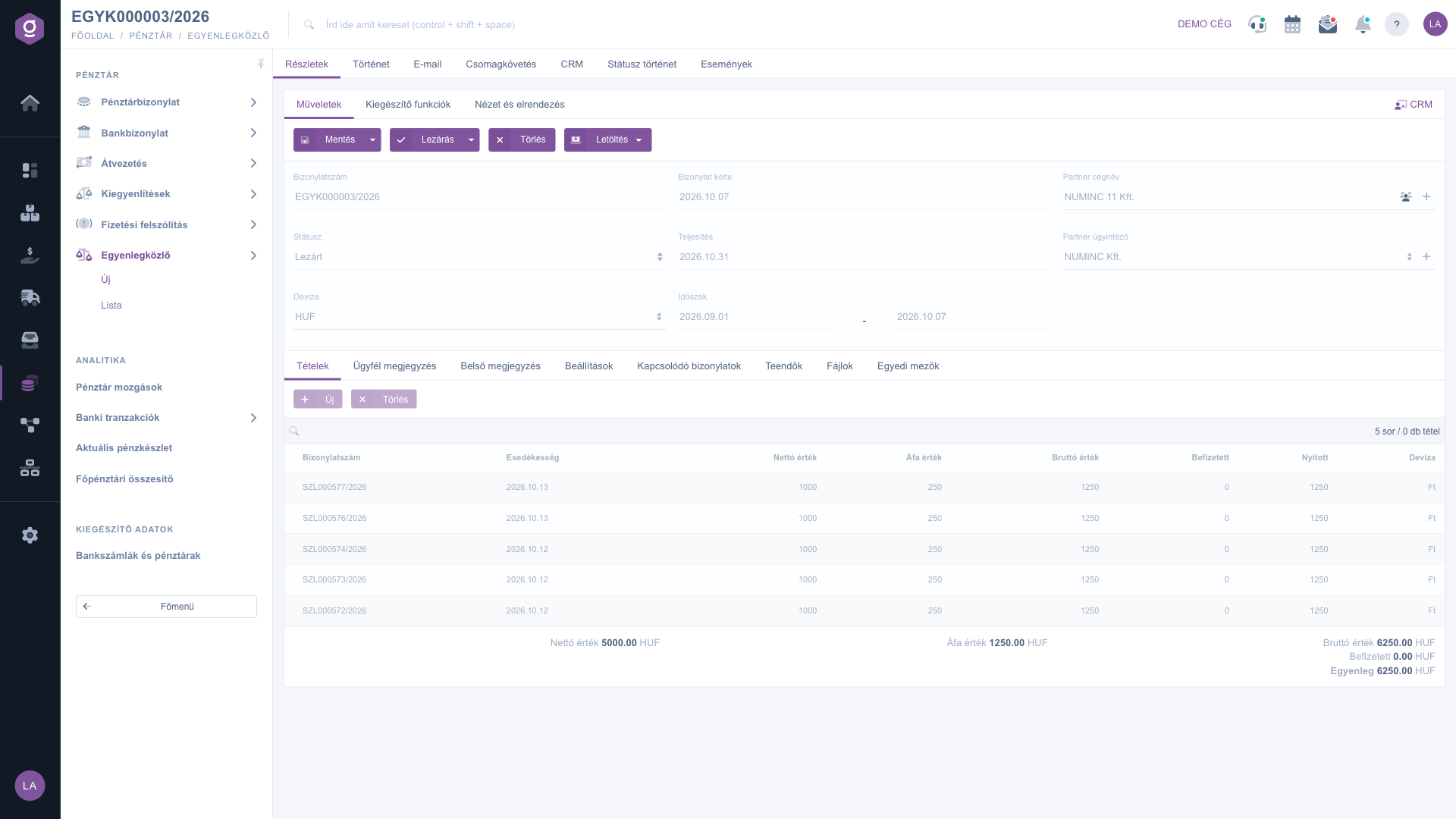
Balance statement sheet – Actions tab (Műveletek)
2. Filling in the header data
Below the tabs you find the header data:
- Document number, Document date and Status: filled in by the system, not editable.
- Currency (required): choose the currency of the document.
- Performance date (required): the day of performance, using the date picker.
- Period: the start and end of the balance statement period (optional).
- Partner company name: start typing the partner's name and choose from the results. The buttons next to it open the partner's sheet or let you create a new partner. Once the partner is chosen, the Partner contact person list is filled in; you can also add a new contact person with the + button.
3. Adding invoices on the Items tab
On the Items tab you add an invoice with the New button. Choose the partner first: if none is selected, a warning appears (in the Hungarian interface: "Partner választani kell!", meaning that a partner must be chosen). In the window that opens, pick the partner's invoice from the Document number list and click Add (to leave, use Close). The table shows the invoice data: Document number, Due date, Net value, VAT value, Gross value, Paid, Open and Currency. To remove an unneeded item, select its row and click Delete. The totals at the bottom are updated with every change.
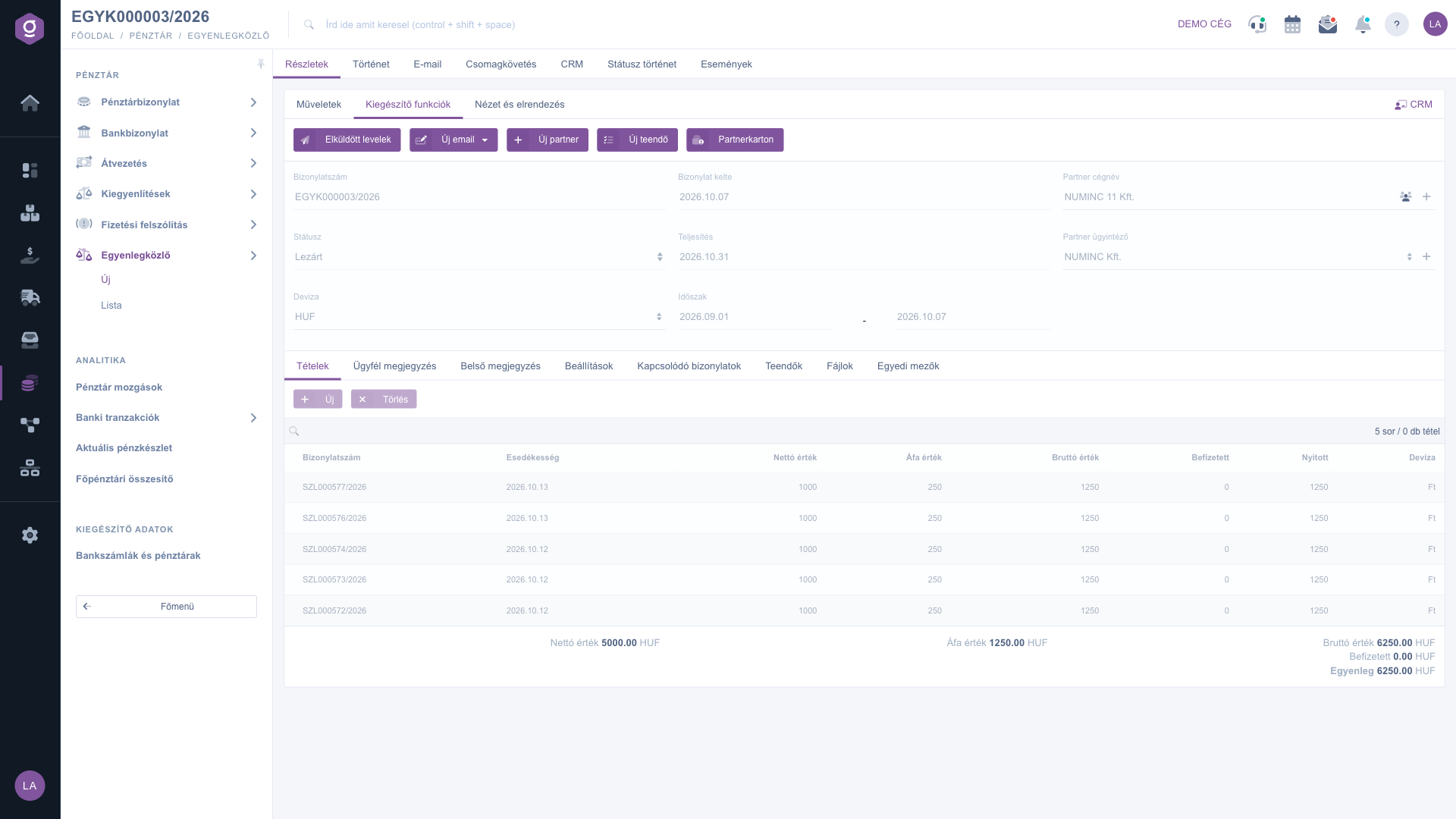
Items tab (Tételek) – the added invoices and the totals
4. Comments and settings
On the Customer comment and Internal comment tabs you can write a comment in a text editor; you can also choose a previously saved comment from the dropdown above. On the Settings tab you set the Billing address (required), the Job number, the Department number and the Template; the + button next to the job number and department number opens a new page to create a new record.
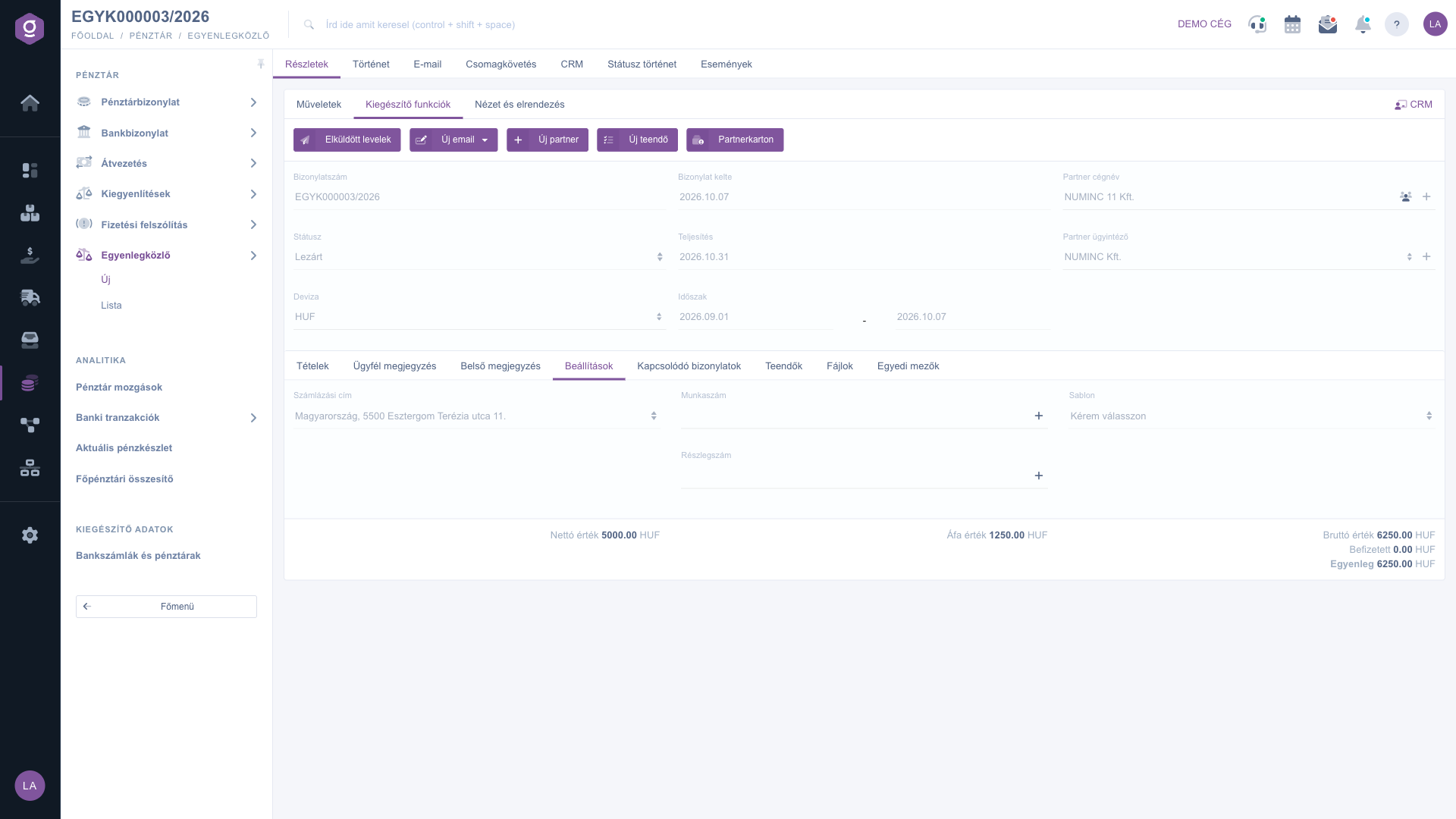
Settings tab (Beállítások)
5. Saving, closing, deleting and downloading
On the Actions tab you find these buttons:
- Save: records the data; the document stays a draft. The dropdown also offers Save and close. To save, you must add at least one item and fill in the required fields.
- Close: finalizes the document; afterwards it cannot be modified. The dropdown also offers Close and print and Close and download. It can only be used for a draft.
- Delete: the document gets the Cancelled status. You can delete both drafts and closed documents.
- Download: a dropdown with CSV, XLSX, PDF and PDF preview. PDF and CSV are only available for a closed document; XLSX and PDF preview also work for a draft.
6. Additional functions
On the Additional functions tab you find Sent items (only for a closed document), New email (External mail client or Internal mail client), New partner (opens in a new tab), New task and Partner card. On the View and layout tab you find the Interface and behavior settings, and the CRM link on the right opens the notes belonging to the document.
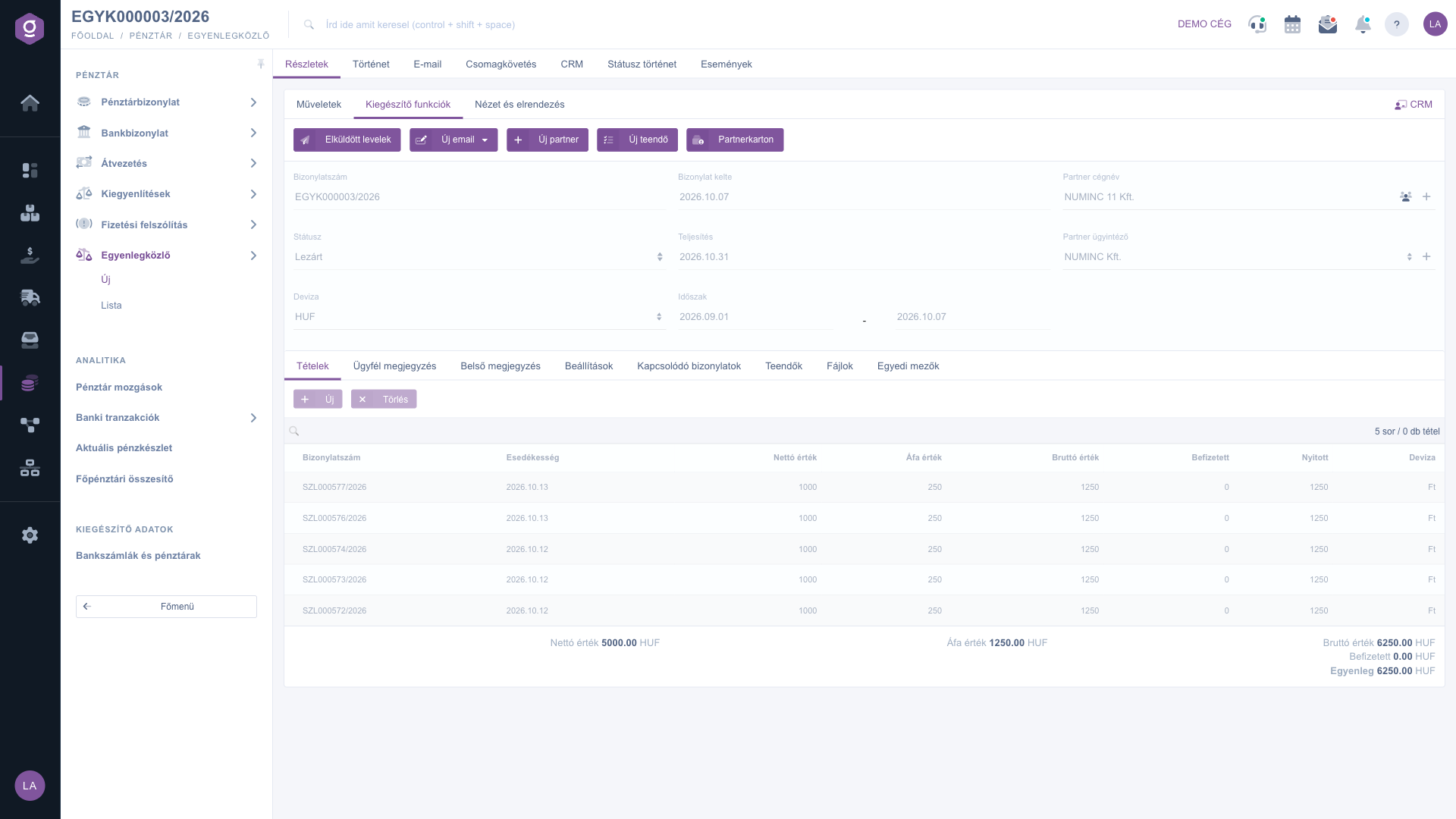
Additional functions tab (Kiegészítő funkciók)
7. Related documents, tasks, files
On the Related documents tab you see the documents the balance statement is linked to (Document number, Document date, Document type, Issuing employee); if there are none, the list is empty. On the Tasks, Files and Custom fields tabs you manage the tasks, attached files and custom fields of the document.
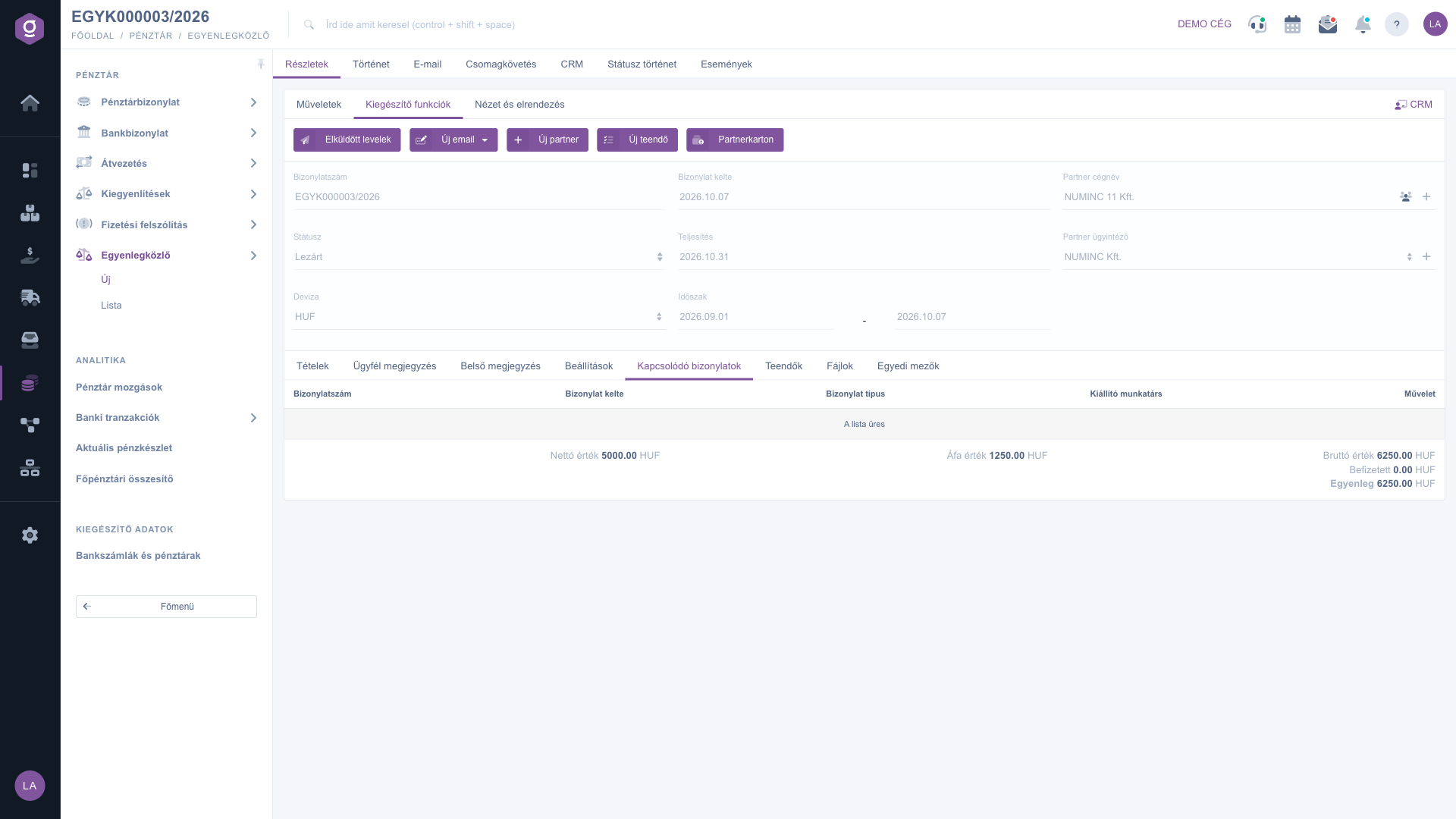
Related documents tab (Kapcsolódó bizonylatok)
Tip
When you save, the data is recorded; finalization happens when you close. First save as a draft, check the items and amounts with the PDF preview, and only then close the document.



