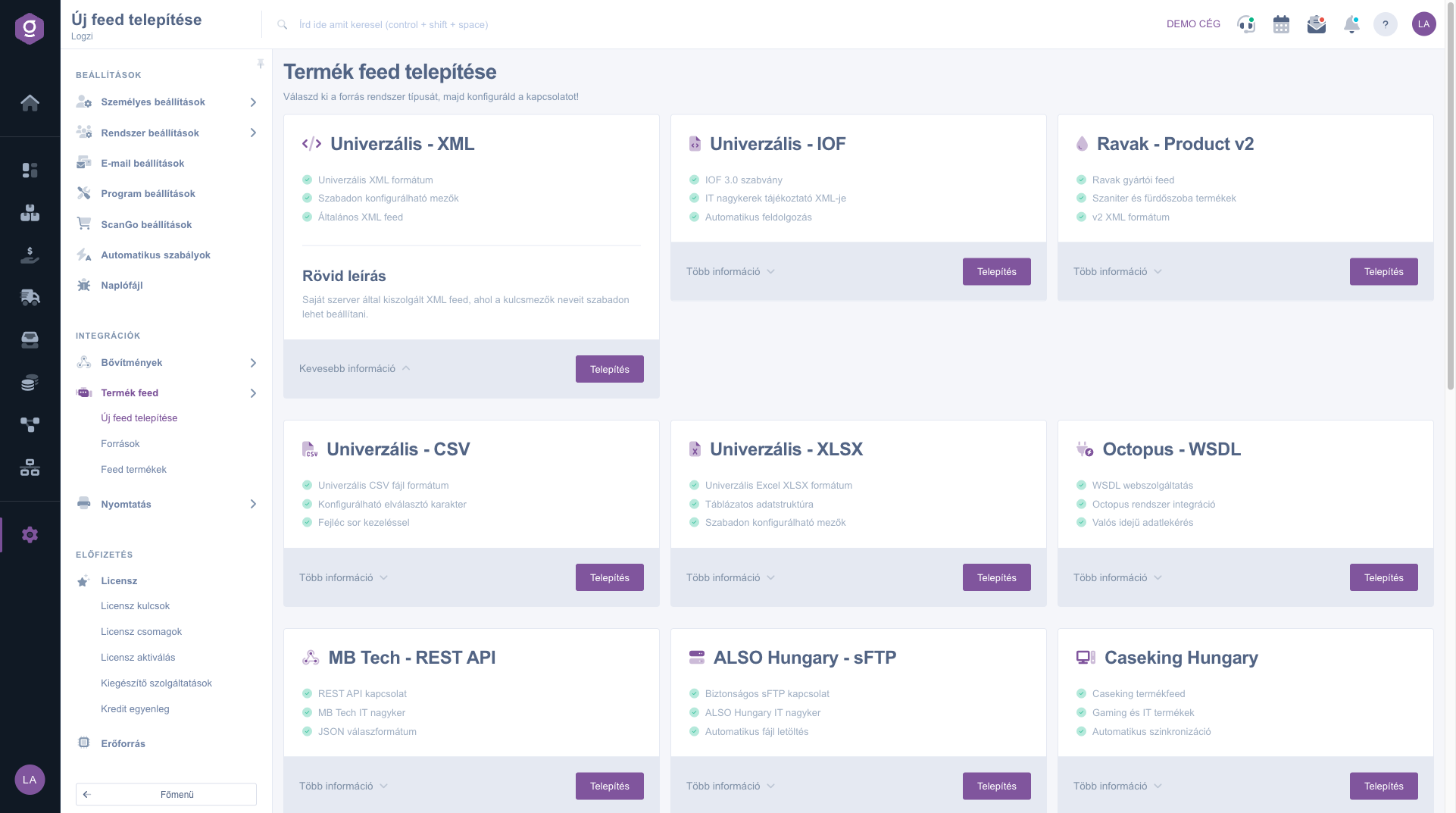
On the Install new feed page you choose where the product data (item number, name, price, stock, picture) should be loaded from. Every feed type has a card with three highlighted features, a short description and the Install button.
Click Main menu / Integrations / Product feed / Install new feed. The page shows the Install product feed title and the cards of the feed types. The screenshots were taken in the Hungarian interface.
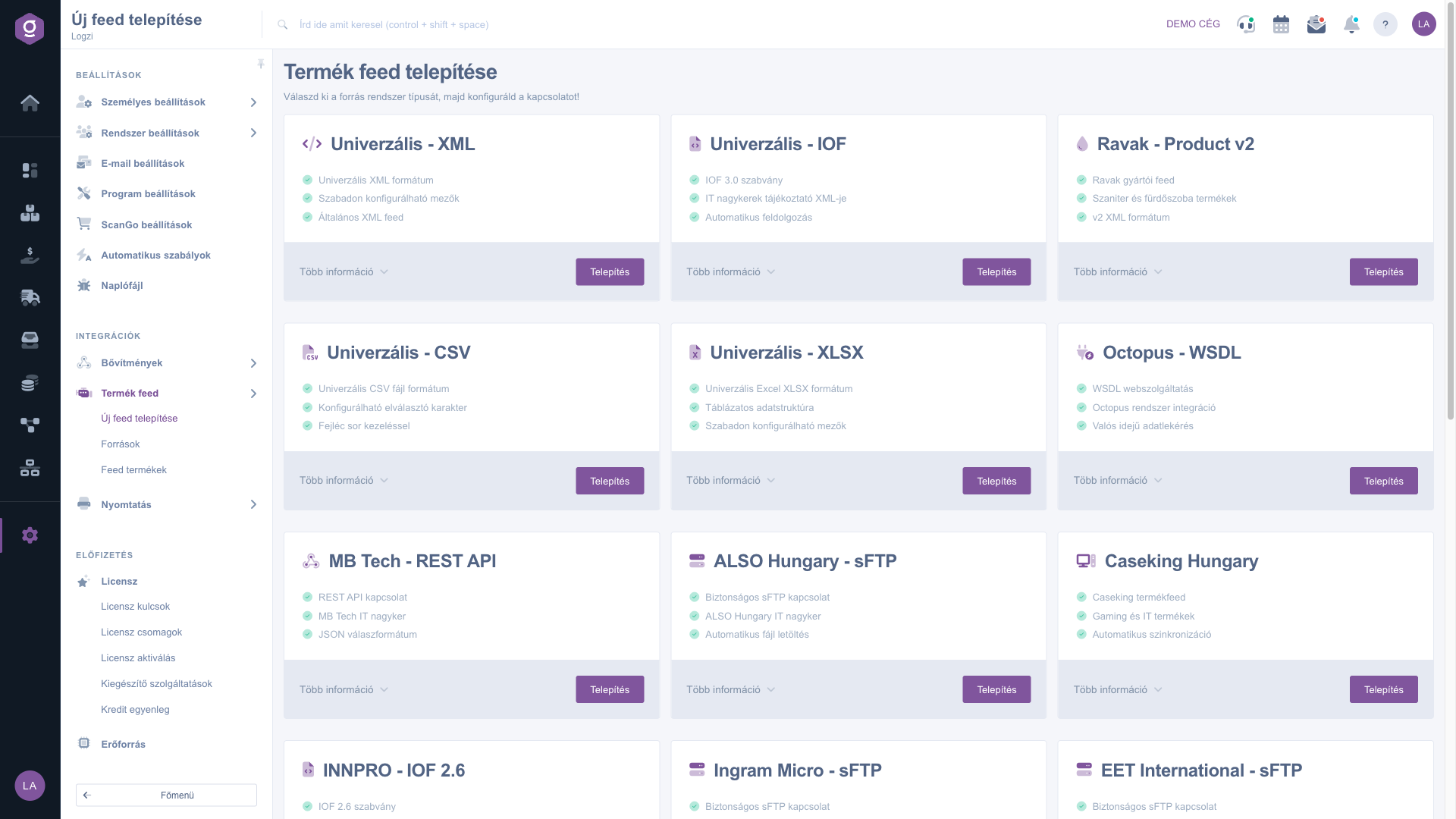
At the top of each card you see the name of the feed type, below it three short features. Click More information: the Short description appears and the label becomes Less information. The main groups of types:
Click Install on the card of the chosen type. The page of a new feed source opens with the Feed type already set. Enter the name, the currency and the URL, if needed the access data on the Authentication tab, then click Save. You find the details of the settings in the Feed sources help.
If your supplier is not in the list but provides an XML, CSV or XLSX file, choose the matching Universal type and set the field names yourself. You can check the downloaded products on the Feed products page.

The elements of the Install new feed page.
| Element | Required | Description |
|---|---|---|
| Feed type name | The title of the card, for example Univerzális - CSV or ALSO Hungary - sFTP. | |
| Card features | Three highlighted properties of the type, for example the connection method or the data format. | |
| More information / Less information | Expands or collapses the Short description. | |
| Short description | A detailed presentation of the feed type, with what you need to know to set up the connection. | |
| Install | Creates a new feed source with the selected type. |
If your supplier is in the list (for example ALSO Hungary or MB Tech), choose the type with its name, because the fields are already preset there. Otherwise the file format decides: XML, IOF, CSV or XLSX.
No. The button only opens the page of the new feed source. You have to fill in the settings, save them and then start the import on the Sources page.
Yes, for example you can add two different XML feeds. Give them different names so that you can tell them apart.
The address of the FTP server (in host:port form if needed), the username and the password, and EUR as the currency. The system finds the file to process in the folder by itself.
The menu item is under Main menu / Integrations / Product feed. If you do not see it, your user probably does not have the required permission; ask the administrator to check the settings.
Don't want to spend hours searching for a solution? Choose the most efficient way: book a personalized, 45-minute online training session dedicated entirely to you. Whether it's a walkthrough of the basics or a detailed setup of a specific module, our expert colleague will guide you through the whole process, step by step.
Don't waste your time - ask for help!
Our goal is to get you using our system as quickly and efficiently as possible. Whether you're completely new to us or stuck on a specific setting, don't hesitate to ask for help!
Create your account now,
pay later!